
Outlook Error 0x80040610: Message Too Big or Message Store Full — Fixes
One error code, two completely different problems — and the wording printed under the code tells you which one you have. Outlook error 0x80040610 either means the single message you are sending is too large for the limit set on your account, or the file Outlook stores your mail in has filled up to its maximum size. The fixes are different, so before you change anything, read the sentence under the code and match it to the two faces below.
Quick Answer: Read the message under the code. If it says “The message being sent exceeds the message size”, remove the oversized email from the Outbox (Fix 1). If it says “The message store has reached its maximum size,” your data file is full: empty Deleted Items, archive old mail, then click Compact Now (Fixes 3–5) — deleting alone does not shrink the file until you compact it.
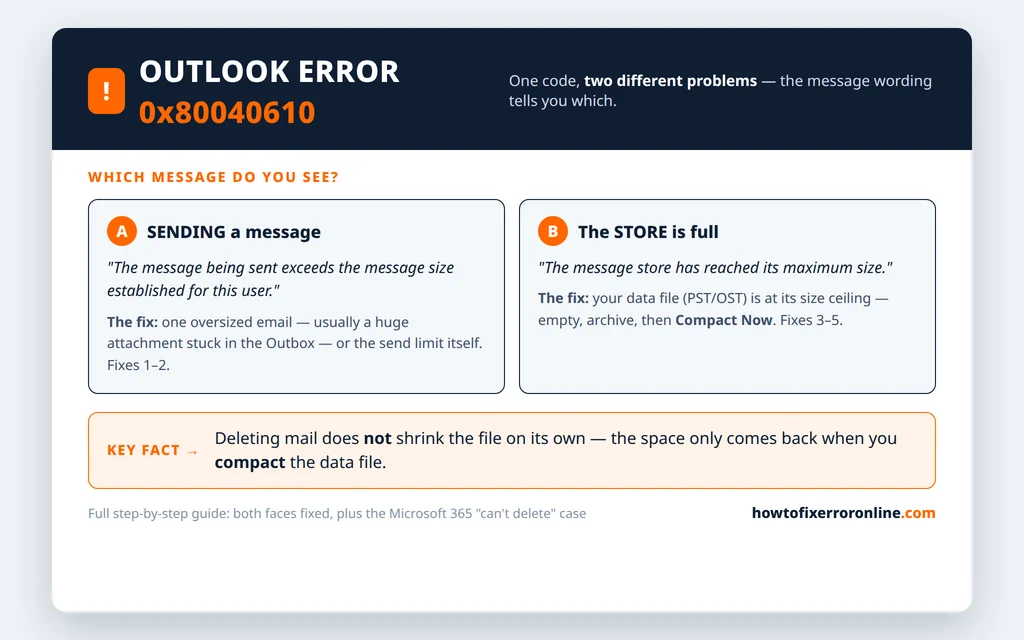
Table of Contents
Which 0x80040610 Message Are You Seeing?
Face A — Sending a message: “exceeds the message size”
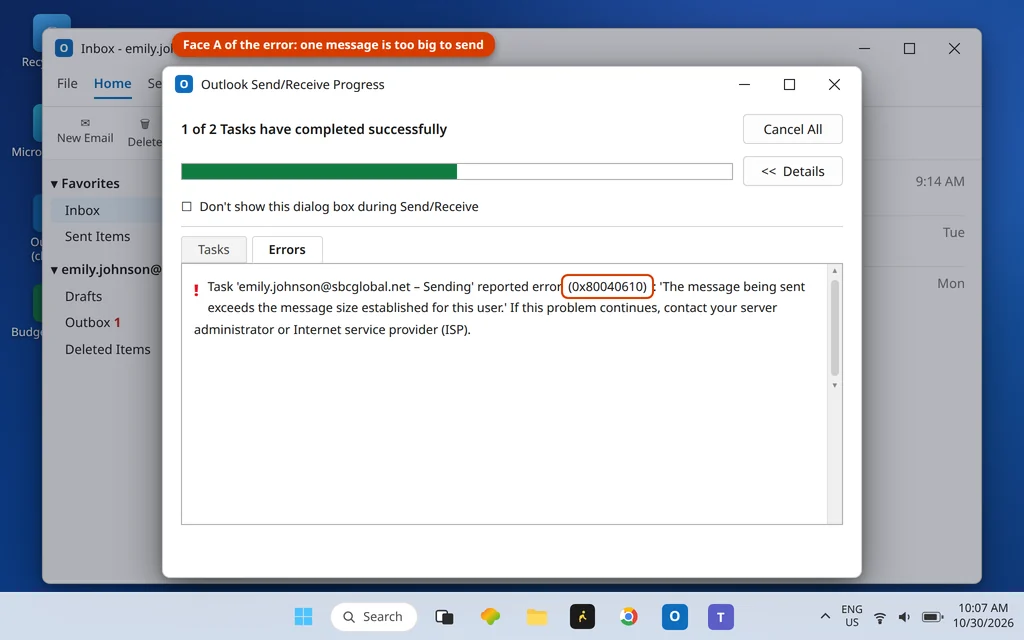
“The message being sent exceeds the message size established for this user.”
This one is about one email. Outlook tried to send a message bigger than the limit set for your account — by your mail provider, your workplace mail system, or Outlook’s own attachment setting. The message sits in the Outbox and blocks the queue; the error repeats on every Send/Receive until it is dealt with. Go to Fixes 1–2.
Face B — The store is full: “reached its maximum size”
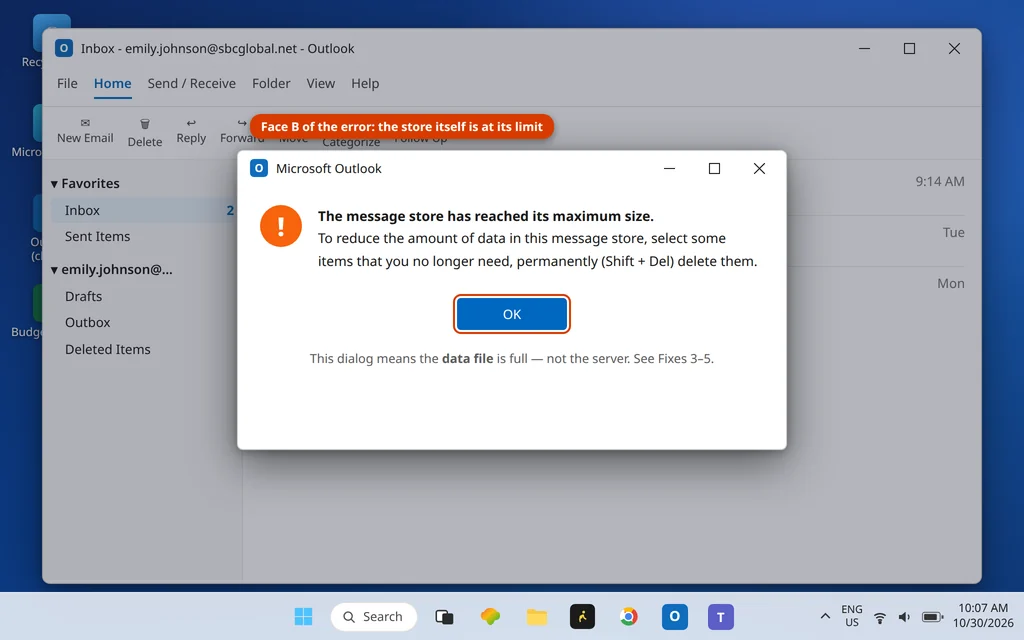
“The message store has reached its maximum size. To reduce the amount of data in this message store, select some items that you no longer need, permanently (Shift + Del) delete them.”
This one is about the file that holds your mail — your .pst or .ost data file has reached its size limit (50 GB by default in modern Outlook; much smaller in older formats). Outlook cannot add new mail until space is genuinely recovered. Note the wording of the error itself: it tells you to delete items permanently — and, as Fix 5 explains, even that is only half the job until the file is compacted. Go to Fixes 3–5.
Fix 1: Remove the Stuck Oversized Message From the Outbox
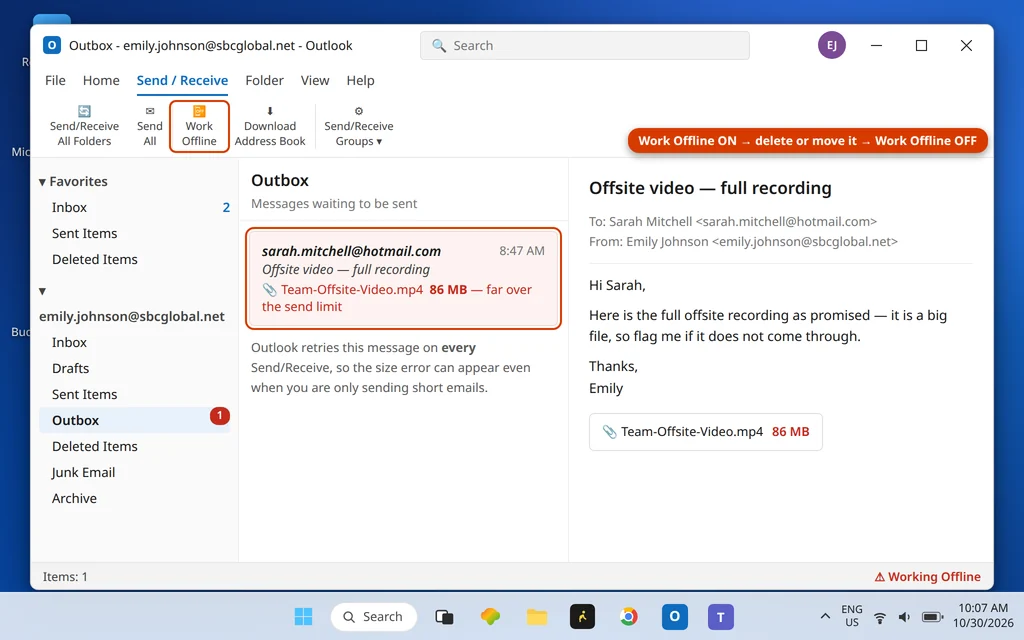
For Face A, the oversized email almost always sits in the Outbox, and Outlook will not let you delete a message it is busy trying to send — so take it offline first.
- In Outlook, click the Send / Receive tab, then Work Offline.
- Open the Outbox folder (in the folder list, under your account).
- Look for the message with the huge attachment — often a phone video or a pile of photos, far bigger than it looked when attached.
- Delete it, or drag it to Drafts if you still need to send a version of it.
- Turn Work Offline off and press F9.
To still send the content: re-attach a compressed version, or upload the file to OneDrive or Google Drive and paste the sharing link. Most providers cap a single message around 20–25 MB in total — attachment plus message — and no setting inside Outlook can raise your provider’s cap. If messages regularly bounce back even after this, our email stuck in the Outlook Outbox guide covers the other Outbox traps.
Fix 2: Raise Outlook’s Own Attachment Limit
Outlook also has its own attachment limit, separate from your provider’s. If small-enough messages are being refused before they even reach the server, this setting is worth checking — with one honest warning: it only removes Outlook’s cap. Your provider’s or workplace’s limit still applies.
- Close Outlook.
- Press Windows key + R, type
regeditand press Enter. - Go to
HKEY_CURRENT_USER\Software\Microsoft\Office\16.0\Outlook\Preferences(16.0 covers Outlook 2016, 2019, 2021 and Microsoft 365). - Find the DWORD value MaximumAttachmentSize. If it does not exist, right-click the right-hand pane > New > DWORD (32-bit) Value and name it exactly that.
- Double-click it, choose Decimal, and enter the limit in KB — for example
51200for 50 MB. A value of0means Outlook applies no limit of its own.
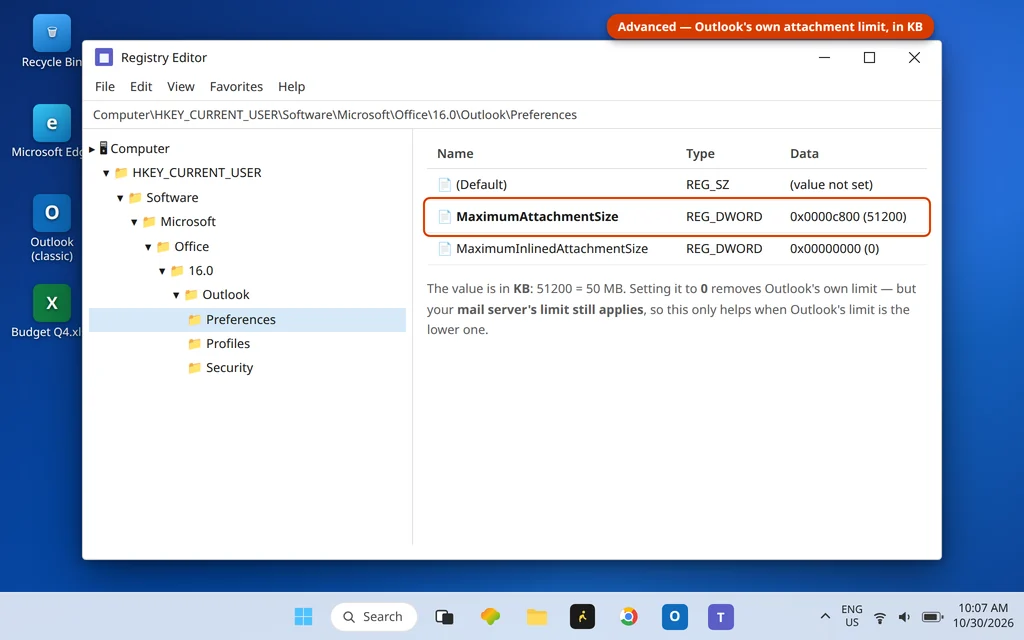
Edit the registry carefully and only this value; if you are not comfortable, skip this fix — Fixes 1 and 3–5 resolve the error for most people.
Fix 3: Empty Deleted Items and Junk Email
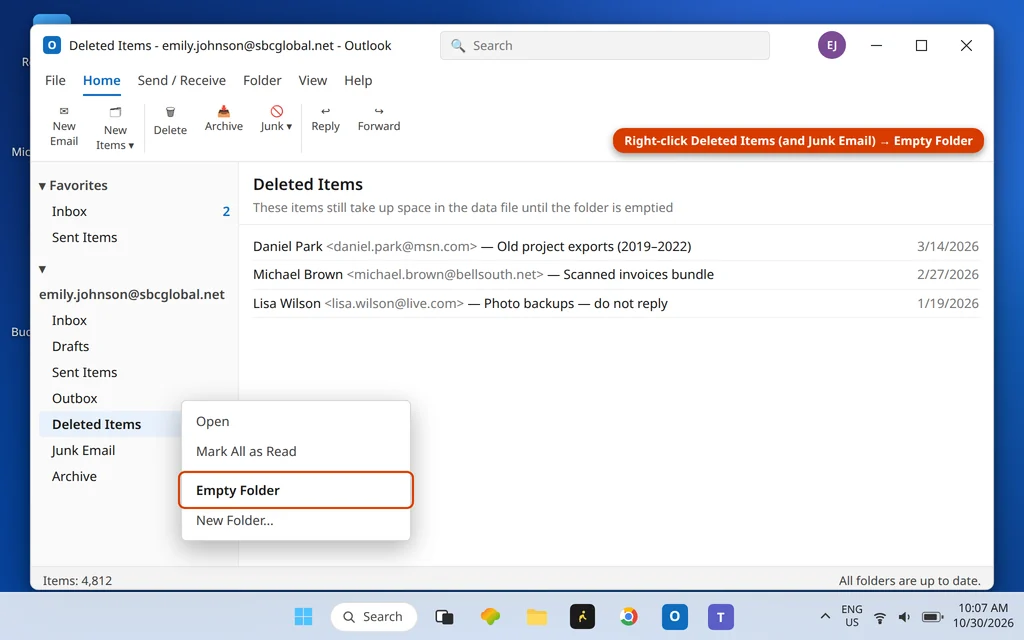
Face B starts with the easiest space you will ever win back. Deleted mail still occupies your data file until the Deleted Items folder is emptied — and years of Junk add up too.
- Right-click Deleted Items > Empty Folder, and confirm.
- Do the same for Junk Email.
- Check the largest folders: in File > Info, the Mailbox Cleanup tool (under Tools) shows which folders are eating the space with View Mailbox Size.
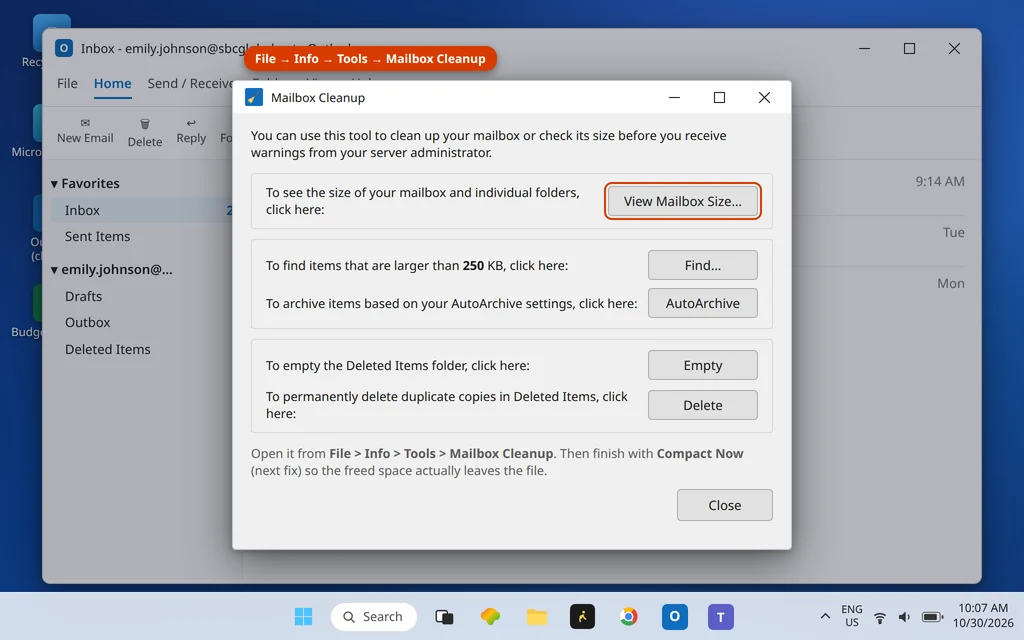
Mailbox Cleanup can also find every message over a size you choose — large old newsletters and forgotten video attachments are usually where the tens of gigabytes are hiding. Before a big clean-up of anything you might regret, take ten minutes to export or back up your Outlook emails to a PST first.
Fix 4: Archive Old Items to a Separate File
Archiving moves older mail out of your live data file into an archive.pst that Outlook can still open whenever you need it — the standard way to slim a working mailbox without deleting history.
- Go to File > Info > Tools > Clean Up Old Items.
- Choose Archive this folder and all subfolders (or archive all folders) and pick a date — everything older than a sensible cut-off, such as the start of last year, moves out.
- Confirm the archive file location (by default Documents\Outlook Files\archive.pst) and click OK.
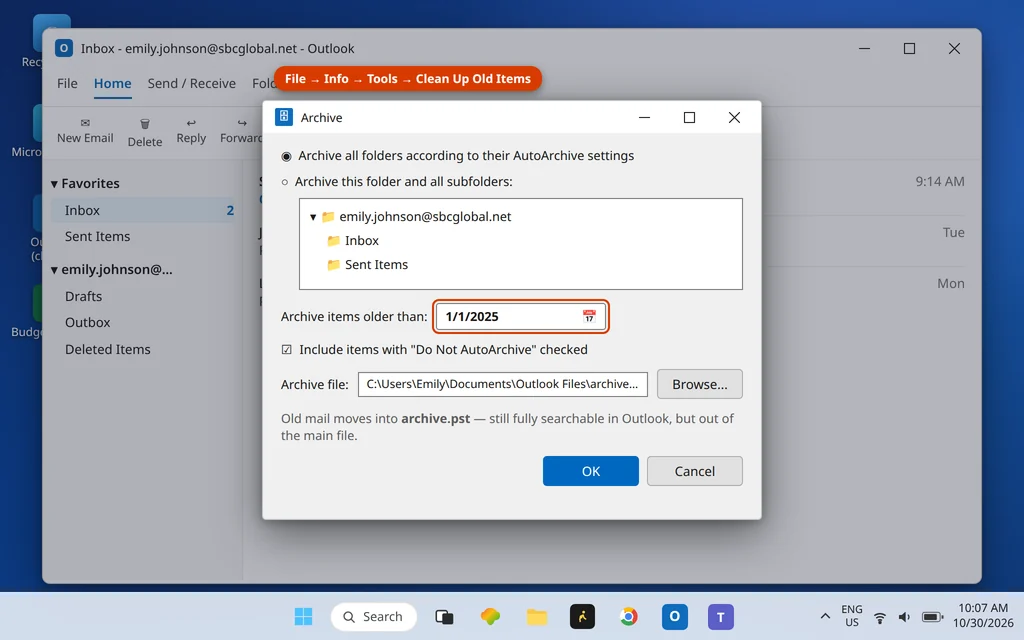
The archive appears in the folder pane as its own store, fully searchable. If the mail is business records, check your workplace retention rules before archiving or deleting.
Fix 5: Compact the Data File — the Step That Actually Shrinks It
This is the step most guides skip and the one Face B actually needs. When you delete or archive mail, Outlook empties the items but the .pst/.ost file stays the same size — the space inside it is marked reusable, not returned. Compacting rewrites the file and hands the space back.
- Go to File > Account Settings > Account Settings.
- Open the Data Files tab, select the full file, and click Settings.
- Click Compact Now, and wait — on a large file this can take a while; do not close Outlook mid-compact.
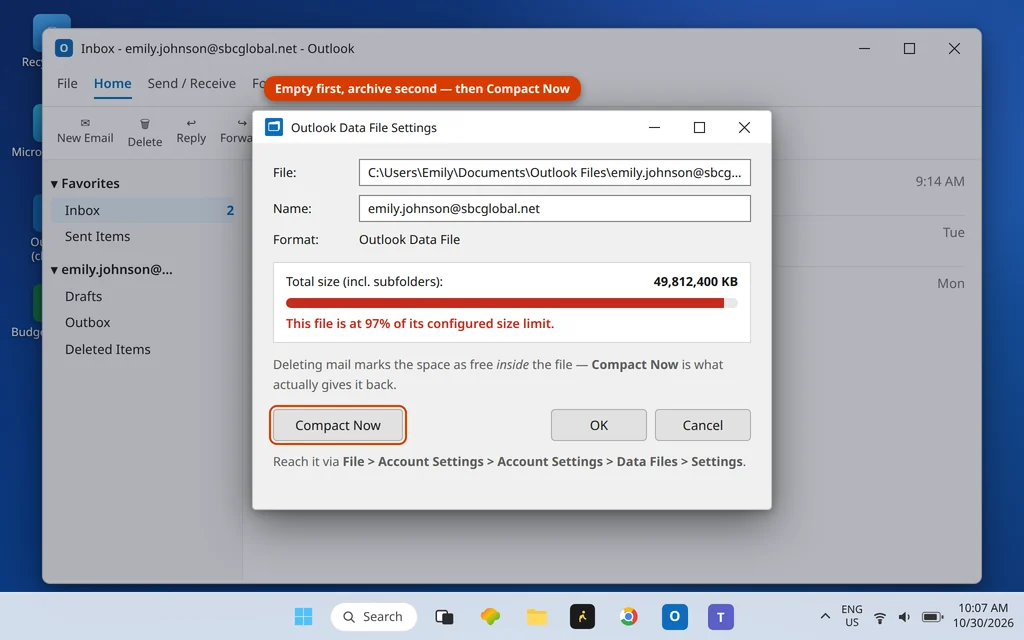
After compacting, the store has real room again and 0x80040610 clears. If a compact plus the clean-up above still leaves the file at its ceiling, the mailbox genuinely holds 50 GB — archiving by year (Fix 4, repeatedly) is the way down.
Microsoft 365: When You Cannot Delete Anything Either
A nastier variant shows up on Microsoft 365 and Exchange accounts: the mailbox itself is fine for space, but deleting fails — because the hidden Recoverable Items folder (where “deleted” mail waits out its retention period) has hit its own quota, 30 GB by default. Deleted items pile into it and cannot leave, so every delete effectively jams. The giveaway is that you cannot permanently delete anything while the mailbox size looks acceptable.
There is no button in Outlook that empties Recoverable Items on a schedule you control — its contents are removed automatically when the retention period expires, or by your admin (shortening retention, turning on an archive mailbox, or clearing it directly). If this is a work account, send your IT team one sentence: “Recoverable Items quota — deletes are blocked with 0x80040610.” Accounts under litigation hold have a higher quota but the same rule: admin territory.
How to Keep the Store Under the Limit
- Empty Deleted Items monthly — or set Outlook to empty it on exit (File > Options > Advanced > Outlook start and exit).
- Archive by year before the file gets anywhere near its ceiling, not after the error arrives.
- Hunt large messages once a quarter with Mailbox Cleanup’s size search; a handful of huge messages usually outweighs thousands of normal emails.
- Send files by link, not attachment — your sent copy of a 40 MB file lives in Sent Items forever until you clean it.
Using the New Outlook?
The new Outlook for Windows keeps your mail on the server rather than in a local .pst you manage, so the Face B fixes (empty, archive, Compact Now) do not apply there — a “mailbox full” message in the new app is your provider’s mailbox quota, cleared by deleting on the server or in webmail. Face A behaves the same: an oversized message still has to come out of the Outbox and be re-sent smaller or by link.
Frequently Asked Questions
Why am I getting error code 0x80040610 on my Outlook email account?
There are two possible reasons, and the sentence under the code tells you which: either the message currently being sent is bigger than the size limit set for your account, or your message store — the .pst/.ost data file — has reached its maximum size. Read the message, then follow the matching fixes above.
What is the maximum PST file size in Outlook?
Modern Outlook (2010 and later) uses a default configured limit of 50 GB for Unicode .pst and .ost files. Very old ANSI-format .pst files from the Outlook 2002 era stop at 2 GB — if ancient mail was imported into an old-format file, that tiny ceiling can be your whole problem, and moving the mail into a new data file is the real fix.
I deleted thousands of emails — why is the file still the same size?
Deleting (even permanently, with Shift+Delete) only marks the space inside the file as reusable; the file itself does not shrink until it is compacted. That is Fix 5: File > Account Settings > Data Files > Settings > Compact Now. The same applies after archiving.
Does 0x80040610 mean my mailbox is full?
Not necessarily. If the message says the store has reached its maximum size, it is your local data file that is full — your server mailbox may have plenty of room. And on Microsoft 365, the “full” thing can be the hidden Recoverable Items folder rather than the mailbox you can see; the section above explains that case.
I cannot delete emails at all — what now?
On a Microsoft 365 or Exchange account, deletes failing completely points to the Recoverable Items folder reaching its 30 GB quota. Outlook cannot empty it; an admin has to shorten retention, enable an archive mailbox or clear it. On a standalone PC account, restart Outlook and try deleting in small batches — a data file already at its absolute ceiling sometimes needs Fix 5’s compact before anything else can move.
How is 0x80040610 different from 0x80040600?
They are neighbours, not twins: 0x80040610 is about size (one message, or the whole store), while 0x80040600 reports a damaged or missing .pst table (“errors have been detected in the file”). Both are decoded on our Error Codes hub.
Still stuck on 0x80040610? Tell us which of the two messages you see — “exceeds the message size” or “message store has reached its maximum size” — via our Contact page: servicedesk@howtofixerroronline.com, available 24 hours. The full error-code index lives on the Error Codes hub.