
Outlook Error 0x800CCC0D: Cannot Find the E-mail Server — 6 Fixes
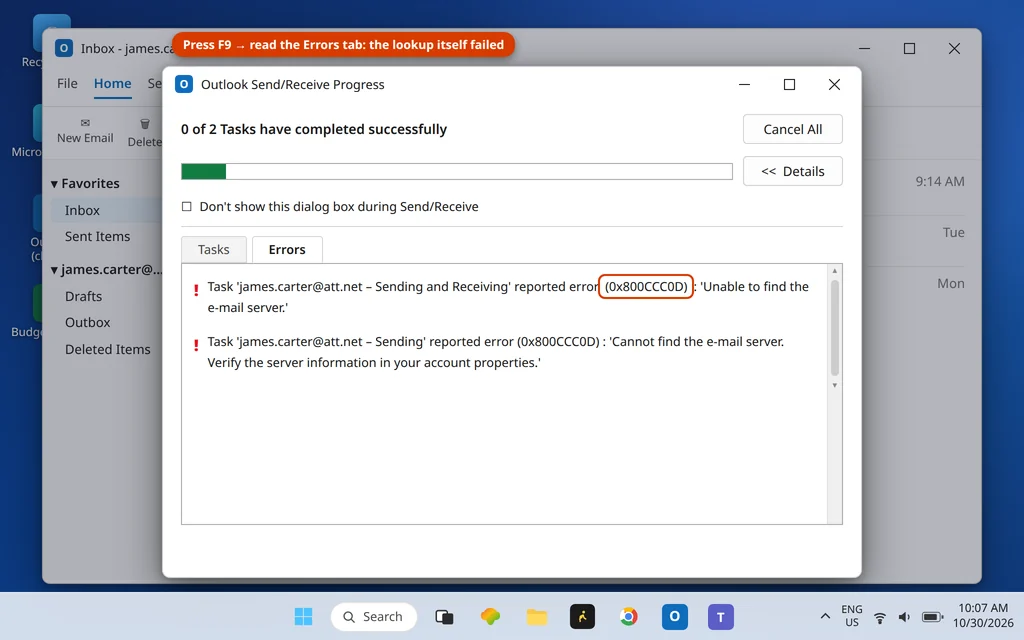
You press Send/Receive and Outlook gives up almost immediately with error 0x800CCC0D: “Unable to find the e-mail server.” No mail comes in, nothing goes out, and the error returns every single time. The good news is that this is one of the most honest error codes Outlook has — it is telling you the failure happens at the very first step, before passwords, before ports, before anything complicated. Outlook cannot even find the server it is supposed to talk to.
In most cases the cause is embarrassingly small: a server name typed wrong months ago, an old server name your provider retired, or a connection problem between your PC and the internet. The fixes below hunt those down in order.
This guide is for Classic Outlook on Windows 11 and Windows 10, including Outlook 365 and Outlook 2021/2019. If Outlook will not open at all, start with our Outlook not opening on Windows 11 guide instead.
Quick Answer: Outlook error 0x800CCC0D means Outlook cannot find (resolve or reach) the mail server named in your account settings — the failure happens before login, so your password is not the problem. First prove your internet works, then check the incoming and outgoing server names character by character against your provider’s published settings (Fix 2) — a typo like a bare “mail” instead of the real server name is the classic cause. Then allow Outlook through your firewall (Fix 4) and, if needed, rebuild the profile (Fix 5).
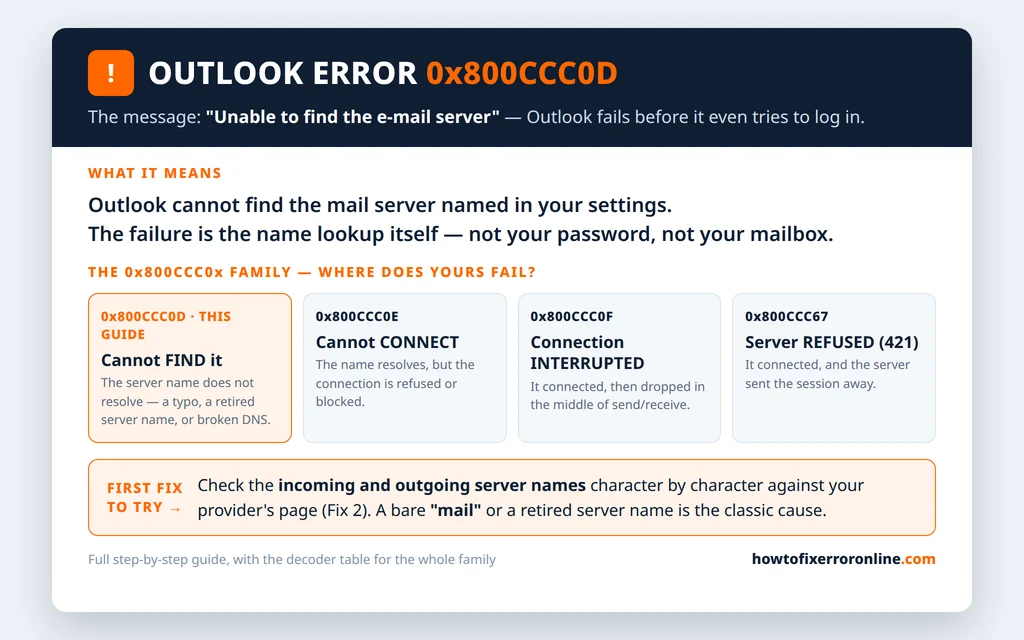
Table of Contents
What Does Outlook Error 0x800CCC0D Mean?
Error 0x800CCC0D appears in the Outlook Send/Receive Progress window, on the Errors tab. You will see one of these two wordings:
- “Task ‘YourServerName.com – Sending and Receiving’ reported error (0x800CCC0D): ‘Unable to find the e-mail server.’“
- “Cannot find the e-mail server. Verify the server information in your account properties.”
Both say the same thing: Outlook looked up the mail server named in your account settings and could not reach it — the name did not resolve, or nothing answered at that address. Think of it as dialing a phone number that does not exist. The call never connects, so nothing later in the process (your password, your mailbox, the server’s rules) is involved yet. That is why this guide does not start with passwords: a wrong password cannot cause 0x800CCC0D, because the login is never reached.
0x800CCC0D vs 0x800CCC0E vs 0x800CCC0F — Find, Connect, Stay Connected
Three codes in this family look almost identical but fail at three different points. Telling them apart saves you from fixing the wrong thing:
| Code | What it means | Where it fails |
|---|---|---|
| 0x800CCC0D (this guide) | Outlook cannot find the server | The name lookup — wrong server name, dead DNS, no connection |
| 0x800CCC0E | Outlook cannot connect to the server | The server is found, but the connection is refused or blocked |
| 0x800CCC0F | The connection was interrupted | It connected, then dropped mid send/receive |
| 0x800CCC67 | The server refused the session (421) | It connected, and the server sent it away |
If your code is actually 0x800CCC0E, use our Outlook error 0x800CCC0E guide — its port and encryption fixes are the ones you need. If the error says the connection “was interrupted,” that is Outlook error 0x800CCC0F. And you can look any of these up on our Error Codes hub.
Fix 1: Prove the Internet Works at All
0x800CCC0D can simply mean your PC currently has no working path to the internet — or its name lookups (DNS) are failing. Rule that out first, because no Outlook setting fixes a dead connection.
- Open your browser and load any web page you do not normally visit. If nothing loads, fix the internet first — restart your router and your PC.
- Click the network icon in the taskbar corner to open Quick Settings. Make sure Wi-Fi is connected and Airplane mode is Off.
- If web pages load but feel hit-and-miss, restart the router anyway — a router with a failing DNS relay produces exactly this error while “the internet works.”
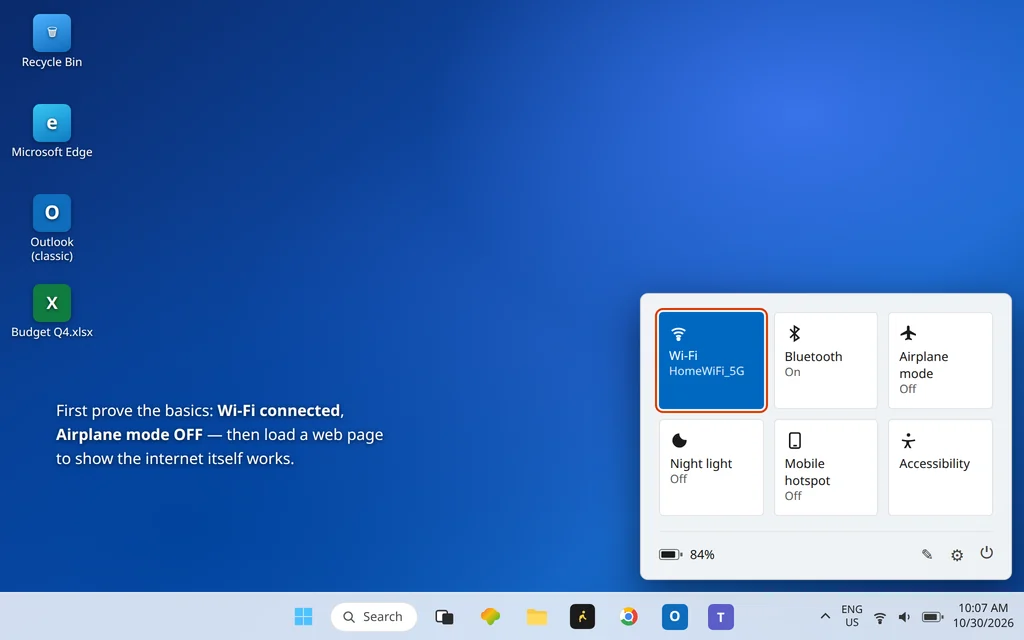
If pages load fine, your internet works — but Outlook still cannot find one specific name. That points at the name itself, which is Fix 2.
Fix 2: Check the Server Names Character by Character
This is the fix that solves most 0x800CCC0D cases. The server names in your account settings must match your provider’s published settings exactly — one wrong letter, a stray space, or an outdated name all produce this error. The all-time classic: the incoming server is set to a bare mail (or an old ISP server name from a provider you left years ago), which resolves to nothing.
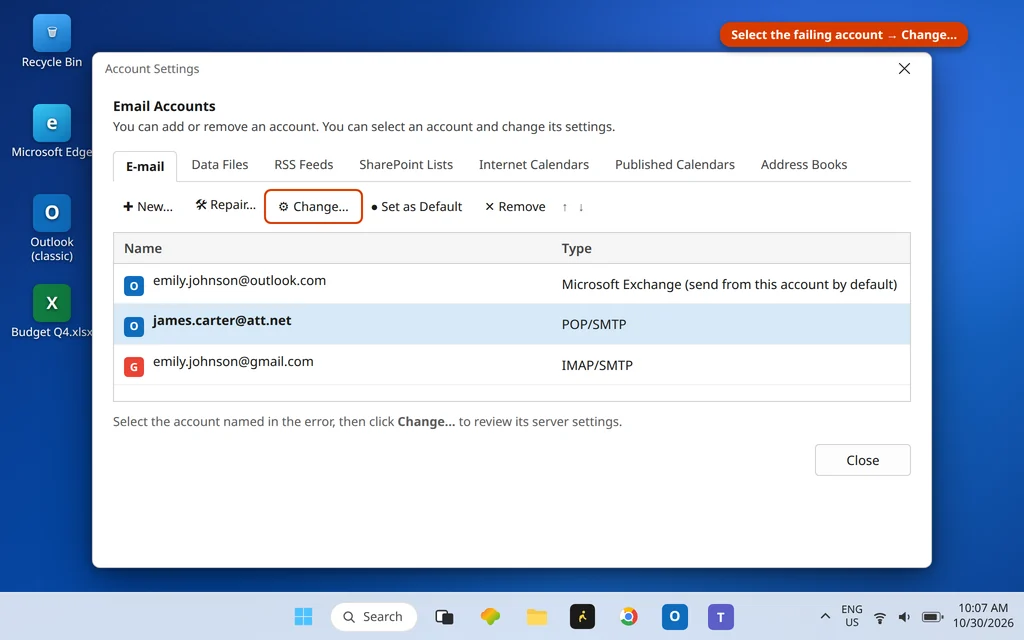
- In Outlook, click File > Account Settings > Account Settings.
- Select the account named in the error and click Change…
- Look at the Incoming mail server and Outgoing mail server (SMTP) names. Compare every character with your provider’s current help page — open that page in your browser now rather than working from memory.
- Correct any typo, delete any spaces, and replace retired server names with the current ones.
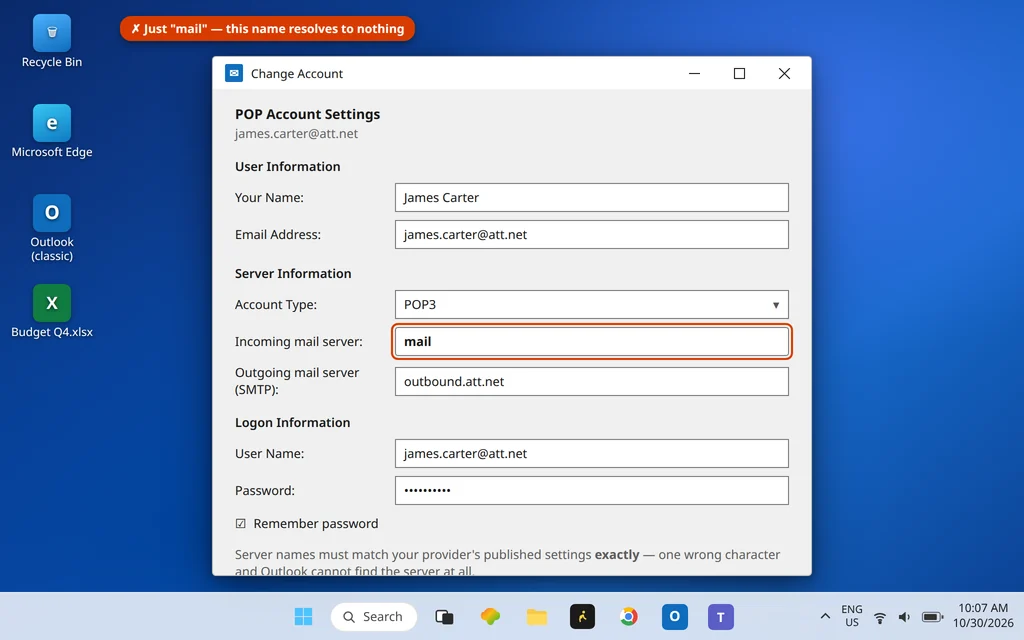
For example, an AT&T account (att.net, sbcglobal.net, bellsouth.net) on POP should read inbound.att.net for incoming and outbound.att.net for outgoing — a leftover “mail” or an old “pop.att.yahoo.com”-era name will not resolve the way it used to. Gmail’s are imap.gmail.com / smtp.gmail.com (POP: pop.gmail.com), Yahoo’s are pop.mail.yahoo.com / smtp.mail.yahoo.com. When in doubt, your provider’s own settings page wins over any list, including this one.
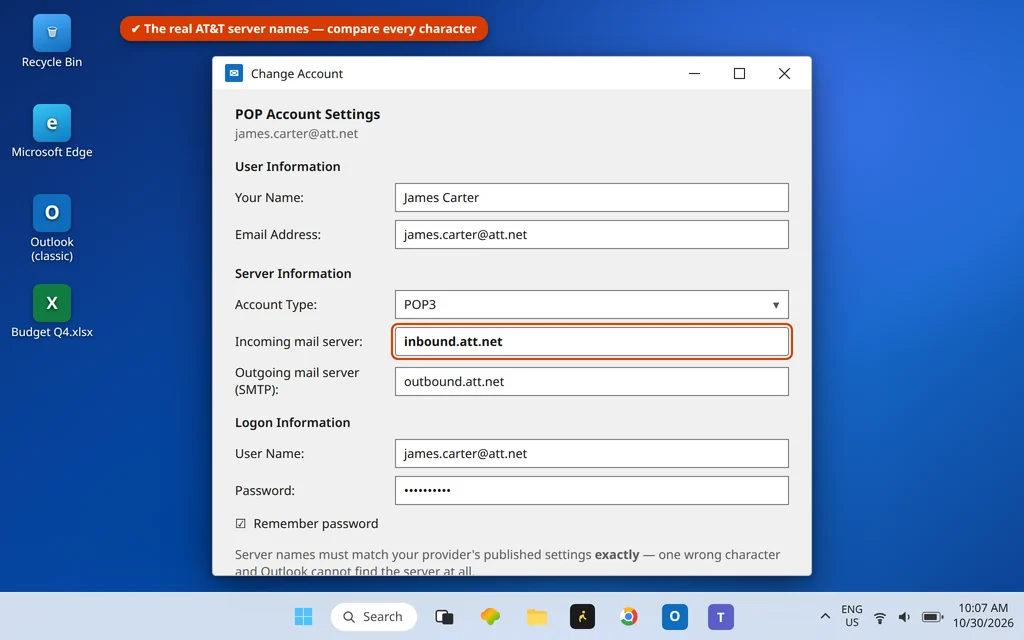
While you are in this window, glance at the User Name field: it should be your full email address. A wrong user name does not cause 0x800CCC0D — but it will cause the next error the moment the server is found, so save yourself a second round.
Fix 3: Test Whether It Is DNS — Try Your Webmail
A quick test separates “the name is wrong” from “my PC cannot look names up at all”:
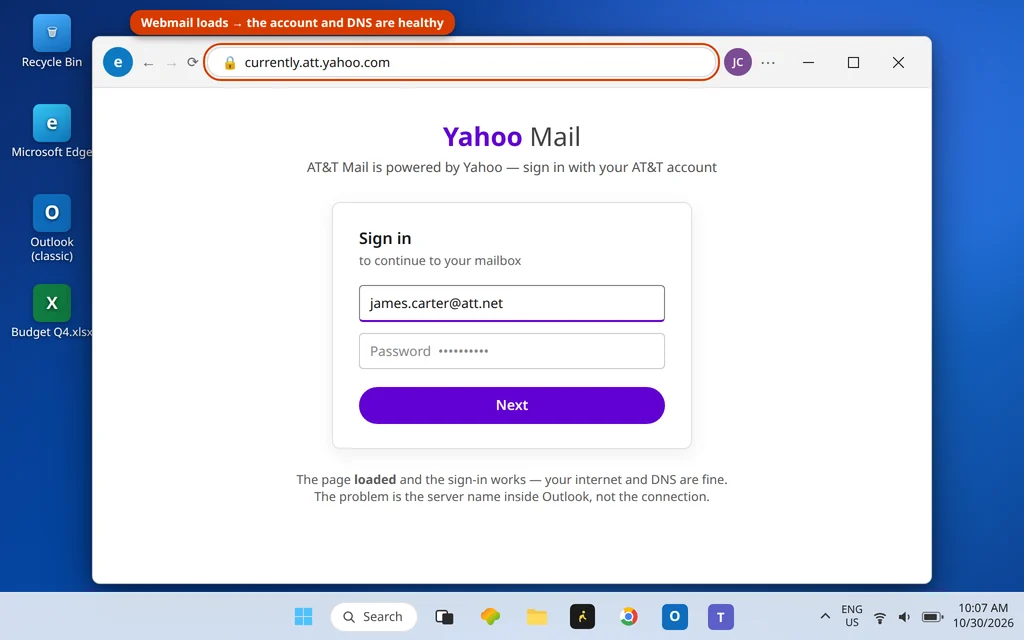
- In your browser, go to your provider’s webmail sign-in page (for example att.com webmail, Gmail, or Yahoo Mail) by typing the address normally.
- If the page loads and you can sign in, your internet and DNS work, and your account is healthy — the problem is the server name inside Outlook (back to Fix 2) or something blocking Outlook itself (Fix 4).
- If the page will not load while other sites do, your DNS is misbehaving. Restarting the router (Fix 1) clears most cases; your internet provider can confirm a wider DNS problem.
Fix 4: Allow Outlook Through the Firewall and Antivirus
If the names are right and the browser finds everything, something on the PC may be stopping Outlook itself from making the lookup or the connection — most often a firewall rule or an antivirus that has started treating Outlook as untrusted after an update.
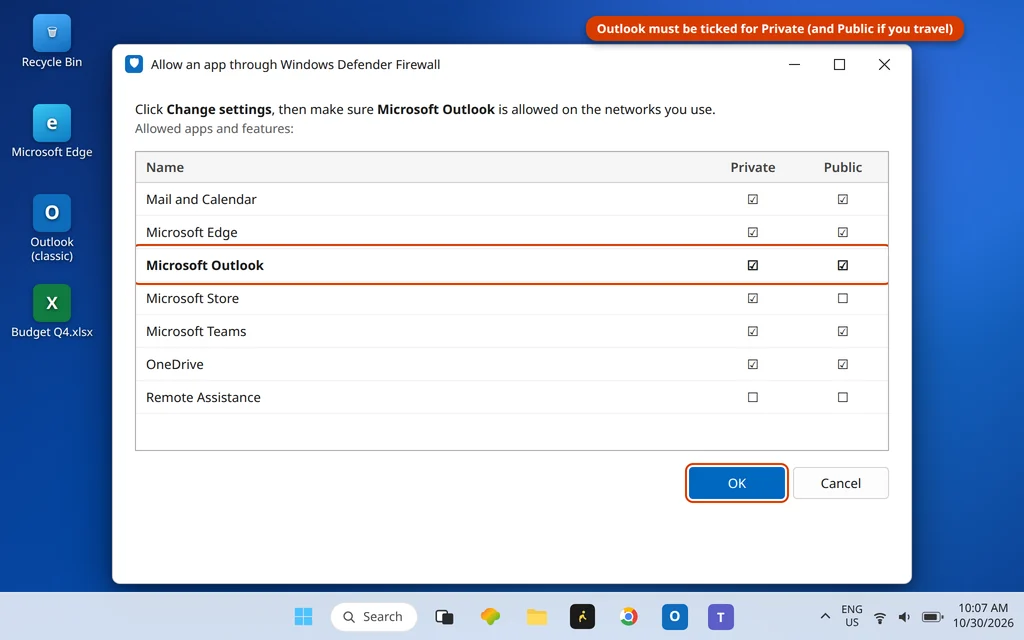
- Open Windows Security > Firewall & network protection and click Allow an app through firewall.
- Find Microsoft Outlook in the list and make sure it is checked for your network type (Private, and Public if you work on public Wi-Fi).
- If you use a third-party antivirus with its own firewall or email protection, open it and confirm Outlook is allowed — or temporarily pause only the email/web protection feature, press F9 in Outlook to test, and turn it straight back on.
Never leave a firewall or antivirus disabled. If pausing the email feature “fixes” Outlook, the real fix is updating or reconfiguring that feature — not running unprotected.
Fix 5: Repair the Account or Create a New Profile
If the names are correct and nothing is blocking Outlook, the stored account configuration may be damaged. Rebuilding it is the last step:
- First try a repair: File > Account Settings > Account Settings, select the account, and click Repair… if Outlook offers it for this account type.
- If the error survives, create a clean profile: close Outlook, open Control Panel > Mail (Microsoft Outlook) > Show Profiles > Add, name the new profile, and add your account with the verified server names from Fix 2.
- In the Mail window, set “When starting Microsoft Outlook, use this profile” to Always use this profile and pick the new one. Open Outlook and press F9.
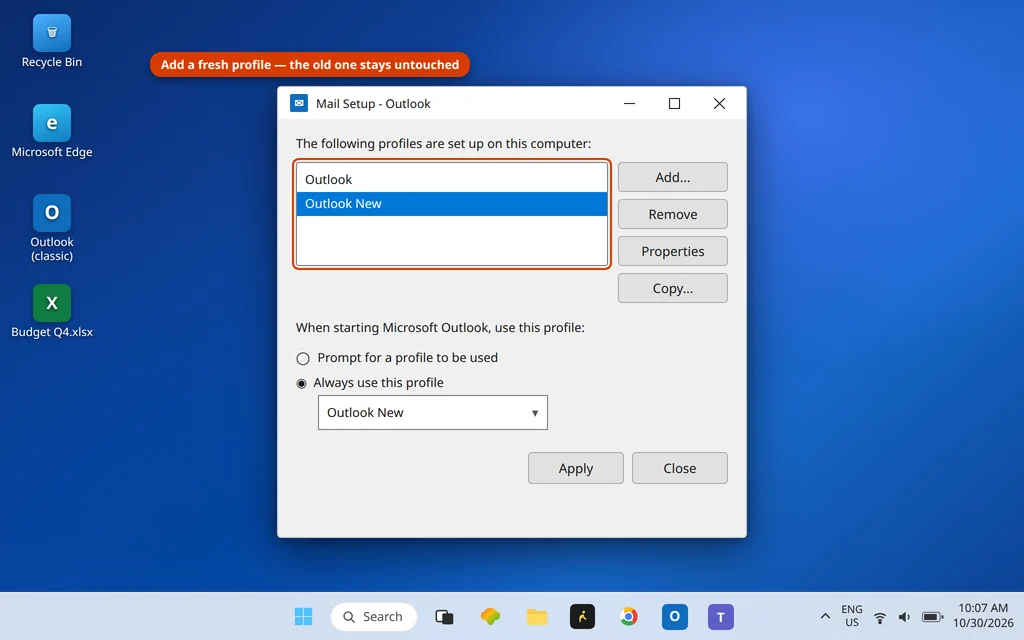
A new profile does not delete the old one, and for IMAP and Microsoft 365 accounts your mail lives on the server and downloads again. On an old POP account, mail may exist only in the .pst file on this PC — do not remove the old profile until you can see that file is safe.
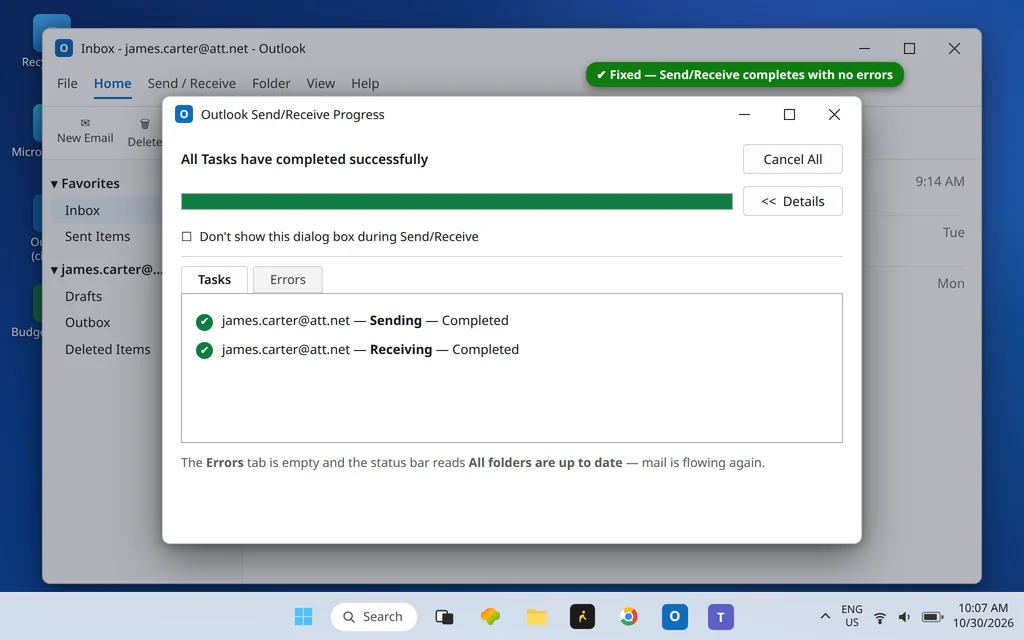
When everything works, the Progress window completes with no Errors tab entries:
Using the New Outlook? These Steps Are Classic-Only
The server-name dialogs in this guide belong to Classic Outlook. The new Outlook for Windows does not expose editable incoming/outgoing server names the same way — accounts are added by sign-in. If the new Outlook cannot find or reach your account, remove the account in its Settings > Accounts and add it again so it re-detects the server, and check the same account in a browser to confirm the provider is up. The 0x800CCC0x code family itself is a Classic Outlook send/receive error set.
How to Stop Error 0x800CCC0D Coming Back
- Update server names when your provider announces a change. Providers retire old server names with little fanfare, and a settings screen you never open keeps the dead name forever.
- Copy settings from the provider’s page, never from memory or an old PC. One wrong character is the whole error.
- Write down your working server names (incoming, outgoing, ports) somewhere safe — the next migration or new PC takes two minutes instead of an afternoon.
- Be suspicious the day you change internet providers. A new ISP’s DNS and blocked ports are behind many “it broke when nothing changed” cases — except the ISP changed.
Frequently Asked Questions
How do I fix Outlook error 0x800CCC0D?
Work in this order: prove the internet works (Fix 1); check the incoming and outgoing server names character by character against your provider’s published settings and fix typos or retired names (Fix 2); test DNS with your webmail (Fix 3); allow Outlook through the firewall (Fix 4); then repair the account or create a new profile (Fix 5). Most cases end at Fix 2.
What is the difference between 0x800CCC0D and 0x800CCC0E?
0x800CCC0D means Outlook cannot find the server — the name does not resolve or nothing answers, so the failure is in the server name, DNS or connection. 0x800CCC0E means the server was found but the connection failed — usually ports, encryption or security software. The decoder table above shows both, plus 0x800CCC0F (connected, then interrupted).
Can a wrong server name really cause 0x800CCC0D?
Yes — it is the most common cause. A bare “mail”, a misspelled provider domain, a trailing space, or a server name your provider retired all leave Outlook looking up an address that does not exist. Compare the names in File > Account Settings > Change with your provider’s current settings page, character by character.
Is 0x800CCC0D a problem with my computer or my email provider?
Either is possible, and the webmail test (Fix 3) tells you which. If your provider’s webmail will not load in a browser either, the problem is the provider or your internet connection. If webmail works normally in the browser, your account and the server are fine and the problem is on your PC — almost always the server name inside Outlook.
Does 0x800CCC0D mean my password is wrong?
No. This error happens at the name-lookup stage, before Outlook ever sends your password. A wrong password produces a repeated password prompt or a “rejected” error after the server is found. Fix the server name first; only check credentials once a different error (or a password prompt) appears.
How do I stop error 0x800CCC0D happening again?
Keep your server names current — update them when your provider announces a change, copy settings from the provider’s official page rather than memory, and note your working settings down for the next PC. The prevention section above lists the habits that matter.
Still seeing error 0x800CCC0D? Tell us your provider and the exact server names you have entered (never your password) on our Contact page — servicedesk@howtofixerroronline.com, available 24 hours. If your error is the “cannot connect” one instead, see Outlook error 0x800CCC0E, or browse the full list on our Error Codes hub.