
Outlook Error 0x8004210B: The Operation Timed Out Waiting for the Sending (SMTP) Server — 7 Fixes
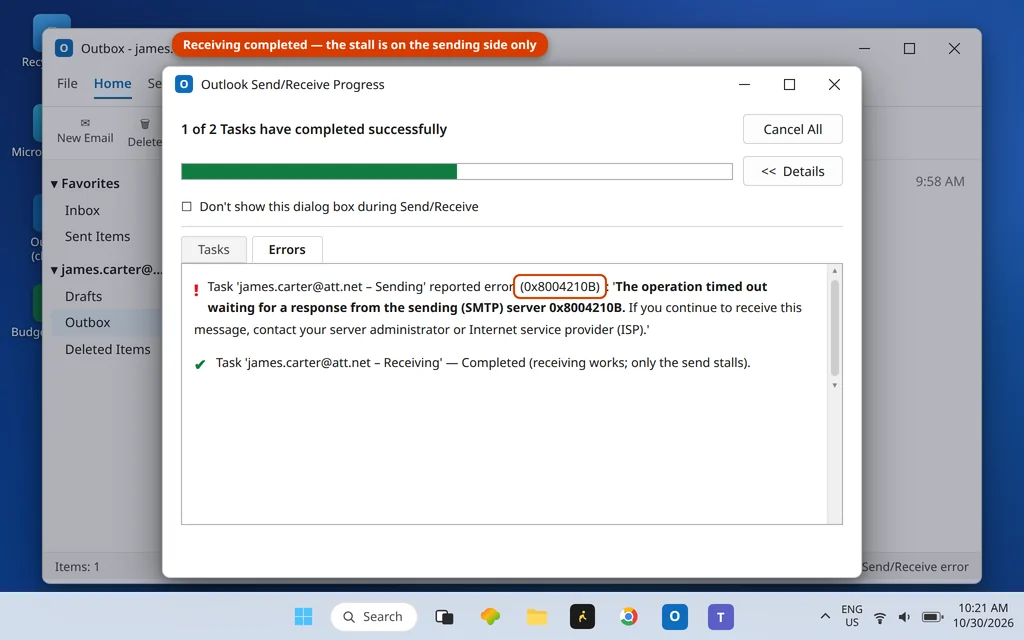
You click Send. The message drops into the Outbox — and stays there. Every Send/Receive ends the same way: error 0x8004210B, “The operation timed out waiting for a response from the sending (SMTP) server.” Receiving works fine. It is only sending that dies, slowly, every time.
Here is the diagnostic question that cracks most cases of this code: does it time out on the same message every time? If yes, stop troubleshooting the server — the problem is almost certainly the message: one stuck email (usually with an oversized or damaged attachment) that Outlook keeps trying to push through the
This guide is for Classic Outlook on Windows 11 and Windows 10. If mail is stuck in your Outbox without this error code, our general email stuck in the Outlook Outbox guide covers that workflow in depth — this article is its error-code companion.
Quick Answer: Outlook error 0x8004210B means Outlook waited too long for the SMTP server during a send. First, clear the Outbox: turn on Work Offline, delete or move the stuck message, turn Work Offline off (Fix 1). Then check the port/encryption pair — 465 must go with SSL/TLS, 587 with STARTTLS; 465 with “TLS” selected is a classic cause of this exact timeout (Fix 2). Then confirm SMTP authentication is on (Fix 3) and raise Server Timeouts (Fix 4).
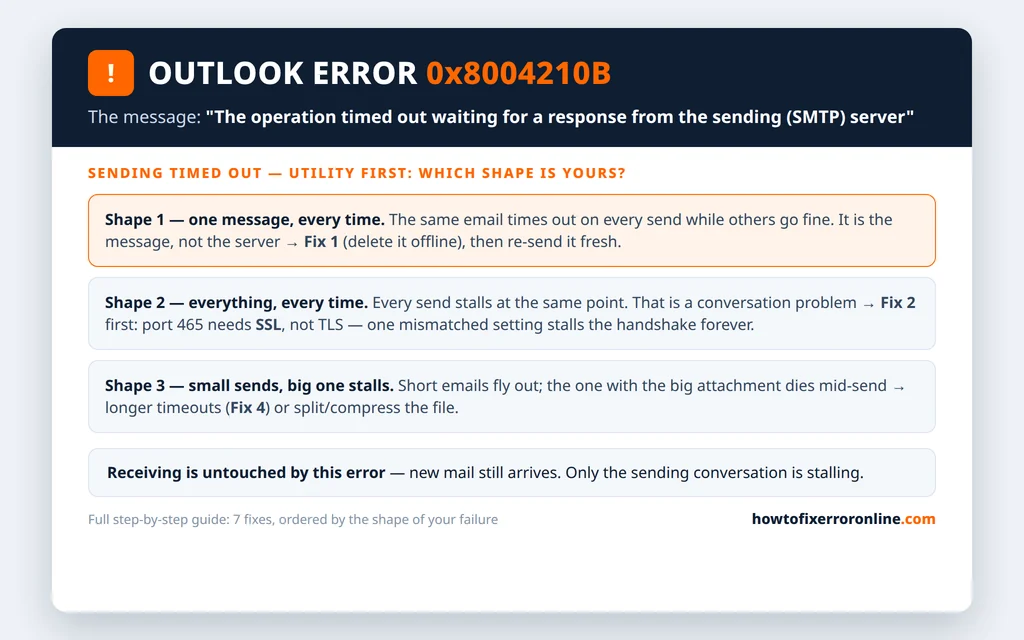
Table of Contents
What Does Outlook Error 0x8004210B Mean?
The error appears in the Outlook Send/Receive Progress window, on the Errors tab:
“Task ‘server – Sending’ reported error (0x8004210B): ‘The operation timed out waiting for a response from the sending (SMTP) server. If you continue to receive this message, contact your server administrator or Internet service provider (ISP).'”
Outlook opened a sending session and waited for the SMTP server to accept the message — and the wait ran past the timeout. Unlike its receiving twin 0x8004210A, where the server is usually just slow, the sending timeout has a short list of very specific causes:
- A stuck Outbox message — one email (big attachment, damaged content) that never completes, retried on every Send/Receive
- A port/encryption mismatch — most famously port 465 with “TLS” selected: in Outlook’s settings that TLS option means STARTTLS, which belongs on port 587; 465 expects SSL, and the mismatched handshake stalls until it times out
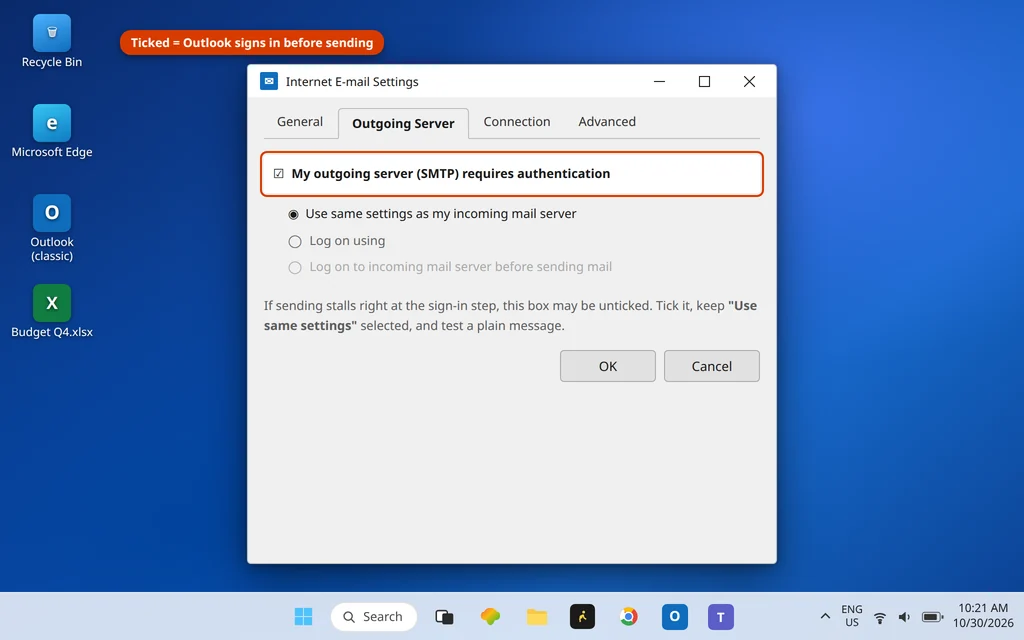
- SMTP authentication off, so the server ignores the send request
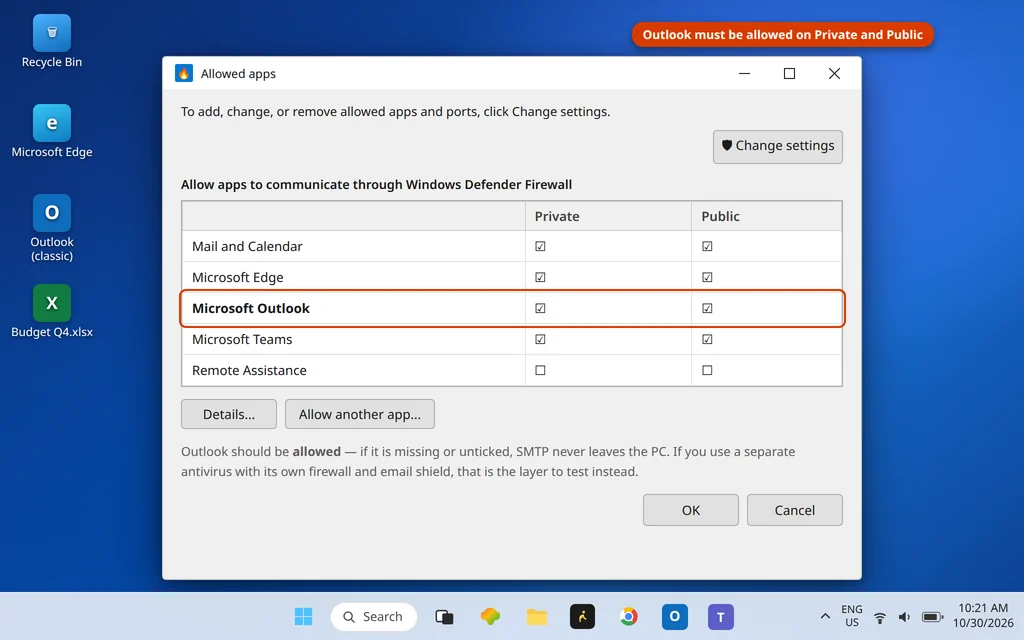
- Antivirus scanning outgoing mail, adding delay to every send
- A stuck read receipt — an invisible message Outlook keeps trying to send (advanced, Fix 6)
Fix 1: Clear the Stuck Email Out of the Outbox
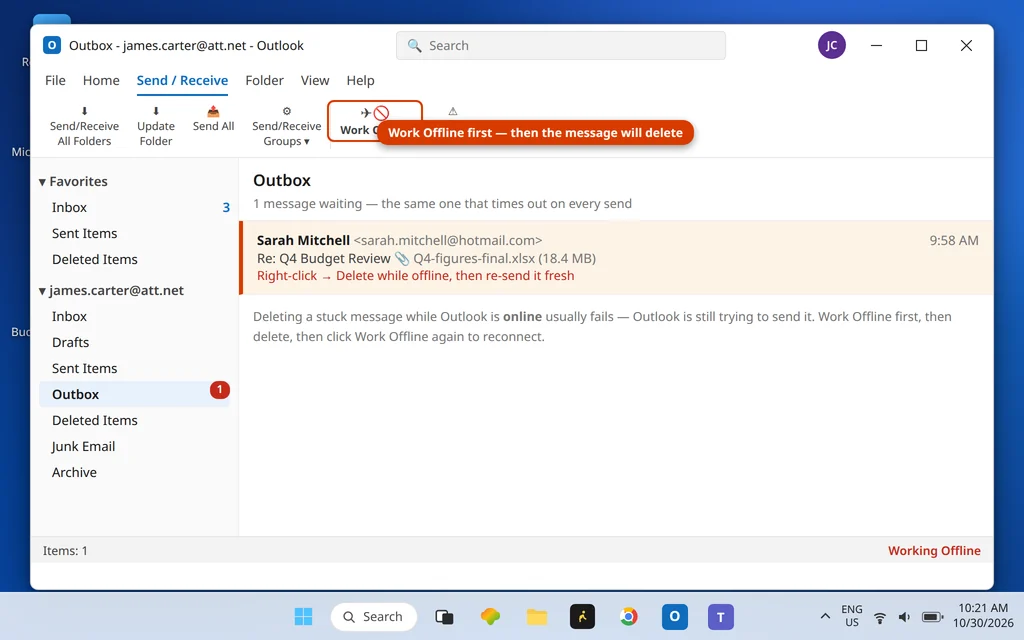
On current Outlook versions this is the most common cause — and Outlook will not let you delete a message it is actively trying to send, which is why the Work Offline step matters.
- Click the Send / Receive tab and click Work Offline. The status bar should confirm you are working offline.
- Open the Outbox folder.
- Select the stuck message — usually the oldest one, or the one with the huge attachment — and press Delete. If you need its contents, drag it to Drafts instead, remove or shrink the attachment there, and send it fresh later.
- Click Work Offline again to switch it off.
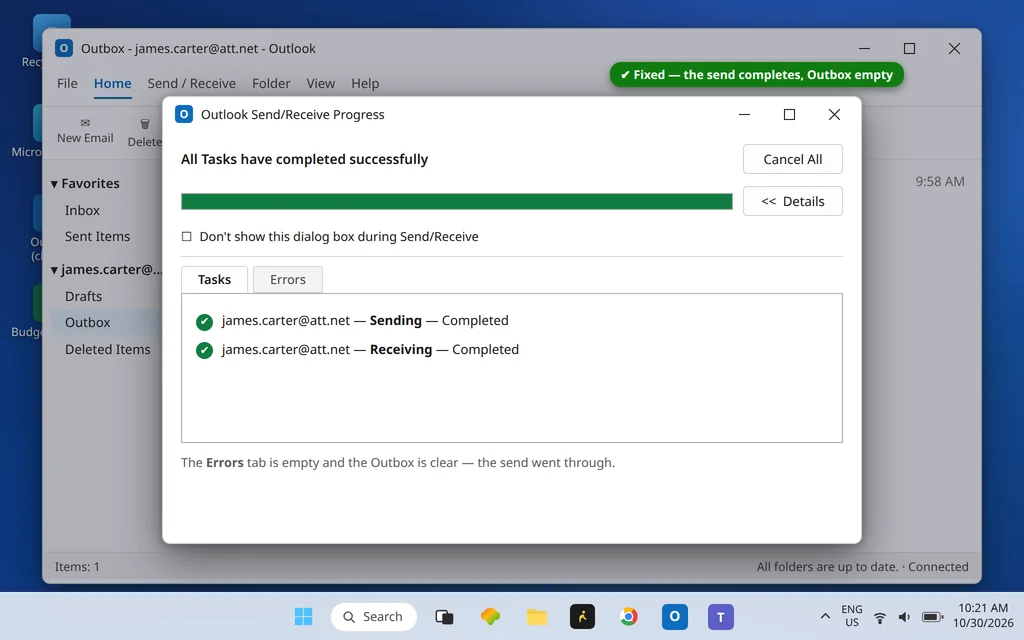
- Press F9 and send a small test email to yourself.
If the test email leaves and arrives, the stuck message was the whole problem. For the wider stuck-mail playbook — recurring jams, messages that refuse to delete, Offline mode quirks — see email stuck in the Outlook Outbox.
Fix 2: Pair the SMTP Port and Encryption Correctly — 465 + SSL, 587 + STARTTLS
If the Outbox is empty (or cleared) and sends still time out, check the pairing. This mismatch is unusually specific to this code: a hosting-grade technical source for 0x8004210B names it as a lead cause, because the wrong pairing does not fail fast — it hangs, which is precisely a timeout.
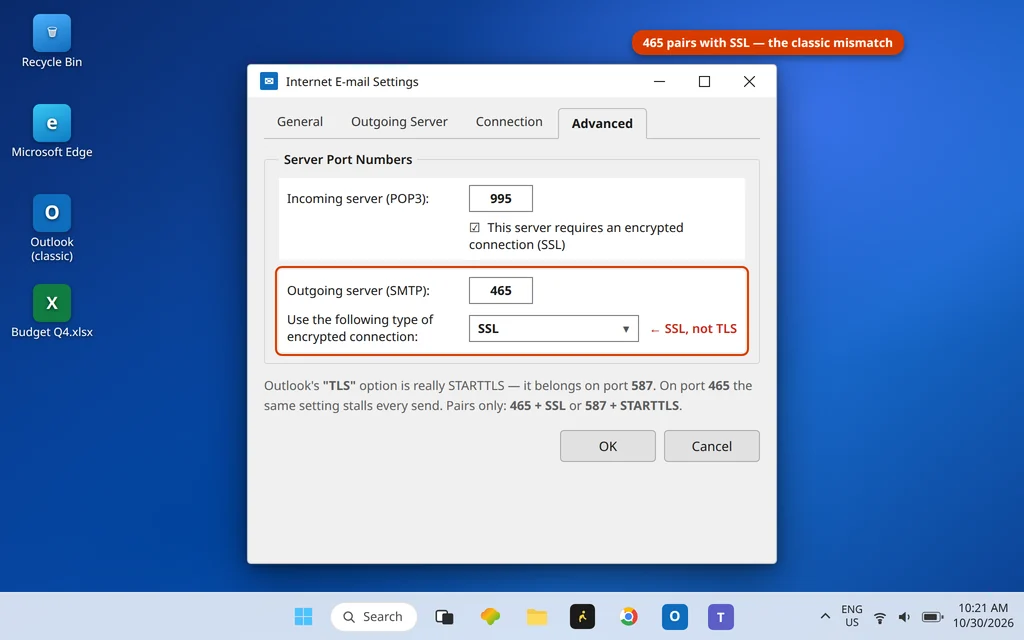
- Click File > Account Settings > Account Settings, select the account, Change… > More Settings…
- Open the Advanced tab and set Outgoing server (SMTP) to one complete pair:
- 465 with SSL/TLS in the encryption dropdown, or
- 587 with STARTTLS (shown as TLS in some Outlook versions).
- The fatal combination is 465 with “TLS” selected: that TLS option is STARTTLS, which a 465 server does not speak. If you see it, switch the dropdown to SSL/TLS — or move to 587 + STARTTLS.
- Click OK > Next and test.
| Port | Encryption to select | Notes |
| 465 | SSL/TLS | Never pair 465 with the “TLS” (STARTTLS) option |
| 587 | STARTTLS (TLS) | The modern default; works almost everywhere |
| 25 | None | Blocked by most ISPs — do not use |
Fix 3: Turn On SMTP Authentication and Raise the Timeout
While you are in More Settings, clear the last two settings-level causes:
- On the Outgoing Server tab, check “My outgoing server (SMTP) requires authentication” and select “Use same settings as my incoming mail server”. A server that requires auth but never gets it can simply let the session hang.
- On the Advanced tab, drag the Server Timeouts slider toward Long (3–5 minutes). This does not fix a mismatch — Fix 2 does — but it covers genuinely slow servers and very large legitimate sends.
- Click OK > Next, then test with F9.
Fix 4: Stop Your Antivirus Scanning Outgoing Mail
Outgoing-mail scanning inspects every message (and every attachment) before the send proceeds — a named cause of this timeout, with Norton the example usually cited. Pause only the outgoing email scanning feature, send a small test, and turn it straight back on. If the test sends instantly, update the antivirus; if the problem returns with scanning on, the vendor’s Outlook add-in is the next suspect — test with it unticked under File > Options > Add-ins > COM Add-ins.
Fix 5: Check Whether It Is One Message, One Account, or Everything
A two-minute isolation test before deeper surgery:
- Send from webmail. If your provider’s webmail sends instantly, their SMTP service is healthy — the fault is local (Outbox, pairing, profile).
- Send a tiny plain-text email with no attachment. If that leaves but normal mail does not, you are back to Fix 1’s stuck/oversized message logic — attachments are the difference.
- Send from another account in the same Outlook (if you have one). If only one account times out, its settings or profile are the problem, not Outlook itself.
Advanced: Delete a Stuck Read Receipt With MFCMAPI
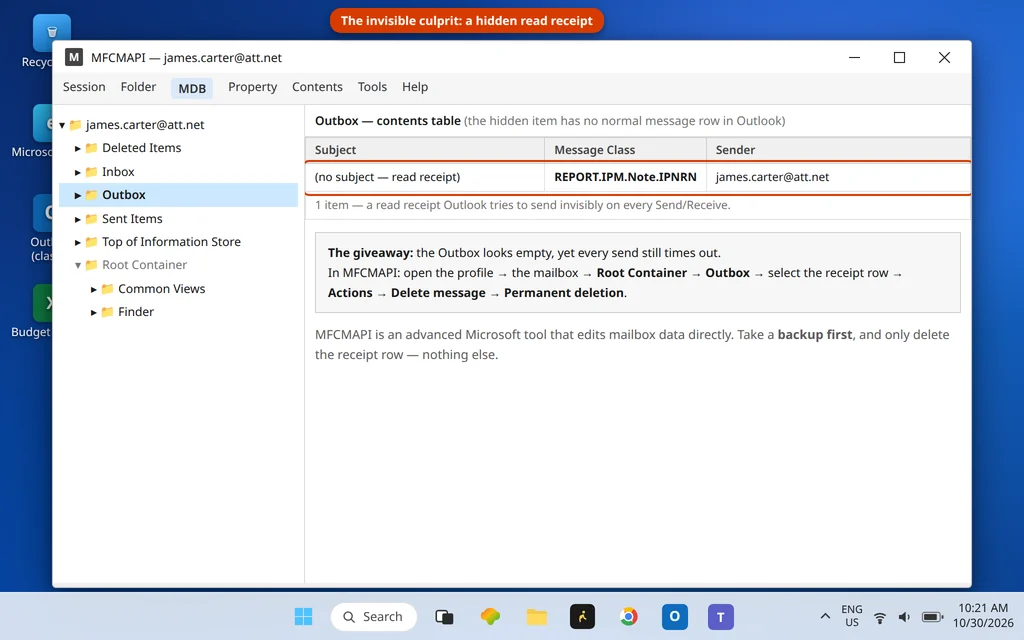
If the Outbox looks empty, Fix 1 is done, and the timeout still fires on every send, the culprit may be invisible: a stuck read receipt. When you once clicked “Send” on a read receipt for a message, Outlook created a hidden outgoing item. If it corrupts, Outlook tries to send it forever — and it does not show in the Outbox. The only way to see and delete it is Microsoft’s MFCMAPI tool. This is an advanced step; skip it unless the symptom matches exactly (empty Outbox, persistent 0x8004210B).
- Download MFCMAPI from its official Microsoft GitHub page and run it (it does not install).
- Go to Session > Logon and choose your Outlook profile.
- Double-click your mailbox store to open it, expand the Root Container > Outbox (receipts can also sit at the top of the store, under the root’s child items).
- Look for a hidden item of the read-receipt type (its message class reads REPORT…IPM.Note… or it simply appears where no visible mail exists). Select it and choose Actions > Delete message, using the permanent deletion option.
- Close MFCMAPI, restart Outlook, and press F9.
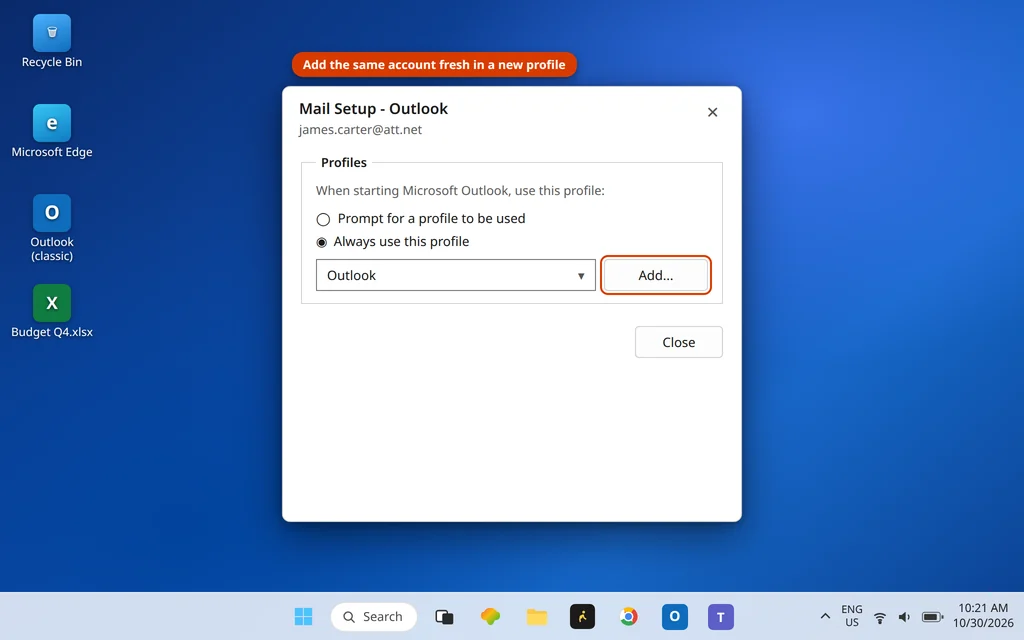
If you are not comfortable in MFCMAPI, creating a new Outlook profile (Control Panel > Mail > Show Profiles > Add) achieves the same fresh start more simply — a new profile has no stuck hidden items. On IMAP and Microsoft 365 accounts your mail is on the server and re-downloads.
0x8004210B vs 0x8004210A — Which One Do You Have?
Check the last letter. 0x8004210B (this guide): the sending (SMTP) timeout — mail will not go out; think stuck Outbox message and the 465/587 pairing. 0x8004210A: the receiving (POP) timeout — mail will not come in; think Server Timeouts slider and one huge incoming message. Its guide is Outlook error 0x8004210A, and both codes sit in the family table on our Error Codes hub. If instead Outlook cannot connect to the SMTP server at all (no timeout wording), that is Outlook error 0x80042109.
Using the New Outlook? These Steps Are Classic-Only
Work Offline, the Outbox folder workflow, More Settings port fields and MFCMAPI are all Classic Outlook tools. The new Outlook for Windows manages sending through your signed-in account with no editable SMTP settings. If sends stall there, delete the stuck message from its Outbox/Drafts, remove and re-add the account in Settings > Accounts, and send the oversized file another way. The 0x8004210x codes themselves come from the Classic sending stack.
Frequently Asked Questions
Why does the email stay in my Outbox with error 0x8004210B?
Because the send of that message (or one ahead of it) never completes inside the timeout. The usual reason is the message itself — an oversized or damaged attachment Outlook keeps retrying — followed by the 465 + “TLS” port/encryption mismatch, which makes the handshake hang. Clear the Outbox with Work Offline (Fix 1), then check the pairing (Fix 2).
Should SMTP use port 465 or 587 for 0x8004210B?
Either works — what matters is the pair. Port 465 goes with SSL/TLS; port 587 goes with STARTTLS (the “TLS” option). The combination that produces this exact timeout is 465 with the TLS/STARTTLS option selected, because the server and Outlook then speak different opening protocols and the session stalls.
What is a stuck read receipt, and how do I delete it?
It is a hidden outgoing item created when you approved a read receipt, invisible in the normal Outbox view. If it corrupts, Outlook attempts to send it on every Send/Receive and times out forever. It can only be viewed and deleted with Microsoft’s MFCMAPI tool (see the Advanced section) — or sidestepped entirely by moving to a new Outlook profile.
What is the difference between 0x8004210B and 0x8004210A?
Direction of travel. 0x8004210B is the sending timeout (SMTP) — start with the Outbox and the port/encryption pairing. 0x8004210A is the receiving timeout (POP) — start with the Server Timeouts slider and check for one huge incoming message. Both are “the server took too long to answer,” but the fixes barely overlap.
My Outbox is empty but 0x8004210B keeps appearing. Why?
Three possibilities, in order: a hidden stuck read receipt (Advanced section), a port/encryption mismatch making every send hang (Fix 2), or a damaged profile. Test each in that order — and confirm with webmail (Fix 5) that the provider’s sending service is actually up before blaming Outlook at all.
Still seeing error 0x8004210B? Tell us whether it fails on one message or every message, and which port your Advanced tab shows, on our Contact page — servicedesk@howtofixerroronline.com, available 24 hours. Those two details identify the fix almost every time. More send-side codes are decoded on our Error Codes hub.