

Can’t Sign In to Outlook.com? Every Login Error, Fixed
You need your email, the sign-in page is refusing you, and every article you find assumes a different problem from yours. “Can’t sign in” is not one error — it is at least five wearing the same coat: a temporary lockout, a blocked password method, an account error code, a broken browser session, and a genuinely blocked account. The fix for each makes the others worse if applied blindly; guessing your password twelve more times is the worst possible response to a lockout.
So this guide works as a router. Find the exact message on your screen, jump to its section, and follow only that fix, in order. One note: Hotmail and Live.com addresses are Outlook.com accounts, so every step applies to them identically.
Quick Answer: Match your message first. “You’ve tried to sign in too many times” — stop trying, wait at least 15–30 minutes (a full 24 hours if it persists), then make one careful attempt. “Password sign-in isn’t available” — use Sign-in options and enter with a code, the Authenticator app, or a passkey instead. Error 0x80048823 or 7ita9 and “Something went wrong… try again later” — try a private window and a second browser, clear cookies and cache for outlook.live.com, then run Microsoft’s Sign-in Helper. A blocked account needs the unblock verification flow. If nothing verifies you, the last route is the recovery form at account.live.com/acsr.
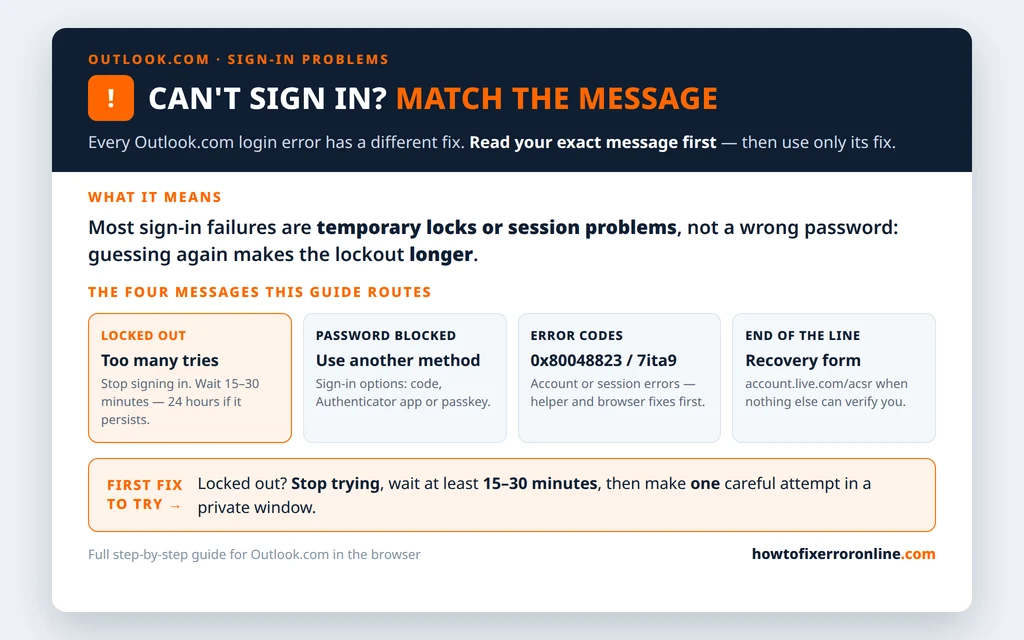
Table of Contents
Find Your Error Message
Before any fix, read the screen. The wording is the diagnosis:
- “You’ve tried to sign in too many times” — a temporary lockout. Time is the fix; attempts are the problem.
- “Password sign-in isn’t available. Try another method.” — the password route alone is blocked. Other sign-in methods still work.
- Error 0x80048823, or 7ita9 — an account or sign-in session error. Browser isolation and the Sign-in Helper come first.
- “Something went wrong. We can’t get that information right now. Please try again later.” — usually a page or session failure, most often fixed in the browser.
- “Your account has been locked” or “temporarily blocked” — Microsoft flagged unusual activity. That is the unblock flow, further down.
And one basic check before all of them: confirm the email address is spelled exactly right and Caps Lock is off. It sounds insulting until the day it is the answer — and if it is not, move to your message’s section and do not improvise between sections.
“You’ve Tried to Sign In Too Many Times”
This is a lockout, not a password verdict. Microsoft has seen too many failed attempts in a short window and frozen the door. The crucial fact: the freeze is attempt-sensitive — every new try can extend it. Retrying every two minutes “just to check” can keep you locked out all day, while walking away gets you back in within the hour.
- Stop signing in completely. Close the tab. Do not test it.
- Wait at least 15–30 minutes before a single new attempt.
- If the same message returns after that wait, stop again and give it a full 24 hours without attempts — the persistent version of this lockout only clears when it is genuinely left alone.
- When you do try again, make it one careful attempt: type the password slowly, check Caps Lock first, and if you are not sure of the password, go straight to password reset in a private window rather than guessing a second time.
Repeated attempts extend the lockout — that sentence is the whole fix. If the attempts were not yours — you arrived to find the account already locked after entering your password once — read the blocked-account section below and the changed-password warning at this guide’s end.
“Password Sign-In Isn’t Available”
This message looks total and is not. Only the password method has been switched off for now — a pattern that behaves like a temporary, password-only block, the kind of defense that appears when Microsoft wants password guessing against your account to stop. Your other methods were not invited to the ban.
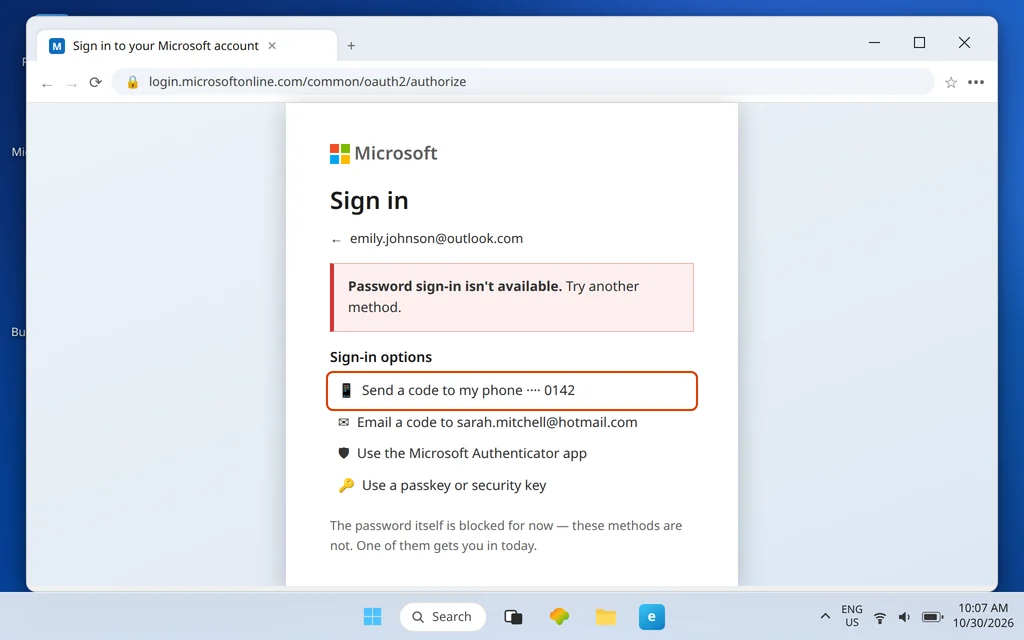
- On the sign-in screen, click Sign-in options (below the password box, or offered directly by the error).
- Choose the method you actually have access to:
- Send a code to your recovery phone or email address.
- Microsoft Authenticator — approve the prompt, or type the code the app shows.
- Passkey or security key, if you set one up.
- Enter the code or approve the prompt, and you are in — no password involved.
Once inside, do not start changing things. The password block is temporary; give it time rather than resetting the password in a panic, which can stack a reset cooldown on top of the block. If none of your alternate methods are reachable — old phone number, no app, no passkey — skip to the Sign-in Helper and, if that fails, the recovery form.
Error 0x80048823 and Error 7ita9
Two codes, one neighborhood. Error 0x80048823 shows up in sign-in failures documented in Microsoft Q&A (“Can’t sign-in to Outlook or 365” is one such thread), and 7ita9 appears in the same kind of report. Neither means “wrong password.” Both point at the account’s sign-in state or the session trying to sign in — work them in this order:

- Wait it out once. If you have made several attempts in the last hour, treat it like the lockout above: 15–30 minutes of no attempts, then one try.
- Isolate the browser using the browser fixes in the next section — a private window first. A surprising share of these codes are a poisoned session, not a sick account.
- Run the Sign-in Helper (section below). It checks the account itself and will tell you if there is a lock or block behind the code.
- If the Helper reports a block, complete the unblock flow rather than retrying sign-in.
What not to do: do not reset your password five times hoping one reset “takes.” If resets succeed but the new password still fails with the same code, the problem was never the password — it is the lockout or block underneath, and resets do not clear it.
“Something Went Wrong… Try Again Later” Page Errors
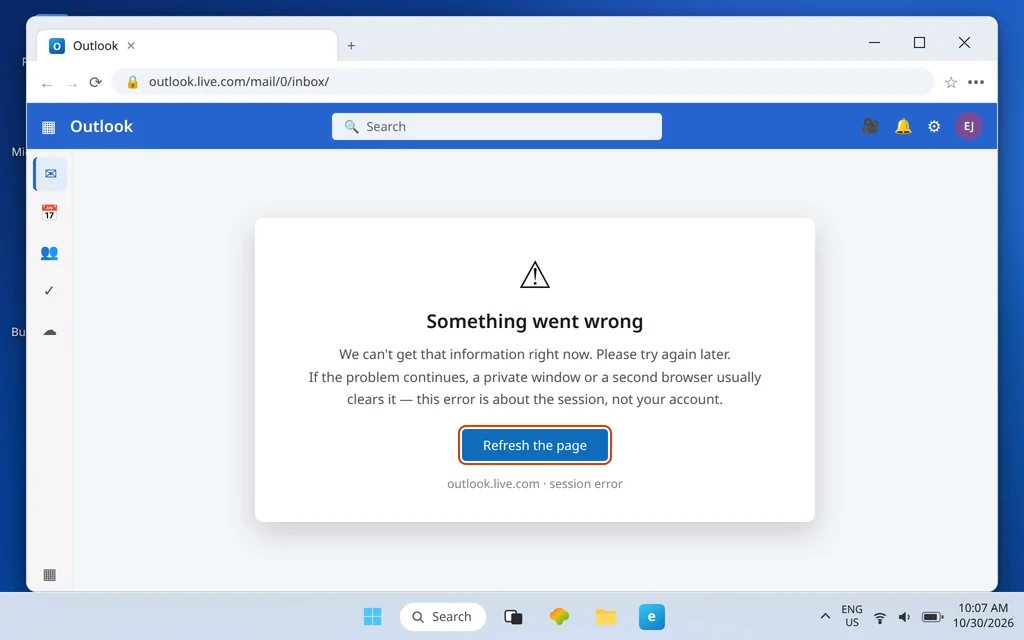
This message — in full, “Something went wrong. We can’t get that information right now. Please try again later.” — is usually the page failing, not the account. It appears after entering your details, while loading the mailbox, or mid-session. Because it is session-shaped, the browser fixes below are the actual treatment.
Browser Fixes That Actually Help
Do these in order; each step isolates a different cause.
- Private window first. Open a private or InPrivate window (Ctrl+Shift+N in Edge and Chrome) and sign in at Outlook.com there. Private windows ignore your stored cookies and most extensions. If sign-in works there, your account was always fine — the normal window’s session is the problem.
- Second browser. Try Edge if you normally use Chrome or Firefox, and vice versa. A second browser separates “this browser” from “this account” in one test.
- Clear cookies and cache for Outlook specifically. In your main browser’s settings, clear cookies and other site data and cached images and files for outlook.live.com. A full-history wipe is unnecessary; the Outlook site data is the relevant part.
- Then one careful sign-in in the cleaned browser — slowly, once. Rapid retries after a clear can trip the lockout and muddy the diagnosis.

If a private window works but the cleared normal window still fails, suspect an extension — disable extensions (ad blockers first) and try again. If no browser gets past the same error, the cause is account-side: move on to the Helper.
Run the Sign-In Helper
Microsoft’s Sign-in Helper is the company’s own triage tool for exactly this situation, and it should come before forum folklore. It asks which account you are having trouble with, checks the account’s state, and returns the specific next step for your case — a lock to wait out, a block to verify away, a reset path, or a pointer to the recovery form.

Run it (your phone’s browser is fine), answer with the exact account address, and do what it says — only what it says. If it tells you the account is fine, the problem is local: go back to the browser fixes with fresh confidence. If it sends you to verification or the recovery form, those sections are next.
Blocked Account? Unblock It
A blocked account is different from a lockout. A lockout is about attempt volume; a block is Microsoft deciding the account’s activity looks unusual — sign-ins from unexpected places, patterns resembling automated abuse — and demanding proof of identity before anything proceeds. Retrying the password against a block accomplishes nothing; verification is the only door.
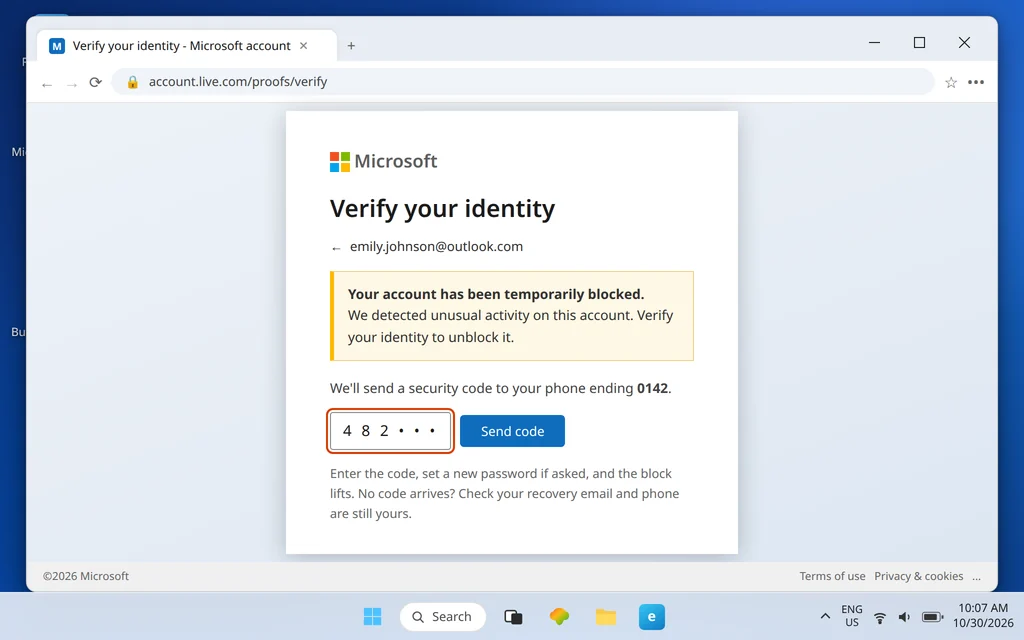
- Start the sign-in and follow the blocked / verify prompt rather than dismissing it.
- Choose where the security code goes — your recovery phone or email — and request it.
- Enter the code exactly, then set a new password if the flow asks for one.
- Sign in once, carefully, with the verified state and new password.
If the code never arrives, check the cruel detail first: are the recovery phone and email still addresses you control? If not — the number changed years ago — the unblock flow has nowhere to send proof, and that is recovery-form territory. Also allow a little time after unblocking before judging it: account states do not always flip the second the code is accepted.
The End of the Line: The Recovery Form
If you cannot sign in, cannot reset, cannot receive a code, and the Helper cannot clear you, one route remains: the account recovery form at account.live.com/acsr. This is Microsoft’s ownership test for people who have lost every other proof, and it judges details only the real owner is likely to know.

Fill it in like it matters, because it does:
- Old passwords you remember — even imperfect ones help.
- Folder names you created, contacts you email, and recent subject lines from mail you sent.
- A contact email Microsoft can reply to — an inbox you can actually open.
- Submit from a device and location you normally use, if you can.
Then wait for the verdict before resubmitting, and refine your answers if refused — vague, rushed forms fail; detailed ones pass. One signpost: if the password was changed by someone else — yours is certainly correct, recovery details look unfamiliar, locks keep coming — follow our Outlook.com account hacked recovery guide instead. And the old Windows Mail app’s “account settings are out of date” string belongs to our account settings are out of date guide, not this one.
How to Stop Sign-In Problems Coming Back
- Keep recovery info current. An up-to-date recovery phone and email are the difference between a two-minute code and a recovery form. Check them once a year.
- Set up a second method now. Add the Authenticator app or a passkey while you can sign in — “Password sign-in isn’t available” becomes a shrug instead of a crisis.
- Never brute-force your own account. Two failed passwords means stop and reset, not six more guesses. Most lockouts are self-inflicted.
- Use a password manager. Half of all “Microsoft changed my password” panics are an old password typed from memory.
Frequently Asked Questions
Why can’t I log in to my Outlook account when my password is correct?
Because the block is usually not about the password. Lockouts, password-method blocks, account blocks for unusual activity, and broken browser sessions all refuse correct passwords too. Match your on-screen message to the sections above and apply only its fix.
How long does the “too many times” lockout last?
Wait at least 15–30 minutes with no attempts at all; if the message persists after that, give it a full 24 hours. Repeated attempts extend the lockout, so the waiting only counts if you genuinely stop trying during it.
What is Outlook error 0x80048823?
A sign-in error code reported in Microsoft Q&A threads about Outlook and Microsoft 365 sign-in failures (7ita9 appears in the same kind of report). It points at the account’s sign-in state or session rather than a mistyped password: wait out any lockout, try a private window, run the Sign-in Helper, and complete the unblock flow if it reports a block.
I reset my password but I still can’t sign in. Why?
Because the password was probably never the blocker. Resets do not clear lockouts or account blocks — if the new password fails with the same message, return to that message’s section: wait the lockout out, verify through the unblock flow, or run the Sign-in Helper.
Still locked out? Tell us the exact message on your sign-in screen — that line decides everything — via our Contact page: servicedesk@howtofixerroronline.com, available 24 hours. If you suspect someone else has taken over the account, go straight to our Outlook.com account hacked recovery guide instead.