

Outlook.com Account Hacked? Recover It and Lock It Down
The signs are hard to mistake once you see them together: your password suddenly does not work, contacts ask about a strange email you never sent, messages you know you received have vanished, or a sign-in alert names a device and place you do not recognize. Your Outlook.com account has likely been compromised — and because that account is also your Microsoft account, it may be the password-reset address for much of your digital life. Speed matters, but order matters more.
This guide works in the order that keeps you safe: clean your devices first so you are not typing a new password into an infected machine, then get back in through Microsoft’s official routes, then lock the account down and clean up what the hacker changed. One honest note up front, because it shapes everything below: only the official recovery process exists. There is no back door, no paid service, and no support agent who can bypass it — anyone who offers you one is running the second scam on top of the first.
Quick Answer: First, run a full scan with Windows Security on every device you use. If you can still sign in, change the password immediately at account.microsoft.com > Security and sign out everywhere. If you cannot sign in, run Microsoft’s Sign-in Helper, then use the account recovery form at account.live.com/acsr — answers are judged automatically, a response typically arrives within 24 hours, and you can resubmit up to twice per day with more detail. Back in, review security info at account.live.com/proofs, turn on two-step verification, check recent activity, then delete any hacker-added rules or forwarding under Settings > Mail > Rules and Forwarding.
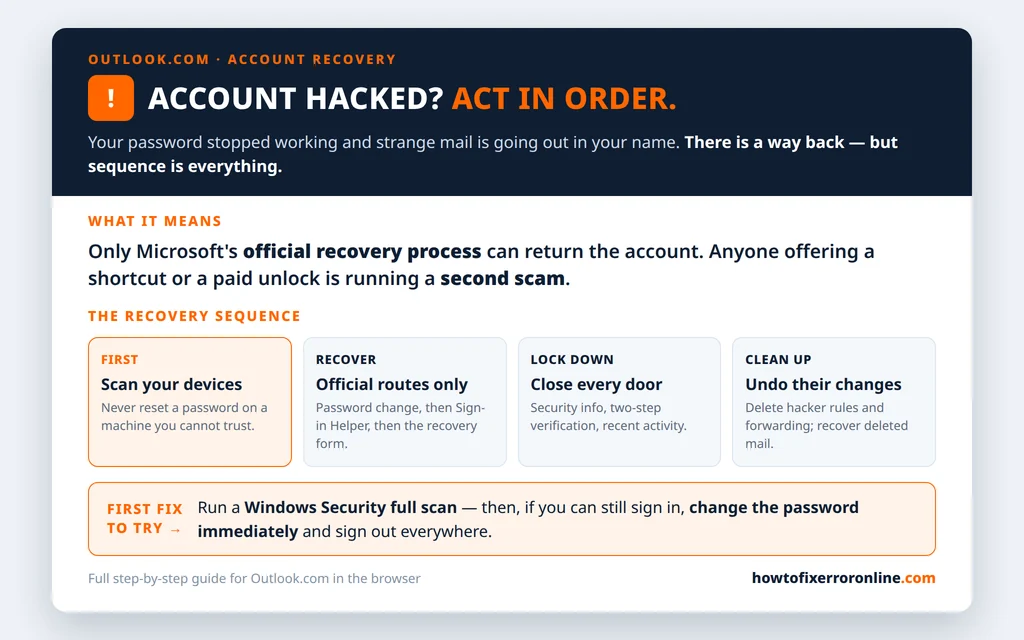
Table of Contents
How You Know It Is a Hack, Not a Glitch
Ordinary sign-in failures are common — a forgotten password, a temporary lockout after too many tries — and they feel similar at first. Treat it as a hack when any of these are true: your password was definitely correct and is now rejected; your security info (the recovery phone or email Microsoft shows you) is not yours; contacts received mail you did not send; rules or forwarding exist that you never made; or mail is missing from folders you did not touch.
If none of those apply and it is simply a sign-in failure, our can’t sign in to Outlook.com guide is the calmer route. If any of them do apply, keep going here.
Step 1: Scan Your Devices First
Do not reset a password from a machine you cannot trust. If something on your PC captured the old password, it can capture the new one the moment you type it — and you will have “recovered” the account straight back into the hacker’s hands.
- Open Windows Security > Virus & threat protection.
- Click Scan options, choose Full scan, and run it.
- Repeat on any other PC you sign in from. On phones, remove any app you do not recognize installing around the time the trouble started.
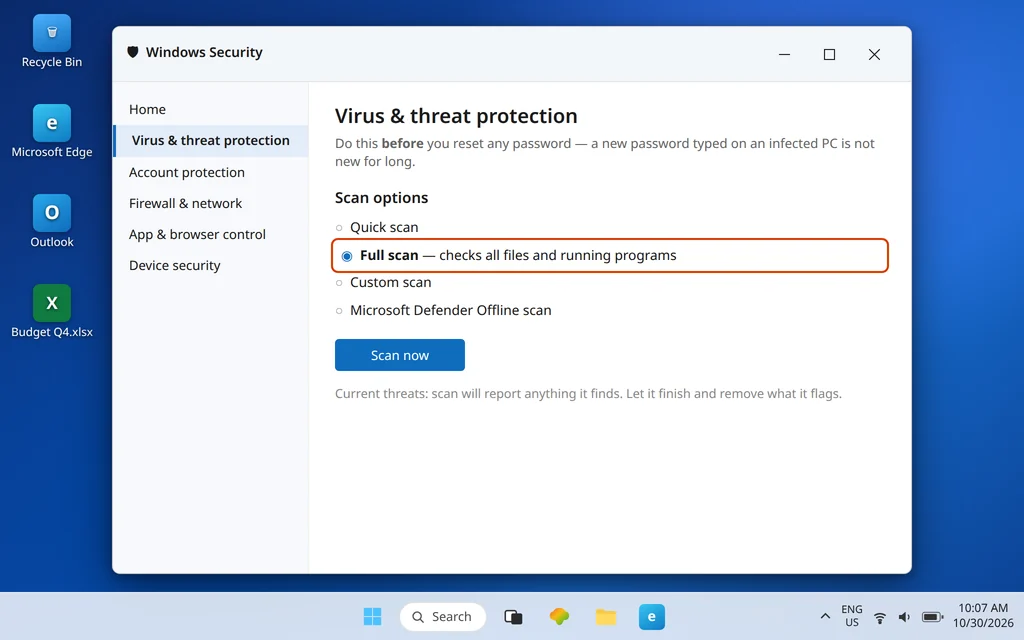
Only when the scan comes back clean — or from a device you know is clean, such as a family member’s PC — move on to recovery.
Step 2: Get Back In — Password, Sign-in Helper, Recovery Form
Work these routes in order; stop at the first one that lets you in.
Still able to sign in? Change the password now, before the hacker changes it first: go to account.microsoft.com > Security > Change password, pick a long password you have never used anywhere else, and tick the option to sign out of all devices / require sign-in again everywhere. Then skip ahead to Step 3.
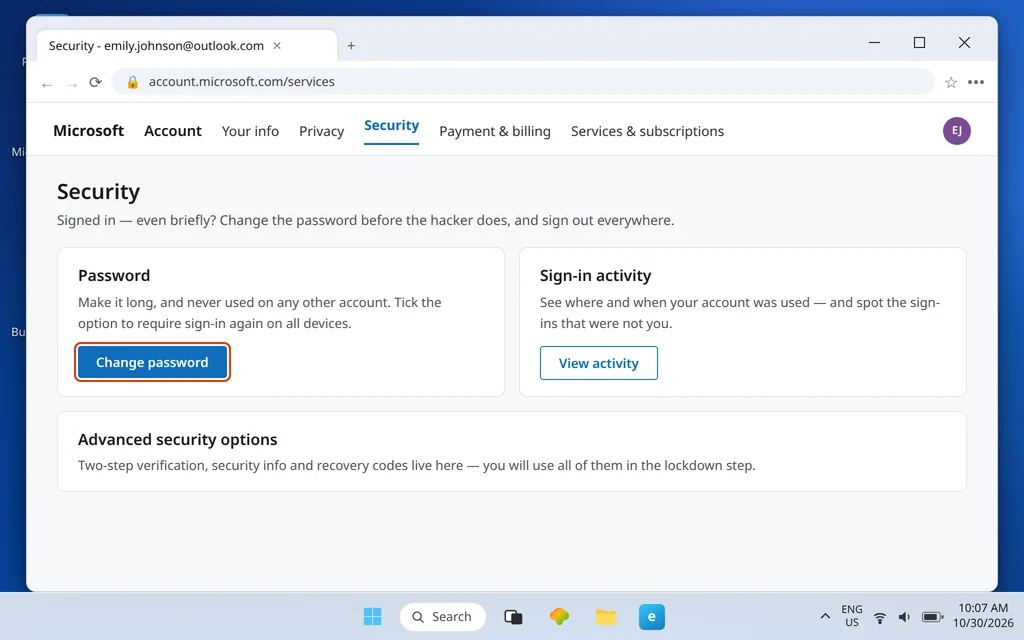
Locked out? Run Microsoft’s Sign-in Helper first — it checks your specific account and routes you to the right fix (a reset code, an unblock flow, or the recovery form). Follow what it returns rather than guessing at reset links.

Last route: the account recovery form. When resets fail — usually because the hacker replaced your security info — go to account.live.com/acsr and fill in the form:
- Enter the hacked address, and a different, working email where Microsoft can reach you.
- Give every detail you can: previous passwords you remember, names of folders you created, email addresses you wrote to often, and recent subject lines — exact subjects are strong evidence.
- Submit from a device and location you normally use — the form weighs that too.
- A verdict typically arrives within 24 hours. If it fails, resubmit with more detail — up to twice per day. Each attempt lets you add evidence; owners commonly succeed on a later, fuller attempt.

The Honest Part: When Recovery Isn’t Possible
This is the paragraph most guides skip, and it is the one that matters most if the form keeps failing. The recovery form’s verdicts are automated — software weighs your answers against the account’s records. If the hacker replaced all of your security info and the form cannot verify that you are the owner, Microsoft support cannot override the verdict. Agents do not have a manual unlock for a Microsoft account, and no supervisor, chat session or paid service changes that. Anyone who claims otherwise — especially anyone charging a fee — is scamming a person who has already been scammed once.
That is not a reason to give up early: twice-a-day resubmissions with genuinely more detail are the intended path, and many accounts come back on the second or third fuller attempt. But if repeated detailed attempts fail, plan honestly around the loss: warn your contacts, protect every account listed in the final section, and start a new Microsoft account with two-step verification on from day one.
Step 3: Lock the Account Down
Back in is not the same as safe. A hacker who got in once may have left themselves a way back — your next job is to close every door, in this order:
- Review your security info at account.live.com/proofs. Remove any phone number or email address you do not recognize — that is the hacker’s persistence, and it outranks everything else. Add your own current phone and email. Note that replacing security info starts a 30-day wait before some changes fully take effect; that wait is Microsoft protecting the account, not a fault.
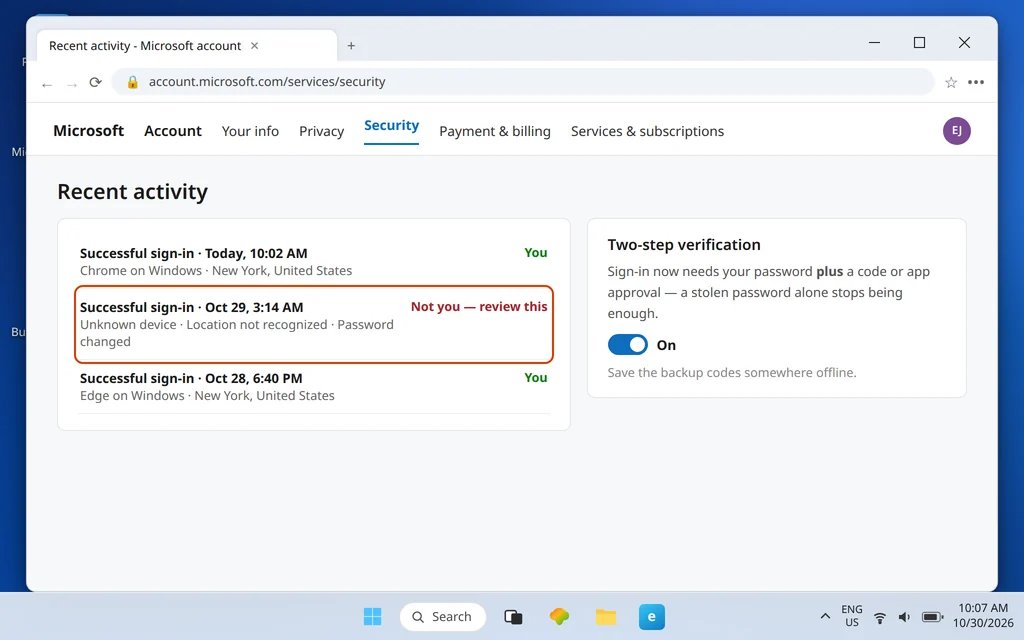
- Turn on two-step verification (account.microsoft.com > Security > Advanced security options), so sign-in needs your password plus a code or app approval. Save the backup codes it offers somewhere offline.
- Check recent activity on the same Security pages. Look for successful sign-ins from devices or places you do not recognize, and note the dates — you will want them when warning contacts about which messages were fake.
- Change the password again if you recovered through the form using a temporary one, and sign out of all sessions.
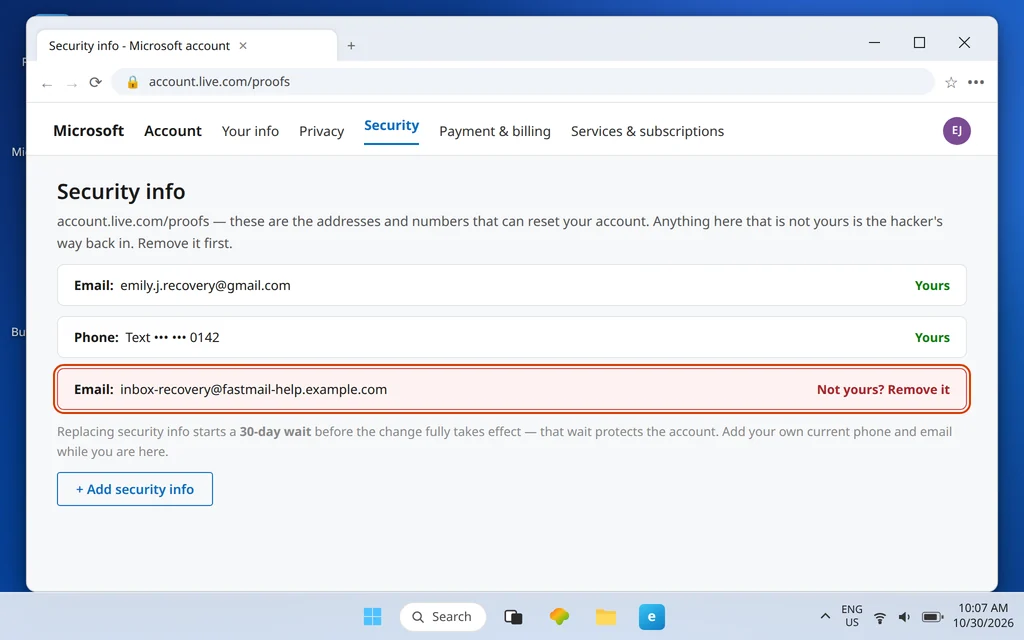
Step 4: Clean Up What the Hacker Changed
Hackers rarely just read mail. The standard playbook is to hide their presence and harvest replies, so check the mailbox settings most people never open:
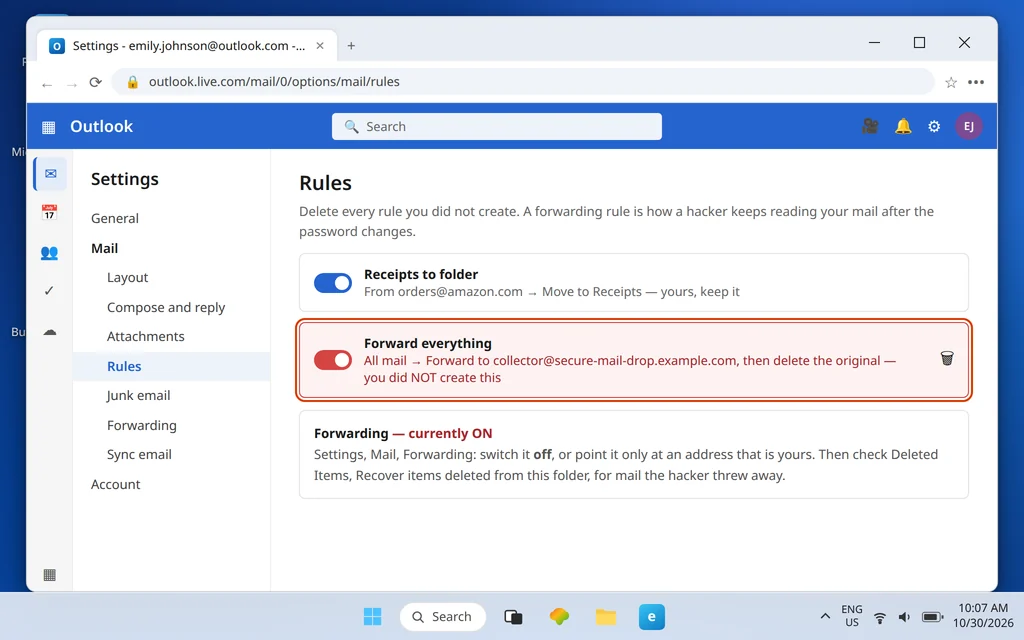
- Rules: In Outlook.com, go to Settings > Mail > Rules and delete every rule you did not create — the classic is a rule that forwards or deletes incoming mail so you never see password resets or warnings. (Our Outlook.com rules guide shows what a normal rule list looks like.)
- Forwarding: Go to Settings > Mail > Forwarding and make sure forwarding is off, or pointed only at an address that is yours.
- Deleted mail: Hackers often delete evidence. Open Deleted Items and use Recover items deleted from this folder to pull back what they threw away — our recover deleted emails in Outlook.com guide walks that recovery in full.
- Sent Items and Drafts: Skim both for messages you did not write; they tell you what your contacts may have received.
Expect one aftershock: sending may stay blocked for 24–48 hours after securing the account, while Microsoft’s systems treat the mailbox as recently compromised. It lifts on its own — do not “fix” it by changing settings at random.
Protect Your Other Accounts and Warn Your Contacts
An email account is a master key: whoever holds it can request a password reset for anything registered to it. Work outward, most valuable first:
- Banking and payment accounts — change those passwords now, from your cleaned device, and turn on their own two-step options. Do not wait to see whether they were touched.
- Any account that used the same password as your Microsoft account — that password is burned everywhere, forever. Replace each with a unique one.
- Warn your contacts from another channel — a call, a text, a different app — that your email was hijacked, that messages from it in the last few days may be fake, and that they should delete anything asking for money, gift cards or downloads and not reply to the thread (replies may be forwarded to the hacker).
- Social and shopping accounts registered to this address: reset and secure each one, checking for changed recovery addresses as you go.
How to Stop It Happening Again
Everything in this section is free and takes minutes, and together it makes a second takeover dramatically harder: keep two-step verification on permanently — it is the single strongest step, because a stolen password alone stops being enough; use a unique password for your Microsoft account that appears nowhere else, ideally generated and kept by a password manager; keep your security info current, because an old phone number is a locked door for you and an open one for nobody — check account.live.com/proofs whenever you change numbers; treat urgent email asking you to sign in as hostile until proven otherwise, and go to the service directly instead of clicking; and run a full Windows Security scan monthly, not just after an incident. Recovery was painful precisely because these were missing — do not leave them missing twice.
Frequently Asked Questions
How long does the Microsoft account recovery form take?
A verdict typically arrives within 24 hours, sent to the working contact email you put on the form at account.live.com/acsr. If the answer is no, you can resubmit up to twice per day, and you should — add more old passwords, folder names and exact recent subject lines each time.
Can Microsoft support unlock my hacked account if the form fails?
No — and this is stated plainly because false hope costs people money. Recovery form verdicts are automated, and if the hacker replaced all your security info and the form cannot verify ownership, support cannot override it. There is no manual unlock and no paid route; anyone offering one is a scammer.
The hacker changed all my security info. What happens now?
Two things. First, your only route back is the recovery form, answered as fully as you can, from a device and location you normally use. Second, if you do get back in and replace the security info with your own, the new info carries a 30-day wait before it fully takes over — Microsoft holds the old info’s claims in check during that window to protect the real owner.
Why can I sign in but not send email after recovering my account?
Microsoft often keeps sending blocked for 24–48 hours after an account is secured, as a safety measure while the compromise is cleared. Receiving works, settings work, sending returns on its own. Wait it out rather than changing settings.
What is the first thing to check inside the mailbox after a hack?
Settings > Mail > Rules and Settings > Mail > Forwarding. A hidden rule that forwards your mail or deletes incoming password-reset messages is how a hacker keeps access after you change the password. Delete anything you did not create, then check Deleted Items > Recover items deleted from this folder for mail they deleted.
Does a hacked Outlook.com account put my other accounts at risk?
Yes — treat it that way. Your email receives password resets, so banking, shopping and social accounts registered to it are all reachable by whoever held it. Change the passwords on anything valuable, starting with banking, and never reuse the compromised password anywhere again.
Recovered the account but something still looks wrong — a rule you don’t recognize, mail still missing? Describe what you are seeing (do not send us your password — we will never ask for it) via our Contact page: servicedesk@howtofixerroronline.com, available 24 hours.
Pingback: Outlook.com rules automatically move emails to folder: the complete guide (2026)
Pingback: Can't Sign In to Outlook.com? Fix Lockouts, 0x80048823 & More (2026)
Pingback: Outlook.com can't send emails: blocks, limits and fixes (2026)