
SBCGlobal Email Not Receiving in Outlook — Fixes for SBCGlobal, Bellsouth & AT&T
When sbcglobal email not receiving in outlook is the problem, the cause is usually the sign-in, not the mailbox.
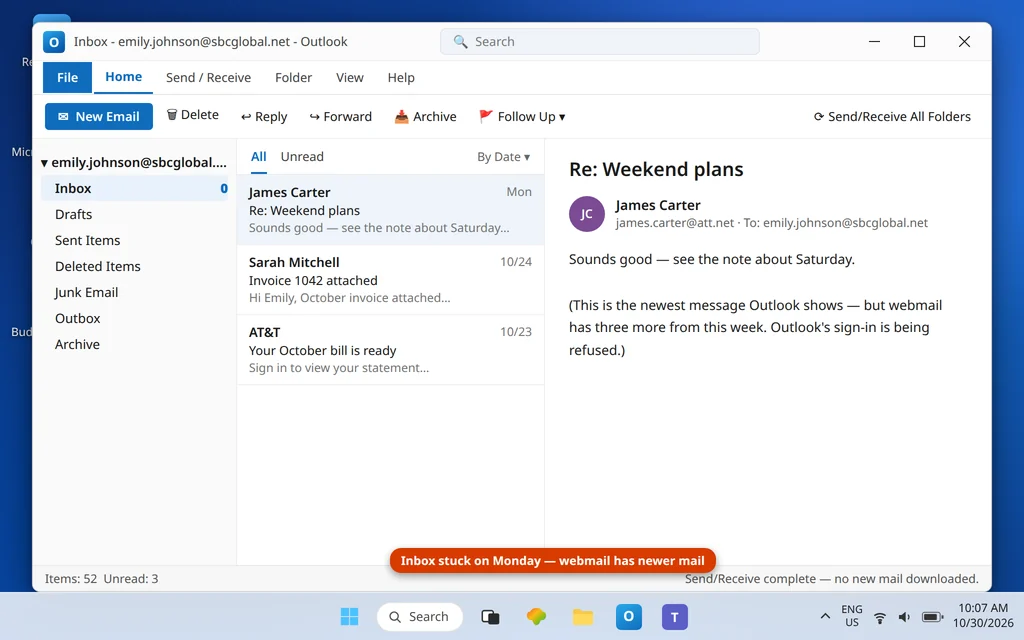
If your SBCGlobal email has stopped arriving in Outlook — the inbox just sits there, days old, while you know people are emailing you — you are not dealing with a broken mailbox. SBCGlobal addresses (along with Bellsouth and att.net) are all run by AT&T on one system, and that system changed the rules on desktop apps like Outlook years ago: your normal AT&T password is no longer accepted as the sign-in for incoming mail. Outlook asks, AT&T refuses, and instead of a clear error you often get silent nothing — or a password box that will not go away no matter how carefully you type.
This guide fixes the receiving side for the whole AT&T family: @sbcglobal.net, @bellsouth.net, @att.net and AT&T’s other legacy domains (@ameritech.net, @flash.net, @nvbell.net, @pacbell.net, @prodigy.net, @snet.net, @swbell.net, @wans.net). If you can receive but cannot send, that is the mirror problem with its own fixes — see AT&T Email Not Sending in Outlook. If your problem is Outlook-wide rather than AT&T-specific, our general Outlook Not Receiving Emails but Can Send guide covers the app-level causes.
Quick Answer: In almost every case, Outlook is signing in with your password where AT&T now requires a secure mail key — a 16-character key you generate once in your AT&T profile. Go to your AT&T profile → Settings (pencil icon) → Add secure mail key, create the key for your address, then in Outlook open the account settings and paste the key into the incoming (IMAP) password field (and, while you are there, the SMTP password field too). Confirm the incoming server is imap.mail.att.net, port 993, SSL on, and press Send/Receive. If the key worked before and suddenly stopped, AT&T may have deleted it during an account lock — generate a fresh one.
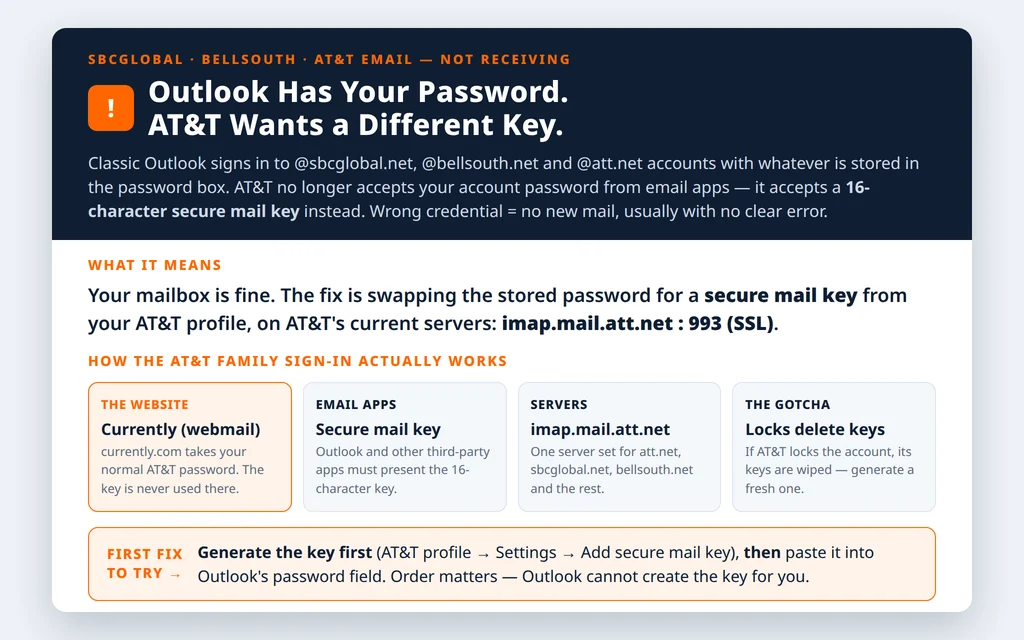
Table of Contents
First, a 30-second check: is the mail reaching AT&T at all?
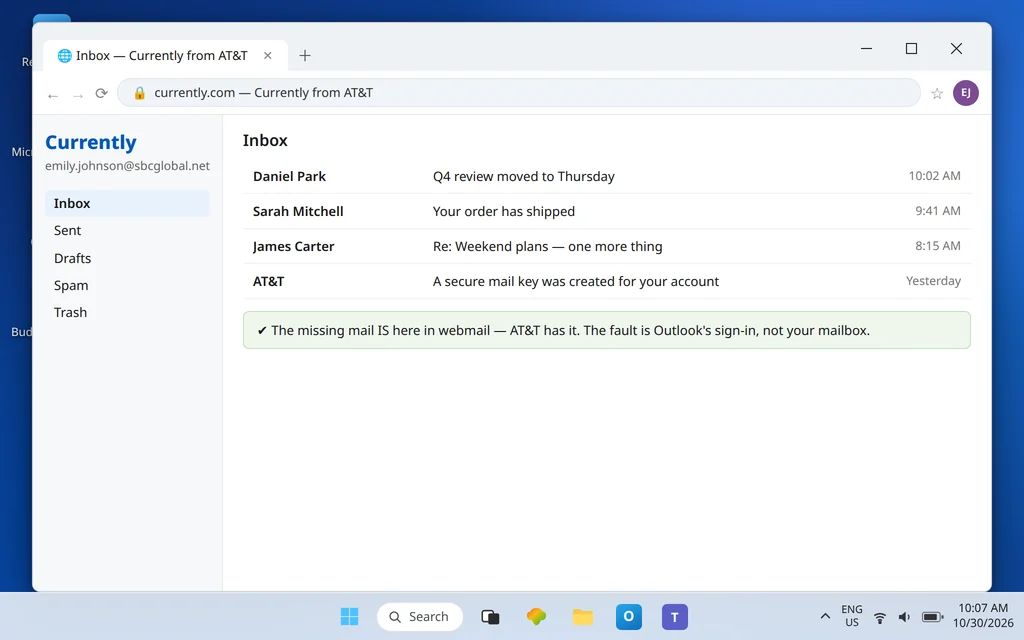
Before touching Outlook, sign in to your AT&T webmail — Currently from AT&T at currently.com — with your normal AT&T password (the key is never used on the website). If the missing messages are sitting in webmail, AT&T has your mail and the fault is purely the Outlook connection — continue with Fix 1. If they are not in webmail either, check the Spam folder there, then skip to Fix 6: the problem is upstream of Outlook entirely.
Fix 1 — Replace the password with a secure mail key (the main fix)
The secure mail key is AT&T’s replacement password for email apps that do not use AT&T’s own sign-in screen — Classic Outlook is exactly that kind of app. It is 16 characters, you create it once per address (and per device, if you want them separate), and it never expires unless AT&T deletes it (Fix 5 covers that case).
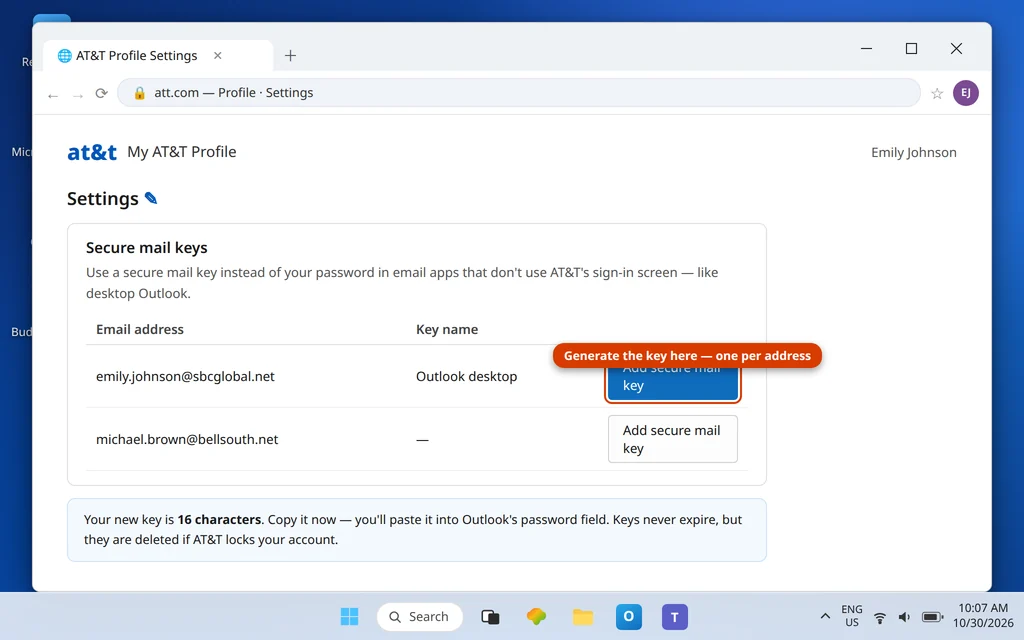
- Sign in at att.com → your profile → Settings (the pencil icon) → Add secure mail key.
- Choose your SBCGlobal/Bellsouth/att.net address, give the key a name like “Outlook desktop”, and copy the 16-character key immediately — write it down somewhere safe, because you will paste it twice.
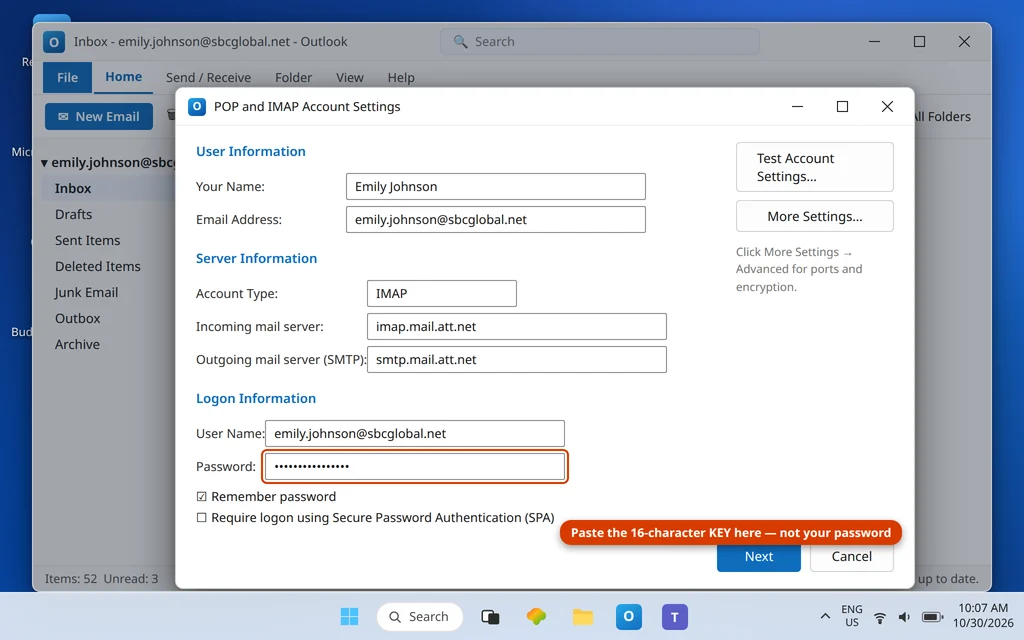
- In Outlook, go to File → Account Settings → Account Settings, select the account, and click Change (or open the account’s server settings in new Outlook).
- Paste the key into the password field for the incoming server — and into the SMTP password field as well if your settings screen shows both, so sending keeps working after you change things here.
- Click through Next / Done, then press Send/Receive All Folders.
If new mail now pours in, you are done — this single change resolves the large majority of AT&T-family receiving failures. Do not “tidy up” by switching back to your password afterwards; Outlook will simply break again.
Fix 2 — Correct the incoming server settings
While you are in the account settings, verify the incoming side against AT&T’s current table. Old SBCGlobal setups still floating around carry retired Yahoo-era servers, and those will never connect again.
| Setting | IMAP (recommended) | POP3 |
|---|---|---|
| Incoming server | imap.mail.att.net | inbound.att.net |
| Port | 993 | 995 |
| Encryption | SSL/TLS | SSL/TLS |
| Outgoing server (SMTP) | smtp.mail.att.net | outbound.att.net |
| SMTP port | 465 or 587 | 465 |
| User name | Your full email address | Your full email address |
| Password | Secure mail key | Secure mail key |
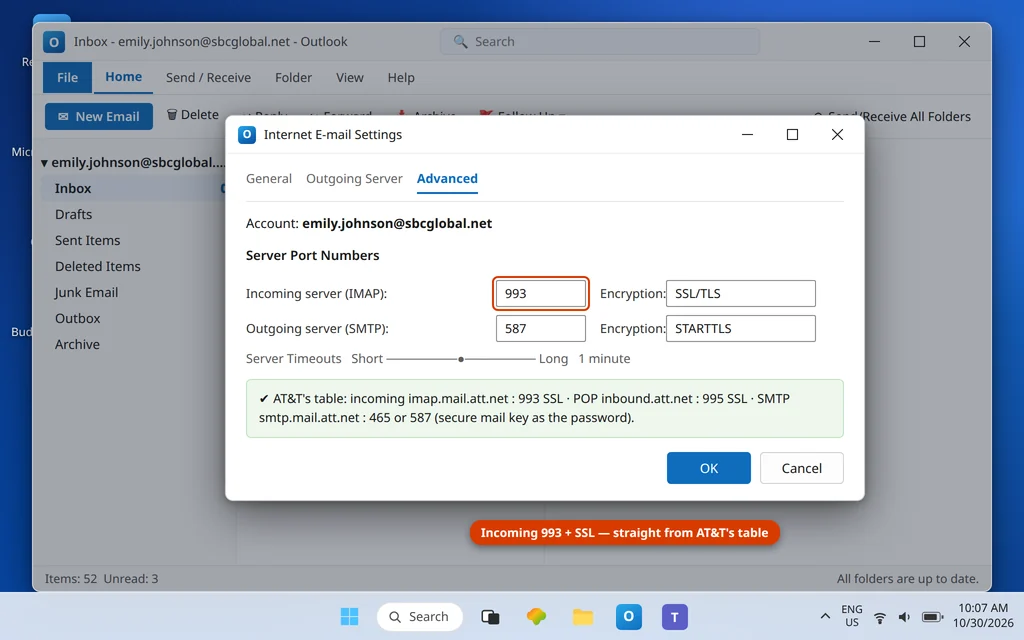
Two details cause repeat failures: the user name must be the full address including @sbcglobal.net (or @bellsouth.net / @att.net), and for POP accounts the outgoing server is the different outbound.att.net host — mixing the IMAP and POP tables is a common half-fix.
Fix 3 — Answer the password prompt with the key, not the password
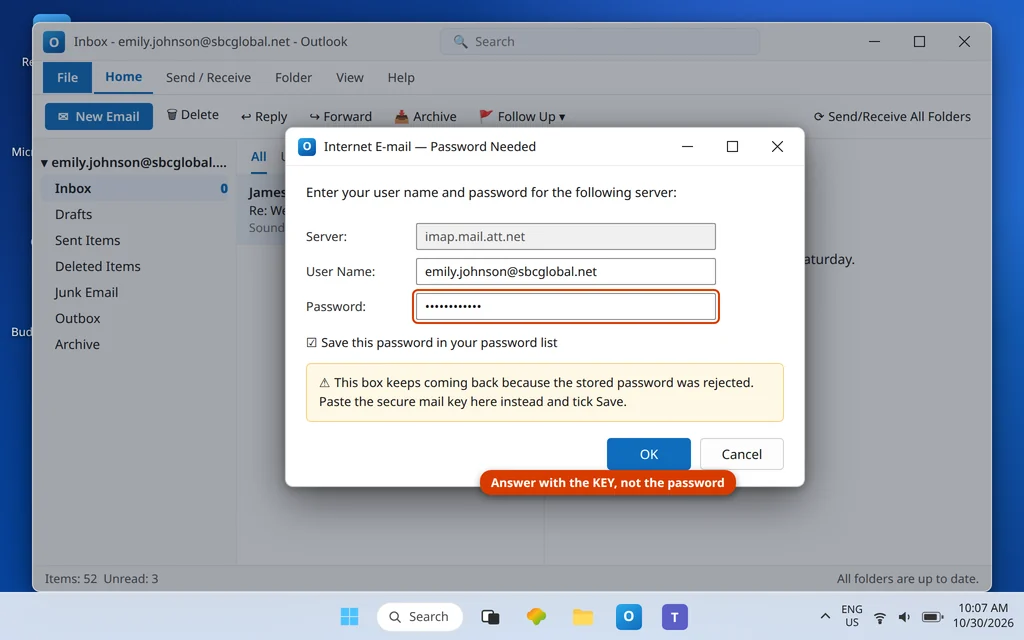
If Outlook keeps popping up a password box for the AT&T server, it is telling you the stored credential was rejected. Do not retype your AT&T password — type (paste) the secure mail key and tick Save this password in your password list. A prompt that returns immediately after OK almost always means the password was typed where the key belongs.
Fix 4 — Remove and re-add the account (if the profile itself is stuck)
Occasionally the account entry in Outlook is damaged enough that no settings edit takes. Remove the account (File → Account Settings → Remove) and add it again with File → Add Account, typing your address and then choosing the manual/advanced setup so you can enter the servers from the Fix 2 table and the secure mail key as the password. IMAP keeps your mail on AT&T’s server, so removing and re-adding does not delete your messages — they download again. (POP users: back up the data file first; POP mail may exist only on that PC.)
Fix 5 — If the key “suddenly stopped working”: AT&T deleted it
A secure mail key that worked for months can vanish overnight. AT&T states it plainly in its key documentation: if AT&T locks or blocks your account, your secure mail keys are deleted. A flood of failed sign-ins, a security flag, or an AT&T-side lock is enough. Changing your AT&T password does not invalidate keys — but a lock does. The fix is simply to generate a new key in your profile (Fix 1, step 1) and paste it into Outlook. While you are in the profile, also confirm the account itself is unlocked by signing in to webmail successfully first.
AT&T’s own guide to creating a secure mail key confirms the same rule: if AT&T locks or blocks the account, the keys are deleted, so a fresh key is the fix.
Fix 6 — Check the account itself: webmail, abuse holds and full quotas
If webmail in the opening check was also empty or you cannot sign in there: sign in at currently.com and look for any AT&T notice about the account. Accounts flagged for suspicious activity can be held until you complete AT&T’s password reset flow on the website, and no Outlook setting will receive mail while a hold is on. Also empty the webmail Spam and Trash folders if the mailbox is near its limit — a full mailbox refuses new deliveries before Outlook ever gets a vote.
SBCGlobal email not receiving in Outlook: the same fix for Bellsouth
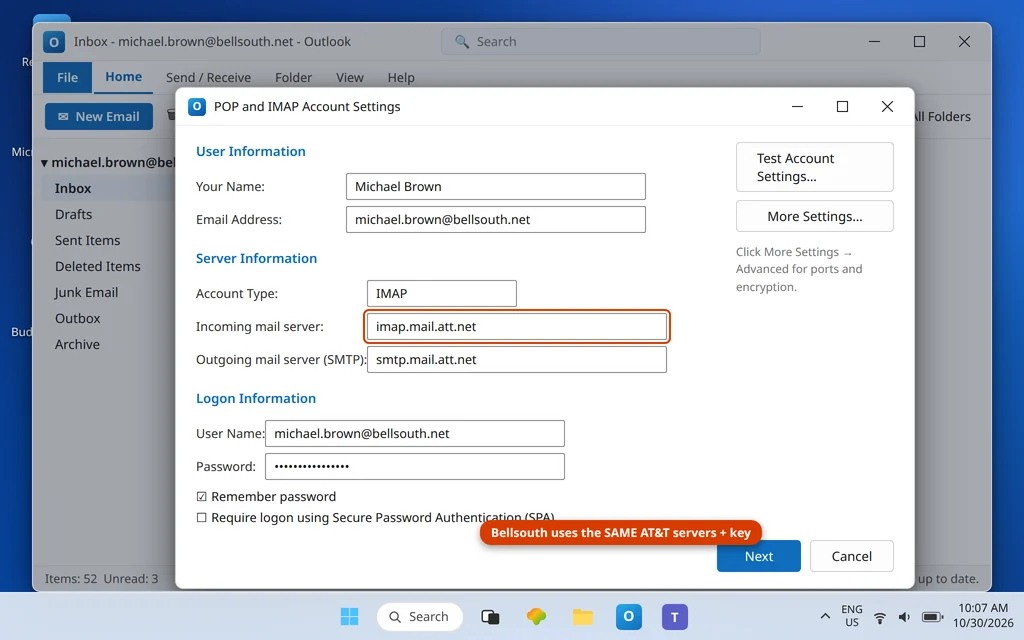
Everything above applies unchanged to @bellsouth.net — Bellsouth addresses live on the same AT&T system, use the same imap.mail.att.net server and the same secure mail key. Bellsouth accounts fail for one extra historical reason: very old setups were created when Bellsouth mail ran through Yahoo, and they still point at retired Yahoo/AT&T hybrid servers. If your Bellsouth account settings show anything other than the Fix 2 table, replace them wholesale and use a secure mail key — that is the whole fix.
AT&T (att.net) email not receiving in Outlook
For @att.net addresses the receiving fix is the same secure-mail-key change — att.net is the current brand on the identical platform. If your att.net mail receives on your phone but not in Outlook, that contrast is the tell: the AT&T mobile app signs in through AT&T’s own (OAuth) sign-in and needs no key, while desktop Outlook does. Generate the key once and both will work side by side.
After the fix: press Send/Receive and watch it land
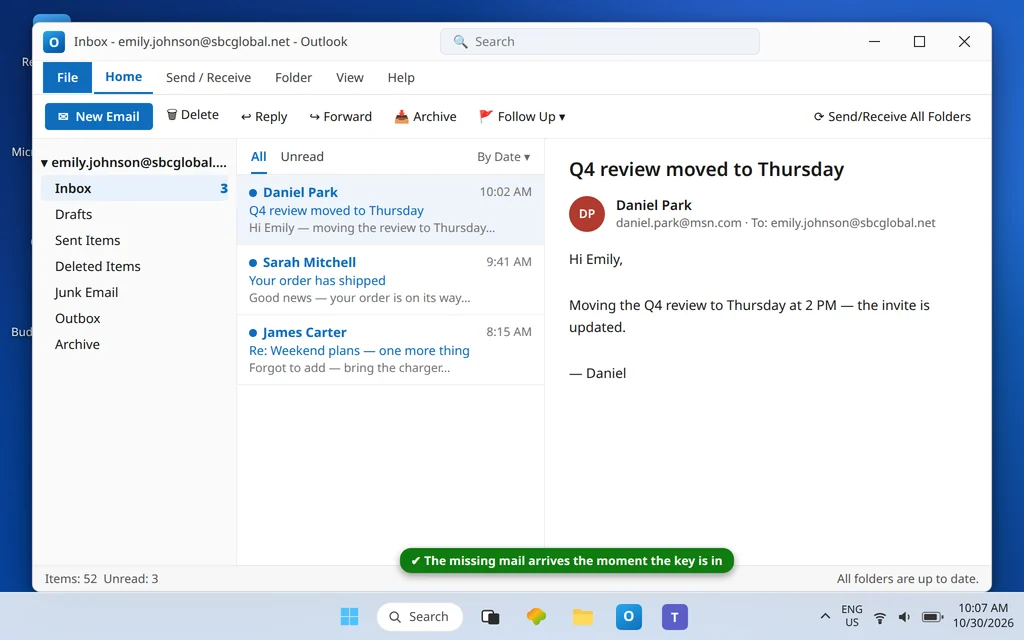
Press Send/Receive All Folders (or F9). The status bar should show the AT&T account updating, and the webmail messages you saw in the opening check should appear in the Outlook inbox within a minute.
How to stop it happening again
- Keep the key safe. Save the 16-character key in your password manager labeled with the address and device — AT&T will not show it again.
- One key per device is fine. You can generate separate keys for the desktop, the laptop and a tablet; revoking one never breaks the others.
- Expect a fresh key after any AT&T account lock. If receiving stops the day after a security scare, do not troubleshoot Outlook — just mint a new key.
- Avoid the password-change myth: changing your AT&T password does not kill your keys, so do not regenerate them after routine password updates.
Frequently asked questions
Why did my SBCGlobal email stop receiving in Outlook but still works on the AT&T website?
Because the two sign-ins are different. The website takes your AT&T password; Classic Outlook, as a third-party app, must use a secure mail key instead. When AT&T tightened this rule, Outlook setups still holding the plain password began failing — often silently, with no new mail and no error. Replace the stored password with a secure mail key and receiving resumes.
What is a secure mail key, and where do I get one?
It is a 16-character AT&T-issued code that stands in for your password inside email apps. Generate it in your AT&T profile: sign in at att.com, open your profile, choose Settings (the pencil icon) and Add secure mail key, select your email address, and copy the key. One key serves one address; create separate keys per device if you prefer, and store it safely because AT&T displays it only at creation.
My secure mail key worked yesterday and does not today. What changed?
Most likely AT&T locked or blocked the account at some point — a run of failed sign-ins or a security flag is enough — and AT&T deletes secure mail keys when it locks an account. Sign in to webmail to confirm the account is active again, then generate a brand-new key and paste it into Outlook. Routine password changes, by contrast, never invalidate keys.
What are the correct SBCGlobal incoming server settings for Outlook?
For IMAP: server imap.mail.att.net, port 993, SSL/TLS encryption, user name = your full @sbcglobal.net address, password = your secure mail key. For POP: server inbound.att.net, port 995, SSL/TLS, and the outgoing server changes to outbound.att.net on port 465. The same table serves @bellsouth.net and @att.net — it is one AT&T platform.
Is error 0x800CCC0E related to this?
Yes, often. Outlook error 0x800CCC0E means Outlook could not connect to the server at all, and on AT&T-family accounts the rejected key/password handshake is a frequent root cause — fix the credential first (Fix 1), then work through that guide’s connection checks if the code persists. Our Error Codes hub collects the other codes these accounts can throw.
Will removing and re-adding the account delete my emails?
With IMAP (the recommended setup), no — your mail lives on AT&T’s servers and simply downloads again into the fresh account. With POP, messages may exist only in the local Outlook data file, so export or back up that file before removing a POP account.
Mail flowing again — or stuck on a step with an error we have not covered? Contact us at servicedesk@howtofixerroronline.com or through our Contact page and tell us your address domain (@sbcglobal.net, @bellsouth.net or @att.net), whether webmail shows the missing mail, and the exact error text. Never send us your password or your secure mail key — we will never ask for either.
Pingback: AT&T Email Not Sending in Outlook? Fix the SMTP Side (Secure Mail Key)