
Setting Up Google Workspace for Business Domain Email: The Complete Admin Guide
Setting up Google Workspace for a business domain looks simple — sign up, point some DNS records, done — and then mail quietly fails because one of the unglamorous steps was skipped: Gmail was never actually activated, DKIM was never generated, or the old provider’s MX records were left in place competing with Google’s. This guide walks the complete admin setup in the order Google intends, using a sample business, Brightpath Consulting (brightpathconsulting.com): verify the domain, create users, switch the MX records, publish SPF, DKIM and DMARC, activate Gmail properly, and finally connect Outlook the supported way. This is a complete Google Workspace business email setup guide.
One scope note: this guide sets up a new Google Workspace organization on a domain. If you are instead moving an existing business from Outlook or Microsoft 365 to Google Workspace, that is a migration with a different order of operations — see our Migrate Outlook to Google Workspace guide. And if you only want a personal @gmail.com account inside Outlook, that is a different, simpler job covered by How to Add Gmail to Outlook.
Quick Answer: Sign up for Google Workspace, then in the Google Admin console verify your domain with the TXT record Google gives you (it starts
google-site-verification=). Create your users under Directory → Users, then at your registrar delete all existing MX records and add a single MX record:smtp.google.com, priority 1. Go back to the Admin console and click Activate Gmail — mail does not flow until you do. Publish SPF as the single TXT recordv=spf1 include:_spf.google.com ~all, generate the DKIM key under Apps → Google Workspace → Gmail → Authenticate email (a TXT record atgoogle._domainkey) and click Start authentication, and only then add DMARC. In Outlook, connect with Google Workspace Sync for Microsoft Outlook (GWSMO) — not manual server settings.
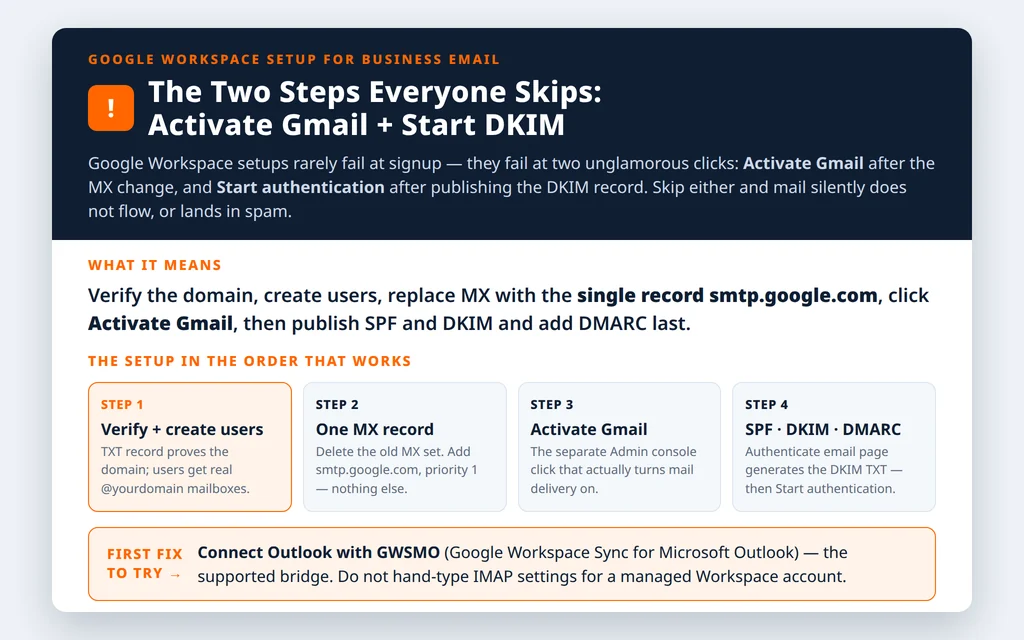
Table of Contents
Before you start your Google Workspace business email setup
- Admin access to your domain’s DNS at your registrar — verification, MX, SPF, DKIM and DMARC all happen there.
- The admin account details from signup. One caution from Google’s own signup flow: use a recovery email address that is not inside the new Workspace domain — if you ever get locked out, a recovery address on the very domain you cannot access is useless.
- Your user list — names and desired addresses. Note that Workspace editions for businesses cap at 300 users; most small businesses never get near it, but design your address format (
firstname@vsfirstname.lastname@) before you start, as with any mail system.
Step 1 — Sign up and open the Admin console
Sign up at workspace.google.com with your business domain (in our example, brightpathconsulting.com) and choose the verified-domain sign-up mode if offered — it unlocks the full feature set. Then open admin.google.com. Everything in this guide happens in two places: the Admin console (users, Gmail activation, DKIM) and your registrar’s DNS editor (verification, MX, SPF, DMARC).
Step 2 — Verify your domain
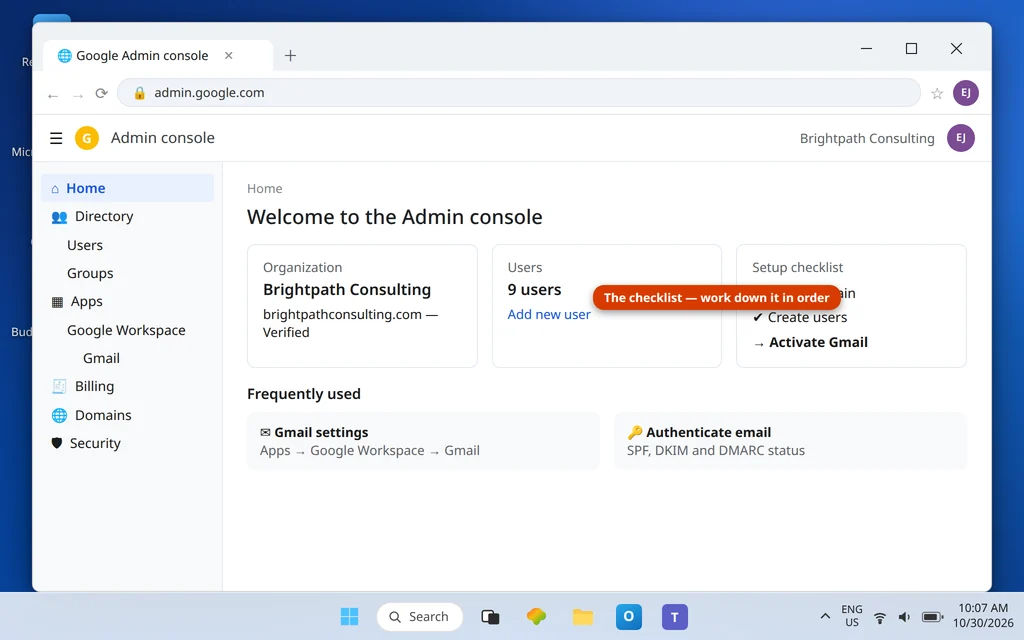
The Admin console’s setup checklist starts with domain verification. Google gives you a TXT record unique to your organization:
Type:  TXT
Host:  (blank, or @, depending on your registrar)
Value: google-site-verification=8f3kd92jd8s72hd71ks0d92jd8s7
TTL:   3600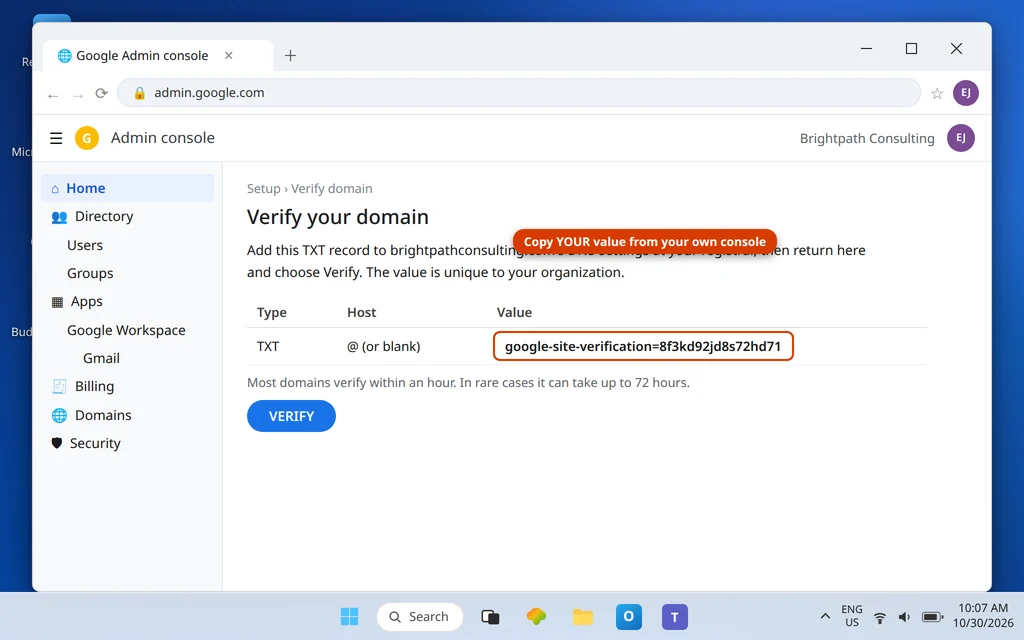
Copy the value from your own console — never from a tutorial — add it at your registrar, and click Verify in the console. Verification can take a few minutes and Google allows up to 72 hours in slow cases. Leave the record in place afterwards; unlike some one-time proofs, it does no harm and re-verification uses it.
Step 3 — Create users
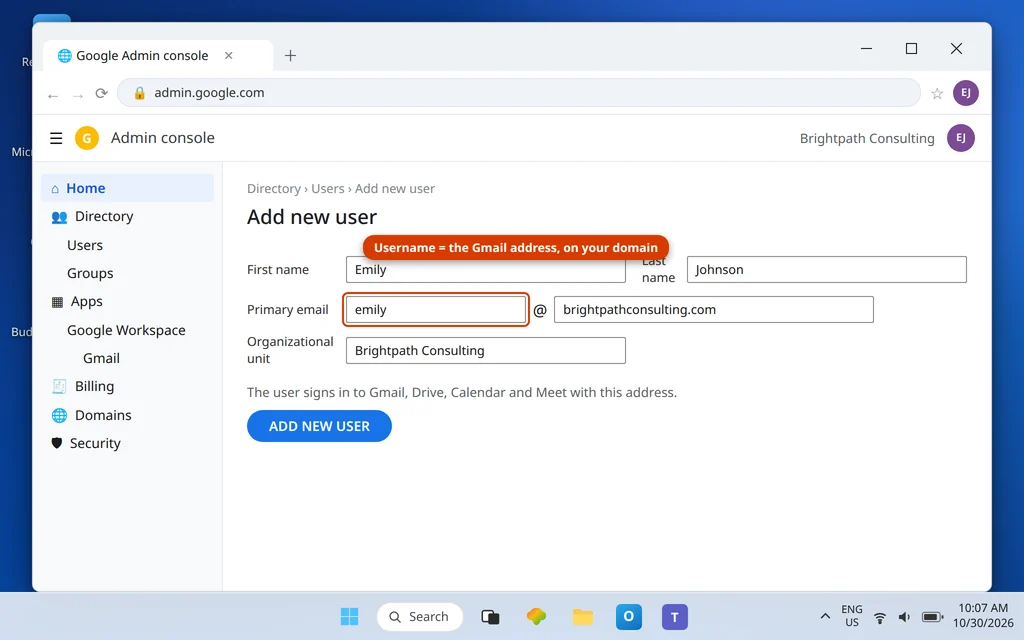
Go to Directory → Users → Add new user. Each username becomes a full mailbox on your domain — emily@brightpathconsulting.com in our walkthrough — with Gmail, Drive, Calendar and Meet attached. Create everyone now, set temporary passwords, and require a change at first sign-in.
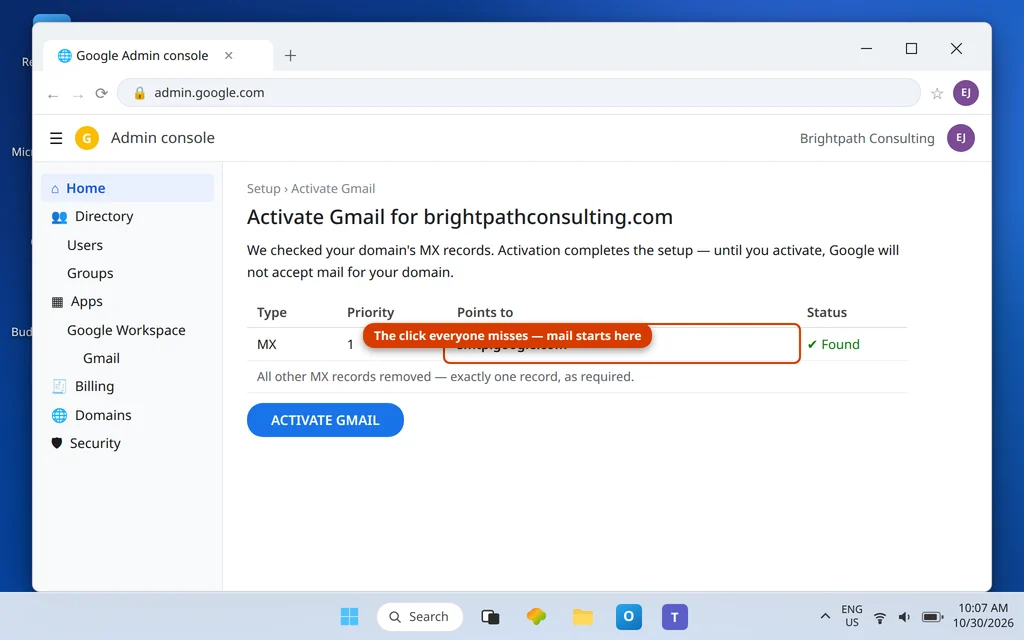
Step 4 — Switch MX to Google and activate Gmail
This is the step where Google setups differ from everyone else’s, twice over: the MX change is a replacement, not an addition, and there is a separate activation click afterwards.
At your registrar, delete every existing MX record, then add exactly one:
Type:     MX
Host:     @
Value:    smtp.google.com
Priority: 1
That single record is the complete, current setup — Google retired the old five-record ASPMX list years ago, and guides still showing ASPMX.L.GOOGLE.COM and its alternates are out of date (that older set still resolves, but the single record is what Google now prescribes).
Then return to the Admin console setup checklist and click Activate Gmail for your domain. Until this is done, the MX records point at Google and Google politely refuses the mail. It is the most-missed click in the whole Workspace setup. See Google’s Activate Gmail with Google Workspace guide for the same checklist.
Step 5 — Publish SPF
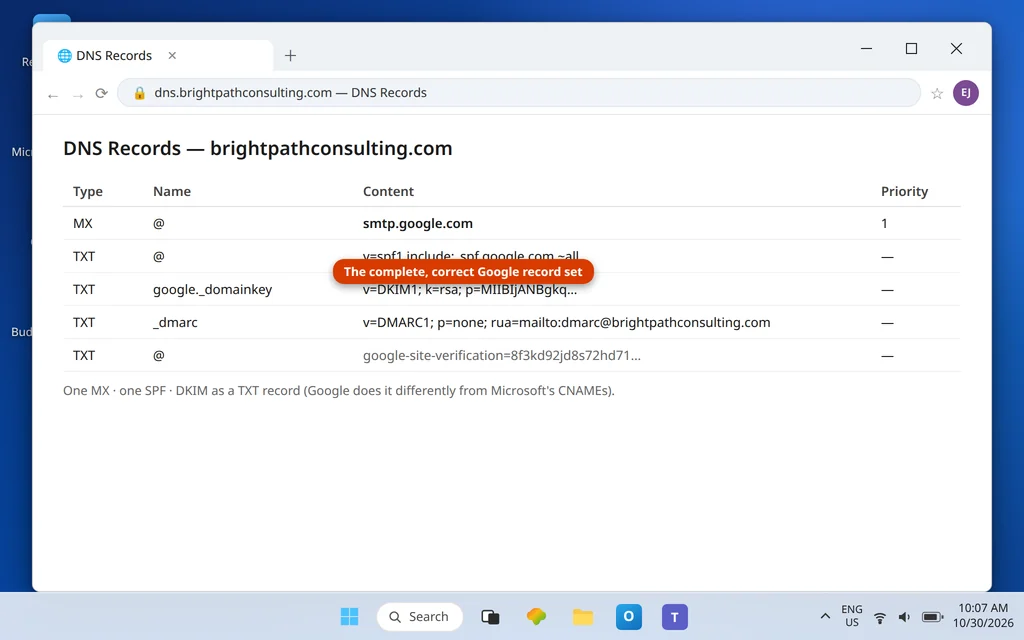
Type:  TXT
Host:  @
Value: v=spf1 include:_spf.google.com ~all
Copy that string exactly — including the soft fail ~all at the end. Google’s published record deliberately uses ~all, not the hard-fail -all; “correcting” it is a mistake. And the usual SPF rule applies: one SPF record per domain, so merge any other senders into this line rather than adding a second v=spf1 record.
Step 6 — Generate DKIM and start authentication
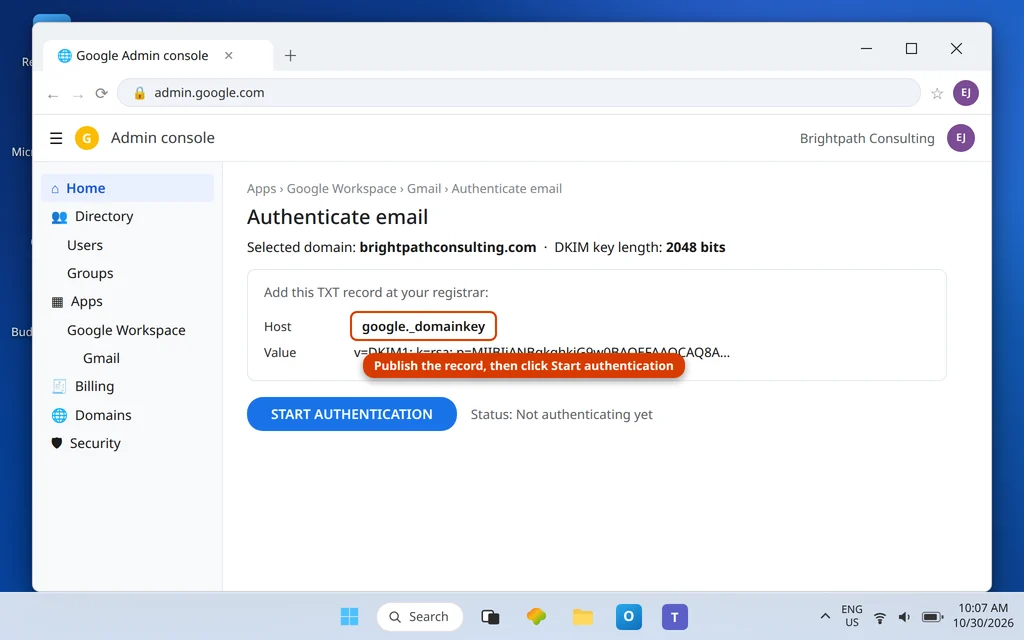
Google generates your DKIM key inside the Admin console — you do not create it yourself:
- Go to Apps → Google Workspace → Gmail → Authenticate email.
- Select your domain and click Generate new record. Choose the 2048-bit key length if your DNS host supports it.
- Google shows you a TXT record to publish. Note the difference from Microsoft 365: Google’s DKIM record is a TXT record at the host
google._domainkey— not a CNAME. - Publish it at your registrar, wait for it to propagate, then come back and click Start authentication. Publishing alone does not sign anything; the button does.
Type:  TXT
Host:  google._domainkey
Value: v=DKIM1; k=rsa; p=MIIBIjANBgkq...(your generated key)
One timing wrinkle: if this is a brand-new Workspace where Gmail was only just turned on, Google may need 24–72 hours before the key can be generated — that delay is normal, not an error.
Step 7 — Add DMARC (after 48 hours of clean authentication)
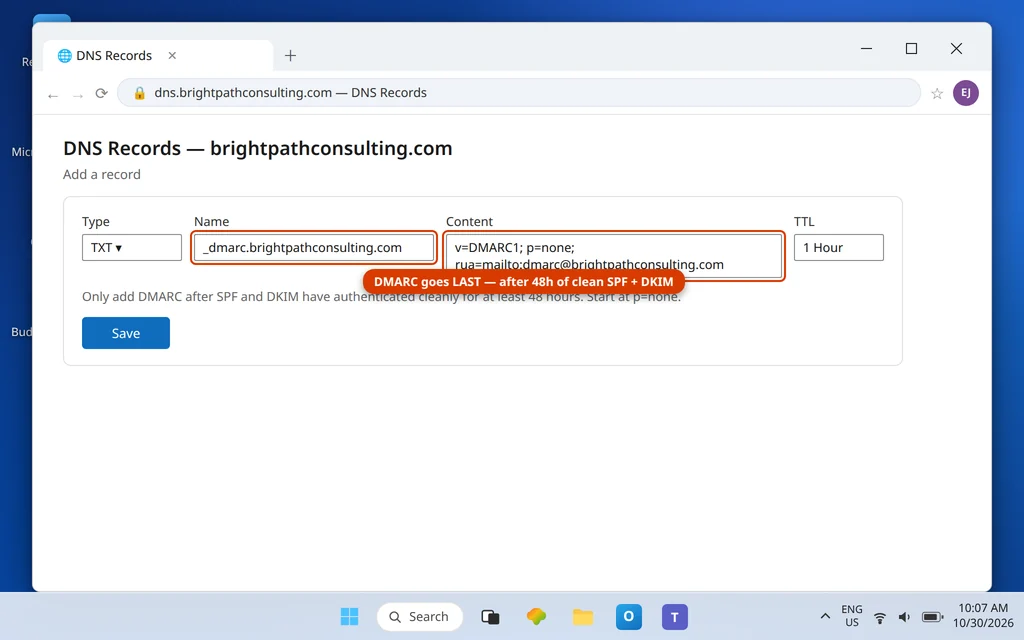
DMARC goes last, and Google’s own guidance adds a condition: only publish it once SPF and DKIM have been authenticating your mail successfully for at least 48 hours. Then add one TXT record:
Type:  TXT
Host:  _dmarc.brightpathconsulting.com
Value: v=DMARC1; p=none; rua=mailto:dmarc@brightpathconsulting.com
Start at p=none and read the aggregate reports for a week or two, then raise the policy to quarantine and finally reject. Jumping straight to reject before you have seen the reports is how businesses block their own invoices.
Step 8 — Connect Outlook with GWSMO (the supported way)
Google Workspace is paid business email, and Google’s supported bridge to Outlook is a dedicated tool: Google Workspace Sync for Microsoft Outlook (GWSMO). Download it from Google, run it, sign in with the user’s Workspace account, and it creates a proper Outlook profile that syncs mail, calendar and contacts through Google’s own sync engine.
Do not hand-type IMAP server names for a Workspace account in Outlook, and do not reuse personal-Gmail instructions — Workspace accounts are managed accounts, and your admin’s security settings (including whether IMAP is even enabled) govern what works. If the user simply prefers Gmail’s web interface, that is fine too; but for Outlook, GWSMO is the route Google supports and the one that keeps calendars and contacts in sync.
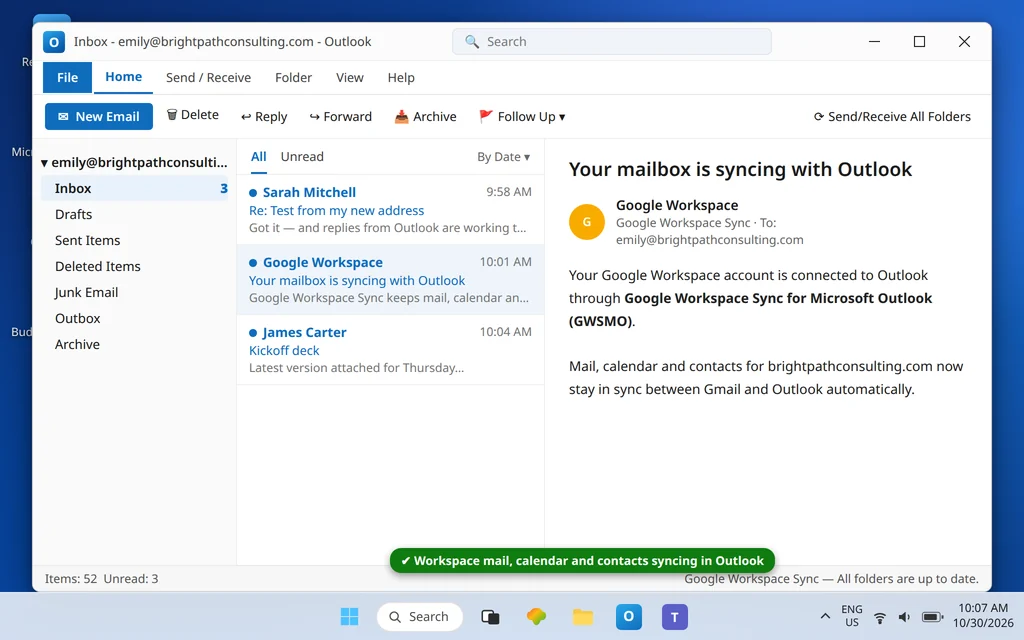
A final end-to-end check: send from Gmail webmail to an outside address and reply; then send from Outlook and confirm it appears in Gmail’s Sent folder. Both directions visible in both places means mail, sync and authentication are all live.
If mail is not flowing: the three usual causes
- Nothing arrives at the new mailboxes: Gmail was never activated in the Admin console (Step 4), or an old provider’s MX record survived alongside Google’s and is winning on priority.
- Mail arrives but lands in spam at other companies: DKIM record published but Start authentication never clicked, or SPF “fixed” to
-allor duplicated into two records. - Outlook will not connect: you are trying manual IMAP settings on a managed account. Install GWSMO and let it build the profile; check with your admin whether IMAP access is enabled for your organization if it still refuses.
For error-code-specific Outlook problems once you are up and running, see our Error Codes hub.
Keeping the setup healthy
- Keep exactly one MX and one SPF record. Every cleanup starts there.
- Finish the DMARC climb from
p=nonetop=rejectover the first month — it is what stops strangers sending mail that claims to be from your domain. - Create joiner/leaver habits now: add users in the Admin console the day someone starts, and suspend accounts the day someone leaves, so licenses and access never drift.
- Keep the recovery email outside the domain (Step 0’s rule) — it is your last-resort way back into the Admin console.
Frequently asked questions
How long does a Google Workspace setup take from signup to working mail?
Roughly 45–90 minutes of work plus DNS propagation. Domain verification is usually minutes; Gmail activation follows the MX change; DKIM can lag up to 24–72 hours on a brand-new organization before Google lets you generate the key, so plan authentication across the first two days rather than the first hour.
What are the correct MX records for Google Workspace now?
A single record — smtp.google.com at priority 1 — with all other MX records deleted. Older guides showing five records (ASPMX.L.GOOGLE.COM plus four ALT servers) describe the retired setup; Google’s current documentation prescribes the single record, and it handles delivery for the whole organization.
Why does my SPF record end in ~all instead of -all?
Because that is the record Google publishes: v=spf1 include:_spf.google.com ~all. The tilde is a soft fail — receiving servers treat unauthorized senders with suspicion rather than outright rejection. Changing it to -all without understanding your other sending services (invoicing tools, helpdesks) can get legitimate mail rejected.
DKIM for Google Workspace is a TXT record — I thought DKIM used CNAMEs?
Both exist in the wild, which is why admins mix them up. Microsoft 365 uses CNAME records for DKIM; Google Workspace uses a TXT record that Google generates for you, published at the host google._domainkey. Generate it in the Admin console (Apps → Google Workspace → Gmail → Authenticate email), publish it, then click Start authentication.
Can I just add my Workspace account to Outlook with IMAP settings?
It sometimes appears to work, but it is not the supported route and it skips calendar and contact sync. Google’s supported Outlook integration for Workspace is GWSMO (Google Workspace Sync for Microsoft Outlook), which builds and maintains the Outlook profile itself. Personal @gmail.com accounts are a different case — those do belong in Outlook as a standard account, as covered in our Gmail in Outlook guide.
My domain already has email with another provider. Can I follow this guide?
Only for the concepts — the sign-up, verification and authentication steps are the same, but the MX switch becomes a planned migration cut-over (mailboxes, history, aliases and timing all matter). Follow our dedicated migrate Outlook to Google Workspace guide so nobody’s existing mail gets stranded at the old provider.
Does activating Gmail interrupt anything?
If the domain is brand new, no. If the domain already receives mail elsewhere, the MX change is the interruption point: mail follows MX within hours, so switch only once the Workspace mailboxes and activation are ready, and keep the old service running for a few days while DNS settles.
Setting up your own Workspace and stuck on a step — verification pending for a day, Gmail activation greyed out, DKIM refusing to generate? Contact us at servicedesk@howtofixerroronline.com or through our Contact page and tell us which step you reached and the exact message the console shows. Tell us the message, never your password — we will never ask for it.