
Virgin Media Email Not Sending in Outlook: VM401 & 0x800CCC78 Fixes
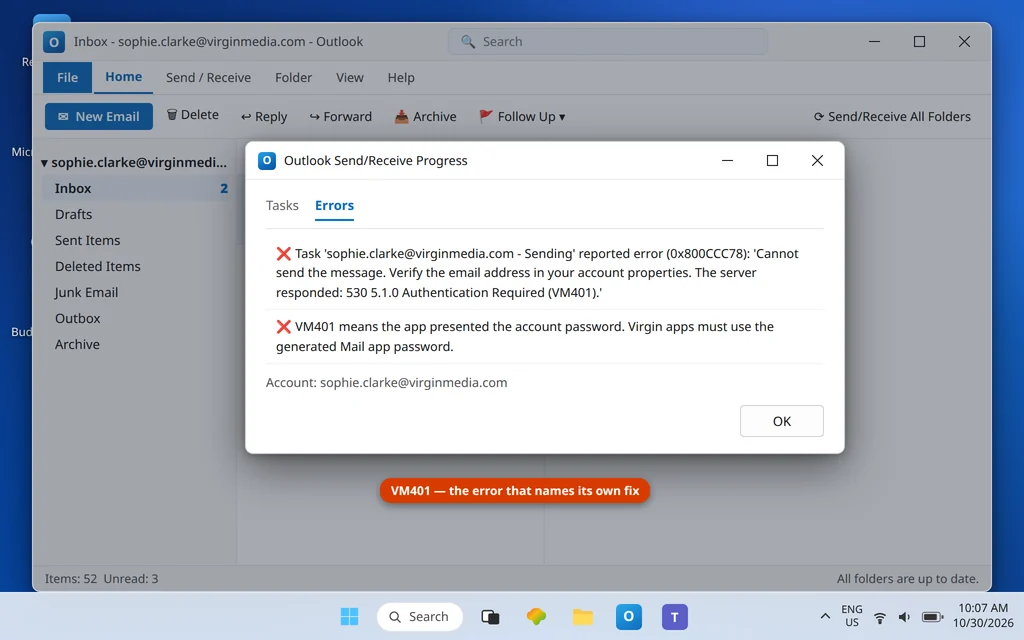
If virgin media email not sending in outlook is the problem you are facing, the cause is almost always a missing app password. Virgin Media’s sending failure has a signature you can read right off the error message: VM401 — usually delivered inside Outlook’s 0x800CCC78 error as “Cannot send the message… 530 5.1.0 Authentication Required (VM401).” It does not mean your password is wrong. It means Outlook is offering your normal My Virgin Media password to the mail server, and Virgin Media — by design — will not accept that password from an email app. Apps must use a separately generated Virgin Media Mail app password. Until Outlook holds that, every send is refused while receiving often keeps working, which is why this fault confuses so many people.
This guide covers @virginmedia.com addresses and the legacy domains that share the same system — @blueyonder.co.uk and @ntlworld.com. If Virgin mail also fails to receive, the same app password and table fix both directions. For other providers’ send problems, see Outlook Not Sending Emails but Can Receive.
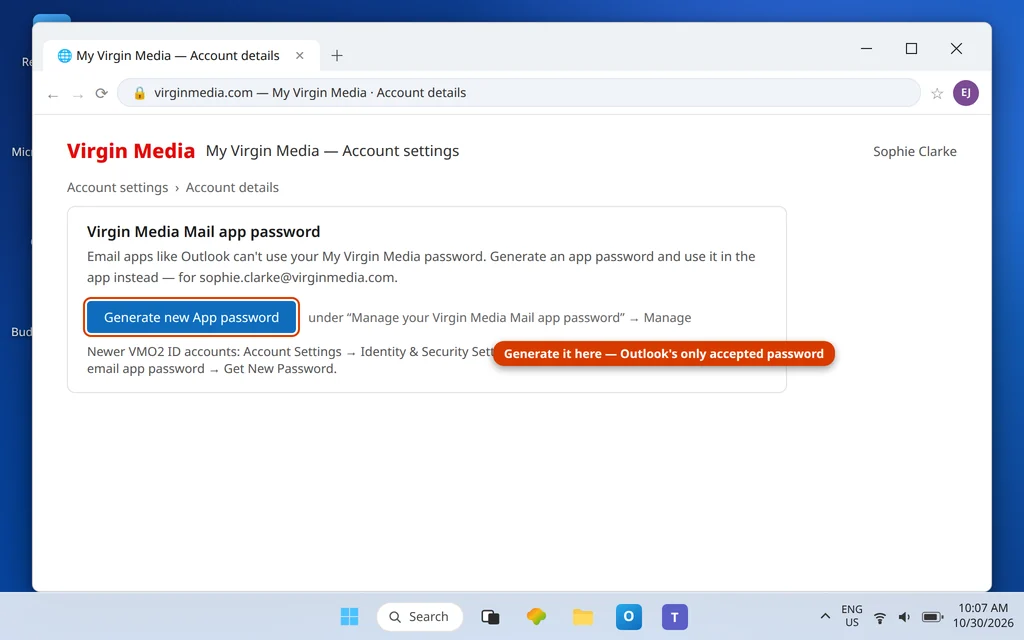
Quick Answer: Generate a Virgin Media Mail app password: sign in to My Virgin Media → Account settings → Account details → Manage (next to “Manage your Virgin Media Mail app password”) → Generate new App password. Paste that app password into Outlook’s password field. Confirm the outgoing server is
smtp.virginmedia.com, port 465, SSL, with SMTP authentication on. VM401 disappears the moment the app password replaces your normal password.
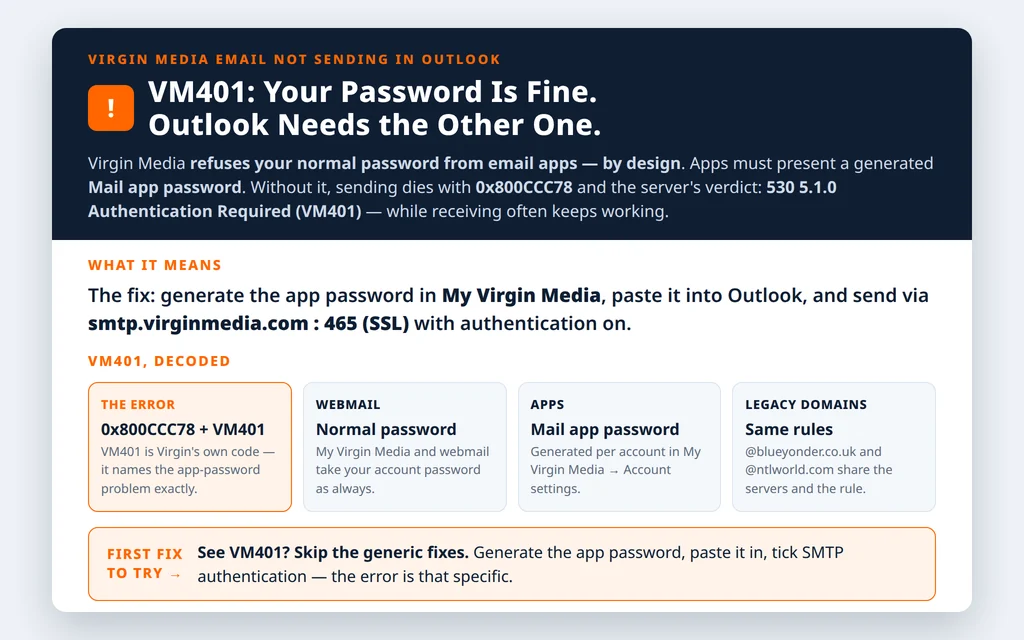
Table of Contents
Fix 1 — Read the error: VM401 inside 0x800CCC78
Outlook reports the failure as error 0x800CCC78 (“Cannot send the message. Verify the email address in your account properties”), and the server’s half of the message is the diagnostic gold: “530 5.1.0 Authentication Required (VM401)”. The 530 is a refusal, and VM401 is Virgin Media’s own code for this app has not authenticated the way we require. When you see VM401, skip generic troubleshooting — go straight to Fix 2.
Fix 2 — Generate the Virgin Media Mail app password
- Sign in to My Virgin Media on the web.
- Go to Account settings → Account details.
- Find Manage your Virgin Media Mail app password and click Manage → Generate new App password.
- Copy the generated password — this is the only password Outlook may use for this account.
Newer accounts (VMO2 ID sign-in): the path runs Account Settings → Identity & Security Settings → Manage your products → Manage email app password → Get New Password. Same destination, slightly different corridor — use whichever your account shows.
Virgin Media’s own guide to managing a Virgin Media email account confirms the same app-password and server settings for email apps.
Fix 3 — Put the app password and Virgin’s table into Outlook
In File → Account Settings → Change, paste the app password into the password field (it replaces your normal password here — that is expected and correct), and verify the whole table:
| Setting | Value |
|---|---|
| Incoming server (IMAP) | imap.virginmedia.com: 993, SSL |
| Incoming server (POP3) | pop3.virginmedia.com: 995, SSL |
| Outgoing server (SMTP) | smtp.virginmedia.com: 465, SSL |
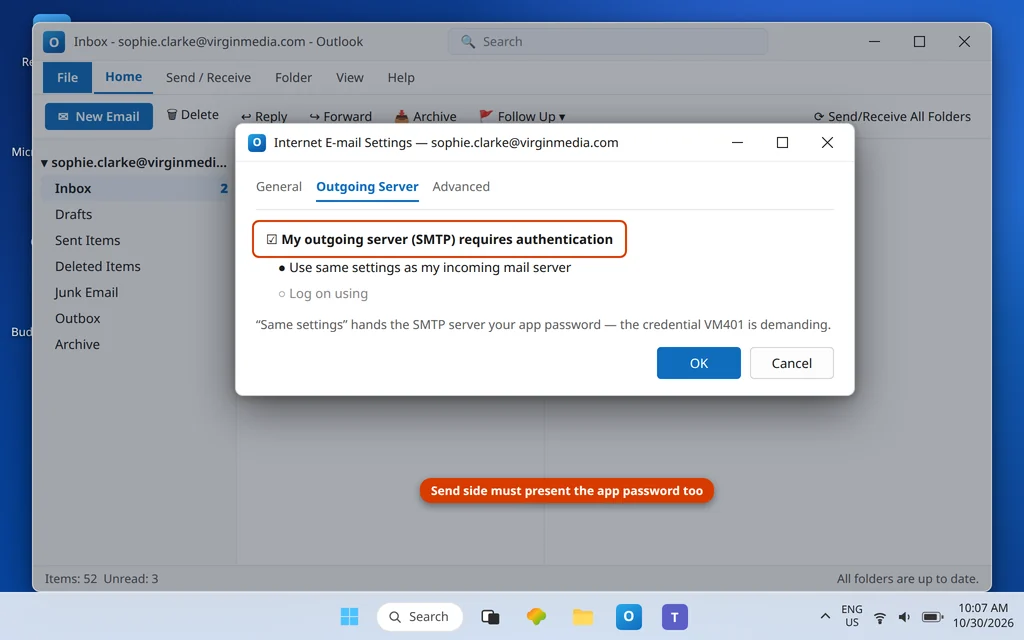
| SMTP authentication | Required — same settings as incoming |
| User name | Full address (@virginmedia.com / @blueyonder.co.uk / @ntlworld.com) |
| Password | Virgin Media Mail app password — never the account password |
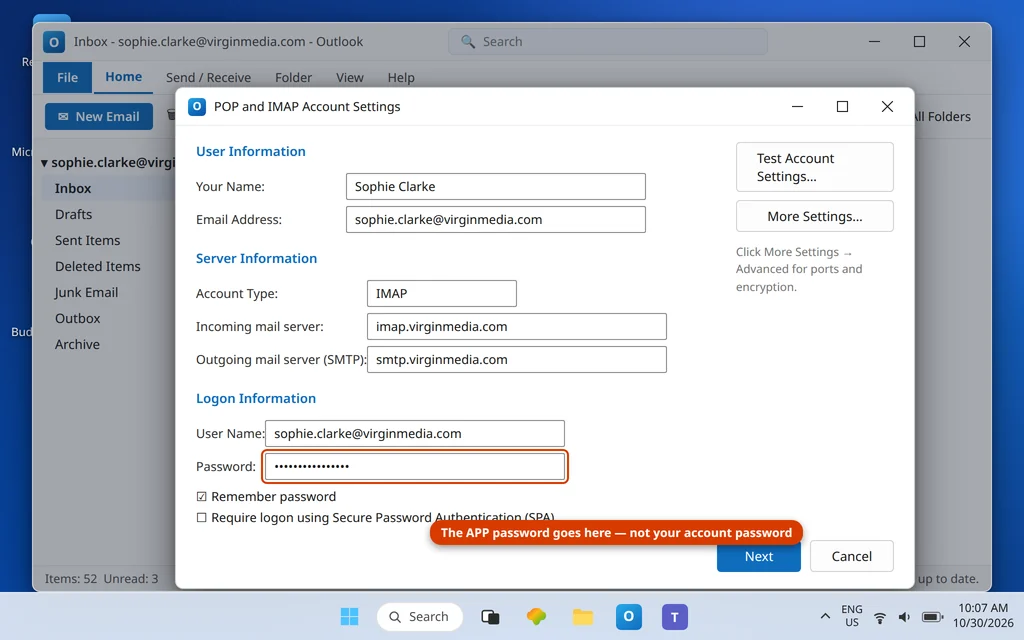
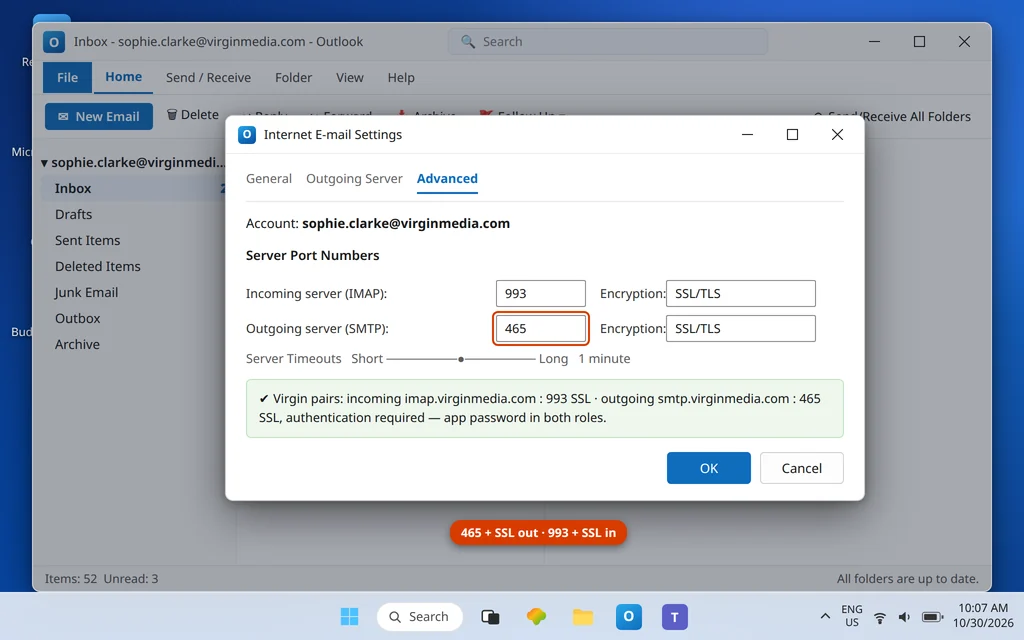
Then More Settings → Outgoing Server: tick My outgoing server (SMTP) requires authentication → Use same settings as my incoming mail server, so the send side presents the app password too. This checkbox is where half-fixed setups fail — incoming got the app password, outgoing kept trying without it.
Fix 4 — Legacy domains (blueyonder.co.uk, ntlworld.com): same everything
If your address ends @blueyonder.co.uk or @ntlworld.com, nothing changes except the address itself: the same virginmedia.com servers, the same app-password rule, the same VM401 meaning. Do not let old Blueyonder- or NTL-era server names from ancient guides creep in — the current Virgin Media table above is the only one in service. Generate the app password against the legacy address in My Virgin Media exactly as in Fix 2.
Fix 5 — One account, many devices: keep every Outlook on the same app password
Virgin’s app password is a property of the mailbox, not of one computer, and that cuts both ways. The good news: the same app password works in Outlook on your desktop, your laptop, and your phone app — enter it once per app and all of them send. The trap: the day you click Generate new App password for a new device, the old app password stops working everywhere, and each existing Outlook starts failing with VM401 in turn, usually blamed on the device rather than the regeneration. So whenever you generate a new one — for any reason — do a full round the same day: update the password field in every Outlook and app that holds the account. If you are reading this with VM401 on a machine that “was fine until Tuesday,” ask what changed on Tuesday; a well-meaning app-password generation on another device is the most common answer.
Fix 6 — Virgin errors that are not VM401
Not every Virgin send failure wears the VM401 badge. 0x800CCC0E on the sending task means Outlook could not connect to smtp.virginmedia.com at all — check the port pair (465 + SSL) and your network before touching credentials; our dedicated 0x800CCC0E guide walks the connection checks. A failure with no code where messages silently return to the Outbox is usually the Outbox itself (Fix 7) or Work Offline. And if webmail will not send either (Fix 7’s test), the account itself is restricted — Virgin can limit sending on accounts flagged for suspicious activity, and the recovery happens in My Virgin Media and with time, not in Outlook’s settings. Match the fix to the failure shape: VM401 = credential type, 0x800CCC0E = connection, webmail-also-broken = account.
Fix 7 — Clear the Outbox and send fresh
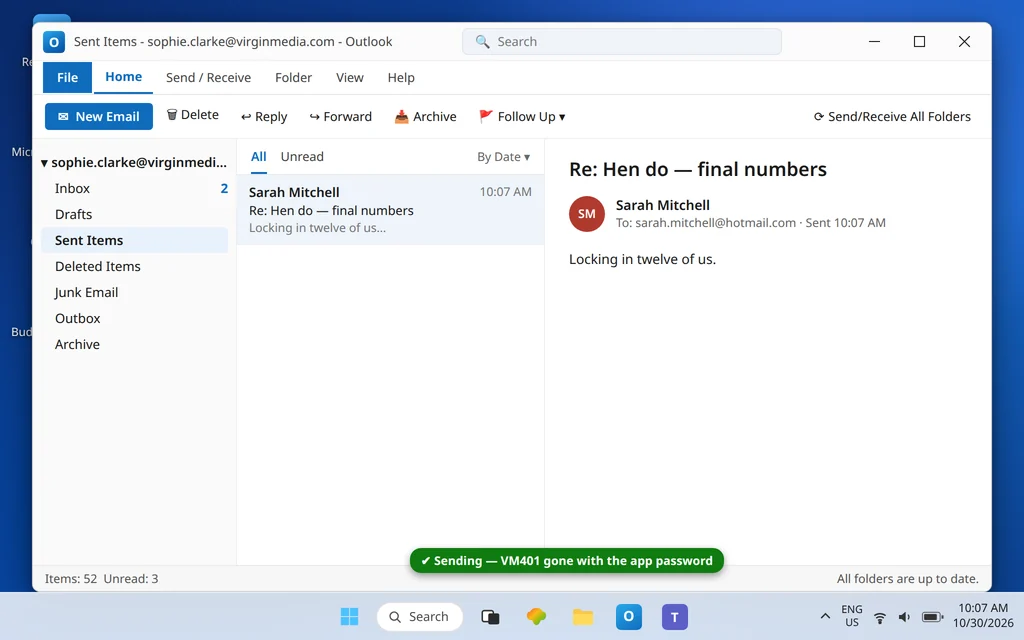
With the app password in place, drag stuck messages from the Outbox to Drafts, open each, and press Send — they go out under the new credential. A message that refuses to move needs the Work Offline → restart → delete → rewrite sequence. Send a test to an outside address and confirm it lands in Sent Items.
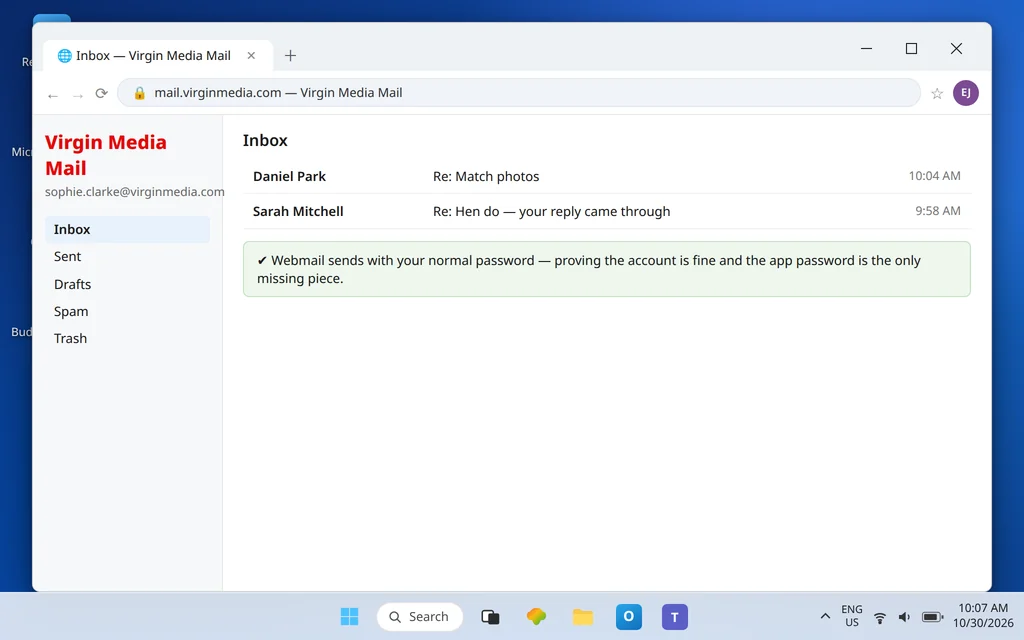
Before the Outbox surgery, run that webmail test: sign in to Virgin Media webmail and send a message. If it goes out, the account can send and every remaining fault is inside Outlook. If webmail refuses too, stop — the restriction is on the account (see Fix 6).
How to stop virgin media email not sending in outlook from happening again
- Know the rule forever: apps = app password. Any new device or Outlook rebuild starts with generating (or re-using) the Mail app password — never the My Virgin Media password.
- Regenerating invalidates the old app password. If you generate a fresh one for a new device, update Outlook on every machine that used the previous one, or VM401 returns there.
- Keep the table boring: virginmedia.com servers, 465/SSL out, 993/SSL in. Exotic settings are pre-migration fossils.
- VM401 is your friend. It names the problem precisely; the day it reappears, you already know the fix.
Frequently asked questions
What does Virgin Media error VM401 mean?
VM401 is Virgin Media’s code for an authentication refusal on sending: Outlook presented the wrong kind of credential. It appears inside Outlook’s 0x800CCC78 error as “530 5.1.0 Authentication Required (VM401)”. The fix is always the same — Outlook must use your generated Virgin Media Mail app password instead of your normal account password.
Why won’t my normal Virgin Media password work in Outlook?
Because Virgin Media designed it that way. The password you use for My Virgin Media and webmail is deliberately not accepted by third-party email apps. Apps authenticate with a separate Mail app password, generated in My Virgin Media under Account settings. This is a security feature, not a fault — but it is the #1 cause of “receives fine, won’t send” on Virgin accounts.
Where do I generate the Virgin Media Mail app password?
In My Virgin Media → Account settings → Account details → Manage (beside “Manage your Virgin Media Mail app password”) → Generate new App password. On newer VMO2-ID accounts: Account Settings → Identity & Security Settings → Manage your products → Manage email app password → Get New Password. Paste the result into Outlook’s password field.
What are the correct Virgin Media email settings for Outlook?
Incoming IMAP imap.virginmedia.com port 993 SSL (POP3: pop3.virginmedia.com 995 SSL); outgoing smtp.virginmedia.com port 465 SSL with SMTP authentication on; user name = your full address; password = the app password. The identical table serves @virginmedia.com, @blueyonder.co.uk and @ntlworld.com.
Does the app password fix receiving too?
Yes — it is one credential for the whole account in Outlook. Receiving often survives longer on a stale setup, which creates the “receives but won’t send” split, but the app password is the correct password for both directions. If receiving has also stopped, apply the same Fix 3 table and both return together.
I generated a new app password and now my other PC shows VM401. Why?
Generating a new app password replaces the old one. Every Outlook still holding the previous app password now fails authentication — update the password field on each machine with the new app password and they recover. This is expected behavior, and the reason to update all devices in one pass whenever you regenerate. More Outlook error codes live in our Error Codes hub.
Sending again — or is VM401 still staring at you? Contact us at servicedesk@howtofixerroronline.com or through our Contact page and tell us your address domain and the exact error text. Never send us your password or app password — we will never ask for either.