
Microsoft Teams High CPU or Memory Usage on Windows 11
Halfway through a meeting, your laptop fan spins up like a hair dryer. The mouse starts to lag, your voice breaks up, and everything else on the PC crawls. You open Task Manager and there it is: Microsoft Teams sitting at the top, eating CPU and holding hundreds of megabytes — sometimes more — of memory, process name ms-teams.
Some of that is normal. A video meeting is genuinely hard work: your PC is encoding your camera, decoding everyone else’s video, and drawing it all, live. What is not normal is Teams staying hot and heavy when you are only chatting, or keeping the fan loud long after the meeting ends. That kind of stuck-high usage has causes you can fix. If your whole PC is slow in everything — not just Teams — work through PC Slow on Windows 11 alongside this guide; this one stays on Teams itself.
Quick Answer: Press Ctrl + Shift + Esc and sort Task Manager by CPU, then Memory, to confirm ms-teams is really the culprit. Fully quit Teams (right-click its icon near the clock → Quit) and reopen it. In meetings, turn off background effects and use Speaker view instead of Together mode or Large gallery. Clear the Teams cache at
%userprofile%\AppData\Local\Packages\MSTeams_8wekyb3d8bbwe\LocalCache\Microsoft\MSTeams(delete the contents with Teams closed). Update Teams and your graphics driver, then try Repair in Settings → Apps → Microsoft Teams → Advanced options. Note: the old “Disable GPU hardware acceleration” checkbox was a classic Teams setting — the new Teams does not have it.
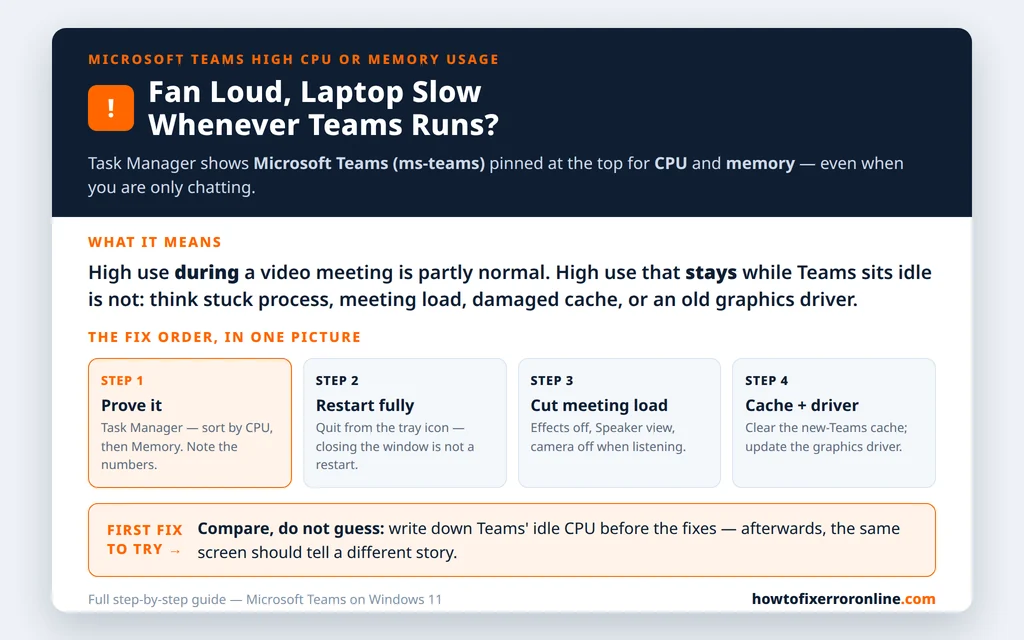
Table of Contents
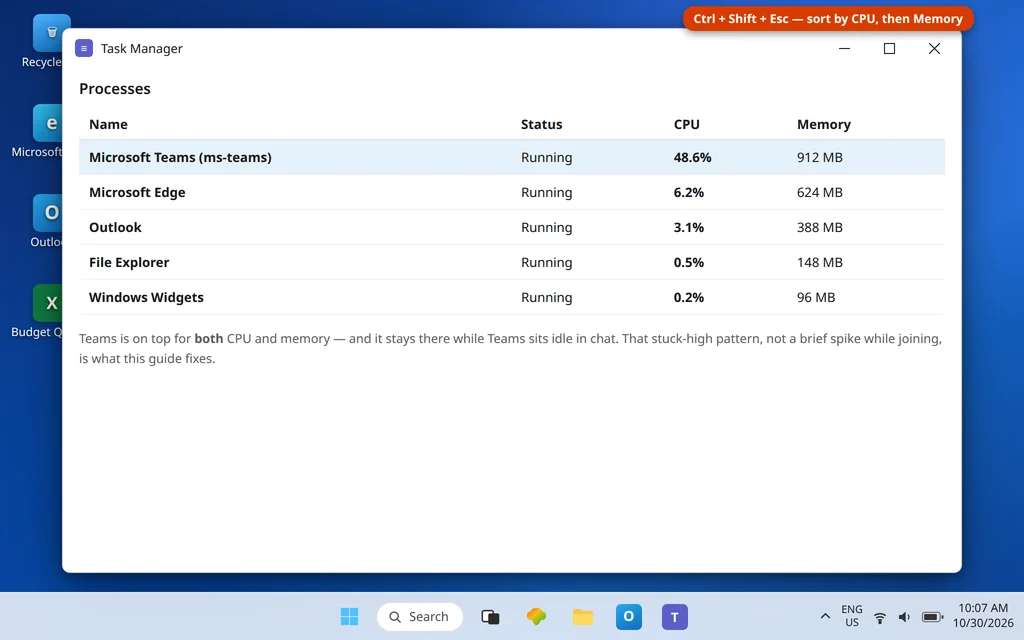
Fix 1 — Confirm Teams is really the culprit in Task Manager
Before changing anything, get proof — “the laptop is slow during Teams” is sometimes the browser, an antivirus scan, or Windows Update working at the same time.
- Press Ctrl + Shift + Esc to open Task Manager.
- On the Processes tab, click the CPU column header to sort by CPU, and note which app is on top. Then click Memory and check again.
- Expand Microsoft Teams if it is listed — you will see the group of processes the new Teams runs under the one name.
- Watch it for a minute in two states: sitting idle in chat, and inside a meeting with your camera on. Idle usage that stays high is the real target of this guide; a spike while joining a meeting is normal and should settle.
Write down roughly what you saw (for example, “about half the CPU while idle”). You will compare against it after each fix — that comparison is how you know which step actually helped.
Fix 2 — Fully restart Teams (closing the window is not a restart)
Teams keeps running after you close its window. A Teams process that has been alive for days — through sleep, meetings and network changes — is a prime suspect for usage that creeps up and never comes back down.
- Right-click the Teams icon in the notification area near the clock (click the ^ arrow if you do not see it) and choose Quit.
- Wait ten seconds, then check Task Manager: Microsoft Teams should be gone from the list. If a process hangs on, select it and choose End task.
- Open Teams again from the Start menu and re-check usage after a few minutes.
If usage drops back to normal and stays there, your fix was simply a fresh start — consider quitting Teams fully once a week rather than letting it run for a month.
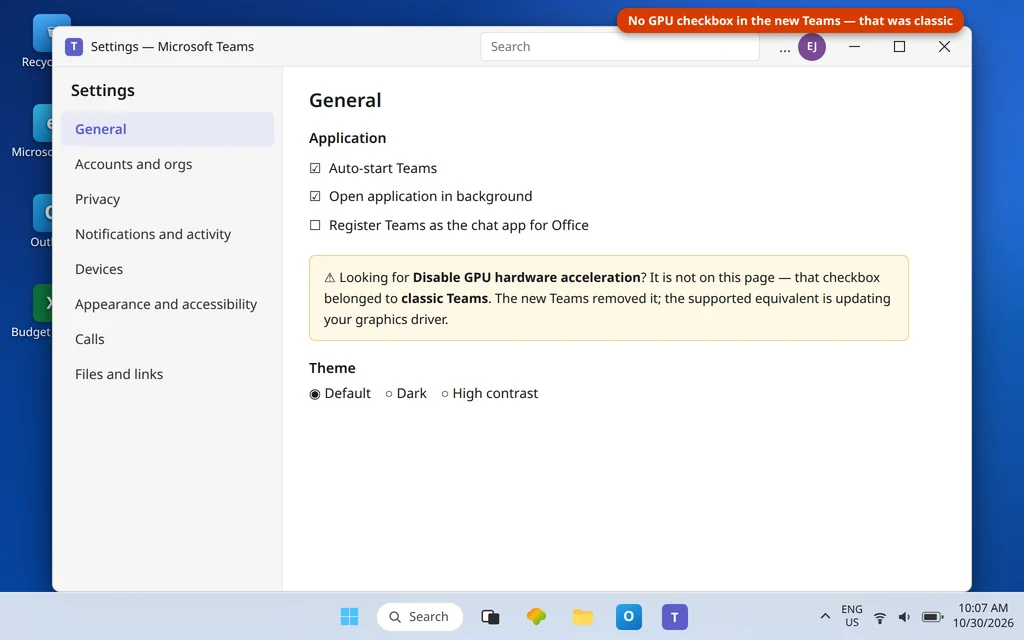
Fix 3 — The GPU hardware acceleration checkbox: the honest answer
Older guides all give the same step: “Settings → General → tick Disable GPU hardware acceleration.” Here is what research actually shows today, because following those guides sends people hunting for a setting that is not there:
- That checkbox belonged to classic Teams. In classic Teams it sits in Settings → General, is labelled Disable GPU hardware acceleration, and needs a Teams restart to take effect. If your PC still shows it, tick it, restart Teams, and compare usage.
- The new Teams removed the checkbox. Microsoft Q&A answers confirm the option is no longer available in the new Teams — there is no GPU toggle hiding in another menu. Do not waste time looking, and do not download tools that promise to restore it.
- The new-Teams equivalent is your graphics driver: when the driver mishandles the rendering work, CPU usage climbs because the PC does in software what the graphics chip should be doing. Fix 6 updates that driver — it is the real version of this fix now.
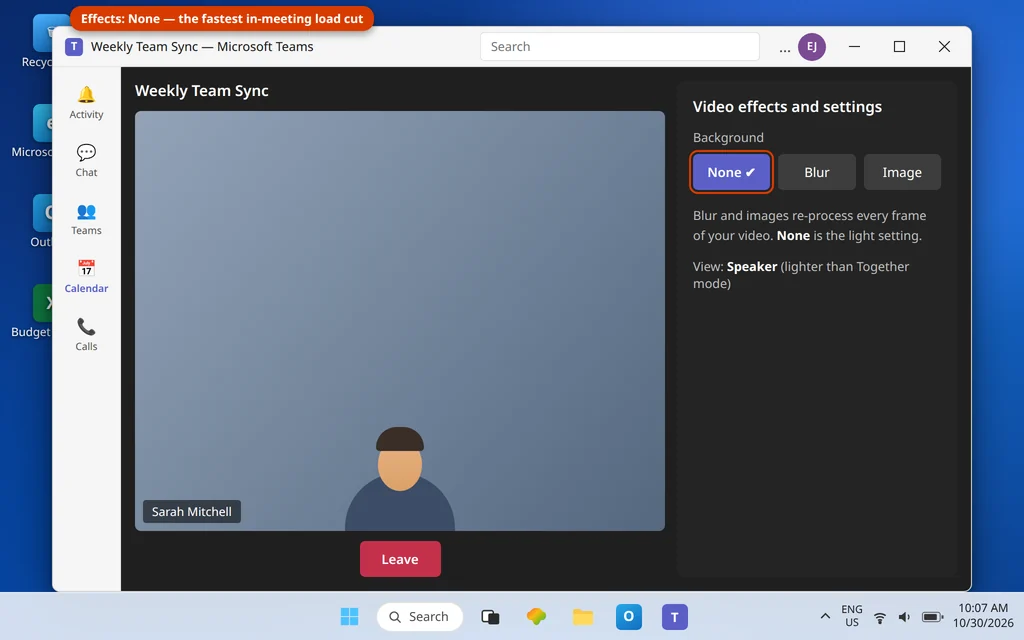
Fix 4 — Reduce the load inside meetings
If usage is fine in chat but explodes in meetings, the meeting itself is the load — and you control more of it than you might think:
- Turn off background effects. Blur and virtual backgrounds re-process every frame of your video. In a meeting, open More (…) → Video effects and settings (the exact label varies slightly by version) and choose None for your background.
- Step down from the heavy views. Together mode and Large gallery make your PC decode and arrange many video tiles at once. Switching to the standard Gallery or Speaker view noticeably lightens the work, especially on older laptops.
- Turn your camera off when you do not need it. Encoding your own video is one of the biggest single costs. Camera off for a listen-only meeting can be the difference between a quiet laptop and a loud one.
- Close what you are not using. Extra Teams windows, a second meeting in a pop-out, and a stack of open chats all keep the app busy. Shut the pop-outs when the call ends.
Fix 5 — Clear the Teams cache
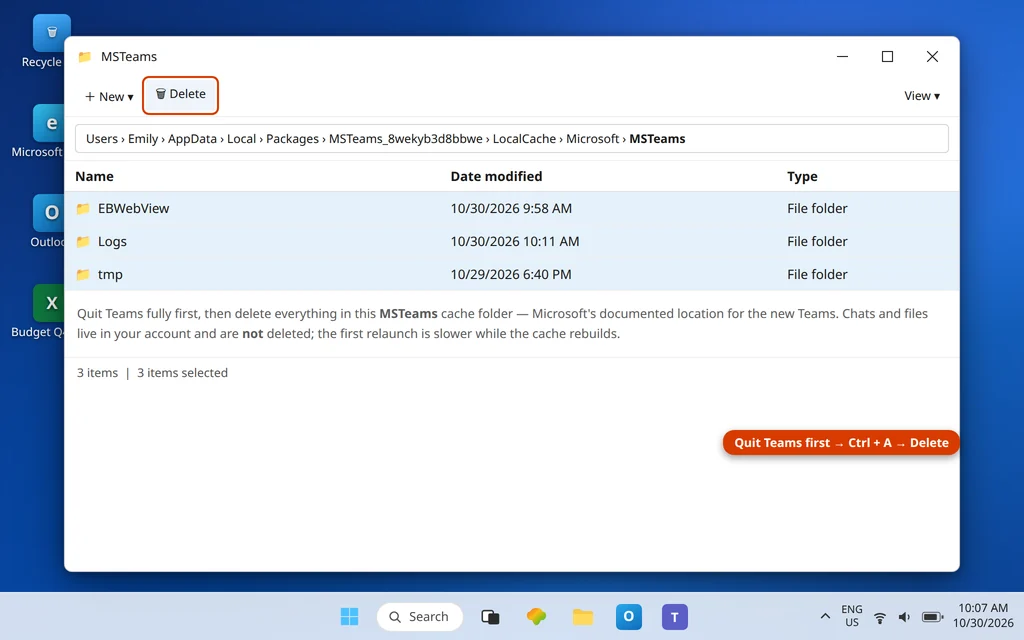
A bloated or damaged cache can keep Teams working in the background long after it should have settled. Microsoft documents this exact path for the new Teams:
- Fully quit Teams (Fix 2 — this step fails if Teams is still running).
- Press Windows + R, paste this path and press Enter:
%userprofile%\AppData\Local\Packages\MSTeams_8wekyb3d8bbwe\LocalCache\Microsoft\MSTeams - Select everything in the folder (Ctrl + A) and delete it.
- Reopen Teams. The first launch is slower than usual — Microsoft notes the cache files have to be rebuilt — and you may need to sign in again.
Your chats, channels and files are stored in your account, not in this folder, so clearing it does not delete your conversations. If general joining problems are mixed in with the slowness, our Can’t Join a Teams Meeting guide covers the meeting side.
Fix 6 — Update Teams and your graphics driver
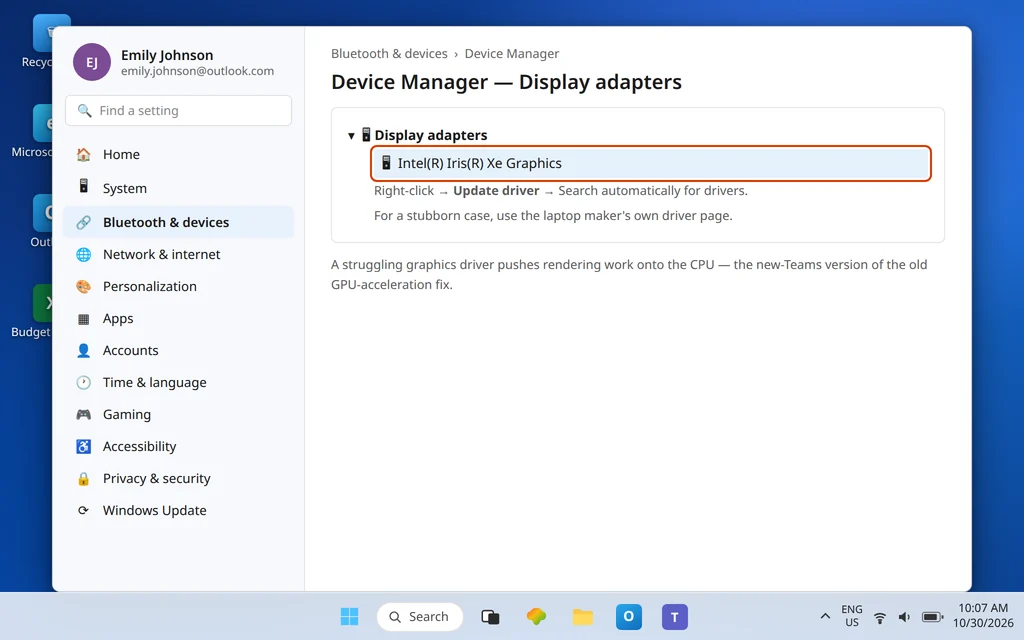
Performance fixes ship in updates, and a stale graphics driver is the most common reason the rendering load lands on the CPU:
- Update Teams: in Teams, open Settings and more (…) → Check for updates if your build shows it, and otherwise update from the Microsoft Store → Library → Get updates — the new Teams updates through the Store on many PCs.
- Update Windows: Settings → Windows Update → Check for updates, and install what is offered.
- Update the graphics driver: right-click Start → Device Manager → Display adapters, right-click your graphics adapter and choose Update driver. For a stubborn case, the laptop or graphics maker’s own driver page is the better source — Microsoft Q&A crash and performance answers recommend manufacturer drivers over the generic ones.
- Restart the PC and compare Task Manager against your Fix 1 notes.
Fix 7 — Repair, then Reset, from Advanced options
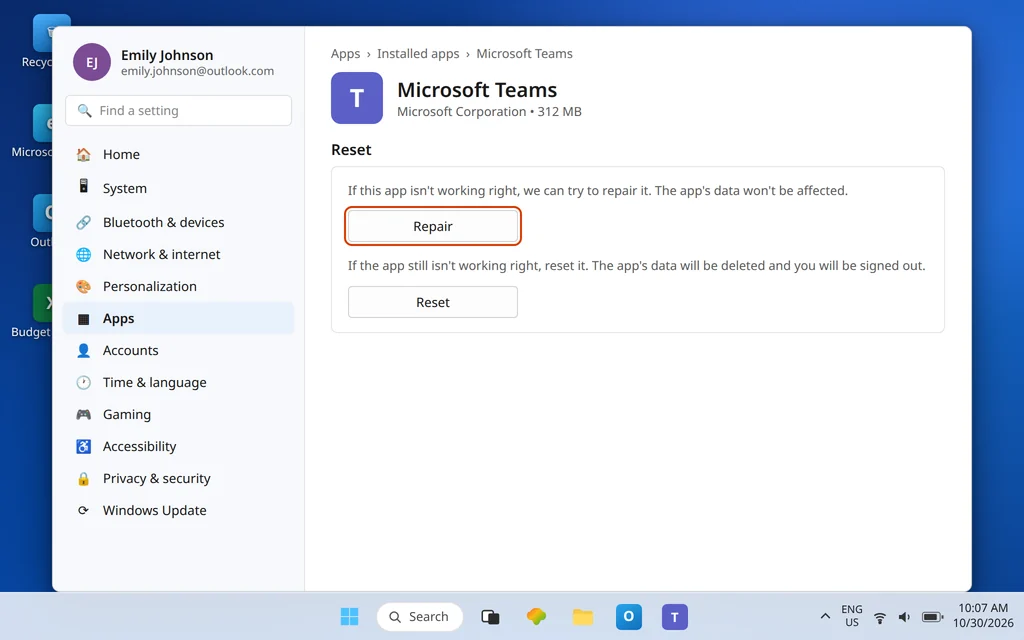
If usage is still stuck high with a clean cache and current drivers, repair the app itself:
- Open Settings → Apps → Installed apps.
- Find Microsoft Teams, choose More options (…) → Advanced options.
- Choose Repair first. Repair keeps your data and sign-in.
- Test for a day. If nothing changed, return and choose Reset. Reset deletes the app’s local data and signs you out — Microsoft presents it as the stronger of the two, so it comes second, not first.
Fix 8 — The Outlook interaction: test the Teams Meeting add-in
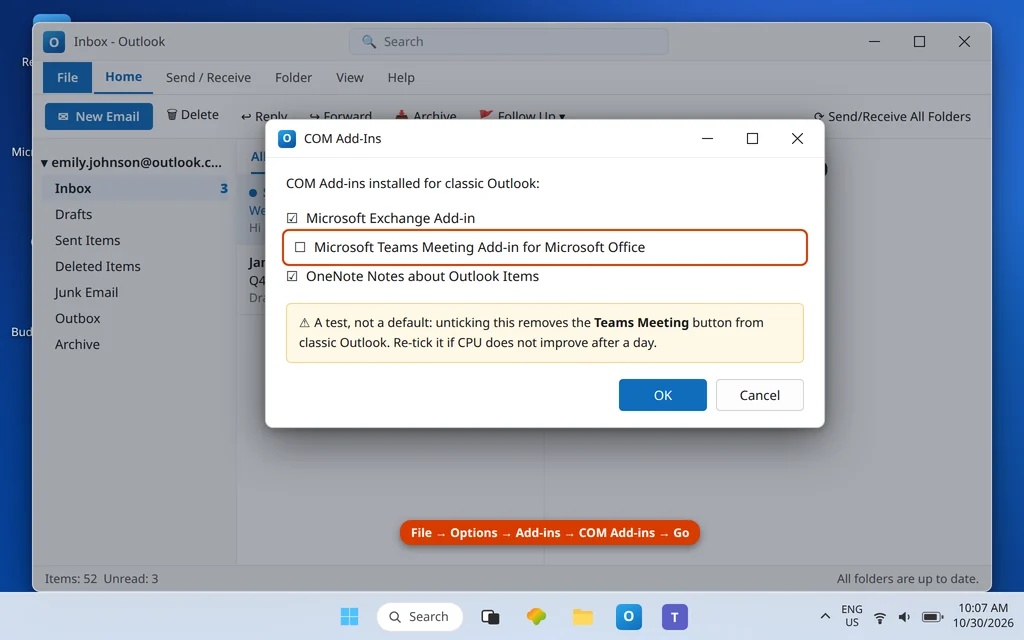
On some PCs, Teams and classic Outlook fight in the background — CPU rises when both are open, especially around calendar use. Microsoft Q&A answers for classic-era high CPU list a specific test worth borrowing, honestly labelled: it targets the Microsoft Teams Meeting Add-in for Microsoft Office in classic Outlook, and disabling it means the Teams Meeting button disappears from classic Outlook (you can still schedule from Teams itself), so treat it as a diagnostic, not a default:
- In classic Outlook, open File → Options → Add-ins.
- At the bottom, next to Manage: COM Add-ins, choose Go.
- Untick Microsoft Teams Meeting Add-in for Microsoft Office, choose OK, and restart both Outlook and Teams.
- Compare Task Manager. If nothing changed after a day, re-tick it — the add-in was not your problem.
Skip this fix entirely if you do not use classic Outlook.
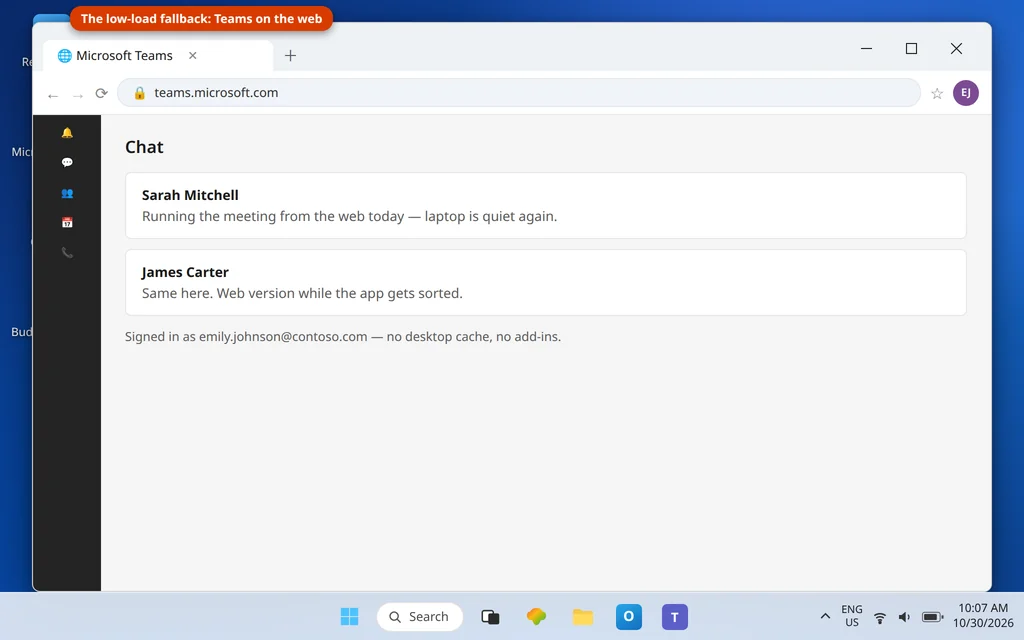
Fix 9 — Use Teams on the web as the low-load fallback
If you need relief today — a meeting in ten minutes on a laptop that sounds like it is preparing for takeoff — open teams.microsoft.com in your browser, sign in with the same account, and join from there. The web version carries no desktop cache, no add-ins and a lighter footprint on most PCs, and it doubles as a test: if the web version runs cool while the app runs hot, the problem is the desktop install (Fixes 5–7), not your account or your meetings.
Confirm it worked
Open Task Manager during your next ordinary meeting. Teams will still use real CPU while video is running — that is expected — but it should settle back down within a minute or two of the meeting ending, the fan should quiet with it, and idle chat should sit near the bottom of the list. Compare with the numbers you noted in Fix 1; “better” should be visible, not just felt.
How to stop it happening again
- Quit Teams fully now and then. A weekly full quit-and-reopen prevents the slow creep that sleep cycles and weeks of uptime cause.
- Keep effects off by default. Turn blur or a background on for the calls that need it, not for every call.
- Let updates land. Teams, Windows and graphics drivers all carry performance fixes; postponing them for months is postponing the cure.
- Watch the pattern, not the panic. A fan during a big gallery meeting is normal. Usage that stays high while Teams sits idle is the signal to revisit Fix 5.
Frequently asked questions
Why does Microsoft Teams use so much CPU and memory?
Video meetings are heavy work — your PC encodes your camera and mic, decodes everyone else’s video, and renders the gallery, all live. On top of that, Teams keeps chats, channels and files synced in the background. Usage that is high during a meeting is largely normal; usage that stays high while Teams sits idle usually means a stuck process, a damaged cache, background effects, or an old graphics driver — the targets of Fixes 2, 4, 5 and 6.
How do I check whether Teams is the app slowing my laptop down?
Open Task Manager (Ctrl + Shift + Esc), sort the Processes tab by CPU, then by Memory, and look for Microsoft Teams (process group name ms-teams). Check it both idle and in a meeting. If another app is actually on top — a browser, an antivirus scan, Windows Update — that app, not Teams, is your slowdown.
Where is the “Disable GPU hardware acceleration” setting in the new Teams?
It is not there. That checkbox — Settings → General → Disable GPU hardware acceleration — was a classic Teams setting, and Microsoft Q&A confirms the new Teams removed it. If your build still shows it, tick it and restart Teams. On the new Teams, the equivalent fix is updating your graphics driver (Fix 6), because a struggling driver pushes rendering work onto the CPU.
Do background effects really use that much CPU?
They add real work to every single frame of your video — your PC has to separate you from your room, continuously, before it can blur or replace the background. On a newer PC the cost is modest; on an older laptop it is often the difference between a quiet meeting and a loud one. Together mode and Large gallery add a similar multi-tile cost. Turning effects off and using Speaker view is the fastest in-meeting test there is (Fix 4).
Will clearing the Teams cache delete my chats?
No. Chats, channels and files live in your Microsoft 365 account. The folder in Fix 5 holds local working files that Teams rebuilds — Microsoft notes the first restart after clearing is slower for exactly that reason, and you may be asked to sign in again.
Is it normal for Teams to use a lot of memory just sitting open?
Teams does hold a noticeable amount of memory while open — it is a large app keeping your chats and teams ready. The line is behavior, not a magic number: memory that climbs all day, or stays maxed out after meetings end, is not normal. A full quit and reopen (Fix 2) plus a cache clear (Fix 5) handles most of those cases.
Still running hot? Contact us at servicedesk@howtofixerroronline.com or through our Contact page and tell us what Task Manager shows for Teams while idle and in a meeting, and whether the fan quiets down after you quit Teams fully. We will never ask for your password.