
Microsoft Teams Audio Not Working — Can’t Hear Anyone
Everyone is talking. You can see their names light up, see them nod — and you hear absolutely nothing. Your side of the meeting works; the sound coming back to you does not.
This guide is deliberately narrow: it is the speaker-only deep dive. Other people can hear you; you cannot hear them. It is the mirror image of our microphone guide, Microsoft Teams Microphone Not Working — if the problem runs the other way, go there instead. And if your camera and audio are both misbehaving, the combined overview is Teams Camera and Microphone Not Working; this article picks up where that one stops and goes deeper on hearing alone.
The cause is almost always one of five things: Teams is playing sound to the wrong speaker, Windows is playing it somewhere else, the volume mixer has Teams turned down on its own, Windows is lowering the volume because it thinks you are on a phone call, or a Bluetooth headset is connected to a device you are not listening to. Work through the fixes in order — each one either restores the sound or rules out a whole layer.
Quick Answer: Open Teams Settings > Devices and make sure the Speaker dropdown names the headset or speakers you are actually listening to — then click Make a test call and listen for the playback. If the test call is silent too, check Windows: Settings > System > Sound must list that same device under Choose where to play sound, with its volume up and not muted. Still silent? Check the Volume mixer has not turned Teams itself down, and set the classic Sound panel’s Communications option to Do nothing so Windows stops lowering your call volume.
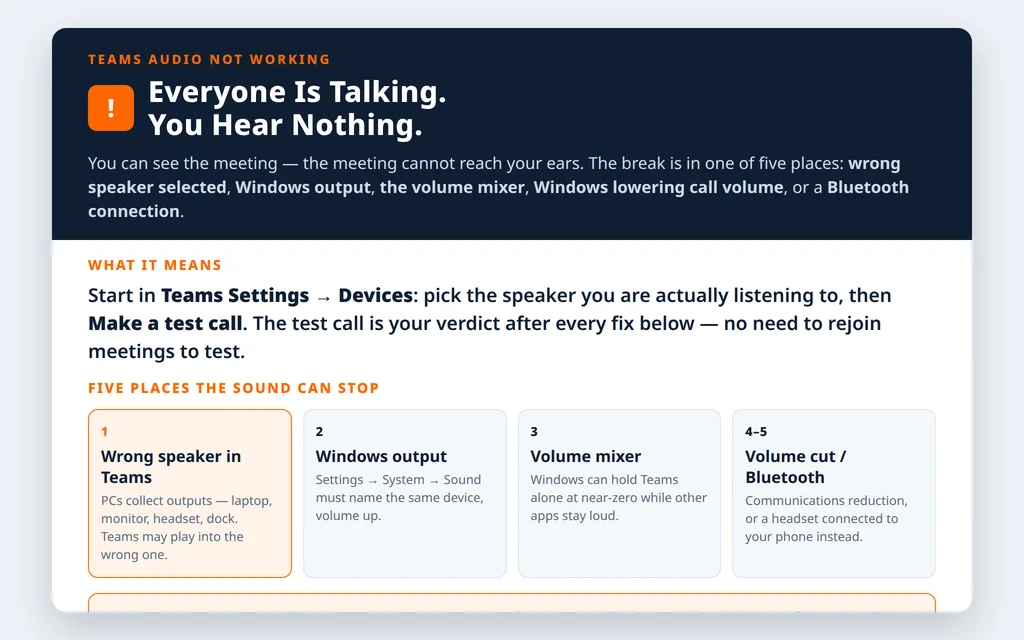
Table of Contents
Fix 1 — Pick the right speaker in Teams Settings > Devices
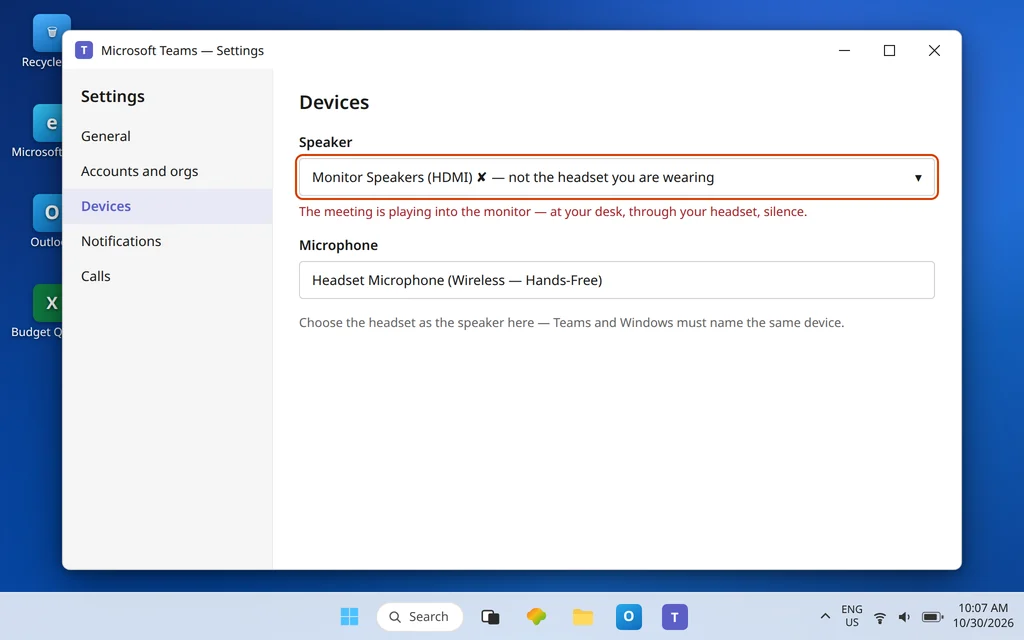
Teams does not always follow the Windows default, and PCs accumulate speakers: laptop speakers, a monitor’s built-in speakers, a headset, a dock, a TV. Teams may be faithfully playing the meeting into your monitor — or into a headset sitting in a drawer.
- In Teams, click the … next to your profile picture, then Settings > Devices.
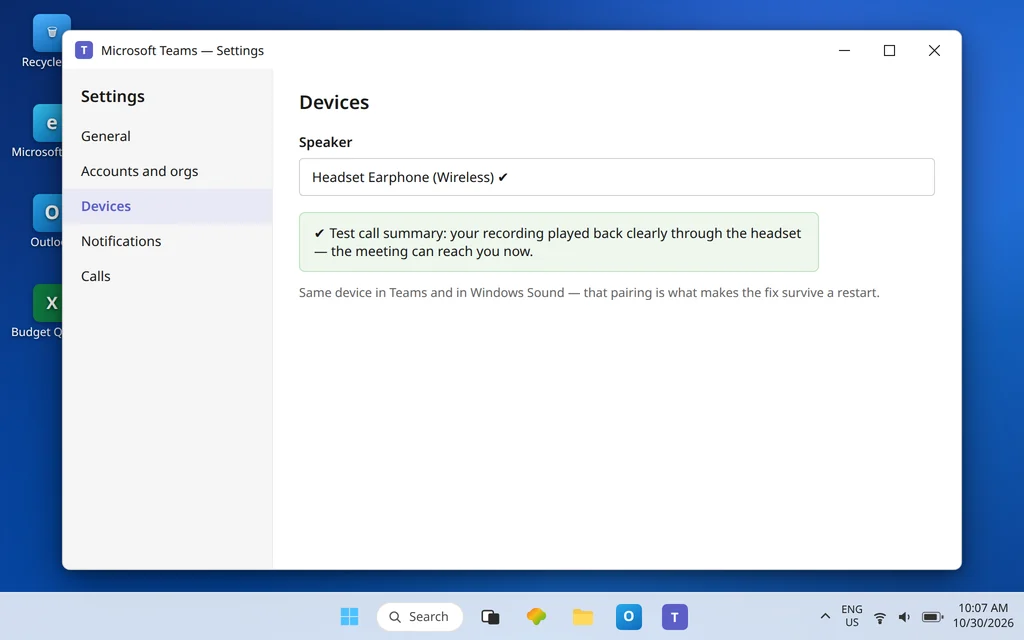
- Under Speaker, open the dropdown and select the device you are actually listening through — for our sample setup, Emily Johnson’s headset, not “Default” and not the monitor speakers.
- If your device is not in the list, Teams cannot see it: charge it if it is Bluetooth, or unplug and replug it if wired, then reopen the dropdown. Microsoft’s speaker guidance starts with exactly this check.
While you are here, check the obvious once: your speaker must not be muted in the meeting — if Teams warned you it was muted when you joined, use the Unmute prompt, and confirm any physical volume wheel on the headset is up. A headset turned down at the cable looks exactly like a Teams fault.
Fix 2 — Make a test call (your 30-second verdict)
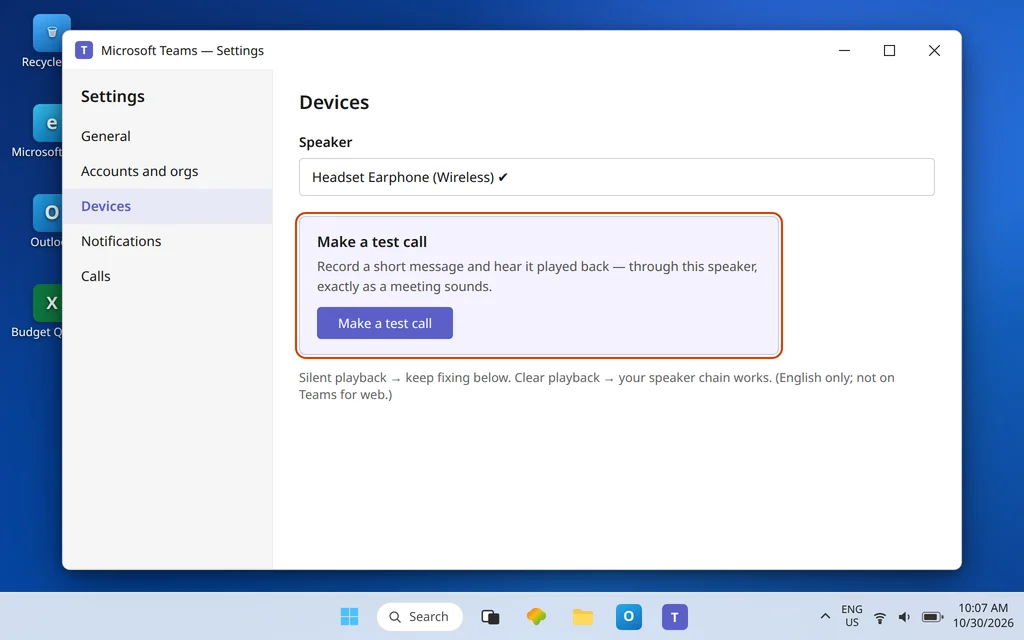
Still in Settings > Devices, click Make a test call. Teams connects you to the Test Call Bot, records a short message from you, and plays it back — through the speaker you selected, exactly as a meeting would sound.
- You hear the playback clearly: your speaker chain works end to end. If a live meeting is still silent, the problem is in that meeting or on the other side — ask in chat whether others can hear each other, and leave and rejoin once.
- The test call is silent: the fault is real and local. Continue down this guide — use the test call after each fix instead of rejoining meetings to test. It is faster and isolates you from everyone else’s setup.
- The playback is very quiet, or loud then suddenly quiet: note it — that pattern points at the volume mixer in Fix 4 or the Communications setting in Fix 5.
One honest limit from Microsoft: the test call is currently available in English only, and not on Teams for the web — web users should test with a real short call and lean on Fixes 3 and 9.
Fix 3 — Set the same speaker in Windows Sound settings
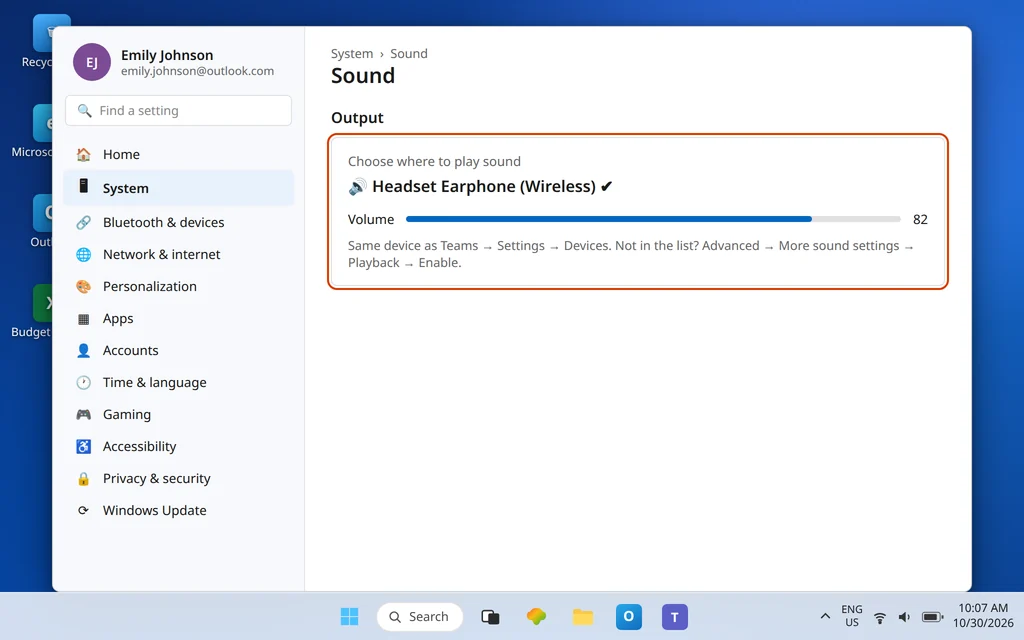
Microsoft’s guidance makes a point that applies to all meeting audio: on Windows, Teams and your computer need to be set to the same speaker. Set the output at the Windows layer too:
- Open Settings > System > Sound.
- Under Output, in Choose where to play sound, select the same device you chose in Teams.
- Set the Volume slider generously and make sure the device is not muted — click the speaker icon beside the slider if it shows as muted.
- Play any sound you trust (a video, a system sound) and confirm it comes from the right place.
If your speaker is not in the Windows list either, scroll to Advanced and open More sound settings. In the classic panel’s Playback tab, right-click your device and choose Enable if it shows as disabled, then set it as the Default Device. A device disabled here is invisible to both Windows and Teams.
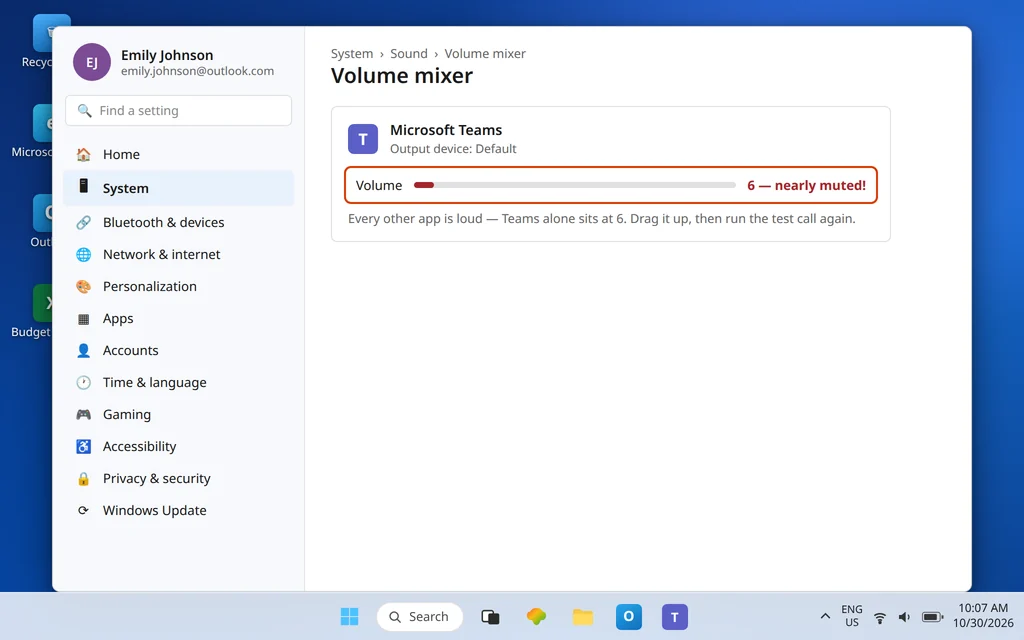
Fix 4 — Check the Volume mixer: Teams may be turned down alone
Windows remembers a separate volume for each app. Teams can sit at near-zero in the mixer while every other app is loud — producing the confusing symptom “I can hear everything except Teams.”
- Open Settings > System > Sound and scroll to Advanced.
- Open Volume mixer.
- Find Microsoft Teams and confirm its slider is up — and that its Output device is your speaker (or Default, with the default set correctly in Fix 3).
- If the entries are a tangle of old devices, use the Reset option on that page to return app volumes to the defaults, then re-check Fix 1.
Retest with the test call. Per-app routing is the fix people most often skip, because nothing looks “broken” — the sound is simply being sent, quietly, to the wrong place.
Fix 5 — Stop Windows lowering your volume during calls
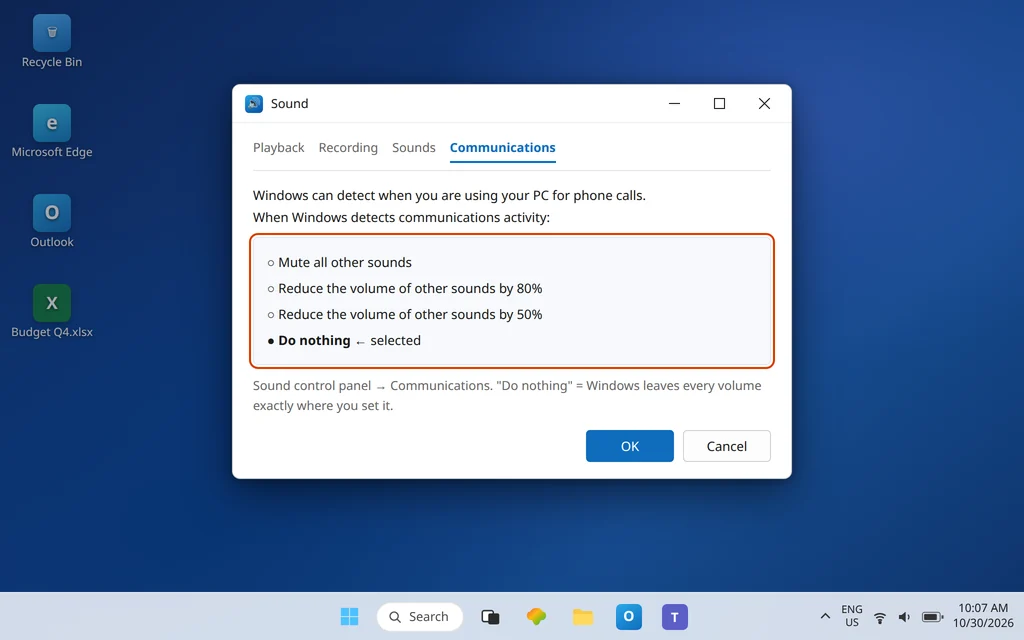
Windows has a well-meaning habit: when it detects communication activity, it reduces the volume of other sounds — and on some setups the reduction lands on the call itself, or never releases afterward, leaving meetings oddly quiet.
- Open Settings > System > Sound, scroll to Advanced, and click More sound settings.
- In the classic Sound panel, open the Communications tab.
- Select Do nothing.
- Click OK, then repeat the test call.
Microsoft documents this same setting for shared computer sound. Setting it to Do nothing is safe and reversible — Windows simply leaves volumes exactly where you put them.
Fix 6 — Turn off exclusive control on the Playback tab
Some apps — recording software, other meeting tools, games — can seize a speaker exclusively, leaving Teams with a device that exists but stays silent. Remove that possibility:
- In the classic Sound panel (More sound settings from Fix 3), open the Playback tab.
- Select your speaker or headset and click Properties.
- Open the Advanced tab.
- Uncheck “Allow applications to take exclusive control of this device” (and the priority option beneath it, if shown).
- Click OK, fully restart Teams, and repeat the test call.
This is the playback-side twin of the microphone fix in our microphone guide — if a headset misbehaves in both directions, clear exclusive control on both tabs while you are here.
Fix 7 — Bluetooth headset? Check which profile and which device
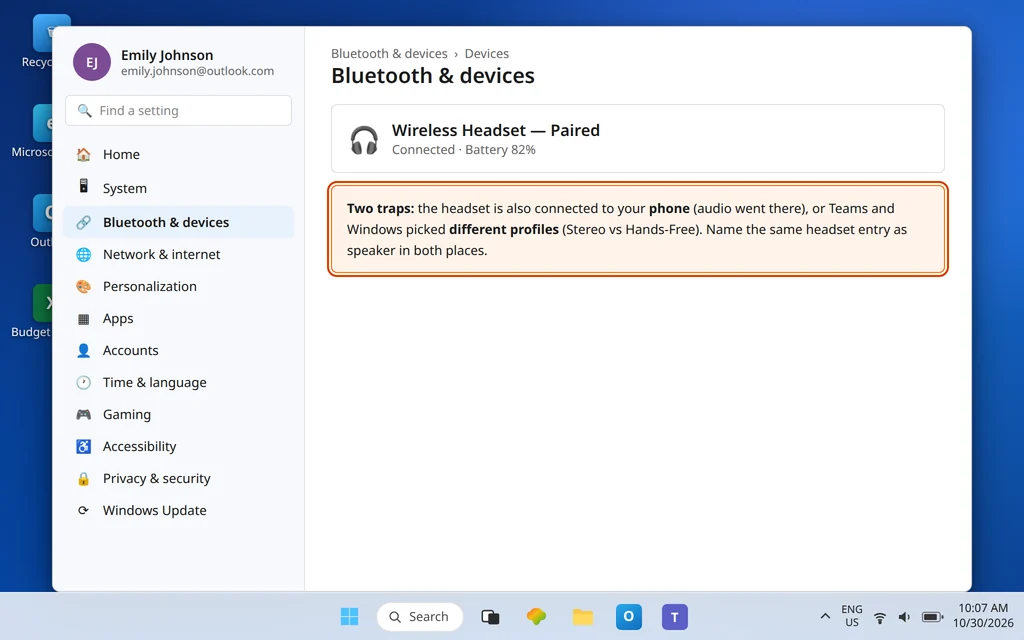
Bluetooth headsets offer your PC two personalities: a Stereo profile for listening, and a Hands-Free / HFP profile that also carries the microphone during calls. Two failure patterns follow:
- Sound is in the wrong place entirely: the headset is also connected to your phone, and the meeting audio went to whichever device grabbed it. Turn Bluetooth off on the phone during the call, or disconnect the headset there.
- The meeting goes silent the moment the call starts: Teams switched the headset to its Hands-Free entry while Windows plays to the Stereo entry (or the reverse). In Teams Settings > Devices, set the Speaker to the entry that matches what Windows uses in Fix 3 — when in doubt, pick the same named entry in both places.
If a Bluetooth headset is new to this PC, remove it in Settings > Bluetooth & devices and pair it again — a half-completed pairing often registers one profile but not the other. If people also cannot hear you on that headset, that half is covered in the microphone guide; fix one direction at a time. If the app itself is also misbehaving generally, see Microsoft Teams Keeps Crashing or Freezing once your speaker is proven good.
Fix 8 — Update or reinstall the audio driver
For a wired or USB headset that Windows lists but plays nothing through — or that crackles or vanishes mid-meeting:
- Try a different USB port directly on the PC — not through a hub or dock — and test again.
- Open Device Manager and look under Sound, video and game controllers and Audio inputs and outputs. A warning icon means a driver problem.
- Right-click the device and choose Update driver. If it worked until recently, Uninstall device, unplug, restart the PC, and plug it back in so Windows reinstalls it cleanly.
- Test the device outside Teams (play a video). Silence everywhere is hardware or driver, and no Teams setting will fix it.
Fix 9 — Using Teams on the web? Check the browser’s sound
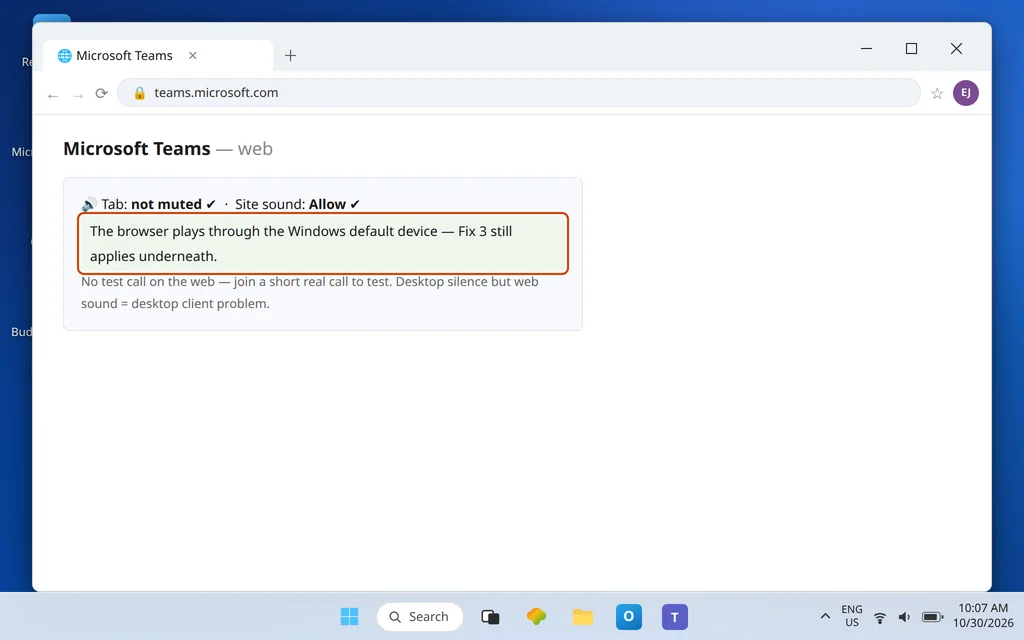
If the silence happens in teams.microsoft.com rather than the desktop app, check the browser layer: make sure the tab is not muted (right-click the tab and look for a mute option), confirm the site may play sound in the browser’s site settings, and remember the test call does not exist on the web — join a short real call to test. Fix 3 still matters underneath, because the browser plays through the Windows default device.
Fix 10 — Reset Teams if every setting looks right
When the right speaker is selected in both places, volumes are up, and the test call is still silent, the Teams client itself may hold corrupted local state. Microsoft documents two ways to clear the new Teams cache on Windows. The gentler reset: Settings > Apps > Installed apps > Microsoft Teams > … > Advanced options > Reset. Or, with Teams fully quit (tray icon > right-click > Quit), press Windows + R, open %userprofile%\AppData\Local\Packages\MSTeams_8wekyb3d8bbwe\LocalCache\Microsoft\MSTeams, delete the folder’s contents, and restart Teams. Your chats and meetings live in your account, not in that folder, and will reappear. Expect the first start after a reset to take longer while the cache rebuilds.
Confirm it worked
Make a test call and hear the playback clearly at a comfortable volume. Then join a real meeting and confirm you can hear the first speaker — and make one more test call after a PC restart to confirm the fix survived. Output fixes that vanish at reboot usually mean Windows re-selects a default device when a dock or monitor wakes up; repeat Fixes 3 and 1 with everything connected as you normally work.
How to stop it happening again
- Name your default once, in both places. The same speaker in Teams Devices and Windows Sound ends most “wrong speaker” recurrences when you dock or undock.
- Test call before big meetings. Thirty seconds in Settings > Devices beats discovering silence in front of an audience.
- Beware the new-device shuffle. Every new headset, dock, or monitor reshuffles the output list; after connecting new gear, re-check Fix 1 before your next call.
Frequently asked questions
Why can’t I hear anyone in Microsoft Teams?
Because one layer of the chain — Teams’ selected speaker, Windows’ output device, the per-app volume mixer, the Communications volume reduction, exclusive control by another app, or a Bluetooth connection — is not delivering the sound to your ears. The test call in Teams Settings > Devices tells you whether the break is local: if the test call is silent too, work Fixes 1–5 first; they cover the large majority of cases.
How do I test my speaker in Teams?
Open Settings > Devices and click Make a test call. The Test Call Bot records a short message from you and plays it back through your selected speaker. Hearing it clearly proves your speaker, its Windows settings, and Teams’ selection are all working. Microsoft notes the test call is in English only and is not available in Teams on the web.
Why is there sound in other apps but not in Teams?
Focus on the Teams-only layers: the speaker selected in Settings > Devices (Fix 1) and the per-app entry in the Volume mixer (Fix 4), which can hold Teams at near-zero or route it to a different device while everything else plays normally. Windows and the hardware are already proven good by the other apps.
Why does Windows lower my Teams volume during calls?
Windows tries to be helpful: when it detects a call, it can reduce the volume of other sounds — and sometimes the call audio itself ends up reduced or stuck low afterward. Open the classic Sound panel, go to the Communications tab, and choose Do nothing so Windows leaves all volumes exactly as you set them.
Why does my Bluetooth headset have no sound in Teams?
Usually one of two reasons: the headset is also connected to your phone and the audio went there, or Teams and Windows are using different Bluetooth profiles (Stereo vs Hands-Free) for the same headset. Set the same named headset entry as the speaker in both Teams Devices and Windows Sound, disconnect the headset from the phone during calls, and re-pair it if one profile never appears.
Is this the same problem as my microphone not working?
They are mirror images with a few shared causes (wrong device selected, exclusive control), which is why the combined guide Teams Camera and Microphone Not Working exists. If people cannot hear you, use the microphone-only guide — its Fixes are written for the input side. If you cannot hear them, stay here.
Still hearing nothing? Contact us at servicedesk@howtofixerroronline.com or through our Contact page and tell us what the test call played back, which speaker is selected in Teams Devices, and whether other apps play sound through the same device. We will never ask for your password.