
Microsoft Teams Meeting Recording Not Available or Missing
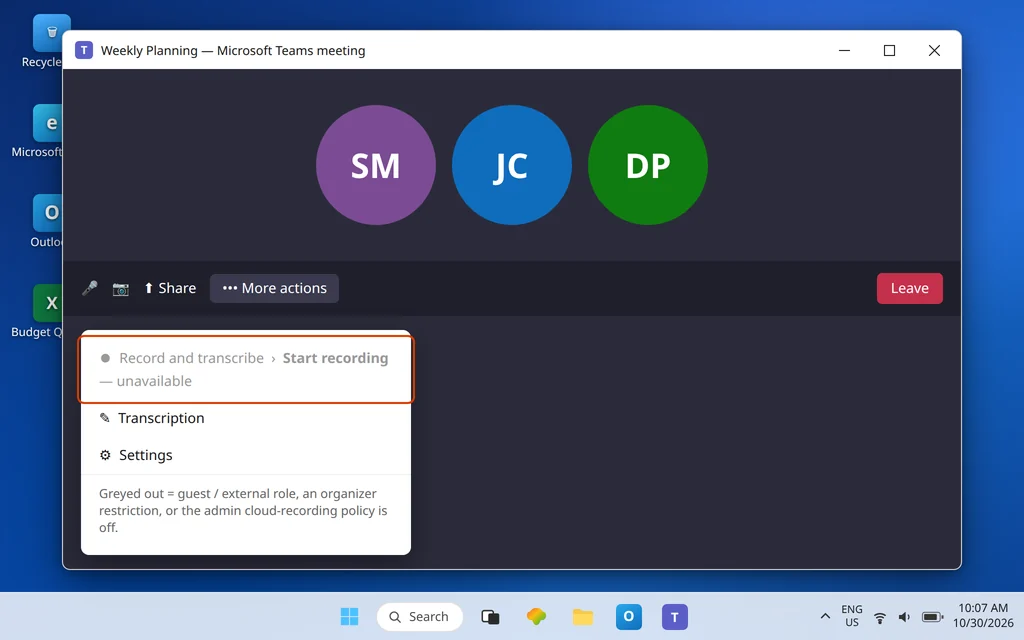
“Recording not available” in Microsoft Teams is really two different problems wearing one coat. In the first, the meeting is about to start, you open the controls — and Start recording is greyed out, or not there at all. In the second, the meeting recorded happily, everyone saw the red dot — and afterward, nobody can find the recording. Different causes, different fixes: no amount of searching OneDrive fixes a policy that blocked recording, and no policy change recovers a file that expired last month.
This guide takes them in that order. Part 1 (Fixes 1–3) covers can’t start a recording. Part 2 (Fixes 4–8) covers recorded but missing — where Teams puts the file, the urgent 21-day rescue window when an upload fails, and how expiry works. One rule governs almost everything in Part 2: for a meeting, the recording belongs to the organizer — saved to the organizer’s OneDrive, no matter who pressed Record.
Quick Answer: Start recording greyed out? You must be the organizer or a same-organization participant with an eligible license and recording enabled by IT — guests, external and anonymous attendees can never record. Recorded but missing? Look in the meeting organizer’s OneDrive > Recordings folder (even if someone else pressed Record); for a channel meeting, look in the channel’s SharePoint site > Documents > Recordings. Seeing “Recording failed to upload” in the meeting chat? The file sits in temporary storage for 21 days — download or re-upload it now, because after that it is permanently deleted. Recordings also expire after 120 days by default and move to the recycle bin.

Table of Contents
Fix 1 — Can’t record? Check your role: guests and external attendees can never record
Microsoft Support’s recording guide is blunt about who can start or stop a recording. The meeting organizer can. A person from the same organization as the organizer can — provided they hold an eligible license (the list includes Office 365 E1, E3, E5, A1, A3, A5 and Microsoft 365 Business plans) and recording has been enabled for them by an IT admin. And these people cannot, ever: a person from another organization, a guest, and an anonymous attendee.
Before you blame the app, check:
- Did you join as a guest or from another company? Then the greyed-out button is correct behavior. Ask a same-organization participant to record instead — the recording still lands with the organizer (Fix 4), so you lose nothing.
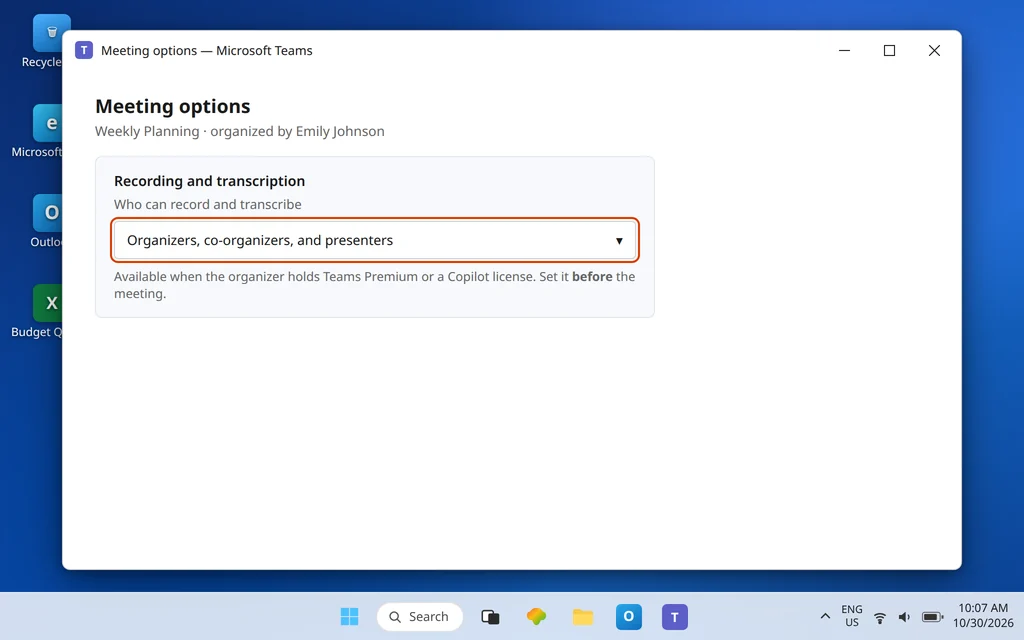
- Are you a regular attendee in a meeting whose organizer restricted recording? With Teams Premium or a Copilot license, organizers get a Meeting options setting — Who can record and transcribe — with choices from “Organizers and co-organizers” to “Organizers, co-organizers, and presenters” to “No one.” If it is set narrowly, being a presenter or attendee is not enough. Ask the organizer to widen it or to start the recording themselves.
- One person at a time. Only one recording can run in a meeting; if a recording is already in progress, Start recording is unavailable to everyone else by design.
Fix 2 — Check Meeting options before the meeting, not during it
If you organize meetings that others need to record, set the expectation up front:
- Open the meeting in Calendar, then open Meeting options.
- Find Recording and transcription and the Who can record and transcribe dropdown (available when the organizer holds Teams Premium or a Copilot license).
- Choose the widest setting your content allows — for a working meeting where a colleague may need to start the recording when you are delayed, “Organizers, co-organizers, and presenters” is the practical choice.
Without that Premium/Copilot option, the default rules from Fix 1 apply. Either way, decide who records, out loud, at the start of the meeting — assuming “someone will record it” is how important meetings end up unrecorded.
Fix 3 — Still greyed out for everyone? It is the admin recording policy
If nobody from your organization can record any meeting, stop troubleshooting individuals — this is a policy switch. Microsoft controls recording through the Teams meeting policy setting AllowCloudRecording. If it is off in the policy assigned to you, recording is unavailable to you no matter your role or license. Admins manage it in the Teams admin center meeting policies, or in PowerShell with Set-CsTeamsMeetingPolicy -AllowCloudRecording.
What to send IT: “Nobody on my team can start a Teams recording — Start recording is greyed out in every meeting. Please check AllowCloudRecording in the Teams meeting policy assigned to us.” One more admin-side gate from Microsoft’s prerequisites: recording storage needs OneDrive and SharePoint turned on for the organization — and a full organizer OneDrive can break where the file ends up, which is Fix 7.
Fix 4 — Recorded but missing? For meetings, it is in the ORGANIZER’S OneDrive
Now Part 2 — the recording happened, and it is “lost.” It almost never is. Microsoft’s current storage rule, from its Learn documentation on recording storage and permissions:
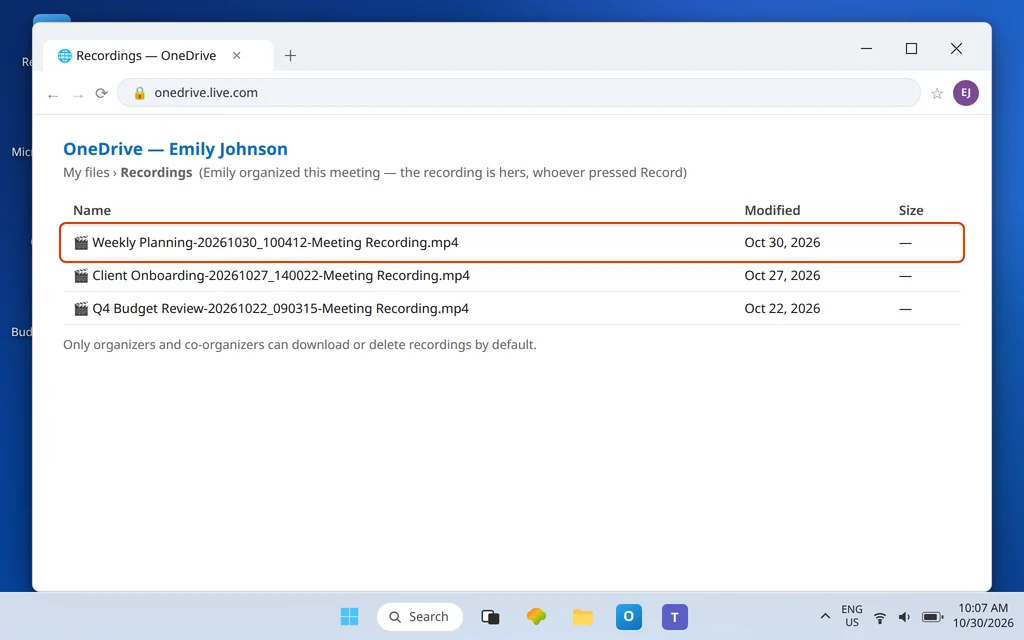
- Meetings and events (scheduled, recurring, or Meet now): the recording saves to the meeting organizer’s OneDrive, in a folder named Recordings — even if the organizer did not attend, and no matter who pressed Record. The organizer automatically owns the recording, and by default only organizers and co-organizers can download or delete it.
- So if Sarah Mitchell started the recording in a meeting you organized, stop searching Sarah’s OneDrive: it is in yours. If you recorded a meeting James Carter organized, it is in James’s OneDrive > Recordings — ask him for the link, because you may not even have permission to browse there.
- The one exception: 1:1 and group calls. Calls are not meetings in this rule — a call recording goes to the OneDrive of the person who selected Record. Keep the two apart: meeting → organizer; call → whoever pressed Record.
- Fallbacks exist if the organizer has no OneDrive: the file goes to the first co-organizer with OneDrive, then to the person who started the recording. Worth knowing before a group tears apart the wrong person’s drive.
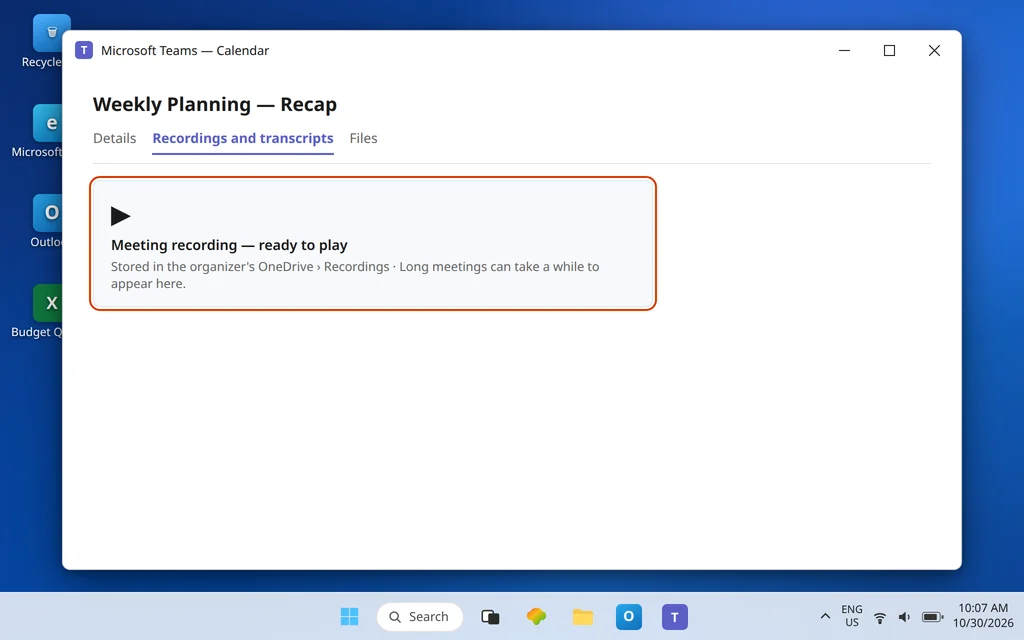
The link is also posted in the meeting chat and under the meeting’s Recordings and transcripts / Recap in Calendar — usually the fastest route in, whatever drive holds the file.
Fix 5 — Channel meeting? It is in the channel’s SharePoint site
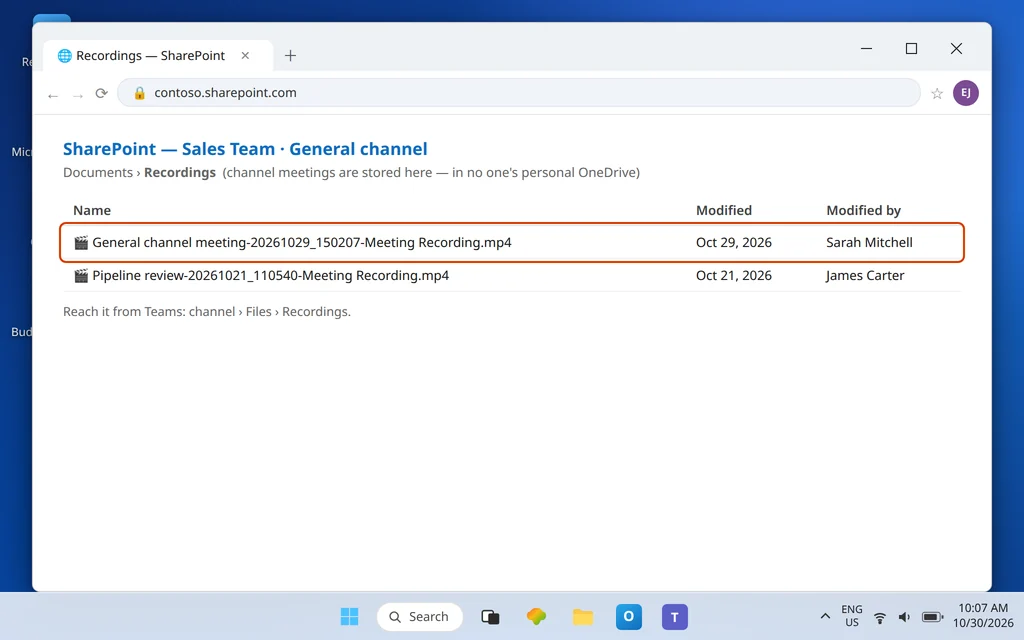
Channel meetings follow the other branch of the rule. The recording is stored in the SharePoint site for that team, in the channel’s document library, in a folder named Recordings — the path looks like Team name – Channel name > Documents > Recordings. Nobody’s personal OneDrive is involved, which is why organizer-hunting fails completely for channel meetings.
To get there from Teams: open the channel, go to Files, and look for the Recordings folder (or open the meeting chat, where the link is posted). Permissions follow the channel, and guests see it only if it is explicitly shared with them. If the file is here but will not open, that is a file-access problem — see Microsoft Teams Files Not Opening.
Fix 6 — Just finished? Give processing time, then check the chat and Recap
A recording is processed after the meeting ends, and longer meetings take longer — Microsoft’s own support answers acknowledge big or long sessions can take a while, sometimes hours, to show up. Before declaring a recording lost:
- Wait, especially after a long meeting with heavy screen sharing. Check again in a while rather than re-recording the meeting from memory.
- Look in the meeting chat: the recording link (or an upload-failure message — Fix 7) is posted there.
- Open the meeting in Calendar and check its Recap / Recordings and transcripts area.
- Search the organizer’s OneDrive for the meeting title — recordings are MP4 files named after the meeting.
If a full day passes with nothing in the chat, the Recap, or the organizer’s Recordings folder, treat it as one of the two real failure cases: the upload failed (Fix 7) or the file expired or was deleted (Fix 8).
Fix 7 — “Recording failed to upload”: you have 21 days — act now
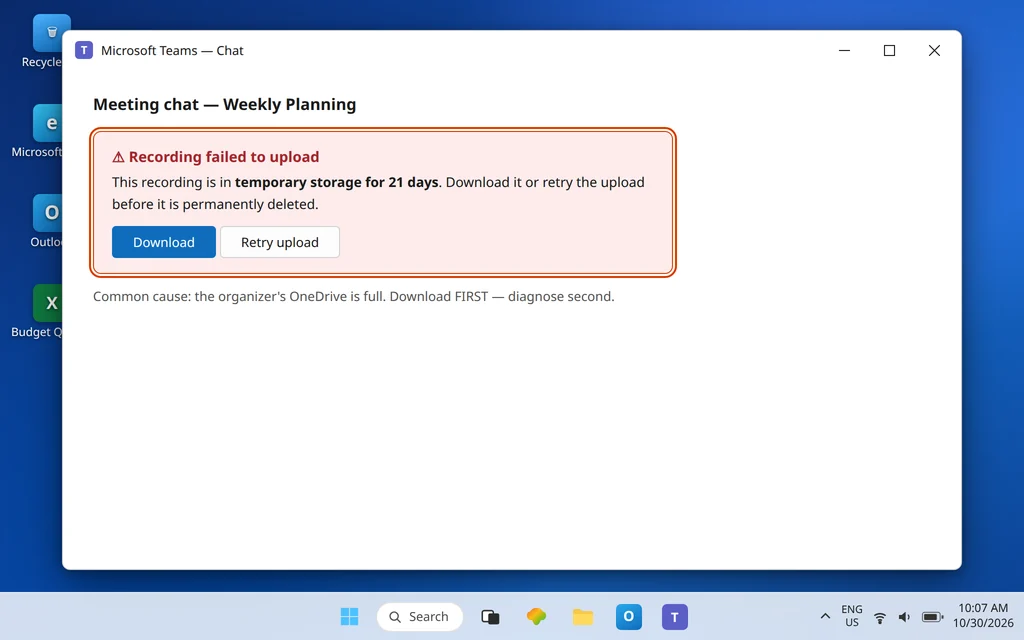
This is the only fix in this guide with a hard deadline, so it gets its own warning. If the upload to OneDrive or SharePoint failed — classically because the organizer’s storage was full or the storage location was not available — the meeting chat shows a “Recording failed to upload” message (a recording notice) instead of a normal link. Microsoft’s documented behavior:
- The recording is held in temporary storage for 21 days.
- From that chat message you can download the recording to your device or retry uploading it to OneDrive.
- After 21 days it is permanently deleted and cannot be recovered.
So: the moment you see that message, download the file first — even before investigating why the upload failed. Then free up the organizer’s OneDrive space (or have IT check the storage/quota side), upload the downloaded MP4 to the right OneDrive or SharePoint location manually, and share it from there. The 21-day clock does not pause for support tickets — rescue the file, then diagnose. If instead the problem is that downloads themselves fail on your PC, that is covered separately in Microsoft Teams Files Not Downloading.
Fix 8 — Expired or deleted? Check the recycle bin where the file lived
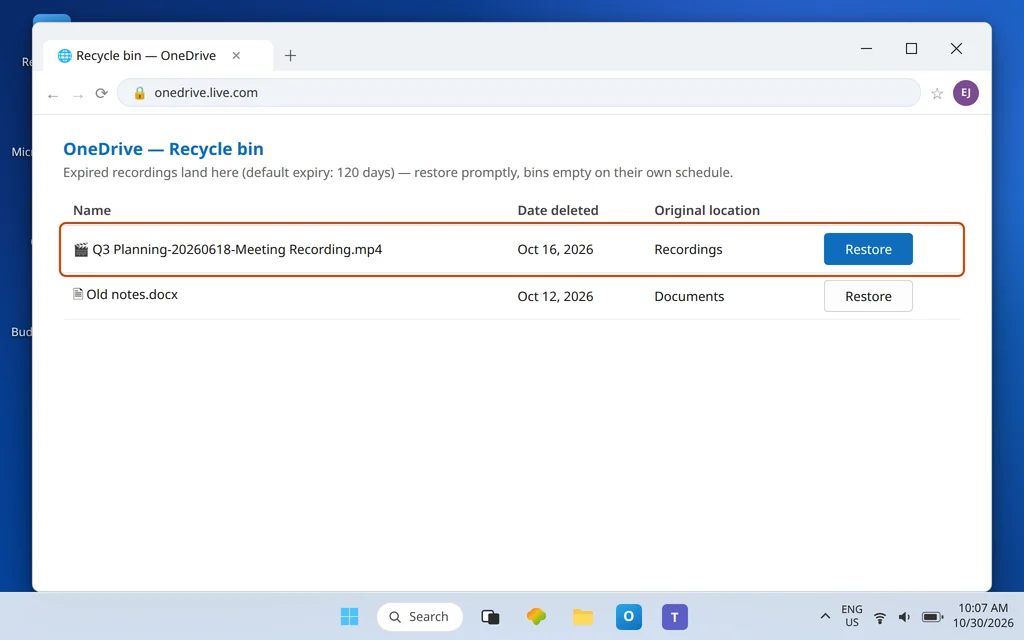
Recordings are not kept forever. Microsoft’s default expiration for meeting recordings and transcripts is 120 days (your admin can set a different period). When a recording expires, it is not vaporized — it moves to the recycle bin of the location that held it:
- Was it a normal meeting? Go to the organizer’s OneDrive (on the web) and open Recycle bin. Restore the MP4 promptly — recycle bins empty on their own schedule, so do not leave it there.
- Was it a channel meeting? Open the channel’s SharePoint site and check Recycle bin there instead.
- Restoring clears the expiration on the file; to keep it long-term, download a copy or move it to a library your organization retains properly. A downloaded file carries no Teams expiration.
The same bins answer “someone deleted it” while the file remains there. And if a meeting keeps ending early so recordings come out in fragments, fix the underlying dropouts too — see Microsoft Teams Meeting Keeps Disconnecting.
Confirm it worked
For “can’t record”: join a test meeting, open More actions > Record, and start a recording — the red indicator shows and everyone is notified. Stop it and let it process. For “missing”: find that test recording in the organizer’s OneDrive Recordings folder (or the channel’s SharePoint Recordings folder), play it from the meeting chat link, and confirm the people who need it can open it — guests and external attendees only see it if it is explicitly shared with them.

How to stop it happening again
- Name the recorder before the meeting starts. One same-organization, licensed person owns recording; if it will be you, confirm your role and policy beforehand (Fixes 1–3), not live.
- Download anything important. Recordings expire after 120 days by default. For meetings that matter — training, decisions, interviews — download the MP4 or move it into your team’s retained SharePoint library the same week.
- Watch the organizer’s storage. Failed uploads usually trace back to a full organizer OneDrive — and any “failed to upload” message in a chat should trigger an immediate download, not a shrug.
Frequently asked questions
Where are Microsoft Teams meeting recordings saved?
For a normal (non-channel) meeting, in the meeting organizer’s OneDrive, in a folder named Recordings — regardless of who pressed Record. For a channel meeting, in the channel’s SharePoint site, under Documents > Recordings. The exception is 1:1 and group calls: those recordings go to the OneDrive of the person who selected Record. The link is also posted in the meeting chat and the meeting’s Recap.
Why is Start recording greyed out in my Teams meeting?
Because one of the recording conditions is not met: you are a guest, external, or anonymous attendee (those roles can never record); the organizer restricted who can record in Meeting options; you lack an eligible license or admin-enabled recording; or your organization’s meeting policy has AllowCloudRecording turned off. If nobody in your organization can record any meeting, it is the policy — send IT Fix 3.
I pressed Record, so why is the recording in someone else’s OneDrive?
Because for meetings, storage follows the organizer, not the person who recorded. Microsoft’s rule: the recording saves to the organizer’s OneDrive Recordings folder even if the organizer did not attend. The organizer owns the file, and by default only organizers and co-organizers can download or delete it — ask the organizer for the sharing link. Only for 1:1 and group calls does the file go to the person who pressed Record.
What does “Recording failed to upload” mean, and can I still get the file?
It means Teams could not save the finished recording to OneDrive or SharePoint (a full organizer drive is a common cause). The file is kept in temporary storage for 21 days, and the message in the meeting chat lets you download it or retry the upload. Do the download immediately: after 21 days the recording is permanently deleted and cannot be recovered.
How long does Teams keep a meeting recording?
By default, recordings and transcripts expire after 120 days unless your admin set a different period. Expired recordings move to the recycle bin of the OneDrive or SharePoint location that held them, where the owner can restore them before the bin empties. To keep a recording permanently, restore it and download a copy or store it under your organization’s retention rules — a downloaded file has no Teams expiration date.
How long does a recording take to appear after a meeting?
There is no fixed time: processing happens after the meeting ends, and long or content-heavy meetings take longer — sometimes hours. Check the meeting chat and the meeting’s Recap / Recordings and transcripts first, then the organizer’s OneDrive Recordings folder. If nothing has appeared after a day, look for the failed-upload message (Fix 7) or check the recycle bin (Fix 8) rather than assuming the recording never happened.
Recording still unavailable or missing? Contact us at servicedesk@howtofixerroronline.com or through our Contact page and tell us whether Start recording was greyed out or the recording vanished afterward, whether it was a channel meeting, and whose meeting it was. We will never ask for your password.