

Microsoft Teams Dial Pad Missing — Can’t Make or Receive Calls
That is the single most important fact in this guide: the dial pad is not a setting. Microsoft Learn’s own dial pad documentation states it appears only when an account is fully set up for Teams Phone — a Teams Phone license, a phone number with a calling option behind it, and Enterprise Voice switched on. If any piece is missing, the Calls app quietly shows everything except the pad. So this guide works in two halves: the short user-side checks that rule out a stale app, then the exact admin checklist that actually creates a dial pad. (If you can dial but cannot hear anyone, that is a different fault — see Microsoft Teams Audio Not Working.)
Quick Answer: Open Calls in Teams: the dial pad lives there, under your call history — there is no dial pad setting in Settings > Devices. If Calls shows history and contacts but no pad, your account is almost certainly missing one of four things only an admin can supply: a Teams Phone license, a PSTN calling option (Microsoft Calling Plan, Operator Connect, Teams Phone Mobile, Direct Routing, or Shared Calling), an assigned phone number, and Enterprise Voice enabled. Do the sign-out/restart checks in Fixes 3–4 first; if the pad is still absent, send IT the checklist in Fixes 6–8. After setup, Microsoft says to allow a few hours and restart Teams — and to contact support if it is still missing after 24 hours.
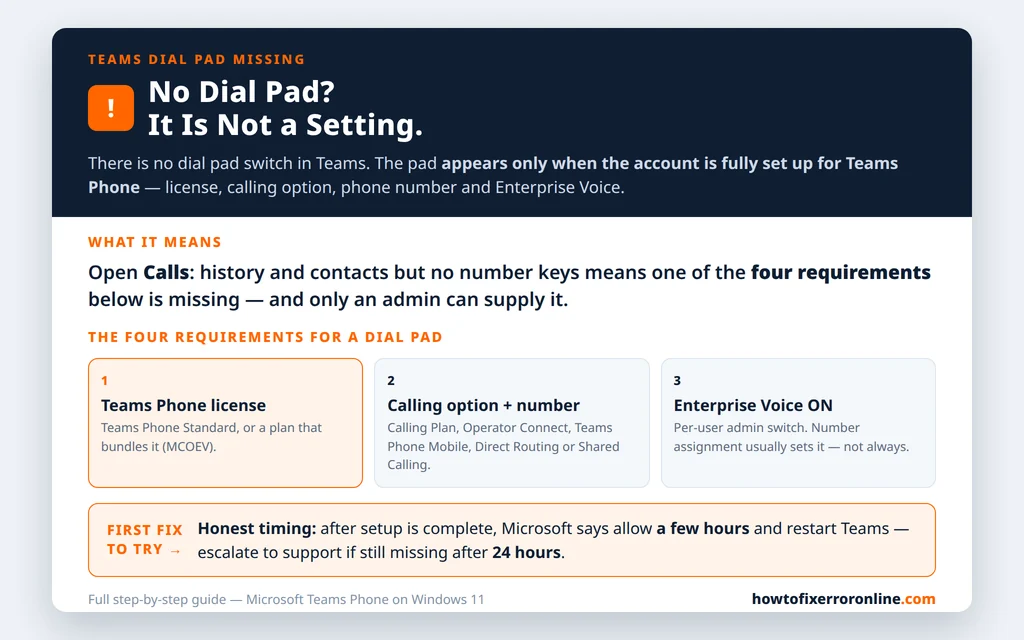
Table of Contents
Fix 1 — Look in the right place: the dial pad lives in Calls
- In the Teams app bar on the left, click Calls.
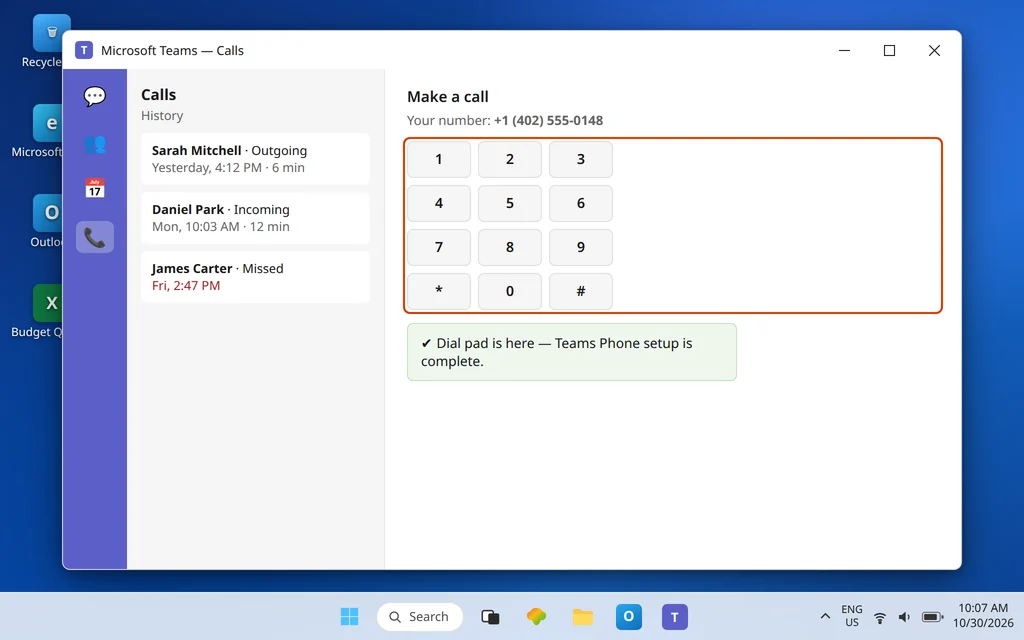
- A correctly set up account shows three things: your call history, your contacts/speed dial, and on the right or below them, the dial pad with your own phone number shown above it.
- If you see history and contacts but no number keys anywhere on that page, the pad really is absent — continue down this guide. Do not waste time in Settings > Devices: that page chooses microphones and speakers; it has never contained a dial pad option.
Fix 2 — No Calls app at all? It may be hidden, not missing
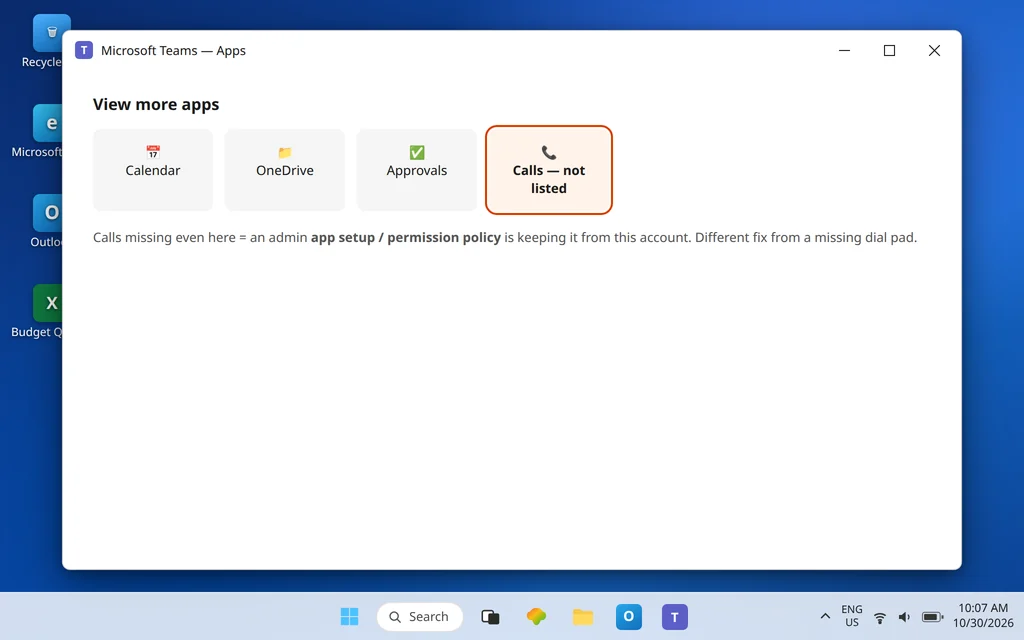
A different symptom with a different cause: there is no Calls icon in your app bar at all.
- Click the … (View more apps) at the bottom of the app bar and look for Calls in the full list. If it is there, right-click it and choose Pin so it stays visible.
- If Calls is not in the full list either, an admin policy is the likely reason. Microsoft gives admins app setup and permission policies (Teams admin center > Teams apps) that control which apps users can see and pin — Calls can be left out for accounts that were never meant to make phone calls. Tell IT exactly that: “The Calls app itself does not appear for my account, even under View more apps.” That separates your ticket from the dial pad cases below, because the fix is a policy assignment, not telephony setup.
Fix 3 — Sign out, restart, and check for updates
Microsoft’s dial pad guidance explicitly says you may need to restart the Teams client after configuration changes. Do the full refresh once:
- Click your profile picture and Sign out of Teams.
- Fully quit the app (right-click the icon near the clock > Quit), then relaunch and sign back in.
- Click the … next to your profile picture and choose Check for updates if your client offers it, then give it a minute and check Calls again.
- If a headset is involved once the pad appears — and Teams is not seeing it — that is a separate problem: Microsoft Teams Not Detecting Headphones.
Fix 4 — Test Teams on the web to separate app from account
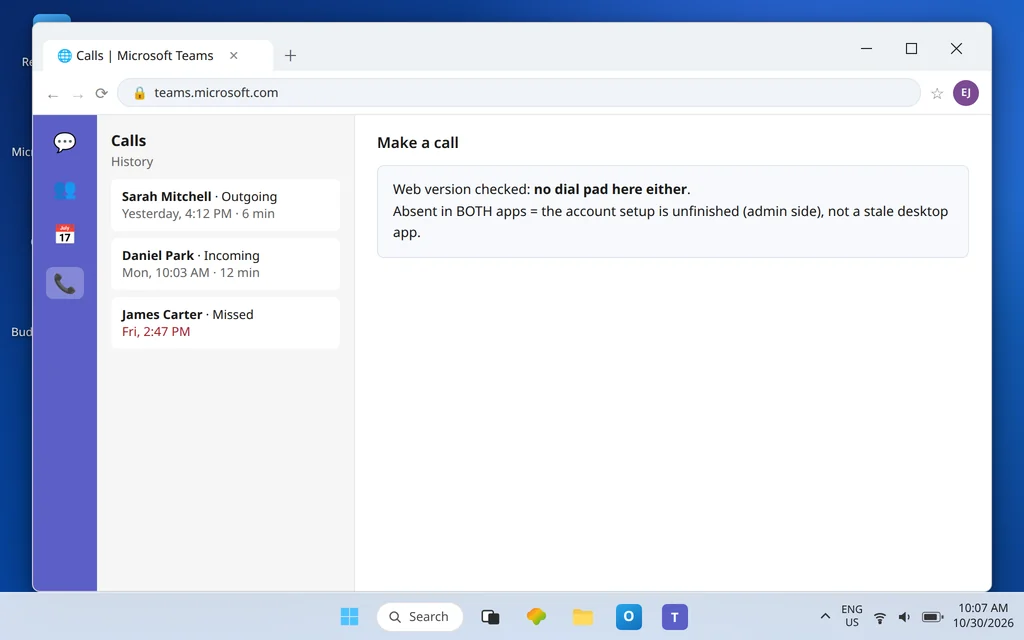
Sign in at teams.microsoft.com in your browser and open Calls there.
- Dial pad present on the web, absent on desktop: your account setup is complete; the desktop app is stale. Repeat Fix 3 — the account needs no more admin work.
- Dial pad absent in both: the account itself is not finished being set up. That is the normal case, and it is decided entirely by the four requirements in Fix 5. Send IT Fixes 6–8 verbatim.
Fix 5 — The four requirements: why the pad is not a setting
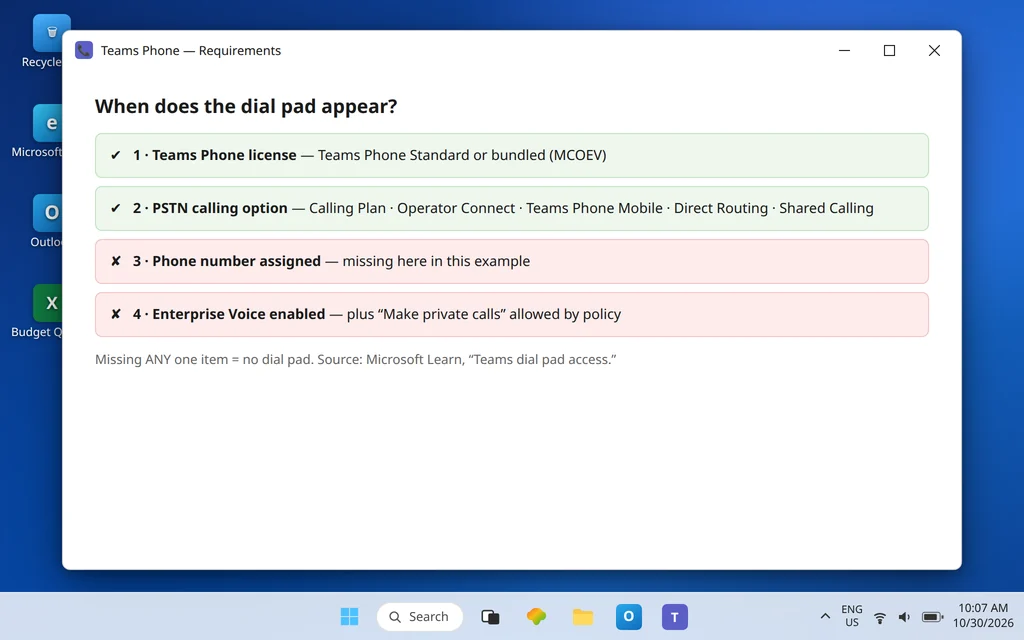
Microsoft Learn’s “Teams dial pad access” page lists the prerequisites for the dial pad to display. Your account needs all of these:
- A Teams Phone license. The account must be assigned a Teams Phone license (Microsoft’s systems know it as “MCOEV”) — sold as Teams Phone Standard, or included in plans such as Microsoft 365 E5. A normal Teams license alone does not include it.
- A PSTN calling option. One of: Microsoft Calling Plan, Operator Connect, Teams Phone Mobile, Direct Routing, or Shared Calling — the actual connection to the public phone network.
- A phone number assigned to you. Without a number, there is nothing for outside callers to reach.
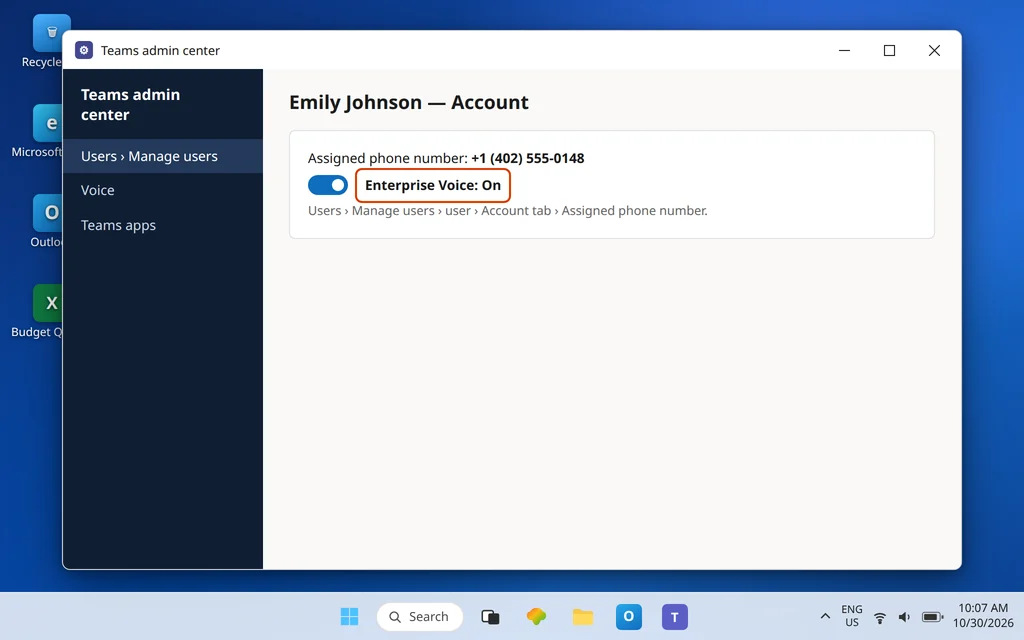
- Enterprise Voice enabled. A per-user admin-side switch that turns telephony on for the account. Microsoft notes that assigning a phone number to a licensed user normally sets this to True automatically — but “normally” is doing real work in that sentence, and Fix 8 covers the manual check.
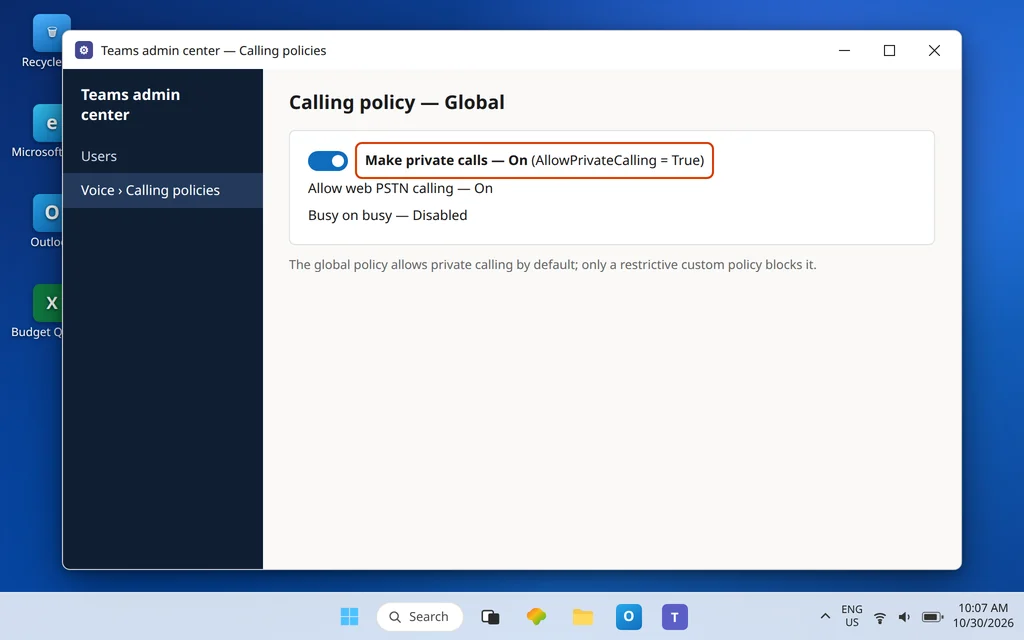
Plus one policy condition from the same page: Make private calls must be allowed in your Teams Calling Policy. The global default allows it, so this only bites if your organization assigned you a restrictive custom policy.
Missing any single item produces the identical symptom: no dial pad. That is why reinstalling never helps — the app is accurately reporting an unfinished account.
Fix 6 — What to ask IT, part 1: the Teams Phone license
- In the Microsoft 365 admin center > Users > Active users > your account > Licenses and apps, confirm a Teams Phone license is assigned (Teams Phone Standard, or a plan that bundles it, such as E5) — and that the Microsoft 365 Phone System / Teams Phone app inside it is switched on.
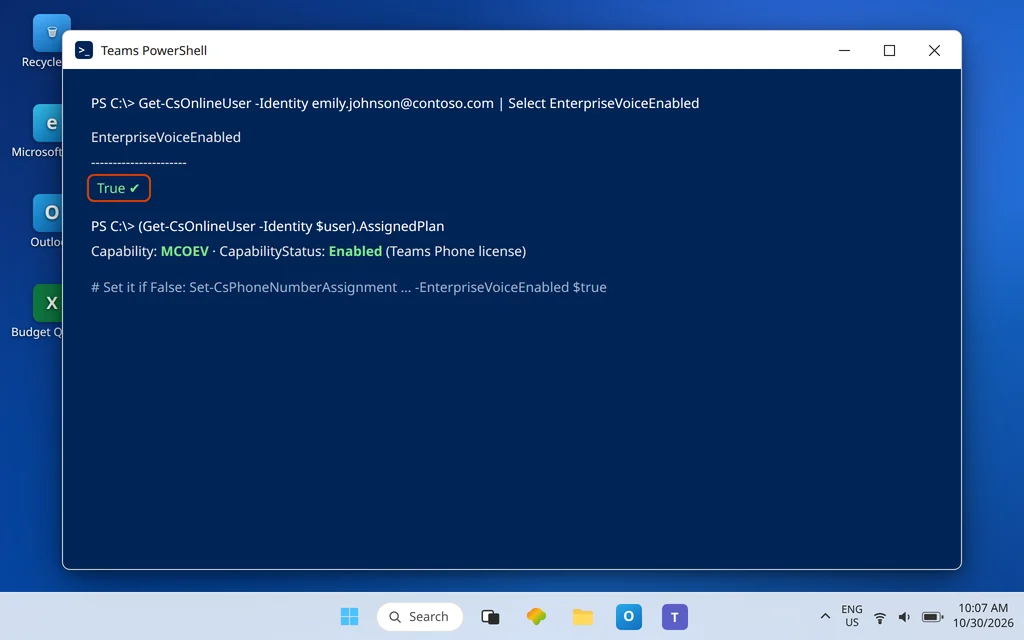
- For certainty, Microsoft’s documented PowerShell check is
(Get-CsOnlineUser -Identity $user).AssignedPlan— the dial pad requires an entry with Capability starting MCOEV and CapabilityStatus set to Enabled. If that entry is missing or not Enabled, the license side is not done, whatever the admin center screen seemed to say.
Fix 7 — What to ask IT, part 2: number and calling option
Next, the phone-network half:
- Confirm a phone number is assigned to your account in the Teams admin center (Users > Manage users > your account > Account tab shows the assigned number).
- Confirm which PSTN option backs that number — Microsoft Calling Plan, Operator Connect, Teams Phone Mobile, Direct Routing, or Shared Calling — and that the setup for that option is complete for your account. A number assigned inside an unfinished Direct Routing or Operator Connect setup still leaves you without a working pad. Direct Routing accounts also need a voice routing policy granted — worth naming in the ticket if your company uses its own phone lines rather than a Microsoft Calling Plan.
Fix 8 — What to ask IT, part 3: Enterprise Voice and the calling policy
The final two switches, both quoted from Microsoft Learn’s dial pad page:
- Enterprise Voice. In the Teams admin center: Users > Manage users > your account > Account tab > Assigned phone number — Enterprise Voice must be On. By PowerShell, admins set it with the documented cmdlet
Set-CsPhoneNumberAssignmentusing-EnterpriseVoiceEnabled $true, and verify withGet-CsOnlineUser -Identity $user | Select EnterpriseVoiceEnabled— the result must be True. - Make private calls. Your effective Teams Calling Policy must have AllowPrivateCalling = True. The global policy allows it by default; a custom restrictive policy is the exception an admin needs to rule out.
- Provisioning errors. If everything above looks right and the pad still will not appear, Microsoft’s page gives one more check:
Get-CsOnlineUser -Identity $user | Select UserValidationErrors— a non-empty result is a provisioning error for Microsoft support.
Fix 9 — It was all just assigned? Wait a few hours — and know the 24-hour line
Setup finished an hour ago and still no pad? That can be normal. Microsoft’s dial pad guidance says that after configuration changes you may need to restart the Teams client and wait a few hours for the client to receive the new settings. Practical sequence:
- Wait a few hours after IT confirms all of Fixes 6–8 are complete — not from when the ticket was opened.
- Fully quit and relaunch Teams (Fix 3), then check Calls on desktop and on the web (Fix 4).
- Microsoft draws the escalation line clearly: if it has been more than 24 hours since setup was completed and the dial pad is still missing, it is time for support — your admin should raise it with Microsoft, ideally including the UserValidationErrors output from Fix 8.
Some non-Microsoft guides mention waits of up to 48 hours in rare cases; Microsoft’s own threshold for escalating is 24 hours, so do not let a ticket drift for days on the assumption that time alone will fix it.
Fix 10 — The Audio Conferencing trap: it does not give you a dial pad
An Audio Conferencing license does one job: it puts dial-in numbers and a conference ID on your meeting invites, so people can join your meetings by phone. Microsoft’s Audio Conferencing documentation describes exactly that — joining meetings. It is not in the dial pad prerequisites at all.
So: “But I have Audio Conferencing, I can dial into meetings” can be completely true and your account can still have no dial pad, because personal phone calling needs the Teams Phone setup in Fix 5. One genuine complication: Microsoft 365 E5 includes Teams Phone and Audio Conferencing, so an E5 user who lacks a pad should push on Fixes 7–8 (number and Enterprise Voice) first, since the license piece is already satisfied.
Confirm it worked
Open Calls: the dial pad is visible with your assigned number shown, you can dial an external number and it rings, and someone calling your number reaches you in Teams. Make one outbound test call to your own mobile phone and one inbound call back. If calls connect but repeatedly drop mid-conversation, that is a different fault: see Microsoft Teams Meeting Keeps Disconnecting.
How to stop it happening again
- Ask for the whole checklist at setup time. New starters lose days to one-missing-piece setups. Fixes 6–8 as a single request — license, number with a calling option, Enterprise Voice on, private calling allowed — prevents the relay race.
- Treat license changes as telephony changes. If your plan is ever swapped, re-check Calls afterward; losing the Teams Phone license removes the pad just as surely as never having it.
Frequently asked questions
Why is there no dial pad in my Microsoft Teams?
Because the dial pad is not a feature you switch on — Microsoft displays it only for accounts fully set up for Teams Phone. The account needs a Teams Phone license, a PSTN calling option (Microsoft Calling Plan, Operator Connect, Teams Phone Mobile, Direct Routing, or Shared Calling), an assigned phone number, and Enterprise Voice enabled, with private calling allowed by policy. Missing any one of them removes the pad.
Can I enable the dial pad myself in Teams settings?
No. There is no dial pad toggle anywhere in the Teams app. Everything that creates the pad lives in licensing and the Teams admin center — which is why this guide gives you user-side checks to rule out a stale app (sign out, restart, test the web version) and then an exact checklist to hand to your admin.
How long does the dial pad take to appear after my admin sets it up?
Microsoft’s guidance is to restart the Teams client and allow a few hours for the new settings to reach it after all the configuration is complete. If more than 24 hours pass after completed setup and the pad is still missing, Microsoft’s own advice is to contact support — at that point something has gone wrong in provisioning rather than the change still being on its way.
Does an Audio Conferencing license give me a dial pad?
No. Audio Conferencing adds dial-in numbers and a conference ID to your meeting invites so people can join meetings by phone. It does not provide personal phone calling and is not one of the dial pad prerequisites. You need the Teams Phone license plus a calling option, a number, and Enterprise Voice — although some plans such as Microsoft 365 E5 bundle Teams Phone alongside Audio Conferencing, which is where the confusion usually starts.
I have a Teams Phone license but still no dial pad. What is missing?
Work the rest of the list in order: is a phone number actually assigned to your account, is there a completed PSTN option behind it, is Enterprise Voice set to On/True for your account (assigning a number normally sets it, but not always), and does your calling policy allow Make private calls? Microsoft’s PowerShell checks in Fixes 6 and 8 let your admin verify each one — including the UserValidationErrors check if everything appears correct.
My whole Calls app is missing, not just the dial pad. Is that the same problem?
Related, but a different fix. If Calls does not appear even under the … View more apps list, an admin app setup or permission policy is most likely keeping it from you. Tell IT the Calls app itself is missing — a policy assignment fix, separate from the Teams Phone licensing that creates the dial pad inside Calls.
Dial pad still missing after the checklist? Contact us at servicedesk@howtofixerroronline.com or through our Contact page and tell us what your Calls page does show, whether the web version has a pad, and which of the four requirements your admin has confirmed. We will never ask for your password.