
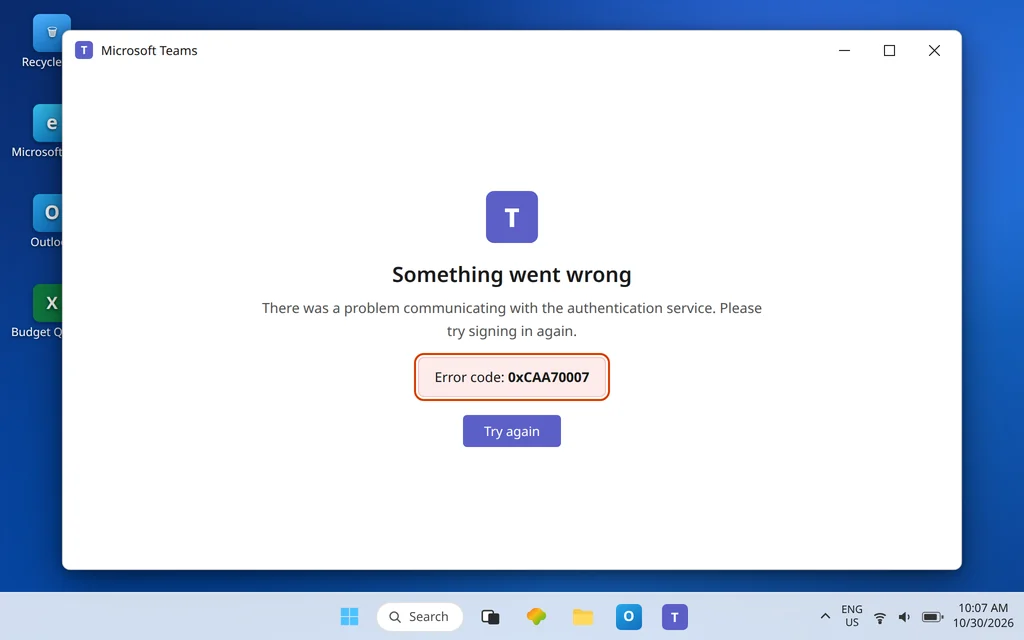
Microsoft Teams Error 0xCAA70007 — Connection or Authentication Problem
Teams opens, you try to sign in, and you are stopped by error 0xCAA70007 — often with wording about a problem communicating with the authentication service. The desktop app refuses to let you in, yet the same account frequently signs in without a murmur at teams.microsoft.com. That contrast is the single most useful fact about this code, and this guide is built around it.
Scope first, because three sign-in problems look alike from a distance. If Teams shows no code at all and simply will not sign in, use Microsoft Teams Sign-In Problems. If it keeps asking for your password on a loop, that is Microsoft Teams Keeps Asking to Sign In. And the sibling code 0xCAA70004 has its own page — Microsoft Teams Error 0xCAA70004 — because its most-reported pattern centers on saved-credential and cache conflicts, often right after a password change. For 0xCAA70007, the reports that recur most often tie the failure to the connection between this PC, its account registration state, and Microsoft’s authentication service: a stale work-or-school account connection on the device, cached sign-in data that no longer matches, a drifting clock, or a network path (VPN, proxy, firewall) interrupting the conversation. To be precise about sourcing: Microsoft does not publish an official one-line definition of this code, so the article works from that consistent community pattern and labels it as such — the fixes themselves are standard, safe, and reversible either way.
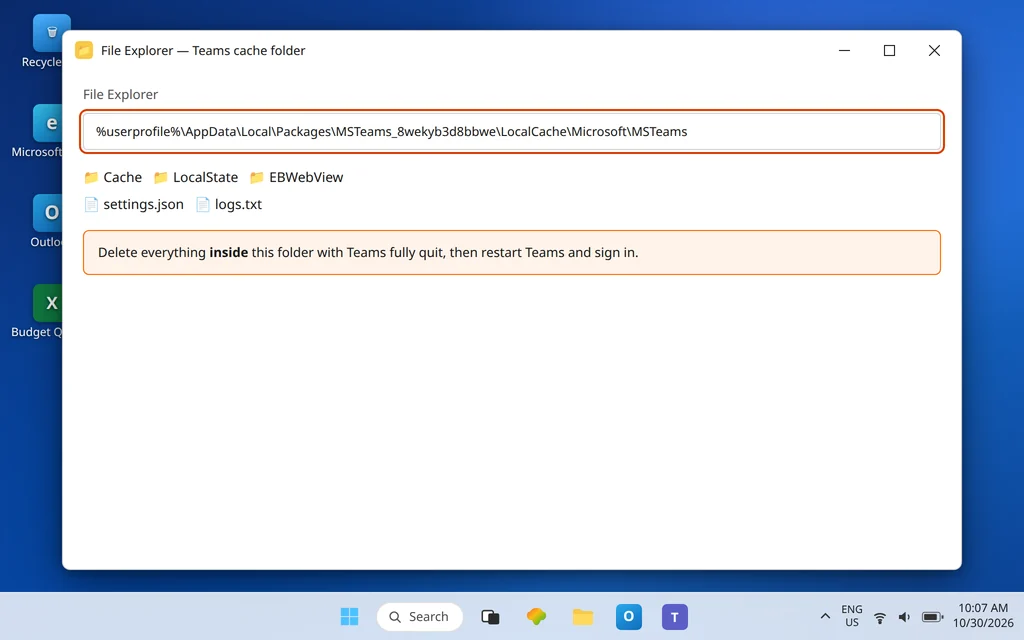
Quick Answer: Restart the PC, then disconnect and reconnect your work or school account in Settings > Accounts > Access work or school — for this code, that account/device state is the headline suspect. Set the clock to automatic and Sync now in Settings > Time & language > Date & time, clear the Teams cache at
%userprofile%\AppData\Local\Packages\MSTeams_8wekyb3d8bbwe\LocalCache\Microsoft\MSTeams, remove stale saved credentials in Credential Manager, and make sure Windows is fully updated. Repair, Reset, or reinstall Teams only if those fail.
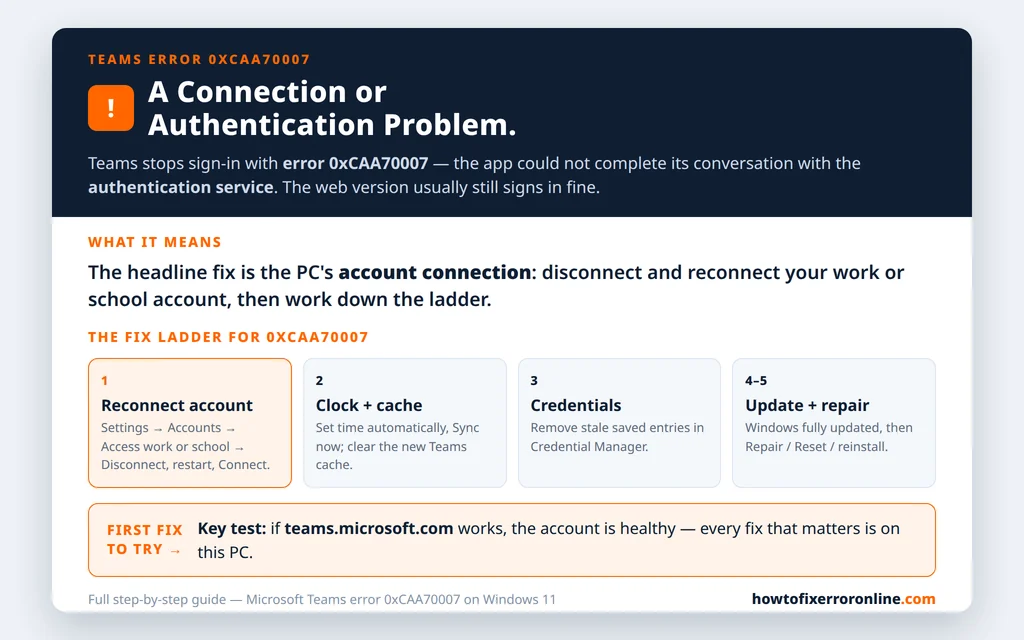
Table of Contents
Fix 1 — Restart properly, and test the web version
Do the two cheapest things first, because together they frame everything after:
- Fully quit Teams (system tray icon > Quit), restart the PC — not just the app — and try Teams once more. A full restart clears stuck sign-in processes that an app relaunch leaves behind.
- Open teams.microsoft.com, and sign in there. If the web version works, your account, password, and Microsoft’s service are all healthy, and the problem is provably on this PC. If the web version also fails, stop and treat it as an account or service problem — check with your IT team before changing settings on the device.
Fix 2 — Disconnect and reconnect your work or school account
This is the headline fix for 0xCAA70007, and it is first among the real fixes for a reason. Your PC maintains a registered connection to your work or school account — the state Windows uses for single sign-on across Microsoft 365 apps. When that state goes stale or gets tangled (a password change, a device re-registration by IT, a half-completed setup), the authentication service and your PC stop agreeing, and codes like this one are how the disagreement surfaces. Rebuilding the connection forces a fresh agreement:
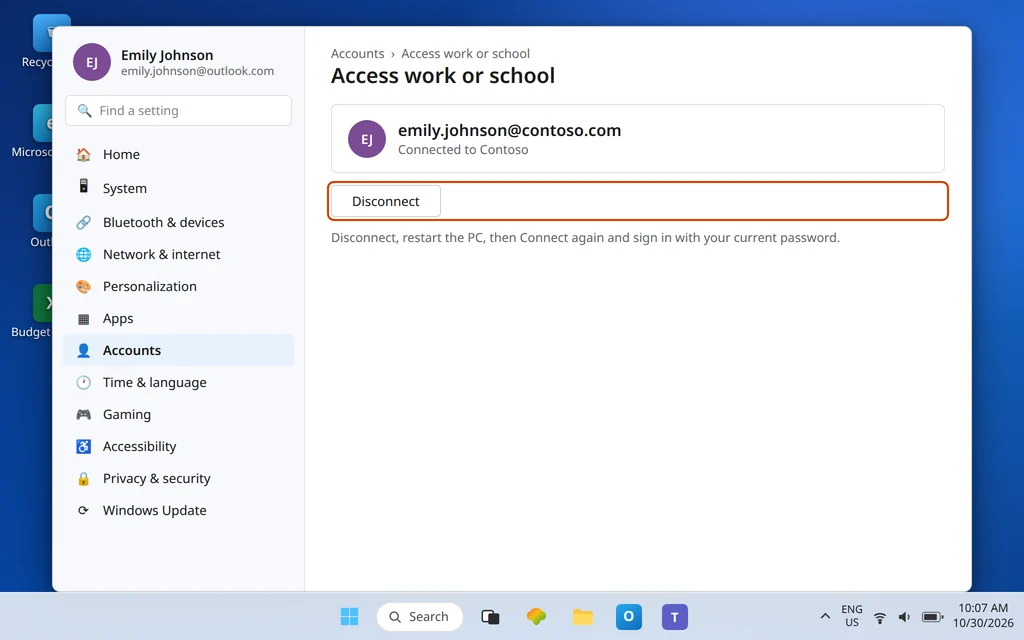
- Open Settings > Accounts > Access work or school.
- Select your account — for Emily Johnson, emily.johnson@contoso.com — and choose Disconnect. Confirm when asked.
- Restart the PC. Do not skip this; the registration state settles at restart.
- Return to Settings > Accounts > Access work or school, choose Connect, and sign in with your current credentials, completing any multi-factor prompt.
- Launch Teams and sign in.
Your files, mail, and chats are untouched — this resets the sign-in relationship between PC and account, not the account’s contents. Other Microsoft 365 apps may ask you to sign in again once afterward; that is normal.
For the technically curious, there is a read-only way to peek at this state: open Command Prompt and run dsregcmd /status. The output describes how the device is joined or registered. You do not need to act on it for this guide — but if you end up talking to your IT team, being able to say you ran it (and what the join state showed) shortens that conversation considerably.
Fix 3 — Set the date and time to automatic, then Sync now
Authentication exchanges are timestamped, and a PC clock that has drifted makes fresh sign-ins look stale or invalid to the server — a mismatch the authentication service rejects, which fits this code’s “could not communicate/authenticate” character exactly.
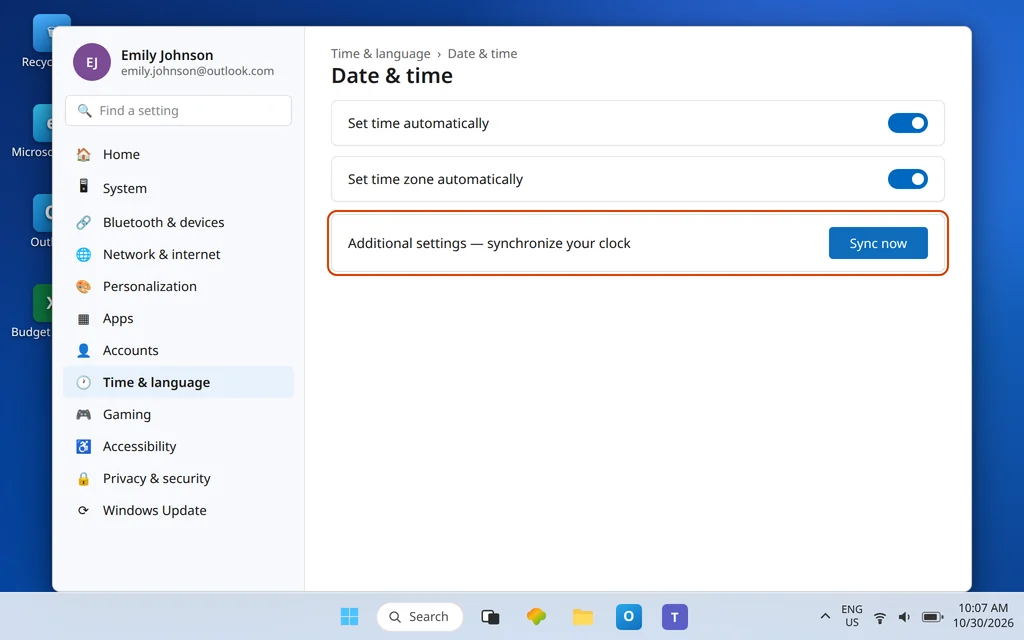
- Open Settings > Time & language > Date & time.
- Turn on Set time automatically and Set time zone automatically.
- Click Sync now and wait for the success confirmation.
- Relaunch Teams and sign in again.
Fix 4 — Clear the Teams cache
Cached sign-in data that no longer matches your account’s current state is a recurring theme in reports of this code, and clearing the cache is Microsoft Learn’s documented procedure for the new Teams:
- Fully quit Teams.
- Press Windows + R, paste
%userprofile%\AppData\Local\Packages\MSTeams_8wekyb3d8bbwe\LocalCache\Microsoft\MSTeamsand press Enter. - Delete everything inside the folder.
- Restart Teams and sign in. Expect a slower first launch while the cache rebuilds; your chats and files are in Microsoft 365 and are not affected.
Fix 5 — Remove stale saved credentials in Credential Manager
Windows may also be holding a saved credential that conflicts with the account state you just rebuilt. Clean out only the entries you can clearly identify:
- Search for Credential Manager and open it, then go to Windows Credentials.
- Under Generic Credentials, expand entries naming Teams, Microsoft Office, or your organization, and choose Remove on those.
- Restart Teams and sign in with your current password when prompted.
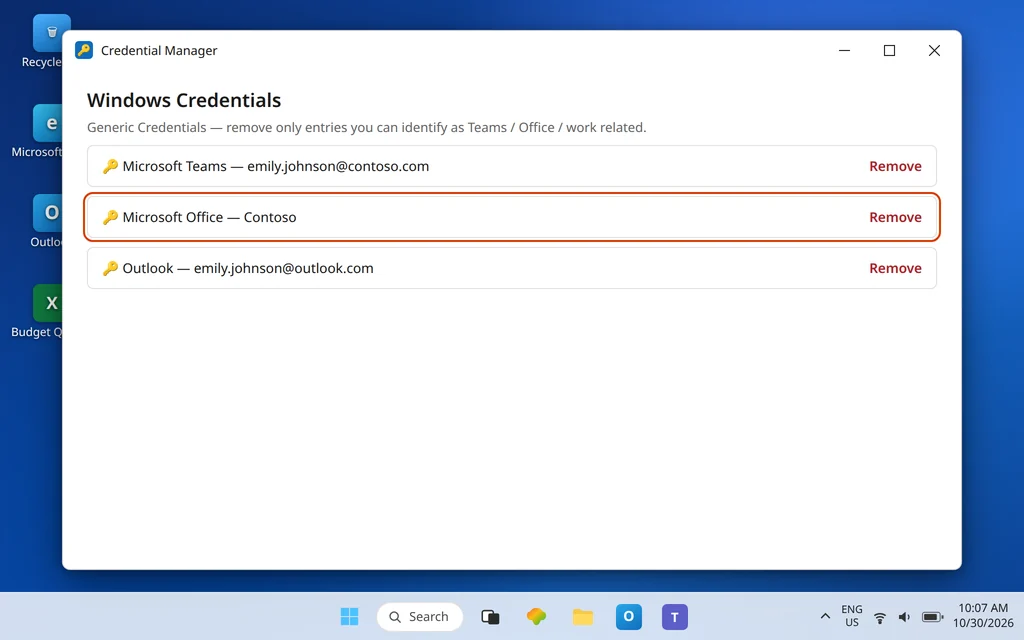
Fresh prompts after this fix are a good sign: they mean the PC is asking you instead of silently offering a saved secret that no longer works.
Fix 6 — Check the connection path: VPN, proxy, and general connectivity
The code’s wording — a problem communicating with the authentication service — earns the network one honest look, especially in these setups:
- VPN on: test once with the VPN disconnected (if your IT policy allows), or confirm with IT that Microsoft 365 sign-in traffic is routed correctly through it.
- Proxy or strict firewall: at work, this is IT’s setting to verify; at home, a “security” app that filters traffic can interfere the same way, so test with it paused if you use one.
- Generally flaky connection: if Teams also hangs at Connecting on this PC, work through Microsoft Teams Stuck on Connecting alongside this guide — the two symptoms share the connection layer.
Do not start changing advanced Internet Options (TLS, certificate revocation) on the strength of old forum posts; those tweaks circulate for this code family, but they are not a documented fix for 0xCAA70007, and this guide will not pretend otherwise. If your IT team asks you to check a specific one, that is a different matter — follow their instruction for your network.
Fix 7 — Bring Windows fully up to date
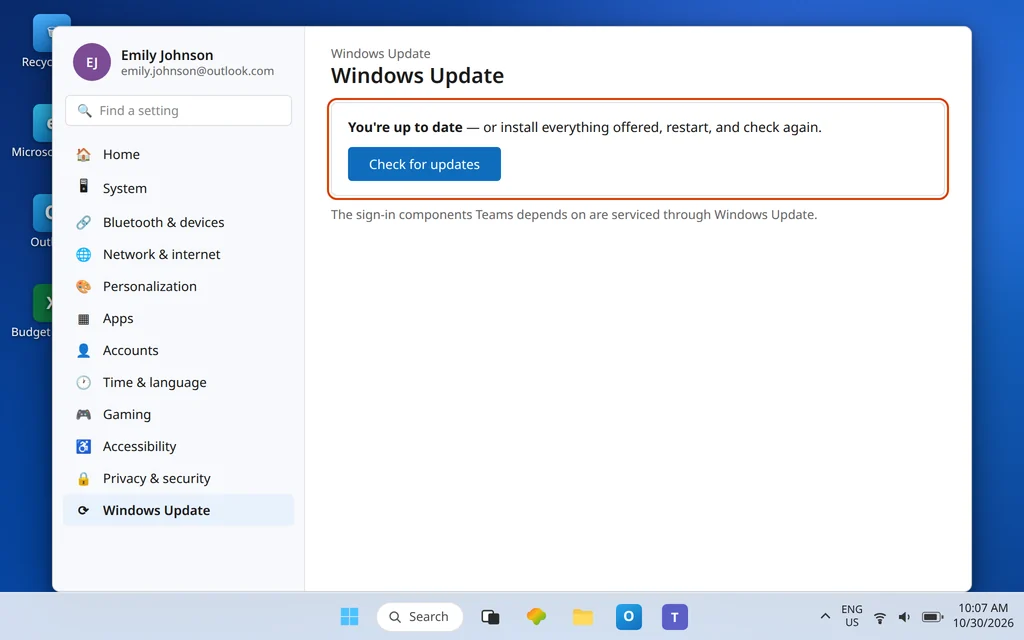
The sign-in components Teams depends on are part of Windows and are serviced through Windows Update. A PC that is months behind — or stuck mid-update — can carry an authentication stack that misbehaves exactly like this.
- Open Settings > Windows Update and choose Check for updates.
- Install everything offered, restart when prompted, then check again — updates often arrive in chains.
- Retry Teams after the PC is fully current.
Fix 8 — Repair, then Reset, the Teams app
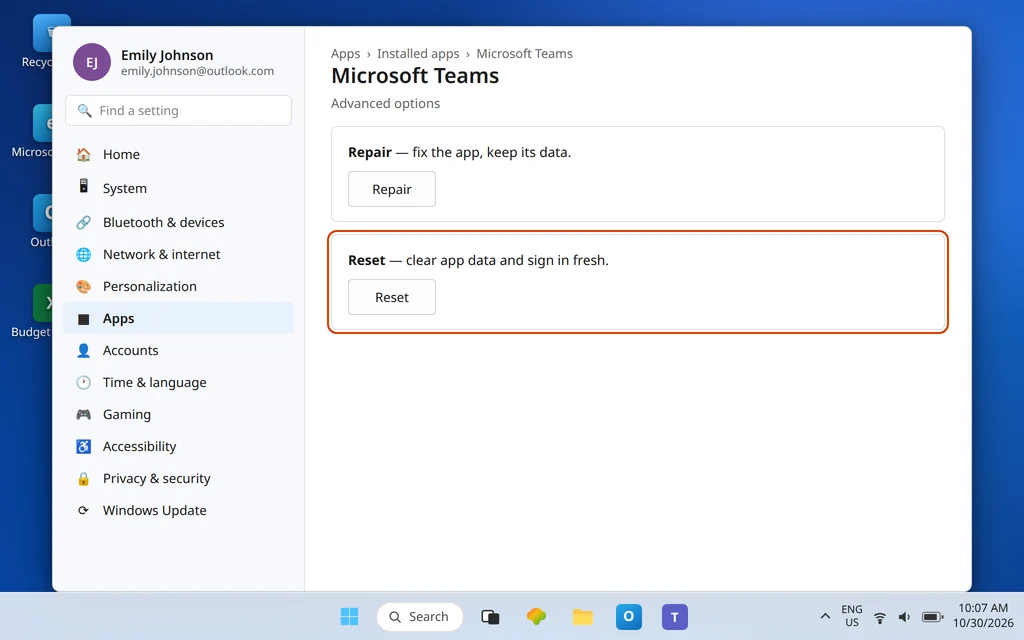
- Open Settings > Apps > Installed apps, find Microsoft Teams, click … > Advanced options.
- Click Repair and test Teams. Repair preserves app data.
- If the code persists, return and click Reset — Microsoft’s cache guidance lists Reset as the one-click way to clear the new app’s data; you will sign in fresh afterward and re-apply personal settings.
Fix 9 — Reinstall Teams as the last resort
Uninstall from Settings > Apps > Installed apps, restart the PC, install Teams fresh from Microsoft’s official download page, and sign in. If 0xCAA70007 survives a rebuilt account connection, a clean cache, fresh credentials, current Windows, and a reinstall — particularly if other Microsoft 365 apps also refuse to authenticate on this PC — the cause has moved beyond the device into organizational territory: account restrictions, conditional access, or device compliance policy. Hand your IT team the code, the list of fixes already done, and the fact that the web version works; that combination is exactly what they need to pick it up at the right level.
Confirm it worked
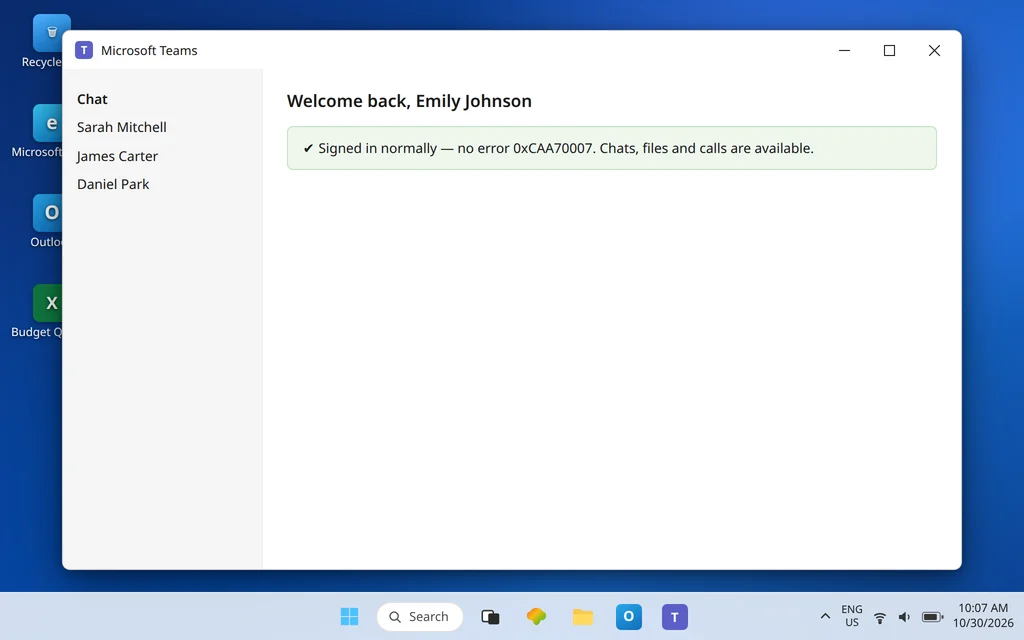
Sign in to Teams, fully quit it, and sign in again — then repeat after a full PC restart. Three clean sign-ins in a row, landing on your chats each time, is the standard this code has to meet; a single success can be luck. Send a message to James Carter, open a channel file, and join a test meeting to confirm the session stays authenticated under real use.
How to stop it happening again
- Keep Windows Update current — the authentication components are Windows components.
- After a password change or an IT device change, do Fix 2 once, proactively, instead of waiting for the code.
- Leave the clock on automatic and avoid VPN/filtering apps that intercept sign-in traffic unless your IT team manages them.
Frequently asked questions
What does Teams error 0xCAA70007 mean?
It is a sign-in error associated with the app failing to communicate with Microsoft’s authentication service — the connection or the authentication state between this PC and your account broke down. Stale work-or-school account registration on the device, outdated cached sign-in data, a drifted clock, and VPN/proxy interference are the patterns reports most consistently attach to it. Microsoft publishes no official one-line definition, so treat any source claiming an exact technical translation with care.
Is 0xCAA70007 a device registration problem?
It is often reported alongside stale device/account registration state, which is why disconnecting and reconnecting the work or school account (Fix 2) is this guide’s headline fix and why dsregcmd /status exists as a diagnostic. But it would overstate the evidence to say the code means “device registration failed” — cache, credentials, clock, and network causes produce it too, and the guide works through all of them.
How is 0xCAA70007 different from 0xCAA70004?
Only state this as far as the record supports: both are sign-in/authentication codes with overlapping fix ladders (clock, cache, credentials, repair). In practice, 0xCAA70004 reports cluster around saved-credential conflicts, often after a password change, while 0xCAA70007 reports more often involve the authentication-service connection and the PC’s account/device state — so this guide tries the account reconnect earlier. If your screen shows 70004, use the 70004 guide; the first several fixes will feel familiar.
Will disconnecting my work or school account delete anything?
No. Disconnecting removes the PC’s sign-in relationship to the account; your mail, files, and chats remain in Microsoft 365. You will sign back in during the reconnect, and other Microsoft apps may prompt you once as well. It is a standard, reversible Windows action (Fix 2).
Why does Teams on the web work while the app shows 0xCAA70007?
Because the web version signs in through the browser, independent of the desktop app’s cache, the PC’s saved credentials, and much of its registration state. Web-works/app-fails is therefore the signature of a local problem — and every fix in this guide is a local fix, which is the good news.
What if 0xCAA70007 keeps coming back after all fixes?
Then the device has given you all the evidence it can: account-side or policy-side causes (conditional access, device compliance, account restrictions) administered by your organization. Give your IT team the code, the dsregcmd join state if you captured it, and the fix list you completed — that is a solvable ticket, not a mystery.
Error 0xCAA70007 still blocking sign-in? Contact us at servicedesk@howtofixerroronline.com or through our Contact page and tell us the full message with the code, whether teams.microsoft.com signs you in, and whether disconnecting and reconnecting your work account changed anything. We will never ask for your password.