
Microsoft Teams “You’re Missing Out” Error During Sign-In
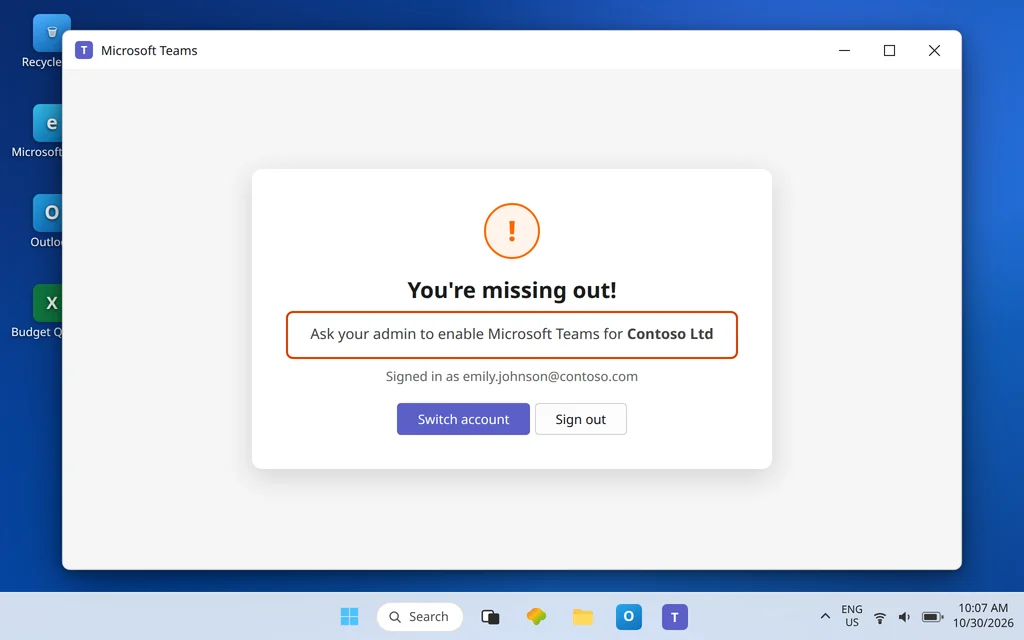
You sign in to Microsoft Teams with your normal work email and password — and instead of your chats, you get a polite wall: “You’re missing out! Ask your admin to enable Microsoft Teams for…” followed by your organization’s name. No error code. No button that helps. Just out.
This article is about that one specific message. It is not a general can’t-sign-in guide — if Teams refuses your sign-in entirely, with password errors or a stuck sign-in screen, start with Microsoft Teams Sign-In Problems. And if Teams lets you in but keeps asking you to sign in again later, that loop is a different fault covered in Microsoft Teams Keeps Asking to Sign In. Here, your password was accepted — Teams is telling you something about your account’s permission to use Teams at all. That narrows the cause list to three: you signed in with the wrong account, Teams is not enabled for your account, or the license change that would fix it has not finished taking effect yet.
Quick Answer: Read the message literally: for the account you just used, Microsoft 365 says Teams is not switched on. First confirm you signed in with your work or school account — not a personal Microsoft account — then sign out everywhere and back in with the work account. If the message survives that, only an admin can clear it: in the Microsoft 365 admin center > Users > Active users > your name > Licenses and apps, your account needs a license assigned and the Microsoft Teams service plan checked. If the license was only just assigned, allow up to 24 hours for it to take effect, then sign out and back in.
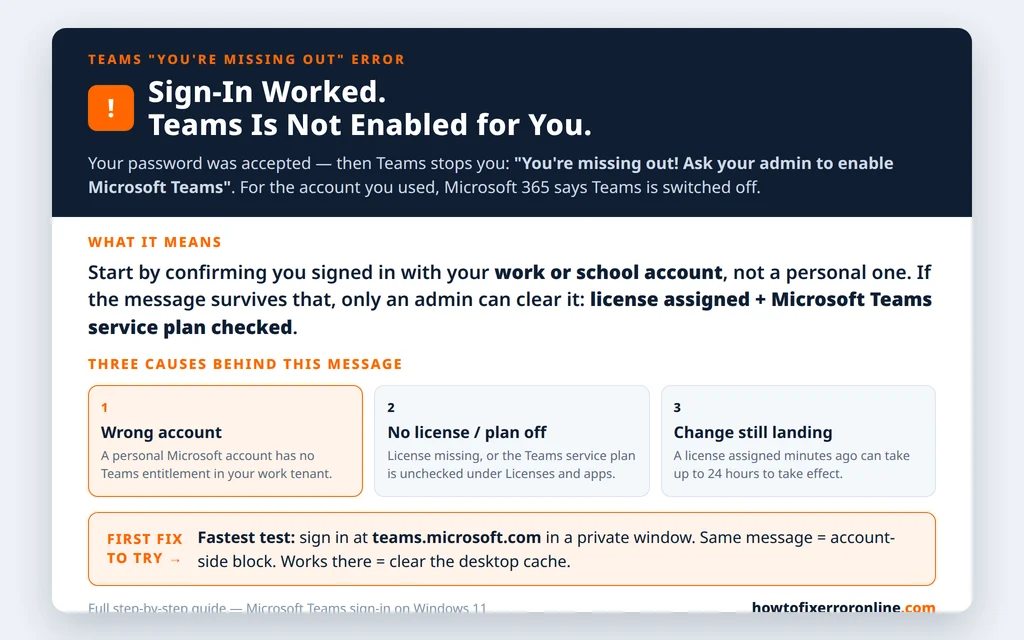
Table of Contents
Fix 1 — Read the message carefully: it names the organization
The full message ends with “…enable Microsoft Teams for [organization name].” That name is diagnostic gold:
- It names your employer or school: Teams evaluated your correct work tenant — and found Teams not enabled for you inside it. The fix lives in that tenant’s admin center (Fix 5).
- It names an organization you barely recognize — an old employer, a school you left, a trial tenant from years ago: you are signed in to the wrong tenant or account. That is Fix 2, and no ticket to your current IT team will help until the account is right.
Microsoft’s own answers to this exact question on Microsoft Q&A are consistent: this message means the signed-in user does not currently have Teams enabled in that organization. It is an account state, not a broken app — which is why reinstalling Teams never fixes it.
Fix 2 — Confirm the exact account you signed in with
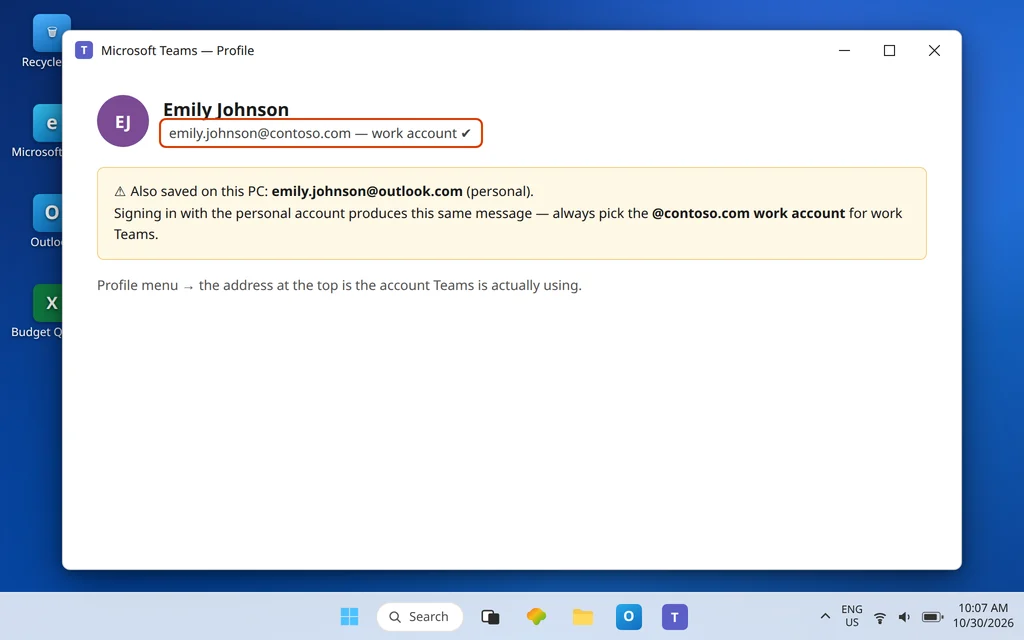
Teams accepts more than one kind of Microsoft account, and they do not substitute for each other. A personal Microsoft account (the kind used for a home Microsoft 365 subscription or a free Teams account) and your work or school account can share the same email address in your mind while being completely different accounts to Microsoft. Sign in with the personal one against your work tenant and you can land on exactly this message.
- In Teams, click your profile picture (or the … beside it) and look at the account shown at the top: name and full email address.
- Compare it, character by character, with the work or school email your organization issued you. Watch for the classic traps: a personal address you use everywhere, an old employer’s domain, or a version of your address from before a company rename.
- If it is not the current work or school account, that is your problem — sign out (Fix 3) and come back in with the correct one.
There is one more wrong-account pattern worth knowing, because Microsoft Q&A documents it directly: if your email domain was once registered to a Microsoft 365 tenant (an old trial counts), signing in can route you to that tenant’s disabled Teams instead of the free or personal Teams you expected. Same message, same cure: the tenant that owns the domain controls whether Teams is on for you in it.
Fix 3 — Sign out everywhere, then back in with the work account
Account mix-ups persist because Teams, the browser, and Windows each remember their own sign-in. A clean break:
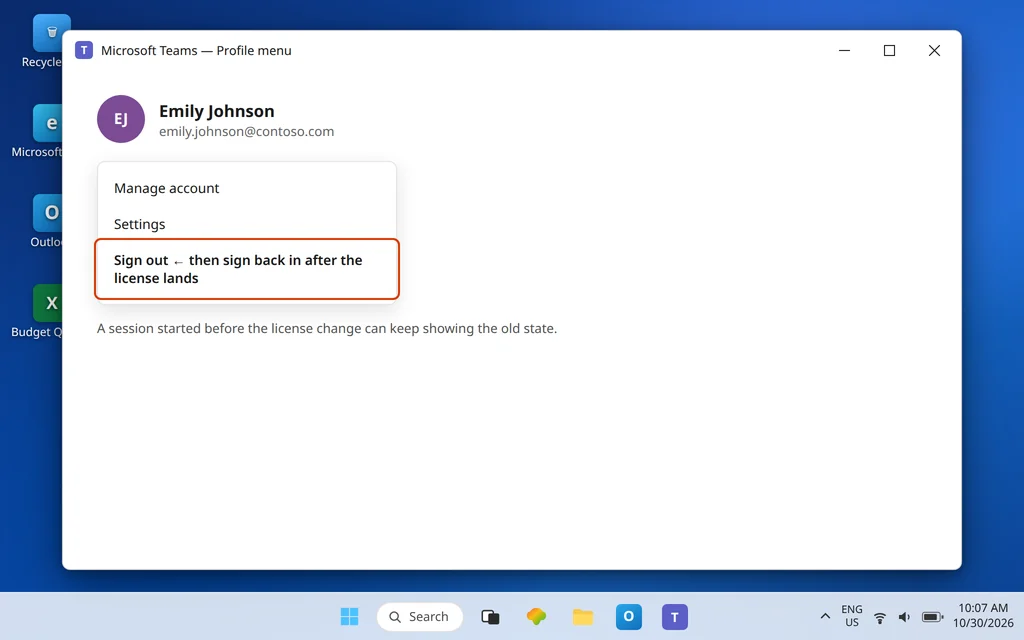
- In Teams, click your profile picture and choose Sign out.
- Open your browser, go to teams.microsoft.com, and sign out there too if it opens already signed in.
- Fully quit Teams (right-click its icon near the clock and choose Quit) so no half-finished sign-in survives in the background.
- Relaunch Teams and sign in typing the work or school email and password fresh — do not pick a saved account tile if it might be the personal one.
If the message is gone, the account was the whole story. If it returns with the confirmed-correct work account, move on — the next two fixes separate “this device” from “your account,” and then hand IT a precise checklist.
Fix 4 — Use Teams on the web to isolate account from app
One two-minute test tells you where the block lives:
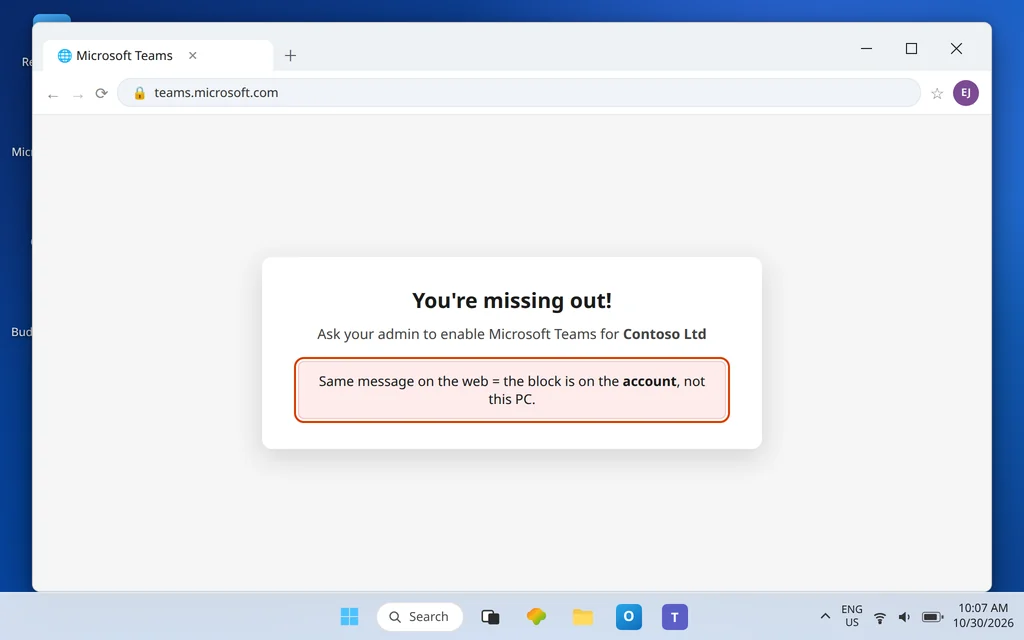
- In your browser, open an InPrivate / Incognito window (so the browser’s saved accounts cannot interfere) and go to teams.microsoft.com.
- Sign in with the work or school account.
- The web version shows the same “You’re missing out” message: the block follows your account. It is admin-side — Fix 5 is the fix, and no work on your PC will change it.
- The web version signs in fine: your account is healthy and Teams is enabled for you. The desktop app is holding stale sign-in state — go straight to Fix 7’s cache clear.
Microsoft Q&A uses this same split: when the error appears in both the desktop and web apps, responders treat it as an account/licensing state and check the admin side rather than the PC.
Fix 5 — What to ask IT: the license and the Teams service plan
If you do not have admin access, this is the fix you hand over — and handing over the exact checks gets you fixed in one ticket instead of five. An admin can clear this message like this (verified against Microsoft Q&A’s answers to this exact error):
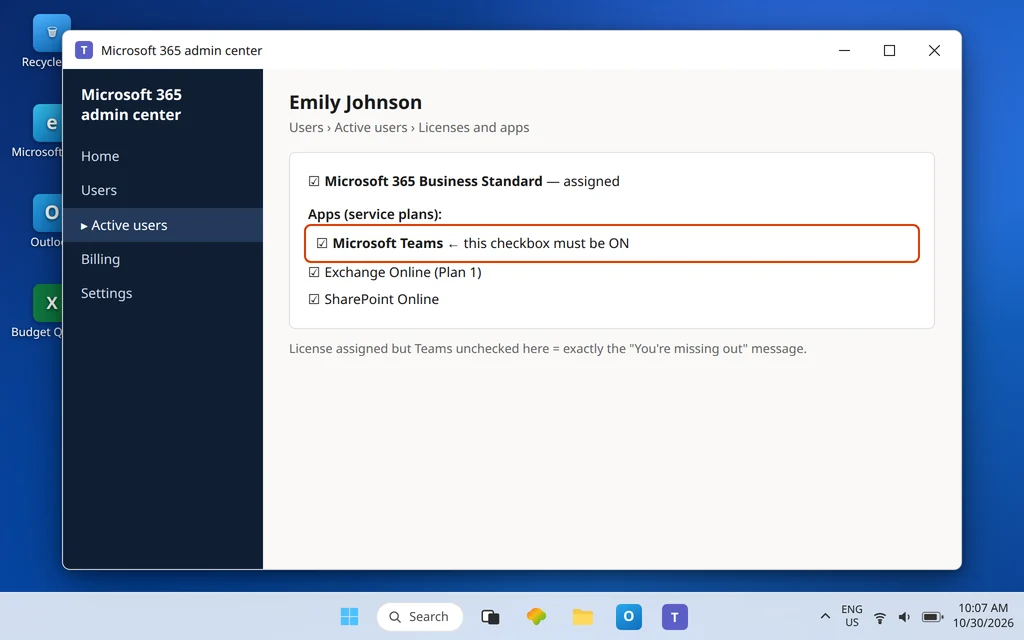
- Open the Microsoft 365 admin center (admin.microsoft.com) and go to Users > Active users.
- Select your account and open Licenses and apps.
- Confirm a license that includes Teams is actually assigned to you — a license the company owns but has not assigned changes nothing.
- Expand the Apps (service plans) list for that license and confirm Microsoft Teams is checked. This is the step everyone misses: a user can hold a full Microsoft 365 license with the Teams service plan switched off, and that produces exactly this message.
- Save, then have you sign out of Teams completely and back in (Fix 3) — and read Fix 6 below before retesting immediately.
What to write in your ticket: “I get ‘You’re missing out! Ask your admin to enable Microsoft Teams’ when I sign in with [your work email]. Please check my account under Users > Active users > Licenses and apps: is a license assigned, and is the Microsoft Teams service plan turned on under Apps?” That one paragraph contains everything IT needs.
Fix 6 — If everyone gets it: Teams may be off for the whole organization
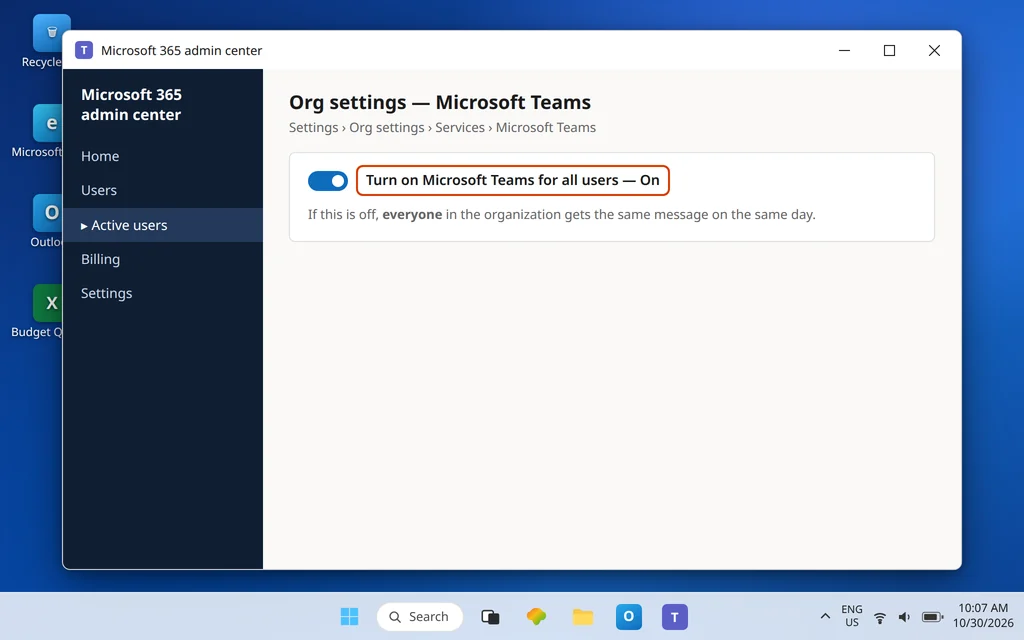
If colleagues are hitting the same message on the same day, the per-user license is probably fine and the organization-wide switch is the suspect. Microsoft Q&A’s guidance for that pattern points admins to one more check:
- In the Microsoft 365 admin center, go to Settings > Org settings.
- Open Microsoft Teams in the services list.
- Confirm Turn on Microsoft Teams for all users is enabled.
As a regular user you cannot see this setting — but mentioning “it started for the whole team at once” in your ticket aims IT straight at it, instead of sending them through per-user license checks that will all look correct.
Fix 7 — License just assigned? Allow up to 24 hours, then sign back in
The cruelest version of this error: IT assigns your license while you are on the phone with them, you retry instantly — and the message is still there, so everyone concludes the fix failed. License and service-plan changes are not instant across Microsoft 365. Microsoft’s community guidance for newly assigned licenses is to allow up to 24 hours for the change to take effect everywhere it needs to.
Use the wait productively:
- Note the time IT made the change. Retesting every five minutes proves nothing.
- When you do retest, sign out completely and back in (Fix 3) — a session that started before the change can keep showing the old state.
- Test in the web version as well (Fix 4); it picks up account changes cleanly because the private window holds no old session.
- If a full 24 hours passes with the correct account, a confirmed license, and the Teams service plan checked — go back to IT with those three facts. At that point the remaining suspects are theirs: a service plan conflict, a second disabled plan from another license, or a tenant-side provisioning error they can raise with Microsoft.
Fix 8 — License confirmed, web works, desktop still says it: clear the Teams cache
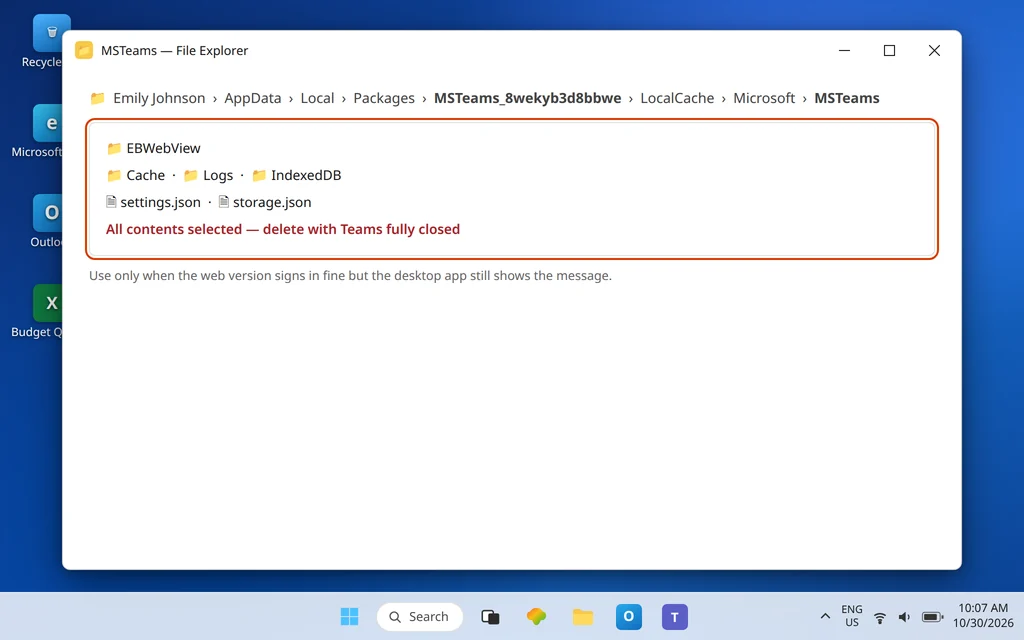
Last case: IT confirms everything, Teams on the web signs you in, but the desktop app still insists you are missing out. That is the app clinging to the account state from before the fix. Clear it out:
- Fully quit Teams (right-click the icon near the clock > Quit).
- Press Windows + R, paste the new Teams cache path, and press Enter:
%userprofile%\AppData\Local\Packages\MSTeams_8wekyb3d8bbwe\LocalCache\Microsoft\MSTeams - Delete everything inside that folder.
- Relaunch Teams and sign in fresh with the work or school account.
One warning: cache clearing only helps in this exact pattern — account proven good on the web, desktop alone still blocked. If the web version shows the message too, deleting cache is wasted motion; the account is still the problem. And if your sign-in failure shows a code instead of this message — such as 0xCAA70004 or 0xCAA70007 — those are different faults with their own guides: Microsoft Teams Error 0xCAA70004 and Microsoft Teams Error 0xCAA70007.
Confirm it worked
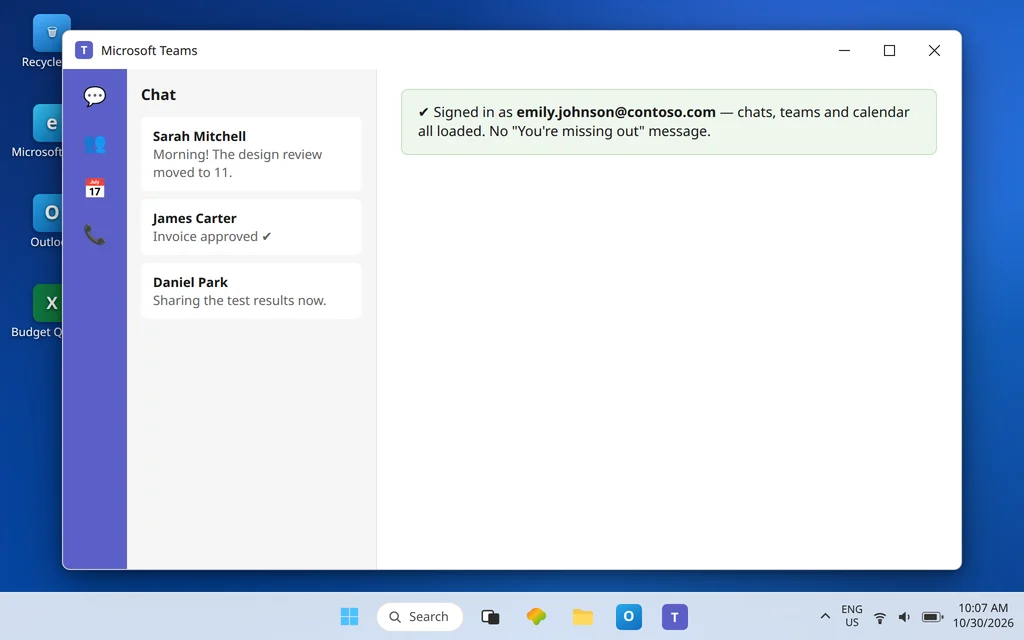
Sign out of Teams and sign back in with your work or school account: you should land on your chats and teams with no message, on the desktop app and at teams.microsoft.com alike. Open a chat, send a test message, and join a meeting from your calendar to confirm the account is fully live.
How to stop it happening again
- Keep one identity per place. Sign in to work Teams only with the work or school account, and keep personal Teams use in the browser or the personal app — most recurrences of this message are the two identities swapping chairs.
- New job, new tenant check. On your first day, sign in once at teams.microsoft.com before installing anything; if the message appears, IT can fix the license before your first meeting depends on it.
- After any license change, expect the wait. Plan around the up-to-24-hours window instead of fighting it: note when the change was made and retest with a full sign-out afterward.
Frequently asked questions
What does “You’re missing out! Ask your admin to enable Microsoft Teams” mean?
It means that, for the account you just signed in with, Microsoft 365 reports Teams as not enabled. Microsoft’s own answers give two account-side reasons: no license that includes Teams is assigned to you, or the license is assigned but the Microsoft Teams service plan inside it is switched off. It can also appear when you signed in with the wrong kind of account (personal instead of work or school), because that account has no Teams entitlement in your organization’s tenant.
Why do I get this message when my coworkers use Teams fine?
Because the switch is per account, not per company. Your coworkers’ accounts have the license and service plan; yours is missing one of the two — a very common state for new starters, people who changed departments, or anyone whose license was recently rebuilt. The exact admin check is Users > Active users > your account > Licenses and apps, with the Microsoft Teams app checked under Apps.
How long after an admin assigns my license will Teams work?
Allow up to 24 hours for a newly assigned license or service-plan change to take effect, then sign out of Teams completely and sign back in so the app picks up the new state. Many changes land much sooner, but retesting immediately and seeing the same message does not mean the fix failed — it usually means it has not finished yet.
Can I fix “You’re missing out” myself without an admin?
Only the wrong-account version, yes: confirm the signed-in account (Fix 2), sign out everywhere, and sign back in with your work or school account (Fix 3). If the correct account still gets the message — especially if teams.microsoft.com shows it too — the remaining causes (license, service plan, org-wide switch) are all in the admin center, and only your IT admin can change them. Send the exact request in Fix 5 to make that quick.
Is “You’re missing out” the same as a normal Teams sign-in problem?
No. A general sign-in failure means Teams could not sign you in at all — wrong password, stuck screen, an error code. “You’re missing out” means sign-in succeeded but the account is not entitled to Teams. For complete sign-in failures, use Microsoft Teams Sign-In Problems; for sign-in that works but repeats later, use the sign-in loop guide linked at the top of this article.
Still locked out by this message? Contact us at servicedesk@howtofixerroronline.com or through our Contact page and tell us the exact organization name the message shows, which account address you signed in with, and whether teams.microsoft.com shows the same message. We will never ask for your password.