
Microsoft Teams Not Detecting Headphones or Headset
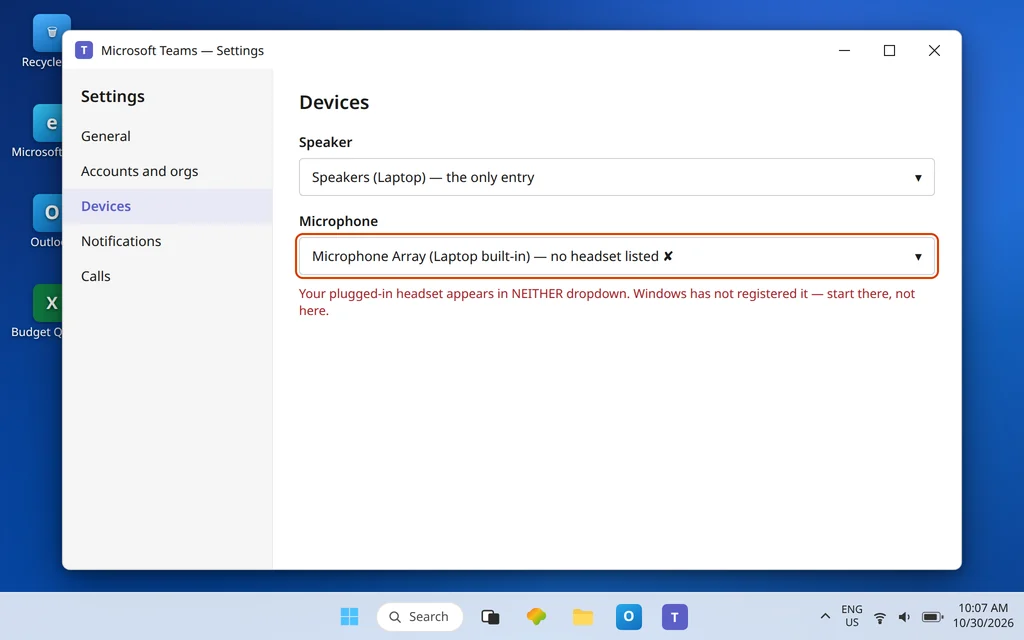
You plug in your headset — or pair it over Bluetooth — open Teams, go to Settings > Devices to select it… and it is simply not there. The dropdown offers the laptop speakers and the built-in microphone, and nothing else. The headset may as well not exist.
This article is only about that missing-device problem: the headset does not appear — in Teams, in Windows, or in both. It is a different fault from a headset that appears but produces no voice (that microphone chain is covered step by step in Microsoft Teams Microphone Not Working), and from a headset that appears and works for you but where you cannot hear the meeting (see Microsoft Teams Audio Not Working). Detection problems have one governing rule: Teams can only list devices that Windows has already registered. Microsoft’s own headset setup guides always start the same way — connect or pair the device with the PC first, then choose it in Teams Devices. So we work from Windows outward, and Teams is the last place we check, not the first.
Quick Answer: If your headset is missing from Teams Settings > Devices, check Windows Settings > System > Sound first: if it is not listed under Output and Input there either, Teams cannot show it. Reconnect it — a different USB port, or remove and re-pair it in Bluetooth & devices — then fully quit and relaunch Teams, because Teams does not always notice a device plugged in after it opened. Still invisible? In the classic Sound panel, right-click and tick Show Disabled Devices — a disabled headset hides there. Last stops: update the driver in Device Manager, and test the headset in Voice Recorder to prove whether it is the headset or the PC.
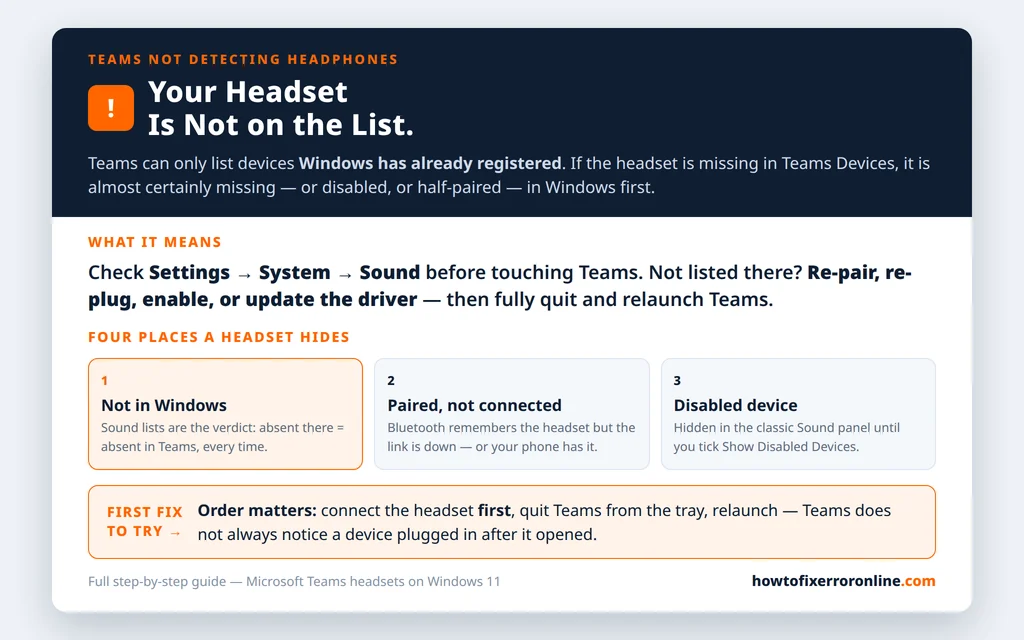
Table of Contents
Fix 1 — Ask Windows first: does the headset exist at all?
Split the problem in ten seconds:
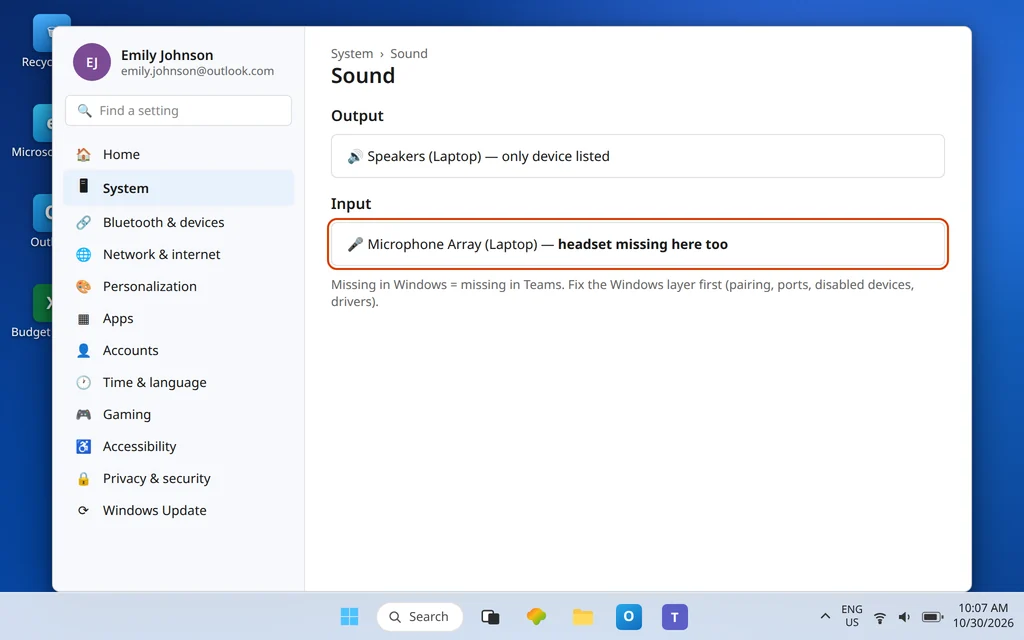
- Open Settings > System > Sound.
- Look under Output (“Choose where to play sound”) and Input (“Choose a device for speaking or recording”).
- Your headset appears in Windows but not in Teams: skip to Fix 2 — the device is fine; Teams has not picked it up.
- Your headset appears in neither: Windows itself has not registered it. Work Fixes 3–7 in order; do not reinstall Teams, because no app setting can list a device the operating system cannot see.
Note which list it is missing from, too. A USB or Bluetooth headset normally brings both an output and an input. Appearing as speakers but not as a microphone (or the reverse) usually means a half-finished connection — the re-pair in Fix 3 or the port swap in Fix 5 is aimed exactly at that.
Fix 2 — Fully quit Teams and relaunch it after plugging in
Teams is not always graceful about hot-plugging: a headset connected after Teams started — especially over USB or a docking station — may stay invisible in Devices until the app restarts. The tray matters here, because closing the window does not close Teams:
- Plug in or pair the headset first, and confirm it appears in Windows Sound (Fix 1).
- Right-click the Teams icon in the system tray (near the clock) and choose Quit so the app exits completely.
- Relaunch Teams, open Settings > Devices, and open the Speaker and Microphone dropdowns again.
This thirty-second fix resolves a surprising share of “it worked yesterday” cases, because yesterday’s session had the headset connected before Teams ever opened. If the device shows in Windows and still refuses to appear in a freshly relaunched Teams, continue — something below the app is half-registered.
Fix 3 — Bluetooth headset? Check the pairing state, then remove and re-pair
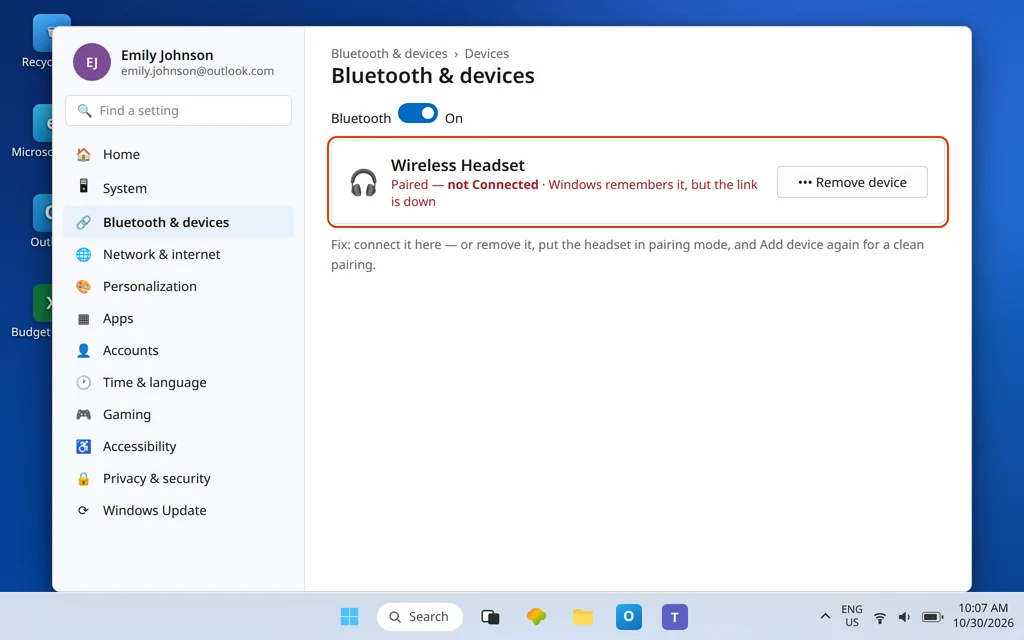
A Bluetooth headset can look connected and be useless in three distinct ways: it is paired but not connected (Windows remembers it, but the link is down), it connected to your phone instead of the PC, or the pairing itself is incomplete. Work through it:
- Open Settings > Bluetooth & devices and confirm Bluetooth is on.
- Find your headset in the device list. Its status should say Connected. “Paired” alone means Windows knows it exists but is not talking to it — click it to connect, and make sure the headset is powered on and not actively connected to another device such as your phone.
- If it will not connect, or connects without appearing in Sound: remove it — the … next to the device > Remove device — then put the headset into pairing mode (check its manual; usually holding the power or Bluetooth button until it announces pairing) and choose Add device > Bluetooth to pair it fresh.
Microsoft’s own Bluetooth troubleshooting follows this same sequence — Bluetooth on, device discoverable in pairing mode, and remove-and-re-pair when a previous pairing misbehaves — because a half-completed pairing often registers the music profile but not the call/microphone side, which is precisely the “headphones but no headset in Teams” complaint.
Fix 4 — The hidden one: enable a disabled device in the classic Sound panel
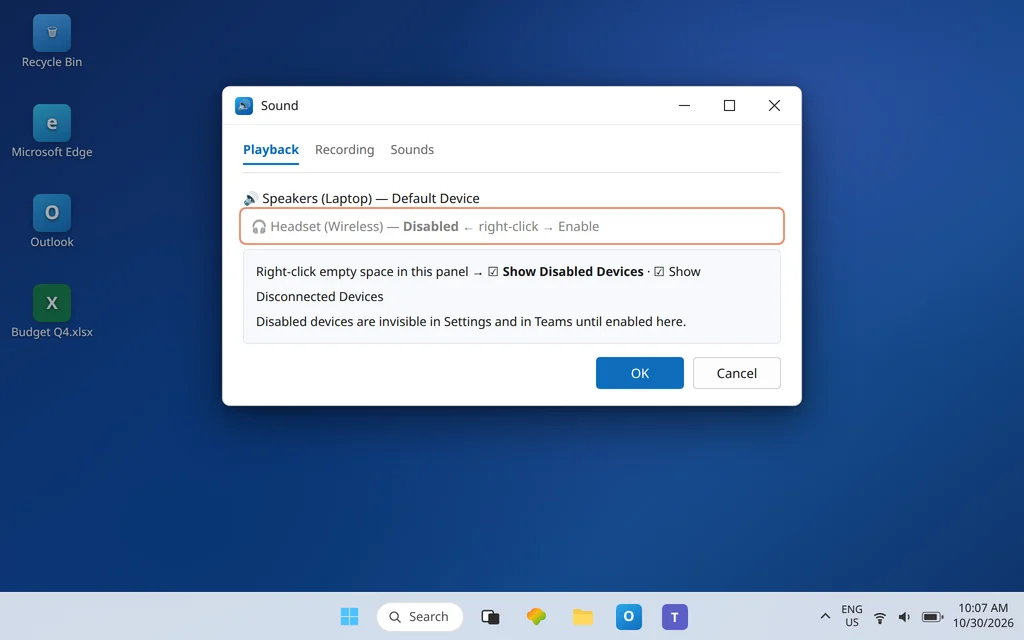
Windows can disable an audio device — after a driver hiccup, a docking change, or an old troubleshooting session — and a disabled device disappears from Settings and from Teams, as if unplugged. The modern Settings pages do not show it. The classic panel does:
- Open Settings > System > Sound, scroll to Advanced, and click More sound settings.
- On the Playback tab, right-click in the empty space and tick Show Disabled Devices (and Show Disconnected Devices).
- If your headset appears greyed out: right-click it and choose Enable.
- Repeat on the Recording tab for the headset’s microphone.
- Return to Teams Settings > Devices (relaunch Teams if it was open — Fix 2) and select the now-visible headset.
This is the fix to try when the headset “definitely worked on this PC before” and nothing about the hardware changed. Something disabled it; this is where it was hiding.
Fix 5 — Wired headset? Jacks, combo ports, USB ports and dongles
Physical connections fail physically, and each type has its own trap:
- 3.5 mm plug: reseat it firmly, then try the jack on the back of a desktop PC if the front-panel jack fails — front panels depend on an internal cable and audio header that are common failure points, while the rear jack connects straight to the main board. On a laptop with a single combo jack (headphone + microphone in one), a headset with a single combined plug works directly; a headset with separate green/pink plugs needs a splitter adapter, and without one the microphone side typically never appears.
- USB headset: plug it directly into the PC, not through a hub, dock, or monitor, and try a second port. Docks are notorious for registering a headset late or partially.
- Wireless headset with a USB dongle: the dongle is the device as far as Windows is concerned. Move it to a direct port (dongles tucked behind a desktop under a desk are a classic weak-signal case), and confirm Windows lists the dongle’s name in Sound settings.
- Whatever the connection, re-run Fix 1’s Windows check after each change, then relaunch Teams (Fix 2) before judging it.
Fix 6 — Update or reinstall the audio driver in Device Manager
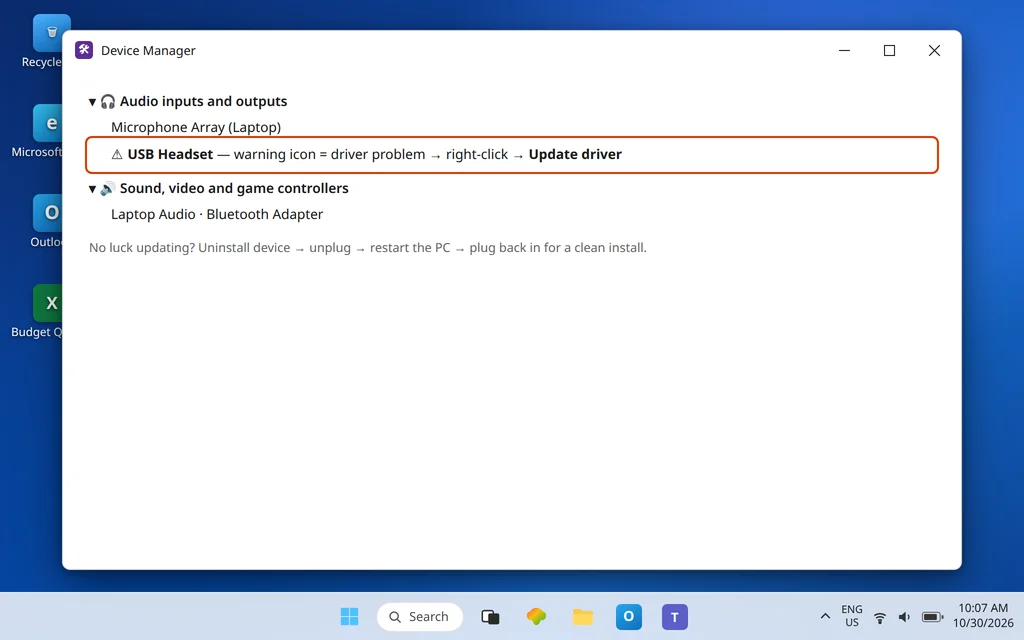
If Windows lists the headset with errors, drops it randomly, or has not listed it since a Windows update, suspect the driver layer:
- Right-click Start and open Device Manager.
- Expand Audio inputs and outputs and Sound, video and game controllers. Look for your headset or audio device — and for any device carrying a warning icon.
- Right-click the device and choose Update driver > Search automatically for drivers.
- If it worked until recently and updating changes nothing: right-click > Uninstall device, then unplug the headset, restart the PC, and plug it back in so Windows installs it cleanly.
- For a Bluetooth headset that keeps half-registering, the same treatment applies to the PC’s Bluetooth adapter entry under Bluetooth.
After any driver work, do the Windows Sound check again before opening Teams — the goal is to see the device stable in Windows first.
Fix 7 — Prove the headset itself: test outside Teams
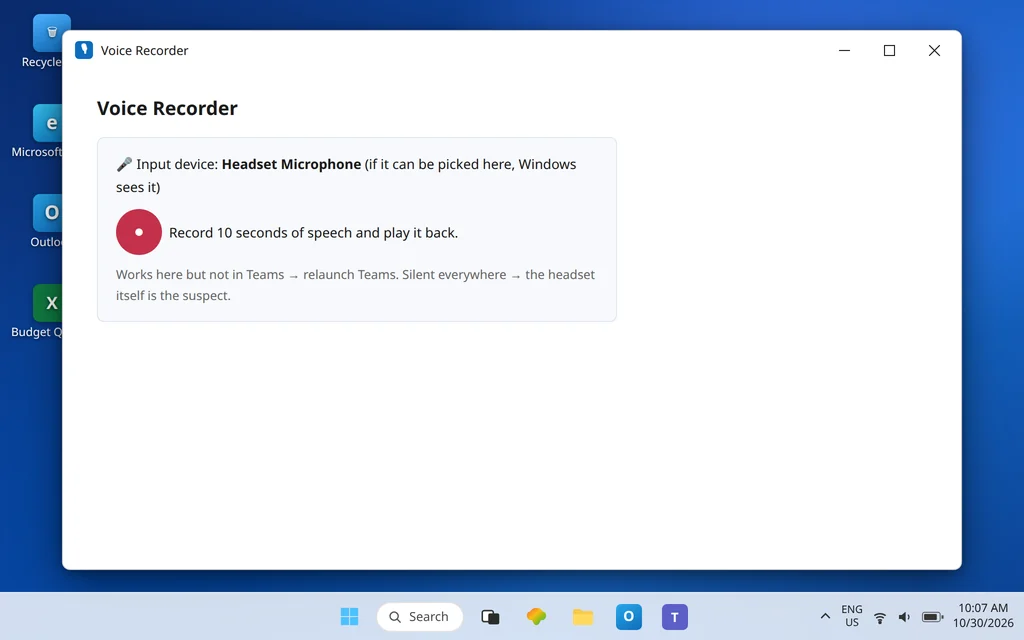
Before deeper surgery, isolate hardware from software with a two-minute test:
- Open the Windows Voice Recorder (Sound Recorder) app and try to record: if your headset microphone is selectable there and records your voice, Windows and the headset are talking.
- Play any local audio file and confirm the headset appears as an output you can choose in the system volume panel.
- If you can, plug the headset into another PC or a phone. A wired headset that appears nowhere, on any device, has failed — cables die at the plug and inline controls more often than at the earpiece. A Bluetooth headset that pairs with a phone but never with this PC points back at this PC’s Bluetooth (Fixes 3 and 6).
Do not skip this step because it feels basic: it is the difference between “buy a headset” and “keep fixing Windows,” and guessing wrong costs the price of a headset.
Fix 8 — A note on certified headsets — honest expectations
Once your headset appears, one question usually follows: do you need a special one? No. Microsoft’s certified-device program is about extra call controls: buttons on certified headsets and speakerphones can answer calls, mute, adjust volume, and light a Teams button for meeting nudges. A standard wired or Bluetooth headset that Windows detects will carry your voice and the meeting’s audio in Teams perfectly well — certification adds the buttons, not the sound. Where certified models genuinely help is busy phone-heavy work (and if an echo problem is what sent you shopping, that is covered in Microsoft Teams Echo in Calls). But do not replace a working headset to cure a detection problem — Fixes 1–7 are where missing devices actually come back.
Confirm it worked
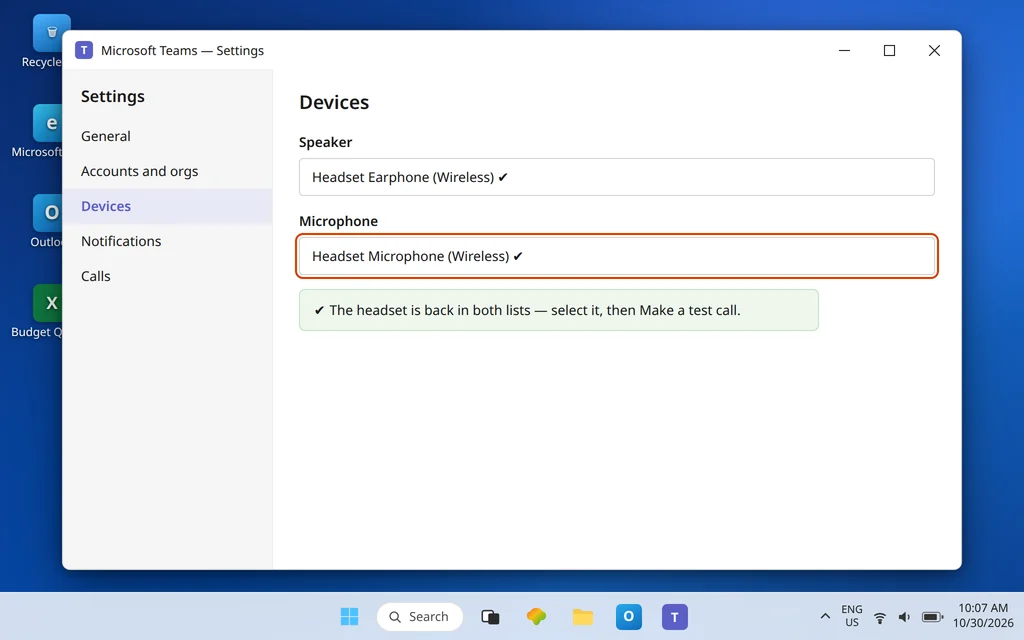
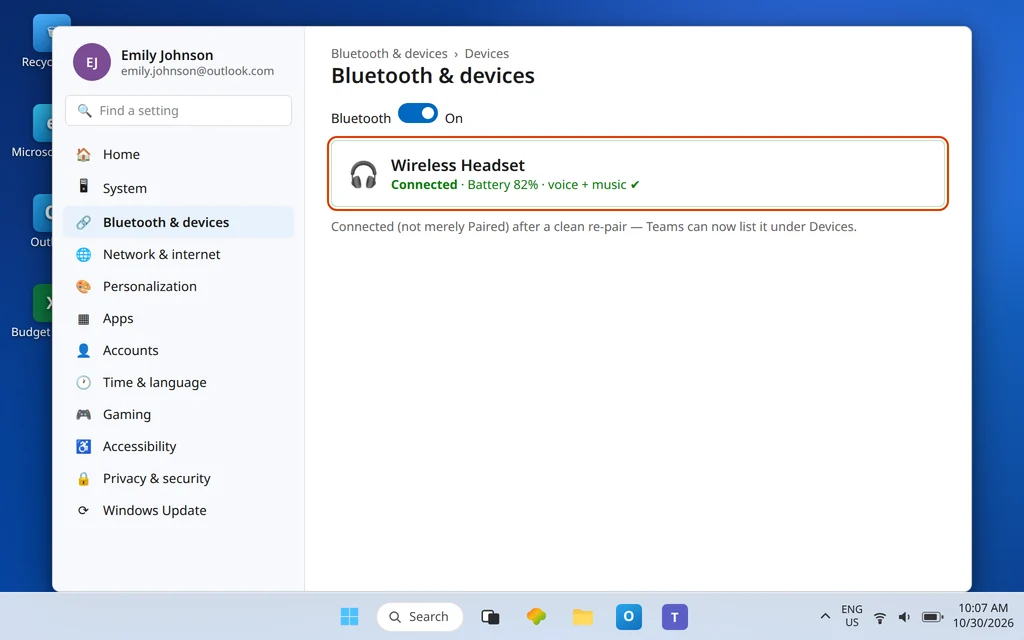
Your headset now appears in Windows Settings > System > Sound (Output and Input) and in Teams Settings > Devices, selected as both Speaker and Microphone. Click Make a test call in Teams Devices and hear your voice played back. Then unplug or disconnect it, reconnect it, and relaunch Teams once more to confirm detection survives the normal routine — a fix that only works while everything stays untouched is not finished yet.
How to stop it happening again
- Connect before you open Teams. Headset first, app second — the order that avoids the hot-plug miss in Fix 2 becomes a habit fast.
- Keep one pairing. A Bluetooth headset that regularly connects to your phone first will keep “vanishing” from the PC. Disconnect it from the phone during work hours, or remove the phone pairing if you never use it there.
- After Windows or driver updates, re-check Sound. Updates occasionally disable or re-default audio devices; a ten-second glance at Settings > System > Sound after a big update beats discovering it live in a meeting.
Frequently asked questions
Why does Teams not detect my headphones?
Because Teams lists only devices Windows has registered. If the headset is missing from Windows Settings > System > Sound as well, the cause is below Teams: an incomplete Bluetooth pairing, a disabled device in the classic Sound panel, a bad port/jack/dongle connection, or a driver problem. If it is in Windows but not Teams, fully quit Teams from the system tray and relaunch it — Teams does not always notice devices plugged in after it opened.
Why is my headset in Windows Sound but not in Teams Settings > Devices?
Almost always a stale app session. Quit Teams completely (tray icon > Quit — closing the window is not enough), confirm the headset is connected and selected in Windows, then relaunch Teams and reopen Devices. If it still refuses while other apps see the headset, remove and re-add the device in Windows (re-pair for Bluetooth) so Teams gets a clean registration to discover.
How do I find a headset that does not appear anywhere?
Check the classic Sound panel: Settings > System > Sound > Advanced > More sound settings, right-click on the Playback and Recording tabs, and tick Show Disabled Devices. A disabled headset appears greyed out; right-click > Enable brings it back to Windows, Settings, and Teams. If it is not even there, work the connection itself — port, jack, dongle, pairing — then the driver in Device Manager.
My Bluetooth headphones are paired but Teams cannot see them. Why?
“Paired” means Windows remembers them; it does not mean they are connected now. In Settings > Bluetooth & devices, the headset should read Connected — and it cannot be actively connected to your phone at the same time. If connecting fails or the microphone side never registers, remove the device, put the headset back in pairing mode, and pair again from Add device > Bluetooth; a half-finished first pairing commonly registers music playback but not the call microphone.
Do I need a Microsoft Teams certified headset for it to work?
No. Any headset Windows can detect can be selected in Teams for speaker and microphone. Microsoft’s certified devices add physical call-control buttons — answer, mute, volume, a Teams button — and are a convenience for heavy callers, not a requirement for the device to appear or for audio to work. Fix detection first; consider certified hardware only if you specifically want the buttons.
Headset still invisible everywhere? Contact us at servicedesk@howtofixerroronline.com or through our Contact page and tell us whether Windows Sound lists the headset, how it connects (Bluetooth, USB, dongle, or 3.5 mm), and what the classic Sound panel shows with disabled devices visible. We will never ask for your password.