
Microsoft Teams Echo in Calls — Hearing Your Own Voice
You speak, and half a second later you hear yourself say it again. It derails your train of thought — and your first instinct is to fix your own headset, microphone, and settings. That instinct is usually wrong.
Here is the honest mechanic behind almost every Teams echo, confirmed by Microsoft’s own support answers: echo happens when sound coming out of someone’s speakers is picked up by a microphone and sent back into the meeting. You hear your voice repeated because it left someone else’s speakers, entered their microphone, and traveled back to you. The person hearing the echo is rarely the person causing it — which is why this guide starts with detective work, not settings. (It also means this is not a microphone failure — if nobody can hear you at all, see Microsoft Teams Microphone Not Working — and not a hearing failure either, which is covered in Microsoft Teams Audio Not Working.) Echo is a loop, and loops are broken at the source.
Quick Answer: If you hear your own voice echoing, the loop is almost certainly another participant’s speakers feeding their microphone — your setup may be fine. Find the source: ask everyone to mute when not speaking, then have people unmute one at a time; or watch whose microphone indicator lights up in the participant list at the moment the echo returns. The fix at the source is simple: that person switches to a headset, lowers their speaker volume, or moves speakers away from their mic. If two people (or two devices) have joined from the same room, only one device may have live audio — the other must leave or mute both its speaker and mic. Check your own contribution separately with Make a test call in Settings > Devices.
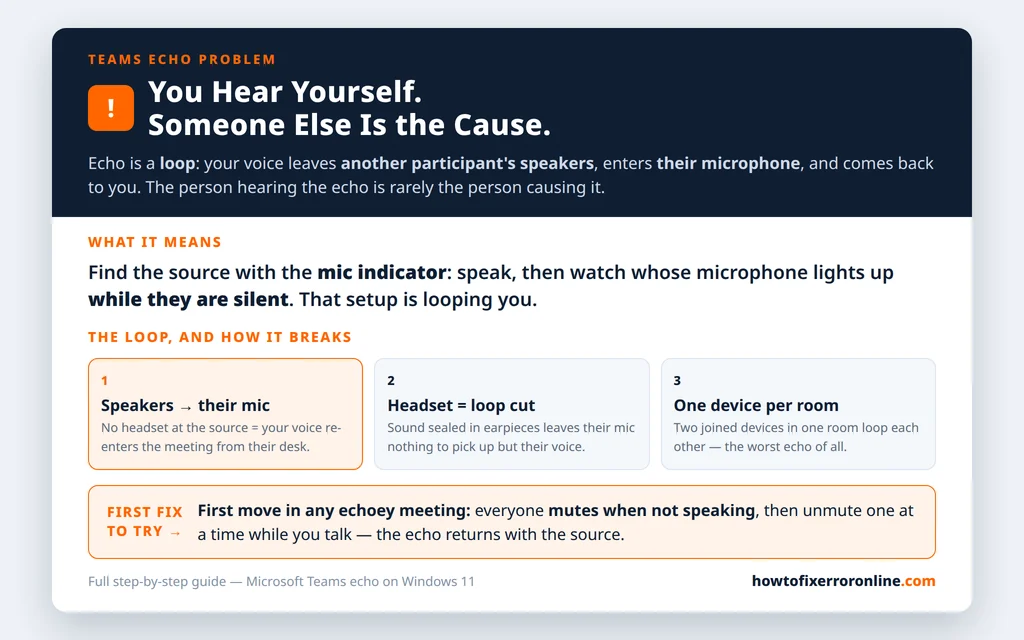
Table of Contents
Fix 1 — Understand the loop before touching any setting
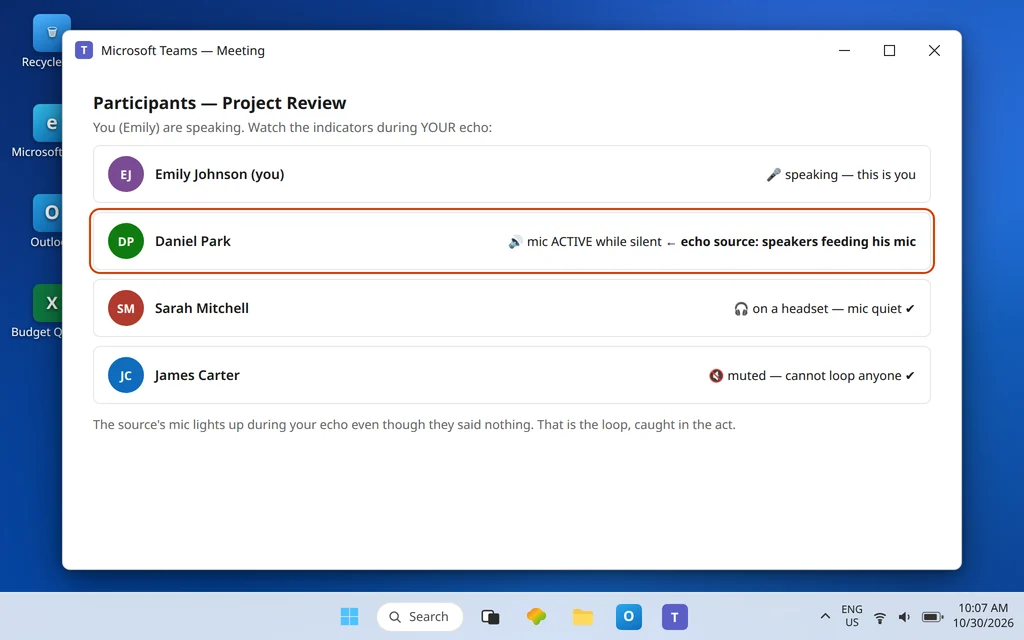
Walk the path of your voice. You speak into your mic. The meeting plays your voice through Daniel Park’s laptop speakers — because Daniel is not wearing a headset. Daniel’s laptop microphone, sitting a few inches from those speakers, hears your voice and sends it back into the meeting as if Daniel were “speaking.” You hear yourself, delayed. Daniel hears nothing wrong, because from his seat there is no echo: the echo only exists for the people whose voices are being looped back.
Three consequences follow:
- Reinstalling Teams, swapping your headset, or rebooting your PC cannot fix an echo you are only hearing. The loop is not in your equipment.
- The echo follows the speaker. If everyone hears their own voice back but Daniel hears nothing unusual, Daniel’s setup is looping everyone — one source, many victims.
- The cure is at the source: stop that microphone hearing those speakers — with a headset (best), distance, volume, or muting.
Fix 2 — Identify who is causing it: the mic-indicator test
Do not guess — measure. Two techniques, both usable mid-meeting in under a minute:
- Watch the microphone indicators. In the meeting’s participant list (or on the video tiles), a microphone/voice indicator lights beside whoever’s mic is transmitting. Speak a sentence. If your tile shows you speaking and then — during the echo — someone else’s indicator lights up while they are silent, their mic is retransmitting you. That is the source.
- The one-at-a-time mute test. Ask everyone to mute. You speak: no echo (all loops are cut). Then have participants unmute one at a time while you repeat a sentence after each unmute. The echo returns the moment the source unmutes. It feels slow; it takes about a minute; it is conclusive.
Announce what you are doing (“quick echo hunt — everyone mute, I’ll call names”) so it reads as teamwork, not accusation.
Fix 3 — Fix the source: a headset ends the loop completely
Once you know whose setup is looping, the definitive fix is also the simplest: that person puts on a headset. With the meeting’s sound sealed inside earpieces, their microphone has nothing to pick up but their own voice. Any working headset does it — wired earbuds included. If their headset is plugged in but Teams is not seeing it at all, that separate detection problem is covered in Microsoft Teams Not Detecting Headphones.
If no headset is available, reduce the loop instead:
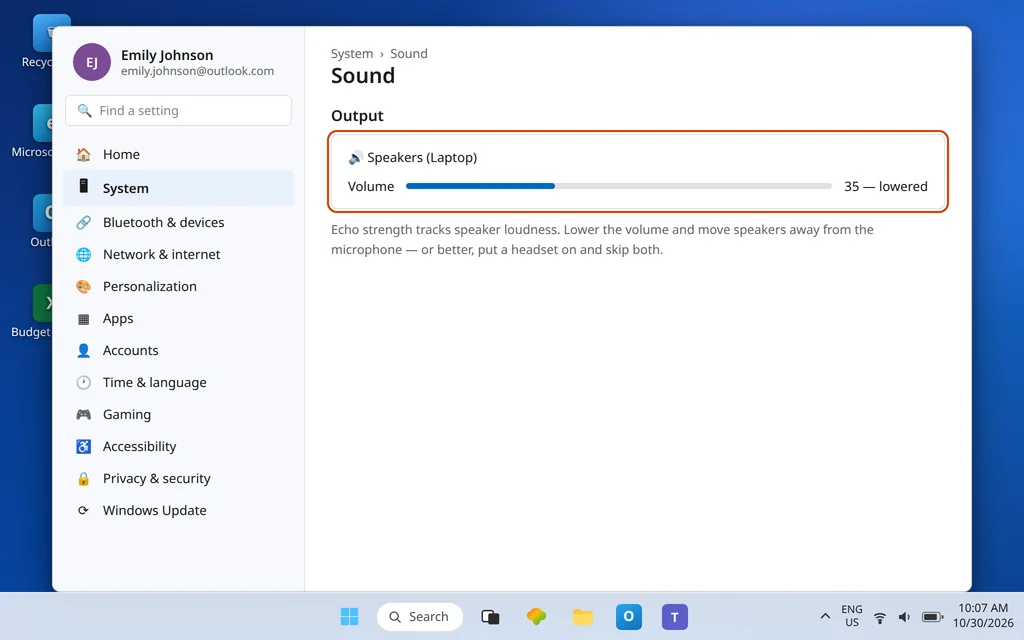
- Lower their speaker volume to the minimum that is comfortably audible — echo strength tracks speaker loudness directly.
- Move the speakers and microphone apart, and point speakers away from the mic. On a laptop, where the two are fixed inches apart, an external mic or even turning the laptop slightly can help a little — but be honest that a laptop on speakers in a hard-surfaced room is the hardest setup to fully cure without a headset.
- Close the door / soften the room if practical: bare walls bounce speaker sound straight back into microphones.
Fix 4 — Mute when not speaking: the meeting-wide habit that kills echo
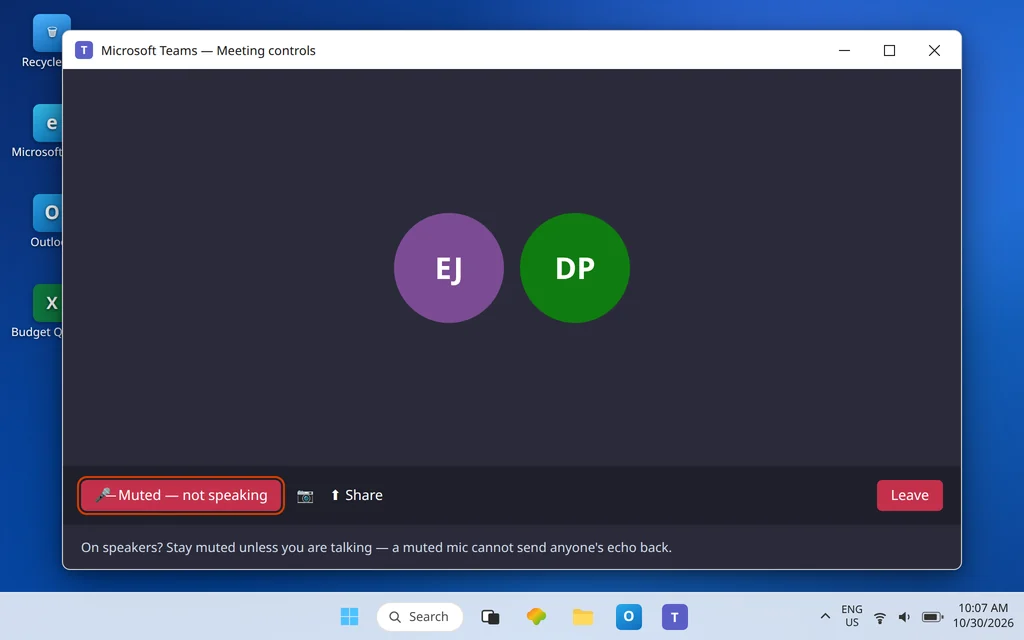
Echo can only loop while the source’s microphone is live — a muted participant on speakers transmits nothing, including your echoed voice. So a simple norm fixes most recurring meeting echo:
- Everyone who is not on a headset mutes whenever they are not actively talking.
- In large meetings, this applies to headset users too, as courtesy — but for echo purposes the speaker-based participants are the critical ones.
- Organizers can set the tone in the first ten seconds: “If you’re on speakers, please stay muted unless you’re speaking — it stops the echo for everyone.”
This also explains the echo that “comes and goes”: it arrives when the source unmutes, then vanishes when they mute again.
Fix 5 — Two devices in the same room: one audio device per room
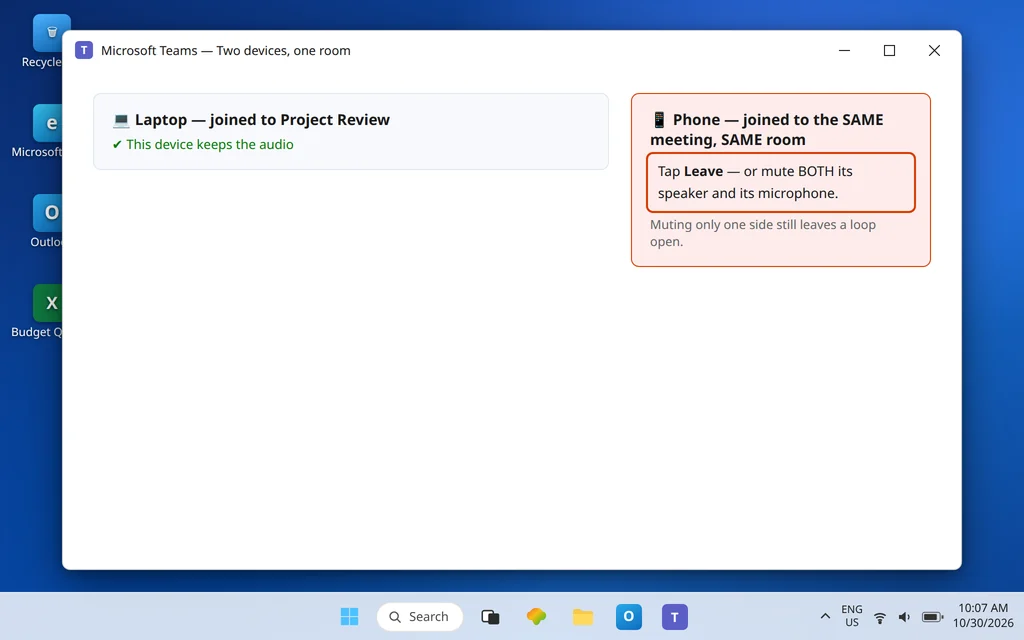
The worst echo of all comes from a classic mistake: two devices joined to the same meeting in the same room. You join on your laptop, then also on your phone “just to listen,” or two colleagues sit in one office, each joined on their own laptop with speakers on. Now every device hears the others’ speakers at full strength, and the loop can build into outright feedback howl.
The rule is absolute: one device per room has live audio.
- The second device leaves the meeting — the cleanest option — or
- It stays joined for video/screen purposes only with both its speaker and microphone muted in Teams. Muting only the mic is not enough if its speakers are still playing the meeting into the room’s live microphones; muting only the speakers is not enough if its mic is still live. Both off, or leave.
- Two people in one room is the same problem with faces: share one device with one headset splitter or a proper speakerphone, or one of you moves rooms. Two open laptops at one table will echo no matter how carefully everyone adjusts volume.
Microsoft’s own echo troubleshooting on Microsoft Q&A asks about exactly this — whether you have signed into the same meeting on another device in the same room — because multiple active microphones near each other cause echo so reliably.
Fix 6 — If YOU might be the source: volume, distance, and “Listen to this device”
Sometimes the hunt in Fix 2 points at you. Work the source-side checklist:
- Headset on (Fix 3) — this alone resolves the large majority of individual cases.
- Speaker volume down, mic away from speakers if you must stay on speakers.
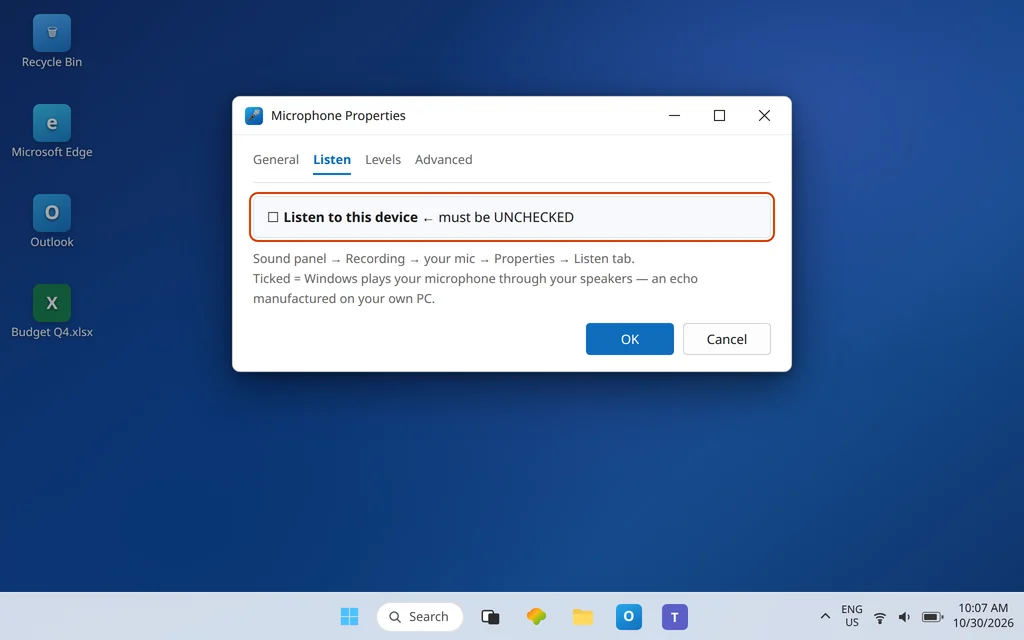
- Check a Windows setting that manufactures echo by itself: open Settings > System > Sound > Advanced > More sound settings, go to the Recording tab, open your microphone’s Properties, and look at the Listen tab. If “Listen to this device” is ticked, untick it and click OK — that option deliberately plays your microphone back through your speakers, and Microsoft Q&A names it as an echo contributor. It has no business being on for Teams calls.
- While you are in classic Sound settings, confirm you have not enabled any “Stereo Mix” style recording source as your Teams input: in Teams Settings > Devices, your microphone should be your actual headset or mic, not a system mix device, which routes your computer’s own output straight back into the meeting.
Fix 7 — Use Teams noise suppression — for the right job
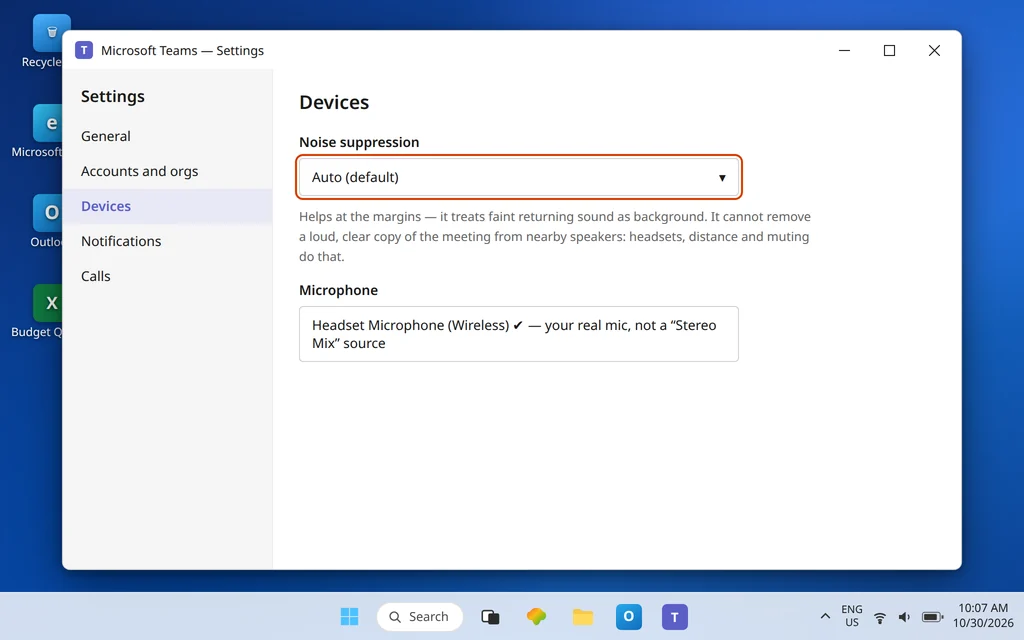
In Teams Settings > Devices, the Noise suppression setting (and its in-meeting equivalent) is designed to strip non-voice sound out of what your microphone sends. It can take the edge off a mild echo by treating the returning sound as background, and Microsoft’s echo guidance points to it as a help. Use it honestly, though:
- Set it to Auto (or the higher option your client offers) if you are the source and cannot use a headset.
- Understand its limit: noise suppression fights background sound. A loud, clean copy of the meeting coming out of nearby speakers is not background noise to your mic — it is the loudest “voice” it hears. Suppression softens echo; headsets, distance, and muting remove it. If you have done Fixes 3–5 and a faint echo remains, this is the polish, not the cure.
Fix 8 — Make a test call to check your own contribution
You cannot hear your own echo the way the meeting does — so prove your innocence (or guilt) in isolation before the meeting:
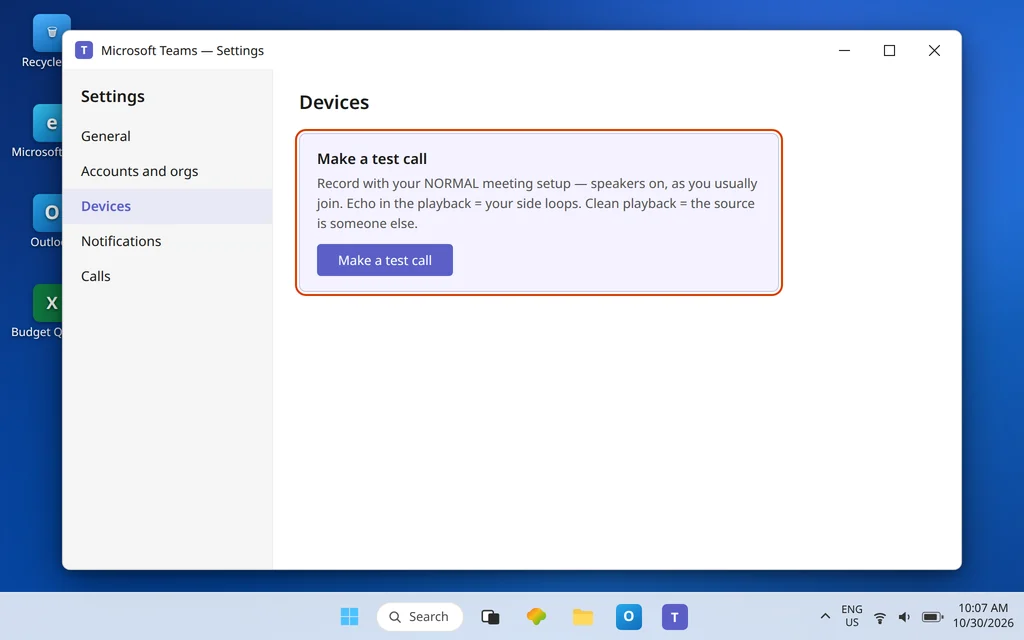
- Open Teams Settings > Devices and click Make a test call.
- Speak at normal meeting volume, with your normal setup — speakers on if that is how you usually join.
- Listen to the playback. If your recording sounds clean, with no repeat trailing your words, your chain is not looping — and if the echo appears in the real meeting, the source is someone else; go back to Fix 2 with a clear conscience.
- If the test playback does carry an echo or a hollow, doubled quality, the loop is yours: work Fix 6, then test again until the playback is clean.
Run this after any change of setup — new room, new speakers, docked versus undocked — because echo sources are environmental.
Confirm it worked
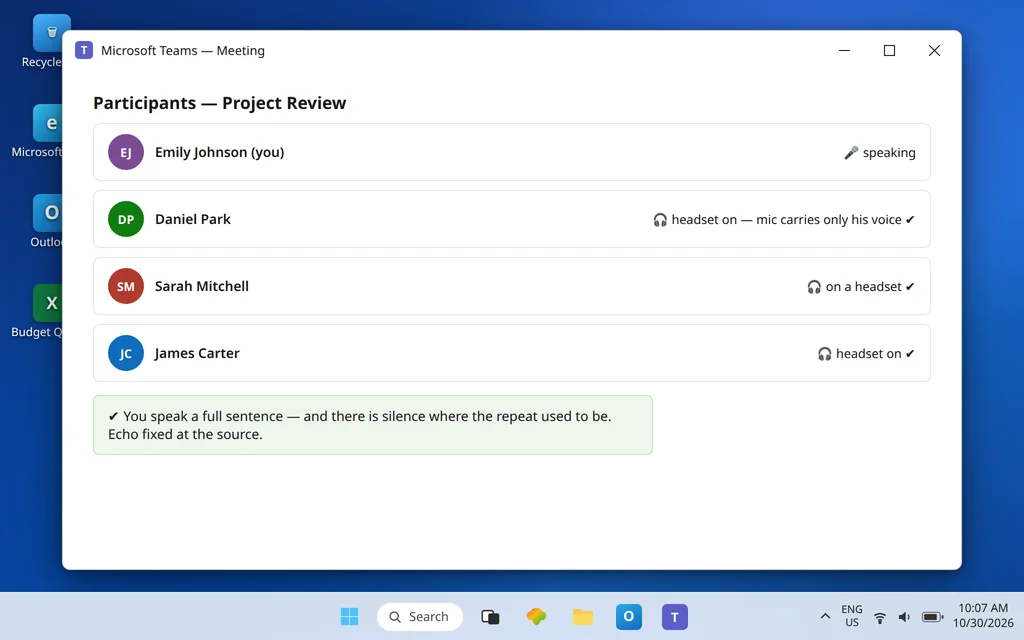
Join a real meeting and run the conditions that used to echo: the previously looping participant unmutes on their (now fixed) setup, you speak a full sentence, and there is silence where the repeat used to be. Ask directly: “Is my echo gone on your end?” — echo is a fault only other people can certify as fixed, because the victim and the source are different people.
How to stop it happening again
- Headsets are the meeting default. Every participant on a headset is one loop that can never start. Keep a cheap wired set in your bag for the day your main headset fails — speaker mode should be the rarity it deserves to be.
- One room, one live device. Make it a reflex: joining a second device means leaving on the first, or muting both its speaker and mic.
- Start big meetings with the ten-second norm. “On speakers? Please mute when you’re not talking.” It prevents the echo and costs nothing.
Frequently asked questions
Why do I hear my own voice echoing in Microsoft Teams?
Because your voice is coming back to you. It leaves another participant’s speakers, is picked up by their microphone, and is sent back into the meeting as if they were speaking. The delay you hear is the round trip. Microsoft’s support answers describe this exact speaker-to-microphone loop as the standard cause of Teams echo — which is why the person hearing the echo is usually not the person who can fix it alone.
How can we tell who is causing the echo in a Teams meeting?
Watch the participant list while you speak: the source’s microphone indicator lights up during your echo, even though they are silent, because their mic is transmitting your voice. Or run the mute test — everyone mutes (echo gone), then people unmute one at a time while you speak; the echo returns with the source’s unmute. Both take under a minute and end all argument about whose setup it is.
I am the only one hearing an echo. Does that mean it is my fault?
Usually the opposite. If you alone hear your own voice repeated, your voice is being looped back to you by someone else’s speaker-and-microphone combination — a fault you hear but do not own. If everyone hears their own voices echoed, there is still typically one source looping all speakers. Either way, the fix is at the source (headset, volume, distance, muting), and Fix 2 shows you how to find it politely.
Why does the echo start when we have two laptops in the same room?
Because each laptop’s speakers feed the other laptop’s microphone — two open loops at once. The rule is one live audio device per room: the second device leaves the meeting, joins with both speaker and microphone muted, or the two people share a single device. Muting just one side of the second device is not enough, because the unmuted side keeps a loop open.
Does Teams noise suppression fix echo?
It helps at the margins. Noise suppression in Settings > Devices reduces background sound your mic sends, and Microsoft’s guidance suggests it for echo — but it cannot fully remove a loud, clear copy of the meeting arriving from nearby speakers, because to your microphone that is speech. Treat it as polish after the real fixes: headsets at the source, lower volume, distance between speakers and mic, and muting when not speaking.
How do I check whether my own setup is causing echo?
Use Make a test call in Teams Settings > Devices with your normal meeting setup. If the playback is clean, your side is not looping and the source is another participant. If you hear echo or doubling in the playback, work the source-side checks: headset on, speakers down and away from the mic, and make sure “Listen to this device” is unticked in your microphone’s Properties (Sound panel > Recording > your mic > Listen tab).
Echo still circling your calls? Contact us at servicedesk@howtofixerroronline.com or through our Contact page and tell us who hears the echo, who is on speakers rather than a headset, and whether two devices ever share a room in your meetings. We will never ask for your password.