
How to Add Yahoo Mail or AOL Mail to Outlook (App Password Setup)
If you are figuring out how to add Yahoo Mail to Outlook, you have probably already hit the wall most people hit: you type your Yahoo address, type the password you use every day — and Outlook says it is wrong. You check it twice, it still fails, and sometimes Outlook just keeps asking for the password over and over. The password is not actually wrong. Yahoo (and AOL, which runs on the same system) simply refuses to accept your normal password inside a desktop app like Outlook. Both services want a different kind of password for apps: an app password.
Once you know that one trick, the whole setup takes about ten minutes. This guide walks you through creating the app password, adding Yahoo Mail to Outlook step by step, adding AOL Mail the same way, and fixing the password problems that stop most people.
Quick Answer: First, sign in to Yahoo in your browser, go to Account Info > Account Security > App passwords, and click Generate app password. Name it “Outlook” and copy the 16-letter code Yahoo shows you. Then, in Outlook, click File > Add Account, enter your Yahoo address, tick Let me set up my account manually, choose IMAP, use the servers imap.mail.yahoo.com (port 993) and smtp.mail.yahoo.com (port 465), and paste the app password when Outlook asks for a password. AOL works identically, with imap.aol.com and smtp.aol.com.
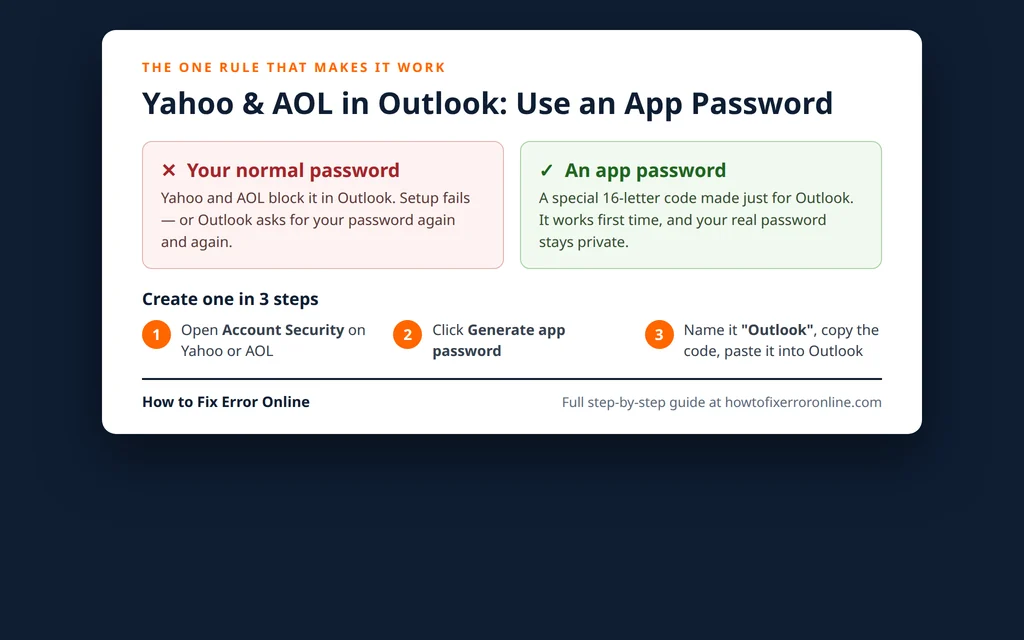
Table of Contents
Why Your Normal Password Does Not Work in Outlook
Yahoo and AOL protect accounts with verification steps — a code sent to your phone, a prompt in their app, and so on. Outlook and other desktop mail apps have no way to complete those steps when they connect directly to the mail servers, so Yahoo and AOL block the normal password for that kind of connection. It is a security feature, not a bug in Outlook.
The solution is the app password: a random 16-letter code that Yahoo or AOL generates for one specific app. A few things worth knowing about it:
- It is separate from your real password. Your normal password does not change, and you keep using it in the browser and the Yahoo/AOL apps.
- One code per app. You can make one for Outlook on your PC, another for your phone, and so on.
- You can revoke it any time. If you lose a device, delete its app password from the same Account Security page and that app is locked out — your account stays safe.
- Yahoo shows it only once. Copy it when it appears; if you lose it, just generate a new one.
You can still try the quick automatic setup first — in some Outlook versions, adding Yahoo opens a Yahoo sign-in window in the browser (called OAuth), and if that completes, no app password is needed. But if Outlook asks you to type a password into a server settings screen, or keeps rejecting the one you type, the app password route below is the fix.
Before You Start: Three Quick Checks
- Know your normal Yahoo or AOL password. You need it to sign in on the website and open the Account Security page. If you cannot sign in on the web, fix that first — Outlook cannot succeed with an account you cannot open in the browser.
- Have your phone nearby. Signing in to Account Security may ask for a verification code or an app prompt, so keep the phone linked to the account within reach.
- Update Outlook. Run File > Office Account > Update Options > Update Now in Classic Outlook. Very old builds handle modern encrypted connections poorly, and an update rules out a whole class of setup failures before you start.
Step 1: Create a Yahoo App Password
Do this in your browser before you touch Outlook. It takes two minutes.
- Sign in to Yahoo Mail in your browser.
- Click your name or profile icon (top right) and choose Account Info.
- In the left menu, click Account security.
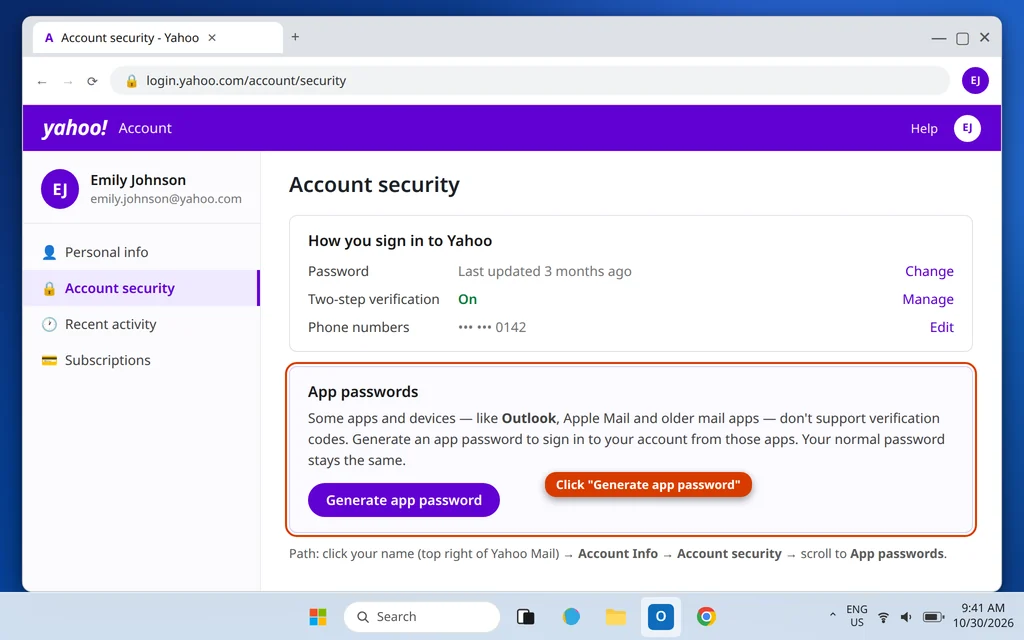
- Scroll down to the App passwords section and click Generate app password.
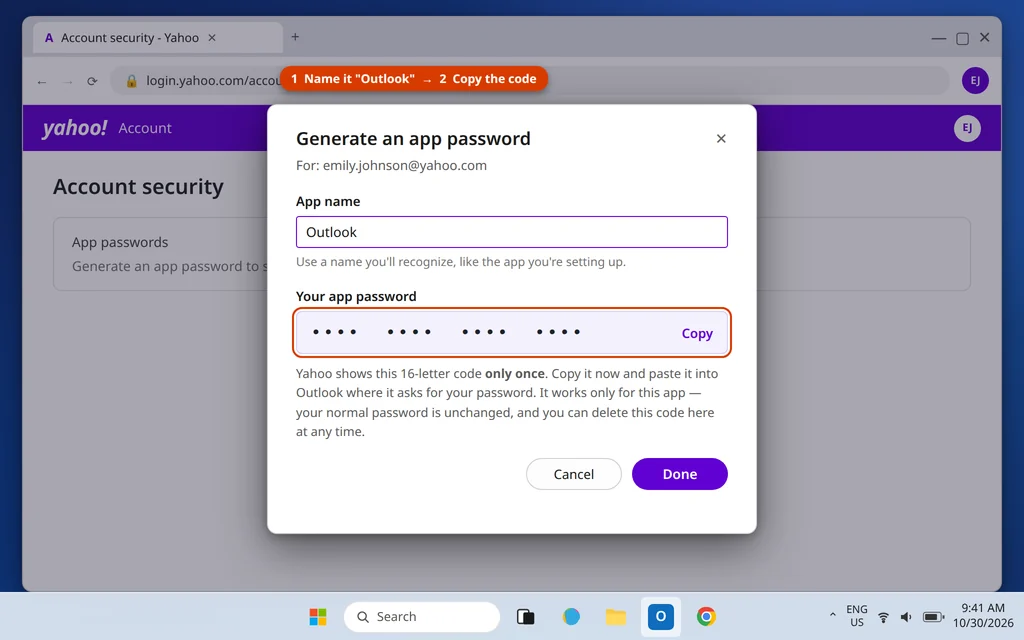
- In the box that opens, type Outlook as the app name and click Generate password (the button wording can vary slightly).
- Yahoo displays a 16-letter code. Copy it now — it is shown only once. Keep the browser tab open in case you need to generate a fresh one later.
That is the hard part done. Now to Outlook.
Yahoo’s own help page explains how to generate and manage app passwords for third-party apps.
Step 2: How to Add Yahoo Mail to Outlook
First, try the automatic route (2 minutes). In Classic Outlook, click File > Add Account, type your full Yahoo address (for example, emily.johnson@yahoo.com), and click Connect. If a Yahoo sign-in window opens, sign in there and approve access — you are finished, and you can skip the rest of this section. If instead Outlook asks for a password in a plain settings box, or setup fails with a password error, start again and use the manual route below. (This guide uses the Classic Outlook screens; the steps for how to add Yahoo Mail to Outlook 365 subscriptions are the same.)
The manual route, using your app password:
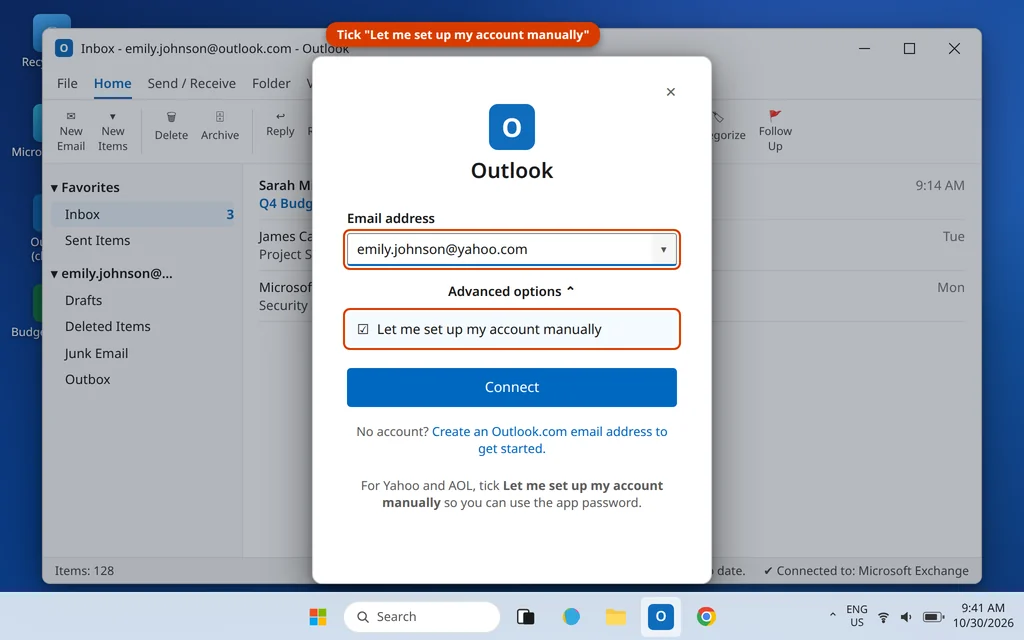
- Click File > Add Account and type your Yahoo address.
- Click Advanced options and tick Let me set up my account manually, then click Connect.
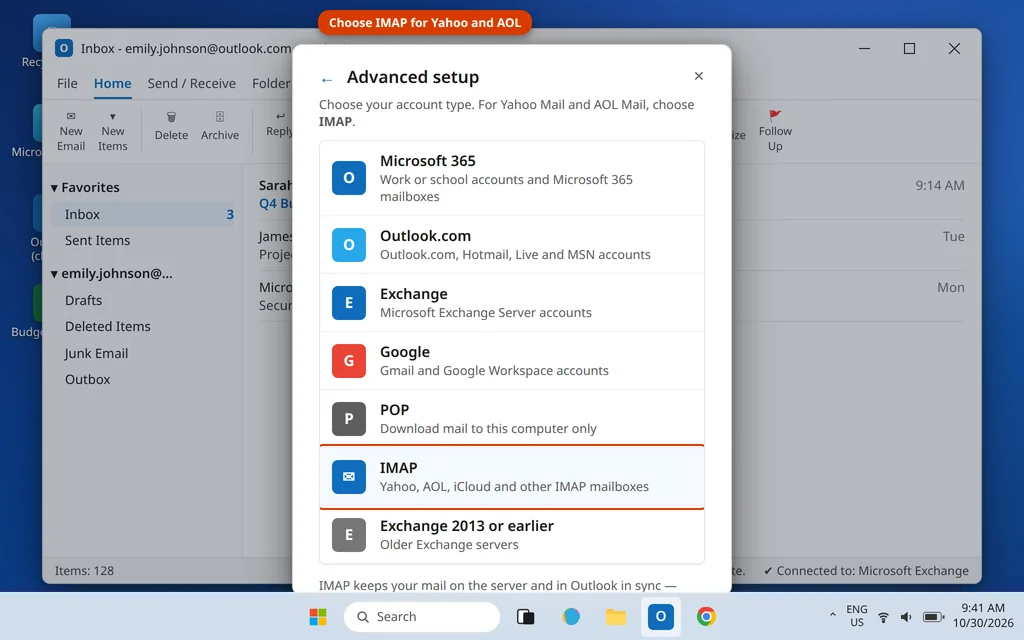
- On the Advanced setup screen, click IMAP.
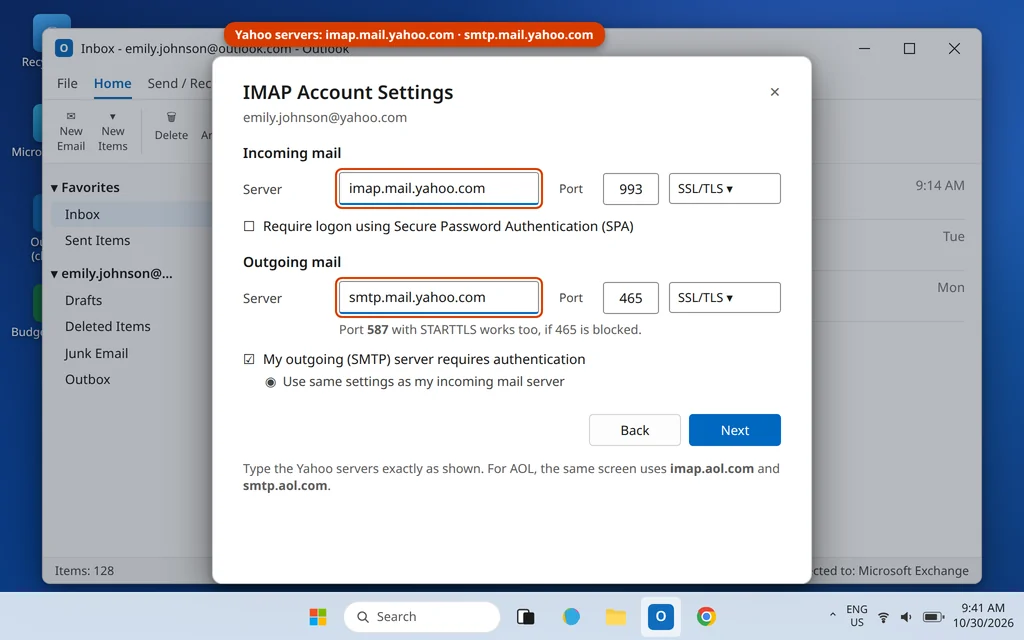
- On the IMAP Account Settings screen, fill in the Yahoo servers exactly:
- Incoming mail: Server imap.mail.yahoo.com, Port 993, Encryption SSL/TLS
- Outgoing mail: Server smtp.mail.yahoo.com, Port 465, Encryption SSL/TLS (port 587 with STARTTLS also works)
- Tick My outgoing (SMTP) server requires authentication and leave “Use same settings as my incoming mail server” selected.
- Click Next.
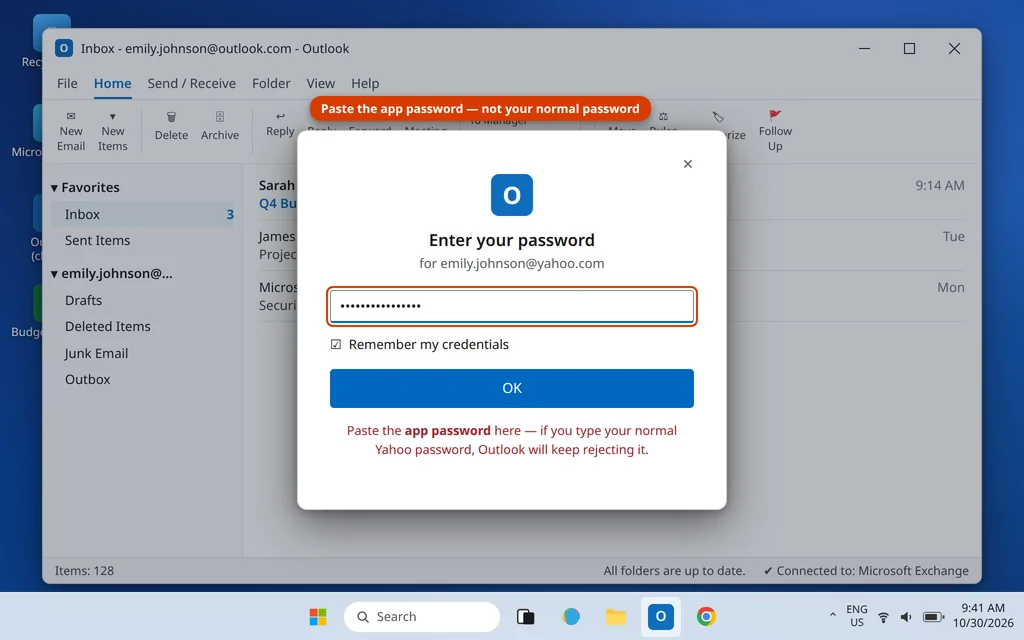
- When Outlook asks for your password, paste the app password you copied in Step 1 — not your normal Yahoo password. Tick Remember my credentials so Outlook does not ask every time, then click OK / Connect.
- Outlook tests the settings, sends a test message, and reports that the account was successfully added. Click Done.
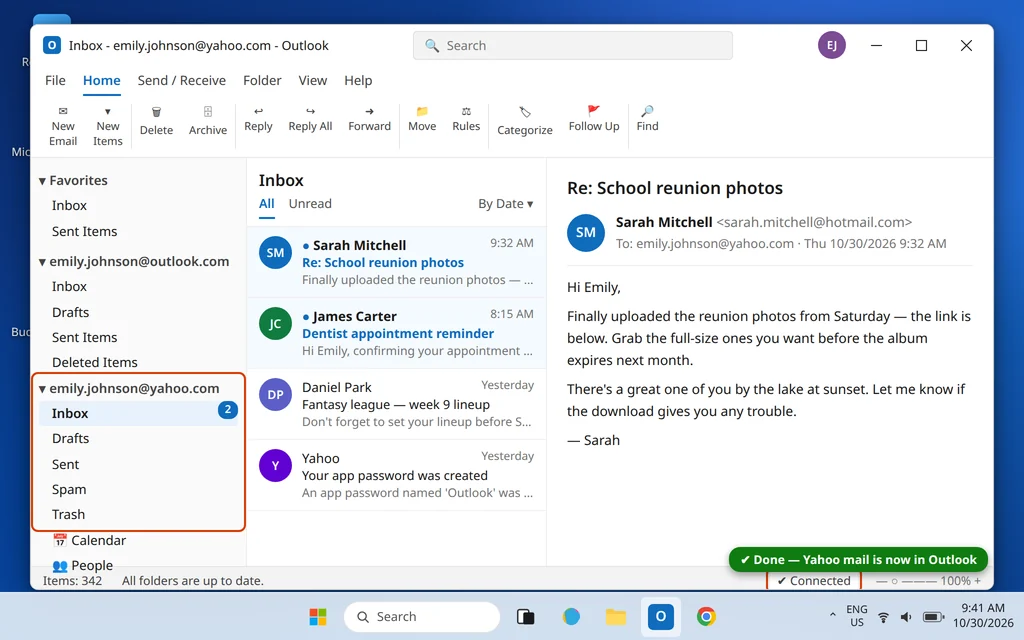
Your Yahoo folders — Inbox, Drafts, Sent, Spam and Trash — now appear in Outlook’s folder pane under your Yahoo address, right alongside your other accounts, and new mail starts downloading. On a big mailbox the first sync can take a while; that is normal.
Using the New Outlook app instead? The route is similar: open Settings > Accounts > Add account, enter the Yahoo address, and complete the Yahoo sign-in window if one opens. If the new app asks you for a password in manual server settings, use the same servers from the table below and paste an app password.
What syncs — and what does not. An IMAP connection syncs your email and folders only. Your Yahoo or AOL calendar and contacts do not come across with it, so do not be surprised when they are missing from Outlook — that is expected behavior, not a failed setup. If you need the contacts in Outlook, export them from Yahoo or AOL on the web as a CSV file and import it via File > Open & Export > Import/Export in Classic Outlook.
Step 3: Add AOL Mail to Outlook (Same Method)
Can you add AOL to Outlook? Yes — AOL Mail runs on the same system as Yahoo, so the process is identical except for your address and the server names.
- Sign in at aol.com in your browser, click your name, and open Account Security.
- Scroll to App passwords and click Generate app password. Name it “Outlook” and copy the code.
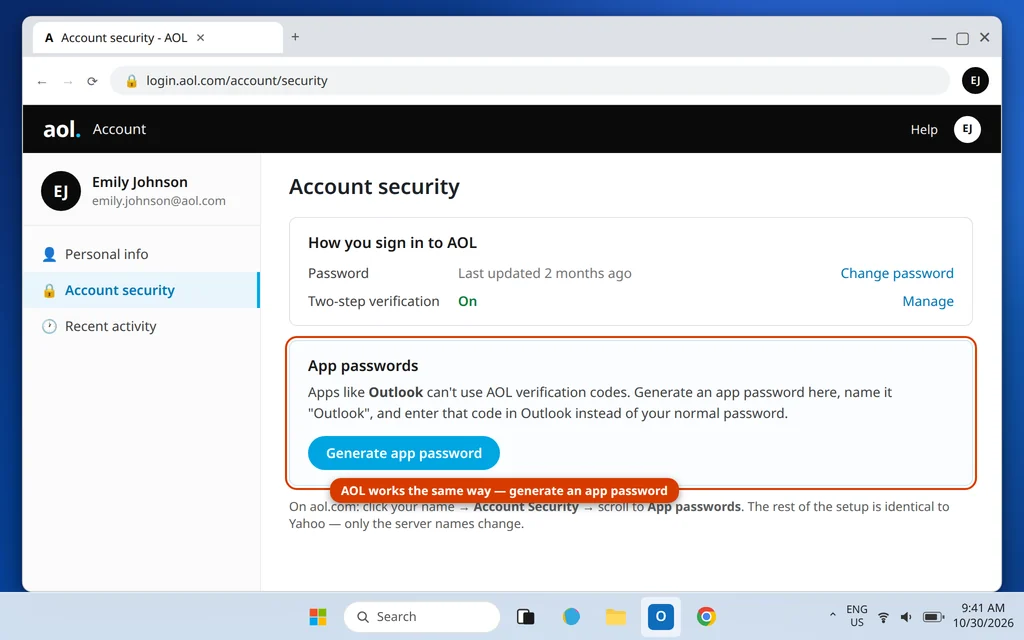
- In Outlook, repeat Step 2 with your AOL address, using the AOL servers from the table below and pasting the AOL app password when asked.
One extra note for long-time Verizon customers: if your email address ends in verizon.net, your mail is hosted by AOL. Sign in on the AOL site and follow the AOL steps above.
Yahoo and AOL Server Settings for Outlook (Full Table)
Keep this table handy — it is everything the manual setup asks for.
| Setting | Yahoo Mail | AOL Mail |
|---|---|---|
| Account type | IMAP | IMAP |
| Incoming server (IMAP) | imap.mail.yahoo.com | imap.aol.com |
| Incoming port | 993 | 993 |
| Incoming encryption | SSL/TLS | SSL/TLS |
| Outgoing server (SMTP) | smtp.mail.yahoo.com | smtp.aol.com |
| Outgoing port | 465 (or 587) | 465 (or 587) |
| Outgoing encryption | SSL/TLS (STARTTLS on 587) | SSL/TLS (STARTTLS on 587) |
| Username | Your full email address | Your full email address |
| Password | Your app password | Your app password |
| SMTP authentication | Yes — use same settings as incoming | Yes — use same settings as incoming |
Prefer POP? Yahoo’s POP server is pop.mail.yahoo.com, port 995 with SSL; AOL’s is pop.aol.com, port 995. We recommend IMAP for almost everyone: POP downloads mail to one computer only, while IMAP keeps Outlook, your phone and webmail showing the same inbox.
Troubleshooting: When Outlook Still Asks for a Password
Outlook keeps asking for your password, again and again. This is the classic sign that the normal password is being used where an app password is required. Click Cancel on the prompt, generate a fresh app password (Step 1), then go to File > Account Settings > Account Settings, select the Yahoo/AOL account, choose Repair (or remove and re-add the account), and paste the new code carefully. The loop stops as soon as the correct code is saved.
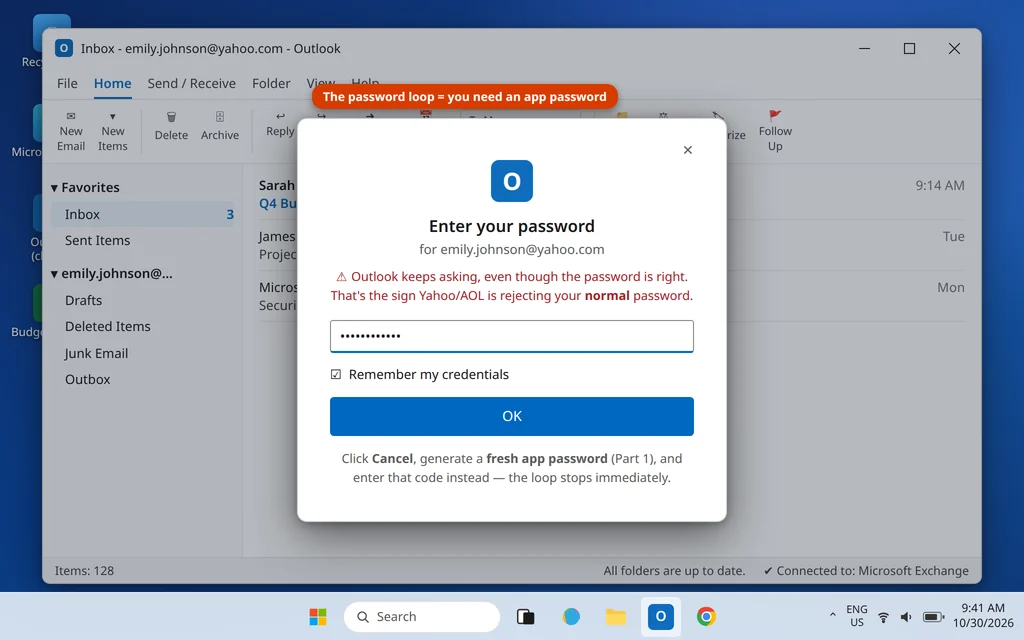
“The password is incorrect” during setup. In practice this almost always means one of three things: you typed your normal password instead of the app password; the app password was copied with a stray space at the start or end (paste it again, and if it still fails, type it without the spaces between the letter groups); or the app password was generated for a different Yahoo/AOL account than the one you are adding. Generate a new code while signed in to the correct account and try once more.
It worked, then stopped after I changed my password. Changing your Yahoo or AOL password can invalidate existing app passwords. Generate a fresh one and update it in Outlook’s account settings — there is no need to remove the account.
Still stuck? Delete and re-add the account. Go to File > Account Settings > Account Settings, select the Yahoo/AOL account and click Remove, then add it again using the manual route above. Because IMAP mail lives on the server, removing the account in Outlook does not delete your email.
Frequently Asked Questions
Why can’t I add Yahoo Mail to Outlook?
Almost always because Yahoo blocks your normal password in desktop apps. Generate an app password in Yahoo’s Account Security page and use that code in Outlook’s manual IMAP setup — that one change fixes the large majority of failed setups.
Do I need an app password for the new Outlook app?
If the new Outlook adds your account through a Yahoo or AOL sign-in window, no — you sign in normally there. If it shows you server settings and asks for a password, yes: that field needs an app password, exactly as in Classic Outlook.
What are the Yahoo IMAP settings for Outlook?
Incoming: imap.mail.yahoo.com, port 993, SSL/TLS. Outgoing: smtp.mail.yahoo.com, port 465 with SSL/TLS (or 587 with STARTTLS). Your username is your full Yahoo address, and the password is your app password, not your regular password.
Does an app password replace my Yahoo or AOL password?
No. It is an extra, single-purpose code that works only for the app you named. Your regular password keeps working in the browser and mobile apps, and you can delete the app password at any time from Account Security without affecting anything else.
Will this work for Outlook 365 and Outlook 2021/2019?
Yes. Subscription and one-time-purchase versions of Outlook all use the same Add Account and manual IMAP setup, and Yahoo and AOL accept app passwords on all of them. Very old Outlook versions (2010 and earlier) may not support the encryption these servers require.
My email is a verizon.net address. Is it AOL or Yahoo?
Verizon moved its email service to AOL, and verizon.net mailboxes are hosted there. Sign in at AOL, generate your app password in AOL’s Account Security page, and use the AOL server settings from the table in this guide.
Still can’t get Yahoo or AOL into Outlook? Tell us where the setup stops — the exact message helps — on our Contact page: servicedesk@howtofixerroronline.com, available 24 hours. You may also like our guides on how to add a Gmail account to Outlook and how to set up a business email in Outlook.
Pingback: Outlook Keeps Asking for Password? 9 Fixes That Work (2026)