
Excel Formulas Not Working or Not Calculating? 8 Fixes
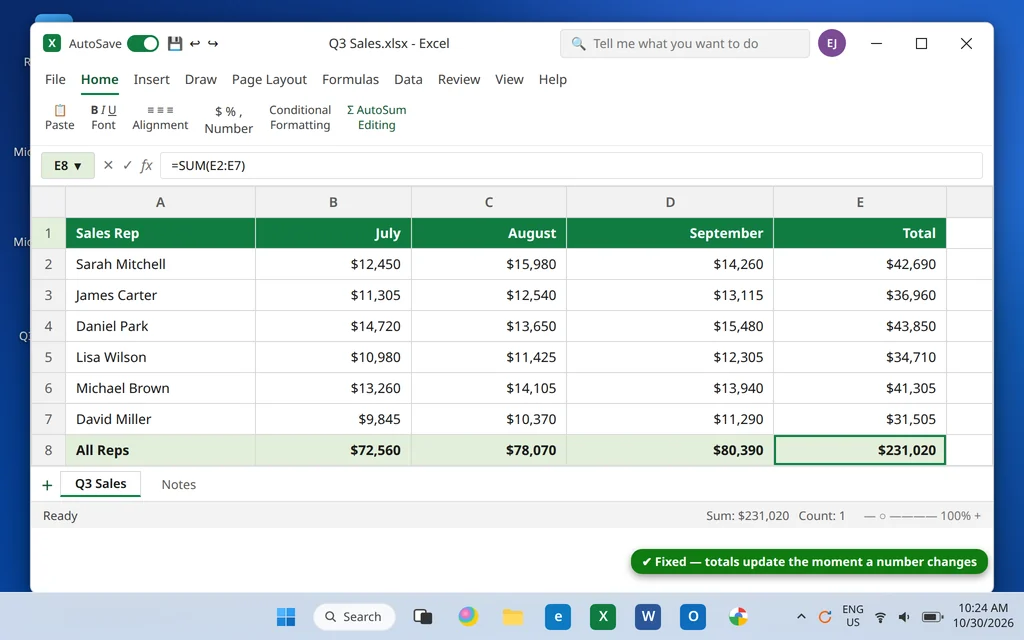
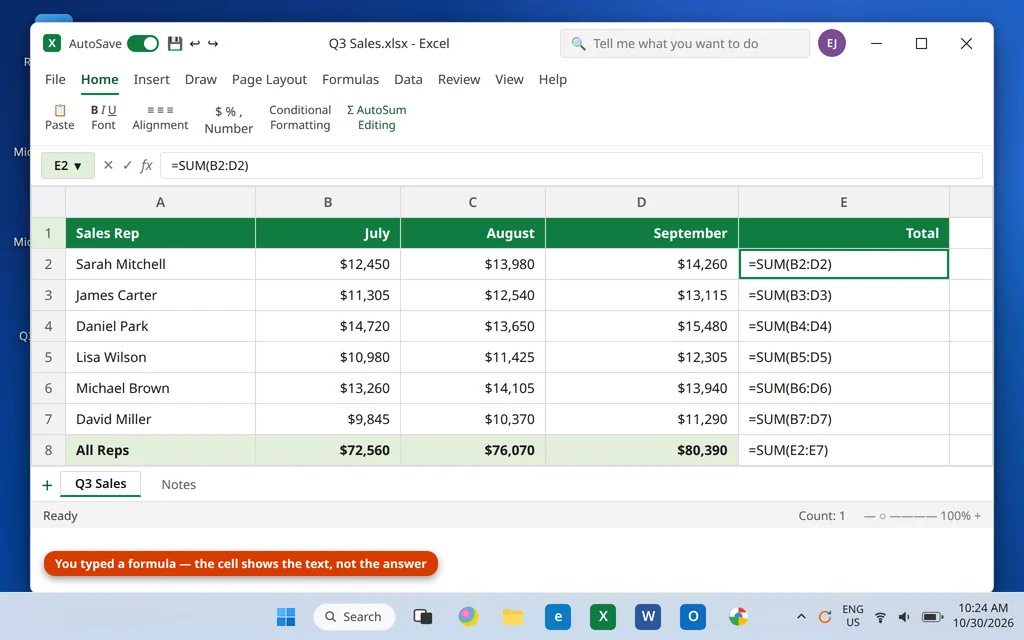
If your Excel formulas are not working, the failure usually looks worse than it is. You type =SUM(B2:D2), press Enter — and the cell just sits there showing the formula as text. Or the formula worked yesterday, but today it keeps an old result no matter which numbers you change. Or a total confidently returns 0 under a column full of figures.
In almost every case the formula itself is fine. One of a handful of settings or cell states is stopping Excel from calculating it: calculation switched to Manual, the cell formatted as Text, a view mode left on, or numbers that are secretly stored as text. The eight fixes below work through those causes in order, and the first one solves the problem more often than the other seven combined.
This guide is for desktop Microsoft Excel on Windows 11 (Microsoft 365 and Office 2021/2024).
Quick Answer: Click the Formulas tab, open Calculation Options and make sure Automatic is selected — Manual calculation is the number one reason Excel formulas are not calculating. If the cell shows the formula itself as text instead, the cell is formatted as Text (or Show Formulas is on): change the format to General, then click in the formula bar and press Enter. If a total returns 0, your numbers are stored as text — select them and use Convert to Number.
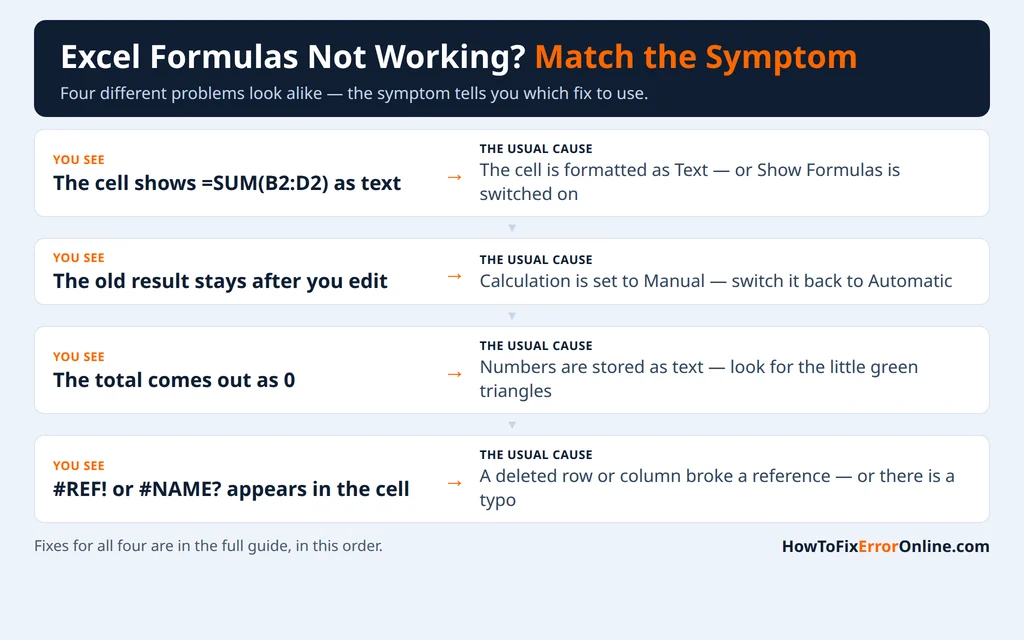
Table of Contents
Which of These Is Happening to You?
“Formulas not working” covers four different problems, and each one has a different fix. Find yours before you start:
- The cell shows the formula itself — you see
=SUM(B2:D2)in the cell instead of the answer. The cell is formatted as Text, or Show Formulas view is switched on. Go to Fixes 2 and 3. - The result is there, but it is stale. You edit a number and every total keeps its old value — formulas not updating when values change. Calculation is set to Manual. Go to Fix 1.
- The formula returns 0 (or a wrong small number) even though the cells it adds clearly contain figures. Those figures are stored as text, and SUM ignores text. Go to Fix 4.
- The cell shows an error instead of a number —
#REF!or#NAME?. A reference broke, or Excel does not recognize something in the formula. Go to Fix 5.
Fix 1: Turn Automatic Calculation Back On
Excel has two calculation modes. In Automatic, every formula recalculates the moment anything it depends on changes. In Manual, formulas sit frozen until you press F9 or save — which is exactly the “formula not updating until save” behavior many people describe. Manual mode is the most common cause of Excel formulas not calculating, and it is easy to switch on by accident: the setting applies to the whole Excel session, and opening a workbook that was saved in Manual mode can flip your other workbooks too.
- Click the Formulas tab.
- At the right end of the ribbon, click Calculation Options.
- Click Automatic.
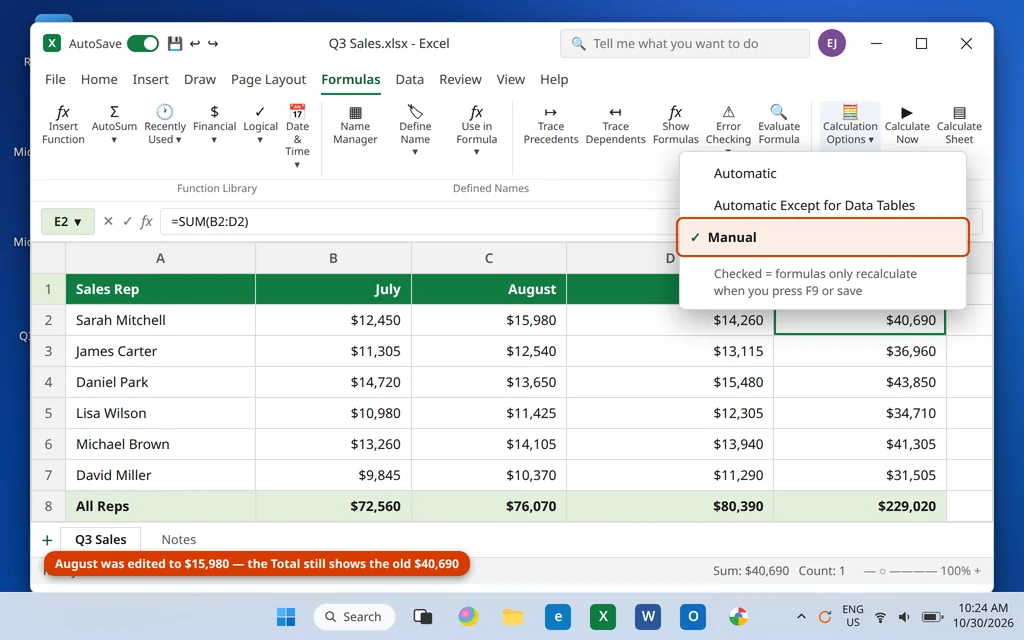
The same setting lives in File > Options > Formulas, under Calculation options — Workbook Calculation should be set to Automatic there too.
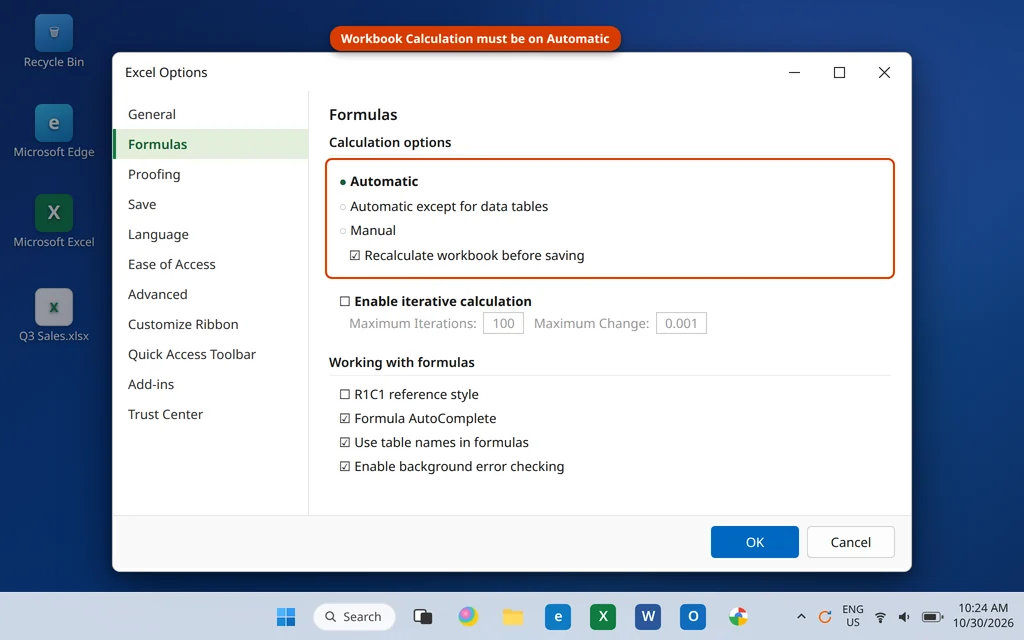
Test it immediately: click any formula cell and press F9. If results jump to the correct values, calculation mode was the whole problem. Three shortcuts are worth knowing here:
- F9 — calculate all formulas in all open workbooks
- Shift + F9 — calculate only the active sheet
- Ctrl + Alt + F9 — force a full calculation of everything, including cells Excel thinks are already up to date
If pressing F9 fixes the numbers but they go stale again on the next edit, you changed the ribbon setting in a different workbook — set Automatic in Excel Options as well, then close and reopen the file.
Fix 2: The Cell Is Formatted as Text — Reformat and Re-enter
If a cell’s number format is Text, Excel treats everything typed into it as words — including formulas. =SUM(B2:D2) is stored as a line of text and displayed exactly as typed, which is why your formula “just sits there.” This often happens in columns pasted from another program, downloaded reports, and cells someone formatted before typing.
- Select the cell (or the whole column of stuck formulas).
- Press Ctrl + 1 to open Format Cells, or right-click and choose Format Cells.
- On the Number tab, select General (or Number) and click OK.
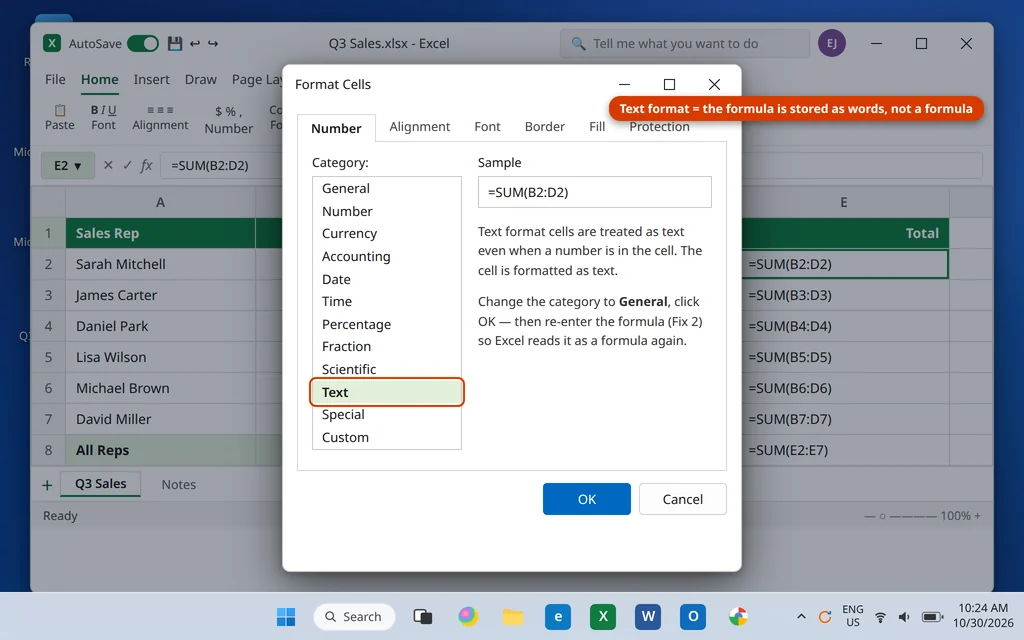
Reformatting alone is not enough — Excel does not re-read the existing entry. You have to re-enter the formula:
- For one or two cells: click in the formula bar and press Enter (or press F2, then Enter).
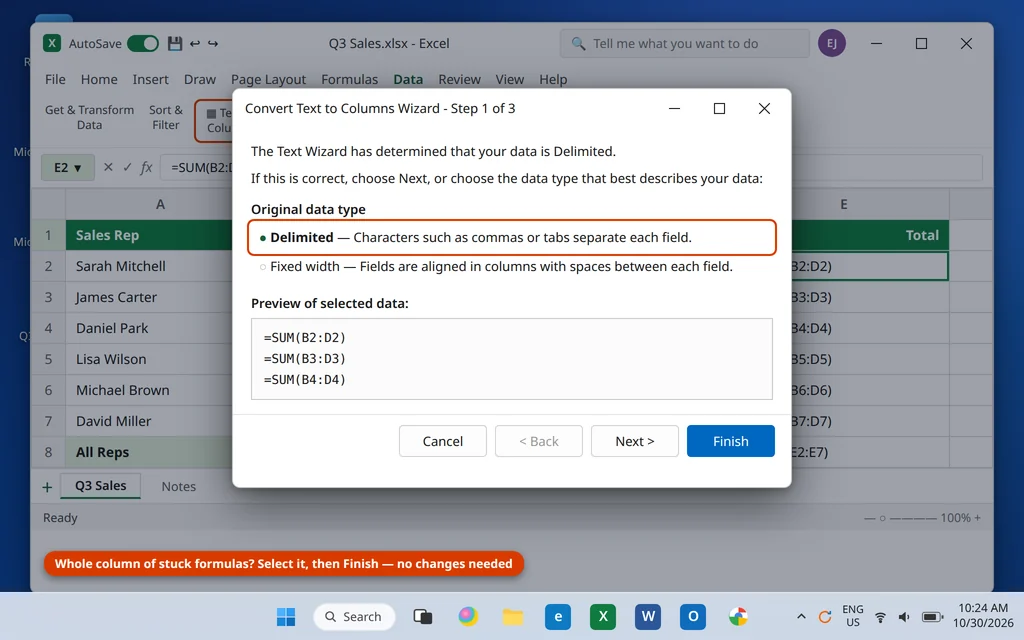
- For a whole column: select the column, click Data > Text to Columns, leave Delimited selected, and click Finish. You change nothing in the wizard — running it forces Excel to re-read every cell, and the formulas come alive in one pass. This is also the cure for the “formulas not calculating unless re entered” trap, where every cell works only after you double-click it.
Fix 3: Turn Off Show Formulas Mode
Show Formulas is a view that displays every formula in place of its result and widens the columns to fit — useful for auditing a sheet, alarming if you switch it on by accident. The giveaway is that every formula cell shows its formula at once, not just one.
- Click the Formulas tab.
- In the Formula Auditing group, click Show Formulas to toggle it off.
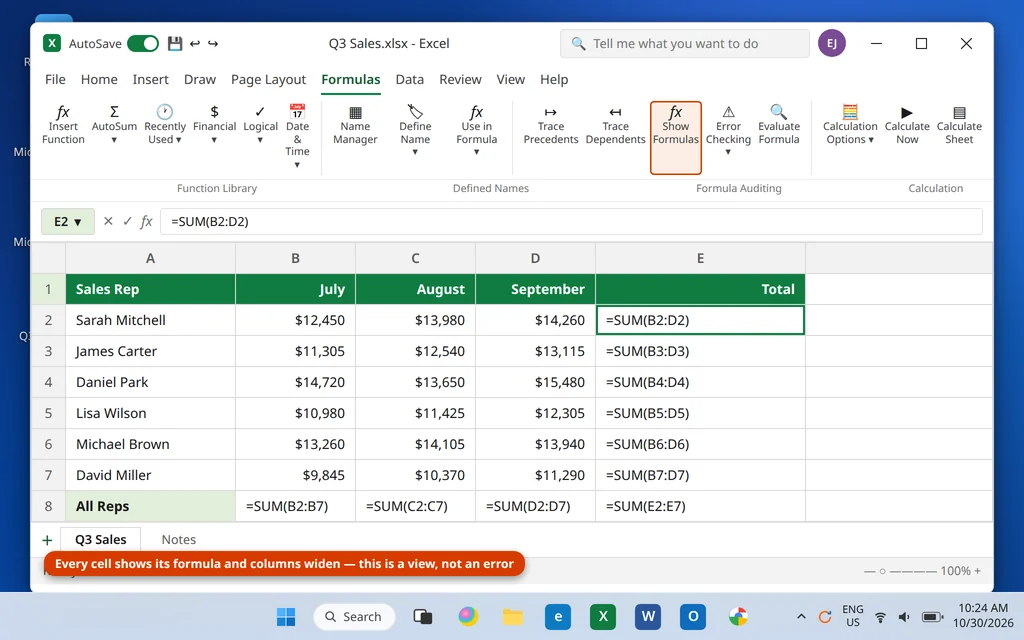
The keyboard toggle is Ctrl + ` — the grave accent key, usually just left of the 1 key. It is easy to hit by mistake, which is how many people end up in this view without ever opening the Formulas tab.
Fix 4: Numbers Stored as Text (the Green Triangle)
Sometimes the formula is healthy and the inputs are the problem. Numbers that arrive from imports, exports, web copy-paste, or a leading apostrophe ('12450) can be stored as text. Excel flags them with a small green triangle in the corner of the cell, and they usually sit left-aligned while real numbers sit right-aligned. SUM simply ignores text, so a total over text numbers returns 0 — or adds only some of the cells, giving a total that is quietly too low. (Adding the same cells directly, =B2+B3, returns a #VALUE! error instead — same cause, different symptom.)
- Select the range with the green triangles.
- Click the yellow warning button that appears beside the selection.
- Click Convert to Number.
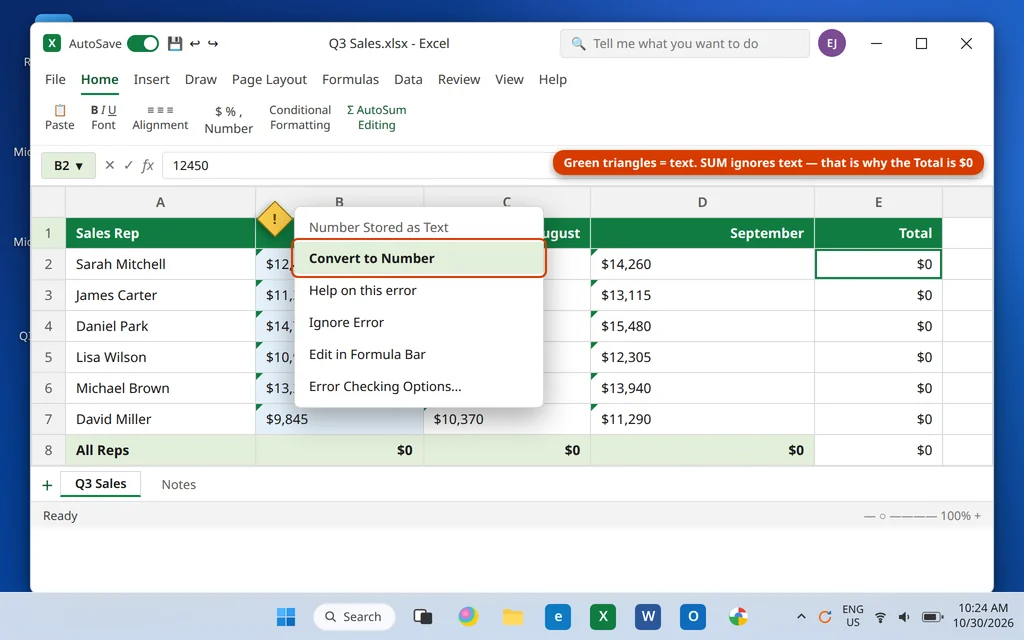
All the selected values become real numbers at once, and your totals recalculate immediately. If only one or two cells are affected and there is no warning button, check the formula bar: a leading apostrophe or a space before the number is the usual culprit — delete it and the value converts.
Fix 5: Broken References and Typos — #REF! and #NAME?
When the cell shows an error instead of a number, Excel is telling you something specific:
#REF!means a reference is no longer valid — the formula points at a row, column, or sheet that was deleted. The formula bar shows the damage directly, for example=SUM(B2:#REF!). If you just deleted something, press Ctrl + Z to undo and rethink. Otherwise, click the cell, edit the formula in the formula bar, and point it at the range you actually mean.#NAME?means Excel does not recognize a piece of text in the formula. Work through the usual suspects: a misspelled function name (SUMM,VLOKUP), a space inside a function name, or text typed without quotes —=IF(A1=Paid,"Yes","No")fails, while=IF(A1="Paid","Yes","No")works, because Paid needs to be in quotation marks.
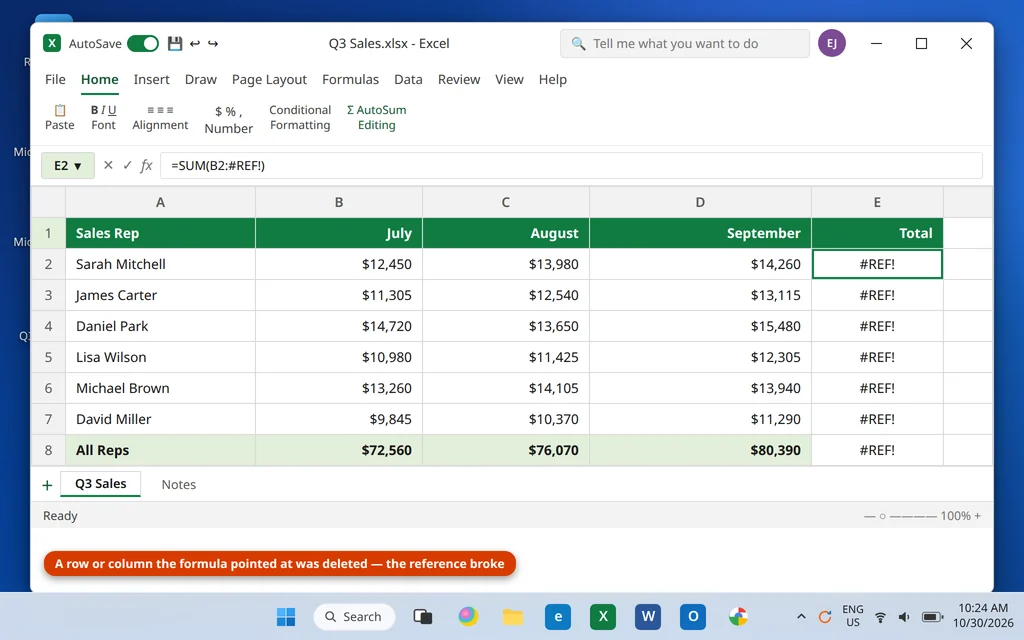
Fix the text or the reference, press Enter, and the error clears. If the error appears in one cell of a filled column, fix that cell and check its neighbors — fills usually copy the same mistake down.
Fix 6: Circular References and Iterative Calculation
A circular reference is a formula that refers to its own cell — directly, like =A1+1 typed in A1, or through a chain of other formulas. Excel cannot resolve it the normal way, so it warns you and may leave results at 0. The status bar shows Circular References with the address of one cell involved; start there, and remove the self-reference if it was a mistake — most are.
There is one exception. A small number of models (some interest and allocation calculations) are designed to loop, and they only work if you allow iteration:
- Click File > Options > Formulas.
- Check Enable iterative calculation.
- Leave Maximum Iterations at 100 and Maximum Change at 0.001 unless your model specifies otherwise, and click OK.
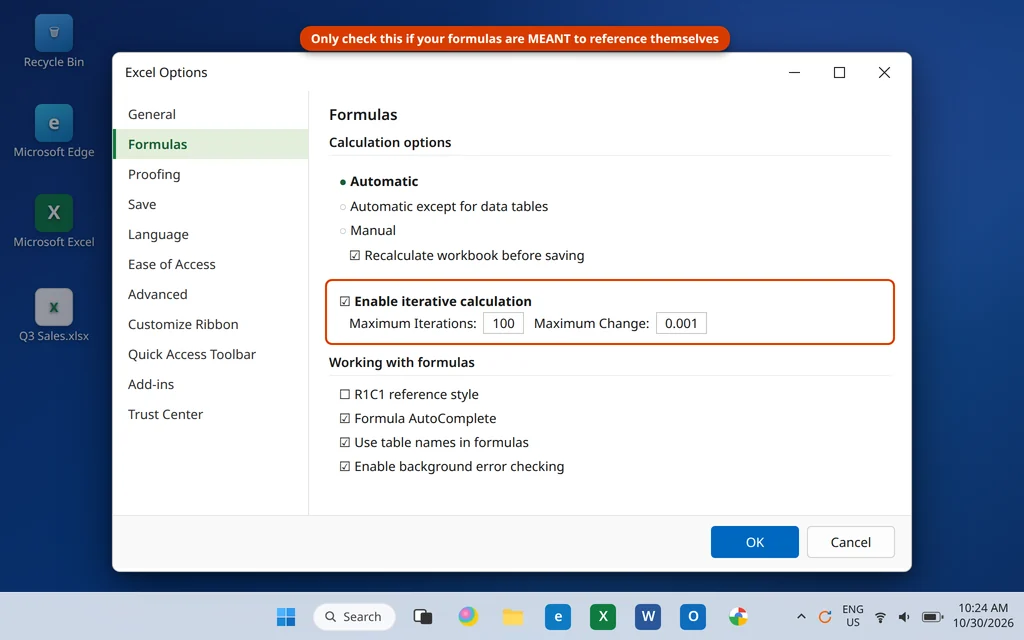
Treat this as a specialist setting, not a general fix: with iteration on, Excel stops warning you about accidental circular references too, and those quietly produce wrong numbers. If you turned it on to test one workbook, turn it back off afterwards.
Fix 7: Old .xls Files and Compatibility Mode
Open a very old workbook and the title bar may add [Compatibility Mode] after the file name — the file is in the Excel 97-2003 .xls format. Formulas that use newer functions (XLOOKUP, IFS, TEXTJOIN and others) cannot work in that format: they show with an _xlfn. prefix in the formula bar and return #NAME? in the cell.
- Click File > Save As.
- Choose Excel Workbook (.xlsx) as the format and save.
- Close and reopen the new file — the same formulas now calculate normally.
Keep the original .xls untouched as your backup; nothing about this step changes your data, it just moves it into the modern format.
Fix 8: Audit Copied and Filled Formulas
When formulas stop working after you copy or drag them down, calculation settings are usually innocent — the references moved. Relative references shift by design: =SUM(B2:D2) filled down one row becomes =SUM(B3:D3). That is normally what you want, but if a formula was copied from an unrelated area, it may now point at empty cells or text and return 0 or a wrong value. Two auditing tools on the Formulas tab show you exactly what a formula is doing:
- Evaluate Formula — select the cell, click Evaluate Formula, and click Evaluate repeatedly to watch Excel work through the calculation one step at a time. The step where the value goes wrong is the step to fix.
- Trace Precedents — draws arrows from the cells your formula uses to the formula itself. If an arrow lands on the wrong row or an empty cell, you found the problem.
One related fix for copied formulas: if part of a formula must always point at one fixed cell — a tax rate or exchange rate, for example — lock that reference with dollar signs ($B$1) before you fill. Without them, that reference drifts one row with every copy, and each row quietly uses a different cell.
Frequently Asked Questions
Why are my Excel formulas not calculating automatically?
Almost always because calculation is set to Manual. Go to Formulas > Calculation Options and select Automatic (Fix 1). Note that the setting follows the first workbook opened in a session, so opening an old file saved in Manual mode can switch your current file too — setting Automatic in File > Options > Formulas as well makes it stick.
Why does Excel show the formula instead of the result?
Two causes: the cell is formatted as Text, so Excel stores the formula as words (Fix 2), or Show Formulas view is switched on and every cell is displaying its formula (Fix 3). If it is just one column, it is the format; if it is the whole sheet at once, it is the view.
Why do my formulas only update when I double-click the cell or re-enter them?
The formula was typed into a cell formatted as Text, and Excel only reads it as a formula when you re-enter it. Change the format to General first, then re-enter — or select the whole range and run Data > Text to Columns > Finish to reactivate every formula at once (Fix 2).
Why don’t my formulas update when I drag them down?
Either calculation is on Manual, so the filled formulas wait for F9 or a save (Fix 1), or the relative references shifted onto empty or text cells as they filled (Fix 8). Click one of the wrong cells, read the formula in the formula bar, and use Evaluate Formula to see which step breaks.
Why do my formulas only calculate when I save the file?
That is Manual calculation working as designed — in Manual mode, Recalculate workbook before saving makes Excel catch up at save time and not before. Switch Workbook Calculation to Automatic in File > Options > Formulas and formulas will calculate as you type (Fix 1).
Why does my SUM return 0 when the cells clearly contain numbers?
The numbers are stored as text, and SUM ignores text completely. Look for the small green triangles in the cells, select the range, and choose Convert to Number from the warning menu (Fix 4). A leading apostrophe in the formula bar is the other giveaway.
What does “circular reference” mean, and should I enable iterative calculation?
It means a formula refers to its own cell, so Excel cannot settle on an answer. Usually it is a mistake — remove the self-reference. Only enable iterative calculation if the workbook was deliberately built to loop, and turn it back off afterwards, because it also silences warnings about accidental circular references (Fix 6).
Still stuck with a formula that won’t calculate? Tell us exactly what the cell shows — the formula as text, an old value, 0, or an error code — on our Contact page — servicedesk@howtofixerroronline.com, available 24 hours. If Excel will not open the file at all, start with our Excel file won’t open guide; if the program itself freezes or crashes mid-work, our Excel not responding fixes cover that side instead.