
Outlook Error 0x8004210A: The Operation Timed Out Waiting for the Receiving (POP) Server — 7 Fixes
Sending works. Your password works. But every time Outlook tries to collect your mail, it sits there… and sits there… until it gives up with error 0x8004210A: “The operation timed out waiting for a response from the receiving (POP) server.” New email exists — you can see it in webmail — but Outlook cannot finish a single download.
This error is rarely about a broken account. It is about time: the server’s reply takes longer than Outlook is willing to wait, and Outlook’s default waiting time is short. A slow server, an antivirus scanning every message on its way in, one enormous email at the front of the queue, or a recent Windows update slowing the connection setup can all stretch the reply past the limit. The fixes below attack each of those, starting with the setting that solves most cases outright.
This guide is for Classic Outlook on Windows 11 and Windows 10 with a POP3 account — this is a POP stack error. If Outlook will not open at all, start with our Outlook not opening on Windows 11 guide instead.
Quick Answer: Outlook error 0x8004210A means the POP server took longer to reply than Outlook’s timeout allows. The fix that solves most cases: raise the Server Timeouts slider — File > Account Settings > Change > More Settings > Advanced — drag it toward Long (Fix 1). Then check the POP port pair (995 + SSL, Fix 2), pause your antivirus email scanning to test (Fix 3), and clear any single huge email jamming the download from webmail (Fix 4).
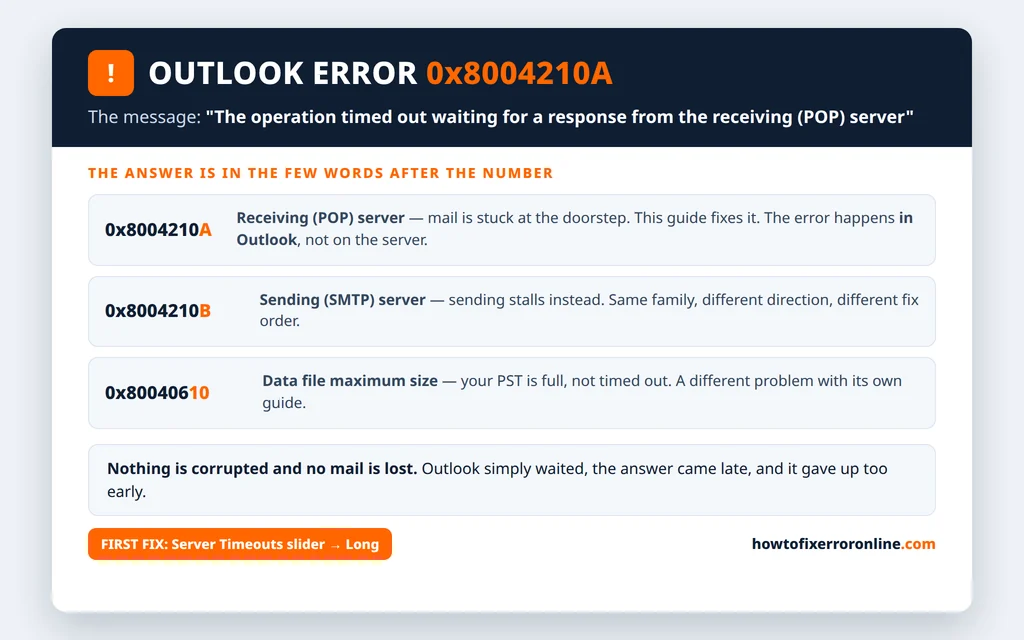
Table of Contents
What Does Outlook Error 0x8004210A Mean?
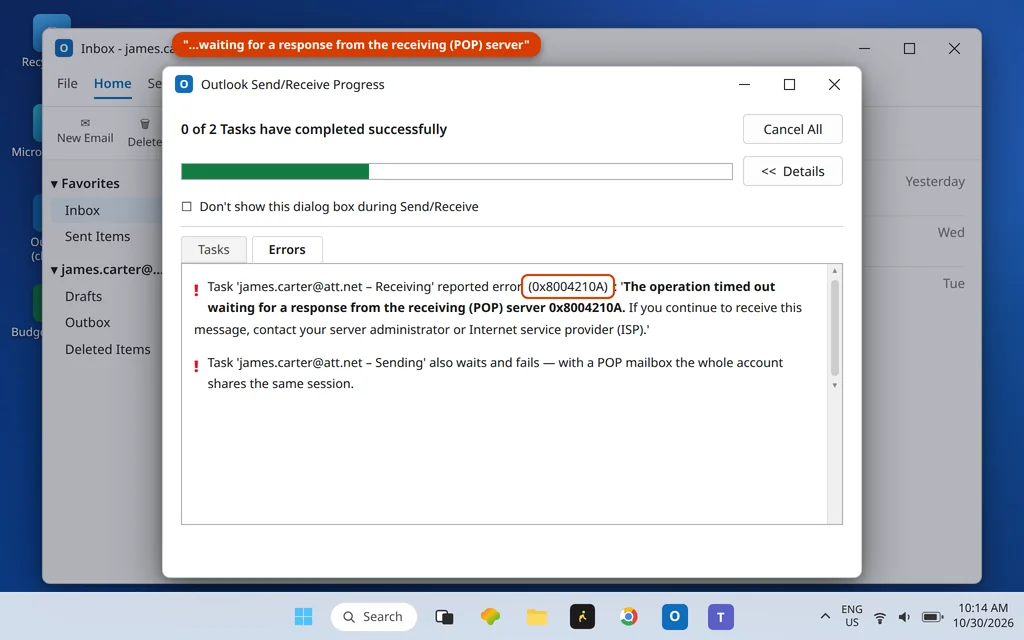
The error appears in the Outlook Send/Receive Progress window, on the Errors tab, worded like this:
“Task ‘server – Sending and Receiving’ reported error (0x8004210A): ‘The operation timed out waiting for a response from the receiving (POP) server. If you continue to receive this message, contact your server administrator or Internet service provider (ISP).'”
Read it literally: Outlook did reach the server — this is not a “cannot find” or “cannot connect” failure. It asked for your mail and then waited. The reply either never finished or took longer than the Server Timeouts value in your account settings, which by default is short (around a minute). Anything that slows the reply eats that budget:
- A big mailbox or a slow, busy provider server
- An antivirus scanning each message as it downloads
- One very large email early in the queue that everything else waits behind
- Wrong port/encryption values causing a slow, failed handshake that retries
- A recent Windows or Office update that slowed connection setup — a documented trigger for this exact code in current Microsoft Q&A reports
Fix 1: Increase the Server Timeouts Setting
This is the lead fix on virtually every source for this code — and it is a two-minute change.
- Click File > Account Settings > Account Settings.
- Select your POP account and click Change…
- Click More Settings… and open the Advanced tab.
- Find the Server Timeouts slider and drag it toward Long — all the way is fine; the maximum is 10 minutes.
- Click OK, then Next, and let Outlook test the account. Press F9 and give the first full download the time it now allows itself.
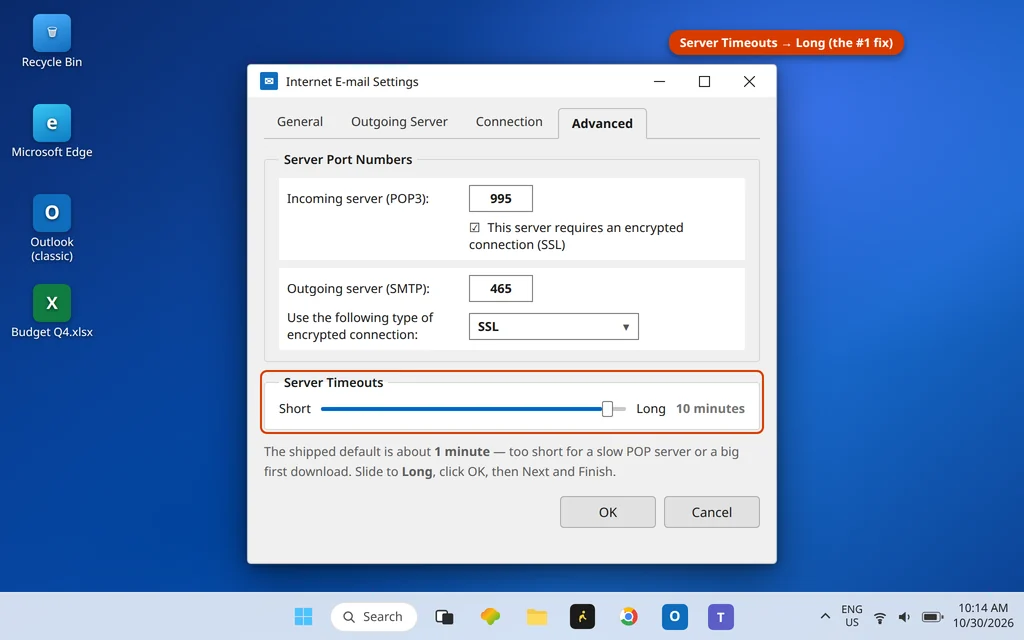
If mail now arrives, you are done — the timeout was simply shorter than your server’s real reply time. Leave the slider where it is; there is no prize for a short timeout.
Fix 2: Check the POP Server Settings
While you are in the Advanced tab, verify the incoming settings — a mismatched pair (below) makes the server handshake crawl and retry, which looks exactly like a timeout.
- Incoming mail server: your provider’s POP name (for AT&T accounts, inbound.att.net)
- Incoming server (POP3): 995 with “This server requires an encrypted connection (SSL)” checked — or 110 with it unchecked. Never a mixture: 995 without SSL, or 110 with SSL, both fail slowly.
- User name: your full email address.
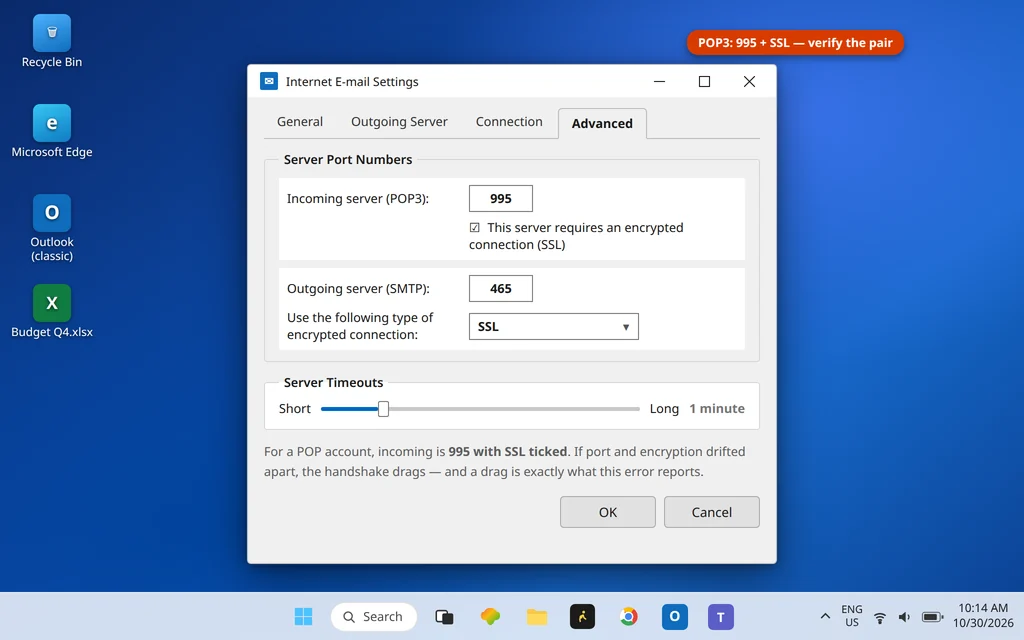
Change anything that is wrong, click OK > Next, and test with F9. If your provider’s help page lists different values, theirs win — but the port/encryption pairing rule above holds everywhere.
Fix 3: Stop Your Antivirus Slowing the Download Down
Antivirus email scanning inspects every incoming message before Outlook may save it. On a big download — hundreds of messages after a holiday, say — that inspection can add enough delay to trip even a raised timeout, and this cause is named again and again for this code.
- Open your antivirus and find its email scanning / email shield feature. Pause only that feature.
- Press F9 in Outlook and watch a full receive complete.
- If it completes cleanly, the antivirus was the brake: turn scanning back on and check the antivirus for an update, or leave its Outlook integration off if the vendor’s own guidance suggests it — but never leave the whole antivirus paused.
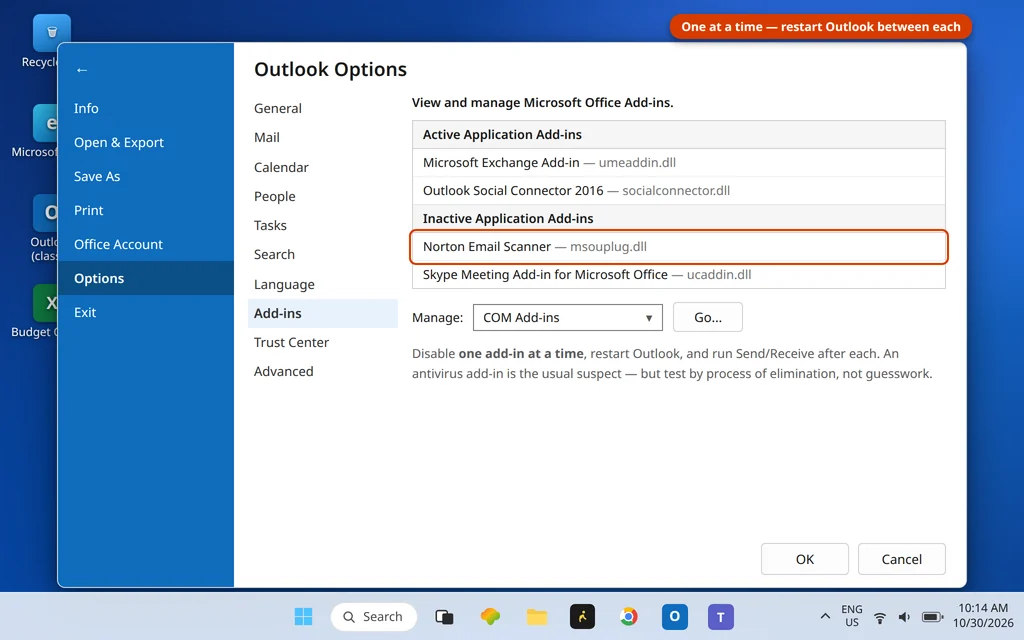
Outlook-side, the same software often installs an add-in: check File > Options > Add-ins > Manage: COM Add-ins > Go and untick the antivirus add-in to test whether it is the delay.
Fix 4: One Huge Email Can Jam the Whole Download
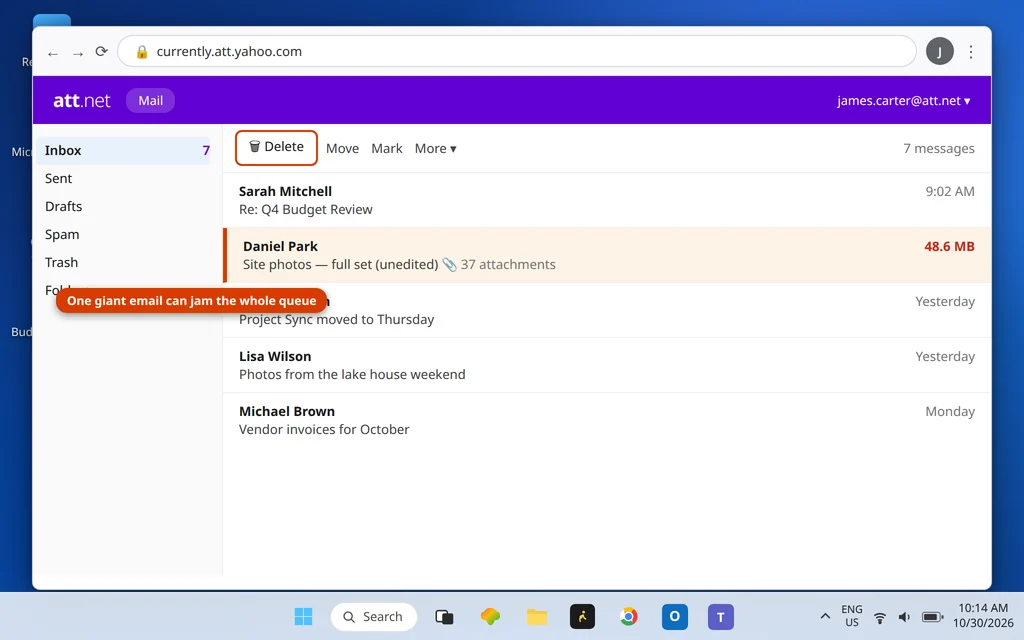
POP downloads messages in order. If message #1 is a 35 MB monster on a slow connection, everything behind it waits — and if it never finishes inside the timeout, the whole receive fails at the same place every time. The tell-tale sign: the error returns at a similar point on every attempt, and webmail shows one very large message near the top of the Inbox.
- Sign in to your provider’s webmail in a browser.
- Sort the Inbox by size if the option exists, or look for the message with the huge attachment.
- Download the attachment from webmail if you need it, then delete the message (or move it out of the Inbox to another folder, if webmail allows).
- Back in Outlook, press F9 — the queue behind it can finally flow.
Fix 5: Check the Connection — and the Clock
Two small environmental causes deserve a look before deeper repairs:
- Connection quality: a weak Wi-Fi signal or a busy network stretches every reply. Try a wired connection or a different network for one Send/Receive as a pure test.
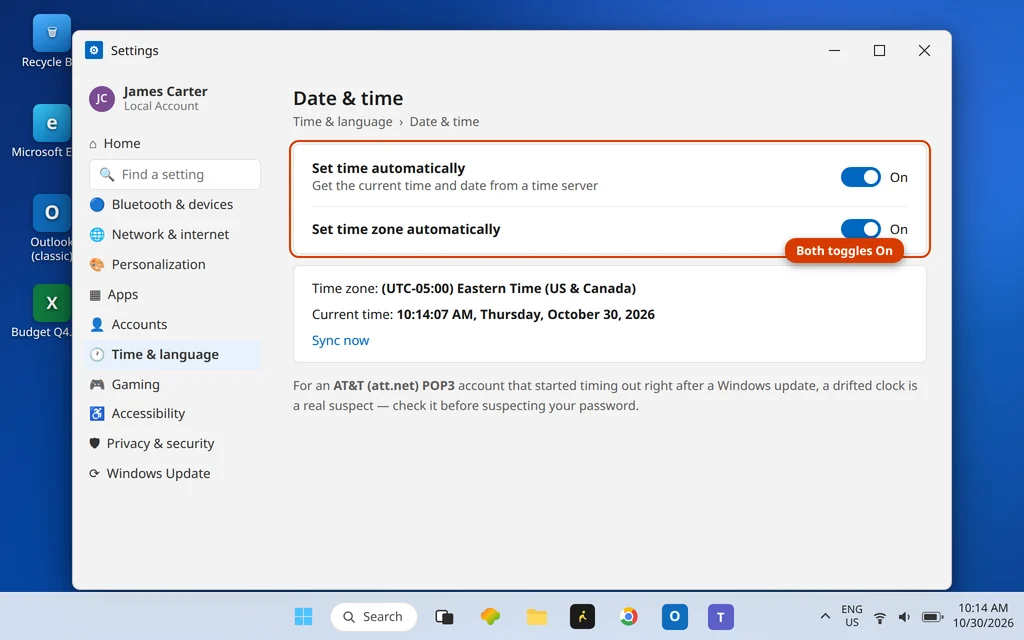
- System date and time: a PC clock that is well off can slow or break the encrypted handshake with the server. Confirm Settings > Time & language > Date & time is set to automatic.
Started Right After a Windows Update? Read This
A current, real pattern for this exact code: the error begins immediately after a Windows update, on an account that worked for years — Microsoft’s own Q&A carries such a report (Office 2024 with an AT&T POP3 account, broken by an update, standard repair no help). The likely mechanism is mundane: the update changed connection behaviour just enough that the default timeout no longer covers the handshake.
Your order of attack in that case: Fix 1 first (the raised timeout directly compensates), then Fix 2’s pairing check. If the error began with the update and nothing else works, uninstalling that specific update is a legitimate test — Settings > Windows Update > Update history > Uninstall updates — but treat it as a diagnostic, and let Windows reinstall it later once you know; running permanently behind on updates is its own problem. If your PC boots badly after updates, that is a different guide: see our PC slow after a Windows 11 update fixes for performance fallout.
Fix 6: Create a New Outlook Profile
If the timeout survives a raised slider, correct settings and a clean queue, the profile holding the account may be damaged.
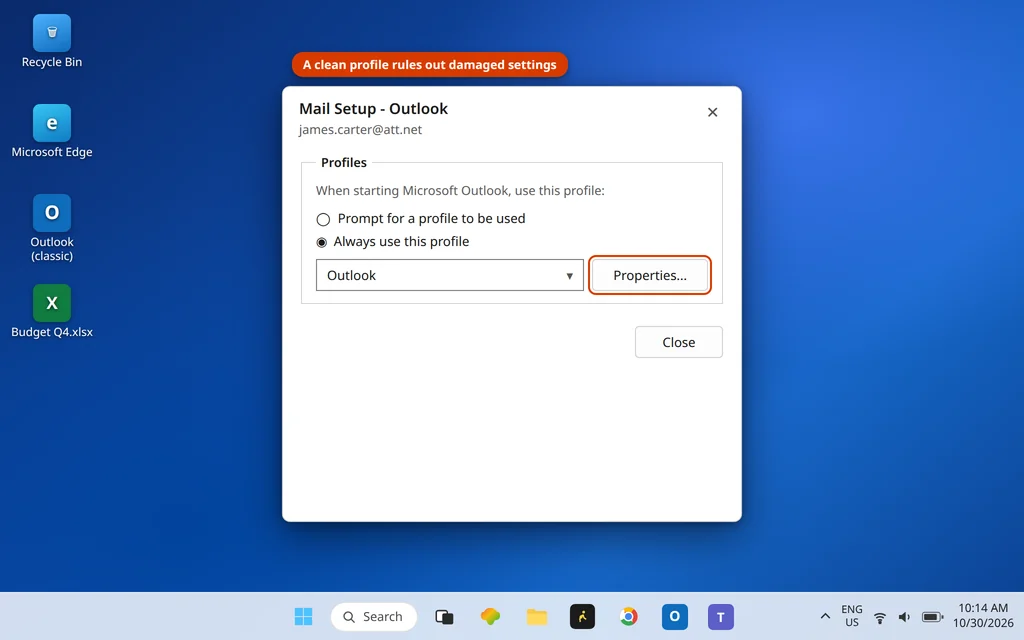
- Close Outlook. Open Control Panel > Mail (Microsoft Outlook) > Show Profiles > Add and name the new profile.
- Add your POP account with the verified settings from Fix 2, and set the Server Timeouts slider high from the start (Fix 1).
- Set the new profile as the one Outlook always uses, open Outlook, and let the mailbox download.
POP warning: on a POP account, downloaded mail may live only in the old profile’s .pst file. A new profile starts empty — point it at the existing .pst (or import it) rather than assuming mail will re-download; some providers keep only recent mail on the server for POP.
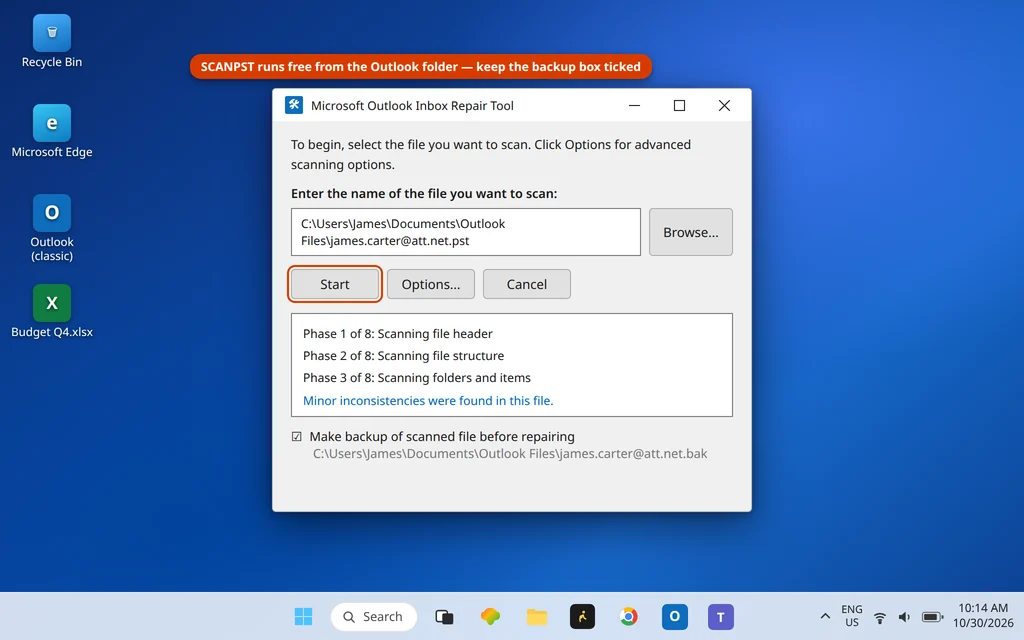
Fix 7: Repair the Data File With SCANPST
Last, the data file itself: a damaged .pst can make Outlook stall mid-receive as it tries to write new mail into a corrupt store.
- Close Outlook completely.
- Run SCANPST.EXE (find it by typing SCANPST into Windows search; it lives in your Office folder).
- Browse to the account’s .pst — its path is listed under File > Account Settings > Account Settings > Data Files.
- Click Start; if errors are found, click Repair with the backup option checked.
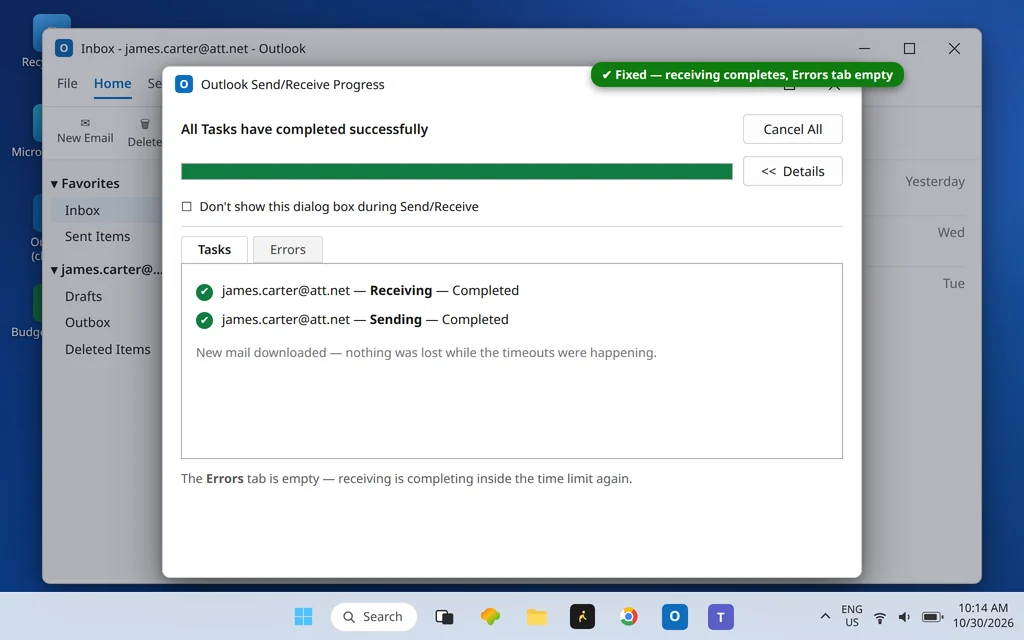
- Open Outlook and press F9.
When the repair (or any fix above) lands, Send/Receive completes with an empty Errors tab:
0x8004210A vs 0x8004210B — Receiving Timeout vs Sending Timeout
One letter apart, opposite directions. 0x8004210A (this guide) is the receiving (POP) timeout: mail will not come in. 0x8004210B is the sending (SMTP) timeout: mail will not go out, usually because of a stuck Outbox message or a port/encryption mismatch. If your error ends in B, use our Outlook error 0x8004210B guide. Both are listed, with the rest of the receive-side family, on our Error Codes hub — and if your POP account will not connect at all (rather than timing out), that is Outlook error 0x80042108.
Using the New Outlook? These Steps Are Classic-Only
The Server Timeouts slider, the POP Advanced tab and SCANPST all belong to Classic Outlook — the new Outlook for Windows exposes none of them, and it handles POP accounts through its own sign-in flow. If receiving stalls there, remove and re-add the account in Settings > Accounts, and delete any single huge message from webmail (Fix 4 works there unchanged). The timeout codes in this family are generated by the Classic POP stack.
Frequently Asked Questions
What is a good Server Timeouts setting for 0x8004210A?
For a POP account hitting this error, drag the slider toward Long — 5 minutes is a solid working value, and the 10-minute maximum is fine on a slow server or a big mailbox. There is no downside for normal use: the timeout only matters when a reply is genuinely slow. Find it under Account Settings > Change > More Settings > Advanced.
Why did 0x8004210A start after a Windows update?
You are not imagining it — current Microsoft Q&A reports describe exactly this: a long-working POP account (an AT&T account on Office 2024, in the clearest report) breaking right after an update, with a standard repair not helping. The update appears to slow the connection setup enough to trip the default timeout. Raising Server Timeouts (Fix 1) compensates directly; uninstalling the update is a last-resort test, covered in the update section above.
Why can I send mail but not receive it with 0x8004210A?
Because sending and receiving are separate conversations. Sending talks to the SMTP server; receiving talks to the POP server — and only the POP conversation is timing out. The pattern is actually useful evidence: your password and internet are almost certainly fine, and the fault sits in the POP settings, the timeout, or something slowing incoming mail (antivirus, one huge message). If mail will not arrive with no error at all, our broader Outlook not receiving emails guide covers that case.
What is the difference between 0x8004210A and 0x8004210B?
Direction. 0x8004210A times out waiting for the receiving (POP) server — mail cannot come in. 0x8004210B times out waiting for the sending (SMTP) server — mail cannot go out, most often because of a stuck Outbox message or a mismatched port/encryption pair. The fixes overlap only on the timeout slider itself.
Will raising the timeout hide a real problem?
No. The timeout is just how long Outlook waits before giving up; a longer wait cannot corrupt anything. If a server is genuinely dead, Send/Receive fails a little later with the same error — and then the connection fixes (Fix 2, Fix 5) are where to look. What a raised timeout does fix permanently is the very common case of a healthy but slow server.
Still seeing error 0x8004210A? Tell us your provider, whether it started after an update, and how far the download gets before it fails, on our Contact page — servicedesk@howtofixerroronline.com, available 24 hours. If your code ends in B instead, head to the 0x8004210B guide.