
Cox Email Not Working in Outlook After the Move to Yahoo
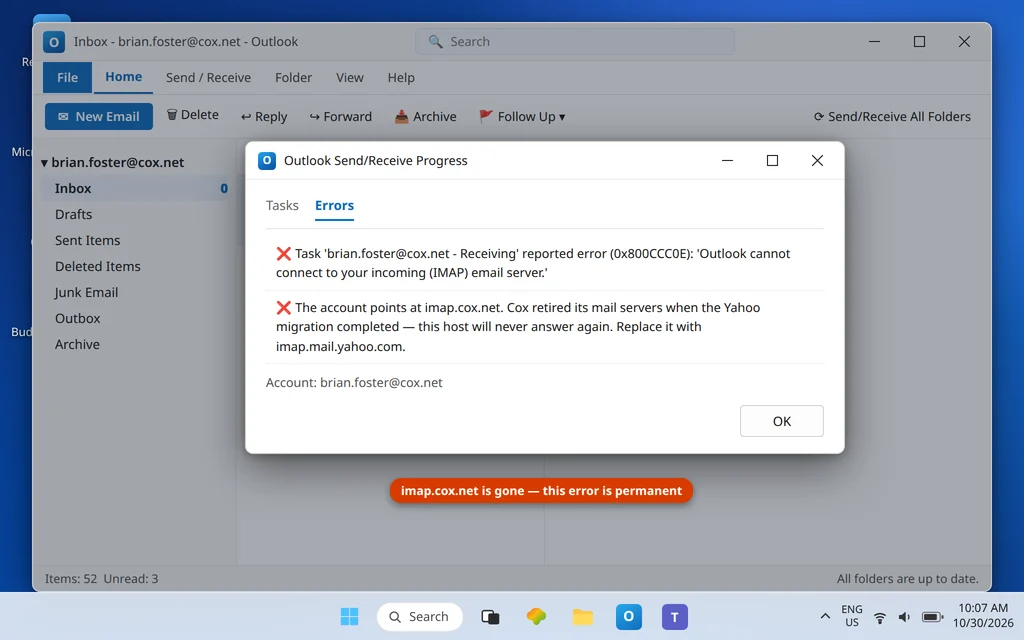
Cox email not working in Outlook is the direct result of the Cox-to-Yahoo migration. If your Cox email stopped working in Outlook, here is the headline first: the Cox-to-Yahoo migration is finished. In Cox’s own words, “as of early 2025, Cox has completed its transition of Cox Email to Yahoo Mail,” and Cox no longer offers or supports an email service of its own. Your @cox.net address still exists and your mail still exists — but it all lives on Yahoo Mail now, and the old Cox mail servers (imap.cox.net, smtp.cox.net, pop.cox.net) are dead. Any Outlook setup still pointing at them will fail forever, no matter how many times you re-enter your password.
This guide is both the fix and the setup walkthrough: complete the Yahoo handoff, generate the Yahoo app password Outlook requires, replace the dead settings, and get sending and receiving working again. The same steps set up a Cox address in Outlook from scratch — there is no separate “Cox setup” left to do, because setup is the Yahoo configuration below. (Cox Business email customers are a different product and are not covered by this move or this guide.)
Quick Answer: Your Cox mailbox is a Yahoo mailbox now. First sign in at mail.yahoo.com with your full @cox.net address and your transition password, and accept Yahoo’s terms — the handoff must be completed before any app can connect. Then generate a Yahoo app password (Yahoo Mail → profile → Overview → Security → App Password → Generate). In Outlook, set the incoming server to
imap.mail.yahoo.comport 993 (SSL), outgoing tosmtp.mail.yahoo.comport 465 or 587, user name = your full @cox.net address, and password = the app password (typed without spaces). Delete any settings still using cox.net servers — they no longer exist.
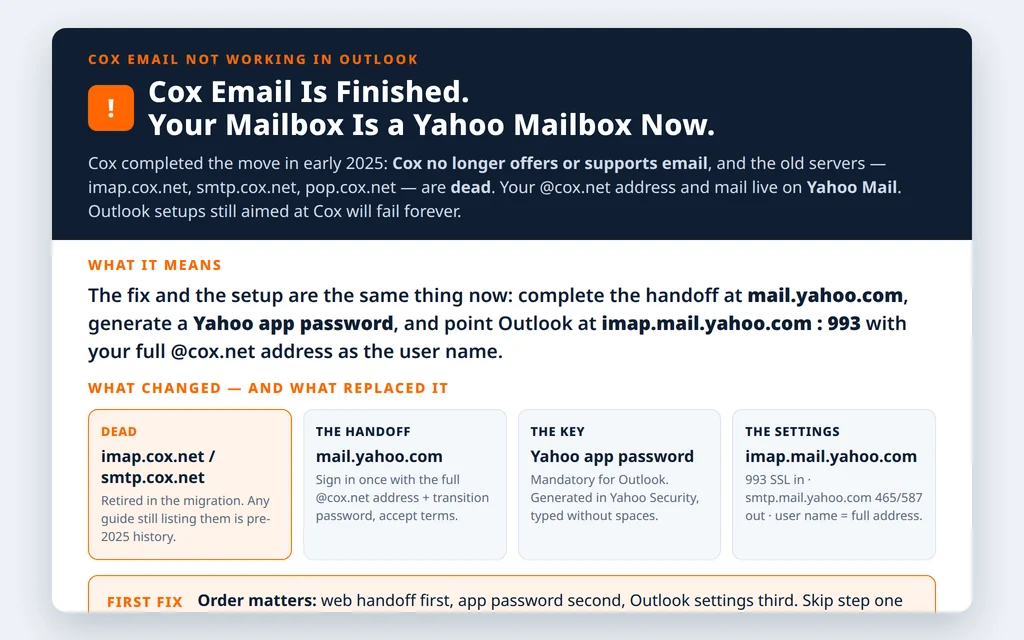
Table of Contents
Fix 1 — Complete the Yahoo handoff on the web first
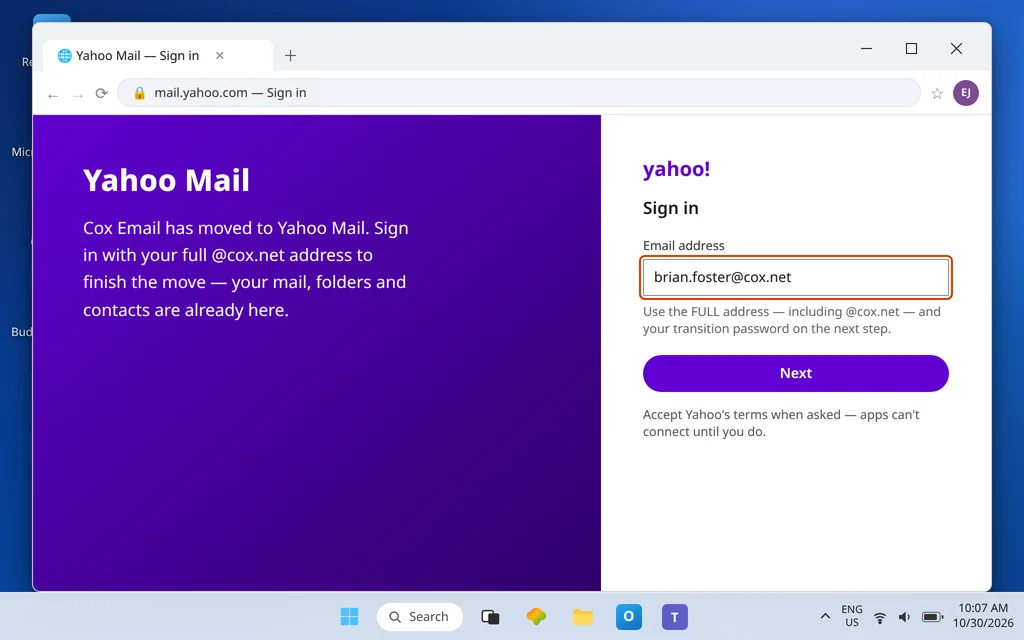
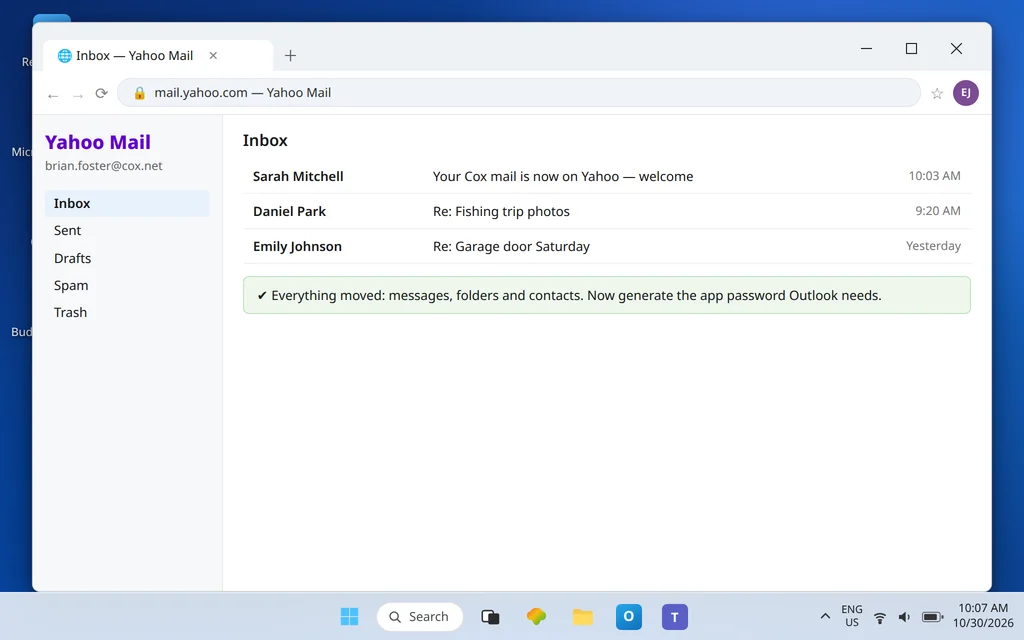
No app — Outlook included — can connect until the mailbox’s Yahoo side is activated. Go to mail.yahoo.com, sign in with your full @cox.net address (not just the part before the @) and the transition password from Cox’s migration process, and accept Yahoo’s terms when prompted. Your inbox, folders and contacts should be there waiting — they moved with the address. If you cannot get in, use Yahoo’s sign-in help for the transition password step; until webmail opens, Outlook has nothing to connect to.
Fix 2 — Generate the Yahoo app password (mandatory, not optional)
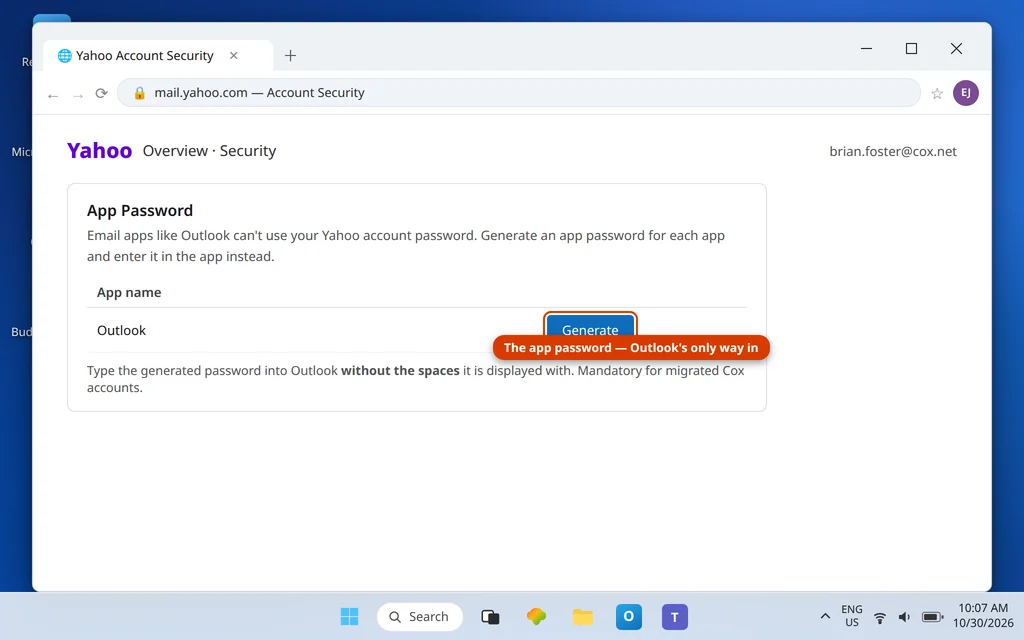
Yahoo does not allow Outlook to sign in with your account password. It issues an app password for exactly this purpose, and for migrated Cox accounts it is compulsory:
- In Yahoo Mail, click your profile (top right) → Overview → Security.
- Open App Password and choose Generate (name it “Outlook”).
- Copy the generated password. In Outlook you will type it without the spaces Yahoo displays it with.
- Use the same app password in both password fields (incoming and outgoing reuse it via “use same settings” — see Fix 3).
Fix 3 — Replace the dead Cox settings with Yahoo’s
In Outlook: File → Account Settings → Account Settings → select the Cox account → Change (or remove and re-add manually — Fix 4). The only table that works now:
| Setting | Value |
| Incoming server (IMAP) | imap.mail.yahoo.com |
| Port | 993, SSL/TLS |
| Incoming (POP alternative) | pop.mail.yahoo.com : 995 SSL |
| Outgoing server (SMTP) | smtp.mail.yahoo.com |
| SMTP port | 465 (SSL) or 587 |
| User name | Full @cox.net address |
| Password | Yahoo app password (no spaces) |
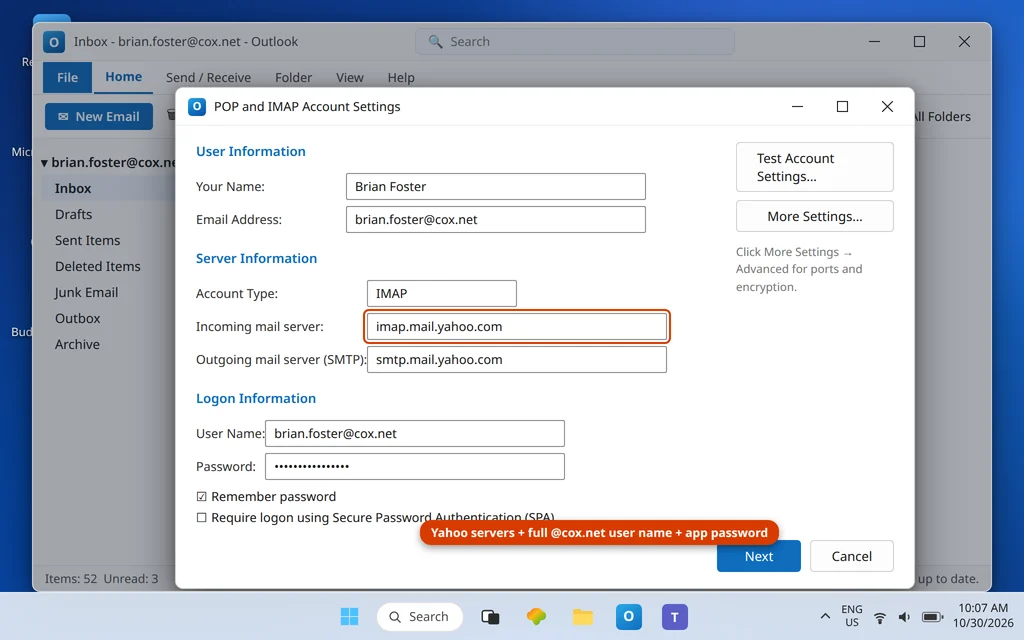
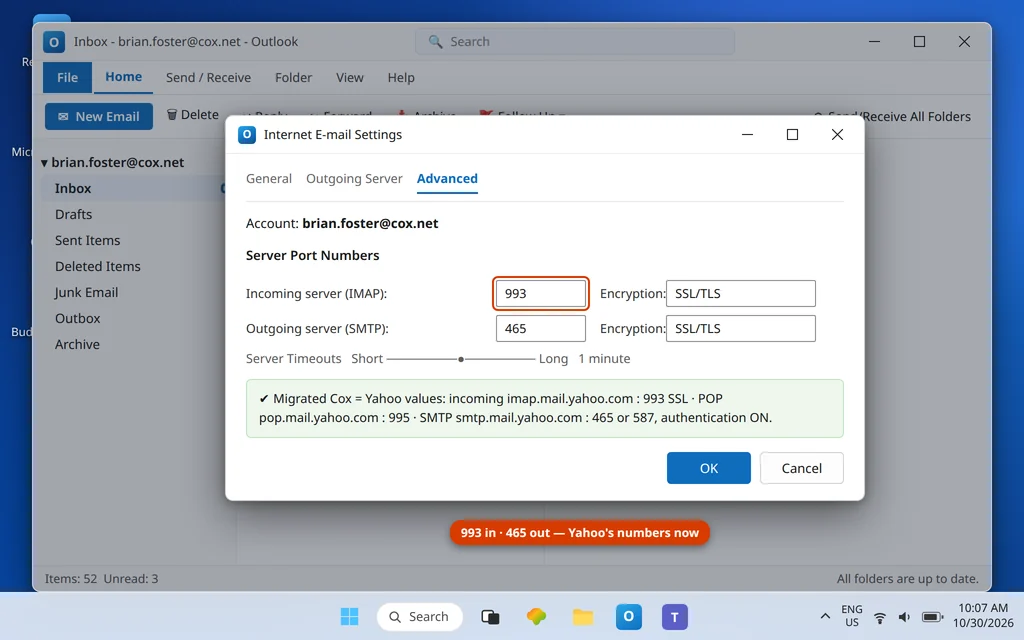
Also open More Settings → Outgoing Server and tick My outgoing server (SMTP) requires authentication → Use same settings as my incoming mail server, so the send side presents the app password too.
Fix 4 — Setting up from scratch, or removing the corpse of the old account
Fresh setup and stubborn repairs take the same path: File → Add Account → Advanced options → Let me set up my account manually → IMAP, then type the Fix 3 table yourself, with the app password. Do not let the wizard auto-detect: it may resurrect cox.net server names from the domain, which are precisely what’s broken. If an old account entry refuses to take the new settings, remove it first (IMAP mail lives on Yahoo’s servers and downloads again — nothing is lost). This article is the current Cox setup guide: there are no Cox servers left to set up against. The add-account screens themselves are the same ones walked through in Add Yahoo and AOL Mail to Outlook — only the values differ, and here they are Yahoo’s.
Cox email not sending in Outlook
Sending rides on the same fix — the dead server problem hits SMTP first for many people. Once Fix 3 is in place, sending works through smtp.mail.yahoo.com (465 SSL or 587) with authentication on and the app password reused from the incoming side. If messages still stick: clear the Outbox by dragging each message to Drafts, opening it and pressing Send (messages queued under the dead smtp.cox.net never retry successfully), and confirm you are not in Work Offline mode. The generic send-side checks in Outlook Not Sending Emails but Can Receive cover the remaining app-level causes, and our Yahoo sync guide covers Yahoo-platform quirks shared by every Yahoo-hosted address.
Two warnings worth knowing
- The 12-month rule: after the move, an account left unused for 12 months has its contents permanently deleted by Yahoo. If you have an old secondary @cox.net address you care about, sign in to it on Yahoo at least occasionally — and note that “contents” means the stored mail, not just the sign-in.
- Outlook.com cannot adopt the address: if you previously used your Cox address as a connected account inside Outlook.com webmail, that stops working after the move — connected accounts cannot carry a migrated Cox address. Use desktop Outlook (this guide) or Yahoo Mail on the web instead.
Confirm it worked
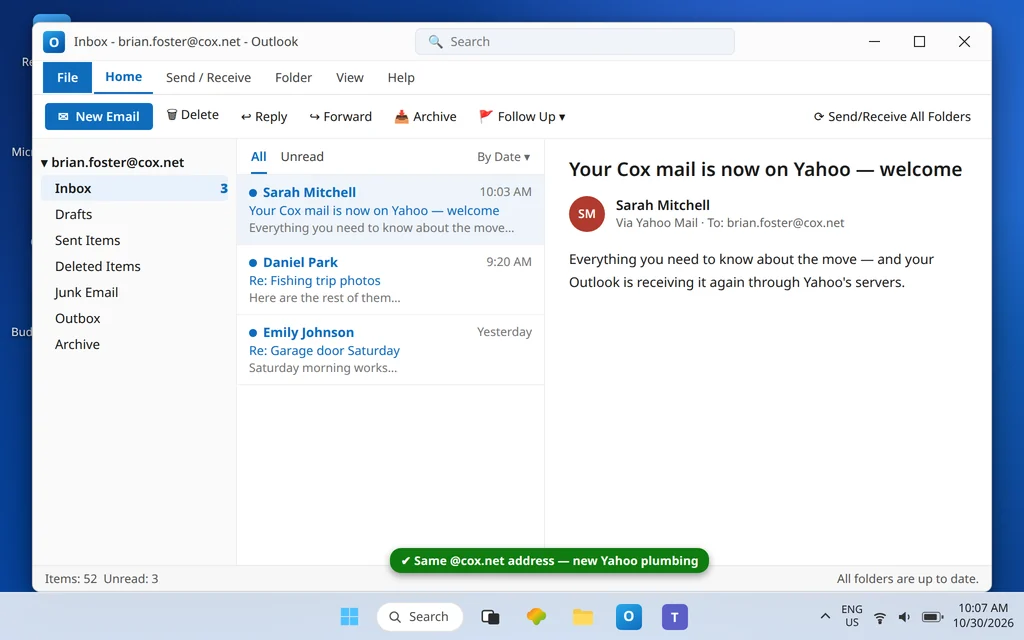
Press Send/Receive All Folders: mail flows from imap.mail.yahoo.com, a test send leaves the Outbox via Yahoo’s SMTP, and the password prompt stays gone. Your address still says @cox.net everywhere — only the plumbing changed.
How to stop Cox email not working in Outlook from happening again
- Forget the Cox servers exist. Any guide still listing imap.cox.net or smtp.cox.net as current is pre-migration history.
- Keep the app password labeled in Yahoo’s Security page (“Outlook”) so a future tidy-up does not delete the key your desktop depends on.
- Sign in to secondary addresses periodically — the 12-month inactivity deletion is automatic and permanent.
- Expect Yahoo-platform behavior from now on — Yahoo’s security challenges, app passwords and sync quirks are your email life now; our Yahoo guide is the reference.
Frequently asked questions
Did Cox email shut down?
Cox email as a Cox-run service, yes — Cox completed the transition to Yahoo Mail in early 2025 and no longer offers or supports its own email. Your @cox.net address, mail, folders and contacts live on, hosted by Yahoo. What shut down are Cox’s mail servers, which is why Outlook setups pointing at them fail.
What are the correct Cox email settings for Outlook now?
Yahoo’s: incoming imap.mail.yahoo.com port 993 SSL (POP: pop.mail.yahoo.com 995), outgoing smtp.mail.yahoo.com port 465 or 587, user name = your full @cox.net address, password = a Yahoo app password generated in Yahoo’s Security settings. Complete the web handoff at mail.yahoo.com first — apps cannot connect to a mailbox whose Yahoo side was never activated.
Why does Outlook reject my Cox password when it works on Yahoo’s website?
Because Outlook is a third-party app, and Yahoo requires app passwords for those. The website takes your account password; Outlook must present the generated app password (entered without spaces). This is mandatory for migrated Cox accounts, not an optional extra.
I never got (or lost) my transition password. What now?
Use the sign-in help at mail.yahoo.com — the transition password and account recovery for migrated Cox addresses are handled on the Yahoo side now. Cox support no longer runs the email service, so Yahoo’s recovery flow is the route back in. Once webmail opens, generate the app password and finish the Outlook setup here.
Will I lose mail if I remove the old Cox account from Outlook?
No, with IMAP. Your messages are stored on Yahoo’s servers; removing the broken account entry and re-adding it with the Yahoo table simply downloads everything again. The one real deletion risk is the opposite: leaving a migrated mailbox completely unused for 12 months, after which Yahoo permanently deletes its contents.
My phone still uses an old Cox email app setup. Does the same fix apply there?
Yes — the phone has the same dead-server problem wearing a smaller screen. Wherever the old Cox settings live (the phone’s mail app account settings), replace them with the Yahoo table from Fix 3 and a Yahoo app password, or simpler still, sign the address into the Yahoo Mail app, which handles its own platform natively. The web handoff (Fix 1) only has to be completed once, in any browser; after that, every device is just servers plus app password.
Does this also fix Cox email not sending?
Yes — sending fails for the same reason (dead smtp.cox.net) and is fixed by the same table: smtp.mail.yahoo.com on 465 or 587, SMTP authentication on, app password reused. Clear any messages stuck in the Outbox via Drafts after the settings change, because messages queued against the dead server never send.
Working again on Yahoo’s plumbing — or stuck at the handoff sign-in? Contact us at servicedesk@howtofixerroronline.com or through our Contact page and tell us where you got stuck (webmail sign-in, app password, or Outlook settings) and the exact error. Never send us your password or app password — we will never ask for either.