
Yahoo Email Not Syncing in Outlook (Classic): Fixes That Work
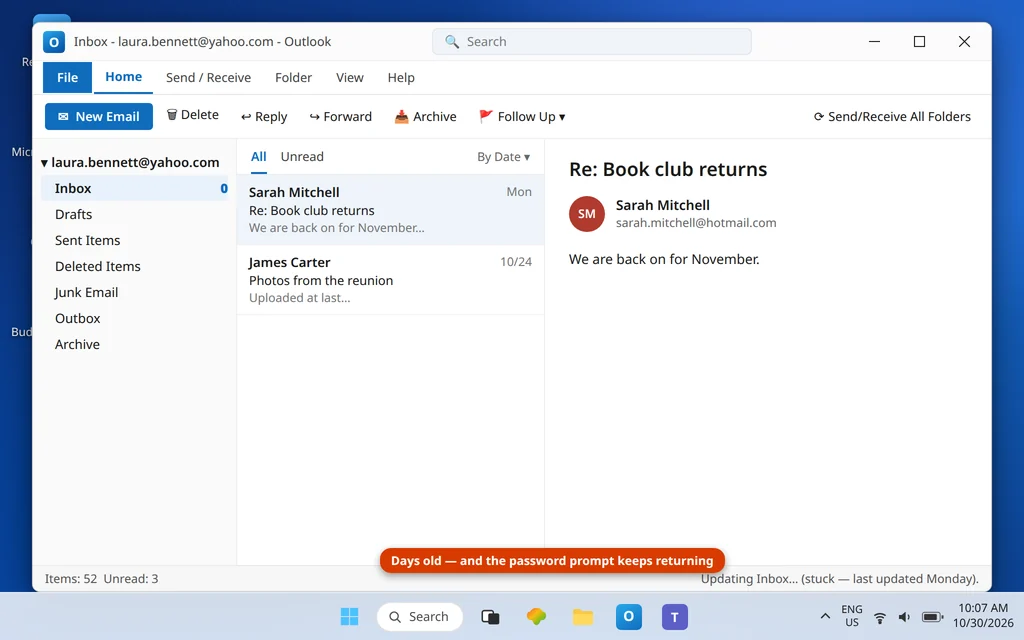
Yahoo Mail in Classic Outlook fails in a particular, frustrating way: the account is right there in the folder pane, your password is definitely correct (it works on Yahoo’s website), yet new mail simply never arrives — or arrives days late, or the password prompt returns like a boomerang. The root cause is a credential rule most people never hear about: for a manually configured account, Yahoo does not accept your account password from Outlook at all. It requires a generated app password — and setups that have run for years on the plain password eventually get cut off, which is why this so often “suddenly” starts. When Yahoo email not syncing in Outlook strikes, the fix is usually a credential change, not a new password.
This guide is for Classic Outlook with a manual/IMAP Yahoo setup. Two quick routes first: if you use the new Outlook app, Yahoo connects there by a secure sign-in (OAuth) instead — and its Yahoo failure has its own guide: New Outlook Can’t Add Yahoo Account. If you are setting a Yahoo or AOL account up in Outlook for the first time, Add Yahoo and AOL Mail to Outlook covers the add-account screens. And if no account syncs in your Outlook, see Outlook Not Receiving Emails but Can Send for the app-level causes.
Quick Answer: Generate a Yahoo app password: sign in at Yahoo → Account Security → External connections → Create app password (name it “Outlook”), then in Classic Outlook open the account settings and paste that app password into the password field. Confirm the servers: incoming
imap.mail.yahoo.comport 993 (SSL), outgoingsmtp.mail.yahoo.comport 465 (SSL) or 587, user name = your full Yahoo address. Press Send/Receive All Folders — sync resumes immediately.
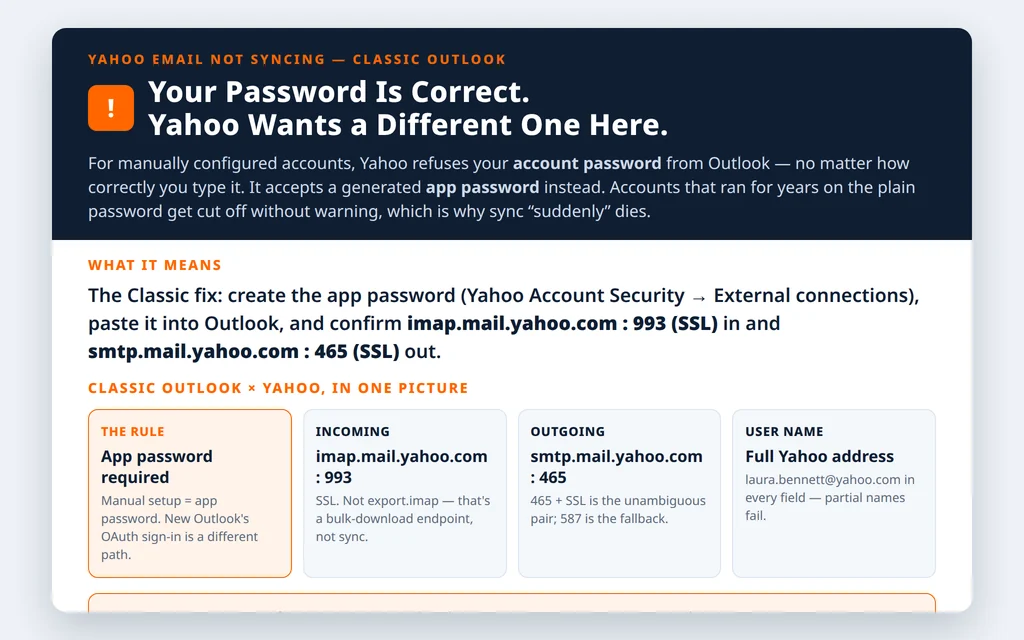
Table of Contents
Fix 1 — Generate the Yahoo app password to fix Yahoo email not syncing in Outlook
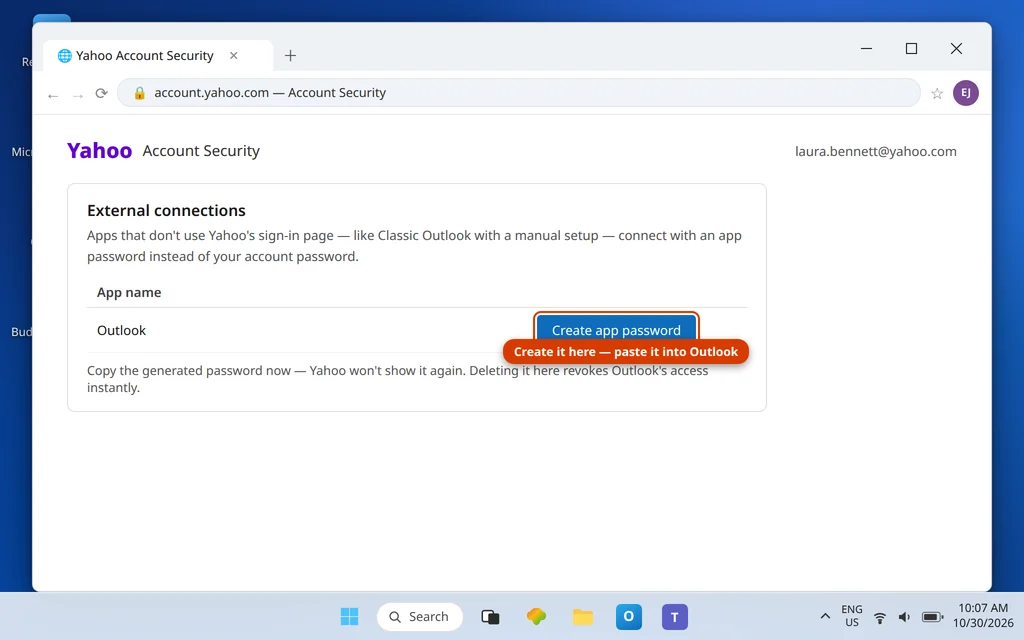
- Sign in to your Yahoo account on the web and open Account Security.
- Under External connections, choose Create app password (in some layouts: “Generate app password”).
- Name it Outlook so you can recognize it later, and copy the generated password.
- Keep it ready — you will paste it into Outlook in Fix 2. Yahoo will not show it again; if you lose it, generate a fresh one (the old one can be deleted from the same page). See Yahoo’s guide to generating app passwords for the full steps.
Fix 2 — Put the app password and the exact Yahoo table into Outlook
In Classic Outlook: File → Account Settings → Account Settings → select the Yahoo account → Change. Verify every line against Yahoo’s published table:
| Setting | IMAP (recommended) | POP |
|---|---|---|
| Incoming server | imap.mail.yahoo.com | pop.mail.yahoo.com |
| Port | 993 | 995 |
| Encryption | SSL/TLS | SSL/TLS |
| Outgoing server (SMTP) | smtp.mail.yahoo.com | smtp.mail.yahoo.com |
| SMTP port | 465 (SSL) — or 587 | 465 / 587 |
| User name | Full Yahoo email address | Full Yahoo email address |
| Password | Yahoo app password | Yahoo app password |
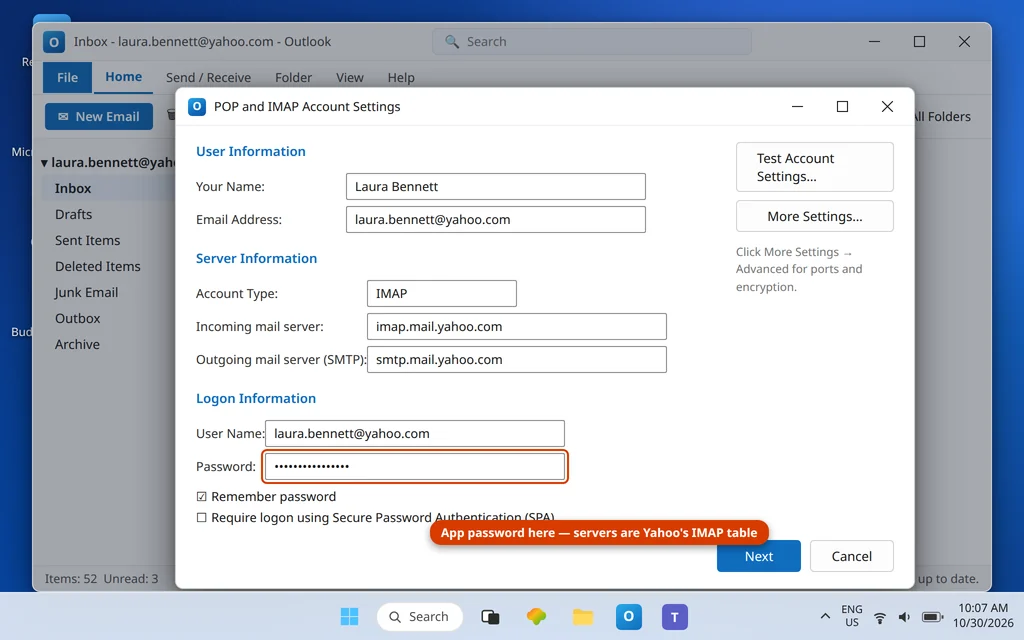
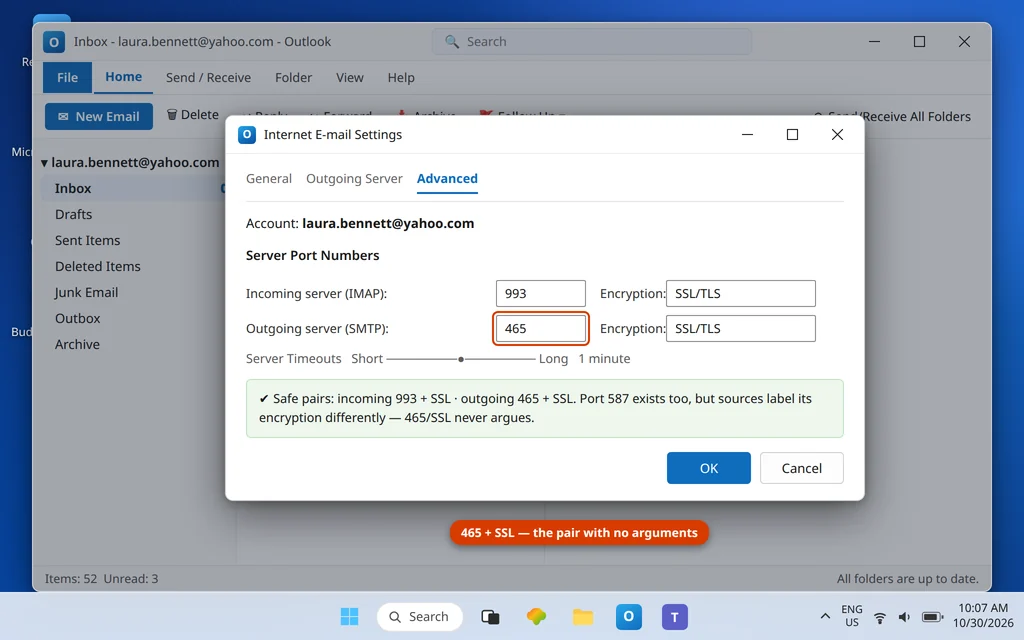
One nuance on the 587 option: sources disagree about the encryption label to pair with Yahoo’s SMTP port 587 (you will see both “SSL” and “STARTTLS” in print). The unambiguous, always-works pair is 465 + SSL/TLS — use that as your default, and treat 587 as the fallback, trying STARTTLS if 587 + SSL is refused. Click More Settings → Outgoing Server and confirm My outgoing server requires authentication → Use same settings as my incoming mail server, so sending uses the app password as well.
Also ignore one server name you may meet in old guides: export.imap.mail.yahoo.com is a bulk-download endpoint, not the sync server. If it is in your settings, sync was never going to work — replace it with imap.mail.yahoo.com.
Fix 3 — Answer the looping password prompt with the app password
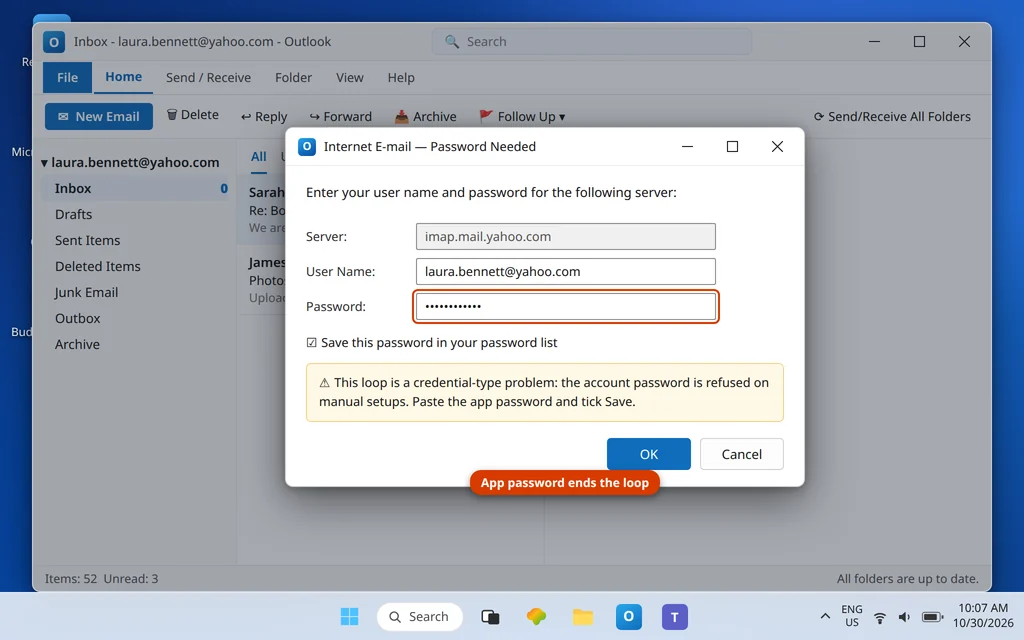
If Outlook keeps asking for the Yahoo password, it is rejecting the account password stored there. Paste the app password from Fix 1 and tick Save this password in your password list. The prompt feels like a password problem; it is actually a which-credential problem, and it only ends when the app password replaces the account password in that box.
Fix 4 — Force a clean sync: folders, Send/Receive, and the 1-year offline slider
With the credential fixed, clear the backlog properly:
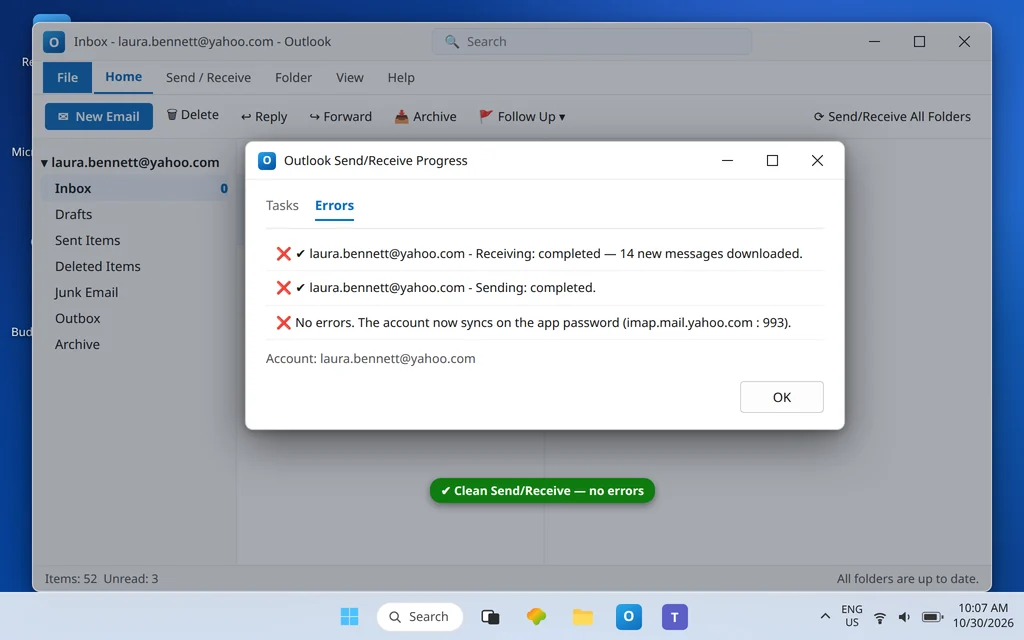
- Press Send/Receive All Folders (F9) and watch the status bar complete without errors.
- If a specific folder lags (common with huge Yahoo folders), right-click it → Properties → Synchronization to see its state, and check Send/Receive → Send/Receive Groups → Download Address Book is not stuck on a failing item.
- Check the Mail to keep offline slider (File → Account Settings → Change): if it is set to a short window, older mail legitimately “isn’t syncing” — it is outside the window by design. Slide it to All if you need the full history locally.
Fix 5 — Remove and re-add manually if the account entry is years old
Accounts created long ago — especially ones migrated from the retired Yahoo desktop app era or created with the account password baked in — sometimes refuse to take the corrected credential. Remove the account and re-add via Add Account → Advanced options → Let me set up my account manually → IMAP, entering the Fix 2 table with the app password. IMAP mail lives on Yahoo’s servers, so nothing is lost; avoid the automatic setup path, which tries the account password first and can re-create the failure.
Fix 6 — Yahoo-side checks: security holds and the 12-month rule
Sign in to Yahoo Mail on the web. If Yahoo shows a security challenge or “unusual activity” hold, complete it — Yahoo restricts third-party connections while a hold is unanswered. Also note Yahoo’s inactivity rule: mailboxes unused for 12 months can have their contents deleted, so a secondary account that “syncs nothing” may genuinely have nothing left to sync. If webmail itself is empty, that is a Yahoo recovery question, not an Outlook one.
Confirm it worked
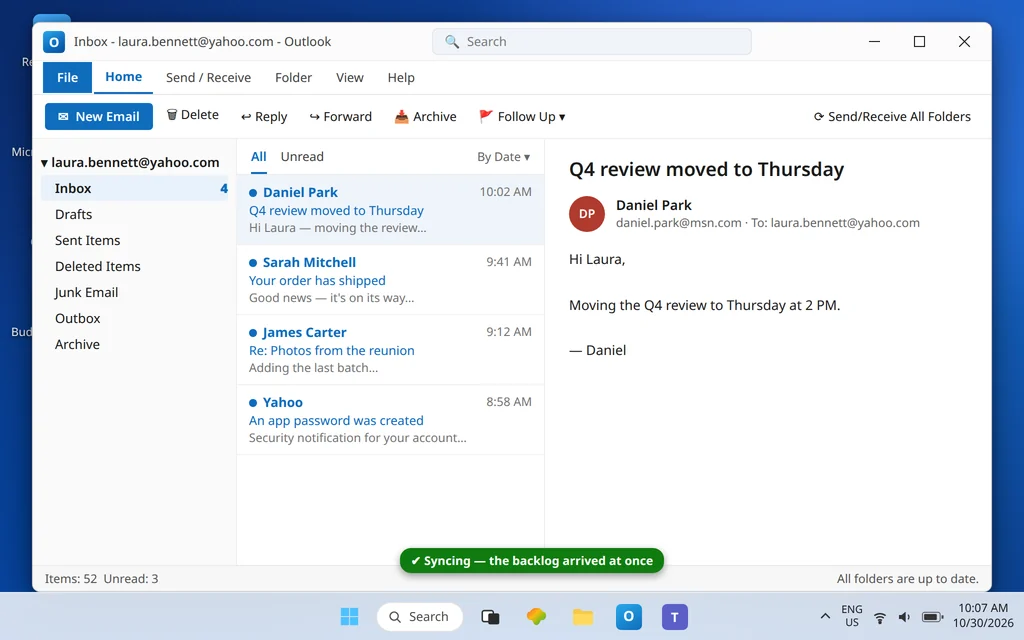
Send yourself a message from another account and watch it arrive in Classic Outlook within a minute; then reply from Outlook and confirm the reply lands. Both directions on the app password means the account is whole.
How to stop it happening again
- Label the app password (“Outlook”) in Yahoo Account Security so a future security tidy-up does not delete the one credential your desktop depends on.
- Keep 465 + SSL as your SMTP pair — it is the setting with no ambiguity.
- Expect a fresh app password after major Yahoo security events. If sync dies right after a Yahoo password reset or security scare, generate a new app password before troubleshooting anything else.
- Use secondary Yahoo addresses at least once a year to stay clear of the inactivity deletion.
Frequently asked questions
Why did my Yahoo email suddenly stop syncing in Outlook?
Almost always because the account was still signing in with your Yahoo account password, which Yahoo no longer accepts from manually configured apps. The cut-off often arrives without warning after years of working. Generate an app password in Yahoo Account Security (External connections → Create app password) and paste it into Outlook’s password field — sync resumes.
What are the correct Yahoo Mail settings for Classic Outlook?
IMAP: incoming imap.mail.yahoo.com port 993 SSL, outgoing smtp.mail.yahoo.com port 465 SSL (587 is the alternative), user name = your full Yahoo address, password = your app password. POP alternative: pop.mail.yahoo.com port 995. Never use export.imap.mail.yahoo.com — that is a bulk-download service, not the sync server.
Where do I create a Yahoo app password?
On the web: sign in to Yahoo → Account Security → External connections → Create app password. Give it a name like “Outlook”, copy the generated password, and paste it into Outlook (both the account password field; sending reuses it via “use same settings”). Generate a new one any time — deleting the old one from the same page revokes it.
Does the new Outlook need an app password for Yahoo too?
No — the new Outlook connects Yahoo accounts through Yahoo’s own secure sign-in page (OAuth), so no app password is involved there. That is also why new-Outlook Yahoo failures look different; they are covered in New Outlook Can’t Add Yahoo Account. The app password path in this guide is specifically for Classic Outlook’s manual setup.
Outlook keeps asking for my Yahoo password even though it is right. Why?
The prompt is rejecting the kind of credential, not the typing. On a manual setup, Outlook must present the app password; the account password — however correctly typed — is refused. Paste the app password, tick Save, and the loop ends. Connection-code variants of this failure are collected in our Error Codes hub.
Does this also fix Yahoo email not sending from Classic Outlook?
Yes — it is the same credential doing both jobs. Once the app password is in the account and More Settings → Outgoing Server is set to use the same settings as incoming, sending authenticates through smtp.mail.yahoo.com (465 + SSL) with that app password. If receiving heals but sending still fails, the outgoing tab is the one place left to check; a stuck Outbox message then needs the move-to-Drafts resend described in our Outlook not sending guide.
My Yahoo folders sync but Sent Items do not match the web. Is that the same fault?
Usually it is the offline window or a folder still catching up rather than the credential — Fix 4’s slider check (set Mail to keep offline to All) and a full Send/Receive settle it. Once credentials are right, Yahoo IMAP mirrors folders faithfully, including Sent Items, within a few minutes.
Syncing again — or still staring at a stale inbox? Contact us at servicedesk@howtofixerroronline.com or through our Contact page and tell us whether it is Classic or new Outlook, what the status bar says during Send/Receive, and any error code shown. Never send us your password or app password — we will never ask for either.