
Recover Deleted Emails in Outlook.com: The 30-Day Recovery Guide
To recover deleted emails outlook.com, check Deleted Items first, then Recoverable Items. You deleted an email in Outlook.com and now you need it back. Maybe you pressed Delete on the wrong message, maybe you emptied the Deleted Items folder in a tidying spree, maybe you used Shift+Delete and skipped the safety net entirely. In all three cases, the same question follows: is it actually gone?
Usually, no. Outlook.com does not destroy a deleted email the moment you delete it. It moves through stages — first the Deleted Items folder you can see, then a hidden second-chance folder called Recoverable Items that keeps emptied mail for 30 days, and only then permanent deletion. This guide walks the stages in order, so stop at the first one that still has your message. And one note that saves confusion: Hotmail and Live.com addresses are Outlook.com accounts, so every step below applies to them identically.
Quick Answer: Open Deleted Items in Outlook.com. If the message is there, select it and use Move to > Inbox. If the folder was emptied, click Recover items deleted from this folder at the top of the Deleted Items list, tick the messages, and click Restore — items emptied from Deleted Items stay recoverable for 30 days. Also check Junk Email, which is emptied automatically after 30 days too. Past 30 days in Recoverable Items, the message is permanently gone and no tool or service can bring it back.
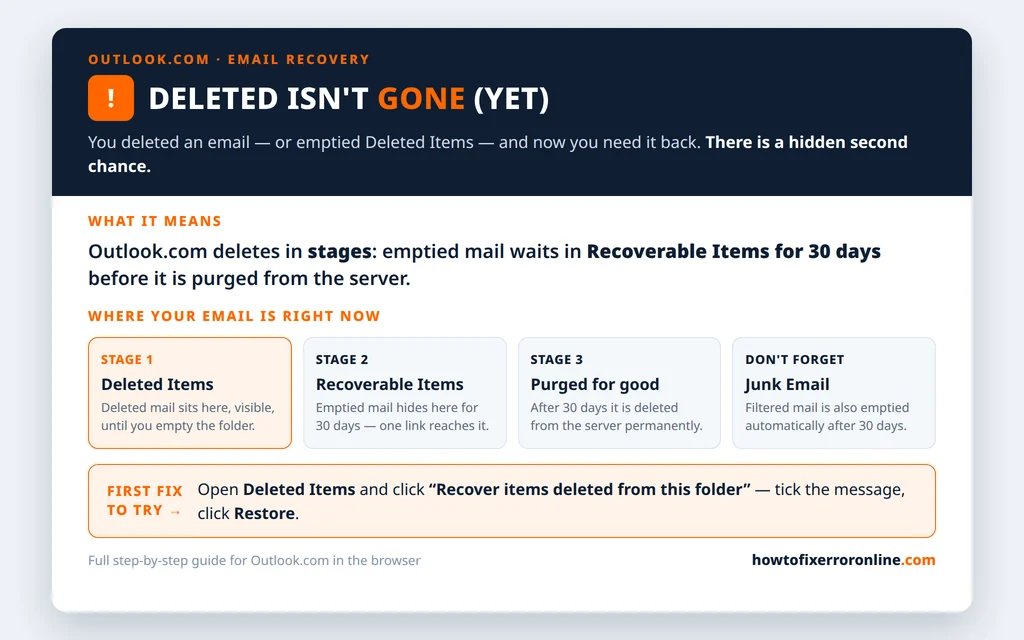
Table of Contents
Where Deleted Emails Actually Go: The 3 Stages
Understanding the stages tells you exactly where to look — and how much time you have.
- Stage 1 — Deleted Items. A normal delete (the Delete key, the trash button, a swipe) moves the message here. It is fully visible and fully recoverable, and it stays until you empty the folder.
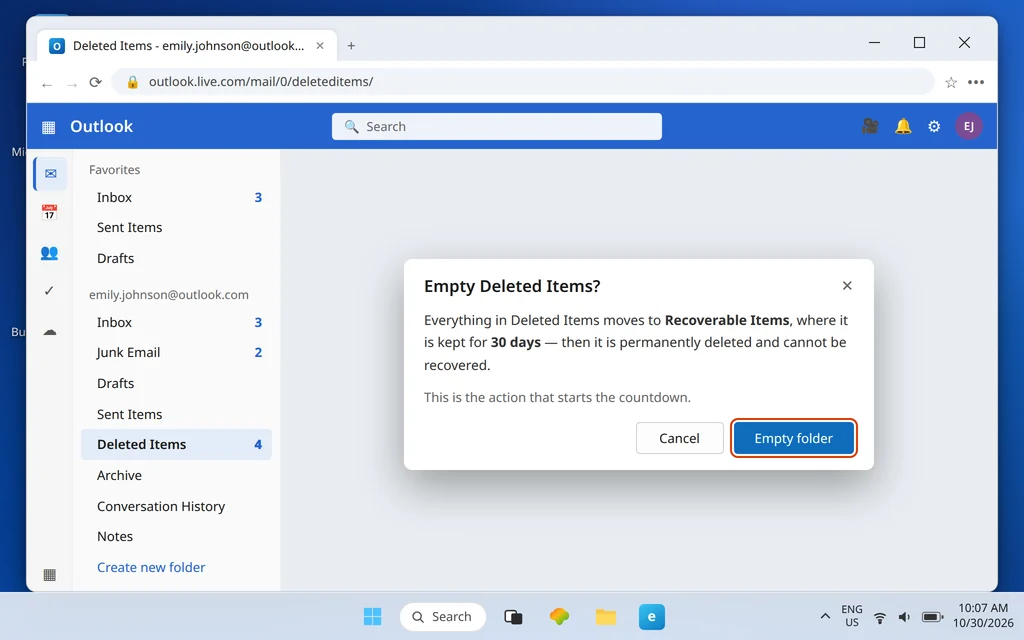
- Stage 2 — Recoverable Items. When you empty Deleted Items — or Shift+Delete a message, which skips stage 1 — the message moves to this hidden holding area. You cannot browse it like a normal folder; you reach it through one link, Recover items deleted from this folder, inside Deleted Items. Items stay here for 30 days.
- Stage 3 — Purged. After 30 days in Recoverable Items, Outlook.com deletes the message permanently from the server. At that point it is gone in the only sense that matters: there is no copy left anywhere for anyone to restore.
Junk Email runs on the same clock: messages in Junk Email are permanently emptied after 30 days as well, which is why checking it belongs in any recovery attempt — a “deleted” message sometimes turns out to have been filtered there, not deleted at all.
Step 1: Restore from Deleted Items
Start with the visible folder — most recoveries end here.
- Sign in at Outlook.com and click Deleted Items in the left folder pane.
- Find the message. If the list is long, use the search box at the top and search by sender or subject.
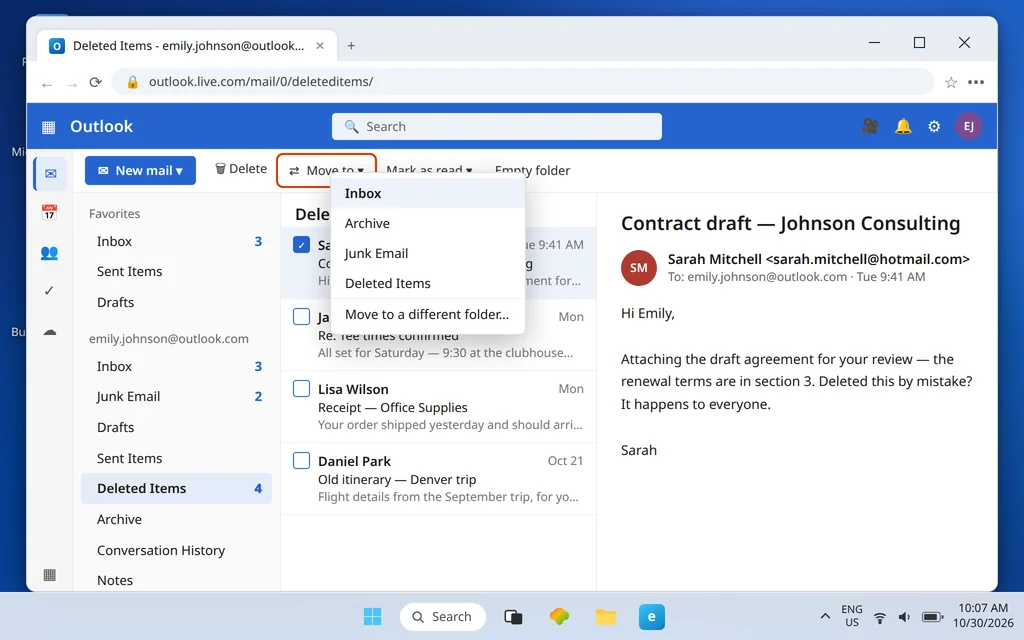
- Tick the checkbox on the message (or select several), then click Move to in the command bar and choose Inbox — or simply drag the message onto Inbox in the folder pane.
That is all a stage-1 recovery takes. If the message is not in Deleted Items — because you emptied the folder, or because you deleted it with Shift+Delete — do not give up: it has almost certainly just moved to stage 2.
Step 2: Use “Recover Items Deleted From This Folder”
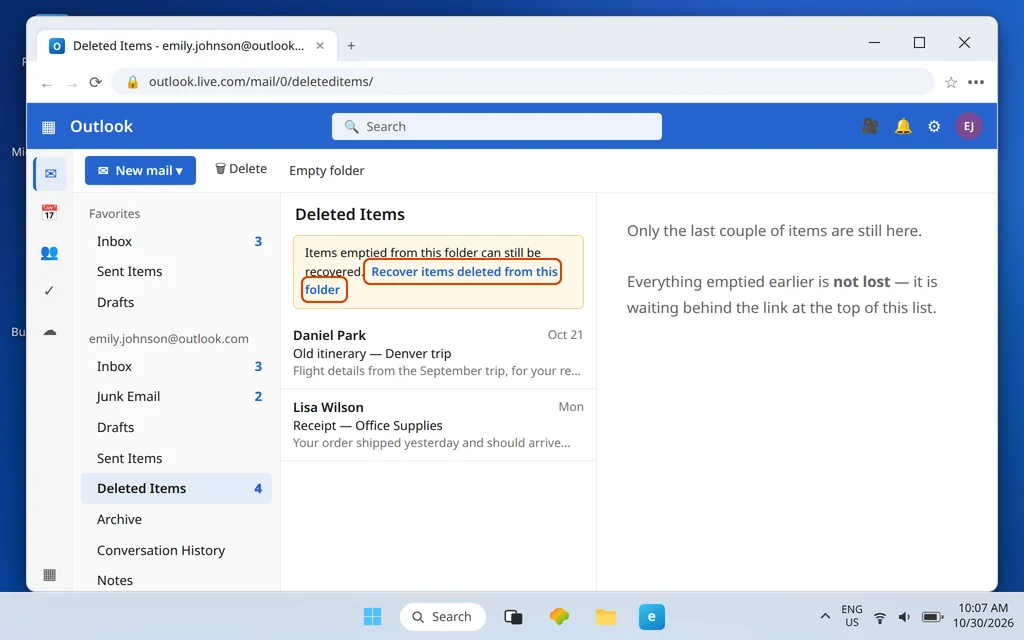
This one link is the whole of stage 2, and it is the step most people never find because nothing about the Deleted Items folder advertises it.
- Open Deleted Items again — the link lives here even when the folder looks empty.
- At the top of the message list, click Recover items deleted from this folder. (On narrower browser windows it can sit at the bottom of the list instead — scroll if you do not see it.)
- A recovery panel opens listing everything emptied from Deleted Items in the last 30 days, newest first.
- Tick the checkbox beside each message you want back.
- Click Restore.

Restored messages come back through Deleted Items — after restoring, check Deleted Items and your Inbox for them, and use Move to > Inbox on anything that landed in Deleted Items so it is back where it belongs. If a message does not reappear, re-open the recovery panel and restore it again; nothing is harmed by a second attempt while it is still inside the 30-day window. Microsoft’s guide to recovering deleted items in Outlook covers the same steps.

Recover Deleted Emails Outlook.com: How Long Is the 30-Day Window?
The clock that matters starts when a message leaves Deleted Items — the day you emptied the folder or Shift+Deleted it — not the day it first arrived or was first deleted. From that moment you have 30 days in Recoverable Items. A message can sit in Deleted Items for months without any countdown at all; the window only governs stage 2.
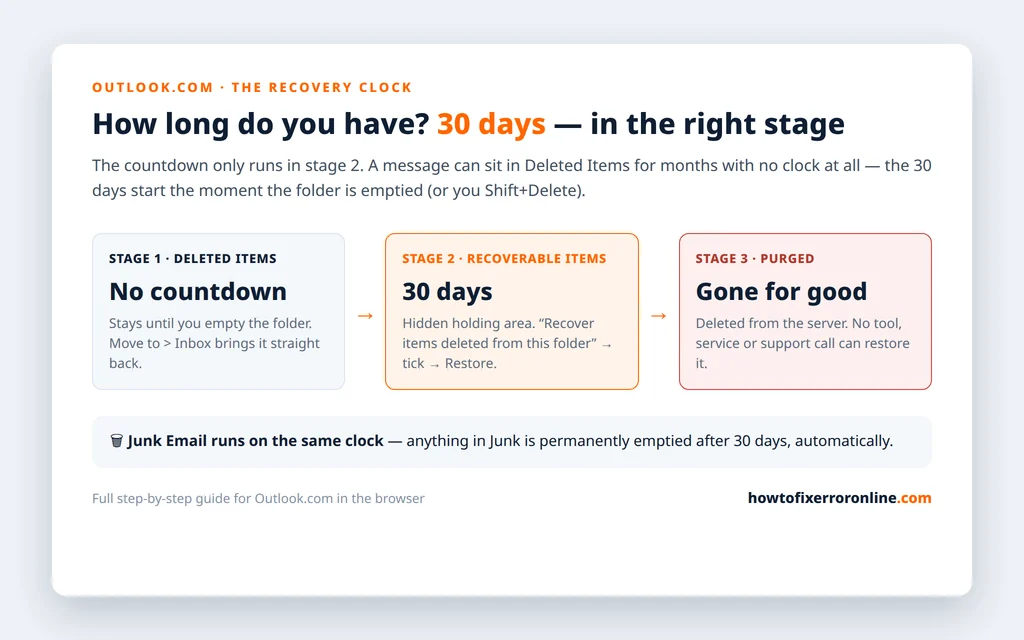
The same 30-day figure applies to Junk Email: anything in Junk is permanently emptied after 30 days, automatically, whether you touch it or not. If you are hunting for an older message, do the Junk check in the next section before assuming deletion — and do it soon, because that clock may already be running.
Check Junk Email Before It Is Purged
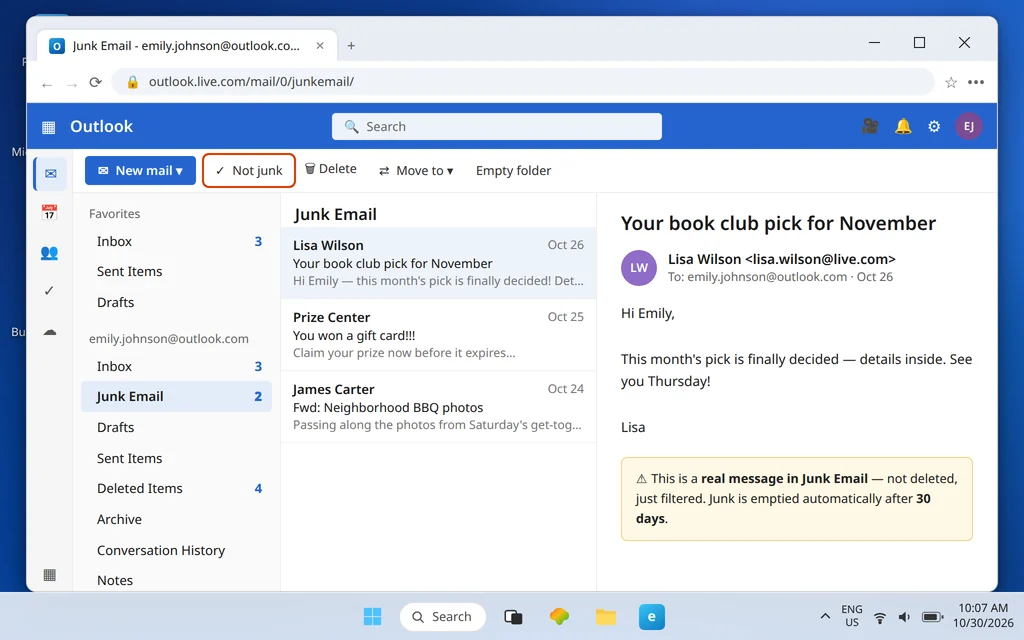
Some “deleted” emails were never deleted. A filter, a rule, or an over-eager spam decision filed them in Junk Email, where they sit quietly counting down their own 30 days.
- Click Junk Email in the left folder pane.
- Scan or search for the message.
- If you find it, select it and click Not junk (in the command bar, or right-click > Mark as not junk) — this moves it back to your Inbox and helps Outlook.com learn that this sender is legitimate.
If the missing email was sent to you by a person rather than a company, our Outlook emails going to Junk guide covers the deeper junk-filter causes and the safe-senders fix that stops it happening again.
When Recovery Is No Longer Possible
Be skeptical of anything that promises otherwise: once a message has spent 30 days in Recoverable Items, Outlook.com has purged it from the server, and it cannot be recovered — by you, by Microsoft support, or by any third-party tool or paid “email recovery” service. Webmail lives on the server; there is no file on your PC for a recovery program to scan. Any service claiming it can restore purged Outlook.com mail is selling something that does not exist.
Two narrow exceptions are worth one sentence each. If the message was also delivered to an app on your PC or phone (the Outlook app, a phone mail app), a copy may still sit in that app’s local folders — check before you conclude anything. And if someone else was a recipient, the simplest recovery of all is asking them to forward you the thread.
How to Stop Losing Emails in the First Place
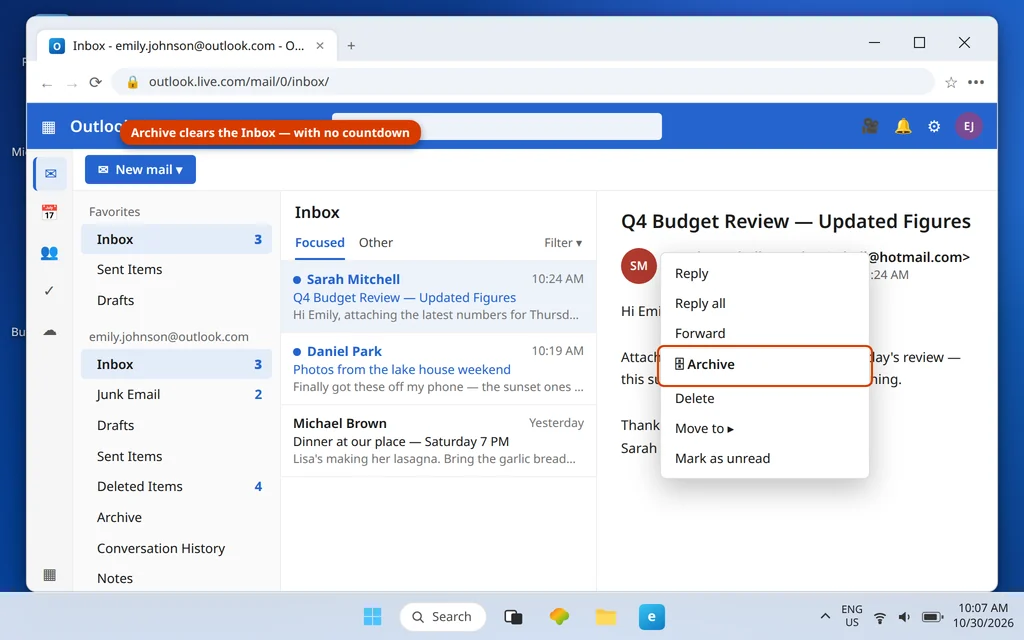
- Archive instead of deleting. Deleting feels tidy, but Archiving removes a message from your Inbox just as completely — without starting any countdown toward permanent loss. Right-click a message and choose Archive (or select it and use the Archive button).
- Treat “Empty folder” as permanent. Emptying Deleted Items is the point of no return’s front door: fine when you mean it, destructive when it is a reflex.
- Slow down on Shift+Delete. It skips Deleted Items entirely and starts the 30-day clock immediately.
- Never store the only copy in Junk’s path. If important mail keeps landing in Junk, fix the cause with the safe-senders steps in our Outlook emails going to Junk guide rather than rescuing it monthly.
Frequently Asked Questions
Can I recover emails after emptying Deleted Items in Outlook.com?
Yes — that is exactly what Recover items deleted from this folder is for. Emptying Deleted Items moves messages to the hidden Recoverable Items area, where they stay for 30 days. Open Deleted Items, click the link at the top of the list, tick the messages, and click Restore.
Where do recovered emails go?
Back into your mailbox through Deleted Items — after restoring, check Deleted Items and your Inbox, and use Move to > Inbox on any restored message so it ends up where you expect. From there it behaves like any normal message again.
Can I recover a deleted folder in Outlook.com?
Not as a folder. The recovery tools work on individual messages: if you deleted a folder, its messages passed through Deleted Items into Recoverable Items like any other deleted mail, and you can restore the messages within their 30 days — but you will need to recreate the folder yourself and move the restored messages into it.
Does this work for Hotmail and Live.com accounts?
Yes. Hotmail and Live.com addresses are Outlook.com accounts behind the older names — same folders, same Recover items link, same 30-day window. Sign in at Outlook.com with your Hotmail or Live address and follow the steps exactly as written.
Still can’t find the email? Tell us roughly when it was deleted and whether Deleted Items was emptied — that decides which stage it is in — via our Contact page: servicedesk@howtofixerroronline.com, available 24 hours. If mail is going missing in the Outlook app rather than Outlook.com, our Outlook not receiving emails guide is the right place to start instead.