
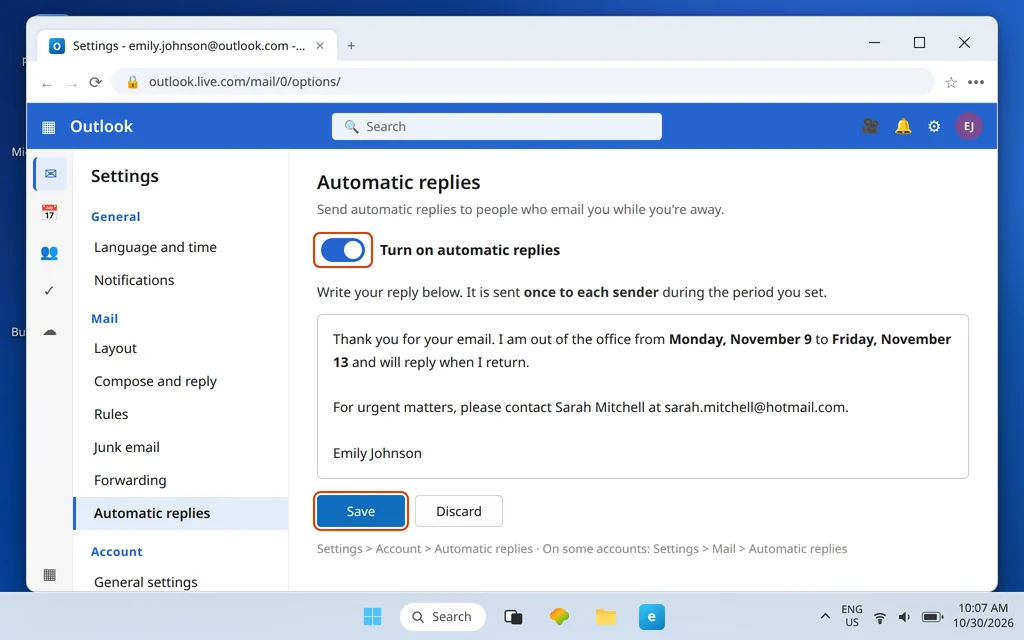
How to Set Up Automatic Replies (Out of Office) in Outlook.com
You are going away — a vacation, a conference, a week with no laptop at all — and your inbox is not coming with you. Without an out of office reply, every person who emails you gets silence, and silence reads as either rudeness or a problem. With one, they get your dates, your return, and the name of someone who can help in the meantime, automatically, the moment their message arrives.
Outlook.com calls the feature Automatic replies, and in Outlook.com it genuinely takes only a few minutes to set up: one settings page holds the switch, the schedule, the calendar actions, and the message itself. This guide walks that page top to bottom, then gives you three copy-paste messages so you never have to compose one from a blank box at midnight before a trip. One note: Hotmail and Live.com addresses are Outlook.com accounts, so the steps are identical for them too.
Quick Answer: In Outlook.com, click the gear icon (Settings) > Account > Automatic replies — on some accounts the same page appears under Settings > Mail > Automatic replies, because the labels vary. Switch on Turn on automatic replies, tick Send replies only during a time period and set your start and end, write your message, and click Save. Outlook.com sends the reply once to each sender during the period. With no end date set, it stays on until you turn it off.
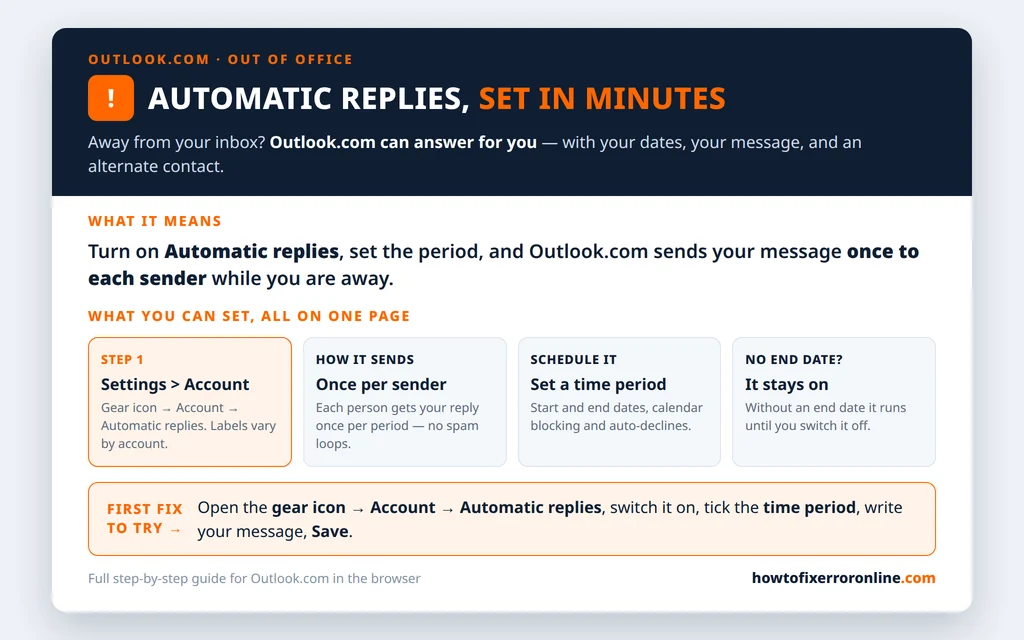
Table of Contents
Set Up Automatic Replies in Outlook.com
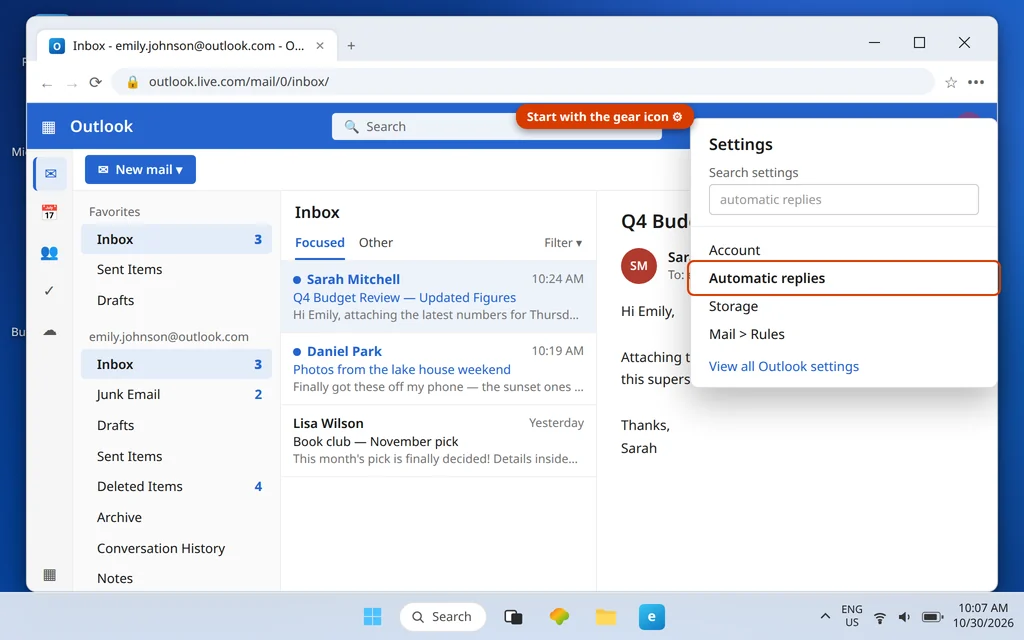
Here is the whole setup, in order. Start from your inbox:
- Click the gear icon at the top right of Outlook.com to open Settings.
- Go to Account > Automatic replies. (If your account does not show it there, look under Mail > Automatic replies instead — Microsoft has used both homes for this page, and the page itself is identical.)
- Switch on Turn on automatic replies.
- Write your message in the box — what it should say is covered below, and ready-made examples are waiting further down this page.
- Click Save.
That really is the core of it — everything else on the page is a refinement. But two of those refinements matter enough to set deliberately rather than leave on defaults: the schedule, and what happens to your calendar while you are away.
One eligibility note, so nobody troubleshoots a feature that was never available to them: automatic replies need a Microsoft-hosted mailbox — your Outlook.com, Hotmail, or Live address qualifies. If you connected a Gmail or Yahoo account to Outlook.com, that connected account does not get automatic replies; set the vacation responder inside Gmail or Yahoo’s own settings for that address instead.
Schedule Start and End Times
Sending replies only while you are actually away is what separates a professional setup from the classic mistake — colleagues getting your vacation reply three weeks after you returned because nobody switched it off. The schedule prevents that:
- On the same Automatic replies page, tick Send replies only during a time period.
- Set the start date and time — the moment you want replies to begin, typically when you leave.
- Set the end date and time — when you are back and reading mail again.
- Glance at the time zone shown beside the times and confirm it matches yours; the schedule runs on that clock.
- Save.
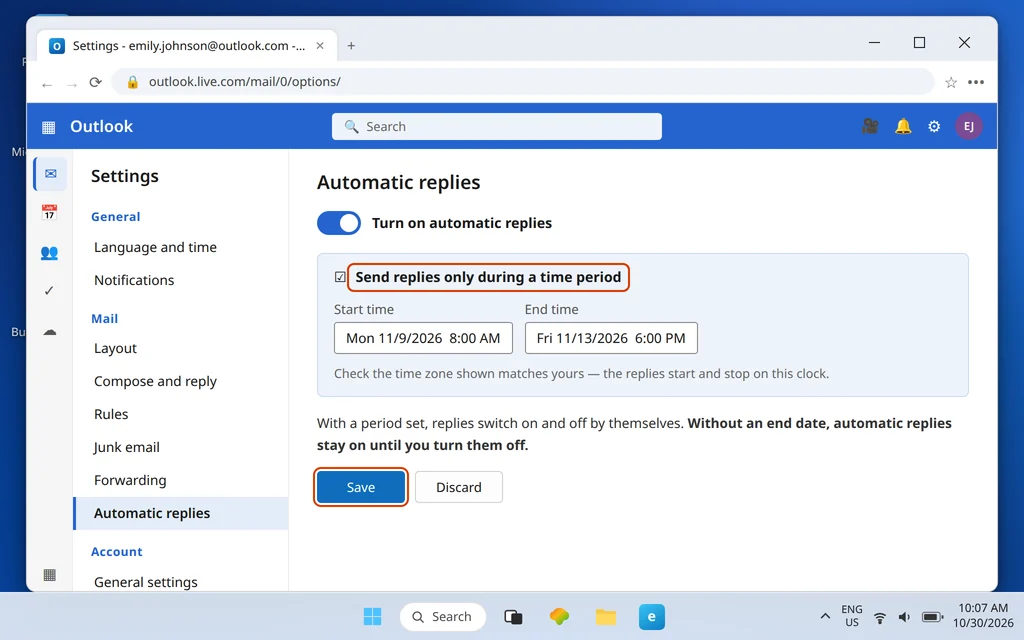
With a period set, replies start and stop by themselves. The flip side deserves bold type: if you do not set an end date, automatic replies stay on until you switch them off manually. That is the right choice for an open-ended absence — and a trap for a fixed one. When in doubt, set the period.
Block Your Calendar and Decline Meetings
The same page offers three calendar actions for the period, all optional, all worth a deliberate decision:
- Block my calendar for this period — your calendar shows you as out of office for the whole stretch, so people stop inviting you to things you cannot attend.
- Automatically decline new invitations for events during this period — new invites for those dates are declined for you, with your absence as the reason, instead of sitting unanswered.
- Decline and cancel my meetings during this period — the strong option: it also cancels meetings in the period that you had already accepted.
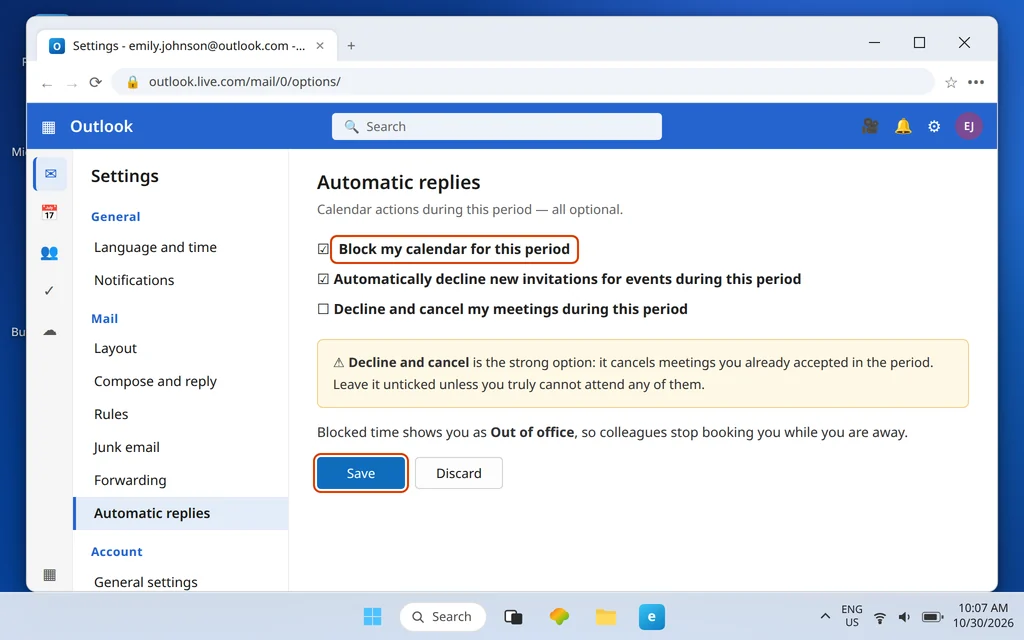
Tick the first two freely; they only affect new behavior during your absence. Think twice about the third. Cancelling accepted meetings is sometimes exactly right — a full week offline — and sometimes an overreaction that creates a rescheduling mess for a two-day trip. If your existing meetings should survive, leave it unticked and let the block and the auto-decline do the work.
Reply Only to Contacts
One more option sits beside the message box: Send replies only to contacts.
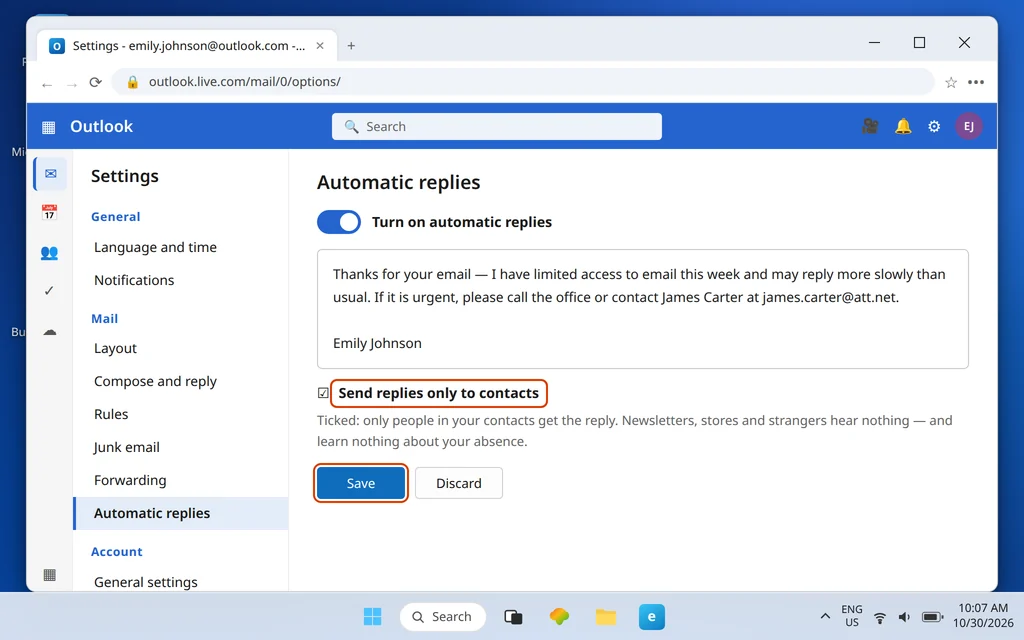
With it ticked, only people in your contacts receive your reply. Everyone else — newsletters, stores, cold senders, strangers — gets nothing, and learns nothing about the fact that you are away and your inbox is unwatched. That privacy angle is the real reason to use it: an out of office message is, after all, an announcement that nobody is home. Use the option when your inbox gets a lot of mail from people who do not need to know your schedule; leave it unticked when clients or customers outside your contacts genuinely need the alternate contact in your message.
While you are away, your mail keeps arriving and piling up exactly as usual — if you want it landing pre-sorted rather than in one Monday-morning heap, set up a few filing rules first using our Outlook.com rules guide; rules keep filing mail while you are away, so project mail, receipts, and newsletters are already in their folders when you return.
3 Copy-Paste Out of Office Messages
Copy, swap in your dates, your alternate contact, and your name, and paste into the message box. All three are written for Emily Johnson — replace her details with yours.
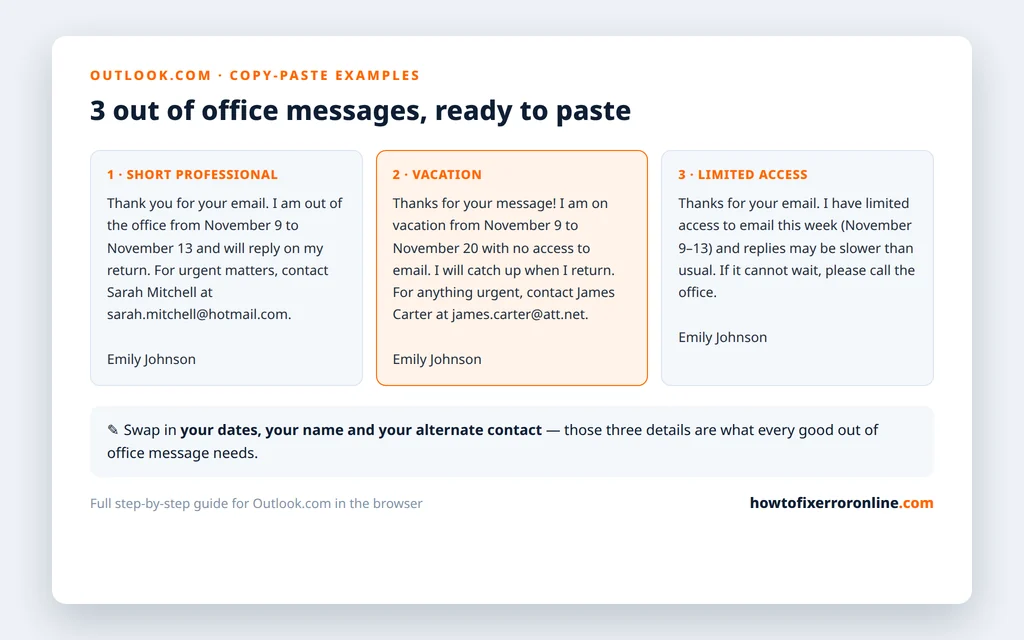
1. Short professional — the default for most trips:
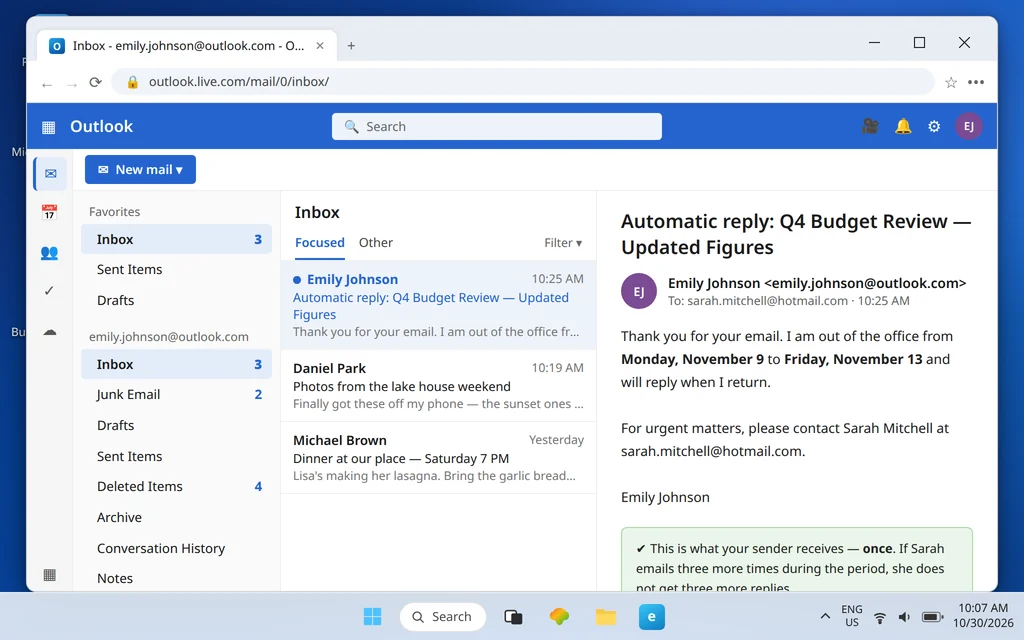
Thank you for your email. I am out of the office from Monday, November 9 to Friday, November 13 and will reply when I return. For urgent matters, please contact Sarah Mitchell at sarah.mitchell@hotmail.com.
Emily Johnson
2. Vacation — no email access at all, longer absence:
Thanks for your message! I am on vacation from Monday, November 9 to Friday, November 20 with no access to email, and I will catch up when I return. For anything urgent in the meantime, please contact James Carter at james.carter@att.net.
Emily Johnson
3. Limited access — you are working, just slowly:
Thanks for your email. I have limited access to email this week (November 9–13) and may reply more slowly than usual. If your message cannot wait, please call the office.
Emily Johnson
Notice what all three share, because they are the three things every good out of office message needs: the dates, an honest statement of access, and a named human for urgent matters. Skip the travel details, the destination, and the apology essay — your senders need logistics, not your itinerary.
And here is what your sender actually receives — sent once per sender per period, so a colleague who emails you four times on Monday gets one reply, not four:
Turn Automatic Replies Off
Back early, or back on time and ready to be reachable again:
- Gear icon > Account > Automatic replies (or Mail > Automatic replies, wherever your account keeps it).
- Switch Turn off automatic replies.
- Save.
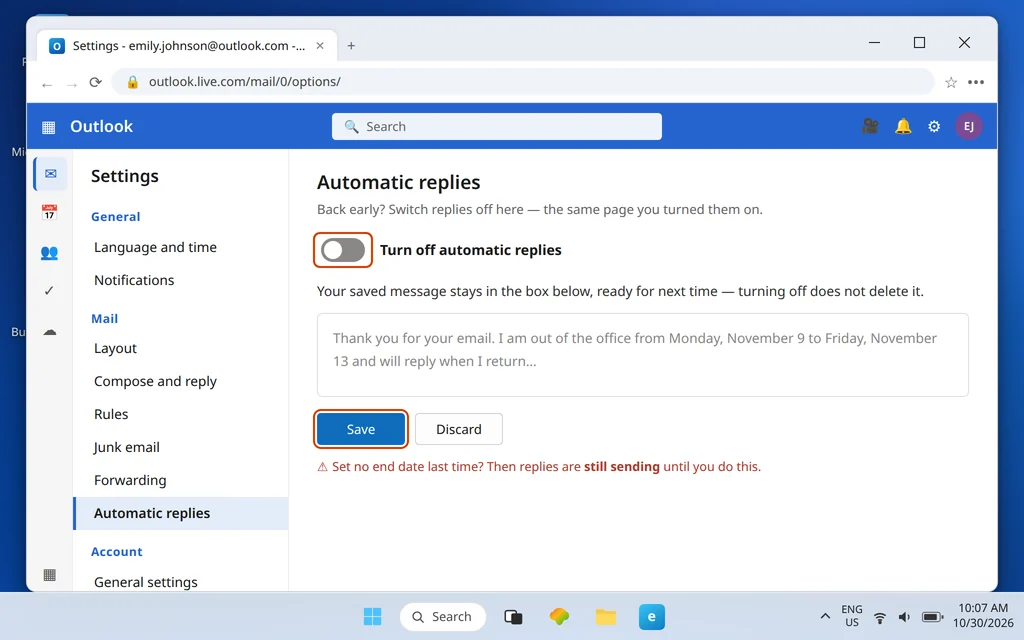
Your message stays saved in the box for next time; turning replies off does not delete it. And if you set a time period when you left, this section is a belt-and-suspenders check rather than a necessity — the replies already stopped on schedule. The people who need this section most are the ones who set no end date: for them, this switch is the only off there is.
Why Automatic Replies Aren’t Sending
Work this short list before assuming the feature is broken:
- You never clicked Save. Every change on the page — toggle, dates, message, contacts option — is only real after Save. This is the most common cause by a wide margin.
- The period has not started, or already ended. Check the start and end against today’s date, and check the time zone beside them.
- The sender already got one. Replies send once per sender per period. Test with a different sending address — emailing yourself from a second account you also received a reply on proves nothing.
- You ticked “only to contacts” and your test sender is not in your contacts. That is the option working as designed.
- The account is a connected Gmail or Yahoo account. Automatic replies require a Microsoft-hosted mailbox; connected third-party accounts do not get the feature in Outlook.com.
- You are checking the wrong mailbox. The reply comes from the account it was set on — a reply set on your Outlook.com address does nothing for mail sent to a different address you also use.
How to Stop Out of Office Replies Coming Back to Haunt You
The replies themselves never “come back” — but the two habits below are behind nearly every out of office embarrassment, so treat them as the prevention section of this guide:
- Always set an end date for a fixed trip. No end date means on forever. The schedule is the difference between a feature and a time bomb.
- Turn it off the day you return if you set it manually — and send yourself a test email from another account (Daniel Park at daniel.park@msn.com or Lisa Wilson at lisa.wilson@live.com can be your willing testers, in the sense that any second mailbox works) to confirm it has stopped.
- Reuse the saved message, update the dates. The message box keeps your text; future setups take one minute when all you change is the period.
- Pair it with rules before long trips. Replies handle senders; rules handle the pile. Together they make the first morning back almost pleasant.
Frequently Asked Questions
Where are automatic replies in Outlook.com settings?
At Settings (gear icon) > Account > Automatic replies. On some accounts the same page appears under Settings > Mail > Automatic replies — the labels vary between accounts, but the page, the toggle, and every option on it are the same.
Does Outlook.com send the reply to the same person twice?
No. Replies send once per sender per period — if someone emails you five times while you are away, they receive your automatic reply once, on the first message. A new period (or turning replies off and on again for a new trip) resets that.
What happens if I don’t set an end date?
Automatic replies stay on indefinitely, until you return to the same settings page and switch them off. For open-ended leave that is the correct setup; for a fixed trip, always set the time period instead.
Do automatic replies work for a Gmail account connected to Outlook.com?
No. The feature requires a Microsoft-hosted mailbox — Outlook.com, Hotmail, and Live addresses qualify. Connected Gmail and Yahoo accounts do not get Outlook.com automatic replies; use that provider’s own vacation responder for those addresses.
Can I send automatic replies only to people I know?
Yes — tick Send replies only to contacts on the Automatic replies page before you Save. Only people in your contacts will receive the reply; everyone else gets silence, which also keeps your absence private from strangers and bulk senders.
Setting this up at the last minute before a trip? If your Settings page does not match the paths above, tell us what yours shows via our Contact page: servicedesk@howtofixerroronline.com, available 24 hours. And while you are preparing to be away, our Outlook.com rules guide will keep your inbox filing itself until you are back.