
Outlook.com Attachments Not Downloading or Uploading? Fix Both Directions
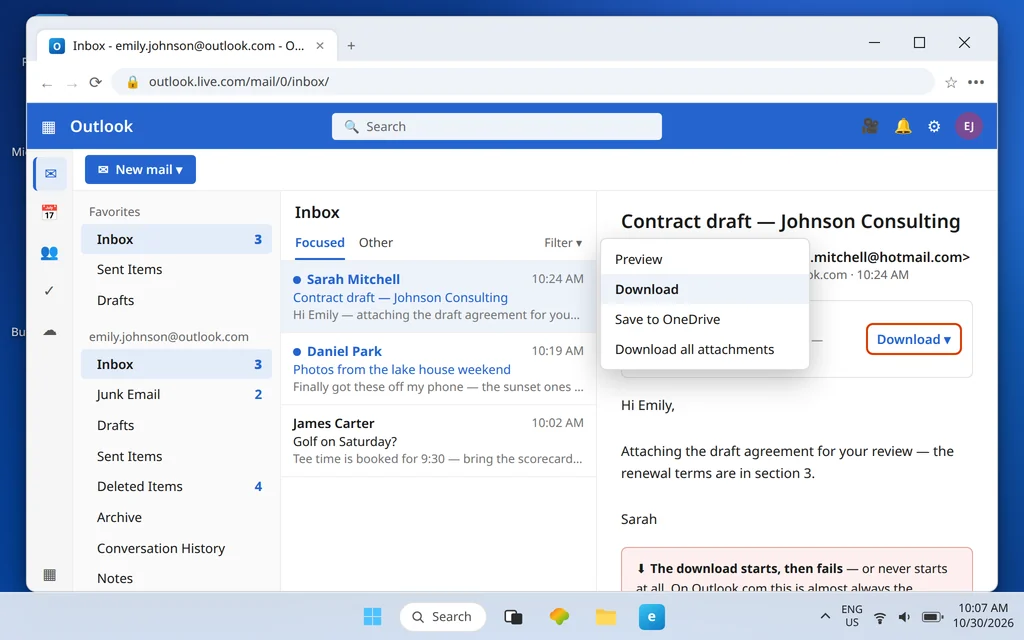
Attachments fail in Outlook.com in two directions, and they are different problems wearing similar clothes. Downloads click and nothing happens — or start and die with a failure message. Uploads spin, then announce “The following files couldn’t be attached” and drop your file entirely. Because this is webmail, almost nothing here is wrong with the email itself: downloads fail in the browser or in one mailbox setting, and uploads fail on size, file type, or the same browser. If outlook.com attachments not downloading is the problem you searched for, start with the direction that matches yours.
Work through the half that matches your direction. Downloads come first — they are the direction most people search for — and the upload fixes follow. One note before we start: Hotmail and Live.com addresses are Outlook.com accounts, so every step applies to them identically.
Quick Answer: For downloads: try a private window, then a different browser. If it works there, clear cache and cookies for outlook.live.com and disable extensions — ad blockers first. Still stuck? Use Save to OneDrive, Download all as a zip, or the light version (add ?layout=light to the URL), and check Settings > General > Language and time matches your real location. For uploads: check the file is under 25 MB and not a blocked type (.exe, .cmd, .com, .cab); zip it or attach it as a OneDrive link instead.
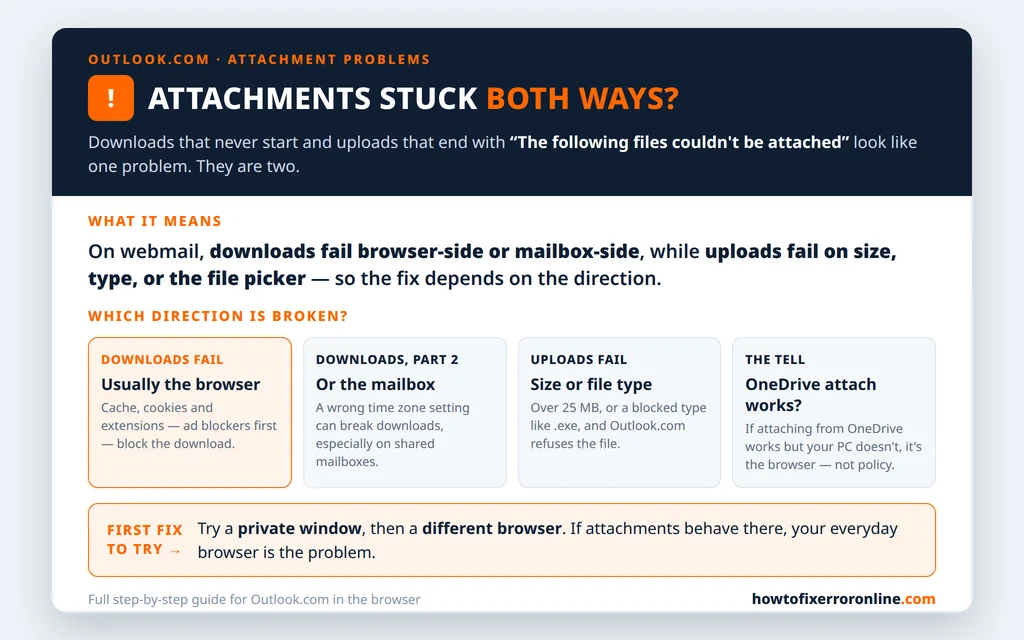
Table of Contents
Outlook.com Attachments Not Downloading: Try Another Browser or a Private Window
This first test is also the diagnosis, so do not skip it even if it feels too simple.
- Open a private (InPrivate/Incognito) window in your usual browser, sign in at Outlook.com, and try the download again.
- If it still fails, try a completely different browser — Edge if you normally use Chrome or Firefox, and vice versa.
- Note the result carefully; it splits the whole problem in two:
- Works in the private window or the other browser: your everyday browser profile is the cause — cache, cookies, or an extension. Go to the next section.
- Fails everywhere: the problem is mailbox-side or network-side. Skip ahead to the workarounds and the time zone fix.
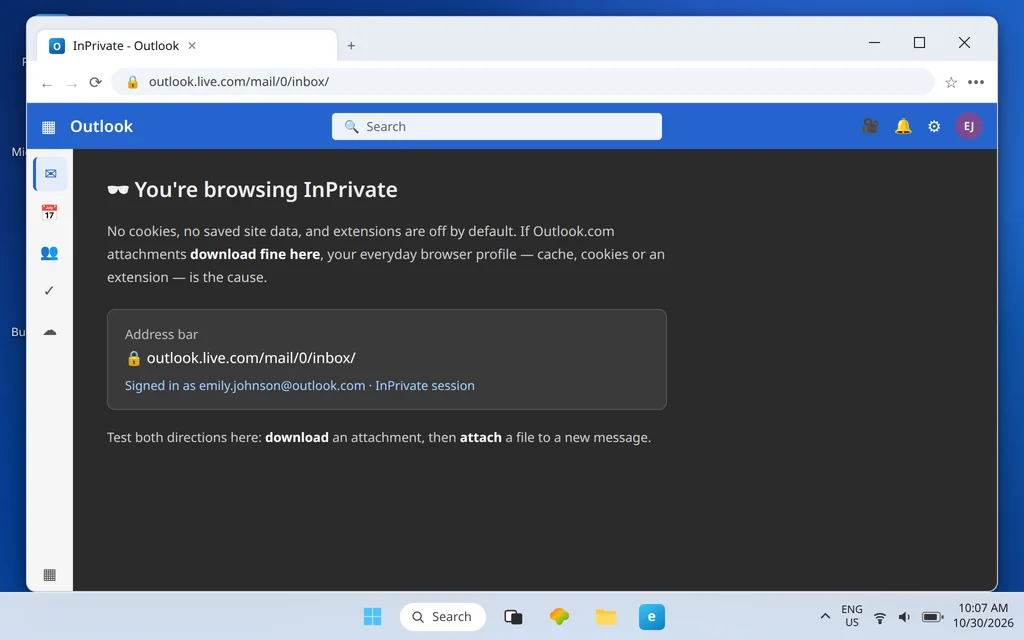
A private window works because it starts clean: no saved cookies, no cached files, and extensions off by default. When a download succeeds there, you have not “fixed” anything yet — but you have proved the file, the mailbox, and Microsoft’s servers are all fine, and the fault lives in your normal browser setup.
Clear Outlook Site Data and Disable Extensions
With the private-window test pointing at your browser, clear the two suspects in order.
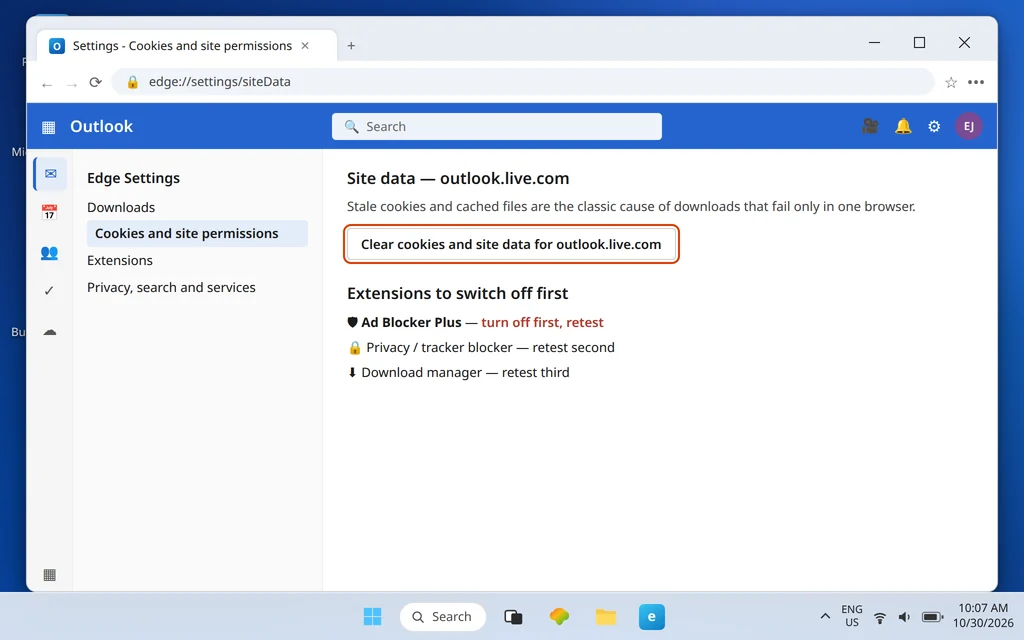
- Clear cache and cookies for outlook.live.com specifically. In Edge: Settings > Cookies and site permissions > Manage and delete cookies and site data > See all cookies and site data — search for outlook.live.com and remove it. In Chrome: Settings > Privacy and security > Third-party cookies > See all site data and permissions — same search. You will be signed out of Outlook.com; sign back in and retest.
- Disable extensions, ad blockers first. Ad blockers are the named culprit in report after report: their filters can treat an attachment download as a pop-up or a tracker request and kill it silently. Turn extensions off, retest, then re-enable them one at a time until the download breaks again — the last one you switched on is the cause. Leave that one disabled on Outlook.com, or remove it.
- Check your antivirus or firewall is not intercepting downloads. Security software that scans downloads in the browser can stall webmail attachments; a quick test with its web shield paused (briefly, then back on) settles it.
In the large majority of download cases, the problem ends here. If yours did not — or you need the file right now, before any more troubleshooting — the workarounds in the next section are deliberately unglamorous and very effective.
Save to OneDrive and Other Workarounds That Just Work
These routes fetch the same file by a different path, bypassing whatever the direct download is tripping over:
- Save to OneDrive. Click the attachment’s dropdown arrow and choose Save to OneDrive, then download the file from OneDrive instead. This is the workaround that most often “just works,” because the browser never handles the webmail download directly.
- Download all as a zip. If the message has several attachments, the dropdown’s Download all option packs them into a single zip file — one download instead of several, and often through a path that behaves differently.
- Forward the email to yourself. Forward the message to your own address and download the attachment from the fresh copy that arrives. Odd, but effective when the original message or its attachment entry is the corrupted piece.

Use a workaround to get your file, by all means — but if downloads keep failing afterward, still finish the time zone check below, because that one is a genuine mailbox fault rather than a browser quirk.
Fix the Time Zone Setting
The mailbox-side download cause is unintuitive but real: if the time zone set in Outlook.com does not match where you actually are, attachment downloads can fail — a pattern reported especially with shared mailboxes, where the setting was configured by someone in a different place or never configured at all.
- In Outlook.com, open Settings > General > Language and time.
- Check the Time zone value against your real location and correct it if it is wrong.
- Save, then retry the download.
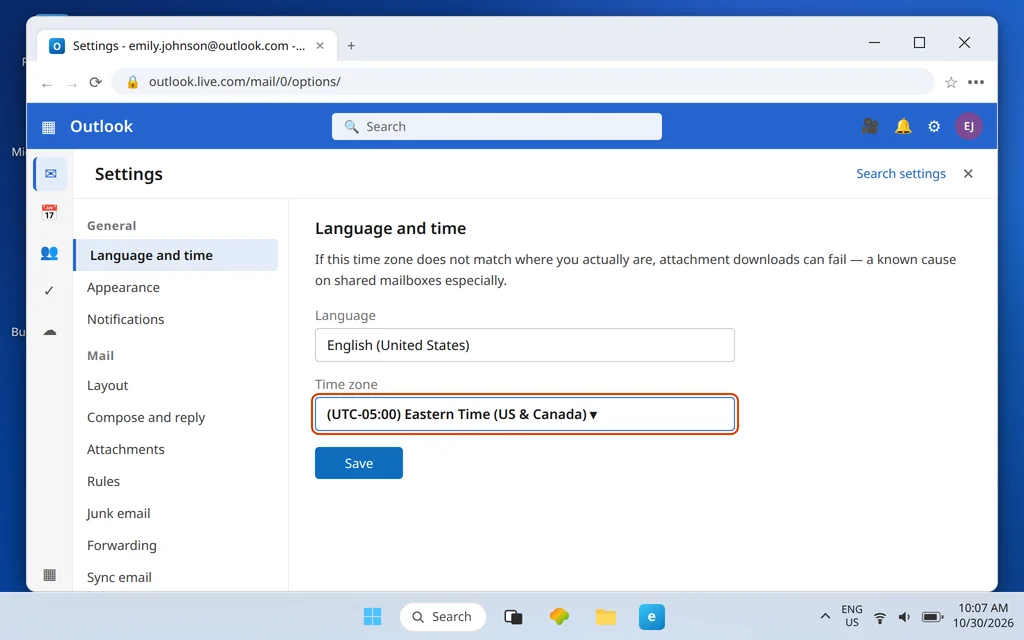
Thirty seconds, once — and worth doing even when a browser fix seemed to work, because a wrong time zone also skews calendar invites and the timestamps other people see on your mail.
The Light Version Trick
If every download still fails, Outlook.com has a stripped-down interface that skips most of the scripting the full version depends on — and broken scripts are exactly what breaks downloads.
- Go to your Outlook.com tab and click into the address bar.
- Add ?layout=light to the end of the URL — for the inbox, that gives you outlook.live.com/mail/0/inbox/?layout=light — and press Enter.
- Open the message in the plain interface and use the simple Download link beside the attachment.
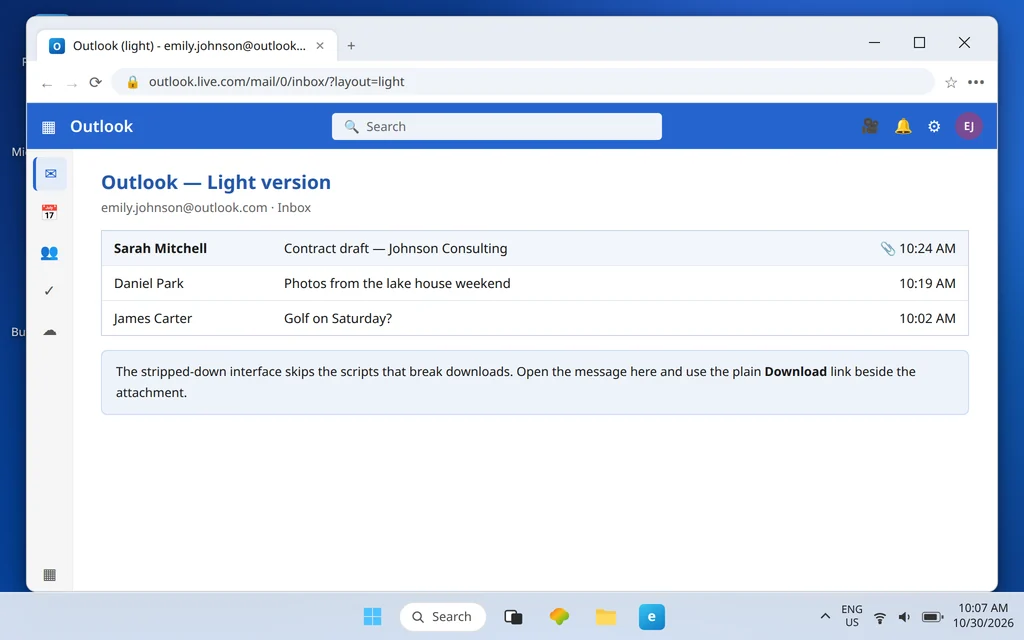
The light version is a diagnostic and a lifeboat, not a home: it is missing most modern features. If attachments download fine here but nowhere else in the full interface, your browser’s handling of the full Outlook.com app is the fault — keep the browser updated, and consider the workaround routes above as your standing method until a browser update settles it.
Uploads: Size and Blocked File Types
Switching direction: when a file will not attach at all, check the two hard limits before touching any settings, because no setting overrides them.
- Maximum attachment size: 25 MB. A file over 25 MB cannot be attached to an Outlook.com message, full stop. The fix is not compression heroics — it is to upload the file to OneDrive and attach it as a OneDrive link instead, which is what Outlook.com itself suggests for large files.
- Blocked file types are refused. Executable and script types — .exe, .cmd, .com, .cab and their relatives — are blocked for security, and renaming the extension does not fool the check. To send one legitimately, put it in a zip file, or again, share it as a OneDrive link.
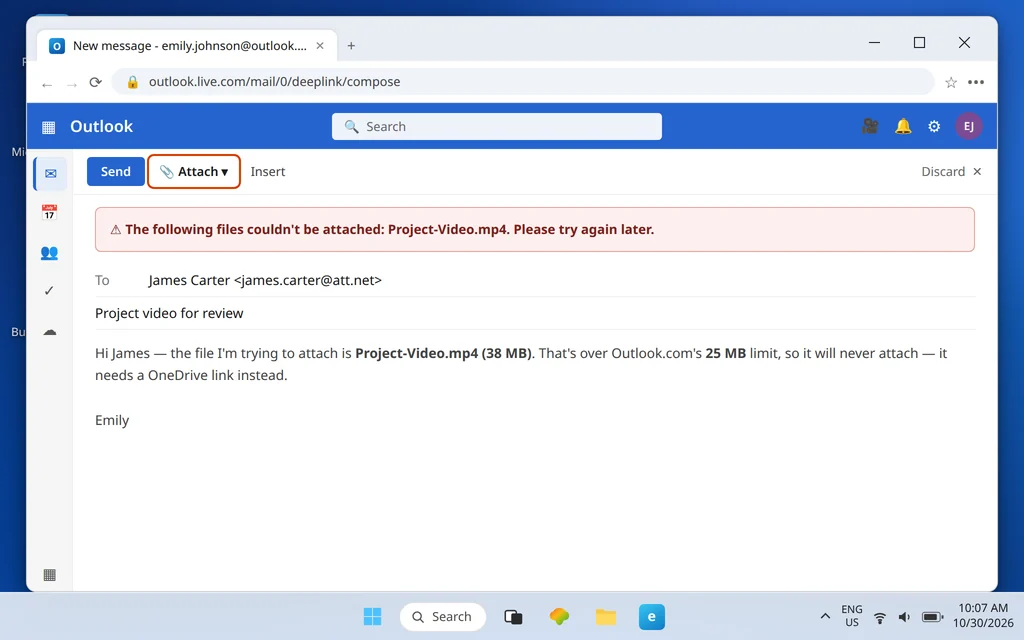
Also rename files with very long names or special characters before attaching — a name stuffed with symbols, or a path-length name copied from deep inside a folder tree, can fail the attach for reasons that have nothing to do with the file’s contents. A short, plain name (Report-October.pdf rather than a 90-character sentence) removes that whole category of failure.
“The Files Couldn’t Be Attached” — the Browser Fix
If the exact error is “The following files couldn’t be attached: [file]. Please try again later.” and your file is small and ordinary, use this tell to split the cause: try attaching from OneDrive instead of from your computer.
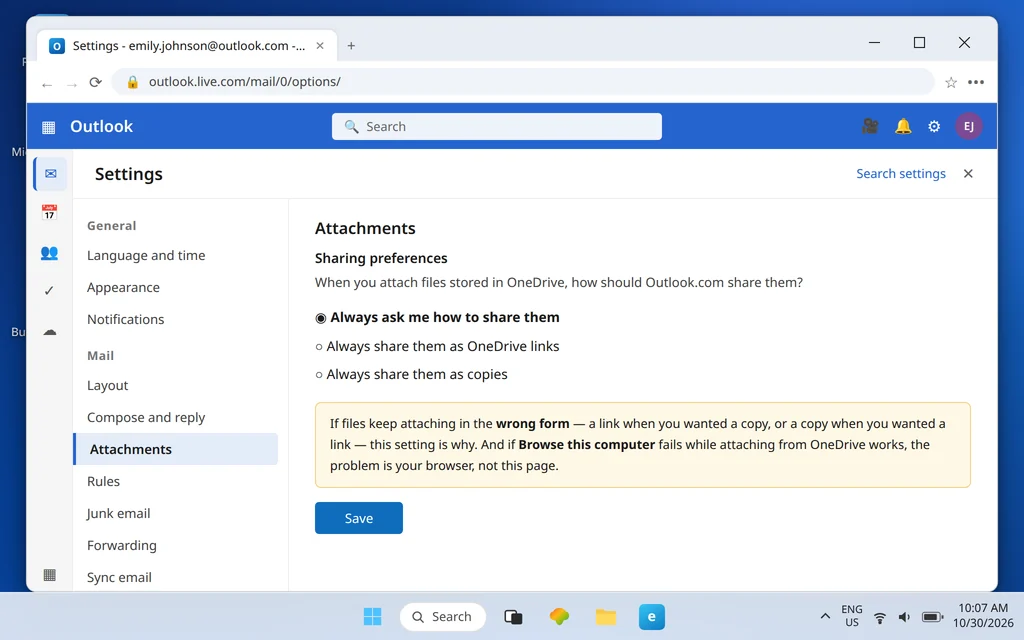
- OneDrive attach works, “Browse this computer” fails: it is the browser, not a policy or a file problem. The file-picker path is broken in that browser profile. Fix it the same way as downloads: private window to confirm, clear cache and cookies for outlook.live.com, disable extensions, and make sure the browser itself is fully updated.
- Both routes fail: re-check the size and type limits above — and if the file attaches but arrives in the wrong form (a link when you wanted a copy, or a copy when you wanted a link), check Settings > Mail > Attachments and set the sharing preference there to Always ask, OneDrive links, or copies to match how you actually work.
One boundary worth knowing: if your problem is in the new Outlook app for Windows rather than Outlook.com in a browser — the app shows its own “error downloading file content” message — the fixes live in our New Outlook “Error downloading file content” guide instead; the two fix lists are deliberately separate because the causes are different. And if attachments have quietly filled your storage over the years, our Outlook.com mailbox full guide shows how attachment weight counts against you and how to clear it.
How to Stop Attachment Problems Coming Back
- Keep the everyday browser clean for webmail. An up-to-date browser, a short extension list, and site data cleared when things get weird prevents most download failures outright.
- Test in a private window before you troubleshoot. Ten seconds there tells you whether to fix the browser or the mailbox — guesswork removed.
- Default to OneDrive links for anything big. Files anywhere near 25 MB should travel as links from the start; it is faster for the recipient too.
- Watch the names. Short file names with plain characters attach first time, every time.
Frequently Asked Questions
Why do Outlook.com attachments download in one browser but not another?
Because the failure lives in the failing browser’s profile — stale cookies or cache for outlook.live.com, or an extension (ad blockers first) intercepting the download. The file and the mailbox are proven fine by the browser that works. Clear that site’s data and disable extensions to fix the profile itself.
What is the maximum attachment size on Outlook.com?
25 MB per message. Larger files cannot be attached at all — upload them to OneDrive and share them as a OneDrive link, which is the route Outlook.com is designed around for big files.
Why won’t Outlook.com let me attach an .exe file?
Executable types — .exe, .cmd, .com, .cab and similar — are blocked by design, because they are the classic malware carriers. Renaming the file does not bypass the check. Zip the file, or share it via a OneDrive link, to send it legitimately.
What does “The following files couldn’t be attached” mean?
It is Outlook.com’s generic upload failure. If the file is over 25 MB or a blocked type, the limit is the cause. If it is small and ordinary, the browser usually is — especially when attaching from OneDrive works while “Browse this computer” fails. Start with a private window, then clear site data and disable extensions.
Does this work for Hotmail accounts?
Yes. Hotmail and Live.com addresses are Outlook.com accounts behind the older names — same webmail, same 25 MB limit, same fixes.
Still stuck in one direction only? Tell us which — downloads or uploads — plus the exact error wording and the browser you are using, via our Contact page: servicedesk@howtofixerroronline.com, available 24 hours. Those three details decide the fix almost every time.