
Verizon Email Not Sending in Outlook: The smtp.verizon.net Fix
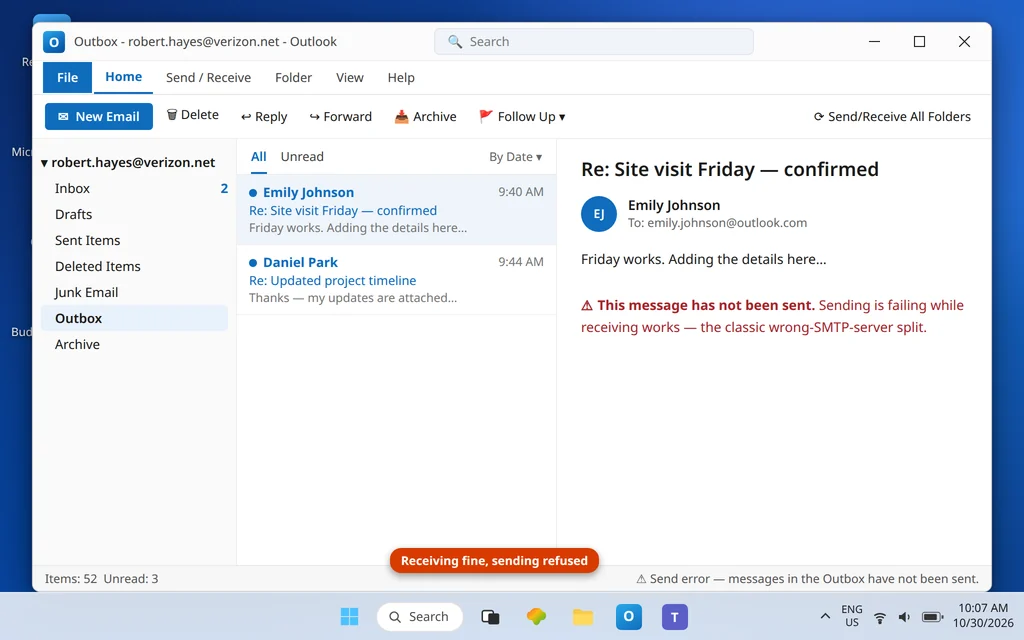
If your @verizon.net email receives perfectly in Outlook but every message you write sits in the Outbox or bounces back with a send error, you have probably met the strangest detail in the whole Verizon-to-AOL story. Since 2017 your mailbox lives on AOL’s platform — incoming mail genuinely comes from AOL’s servers — and that leads nearly everyone to assume the outgoing server must be smtp.aol.com. It is not. Verizon’s outgoing server kept its Verizon name: smtp.verizon.net. Set the AOL one and sending fails while receiving works — exactly the symptom you have. Verizon email not sending in Outlook is almost always a send-side settings problem, not a broken account.
This guide fixes the sending side: the correct SMTP host and port, the AOL app password doing double duty, and SMTP authentication switched on. If instead you cannot receive, start with Verizon Email Not Receiving in Outlook — the receiving fixes (webmail check, imap.aol.com) live there. If sending is broken for every account in Outlook rather than just the Verizon one, see Outlook Not Sending Emails but Can Receive.
Quick Answer: In Outlook’s account settings, set the outgoing server (SMTP) to
smtp.verizon.net, port 465, SSL — not smtp.aol.com. Open More Settings → Outgoing Server, tick “My outgoing server (SMTP) requires authentication” and choose “Use same settings as my incoming mail server”, so the SMTP side presents your AOL app password (generated in AOL Account Security). Empty the Outbox of stuck messages, then send a fresh test. Nine times out of ten the “Verizon won’t send” problem is the wrong SMTP hostname.
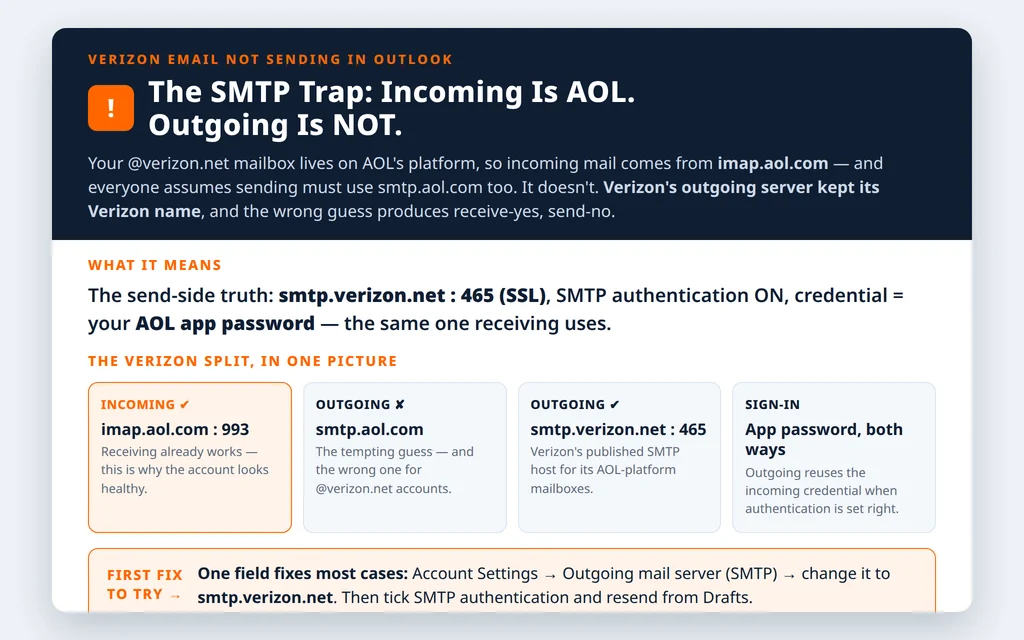
Table of Contents
Fix 1 — Correct the outgoing server for Verizon email not sending in Outlook: smtp.verizon.net
Open File → Account Settings → Account Settings → select the Verizon account → Change, and look at the Outgoing mail server (SMTP) field. The full, current table for a Verizon account on the AOL platform is:
| Setting | IMAP (recommended) | POP |
| Incoming server | imap.aol.com : 993 SSL | pop.verizon.net : 995 SSL |
| Outgoing server (SMTP) | smtp.verizon.net | smtp.verizon.net |
| SMTP port | 465 (SSL) | 465 (SSL) |
| SMTP authentication | Required — same settings as incoming | Required |
| User name | Full @verizon.net address | Full @verizon.net address |
| Password (both directions) | AOL app password | AOL app password |
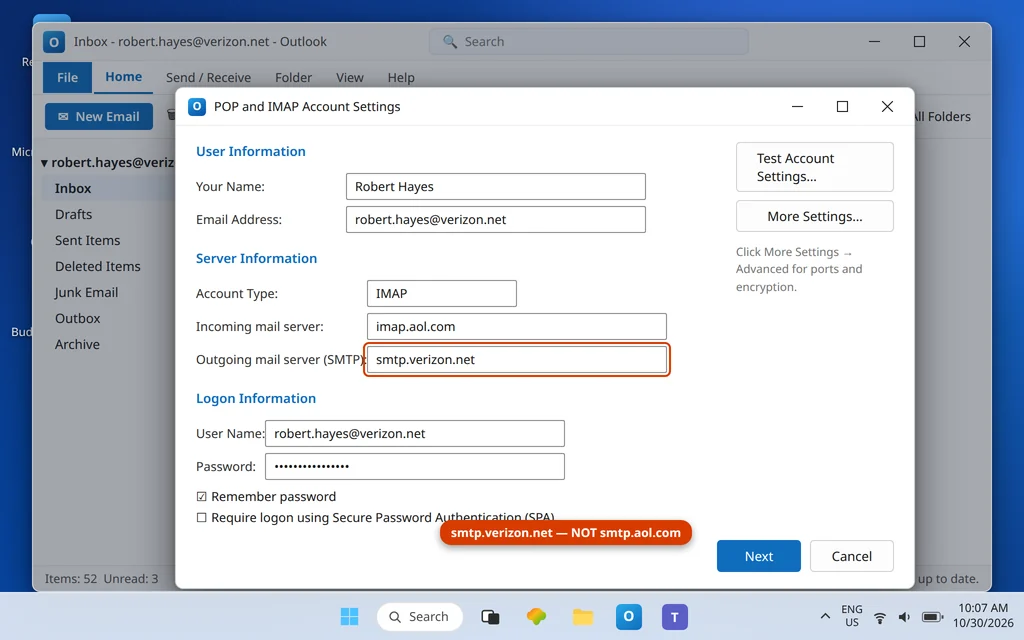
Anything else in that field — above all smtp.aol.com, but also any retired pre-2017 Verizon host — breaks sending while leaving receiving untouched, which is why this fault hides so well: the account looks healthy.
Fix 2 — Turn on SMTP authentication, reusing the app password
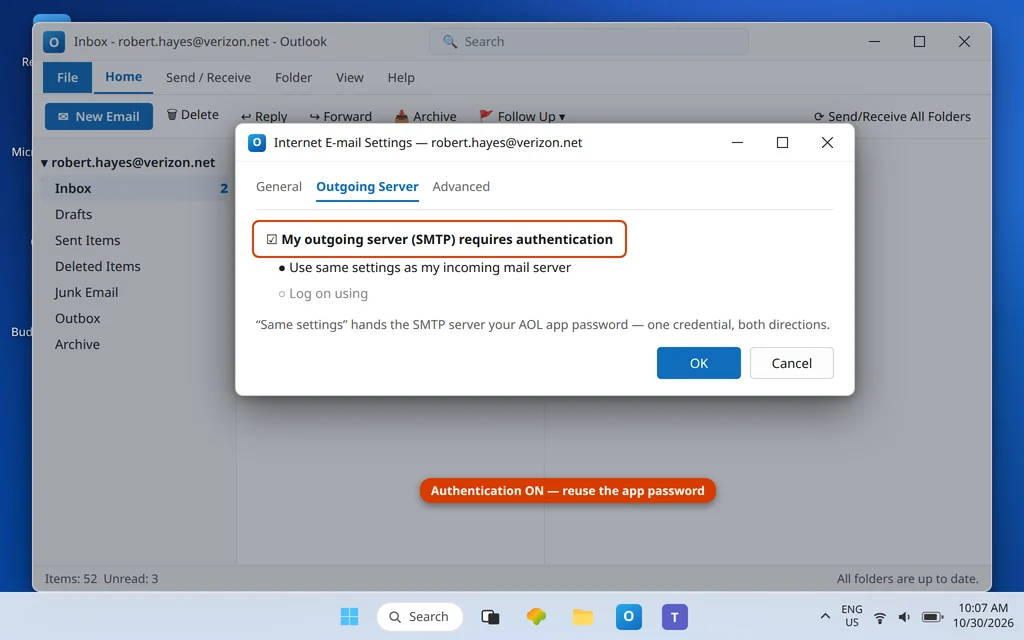
A correct server name is not enough; the server also demands a sign-in. Click More Settings → Outgoing Server and tick My outgoing server (SMTP) requires authentication, with Use same settings as my incoming mail server selected. That makes the send side present the same credential as the receive side — your AOL app password.
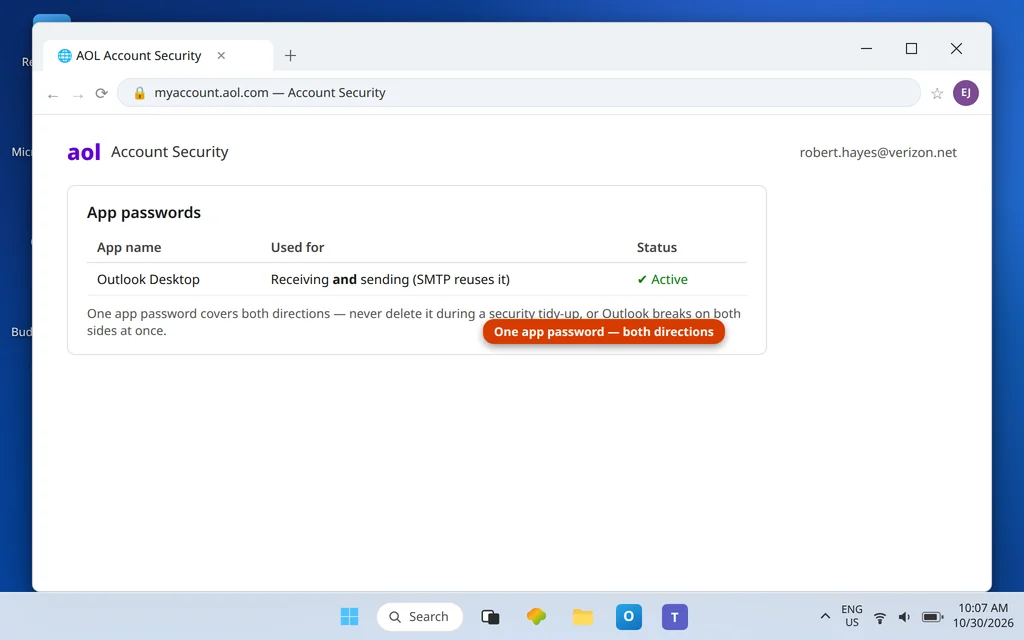
If you never generated one (because receiving was set up for you, or worked through an older path), create it now: sign in at AOL → Account Security → Generate app password, name it “Outlook Desktop”, and paste it into the account’s password field in Outlook. One app password covers both directions.
AOL’s own guide, Create and manage 3rd-party app passwords, walks through generating one for a third-party app like Outlook.
Fix 3 — Keep the port and encryption pair: 465 + SSL
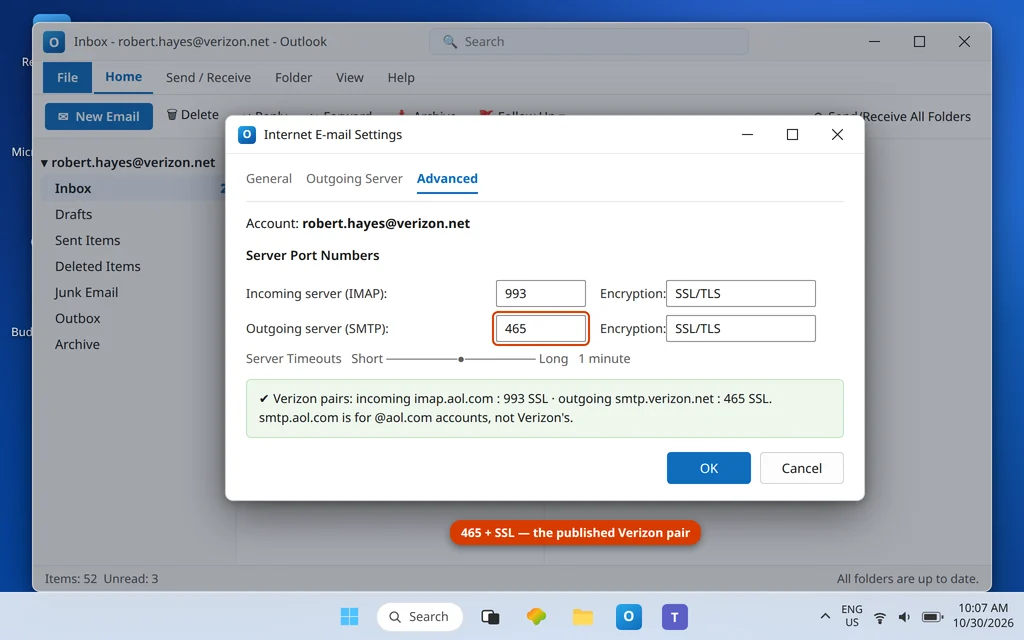
smtp.verizon.net is published with port 465 and SSL. A mismatch — 587 typed from habit, or encryption set to None/STARTTLS against 465 — produces send failures that look like server faults. In More Settings → Advanced, set Outgoing server (SMTP): 465, encryption SSL/TLS. While you are on that tab, confirm the incoming side reads 993 + SSL/TLS so a stray edit has not broken receiving too.
Fix 4 — Clear the stuck Outbox, then send fresh
Messages that failed under the wrong server stay failed. For each stuck message: drag it from the Outbox to Drafts, open it, and press Send — it now goes out under the corrected settings. A message that refuses to move needs the standard rescue: Send/Receive tab → Work Offline, restart Outlook, delete the message from the Outbox, turn Work Offline off, and write a fresh copy. Always fix the settings first (Fixes 1–3), or the fresh copy sticks in exactly the same place.
Fix 5 — Rule out an AOL-side send block
Sign in at mail.aol.com and send a test from webmail. If webmail sending also fails, the block is on the account, not in Outlook: AOL can restrict sending after suspicious-activity flags or when a mailbox is reported for spam-like patterns. Complete any security challenge AOL presents, change the main password if AOL asks, and wait for the restriction to lift — Outlook sending recovers with it. If webmail sends fine, the account is healthy and the fault is back in Fixes 1–4.
Fix 6 — Check the message itself before blaming the account
If one message will not send while fresh tests sail through, the account is innocent and the message is the problem. Oversized attachments are the usual culprit — a mailbox-era habit of attaching full-resolution photo sets can exceed what the outgoing server accepts, and the failure looks identical to a server fault.
Move the message to Drafts, remove or shrink the attachment (or share it as a cloud link), and send again. Also watch for a message addressed to a malformed recipient (a stray space or a missing domain in the To line) — Outlook queues it, fails quietly, and blocks the Outbox behind it. Clear it with the Fix 4 method and the rest of the queue, which was never broken, drains behind it. If even a one-line test message to yourself
fails, skip this fix — you are back in server-and-credential territory (Fixes 1–3).
Reading the send errors
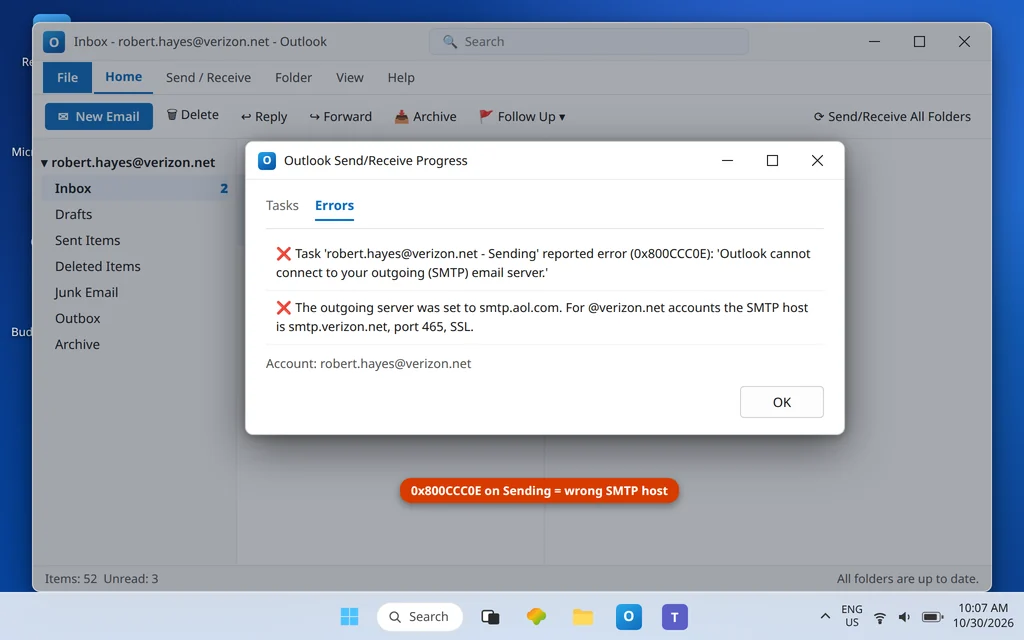
- 0x800CCC0E on the Sending task — Outlook could not connect to the outgoing server: the smtp.aol.com trap or a port mismatch. Fixes 1 and 3.
- Password prompt when sending only — the SMTP side is being offered a credential AOL rejects. It wants the app password riding on “use same settings” (Fix 2).
- 0x80042108 / connection errors — see the 0x80042108 guide and the Error Codes hub after the server table above is in place.
Confirm it worked
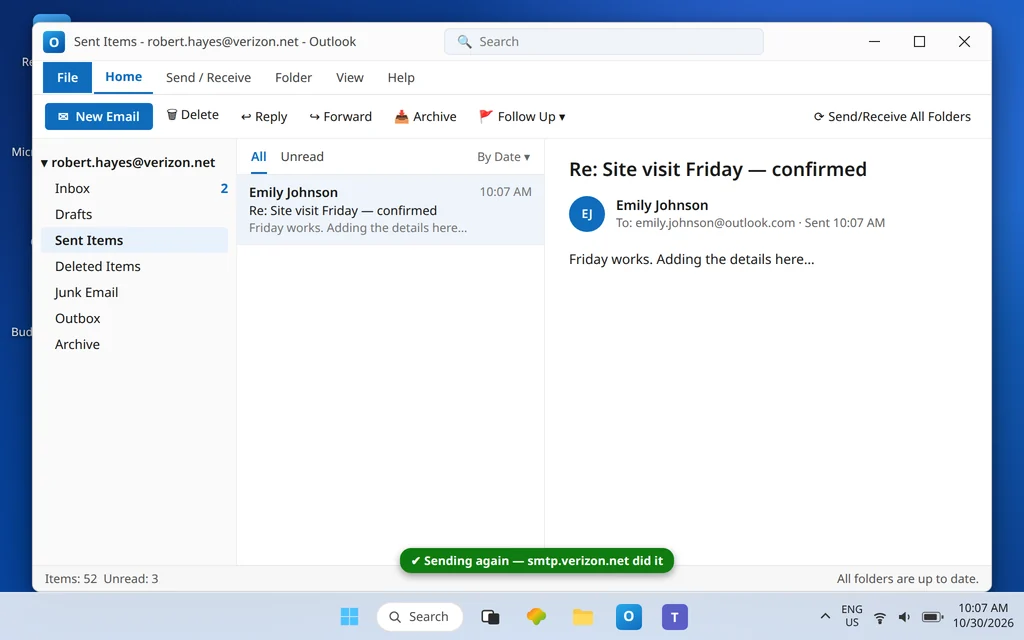
Send a test to an outside address (Gmail or Outlook.com), watch it leave the Outbox and land in Sent Items, then reply to it from the other side. Sent Items copy + reply received = both directions healthy.
How to stop it happening again
- Memorize the asymmetry: incoming
imap.aol.com, outgoingsmtp.verizon.net. Every generic “AOL settings” page that lists smtp.aol.com for Verizon accounts is wrong for this platform. - Never let setup wizards “detect” the account. Automatic setup is where the wrong SMTP host creeps in; if you re-add the account, use manual setup and type this guide’s table.
- Keep the app password labeled in AOL Account Security (“Outlook Desktop”) so it is never deleted as an unknown entry during a security tidy-up.
- After AOL security events, test a send the same day — restrictions and revoked credentials show up on the send side first.
Frequently asked questions
Why can I receive Verizon email in Outlook but not send?
Because the two directions use different servers, and only the outgoing one is wrong. Receiving works through AOL’s imap.aol.com; sending must go through smtp.verizon.net (port 465, SSL) with SMTP authentication presenting your AOL app password. Set the SMTP host to anything else — smtp.aol.com is the classic mistake — and you get this exact receive-yes/send-no split.
Is the Verizon outgoing server smtp.aol.com or smtp.verizon.net?
smtp.verizon.net, port 465 with SSL. The incoming server really did move to AOL (imap.aol.com), which is what makes the AOL SMTP guess so tempting, but Verizon’s published outgoing setting for @verizon.net accounts on the AOL platform remained the Verizon hostname. AOL’s own @aol.com customers use smtp.aol.com; Verizon customers do not.
Do I need a different password for sending?
No. One AOL app password serves both directions, as long as More Settings → Outgoing Server is set to Use same settings as my incoming mail server. Generate the app password in AOL Account Security (name it “Outlook Desktop”) and store it in Outlook’s password field — sending and receiving both draw on it.
Why are my messages stuck in the Outbox after I fixed the settings?
Queued messages remember their failed state. Drag each one to Drafts, open it, and press Send so it is submitted fresh under the corrected server; delete-and-rewrite anything that still refuses. Also confirm you are not in Work Offline mode (Send/Receive tab), which holds all sending regardless of settings.
Webmail sending fails too. What does that mean?
The restriction is on the AOL account itself, not in Outlook — typically a security hold or a sending limit after suspicious activity. Complete AOL’s challenges at mail.aol.com, reset the password if prompted, and give the account time; once webmail sends again, Outlook sending follows without further changes.
A setup wizard keeps putting smtp.aol.com back. How do I stop it?
Remove the account and re-add it with Advanced options → Let me set up my account manually, choosing IMAP and typing the table from Fix 1 yourself. Automatic detection assembles a best guess from the domain’s platform and gets this particular account wrong in a predictable way.
Sending again — or still watching the Outbox? Contact us at servicedesk@howtofixerroronline.com or through our Contact page and tell us the exact error number on the Sending task and what your Outgoing server field currently says. Never send us your password or app password — we will never ask for either.