
Verizon Email Not Receiving in Outlook: Fix It Through AOL Mail
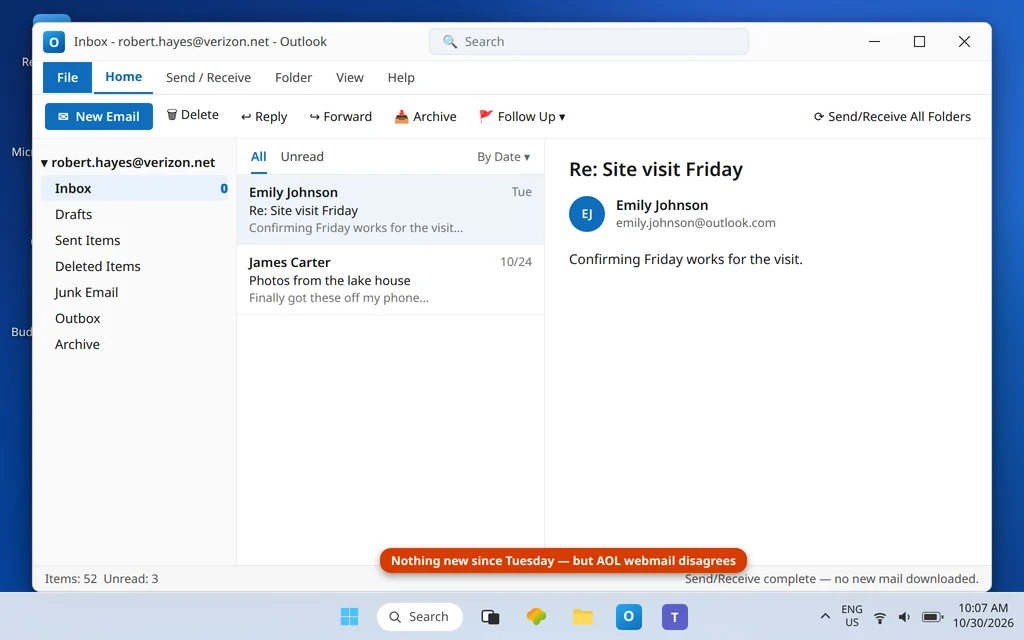
Here is the fact that unlocks every Verizon email problem: your @verizon.net mailbox has not been run by Verizon since 2017. Verizon handed its email service to AOL, and your address now lives on AOL’s platform — your webmail is AOL Mail, your sign-in security is AOL’s, and Outlook connects to AOL’s servers. Verizon email setups that still point at old Verizon servers, or that use your regular password where AOL now demands an app password, fail in exactly the way you are seeing: Outlook connects (or pretends to), no new mail arrives, and often a password box keeps coming back. In other words, Verizon email not receiving in Outlook is almost always an AOL sign-in problem, not a broken inbox.
This guide fixes the receiving side: confirm the mail is alive on AOL, generate an AOL app password, and put the correct AOL-platform settings into Outlook. If you can receive but cannot send, the mirror guide is Verizon Email Not Sending in Outlook. General Outlook receiving problems (all accounts, not just Verizon) are covered in Outlook Not Receiving Emails but Can Send.
Quick Answer: Sign in to mail.aol.com with your full @verizon.net address to confirm the mailbox is alive — that is your real webmail now. Then, in AOL Account Security, generate an app password (name it “Outlook Desktop”). In Outlook’s account settings, set the incoming server to
imap.aol.com, port 993, SSL, user name = your full @verizon.net address, and paste the app password — not your regular password — into the password field. Press Send/Receive and the missing mail downloads.
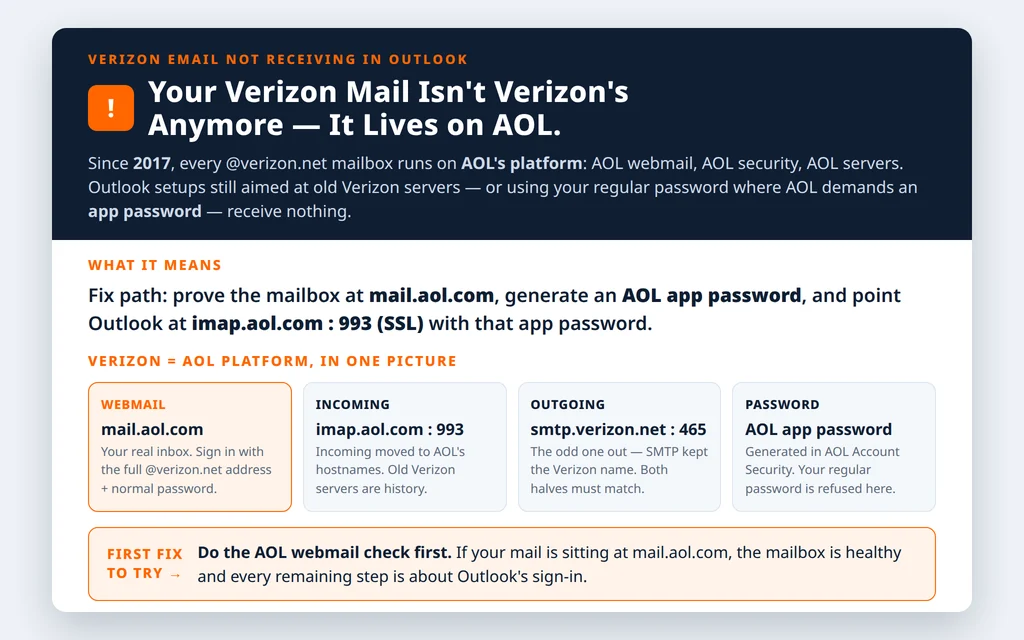
Table of Contents
Fix 1 — Prove the mailbox is alive on AOL webmail
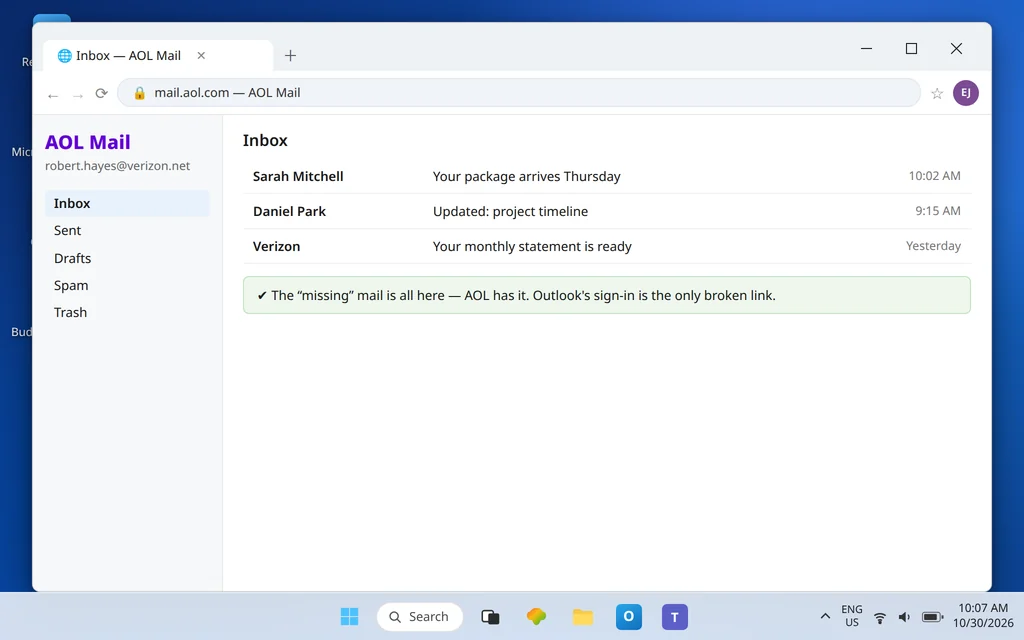
Open mail.aol.com and sign in with your full @verizon.net address and your normal password. This is not a workaround or a different mailbox — it is your Verizon inbox, wearing AOL’s interface. If the missing messages are here, your mail is safe and the entire fault is Outlook’s sign-in; continue to Fix 2. If you cannot sign in even here, reset the password through AOL’s recovery flow first — Outlook cannot receive for an account that AOL itself will not open.
Fix 2 — Generate an AOL app password
AOL does not let third-party apps like desktop Outlook sign in with your regular password on this path — it issues a separate app password for the app.
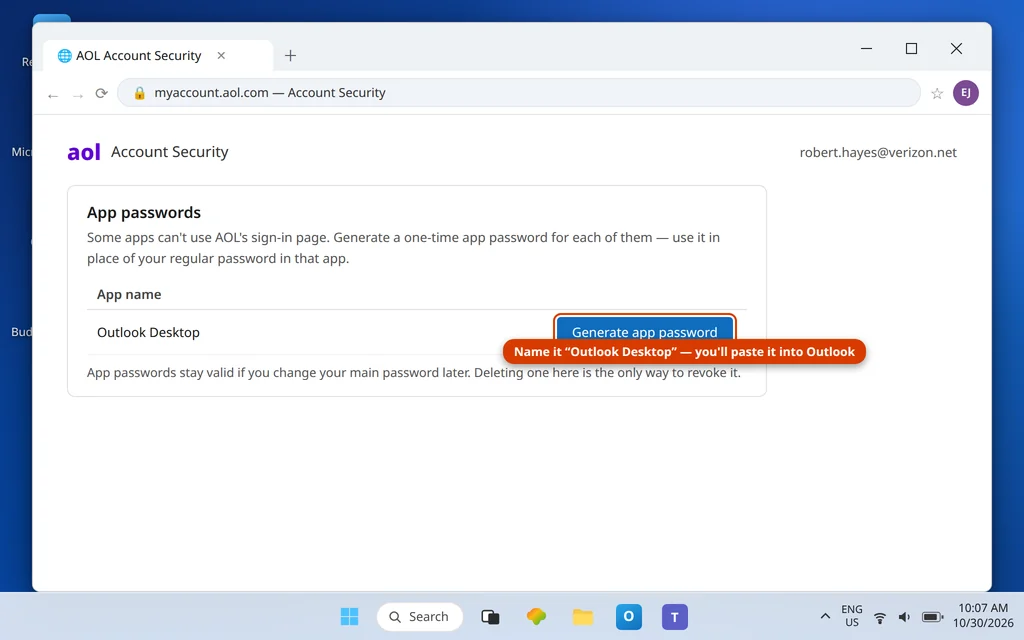
- Sign in to your account at AOL and open Account Security.
- Find Generate app password (under the two-step/app security options) and create one.
- Name it something recognizable — “Outlook Desktop” — so you can revoke exactly this one later.
- Copy the generated password. You will paste it into Outlook in Fix 3; AOL will not show it again.
Good to know: AOL app passwords stay valid even after you change your main AOL password later — deleting the app password in Account Security is the only way to revoke one.
For AOL’s official walkthrough, see Create and manage 3rd-party app passwords.
Fix 3 — Put the AOL-platform settings into Outlook
In Outlook: File → Account Settings → Account Settings → select the Verizon account → Change. Replace whatever is there with AOL’s table:
| Setting | IMAP (recommended) | POP |
| Incoming server | imap.aol.com | pop.verizon.net |
| Port | 993 | 995 |
| Encryption | SSL/TLS | SSL/TLS |
| Outgoing server (SMTP) | smtp.verizon.net | smtp.verizon.net |
| SMTP port | 465 (SSL) | 465 (SSL) |
| User name | Full @verizon.net address | Full @verizon.net address |
| Password | AOL app password | AOL app password |
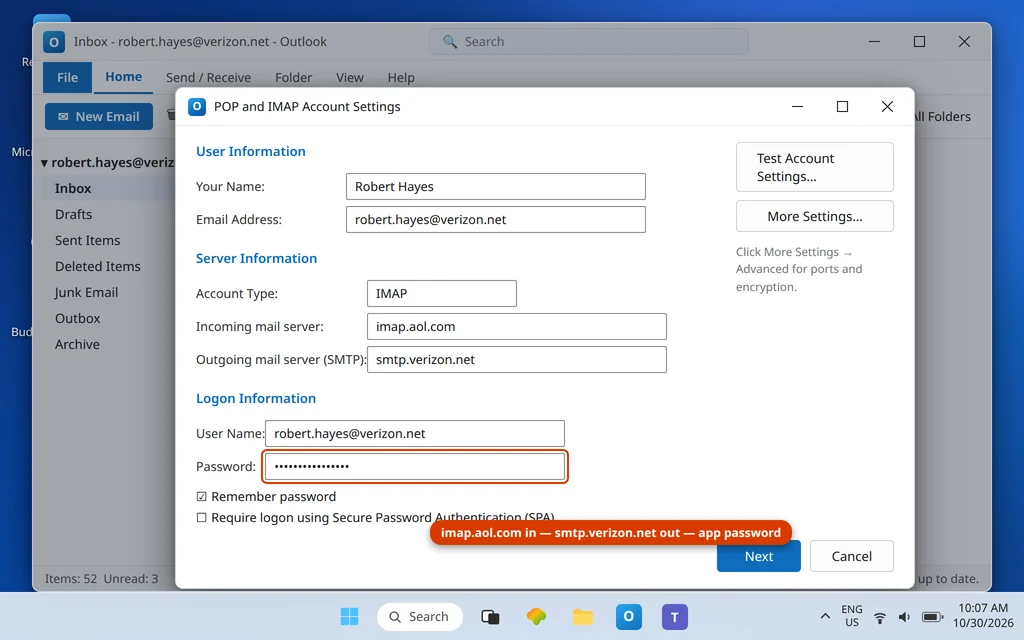
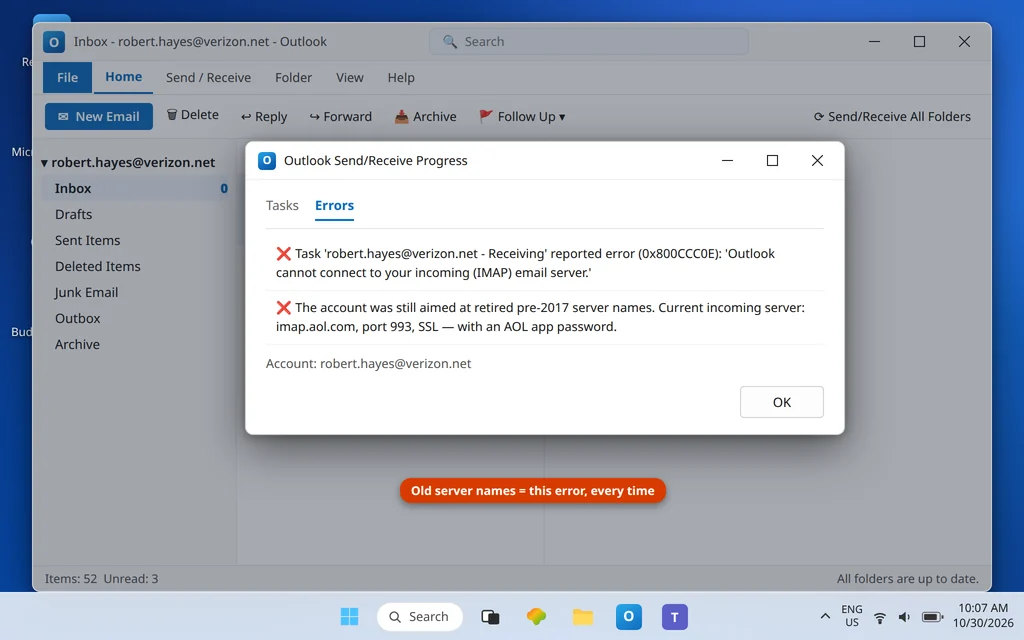
Two traps to check while you are here. First, the outgoing server is smtp.verizon.net — not smtp.aol.com; the incoming side moved to AOL’s hostnames, the outgoing side kept Verizon’s, and mixing them is the single most common typo in this setup. Second, old setups sometimes still carry pre-2017 Verizon server names — anything that is not in this table should be replaced wholesale.
Fix 4 — Answer the password prompt with the app password
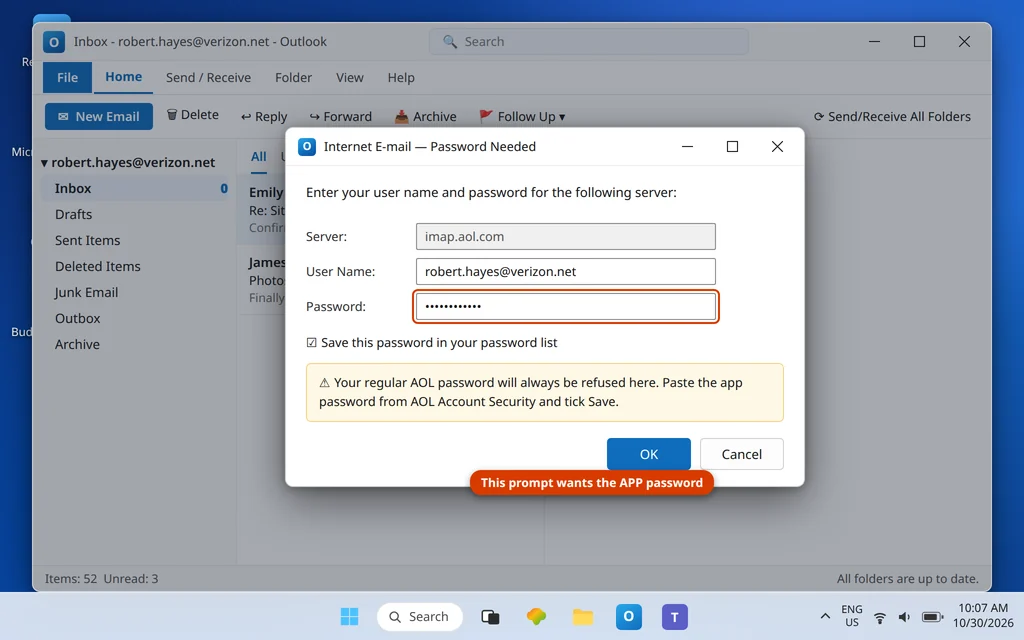
If Outlook keeps asking for the password for imap.aol.com, paste the app password from Fix 2 and tick Save this password in your password list. Typing your regular AOL password into that box will fail forever — the prompt is not broken, it is waiting for the other credential.
Fix 5 — Remove and re-add the account cleanly
If the account was originally created years ago as a “Verizon” account type, its stored settings can be too tangled to edit. Remove it (File → Account Settings → Remove) and re-add it with File → Add Account → Advanced options → Let me set up my account manually, choosing IMAP and entering the Fix 3 table with the app password. With IMAP your mail lives on AOL’s servers, so re-adding loses nothing — everything downloads again.
Fix 6 — Check Outlook’s Send/Receive group has not sidelined the account
Sometimes the account settings are perfect and Outlook still never asks AOL for mail, because the account was left out of the send/receive schedule or set to headers-only during some earlier troubleshooting. Press Ctrl+Alt+S to open Send/Receive Groups, select All Accounts → Edit, click your Verizon account in the left list, and confirm: Include the selected account in this group is ticked, Download complete items (not “Download headers only”) is selected for the Inbox, and the account is not disabled. While you are there, look at Send/Receive → Send/Receive Settings in the ribbon and make sure Disable Scheduled Send/Receive is not switched on, and that Work Offline (same ribbon tab) is off — Work Offline holds every account silently, and it survives restarts, which makes it a classic “it fixed itself yesterday” impostor on single-account complaints too.
Fix 7 — Check AOL-side blocks: sign-in alerts and full mailbox
If webmail in Fix 1 showed a security alert or an “unusual activity” challenge, complete it in the browser first — AOL holds third-party sign-ins while an alert is unanswered. And if the AOL mailbox itself is nearly full, empty Spam and Trash there; a mailbox at its limit stops accepting deliveries upstream of Outlook.
Confirm it worked
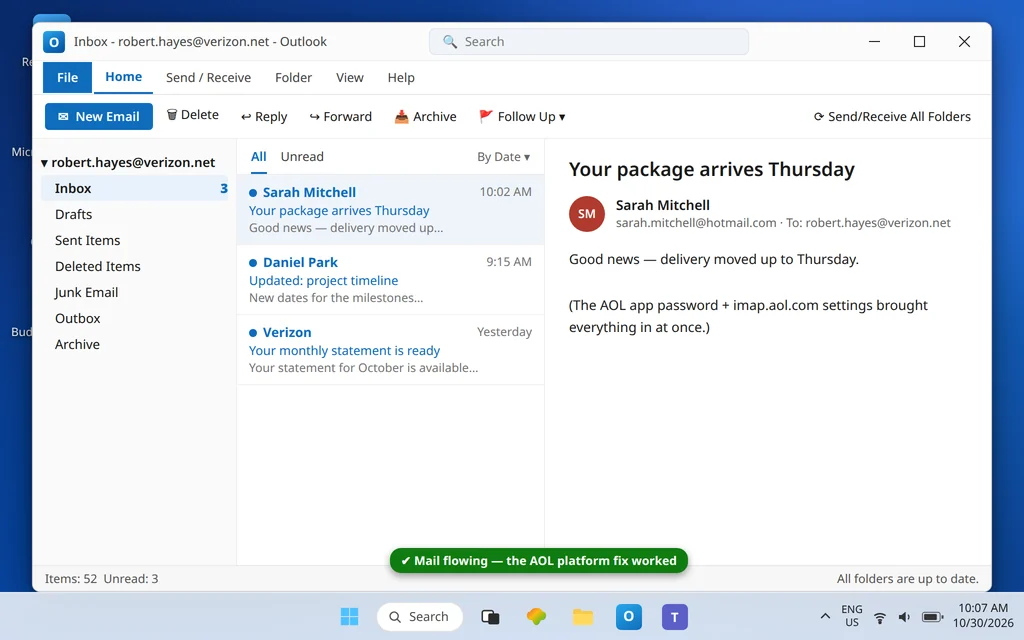
Press Send/Receive All Folders. The messages you saw in AOL webmail should appear in the Outlook inbox, and the password prompt should stay gone across a restart of Outlook.
How to stop Verizon email not receiving in Outlook from happening again
- Remember the platform, not the badge. Every “Verizon email” question is now an AOL question: webmail, security settings and app passwords all live at AOL.
- Keep the app password labeled. “Outlook Desktop” in AOL Account Security tells future-you exactly what breaks if it is deleted.
- Expect the prompt after AOL security events. If AOL challenges the account, complete it in webmail, then re-check Outlook — occasionally you will need a fresh app password.
- Keep the table: incoming
imap.aol.com: 993, outgoingsmtp.verizon.net: 465. The asymmetry is real, not a typo.
Frequently asked questions
Why does my Verizon email sign in at AOL?
Verizon retired its own email platform in 2017 and moved all @verizon.net mailboxes to AOL (both were part of the same parent company). Your address, mail and folders moved with it. Webmail is now mail.aol.com, account security is AOL Account Security, and Outlook connects to AOL’s incoming servers — which is why every fix for a Verizon account starts at AOL.
What are the correct Verizon email settings for Outlook in 2026?
Incoming (IMAP): imap.aol.com, port 993, SSL/TLS. POP alternative: pop.verizon.net, port 995, SSL/TLS. Outgoing: smtp.verizon.net, port 465, SSL. User name is your full @verizon.net address in every field, and the password Outlook stores must be an AOL app password, generated in AOL Account Security — not your regular password.
Why does Outlook keep rejecting my Verizon password when it is correct?
Because “correct” depends on where you type it. Your regular password is correct for the AOL website; Outlook, as a third-party app, is required to use an app password instead. Generate one under Account Security → Generate app password, paste it into Outlook’s password field, and the prompt loop ends.
Will I lose my emails if I remove and re-add the account?
Not with IMAP, which is the recommended setup here. Your mail is stored on AOL’s servers and downloads again into the re-added account. Only POP setups keep mail solely on the PC — back up the data file first if your account type says POP.
Outlook shows error 0x800CCC0E or times out receiving. Is that this problem?
It can be — error 0x800CCC0E means Outlook could not establish the server connection, and pre-2017 Verizon server names in the settings produce exactly that. Apply the Fix 3 table first; if the code survives with correct settings, work through the connection checks in that guide and the Error Codes hub.
My spouse’s @verizon.net works in Outlook but mine does not. Why?
Each mailbox has its own AOL security state and its own app passwords. Yours may be missing an app password, or AOL may be holding an unanswered sign-in alert on your account specifically. Run Fixes 1–4 on the failing account; sharing settings between accounts is fine, sharing credentials is not.
Receiving again — or still stuck after the AOL settings? Contact us at servicedesk@howtofixerroronline.com or through our Contact page and tell us the exact error Outlook shows and whether AOL webmail shows your new mail. Never send us your password or app password — we will never ask for either.
Pingback: Verizon Email Not Sending in Outlook? Check smtp.verizon.net (Not AOL)