
Comcast Email Not Sending in Outlook: Stuck in the Outbox?
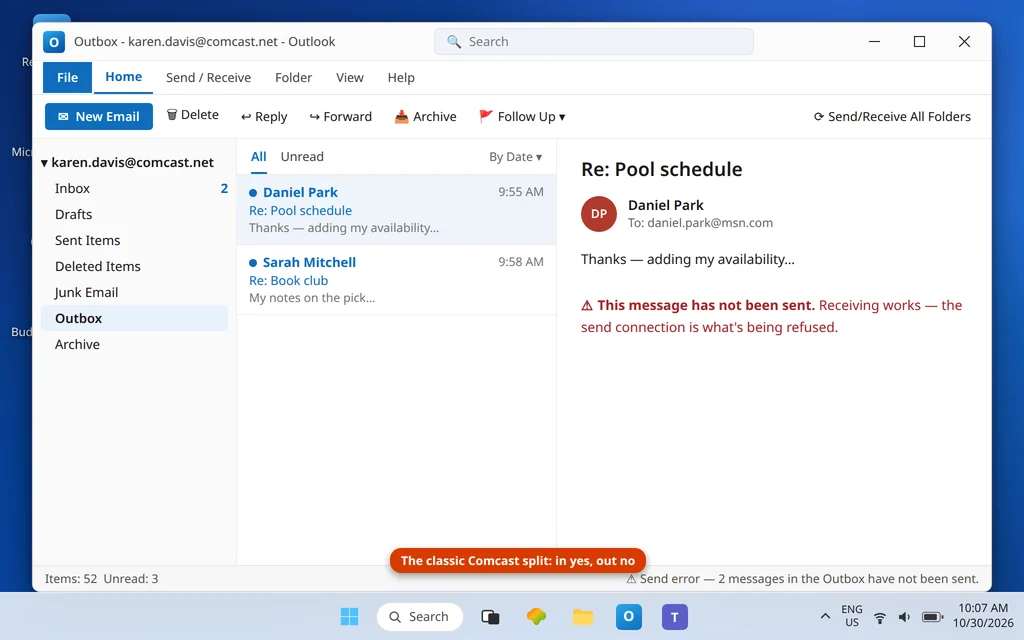
Comcast email not sending in Outlook is frustrating precisely because receiving keeps working, which makes the fault look like a password problem when it is usually a port, authentication, or toggle problem. “Receives but does not send” is the most-reported Comcast email complaint there is — it appears verbatim in Microsoft’s Q&A forums — and with Xfinity’s Yahoo migration running through 2026, it now has two distinct causes that need two distinct fixes. Pre-migration accounts send through Xfinity’s own SMTP server, which demands the right port-and-encryption pair, SMTP authentication, and the webmail Third Party Access Security toggle that gates app connections for sending just as it does for receiving. Migrated accounts no longer touch Xfinity’s servers at all: they send through Yahoo’s SMTP with a Yahoo app password, and every Xfinity setting left in Outlook fails.
This guide runs the send-side checks in order. If instead you cannot receive, start with Comcast Email Not Receiving in Outlook, which covers the migration test and the receiving half of the toggle story. For sending problems across all account types, see Outlook Not Sending Emails but Can Receive.
Quick Answer: First, which world? Pre-migration: set the outgoing server to
smtp.comcast.net, port 587 with TLS (or 465 with SSL), tick “My outgoing server requires authentication” (same settings as incoming), and make sure Third Party Access Security is switched ON in Xfinity webmail (gear → Settings → Security) — it blocks sending apps too. Migrated to Yahoo: change the outgoing server tosmtp.mail.yahoo.com(465 or 587) and use a Yahoo app password. Then clear the stuck Outbox via Drafts and send fresh.
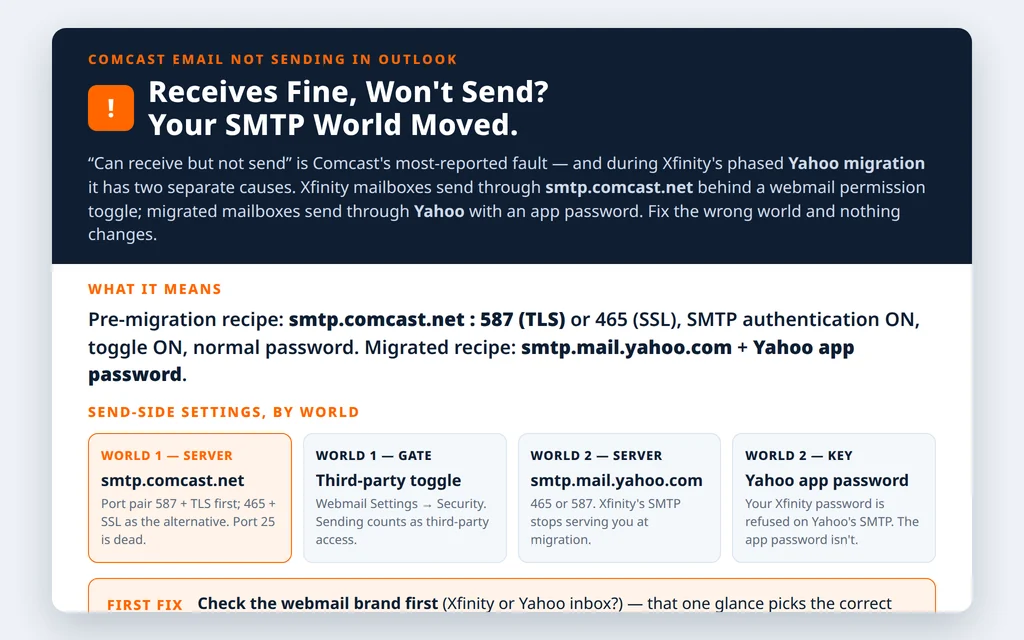
Table of Contents
Step 0 — The migration question decides your SMTP server
You answered this in the receiving guide, but it matters even more here because the two worlds’ outgoing servers share no settings at all. Sign in to webmail: Xfinity-branded inbox = pre-migration (Fixes 1–3). Yahoo-branded inbox = migrated (Fix 4). If you migrated and Outlook still points at smtp.comcast.net, sending cannot work — that server no longer handles your mail.
Fix 1 (pre-migration) — Set smtp.comcast.net with the right port pair
In File → Account Settings → Change → More Settings → Advanced, the outgoing side of a healthy Xfinity setup reads:
| Setting | Value |
|---|---|
| Outgoing server (SMTP) | smtp.comcast.net |
| Port | 587 with TLS — primary |
| Port (alternative) | 465 with SSL |
| Encryption | Must match the port (587=TLS, 465=SSL) |
| Incoming (for reference) | imap.comcast.net : 993 SSL |
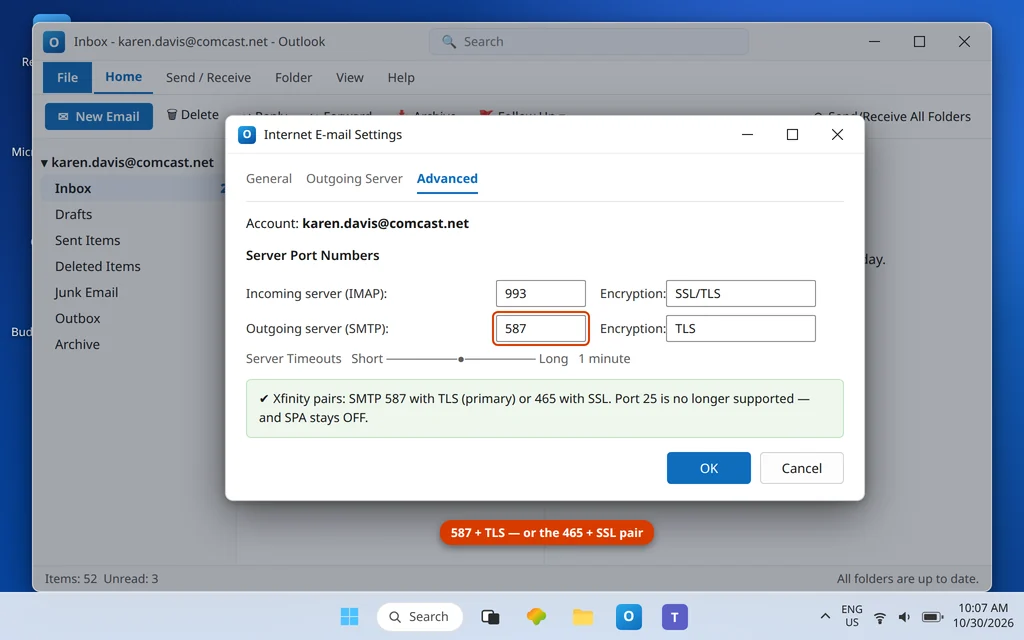
Xfinity’s own email-client documentation leads with 587, while its Outlook-specific page names 465 — both are published, both work; what fails is a mismatch (587 with SSL selected, or the dead port 25, which Xfinity no longer supports and most networks block anyway). If 587 + TLS refuses, switch the pair to 465 + SSL before changing anything else.
Fix 2 (pre-migration) — SMTP authentication ON, SPA OFF
Click More Settings → Outgoing Server and tick My outgoing server (SMTP) requires authentication, with Use same settings as my incoming mail server. Xfinity requires the sign-in; without it the server rejects the send. And on the main settings screen, leave Require logon using Secure Password Authentication (SPA) unticked — SPA is not part of Xfinity’s setup and enabling it breaks the sign-in it claims to secure. Your credential throughout is your normal Xfinity password — there is no Xfinity app password, whatever third-party blogs say.

Fix 3 (pre-migration) — The toggle gates sending too
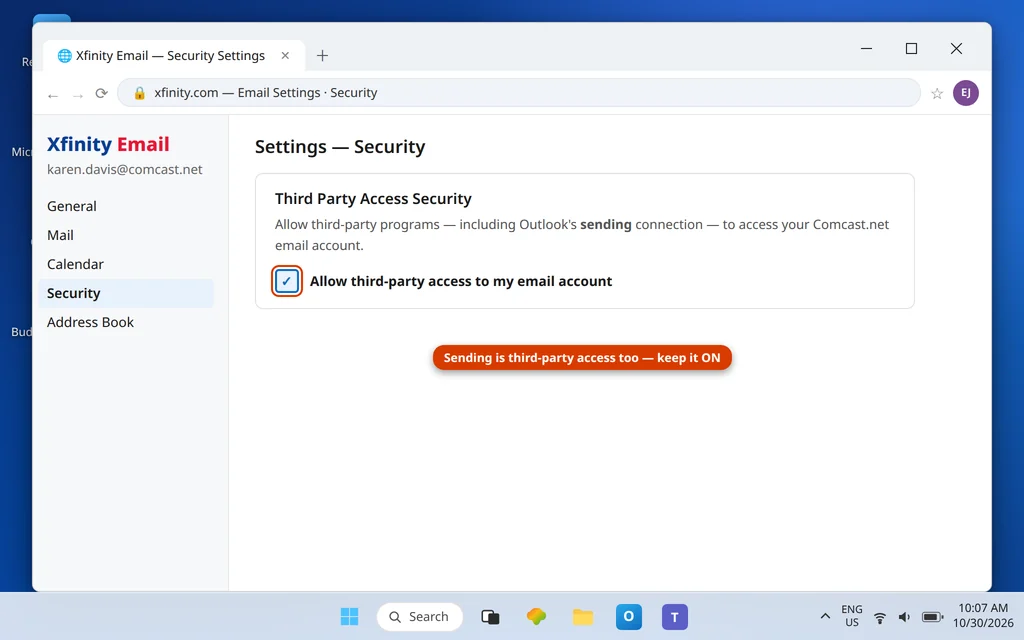
The Third Party Access Security switch in Xfinity webmail (gear icon → Settings → Security) controls whether third-party programs may access the account — and sending is access. If it is off, Outlook may receive through a previously-authorized path yet still be refused on send, or fail both ways with what looks like a password error. Tick Allow third-party access, wait a couple of minutes, and resend. The receiving guide (Comcast Email Not Receiving) shows this screen in full.
Fix 4 (migrated) — Send through Yahoo now
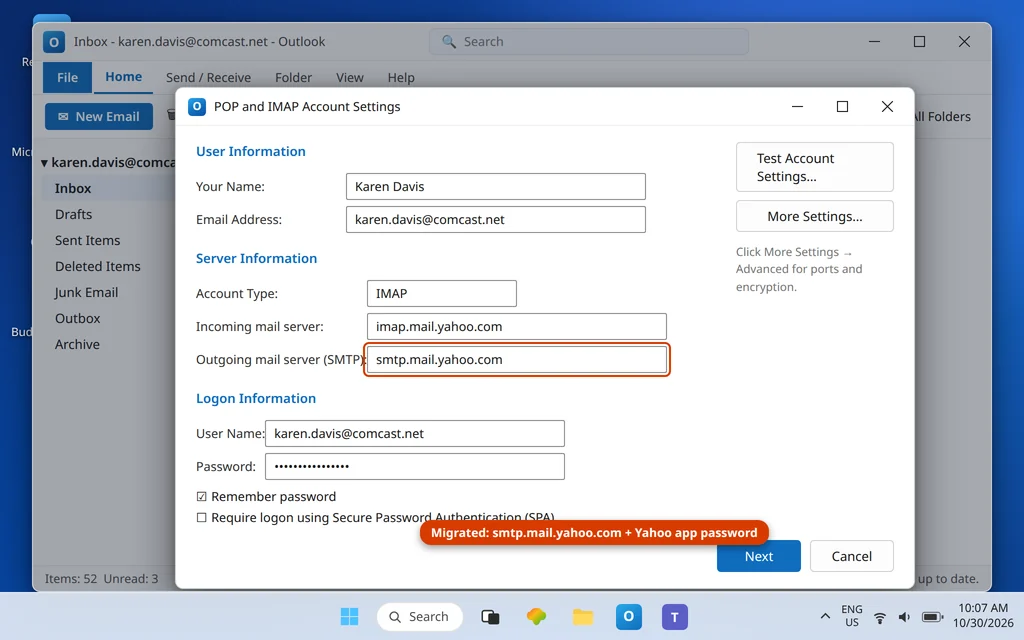
Migrated mailboxes send as Yahoo accounts:
| Setting | Value |
|---|---|
| Outgoing server (SMTP) | smtp.mail.yahoo.com |
| Port | 465 (SSL) or 587 |
| User name | Your full @comcast.net address |
| Password | Yahoo app password (not your Xfinity password) |
Generate the app password in Yahoo Mail (profile → Overview → Security → App password), set More Settings → Outgoing Server to require authentication with the same settings as incoming, and make sure the account password field holds the app password. Our Yahoo sync guide goes deeper on Yahoo-platform behavior, and Add Yahoo and AOL Mail to Outlook covers the account screens.
Fix 5 — Clear the Outbox after the settings are right
Stuck messages do not retry themselves under new settings. Drag each one from the Outbox to Drafts, open it, press Send. A message that will not move: enable Work Offline (Send/Receive tab), restart Outlook, delete it from the Outbox, disable Work Offline, and send a fresh copy. Fix order matters — Outbox surgery before Fixes 1–4 just re-sticks the same messages.
Reading the send errors
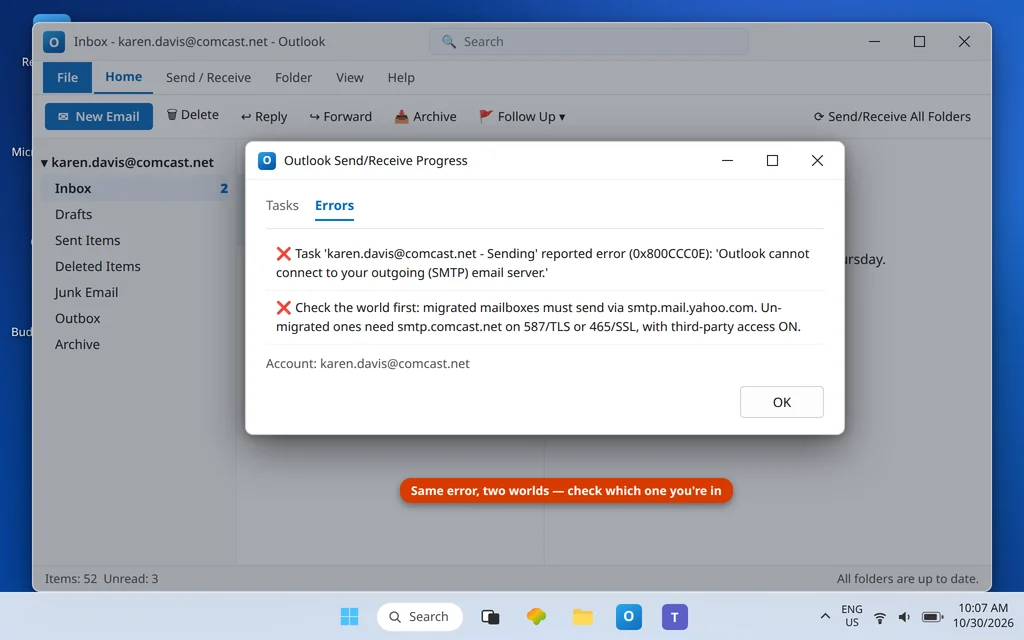
- 0x800CCC0E on Sending — cannot reach the SMTP server: wrong host (Xfinity settings on a migrated mailbox), dead port 25, or a port/encryption mismatch. Fixes 1 and 4 by world.
- 530 / authentication-required rejections — SMTP authentication off, or the migrated account still presenting an Xfinity password where a Yahoo app password belongs.
- 0x8004210A (operation timed out waiting for the sending server) — the connection opened but the response never completed; on Comcast accounts this is usually the port pair being half-right (587 with the wrong encryption selected) or a network quietly dropping the session. Correct the pair first, then see the 0x8004210A guide.
- Messages vanish from Outbox but never arrive — check the Sent Items and the recipient’s spam folder, then confirm in webmail whether the message left the account at all; if webmail sending also fails, the hold is provider-side.
Confirm it worked
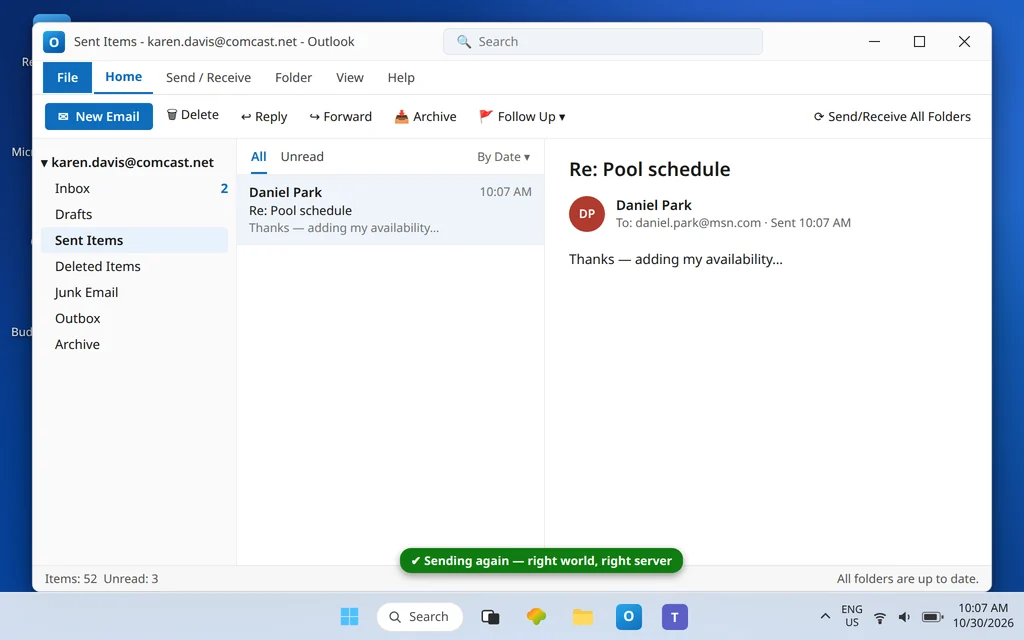
Send a test to an outside address, see it leave the Outbox, appear in Sent Items, and arrive. Then reply from the other side to prove the loop.
How to stop Comcast email not sending in Outlook again
- Know your world, write it down. Note “Xfinity” or “Yahoo” beside the account in your password manager; every future fix starts there.
- When your migration notice arrives, change both servers the same day — incoming and outgoing move to Yahoo together, plus the app password.
- Keep the healthy pairs together: 587+TLS or 465+SSL on smtp.comcast.net; never port 25.
- Never chase an “Xfinity app password.” It does not exist; the pre-migration gate is the toggle, the credential is your normal password.
Frequently asked questions
Why does my Comcast email receive in Outlook but not send?
Sending is a separate connection with its own rules. Pre-migration, the usual faults are a port/encryption mismatch on smtp.comcast.net (healthy pairs: 587+TLS or 465+SSL), SMTP authentication switched off, or the Third Party Access Security toggle off in webmail. Post-migration, the cause is simpler: Outlook is still trying to send through Xfinity with an Xfinity password, when the mailbox now sends through Yahoo with a Yahoo app password.
What is the correct Comcast SMTP port — 587 or 465?
Both are published by Xfinity: its general email-client article leads with 587 (TLS), and its Outlook-specific guidance names 465 (SSL). Use either complete pair — port and matching encryption — and switch to the other pair if your network refuses one. Port 25 is not supported and is blocked on most networks.
Does the Third Party Access Security toggle affect sending?
Yes. The toggle (Xfinity webmail → gear → Settings → Security) decides whether third-party programs may access the account at all, and Outlook’s send connection is exactly that kind of access. With it off, sends are refused with errors that masquerade as password problems.
I migrated to Yahoo. What are my sending settings now?
Outgoing server smtp.mail.yahoo.com, port 465 (SSL) or 587, SMTP authentication on, user name = your full @comcast.net address, password = a Yahoo app password generated in Yahoo Mail’s Security settings. Your old smtp.comcast.net settings stop working at migration — see the receiving guide’s migration check if you are not sure whether you have moved.
Is there an Xfinity app password I should generate for Outlook?
No — that step does not exist for Xfinity accounts, despite appearing on generic advice sites. Un-migrated accounts use your normal Xfinity password (with third-party access allowed). Migrated accounts use a Yahoo app password, because the mailbox itself now lives at Yahoo.
Outlook says error 0x800CCC0E when sending. Which world am I troubleshooting?
Either — the code just means the outgoing connection failed. Check the migration status first: migrated mailbox + Xfinity SMTP settings is the most common single cause right now. Otherwise verify the port pair (587+TLS / 465+SSL) and see our dedicated 0x800CCC0E guide and the Error Codes hub.
Sending again — or still stuck in the Outbox? Contact us at servicedesk@howtofixerroronline.com or through our Contact page and tell us whether your webmail is Xfinity- or Yahoo-branded, plus the exact error on the Sending task. Never send us your password or an app password — we will never ask for either.