
Microsoft Teams Keeps Crashing or Freezing on Windows 11
It has its own rhythm, and once you have lived with it you know it by heart: Teams opens, works for a while — then the window freezes solid mid-sentence, or simply vanishes to the desktop in the middle of a call. You reopen it, rejoin, apologise, and an hour later it does it again. Microsoft Teams keeps crashing, or keeps freezing, and restarting the PC only buys you a shorter or longer pause.
This guide is for the new Teams desktop app on Windows 11 doing exactly that: crashing to the desktop or freezing mid-use. (A different app with a similar symptom — the new Outlook — has its own causes; this is not that guide.) The fixes run in the order that matches how these crashes actually break down: a hung process first, then the app’s local state, then the components Teams depends on, and only at the end a clean reinstall. If Teams will not open in the first place — you never get as far as crashing — begin with Microsoft Teams Not Opening on Windows 11 instead.
Quick Answer: Fully quit Teams (right-click the icon near the clock → Quit; if it is frozen, end Microsoft Teams in Task Manager) and relaunch. Update Teams, then clear the cache: with Teams closed, delete everything in
%userprofile%\AppData\Local\Packages\MSTeams_8wekyb3d8bbwe\LocalCache\Microsoft\MSTeams. Next, Settings → Apps → Microsoft Teams → Advanced options: Repair first, Reset if that fails. Confirm Microsoft Edge WebView2 Runtime is present in Installed apps and update your graphics driver — and note the new Teams has no “Disable GPU hardware acceleration” checkbox; that was classic Teams. Still crashing? Reinstall cleanly from the Microsoft Store or teams.microsoft.com.
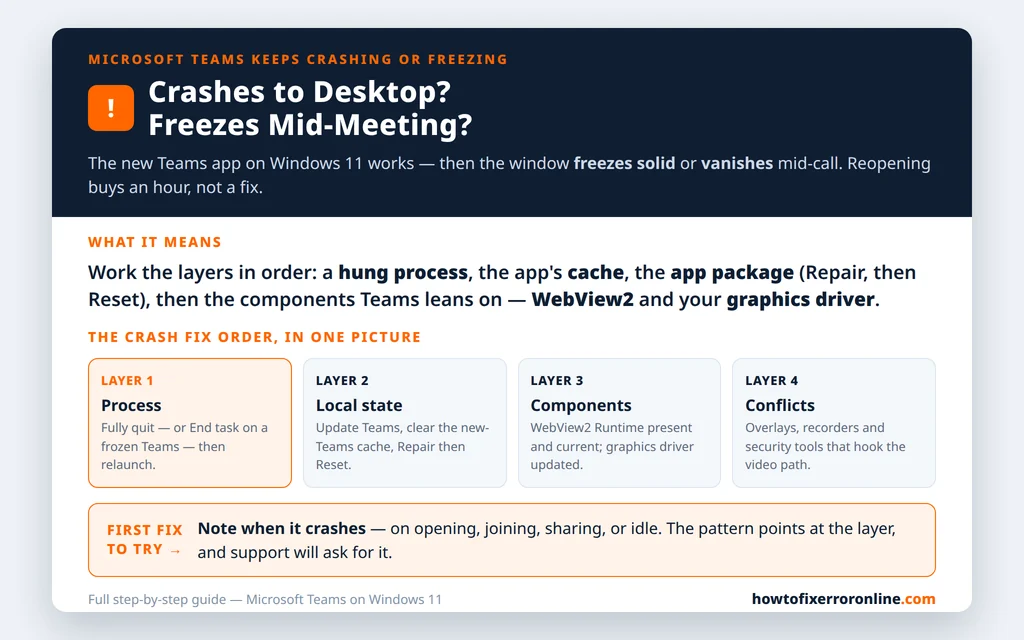
Table of Contents
Fix 1 — Fully quit and relaunch (and end a frozen process properly)
A crash loop often starts with a half-dead process: the window is gone, but Teams is still running underneath, and every “new” launch just reconnects to the broken remains.
- Right-click the Teams icon near the clock and choose Quit.
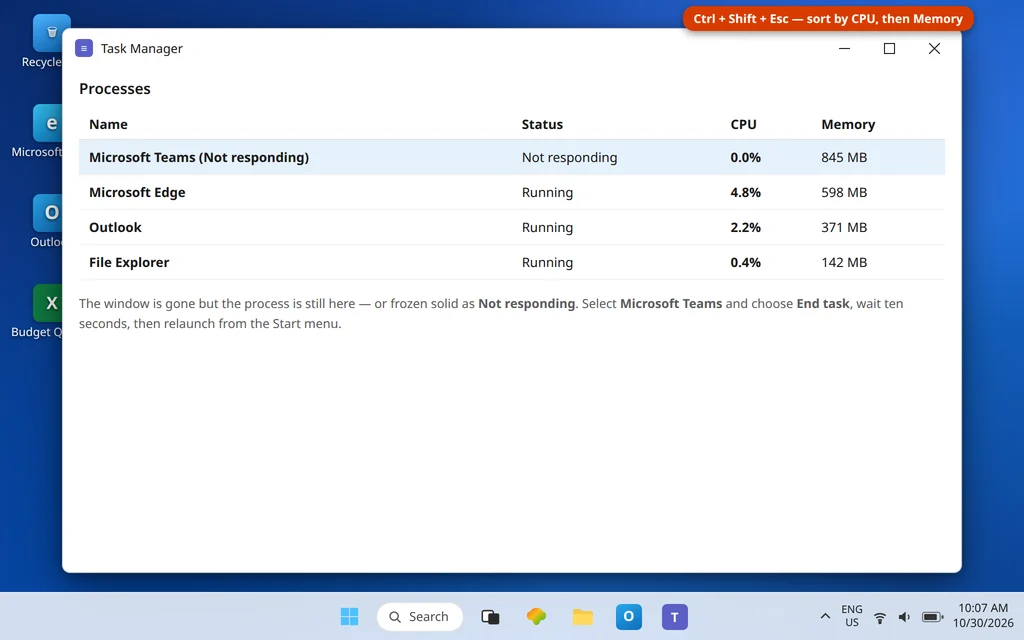
- If Teams is frozen on screen, press Ctrl + Shift + Esc, find Microsoft Teams in Task Manager, select it and choose End task.
- Wait ten seconds, confirm Teams has disappeared from the Task Manager list, then relaunch it from the Start menu.
If Teams now runs cleanly for days, the problem was a one-off hung state and you are done. If the crash returns, it is data or components, not process — keep going. Note roughly when it crashes (on opening? joining a meeting? sharing your screen? sitting idle?): the pattern matters at Fix 7 and Fix 9.
Fix 2 — Update Teams before anything deeper
Stability fixes are a large part of what Teams updates contain, and chasing a crash that Microsoft already fixed is wasted work.
- In Teams, open Settings and more (…) and choose Check for updates if your build offers it.
- If there is no such entry, open the Microsoft Store → Library → Get updates — the new Teams updates through the Store on many Windows 11 PCs.
- Let any update finish, then quit and relaunch Teams fully (Fix 1) so you are testing the new build, not the old one still in memory.
Fix 3 — Clear the new Teams cache
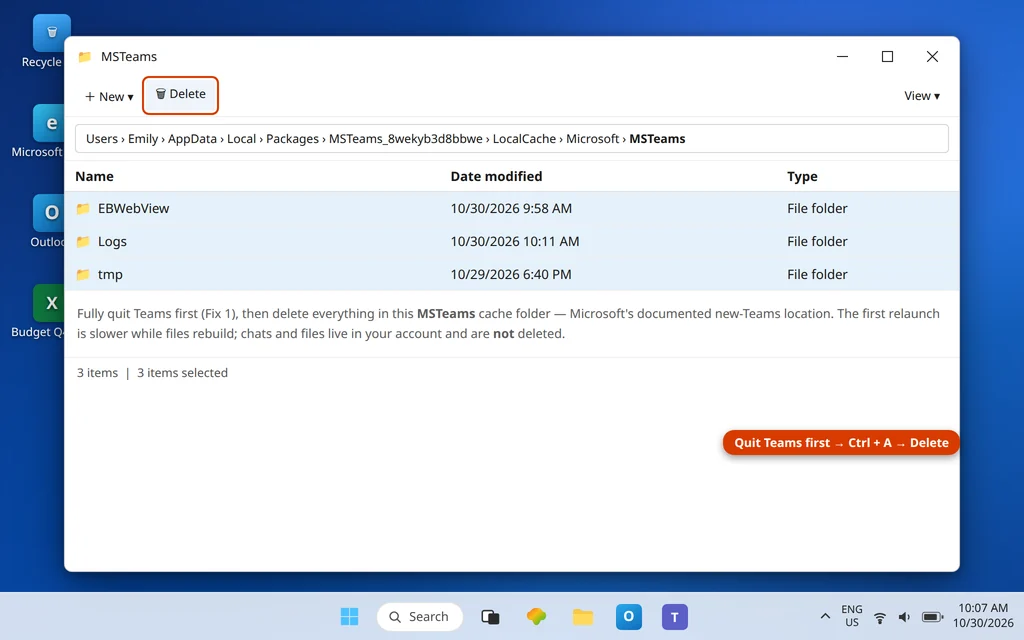
The cache is the app’s local working state, and damaged state is the most common reason a healthy install starts crashing. Microsoft documents the exact folder for the new Teams:
- Fully quit Teams (Fix 1 — the files are locked while it runs).
- Press Windows + R, paste the path below and press Enter:
%userprofile%\AppData\Local\Packages\MSTeams_8wekyb3d8bbwe\LocalCache\Microsoft\MSTeams - Select everything in the folder (Ctrl + A) and delete it.
- Relaunch Teams. Microsoft notes the first restart after clearing takes longer than usual, because the cache files have to be rebuilt — that slowness is expected and one-time.
Your chats, channels and files live in your account, not in this folder, so nothing you need is lost. If the crash only happens when you try to get into meetings, pair this with Can’t Join a Teams Meeting once the app itself is stable.
Fix 4 — Repair, then Reset, from Advanced options
Windows can repair the app package itself — the fix for crashes rooted in the install rather than the data:
- Open Settings → Apps → Installed apps.
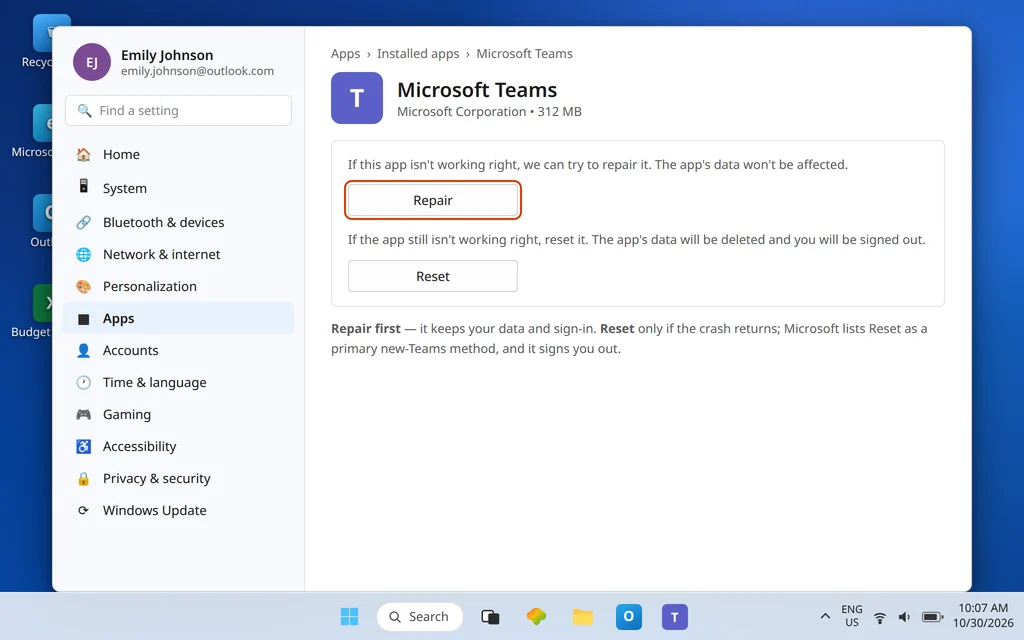
- Find Microsoft Teams, choose More options (…) → Advanced options.
- Choose Repair. Repair attempts to fix the app while keeping its data and your sign-in.
- Use Teams normally and watch for the crash. If it returns, come back to the same page and choose Reset. Microsoft’s own new-Teams guidance lists Reset as a primary method — it deletes the app’s data, including settings you personalized, and signs you out, which is why it sits after Repair, not before it.
Fix 5 — Check the WebView2 Runtime: the component Teams renders with
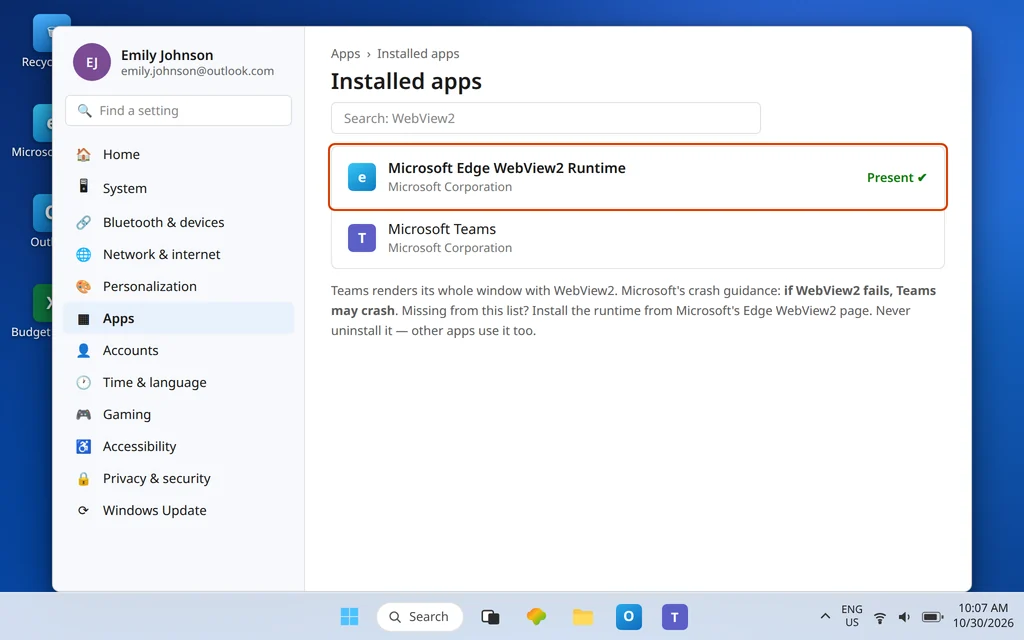
The new Teams draws its interface using the Microsoft Edge WebView2 Runtime, a separate Windows component. Microsoft’s crash guidance is direct about the relationship: Teams desktop uses WebView2 to render its UI, and if WebView2 fails, Teams may crash. A missing, damaged or stale runtime can therefore look exactly like “Teams keeps crashing.”
- Open Settings → Apps → Installed apps and search for WebView2.
- Confirm Microsoft Edge WebView2 Runtime is listed. If it is missing entirely, that absence is a strong suspect: download the WebView2 Runtime installer from Microsoft’s Edge WebView2 page and install it, then relaunch Teams.
- If it is listed, keep it current through Windows Update (Fix 8) — the runtime updates with Edge and Windows servicing.
Do not uninstall WebView2 to “clean” things: other apps use it too, and Teams needs it present and healthy, not absent.
Fix 6 — Graphics: update the driver, and the truth about the GPU checkbox
Freezes during meetings, screen sharing or video point at the graphics path more than anywhere else. Two things to know:
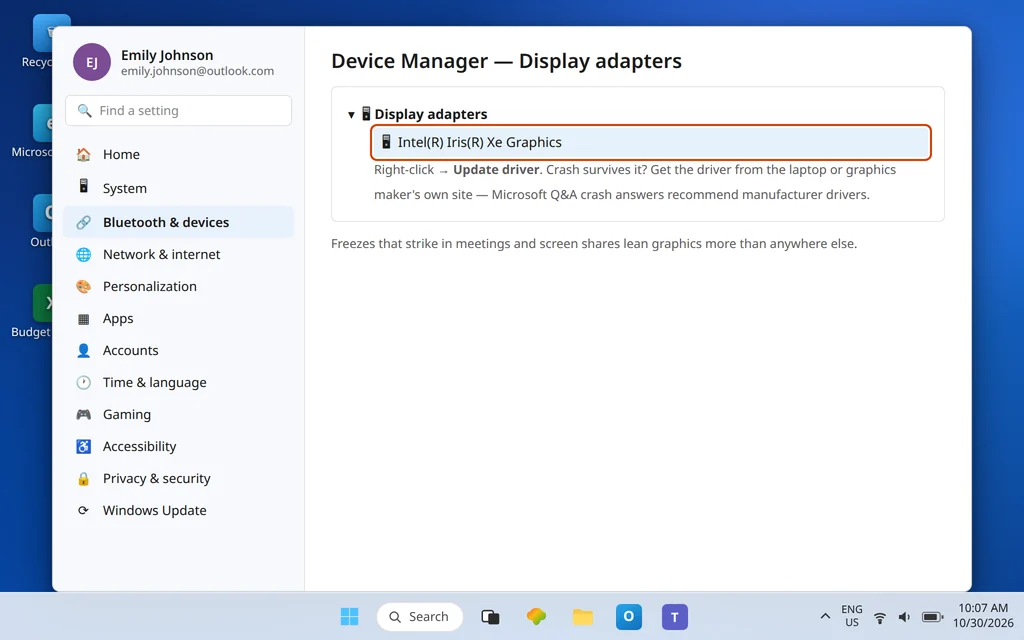
- Update the graphics driver properly. Right-click Start → Device Manager → Display adapters, right-click your adapter and choose Update driver. For a crash that survives that, get the driver from the laptop or graphics maker’s own site — Microsoft Q&A crash answers recommend manufacturer drivers because the generic Windows one is often older.
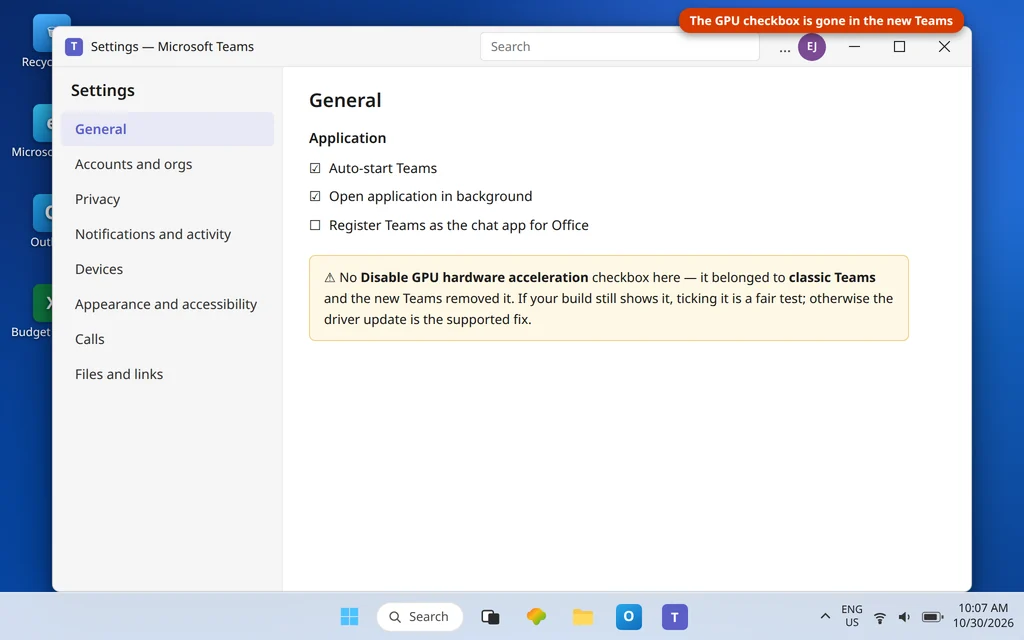
- The “Disable GPU hardware acceleration” checkbox is gone. Many older guides send you to Settings → General in Teams to tick it. That setting belonged to classic Teams; Microsoft Q&A confirms the new Teams does not offer it. If your build still shows the checkbox, ticking it and restarting Teams is a fair test. If it does not show — the normal case now — do not hunt for it or install tools to force it; the driver update above is the supported version of the same idea.
Fix 7 — Rule out the apps that sit on top of Teams
Overlays and capture tools hook into the same video and screen paths Teams uses, and they are classic crash partners: screen-recording apps, gaming overlays, third-party camera effects, and aggressive security software. Microsoft’s crash guidance also flags antivirus tools interfering with Teams and WebView2 processes.
Test it cleanly: fully quit any screen recorder, overlay or camera-effects app, restart Teams, and use it through the situation that normally crashes (a meeting, a share). If the crashes stop, reintroduce your apps one at a time across a day each — the one that brings the crash back is the conflict, and updating or replacing it is the fix. Similarly, if your antivirus has an app-control or web-protection log, check whether it has been blocking Teams or WebView2 around the crash times, and allow both if so.
Fix 8 — Run Windows Update
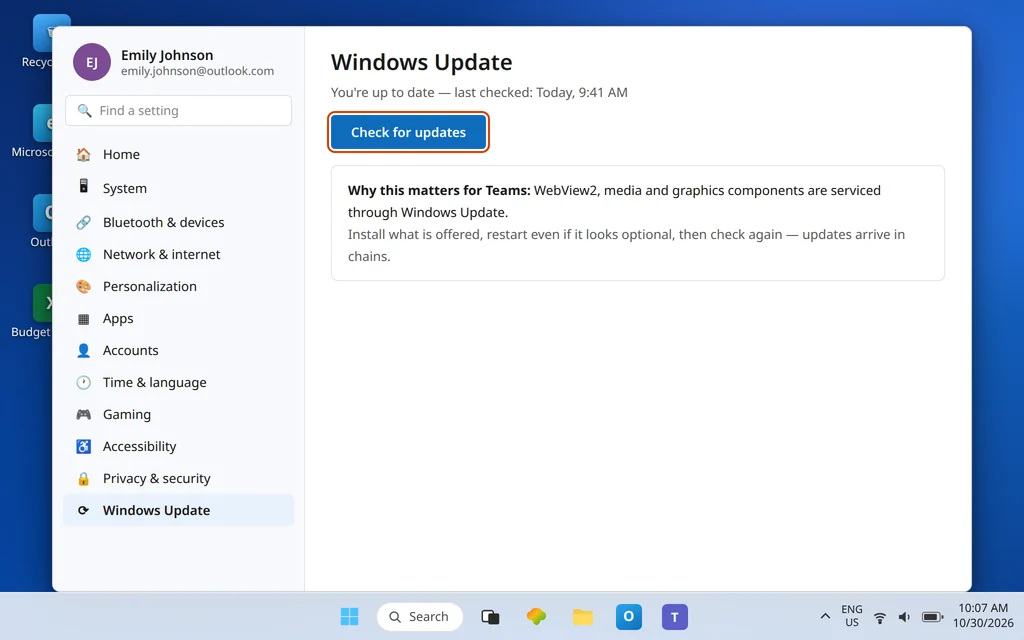
Teams leans on Windows components — WebView2, media and graphics stacks — that are serviced through Windows Update. A PC several feature or cumulative updates behind can be running exactly the component versions with known crash behavior.
- Open Settings → Windows Update → Check for updates.
- Install what is offered and restart, even if Windows says a restart is optional — component replacements finish at restart.
- Check again after the restart; updates often arrive in chains.
If your PC is also generally unstable or slow beyond Teams, PC Slow on Windows 11 covers the wider cleanup.
Fix 9 — Clean reinstall, and the web version while you work
If the crash survives a Reset and current drivers, replace the install itself:
- Settings → Apps → Installed apps → Microsoft Teams → Uninstall.
- Restart the PC (this clears the last locked files).
- Reinstall from the Microsoft Store (search “Microsoft Teams”) or the download at teams.microsoft.com — get it from Microsoft, not a download portal.
- Sign in and test before reinstalling any add-on tools from Fix 7.
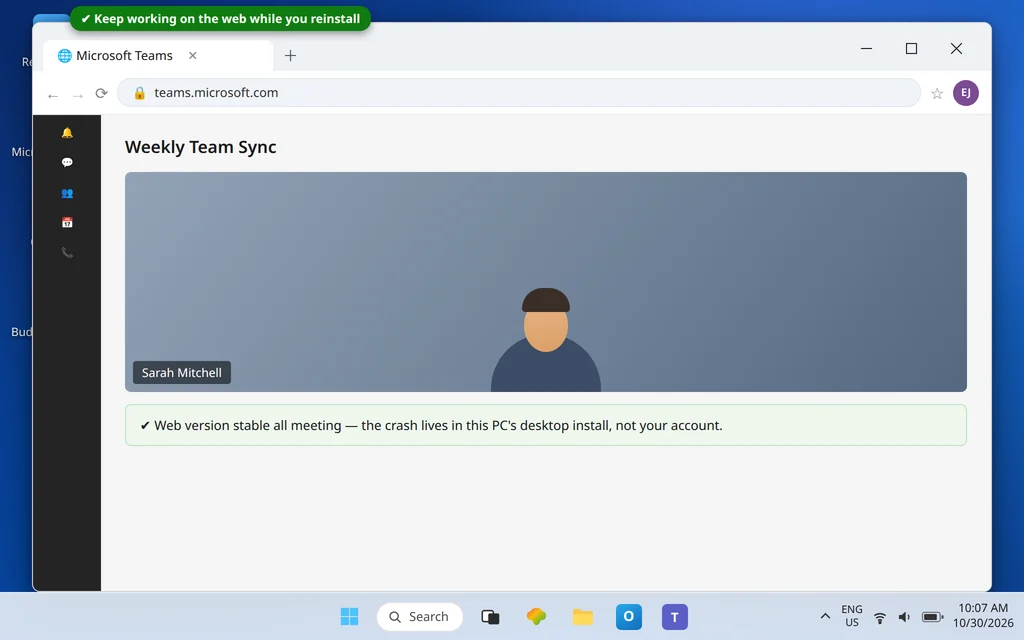
And so a reinstall never costs you a meeting: teams.microsoft.com in your browser runs the same account with no desktop app involved. If the web version is rock-solid while the desktop keeps crashing, that contrast is itself the diagnosis — the fault is this PC’s install or components, never your account.
Fix 10 — The honest advanced pointer: Reliability Monitor and Event Viewer
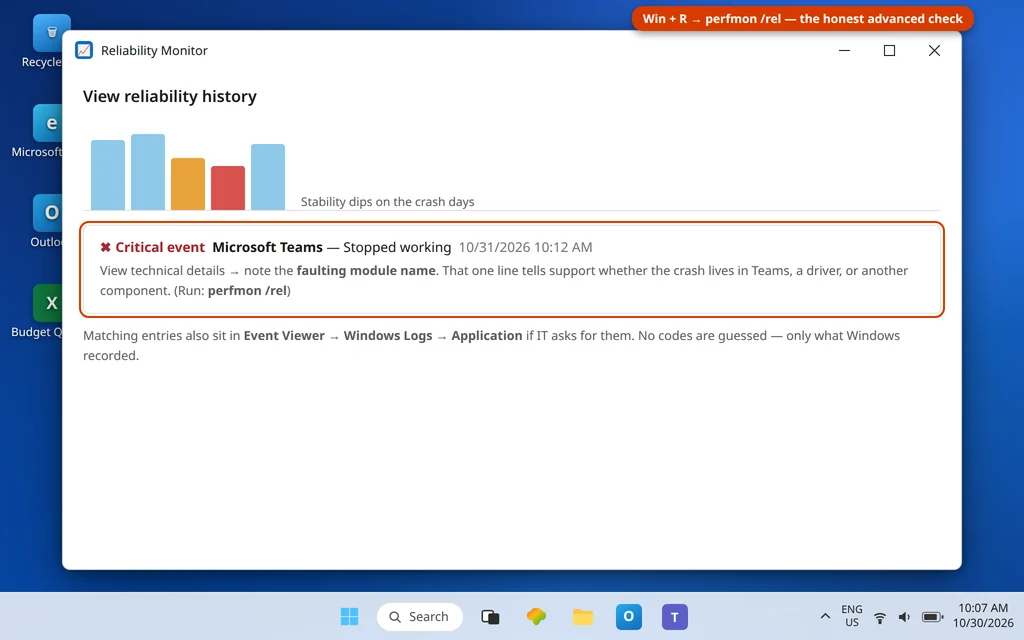
If you are heading to IT support — or you are comfortable looking — Windows records why apps die, and that record beats guessing. This is a pointer, not a full course, and this guide deliberately invents no error codes for you to chase:
- Press Windows + R, type
perfmon /reland press Enter to open Reliability Monitor. - Find a red critical event for Microsoft Teams at a crash time and view its technical details — note the faulting module name if one is shown. Microsoft Q&A crash answers use exactly this: the faulting module tells you whether the crash lives in Teams, a driver, or another component.
- Event Viewer → Windows Logs → Application holds the matching entries if IT asks for them.
Hand those details, plus your crash pattern from Fix 1 (when it crashes, how often, web version fine or not), to your IT team or to us. That package turns “Teams crashes” into something an engineer can actually act on.
Confirm it worked
Use Teams through a full normal day, including the exact situation that used to crash it — the same meeting type, the same screen share. One clean day after a pattern of daily crashes is a real result; also confirm a full quit-and-relaunch and a PC restart both leave Teams stable, because fixes that only survive until the next restart are not fixes.
How to stop it happening again
- Let Teams and Windows update. Most crash fixes arrive silently in the updates people postpone.
- Restart the PC weekly. It finishes component updates, clears hung processes, and stops the slow build-up that ends in a freeze.
- Be careful with overlays and capture tools. Add one at a time, and remember it when the crashes start — you will already know the likely culprit.
- Keep drivers on the manufacturer’s schedule, especially graphics, rather than waiting for the generic Windows version to catch up.
Frequently asked questions
Why does Microsoft Teams keep crashing on Windows 11?
The causes, in the order this guide fixes them: a hung leftover process, an outdated build, damaged local cache, a damaged app package, a missing or unhealthy WebView2 Runtime (the component that renders Teams’ window), an old graphics driver, or a conflicting overlay/recording/security app. Crashes that happen only in meetings lean graphics; crashes anywhere, any time, lean cache and package — Fixes 3 and 4.
Will clearing the Teams cache or resetting delete my chats?
No. Chats, channels, files and meetings live in your Microsoft 365 account. The cache holds local working files that Teams rebuilds (Microsoft notes the first launch afterwards is slower for that reason), and Reset removes the app’s local data and signs you out — you sign back in and everything is there.
What is WebView2, and why does it make Teams crash?
WebView2 Runtime is a Microsoft component that apps use to display web-style interfaces — and the new Teams renders its whole UI with it. Microsoft’s crash guidance states it plainly: if WebView2 fails, Teams may crash. Check it is present in Settings → Apps → Installed apps (Fix 5) and keep it updated through Windows Update.
Where did “Disable GPU hardware acceleration” go in Teams settings?
Nowhere you can reach — it was removed. That checkbox lived in classic Teams under Settings → General; Microsoft Q&A confirms the new Teams no longer offers it. If your build still shows it, ticking it is a valid test. Otherwise, the supported equivalent is updating your graphics driver from the manufacturer’s site (Fix 6).
Teams only freezes when I share my screen. Is that the same problem?
It is the graphics-flavoured version of it. Screen sharing loads the graphics and capture path hardest, so start with the driver update (Fix 6) and the overlay/recorder test (Fix 7) — sharing tools and overlays are the usual partners in a share-only freeze. The general fixes (cache, Repair) still apply if those two do not settle it.
How can I keep working while the desktop app keeps crashing?
Use Teams on the web at teams.microsoft.com — same account, same chats and meetings, no desktop app involved. It is also diagnostic: a stable web version proves your account and Microsoft’s service are fine, and that the crash lives in this PC’s app install or its components.
Stable again — or still crashing? Contact us at servicedesk@howtofixerroronline.com or through our Contact page and tell us when the crashes happen (opening, meetings, sharing) and whether the web version stays stable. We will never ask for your password.