
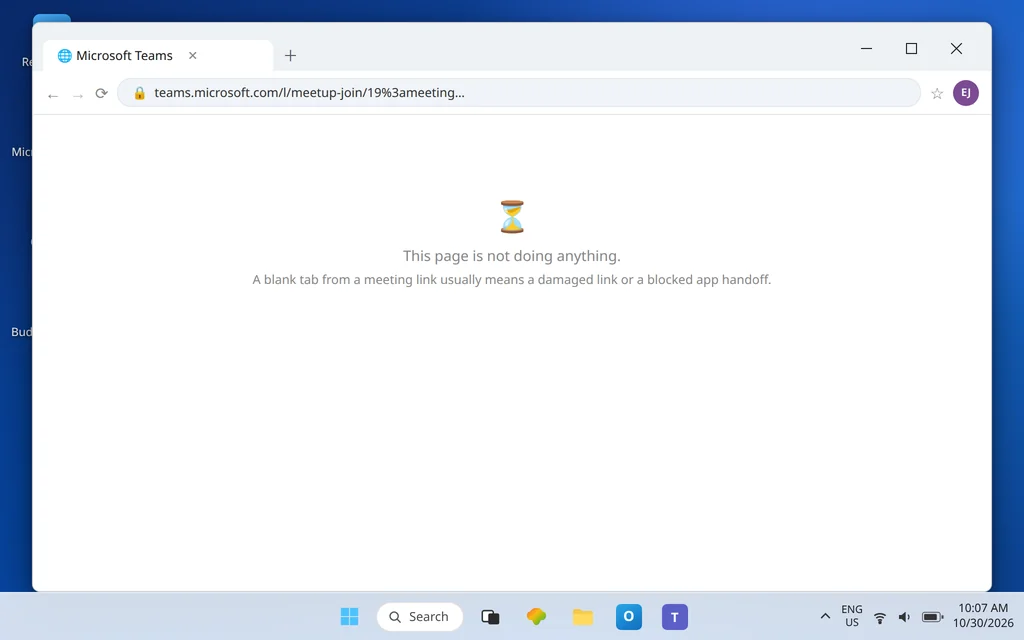
Microsoft Teams Meeting Link Not Working — Link Opens Nothing
The meeting is starting. You click the join link — and nothing useful happens. Maybe a browser tab opens and sits blank. Maybe the Teams app flickers and gives up. Maybe you get told the meeting cannot be found, for a meeting that definitely exists.
This article is only about the link itself: links that are broken, cut short, out of date, opened by the wrong app, or opened under the wrong account. General joining trouble is a bigger topic with its own guide — if the link works but joining then fails (lobby problems, audio setup, meeting errors), go to Can’t Join a Teams Meeting instead, because that is the article that owns it. Stay here if your problem starts and ends with the link doing nothing, doing the wrong thing, or pointing at a meeting that “doesn’t exist.”
A useful fact before the fixes: a meeting link is just a long web address. Anything that damages an address — copying half of it, an old version of it, opening it in the wrong place — breaks the meeting in exactly the same way it would break a web page.
Quick Answer: Go back to the original invite (the calendar event or the organizer’s email — not a forwarded chat copy), and click the link there. When the browser page appears, choose Continue on this browser to test the link with no app involved, or Open Microsoft Teams / Join on the Teams app if you prefer the app. If the link still fails, bypass it entirely: in Teams go to Calendar and join from the meeting entry there, or use the Meeting ID and passcode printed on the invitation. And if the meeting was moved or re-sent, only the newest invite’s link is the live one.
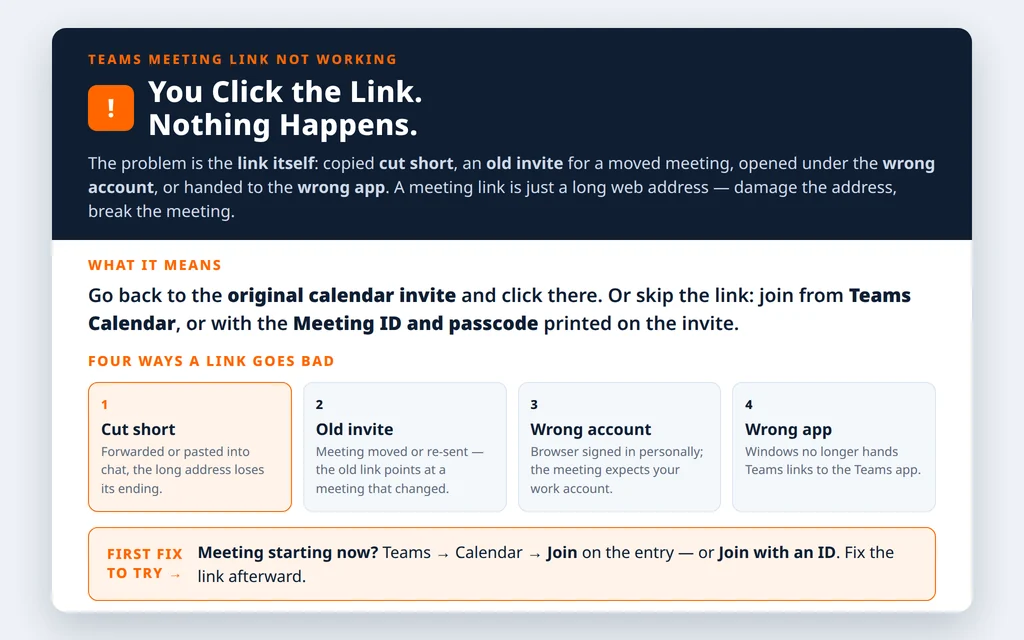
Table of Contents
Fix 1 — Use the link from the original invite, not a copy of a copy
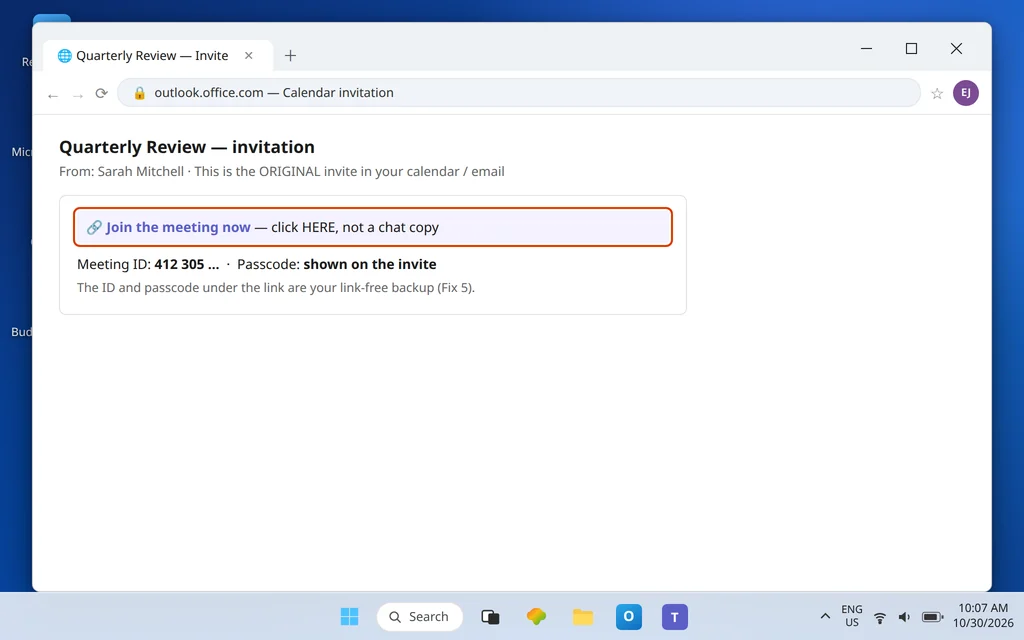
Meeting links are long — much longer than they look, because the clickable text (“Join the meeting now”) hides the full address underneath. Every time a link is copied into a chat, forwarded, printed, or pasted into a document, there is a chance the address underneath gets cut short or altered, and a shortened Teams link does not fail politely: it opens a page that does nothing, or reports a meeting that cannot be found.
- Find the original invitation: the calendar event in Outlook or Teams Calendar, or the organizer’s original email.
- Click the join link there — not the copy in a chat thread, not the one a colleague pasted into a document.
- If you must move a link yourself, right-click the join text in the original invite, copy the link address, paste it into a browser, and check the pasted address is one long unbroken line with no spaces and no missing ending before you press Enter.
If the original invite’s link works, throw the bad copy away and tell whoever sent it — they are handing a broken link to everyone else too.
Fix 2 — On the browser page, actually choose how to join
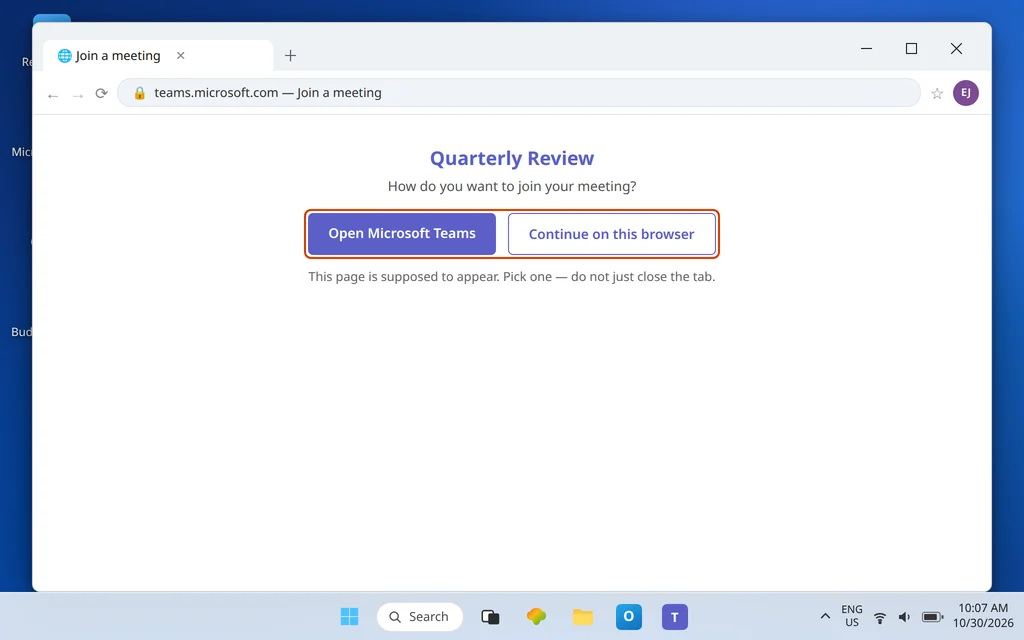
A very common “the link does nothing” is really “the link opened a browser page and waited for me.” A Teams link normally lands on a page that offers you a choice:
- Open Microsoft Teams / Join on the Teams app — hands the meeting to your installed app.
- Continue on this browser — joins right there in the browser, no app needed. Microsoft documents this option for joining, and Teams on the web works in Microsoft Edge and Google Chrome.
If that page itself stays blank or spins:
- Wait a full ten seconds once — the page is handing off to the app in the background for many people, and clicking repeatedly restarts the process each time.
- Hard-refresh the page once (Ctrl + R), and if your browser asks whether to open Microsoft Teams, allow it — and tick the “always allow” style box if one is offered, so the handoff is not blocked next time.
- If the page still does nothing, choose the browser route deliberately: look for Continue on this browser and join there. A link that joins perfectly in the browser has proven the meeting is fine — only the app handoff is stuck, which is Fix 6.
Fix 3 — If the meeting was moved, re-sent, or cancelled, the old link is dead
A meeting link points at one specific meeting occurrence set up by the organizer. When the organizer edits the meeting, reschedules it, or cancels and re-creates it, a new invitation goes out — and the link in the old invitation may point at a meeting that no longer exists in that form. The symptom is classic: “meeting can’t be found” for a meeting everyone else found easily — in their new invite.
- Search your email and calendar for the meeting title and open the most recent invitation about it.
- Delete or ignore earlier copies of the invite so you stop clicking the stale one.
- Still stuck? Ask the organizer to forward you the current invitation fresh. Microsoft Q&A’s guidance for this exact error lands in the same place: get the latest invite rather than fighting the old link.
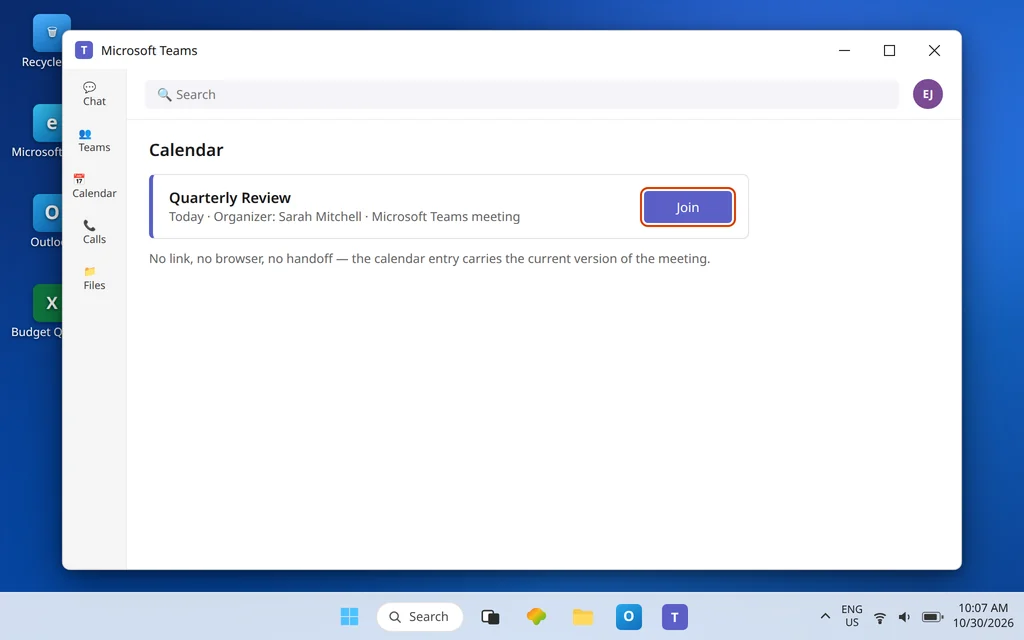
The same rule explains the calendar-vs-chat difference readers ask about: the link in your Teams or Outlook calendar entry is kept with the current version of the meeting, while a link someone pasted into a chat is a frozen copy from the moment it was pasted. When the two disagree, trust the calendar.
Fix 4 — Check you are opening the link as the right account
A link opened while you are signed in to the wrong Microsoft account can be redirected into the wrong place or report that the meeting cannot be found. This is the classic setup for people with both a personal Microsoft account and a work or school account — the browser remembers one, the meeting expects the other.
- Look at the profile picture or initials in Teams and in your browser and confirm the account shown is the one the invitation was sent to.
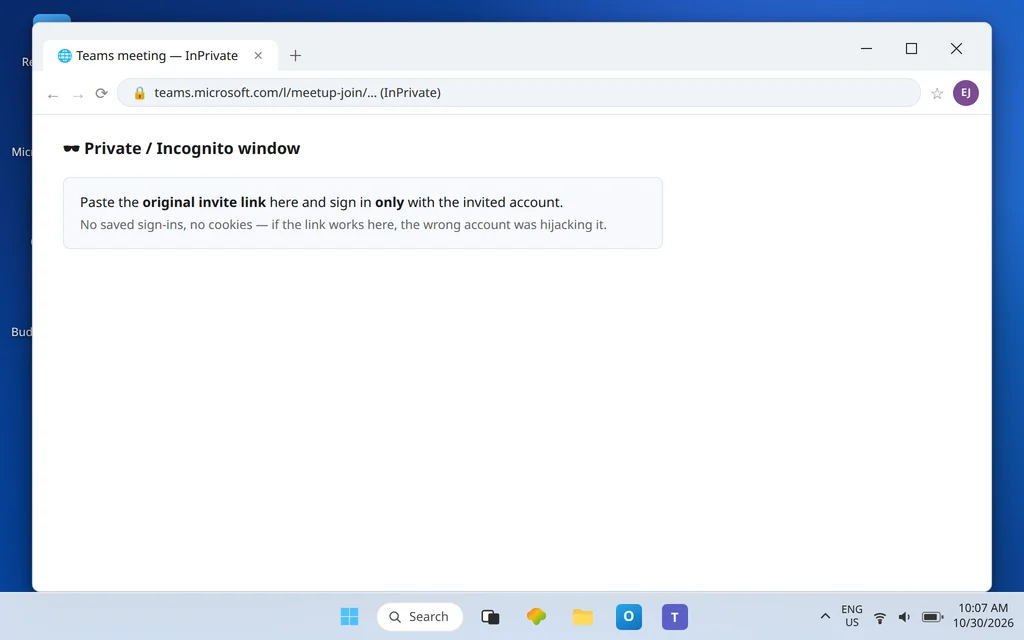
- The cleanest test: open a private/incognito window in your browser, paste the original invite link there, and sign in only with the invited account when asked. A private window ignores all the saved sign-ins that can hijack a link.
- If the link works in the private window, you have your answer — sign out of the wrong account in your normal browser or Teams app, sign in with the right one, and try the link again normally.
Fix 5 — Skip the link entirely: join from Calendar, or by Meeting ID
When the meeting is starting now and the link is still misbehaving, stop fixing and just join. You have two link-free routes, both documented by Microsoft:
Route A — from inside Teams. Open Teams > Calendar, find the meeting, and select Join on the entry itself. No browser, no link, no handoff. If the meeting appears in your calendar, this is the most reliable door there is.
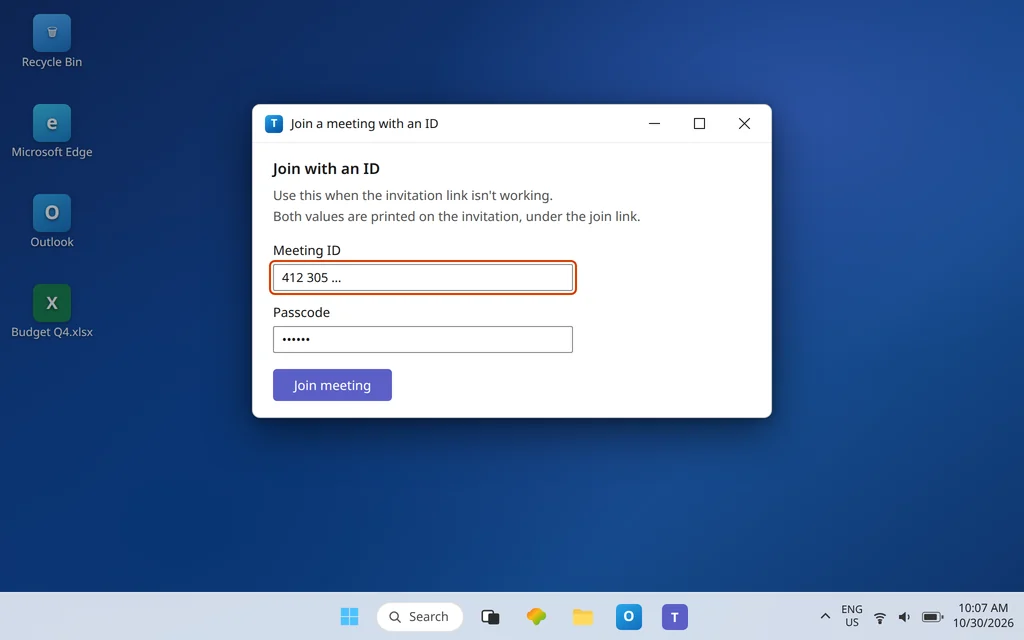
Route B — Meeting ID and passcode. Microsoft’s own answer to “your invitation link isn’t working” is to join with the ID instead:
- Find the Meeting ID and Passcode printed on the invitation, under the join link.
- In Teams, go to Calendar and choose Join with an ID (wording may show as Join with Meeting ID).
- Enter the meeting ID, then the passcode, and select Join.
Use either route to get into today’s meeting — then, if you care about the link itself, come back to Fixes 1, 4, and 6 afterward, without an audience waiting on you.
Fix 6 — Fix which app opens Teams links (Windows default)
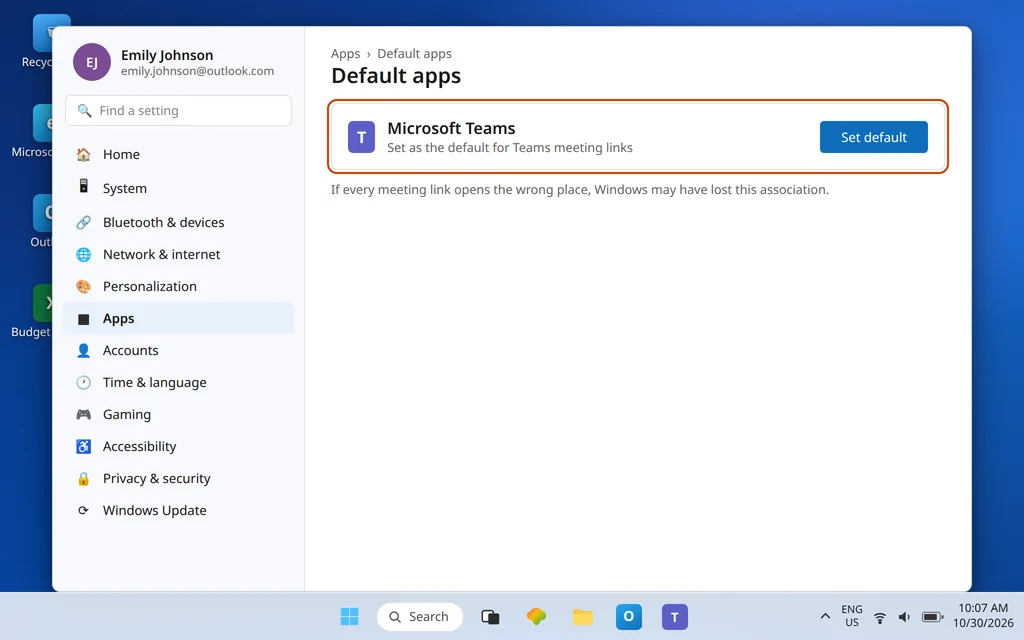
If every Teams link opens the wrong place — an old app, the wrong Teams, or a browser tab that never hands off — Windows may have lost the association between Teams links and the current Teams app:
- Open Settings > Apps > Default apps.
- Search for and select Microsoft Teams, then click Set default if offered, so Teams link types are assigned to Teams.
- Fully quit Teams (notification area icon > Quit), reopen it, and click a meeting link again.
If links still open nowhere useful, reinstalling Teams from Microsoft’s website re-registers its link handling — do that as the last step, not the first. And note the boundary: if the link now opens Teams but Teams then hangs forever, that is no longer a link problem — it is Microsoft Teams Stuck on the Loading Screen. If it opens and demands sign-in in a loop, see Microsoft Teams Keeps Asking to Sign In.
Fix 7 — Try the other browser, and clear the stuck one
The browser is part of the link’s journey even when you use the desktop app, so a damaged browser state can strand a link:
- Paste the original link into a different supported browser — Microsoft Edge or Google Chrome are the two Microsoft documents for Teams on the web. If it joins there, your default browser is the problem.
- Back in your usual browser, clear cached images and files and cookies for Teams/Microsoft sign-in sites, then restart the browser and try once more. Stale sign-in cookies are a known cause of links redirecting wrongly.
- If a browser extension manages links, downloads, or privacy redirects, test once with extensions disabled in a private window — Fix 4’s private-window test doubles as this test.
Confirm it worked
Click a meeting link from an original invite for a future meeting and confirm you reach the pre-join screen — camera and microphone preview, Join now button visible. Reaching the pre-join screen is the success line; you do not need to enter an empty meeting. Then click the link one more time after closing Teams completely, to prove the app handoff also works from a cold start, not just while Teams happened to be open.
How to stop it happening again
- Join from the calendar, habitually. The calendar entry always carries the current version of the meeting; treat chat-pasted links as a convenience, not the source of truth.
- One account per browser profile. Keep your work account in your work browser profile and your personal account in another — most wrong-account link failures disappear.
- Organizers: re-send, don’t forward. If you move a meeting, let the fresh invitation do the work; forwarding the old email spreads a dead link.
Frequently asked questions
Why does my Teams meeting link open nothing?
Most often because the address itself is damaged (a copied or forwarded link that lost part of its length), the browser page opened but its handoff to the app was blocked or never chosen, or Windows no longer associates Teams links with the Teams app. Work Fixes 1, 2, and 6 in that order — and use Fix 5 to join by Calendar or Meeting ID if the meeting is starting now.
How do I join if the invitation link isn’t working?
Join with the Meeting ID and passcode printed on the invitation: in Teams go to Calendar, choose Join with an ID, enter both, and select Join. Or open the meeting in Calendar and use its own Join button. Microsoft documents the ID route specifically as the answer when an invitation link isn’t working.
Can a Teams meeting link expire or stop working?
A link stops working when the meeting behind it changes: an edited, rescheduled, or cancelled-and-recreated meeting leaves the old invitation’s link pointing at something that no longer matches, which is why Teams reports the meeting cannot be found. There is no need to guess about time limits — the practical fix is always the same: use the newest invitation, or ask the organizer to re-send it.
Why does the link open the browser instead of the Teams app?
Because that browser page is the link’s landing page — it is supposed to offer you Open Microsoft Teams / Join on the Teams app or Continue on this browser. If it never hands you to the app, either the “open the app” permission was dismissed, or Windows has the link association wrong. Allow the prompt when it appears, and use Fix 6 to reset the default app if every link misbehaves.
I clicked the link and it says the meeting can’t be found. Why?
Three causes cover nearly every case: you are opening an old invitation for a meeting that was changed (Fix 3), you are signed in with a different account than the one invited (Fix 4), or the link was copied incompletely (Fix 1). Test with the original invite in a private browser window — that single test rules out two of the three at once.
Should I use the link from the calendar invite or from chat?
The calendar invite. It stays attached to the current version of the meeting, including the organizer’s edits. A link pasted into a chat is a snapshot from the day it was pasted — fine on the day, increasingly risky afterward. When a chat link and a calendar link disagree, the calendar is right.
Meeting link still doing nothing? Contact us at servicedesk@howtofixerroronline.com or through our Contact page and tell us what the link opens (blank tab, app, or an error), whether the calendar entry joins, and whether the meeting was recently moved. We will never ask for your password.