
Windows Update Error 0x80070002 on Windows 11? 9 Fixes
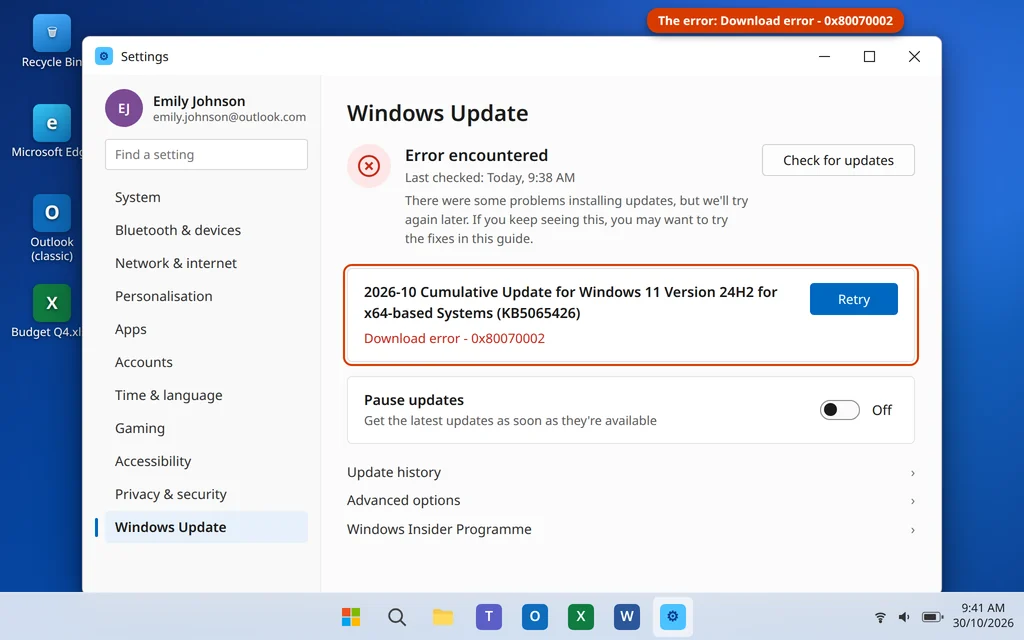
You open Windows Update, the download seems to run, and then it stops with a short message: “There were some problems installing updates” — and a code, 0x80070002. You click Retry, and the same code comes back. When you hit the Windows Update error 0x80070002 on Windows 11, it feels like Windows is refusing to explain itself, but this code actually has a plain meaning, and most of its causes are simple to clear.
Code 0x80070002 means “file not found”. During the update, Windows went looking for a file it needed — usually one it had downloaded itself — and the file was not there, was incomplete, or could not be read. A half-finished earlier download, a wrong system clock, a stopped update service, or a damaged Windows file can all produce exactly this result.
The fixes below are ordered from quickest to deepest. Most people are done by Fix 5. Work through them in order, and run Windows Update again after each one.
Quick Answer: Restart your PC and click Retry first. Then check your date and time are set automatically, and run the Windows Update troubleshooter in the Get Help app. If the error stays, restart the Windows Update services and delete the contents of
C:\Windows\SoftwareDistribution\Download— that clears the broken download Windows keeps tripping over. Still stuck? Repair Windows files with DISM andsfc /scannow, or install the update manually from the Microsoft Update Catalog.
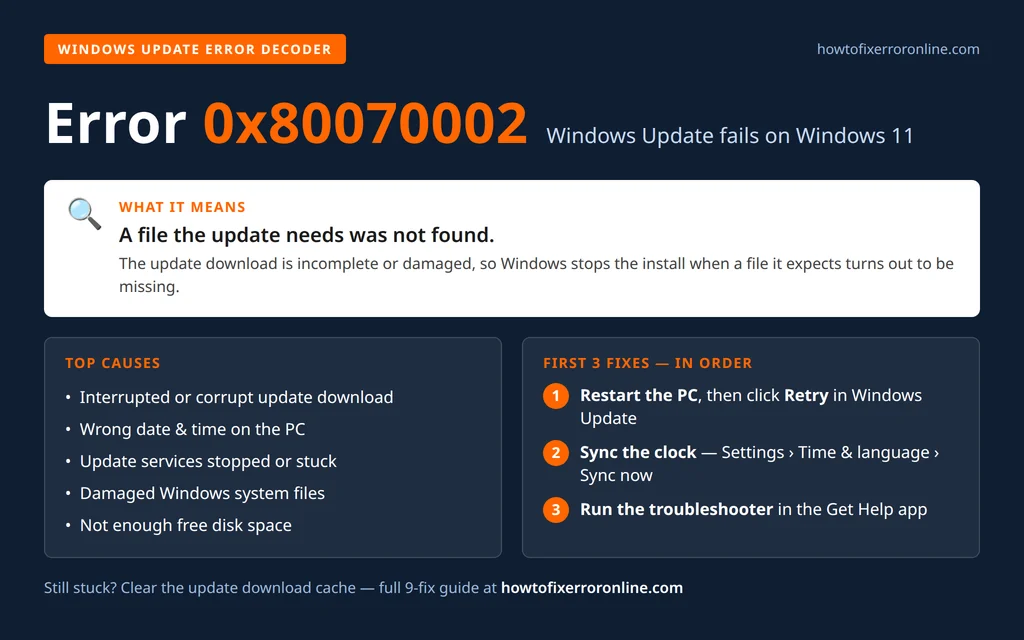
Table of Contents
What Does Windows Update Error 0x80070002 Mean?
Under the hood, 0x80070002 is Windows’ standard “the system cannot find the file specified” error. Windows Update hits it when a file it expects is missing at the moment it is needed. The usual triggers are:
- A corrupted update download. The update files in the download cache are incomplete — often because an earlier update attempt was interrupted by a shutdown, a dropped connection, or a crash.
- The wrong date or time. If your PC clock is off, Windows can reject update files and security certificates as invalid, and downloads fail part-way.
- Update services not running. Windows Update depends on several background services. If one is stopped or stuck, files never arrive where they should.
- Damaged Windows system files. If the update components themselves are damaged, they lose track of files they downloaded minutes earlier.
- Not enough free disk space. The download or install runs out of room mid-way, leaving missing files behind.
- A security tool interfering. Occasionally, third-party antivirus software quarantines or blocks an update file. This is less common, but worth remembering if nothing else works.
None of these mean your PC is broken — they mean the update’s filing system has lost a page. The fixes put it back.
Fix 1: Restart Your PC and Try the Update Again
This sounds too basic, but a restart clears stuck update processes, finishes anything waiting on a reboot, and gives Windows Update a completely fresh start. A surprising number of 0x80070002 errors never come back after it.
- Save your work and click Start > Power > Restart (choose Restart, not Shut down — Restart fully reloads Windows services).
- After signing back in, wait a minute or two so background services finish starting.
- Open Settings > Windows Update and click Check for updates.
- If the failed update is listed with a Retry button, click Retry instead.
If the same code returns after a genuine restart, move on — the cause is one of the ones below, not a temporary glitch.
Fix 2: Check Your Date and Time Settings
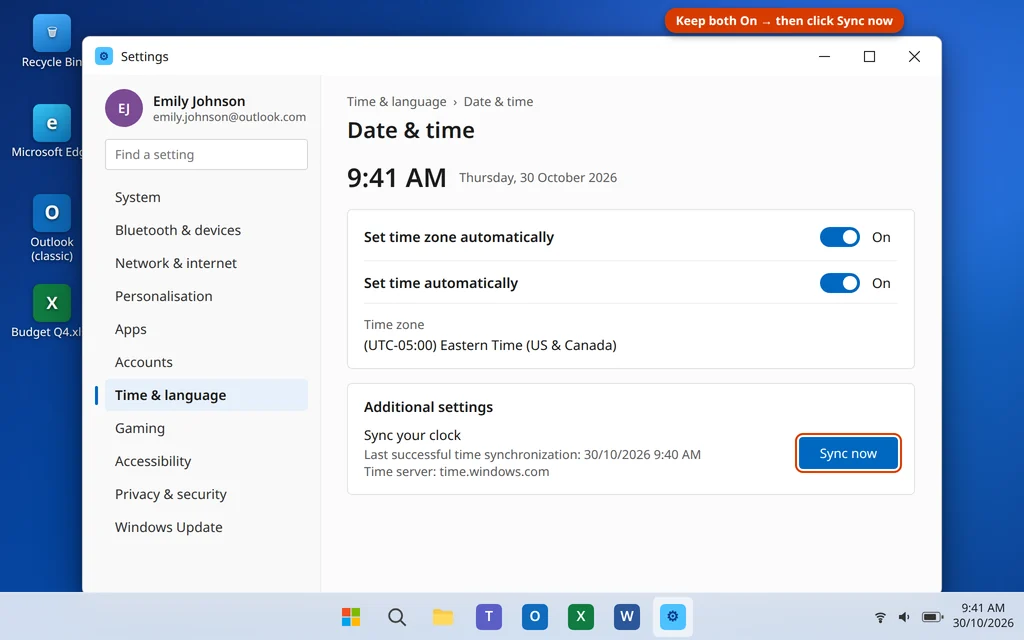
Windows Update checks the date and time constantly — update files and the security certificates behind them are only valid within their correct time window. If your clock is wrong by more than a few minutes (a flat motherboard battery or a changed time zone can do this), downloads can fail with file errors like 0x80070002.
- Open Settings > Time & language > Date & time.
- Turn on Set time zone automatically and Set time automatically, if they are not already on.
- Under Additional settings, click Sync now to force an immediate sync with Microsoft’s time server.
- Restart the PC if you changed anything, then run Windows Update again.
Fix 3: Run the Windows Update Troubleshooter
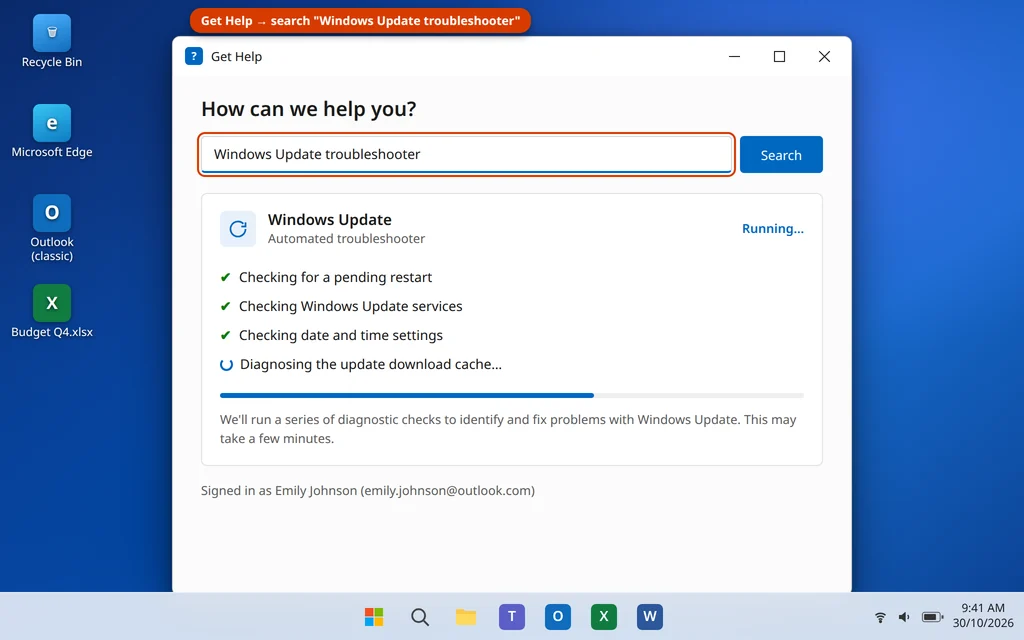
Windows 11’s built-in troubleshooter for update problems now lives in the Get Help app. It checks the update services, the download cache and common configuration problems, and fixes what it finds automatically.
- Click Start, type Get Help, and open the Get Help app.
- In the search box, type Windows Update troubleshooter and press Enter.
- Follow the prompts — choose that you are having trouble downloading or installing updates, and let the checks run.
- When it finishes, it reports what it found and fixed. Restart the PC if it asks, then try Windows Update again.
On some PCs you can also still find a Windows Update entry under Settings > System > Troubleshoot > Other troubleshooters — running that does the same job.
Fix 4: Restart the Windows Update Services
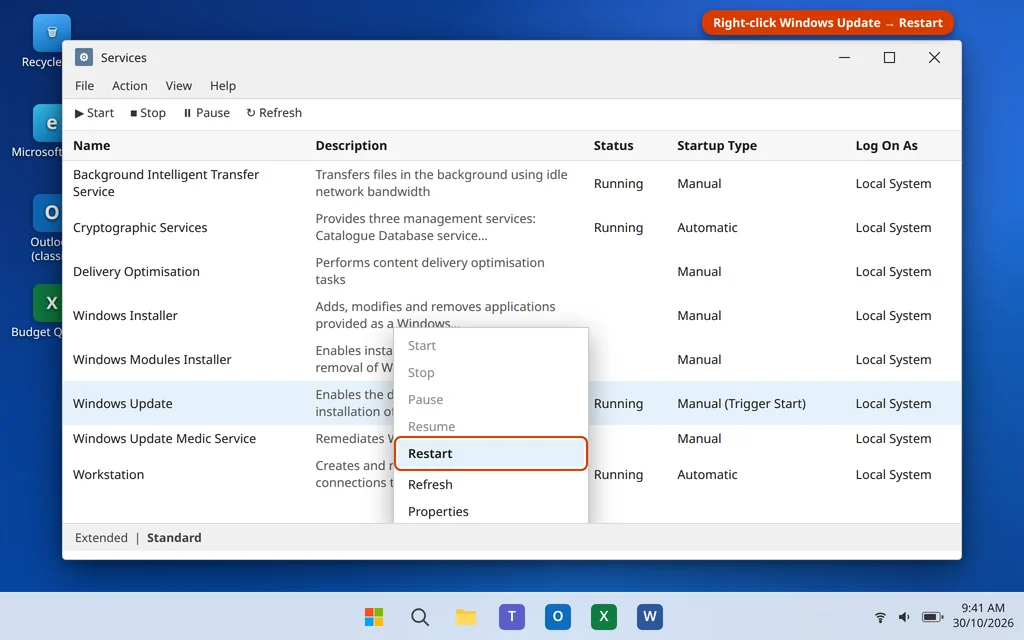
Windows Update is not one program — it is a team of background services. If one of them has stopped or frozen, update files go missing in action. Restarting them through the Services console is safe and takes two minutes.
- Press Windows key + R, type
services.mscand press Enter. - Find Windows Update in the list. Right-click it and choose Restart. (If it is stopped, choose Start instead.)
- Do the same for Background Intelligent Transfer Service — this is the service that actually downloads the update files.
- Also restart Cryptographic Services, which verifies the downloaded files.
- Double-click each of these services and check Startup type is not set to Disabled. Manual or Automatic are both fine.
- Close Services and run Windows Update again.
Fix 5: Clear the Windows Update Download Folder
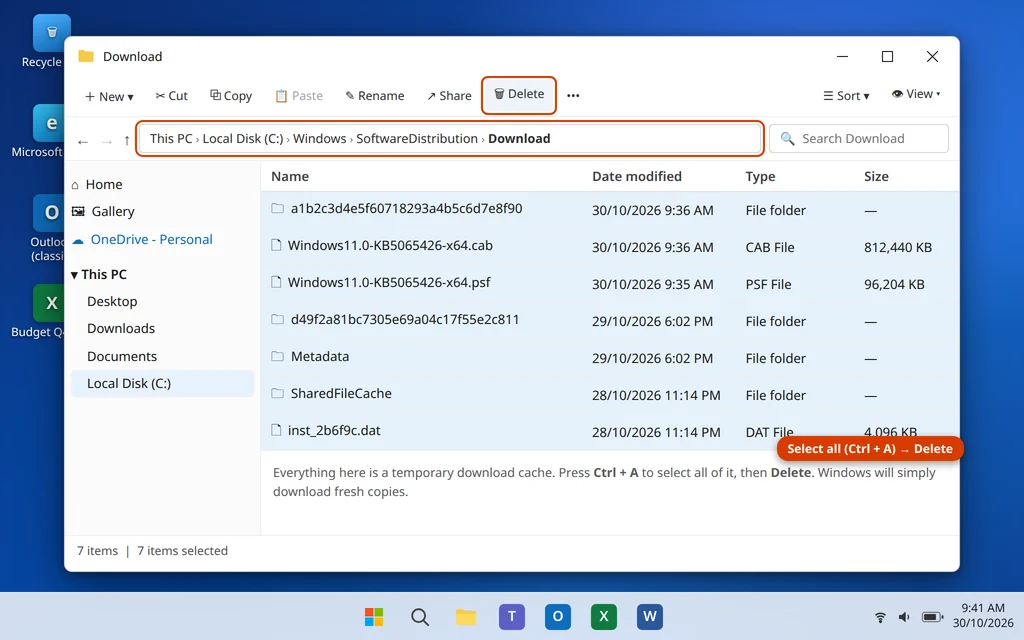
This is the fix that solves error 0x80070002 most often. Windows stores downloaded update files in C:\Windows\SoftwareDistribution\Download. If an earlier attempt left incomplete files there, every new attempt trips over them. Deleting the contents forces Windows to download a clean copy. The files are only a cache — deleting them does not harm Windows.
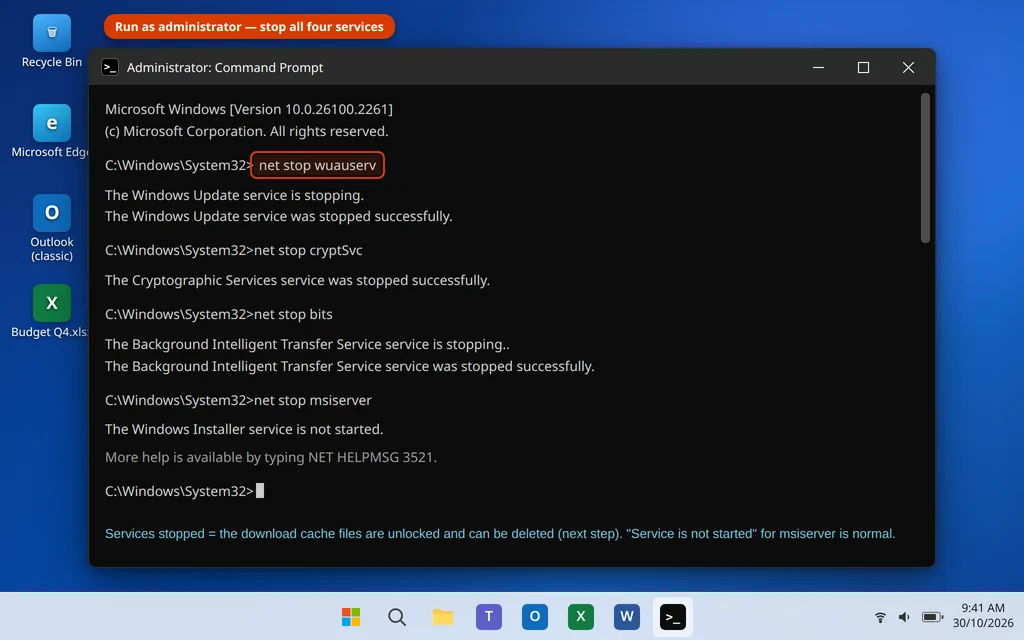
Step 1 — stop the update services (files in use cannot be deleted):
- Type
cmdin Windows search, right-click Command Prompt and choose Run as administrator. - Type each line below, pressing Enter after each one. You should see a “service was stopped successfully” message for each:
net stop wuauserv
net stop cryptSvc
net stop bits
net stop msiserver
Step 2 — delete the downloaded files:
- Open File Explorer and go to
C:\Windows\SoftwareDistribution\Download. - Click inside the folder, press Ctrl + A to select everything, and press Delete. Confirm if Windows asks for administrator permission.
- Restart your PC. The services you stopped will start again on their own — or go back to the same admin Command Prompt later and start them with
net start wuauserv,net start cryptSvc,net start bitsandnet start msiserver. - Open Settings > Windows Update and click Check for updates. The update now downloads fresh from the beginning.
Fix 6: Repair Windows Files With DISM and SFC
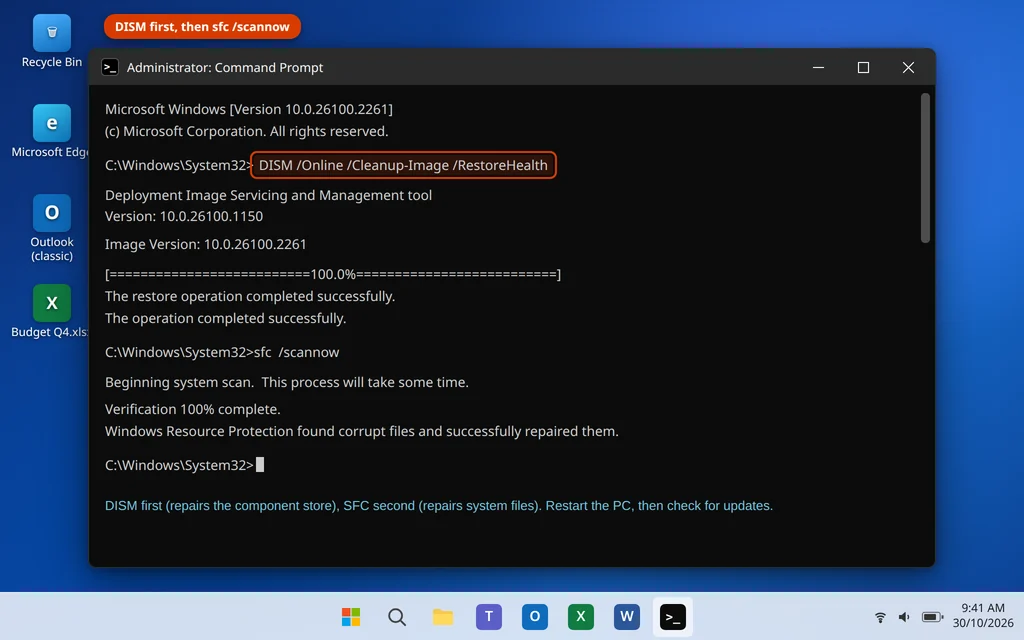
If the update components themselves are damaged, clearing the cache will not be enough — Windows keeps misplacing files because its own parts are broken. Two built-in repair tools fix this. Run them in an administrator Command Prompt, in this order:
- Type
cmdin Windows search, right-click Command Prompt and choose Run as administrator. - Type this command and press Enter. It repairs the Windows component store that updates are built from, and can take 10–20 minutes — stay connected to the internet while it runs:
DISM /Online /Cleanup-Image /RestoreHealth
- When DISM finishes, type this second command and press Enter to check and repair protected system files:
sfc /scannow
- Restart your PC and run Windows Update again.
The same pair of commands also fixes other Windows faults — a Start menu that stops working often responds to them too, as our guide to fixing the Windows 11 Start menu not working explains.
Fix 7: Check Your Free Disk Space
An update that runs out of room halfway through leaves exactly the kind of missing-file mess that produces 0x80070002. Monthly updates need a few gigabytes of working space, and the big yearly feature updates need more.
- Open Settings > System > Storage and look at how much space is free on your C: drive.
- As a working rule, aim for at least 10 GB free. If you are well below that, click Temporary files, check the safe categories (leave Downloads unchecked unless you are sure), and click Remove files.
- Uninstall large apps or games you no longer use from Settings > Apps > Installed apps, or move big personal files to another drive or an external disk.
- Restart, then run Windows Update again.
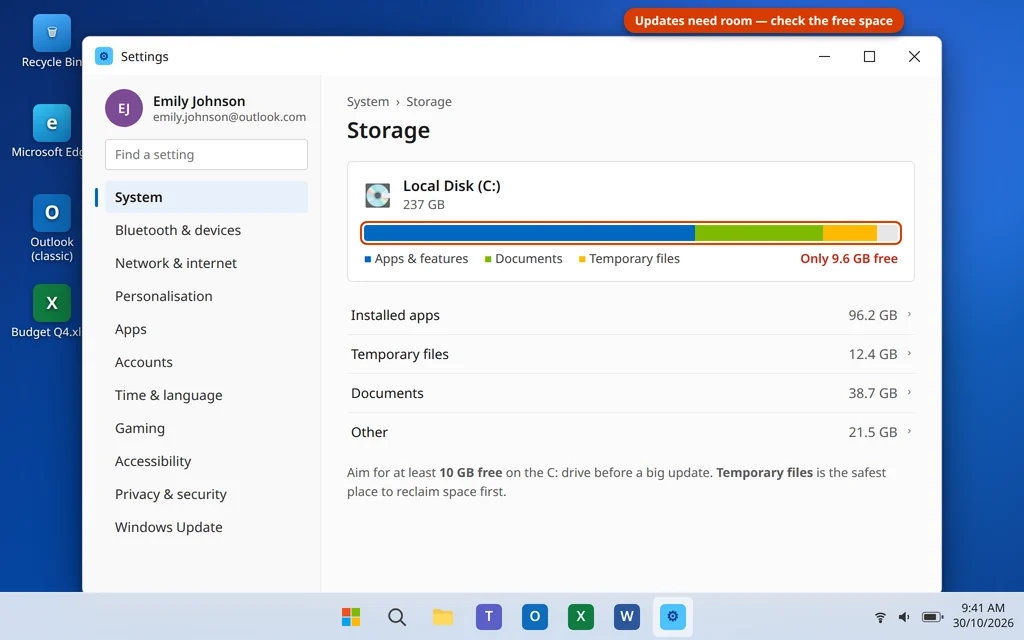
If a PC slow on Windows 11 is the bigger problem on this machine, the deep clean-up steps in that guide will free space and speed things up at the same time.
Fix 8: Install the Update Manually From the Microsoft Update Catalog
If one specific update keeps failing while everything else works, you can skip Windows Update entirely and install that update yourself from Microsoft’s official catalog.
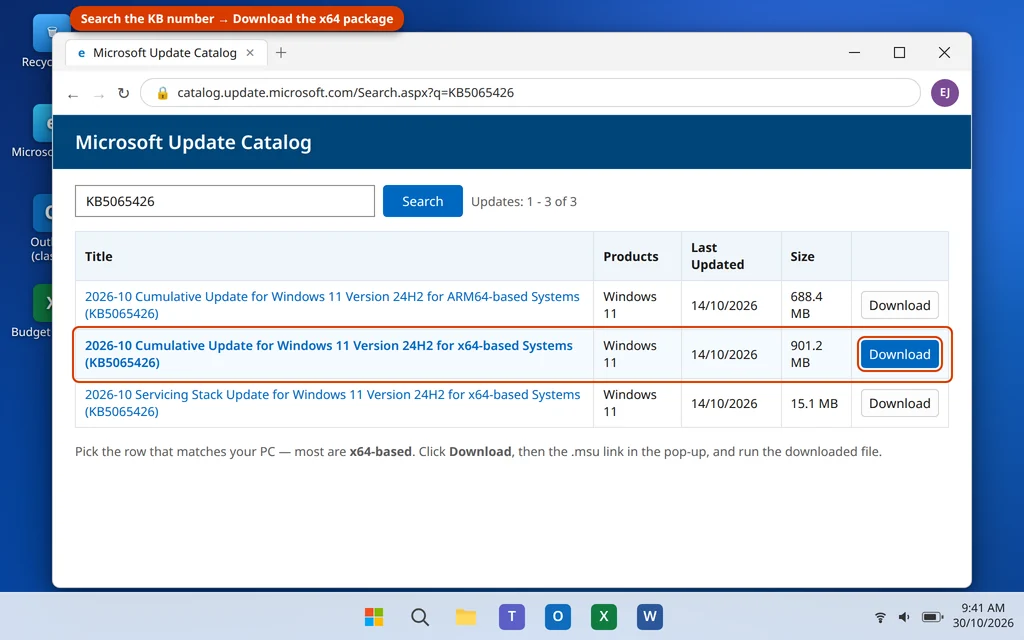
- First, note the update’s KB number: open Settings > Windows Update > Update history and find the failed update — its name contains a code like KB5034441.
- In your browser, go to catalog.update.microsoft.com.
- Type the KB number into the catalog search box and press Search.
- Find the row that matches your system — for most PCs that is the Windows 11 version marked x64-based (choose ARM64-based only if your PC has an ARM processor) — and click its Download button.
- In the small pop-up window, click the
.msufile link to download it. - Double-click the downloaded
.msufile. The Windows Update Standalone Installer opens — click Yes and let it install, then restart.
Fix 9: Repair Install Windows 11 (Keep Files and Apps)
If error 0x80070002 survives everything above, the Windows installation itself is damaged in a way the smaller repairs cannot reach. A repair install reinstalls Windows 11 over the top of itself, replacing all system and update components, while keeping your files, apps and settings.
The simplest route is built into Settings:
- Open Settings > System > Recovery.
- Under Fix problems using Windows Update, click Reinstall now. Windows downloads a fresh copy of your current version and reinstalls it.
- Follow the prompts and restart when asked. Your apps, files and settings are kept.
Alternatively, download the Windows 11 ISO from Microsoft’s official Windows 11 download page, double-click the ISO file to mount it, run setup.exe, and when asked what to keep, choose Keep personal files and apps.
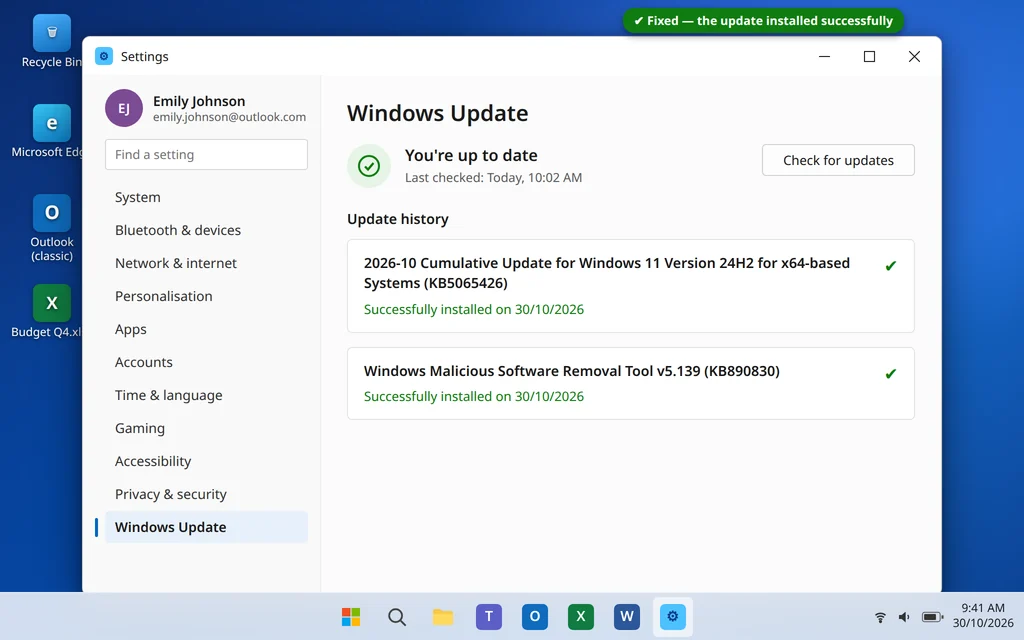
After the repair install, run Windows Update — the update that was failing should now install normally. Treat this fix as the last resort: it is safe, but it takes the longest.
How to Stop Windows Update Error 0x80070002 Coming Back
- Let updates finish. Avoid forcing the PC off while an update is downloading or installing — an interrupted update is the number one cause of the corrupt cache behind this error.
- Keep some space free. Try to keep at least 10 GB free on the C: drive so downloads never run out of room.
- Restart now and then. If you only ever sleep your PC, update processes pile up half-finished. A weekly restart keeps them clean.
- Keep the clock automatic. Leaving Set time automatically on prevents silent time drift from breaking updates.
- One antivirus at a time. Running two real-time security tools can make them fight over update files. Windows Security alone, or one third-party tool, is enough.
Frequently Asked Questions
What does error code 0x80070002 mean?
It is Windows’ “file not found” error. During an update, Windows looked for a file it needed — most often a file from its own download cache — and that file was missing, incomplete or unreadable. The fixes above repair the cache, the services and the system files so the update can find everything again.
Is error 0x80070002 a virus?
No. It is a file and update problem, not malware. That said, if the error appeared alongside other strange behavior, running a Full scan in Windows Security is a sensible safety check while you work through the fixes.
Will deleting the SoftwareDistribution folder delete my installed updates?
No. Fix 5 deletes only the contents of the Download subfolder — the temporary cache of updates being downloaded. Updates already installed on your PC are untouched, and Windows simply downloads fresh copies of anything it still needs.
Why does 0x80070002 keep coming back after I fix it?
Something is re-breaking the download each time. The usual repeat causes are a nearly full C: drive (Fix 7), a PC clock that keeps drifting because the motherboard battery is failing (Fix 2), or security software interfering with downloads. If it returns after every fix including Fix 6, use the repair install in Fix 9.
Can I just ignore or hide this update?
You can pause updates for a while in Settings > Windows Update > Pause updates, but do not ignore a failing update permanently — the monthly updates carry security fixes. If one update refuses to install through Windows Update, install it manually with Fix 8 instead.
What is the difference between 0x80070002 and 0x80070003?
They are close cousins. 0x80070002 means a needed file was not found; 0x80070003 means a needed path (folder location) was not found. Both usually come from the same corrupt download cache, so the fixes in this guide — especially Fix 5 — are worth trying for either code.
Still getting error 0x80070002? Tell us the KB number of the update that fails and which fix you reached, on our Contact page — servicedesk@howtofixerroronline.com, available 24 hours. Our Windows Errors category has step-by-step fixes for more update and Start menu problems.