
Microsoft Word Not Opening on Windows 11? 8 Fixes
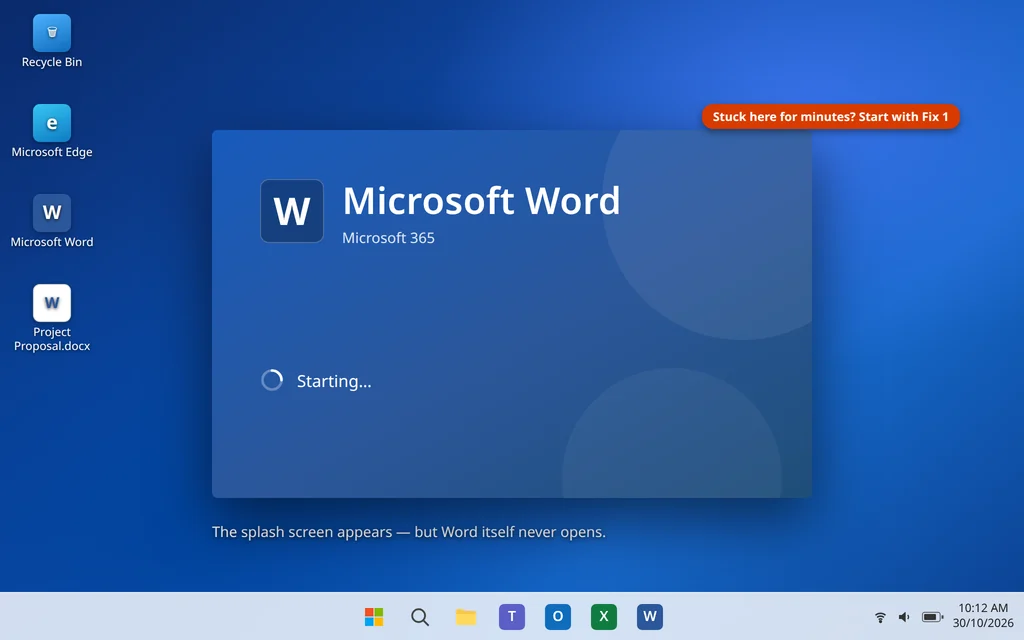
You double-click a document, the blue Word splash screen flashes for a second — or nothing happens at all — and suddenly Microsoft Word not opening is the only thing standing between you and your work. Maybe the splash screen sits on “Starting” forever. Maybe Word opens and closes again instantly. Either way, you cannot reach a single setting inside the program, because the program never opens.
The good news: Word almost always fails to start for one of a handful of simple reasons. A leftover process from a crashed session, one faulty add-in, or a damaged template file covers most cases, and every fix in this guide works from outside Word, so you do not need Word open to repair it. Work through them in order — the first fix takes under a minute.
This guide is for the desktop version of Microsoft Word on Windows 11 (Microsoft 365 and Office 2021/2024). If it is Outlook that refuses to start on this PC, use our guide to Outlook not opening on Windows 11 instead — the causes overlap, but the files involved are different.
Quick Answer: First, end the stuck Word process in Task Manager (Ctrl + Shift + Esc) and restart your PC. If Word still will not open, start it in Safe Mode with
winword.exe /safeand disable your add-ins. Next, rename the Normal.dotm template so Word builds a fresh one, then run a Quick Repair of Office from Settings > Apps > Installed apps.
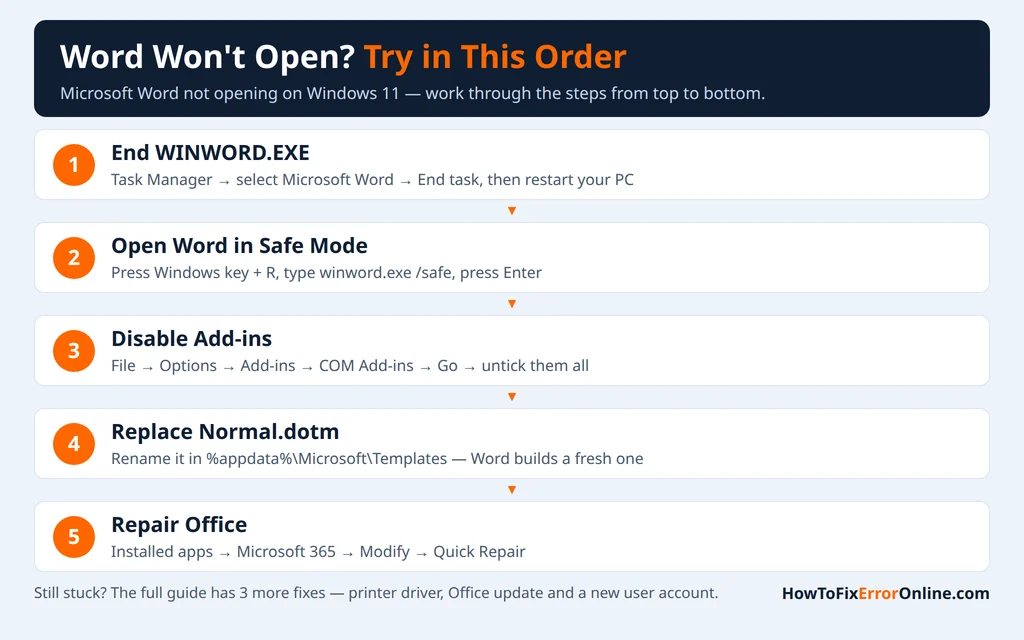
Table of Contents
Why Is Microsoft Word Not Opening on Windows 11?
When Word starts, it has to load its template, its add-ins, your settings, and even check your default printer before the first document appears. If any one of those steps breaks, Word stops before it opens:
- Word is still running in the background. A crashed or frozen session can leave WINWORD.EXE running with no window. The new copy you launch waits on the stuck one and never appears.
- A faulty add-in. Add-ins load at startup, and one broken or outdated add-in can stop Word before the window shows.
- A damaged Normal.dotm template. Every blank document is based on this one file. If it gets corrupted, Word can fail every time it tries to load it.
- Damaged Office program files. An interrupted update or a hard shutdown mid-install can leave Word’s own files broken.
- A corrupt default printer driver. Word talks to your default printer as it starts, to measure pages correctly. A bad driver can hang or crash that conversation.
- A damaged Windows user profile. Your Word settings and template live inside your user account, so profile damage can break Word for you while it works fine for everyone else.
Fix 1: End the Stuck WINWORD.EXE Process and Restart
This is the most common cause, and the fastest fix. If a previous Word session crashed silently, its process is probably still running.
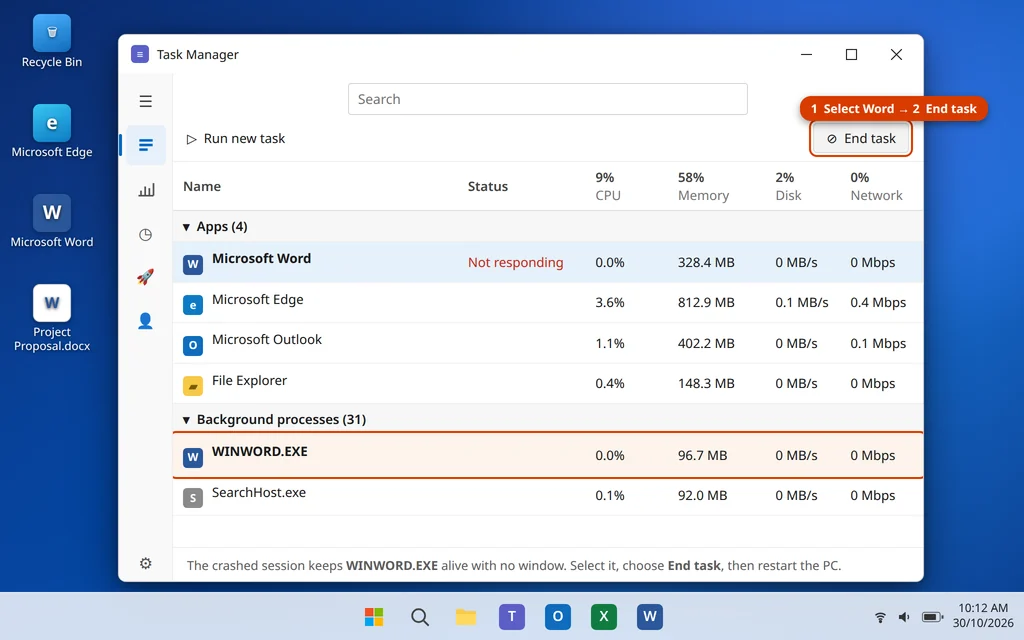
- Press Ctrl + Shift + Esc to open Task Manager. If it opens small, click More details.
- In the Processes tab, look for Microsoft Word under Apps. If you do not see it there, scroll down to Background processes and look for WINWORD.EXE.
- Select it and click End task. Repeat if more than one copy is listed.
- Restart your PC — a proper restart, not just closing Task Manager and trying Word again.
- Open Word and give it a full minute before deciding it is still stuck.
If Word opens now, you are done — the stuck process was the whole problem. If it fails again in the same way, the process was a symptom, not the cause. Move on to Fix 2.
Fix 2: Open Word in Safe Mode and Disable Add-Ins
Safe Mode starts Word with no add-ins and no customizations, which makes it the perfect test: if Word opens in Safe Mode, something it normally loads is the culprit.
- Press Windows key + R to open the Run box.
- Type
winword.exe /safeand press Enter. - Word should open with “(Safe Mode)” in its title bar. (Another way in: hold the Ctrl key while you click the Word icon, and click Yes when Word asks if you want Safe Mode.)
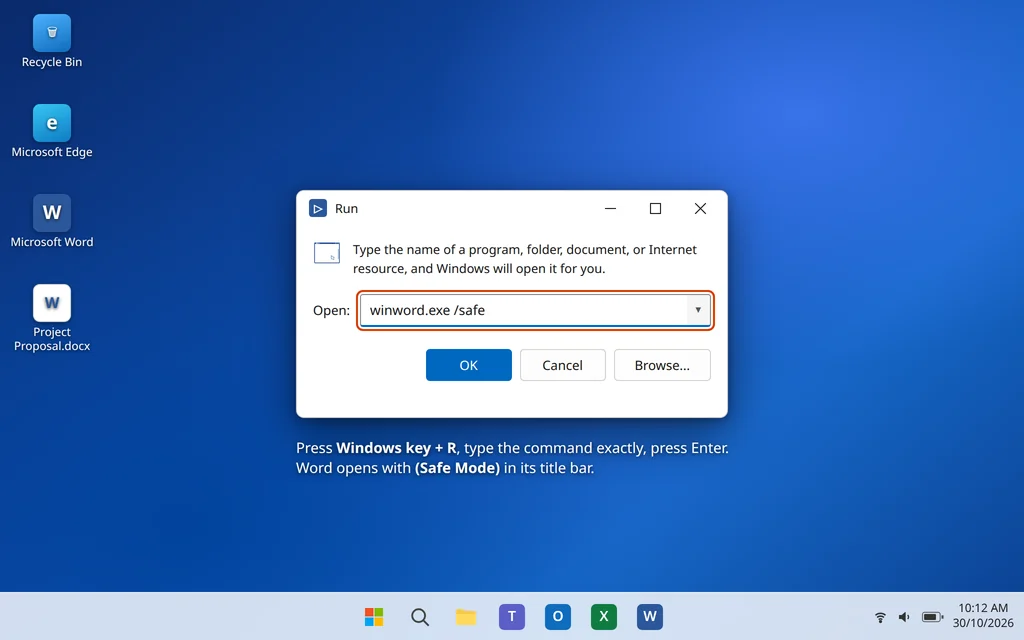
If Word opens in Safe Mode, disable the add-ins while you are there:
- Click File > Options > Add-ins.
- At the bottom of the window, set Manage to COM Add-ins and click Go.
- Uncheck every add-in in the list and click OK.
- Close Word and open it normally. It should now start without freezing.
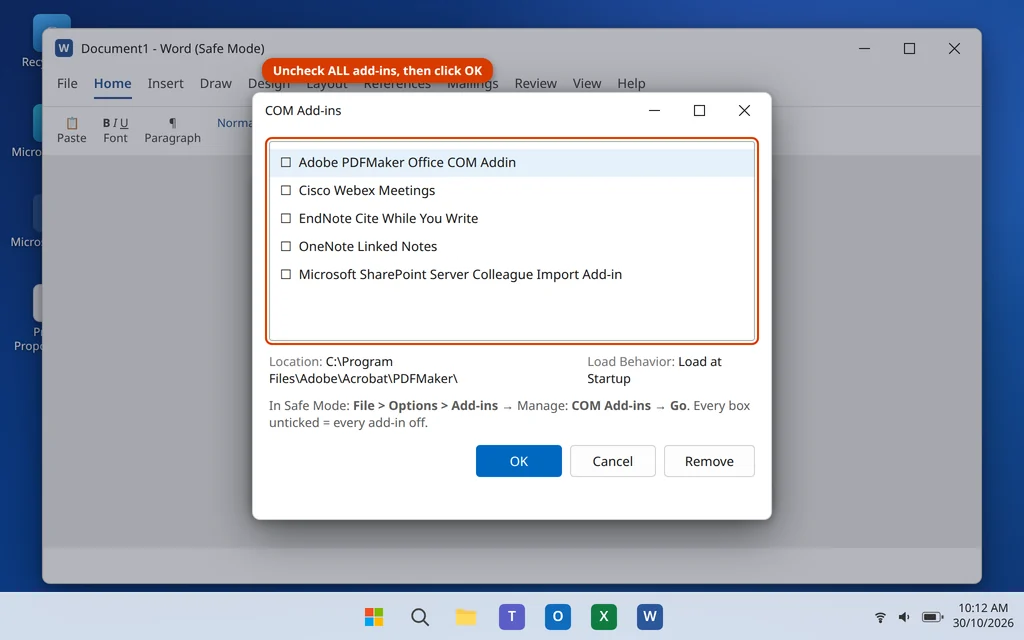
Then, if you want to find the exact culprit, turn add-ins back on one at a time, restarting Word after each, until the problem returns — that add-in is the faulty one. Leave it unchecked or uninstall it. PDF tools, reference managers and old meeting add-ins are the usual offenders.
While Word is open in Safe Mode, one more setting is worth checking: click File > Options > Advanced, scroll down to the Display section, and if you see Disable hardware graphics acceleration, check it, click OK, and restart Word normally. On some PCs a clash between Word and the graphics driver stops Word opening, and this removes the clash. (If the option is not listed on your version, skip it — newer versions manage this automatically.)
If Word will not open even in Safe Mode, add-ins are not the problem. Go to Fix 3.
Fix 3: Rename the Normal.dotm Template File
Normal.dotm is the template every new blank document is built from, and Word loads it at startup. When it is damaged, Word can fail before it opens — and the fix is safe, because Word simply creates a fresh one.
- Close Word completely, and use Fix 1 to make sure no WINWORD.EXE is still running.
- Press Windows key + R, type
%appdata%\Microsoft\Templatesand press Enter. The Templates folder opens. - Find the file named Normal.dotm, right-click it, choose Rename, and change its name to Normal.old.
- Open Word. It creates a brand-new Normal.dotm automatically, and should start normally.
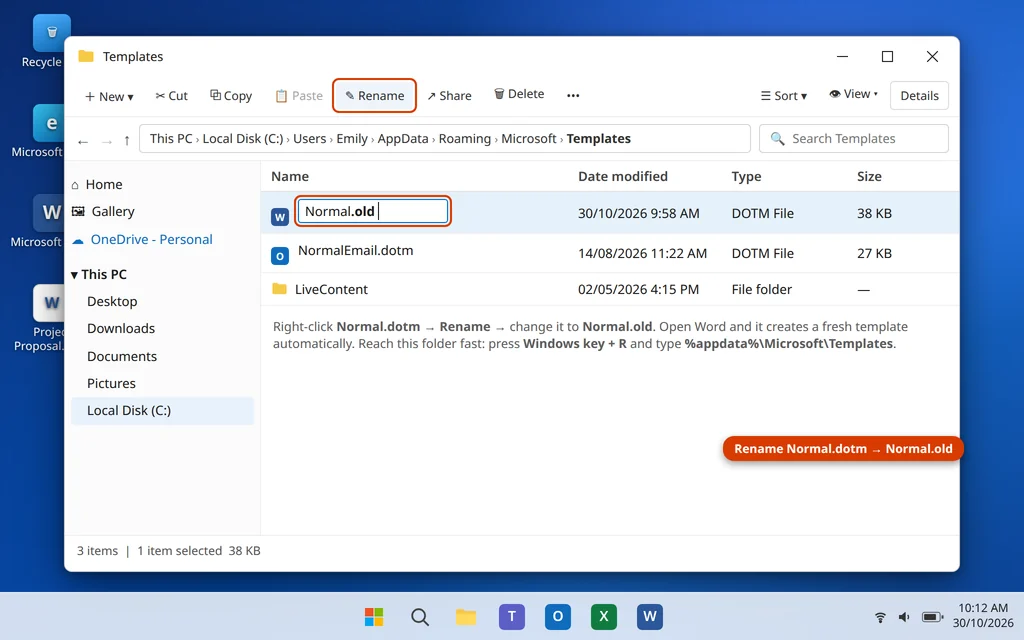
Your documents are not touched by this — the template only holds default formatting, styles and any macros you saved into it. Renaming instead of deleting keeps the old file as a backup, so if you had custom styles in it, nothing is lost permanently.
Cannot find Normal.dotm? The exact path is C:\Users\[YourName]\AppData\Roaming\Microsoft\Templates — AppData is hidden, which is why the %appdata% shortcut in step 2 is the reliable way in.
Fix 4: Repair Office — Quick Repair First, Then Online Repair
If Word’s own program files are damaged, no template or add-in change will help. The built-in Office repair rebuilds those files without touching your documents, your template or your settings.
- Close all Office apps.
- Right-click the Start button and select Installed apps.
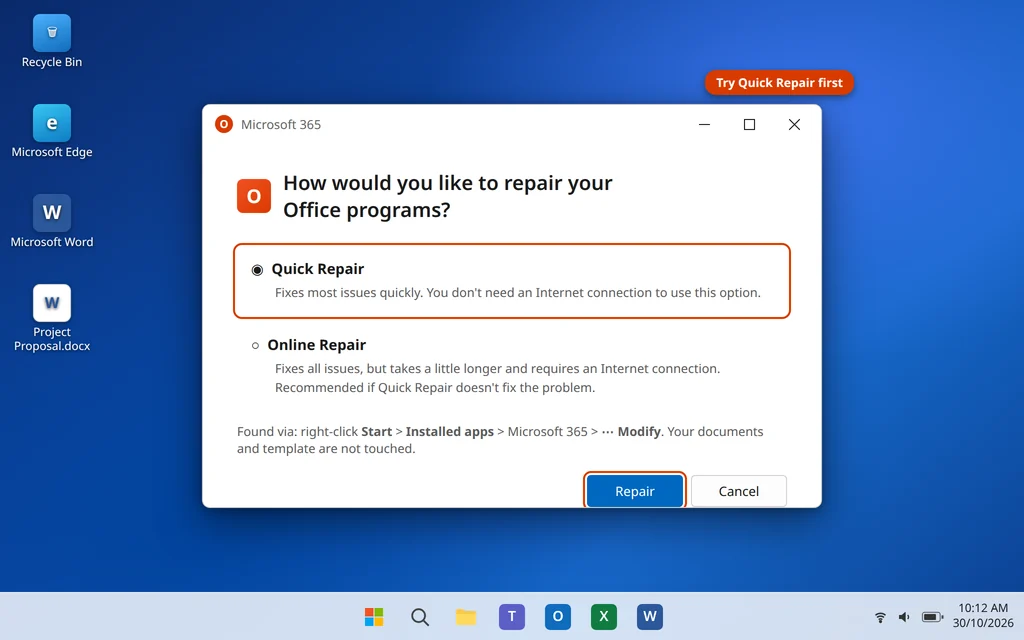
- Find Microsoft 365 (or your version of Microsoft Office) in the list, click the three dots next to it, and choose Modify.
- Choose Quick Repair and click Repair. It takes a few minutes and works offline.
- Open Word and test. If it still will not open, repeat the steps and choose Online Repair instead — it re-downloads the Office program files, so it takes longer and needs an internet connection, but it fixes deeper damage.
Fix 5: Change Your Default Printer
This one surprises people: Word checks your default printer as it starts, because it needs the printer’s measurements to lay out pages. If that printer’s driver is corrupt or half-updated, Word can hang or crash during startup. Testing takes two minutes.
- Open Settings > Bluetooth & devices > Printers & scanners.
- Scroll down and turn off “Let Windows manage my default printer”.
- In the printer list, click Microsoft Print to PDF, then click Set as default.
- Open Word and test it.
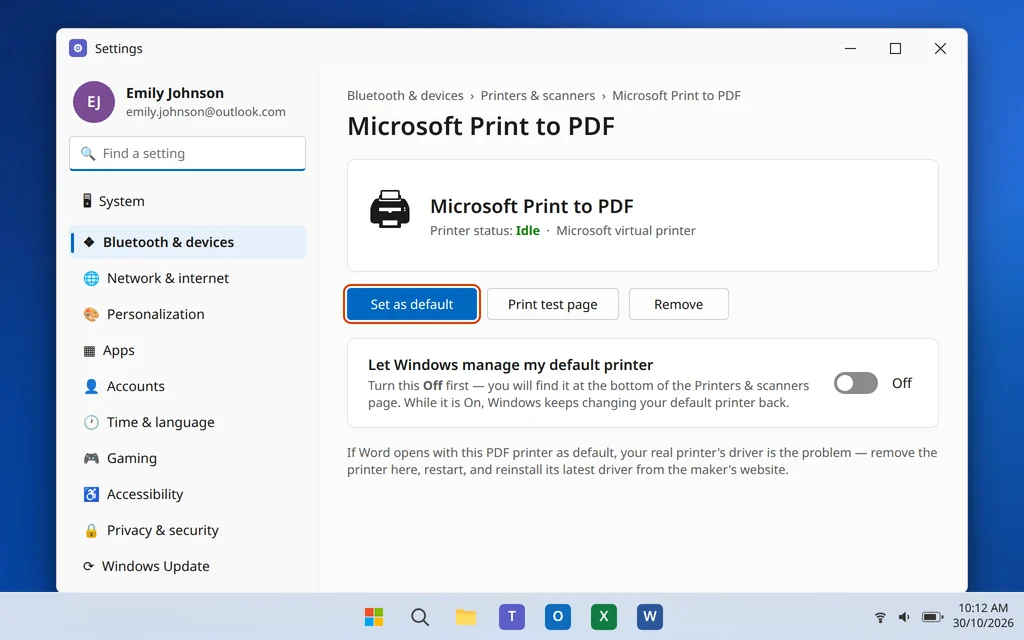
If Word opens with the PDF printer as default, your real printer’s driver is the problem. Go back to Printers & scanners, click your printer, choose Remove, restart the PC, then download and install the latest driver from the printer maker’s website. Add the printer again and set it as default. If Word still refuses to open even with the PDF printer, the driver was not the cause — continue to Fix 6.
Fix 6: Update Office
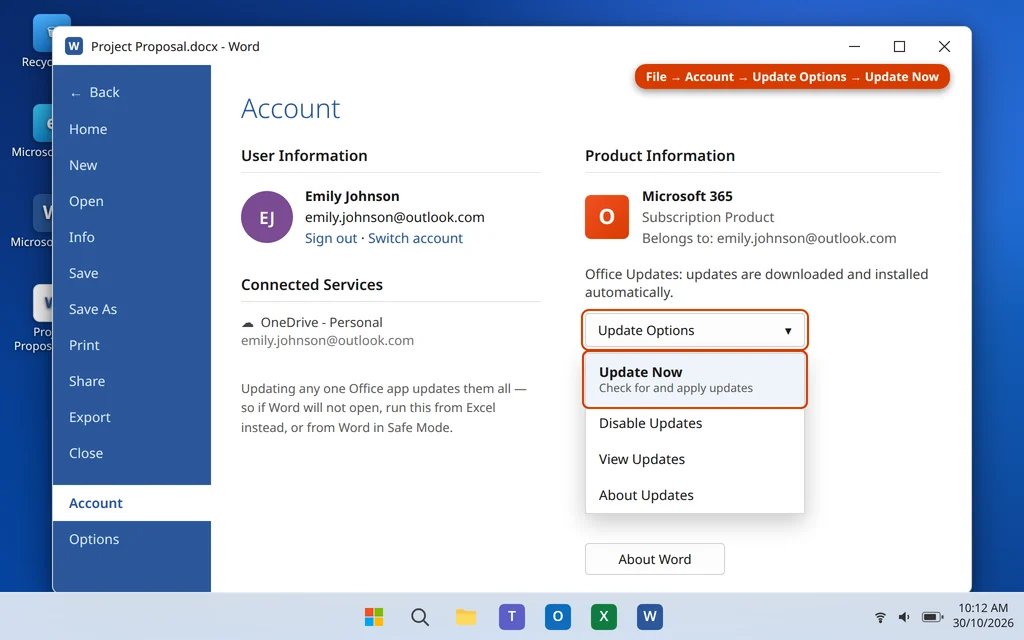
Startup bugs are one of the things Office updates quietly fix. If another Office app opens normally, you can update everything through it — updating one Office app updates Word too.
- Open any Office app that does open (for example, Excel), or open Word in Safe Mode using Fix 2.
- Click File > Account.
- Click Update Options, then Update Now.
- Let the update download and install, close the app, and open Word normally.
Also run Settings > Windows Update > Check for updates while you are at it — printer and graphics driver updates arrive through there too, and both have appeared in this guide already.
Fix 7: Test Word in a New Windows User Account
Your Word template, settings and add-in registrations all live inside your Windows user profile. If that profile is damaged, Word can fail for you and work perfectly for everyone else. A quick test account tells you whether that is what is happening.
- Open Settings > Accounts > Other users.
- Click Add account. When asked how the person will sign in, choose I don’t have this person’s sign-in information, then Add a user without a Microsoft account.
- Give it a simple name like “Test”, click Next, then sign out of your own account and sign in to the new one.
- Open Word in the test account.
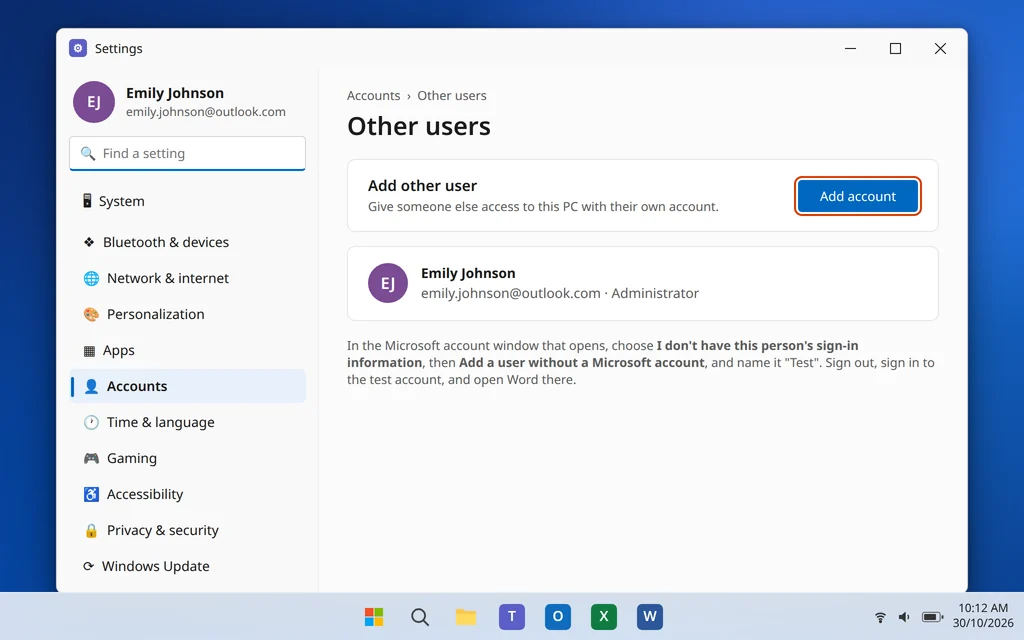
If Word opens in the new account, your original profile is damaged. The practical fix is to move your documents from C:\Users\[YourOldName] into the new account and use it as your main account. If Word fails there too, the problem is with the Office installation itself, which leaves one option — Fix 8.
Fix 8: Uninstall and Reinstall Office
Save this for last. A clean reinstall replaces every Office file and setting at once, so it clears damage that even Online Repair misses. Your documents — on this PC or in OneDrive — are not affected, because documents are separate from the Office programs.
- Open Settings > Apps > Installed apps, find Microsoft 365, click the three dots and choose Uninstall.
- Restart your PC when the uninstall finishes.
- In your browser, go to account.microsoft.com, sign in with the account that owns your Office, and open Services & subscriptions.
- Find your Microsoft 365 or Office product and click Install. Run the downloaded installer.
- Open Word and sign in when asked, to activate it.
If Word still will not open after a full reinstall on a healthy test account, the cause is almost certainly outside Office — a failing drive or damaged Windows itself. Our guide to a PC slow on Windows 11 covers the Windows health checks worth running at that point.
How to Stop Word Not Opening Again
- Let Office updates finish. Most startup bugs are fixed silently in updates — postpone them for weeks and you keep the bugs.
- Shut down properly. Forcing the power off while Word is open is a common way to damage the template and leave WINWORD.EXE stuck.
- Be selective with add-ins. Every add-in loads at startup. Remove the ones you no longer use instead of leaving them all enabled.
- Keep a copy of Normal.dotm. Once Word works the way you like, copy the fresh Normal.dotm somewhere safe — restoring it takes ten seconds if the template breaks again.
- Watch the pattern. Word fails only after printing? Suspect the printer driver first. Only after an update? Run Fix 4’s repair before anything deeper.
Frequently Asked Questions
Why does Word show the splash screen but never open?
Usually because it is stuck on one startup step: a leftover WINWORD.EXE process, an add-in that will not load, a damaged Normal.dotm template, or a wait on a broken printer driver. Fixes 1 to 5 each clear one of those, in the order they are most likely.
Will renaming Normal.dotm delete my documents or settings?
No. Your documents are separate files and are never touched. The fresh template uses default settings, so custom styles or macros stored in the old template will not carry over — but since you renamed it to Normal.old rather than deleting it, it is still there as a backup.
Word opens in Safe Mode but not normally. What does that mean?
Something Word normally loads is broken — almost always an add-in, and occasionally the template or the graphics acceleration setting. Disable all add-ins (Fix 2), turn them back on one at a time to find the faulty one, and rename Normal.dotm (Fix 3) if add-ins turn out to be clean.
How long should Word take to open?
On a typical Windows 11 PC, Word opens in a few seconds. If the splash screen has sat unchanged for more than a couple of minutes, Word is stuck, not slow — waiting longer will not fix it. End the process with Fix 1 and work through the guide.
Is WINWORD.EXE a virus?
No — WINWORD.EXE is simply Microsoft Word’s program file, the name you see in Task Manager. Seeing it there after Word has crashed or closed is normal for this problem; it is the leftover process from the frozen session, and ending it in Task Manager is safe.
Does repairing or reinstalling Office delete my files?
No. Quick Repair, Online Repair and even a full reinstall only replace the Office program files. Your Word documents, wherever you saved them, stay exactly where they are. You may need to sign in again afterwards to activate Office.
Still stuck with Word not opening? Tell us where it stops — splash screen, error message, or nothing at all — on our Contact page — servicedesk@howtofixerroronline.com, available 24 hours — and see our other Microsoft Office guides for Excel, PowerPoint and OneDrive help.