
Outlook Error 0x80042109: Cannot Connect to Your Outgoing (SMTP) Server — 7 Fixes
Receiving mail works fine. But the moment you try to send, Outlook reports error 0x80042109: “Outlook cannot connect to your outgoing (SMTP) e-mail server.” Your replies pile up in the Outbox while new mail keeps flowing in — the classic half-broken mailbox.
That one-way failure is actually good news for diagnosis. Incoming and outgoing mail use different servers, different ports and different rules, and error 0x80042109 is confined to the outgoing side. The single most common cause is one most people have never heard of: your internet provider blocks port 25, the ancient default SMTP port, to fight spam — and Outlook is still trying to use it. Fix 1 deals with that in about a minute.
Quick Answer: Outlook error 0x80042109 means Outlook cannot reach the outgoing (SMTP) server while incoming mail still works. The #1 cause is your ISP blocking port 25 — switch the outgoing port to 587 with STARTTLS (or 465 with SSL) in your account settings (Fix 1). Then confirm SMTP authentication is on (Fix 2), the server name is exactly your provider’s (Fix 3), and no firewall, antivirus or VPN is blocking the path (Fix 4).
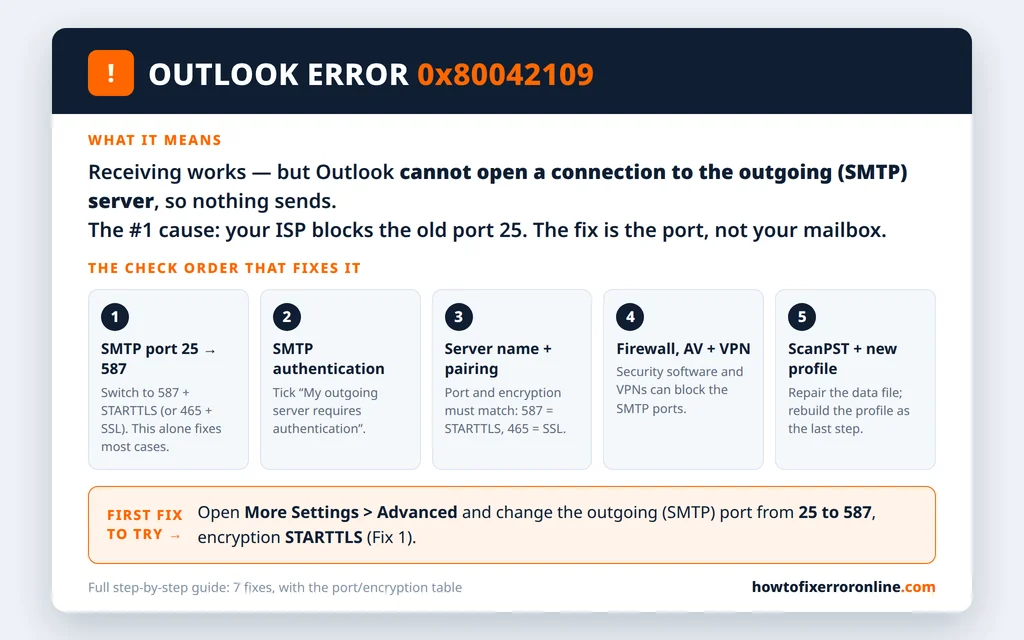
Table of Contents
What Does Outlook Error 0x80042109 Mean?
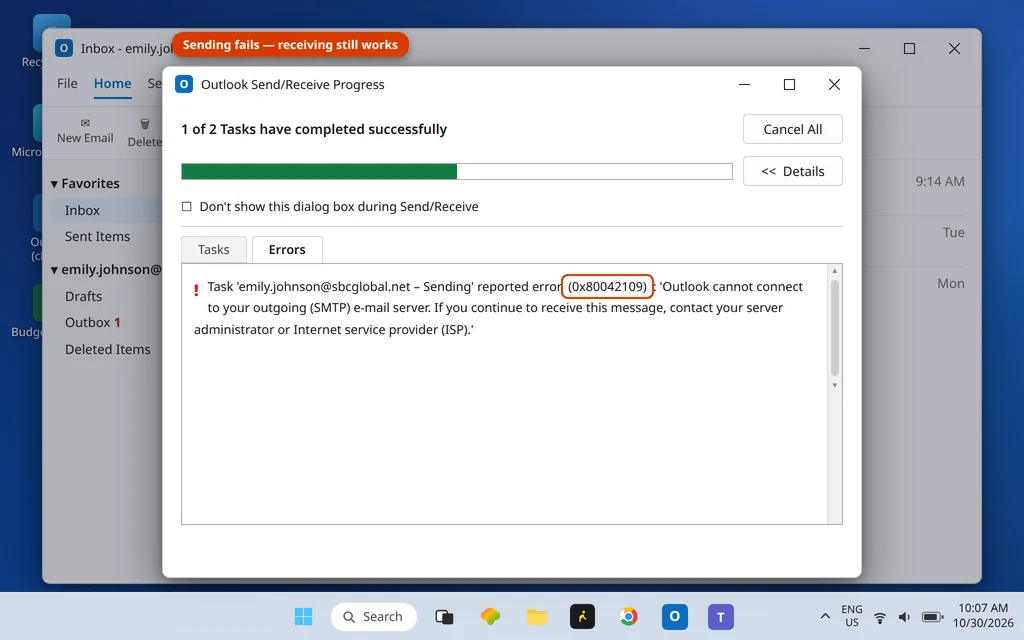
The error appears in the Outlook Send/Receive Progress window, on the Errors tab, attached to the Sending task:
“Task ’emily.johnson@sbcglobal.net – Sending’ reported an error (0x80042109): ‘Outlook cannot connect to your outgoing (SMTP) e-mail server. If you continue to receive this message, contact your server administrator or Internet service provider (ISP).'”
SMTP is the protocol Outlook uses to hand outgoing mail to your provider. Code 0x80042109 says that handover never happened — Outlook could not establish the connection to the SMTP server at all. The established causes, in order of likelihood: the outgoing port is blocked (port 25 above all), the port and encryption type do not match, SMTP authentication is off or missing, the server name is wrong, or security software/a VPN is cutting the connection. Data-file and profile damage sit at the end of the list.
Its mirror image exists too: if you can send but not receive, that is error 0x80042108 on the incoming (POP3) side — covered in our companion guide to Outlook error 0x80042108. And if neither direction connects at all, start with Outlook error 0x800CCC0E instead. All three are decoded together on the Error Codes hub.
Fix 1: Switch the SMTP Port to 587 — the Port 25 Block
Internet providers block outgoing traffic on port 25 because it was the channel spam operations used to blast junk from infected home PCs. Legitimate sending moved years ago to the “submission” ports, 587 and 465, which require sign-in — but older accounts, and settings copied from old setup guides, still point at port 25, where the connection simply never completes.
- In Outlook, go to File > Account Settings > Account Settings.
- Select the account named in the error and click Change.

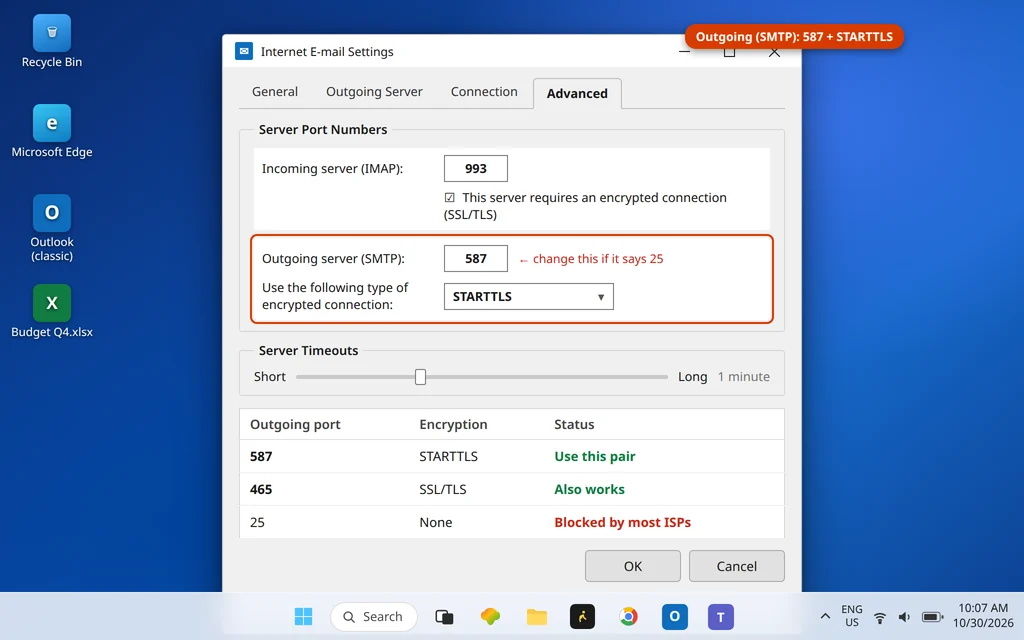
- Click More Settings, then the Advanced tab.
- In the Outgoing server (SMTP) box, replace the port with 587, and set the encryption dropdown to STARTTLS. (If your provider’s published settings say 465, use 465 with SSL/TLS instead — the port and encryption must be the matching pair.)
- Click OK > Next. Outlook tests the account; a successful test send means you are done.
Works at home, fails on hotel or café Wi-Fi?
This is the port-25 problem wearing a disguise. Many hotel, café, airport and campus networks block port 25 outbound even when your home provider does not — so Outlook sends happily from your desk and fails from a coffee shop, with no setting changed. Switching to 587/STARTTLS fixes it permanently, because the submission ports are the ones every network expects modern email to use. If sending fails only on one network and works everywhere else after this fix, that network was the cause.
Fix 2: Turn On SMTP Authentication
Most providers will not accept outgoing mail from a connection that has not signed in. If SMTP authentication is off, the server refuses or drops the connection — and Outlook reports it as this error.
- Open File > Account Settings > Account Settings > select the account > Change > More Settings.
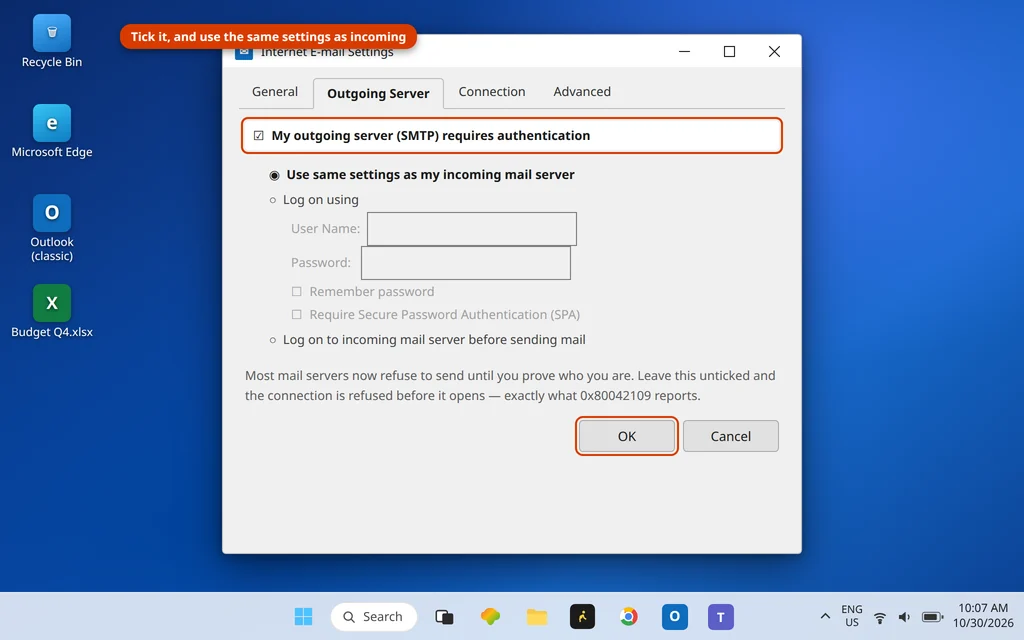
- Open the Outgoing Server tab.
- Tick My outgoing server (SMTP) requires authentication.
- Select Use same settings as my incoming mail server, then OK > Next.
While you are in the account settings: if your provider is one that uses an app password or secure mail key (Gmail, Yahoo, AOL, AT&T), that key must be the password Outlook has saved for both directions — an updated key saved only for incoming mail leaves sending broken.
Fix 3: Check the SMTP Server Name and the Port/Encryption Pairing
The outgoing server name must be exactly the one your provider publishes — a leftover server from a previous provider is a common stowaway after an ISP switch. The reliable values for the biggest providers (Gmail: smtp.gmail.com, Outlook.com: smtp-mail.outlook.com, Yahoo/AOL: smtp.mail.yahoo.com / smtp.aol.com, AT&T: smtp.mail.att.net) are listed in the settings table in our 0x800CCC0E guide.
The pairing rule is the part people get wrong: 587 goes with STARTTLS, 465 goes with SSL/TLS, and port 25 belongs to neither on a home connection. A mismatched pair (587 with SSL/TLS, or 465 with STARTTLS) fails the handshake and produces this same error, which is why changing the port alone sometimes “doesn’t work.”
Fix 4: Check the Firewall, Antivirus and VPN
Security software can block the outgoing connection while leaving incoming mail untouched — some suites scan or proxy SMTP specifically, and certain firewall/AV combinations are named in user reports for exactly this error.
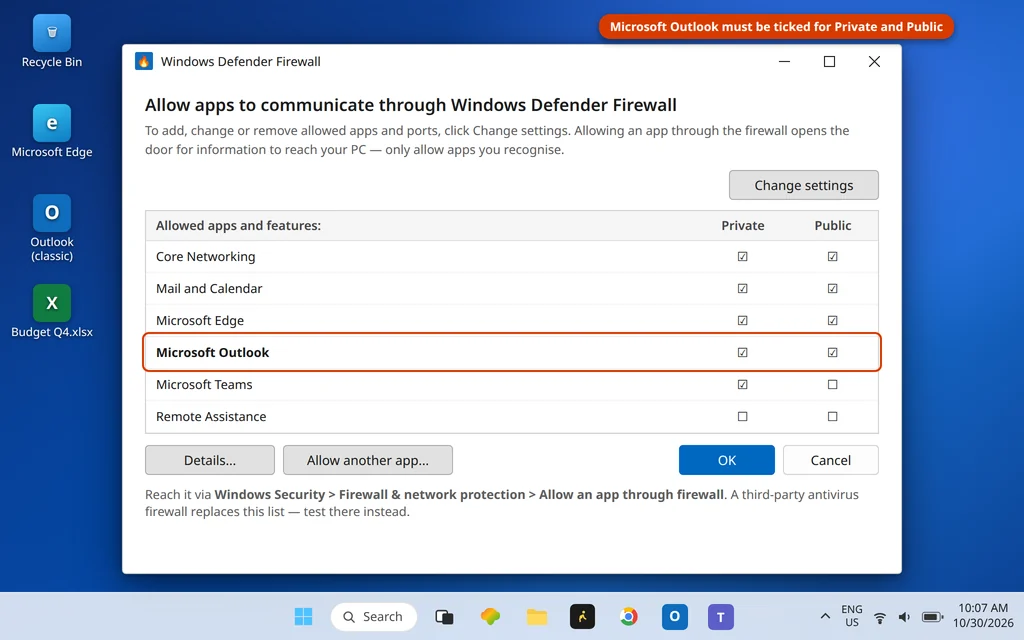
- Windows Firewall: open Windows Security > Firewall & network protection > Allow an app through firewall and confirm Microsoft Outlook is ticked for your network type (Private/Public).
- Third-party antivirus: look for an email-scanning or outgoing-mail feature and disable only that feature as a test, then send a message. If sending works, update the suite; leave the main protection on.
- VPN: disconnect it and test again. Some VPN services block SMTP ports on their standard servers to prevent abuse; if the VPN is the cause, its provider usually offers designated mail-friendly servers or a split-tunnel option.
Fix 5: Rule Out Add-Ins, Then Repair the Data File
If settings and security software check out, test whether something inside Outlook is interfering, and then check the data file itself.
- Start Outlook in Safe Mode: close Outlook, press Windows key + R, type
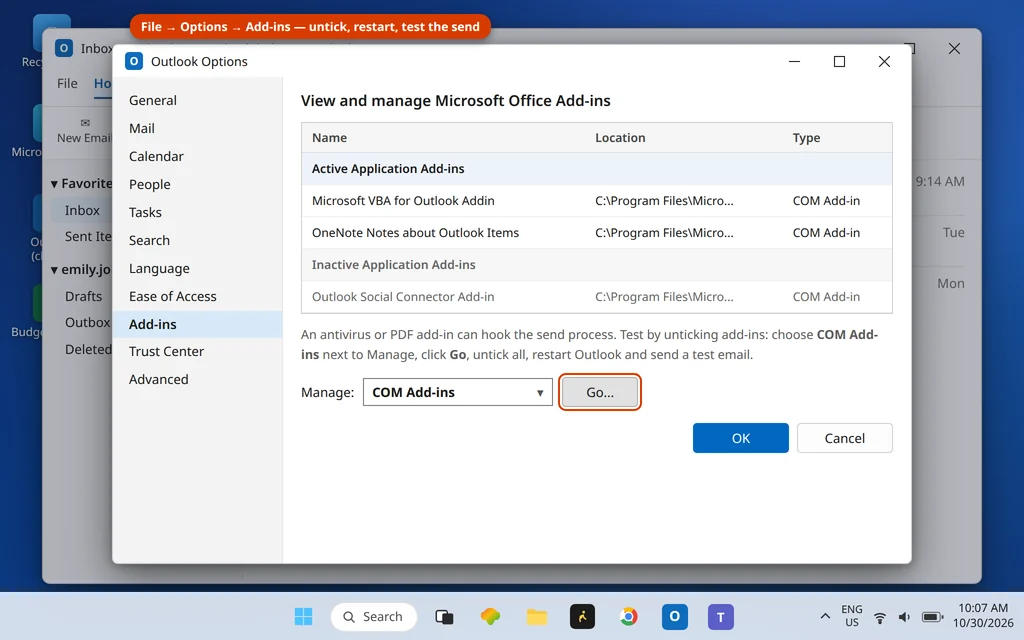
outlook.exe /safe, press Enter, and try sending. If it sends, manage add-ins via File > Options > Add-ins > COM Add-ins > Go and disable them in batches to find the culprit.
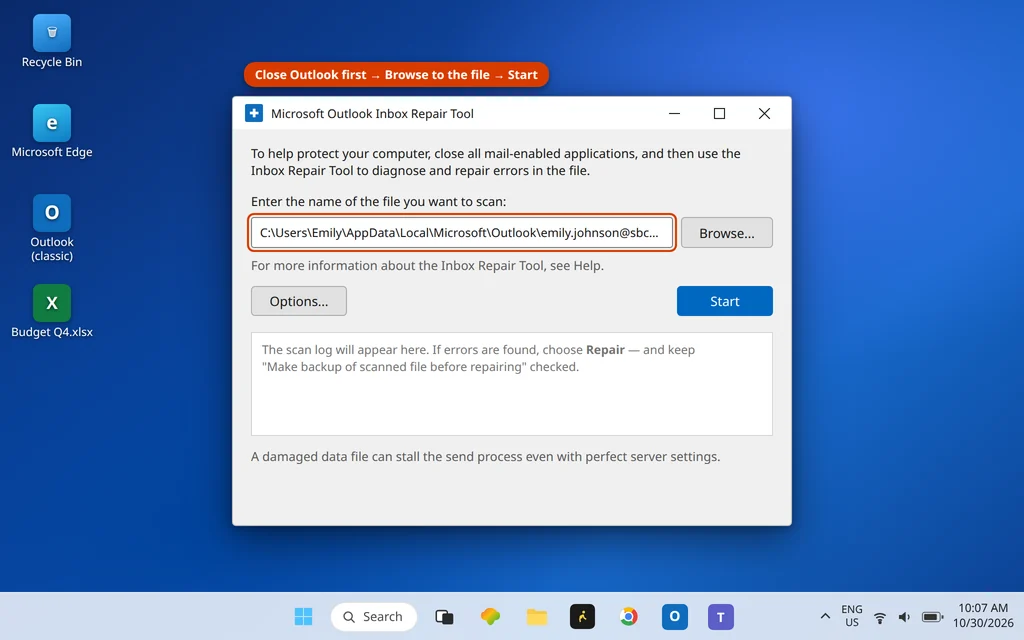
- Repair the data file with SCANPST.EXE (usually
C:\Program Files\Microsoft Office\root\Office16\SCANPST.EXE): select the account’s data file, click Start, then Repair if errors are found, keeping the backup option ticked.
Fix 6: Remove and Re-Add the Account — or Create a New Profile
As the last step, rebuild the account connection from scratch. Removing and re-adding does not delete server-side mail on IMAP or Microsoft 365 accounts.
- File > Account Settings > Account Settings: note the account’s settings, select it, and click Remove.
- Click New, and add the account again with the provider’s current published settings (correct port pair and app password where one is used).
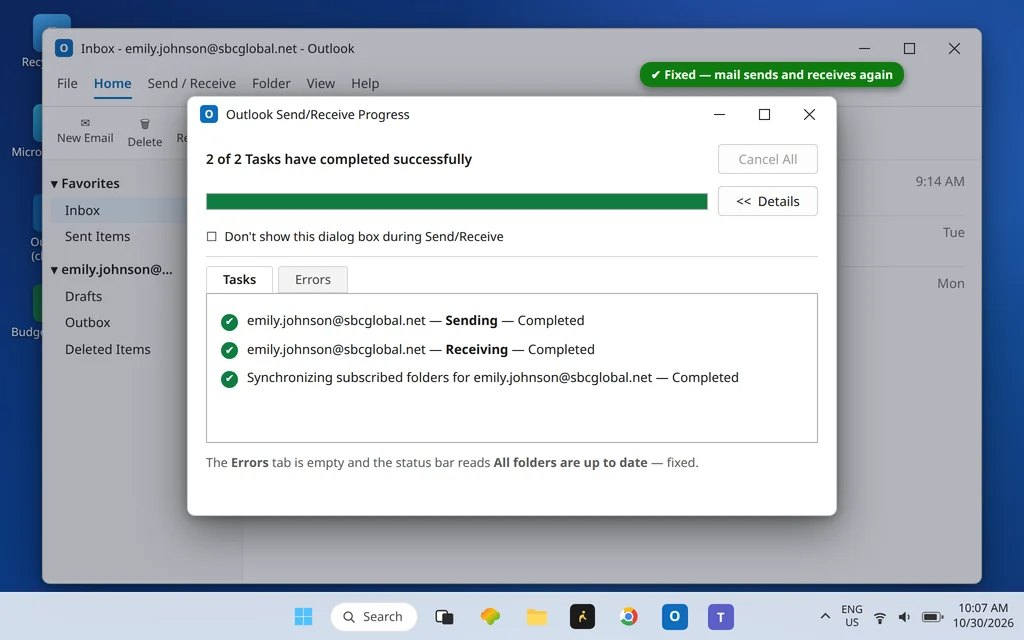
If even a fresh account fails the same way, the profile itself is damaged: go to Control Panel > Mail (Microsoft Outlook) > Show Profiles > Add, build a new profile with the account, and set it under Always use this profile. When sending works again, Send/Receive completes with an empty Errors tab:
Using the New Outlook?
The new Outlook for Windows does not report this code — it has no More Settings dialog or port fields to edit in the same way, so these steps apply to Classic Outlook. If the new app will not send, remove and re-add the account in its settings, and check the same provider facts (it uses your provider’s modern sign-in, so a stale app password setup is not carried over). If the account sends fine in the new app or in webmail but not in Classic Outlook, the problem is inside Classic Outlook’s settings — which is what the fixes above walk through.
How to Stop Error 0x80042109 Coming Back
- Stay on 587 (STARTTLS) or 465 (SSL/TLS) — never go back to port 25, even if an old guide suggests it.
- After changing provider or password, update Outlook’s saved settings the same day; half-fixed accounts are the ones that break later.
- Keep a note of the working combination — server name, port, encryption — for each account.
Frequently Asked Questions
What is error code 0x80042109 in Outlook?
It is Outlook’s “cannot connect to the outgoing (SMTP) server” error: receiving still works, but the Sending task in Send/Receive fails because Outlook could not establish a connection to the server that accepts your outgoing mail. The most common cause is the outgoing port — port 25 blocked by your internet provider.
Why can I receive but not send in Outlook?
Because incoming and outgoing mail are separate systems. Incoming mail arrives via IMAP or POP on its own server and port; outgoing mail leaves via SMTP on a different server and port. Error 0x80042109 only touches the outgoing path, so your inbox keeps updating while everything you write waits in the Outbox.
Why does my ISP block port 25?
Port 25 was email’s original sending port and requires no sign-in, which made it the spam industry’s favourite channel — infected home PCs used to blast junk mail through it. Providers now block outbound port 25 on consumer connections and expect real sending to happen on the authenticated submission ports, 587 or 465, which is what Fix 1 switches you to.
Should SMTP be 587 or 465 in Outlook?
Either works when the encryption matches the port: 587 with STARTTLS is the standard modern choice and the one to try first; 465 with SSL/TLS is the equally valid alternative some providers publish. What fails is a mismatch — 587 with SSL/TLS, or 465 with STARTTLS — and port 25, which most networks block.
What if I see 0x80042109 and 0x800CCC0E together?
That combination appears in real user reports and makes sense: both directions are failing to connect, so Outlook shows the general “cannot connect” code (0x800CCC0E) alongside the SMTP-specific one. Work through our 0x800CCC0E guide for the shared causes — internet connection, server names, blocked ports — and keep this guide’s Fix 1 and Fix 2, which target the sending side specifically.
Still cannot send? Tell us your email provider and your current SMTP port/encryption via our Contact page — servicedesk@howtofixerroronline.com, available 24 hours. The pair to this guide — the incoming-mail mirror error — is Outlook Error 0x80042108, and the full index is on the Error Codes hub.
Pingback: Outlook Error 0x80042108: Can't Connect to POP3 — 6 Fixes (2026)
Pingback: Outlook Not Sending Emails but Can Receive? 6 Fixes (2026)