
AT&T Email Not Sending in Outlook (Can Receive but Not Send) — att.net, SBCGlobal & Bellsouth
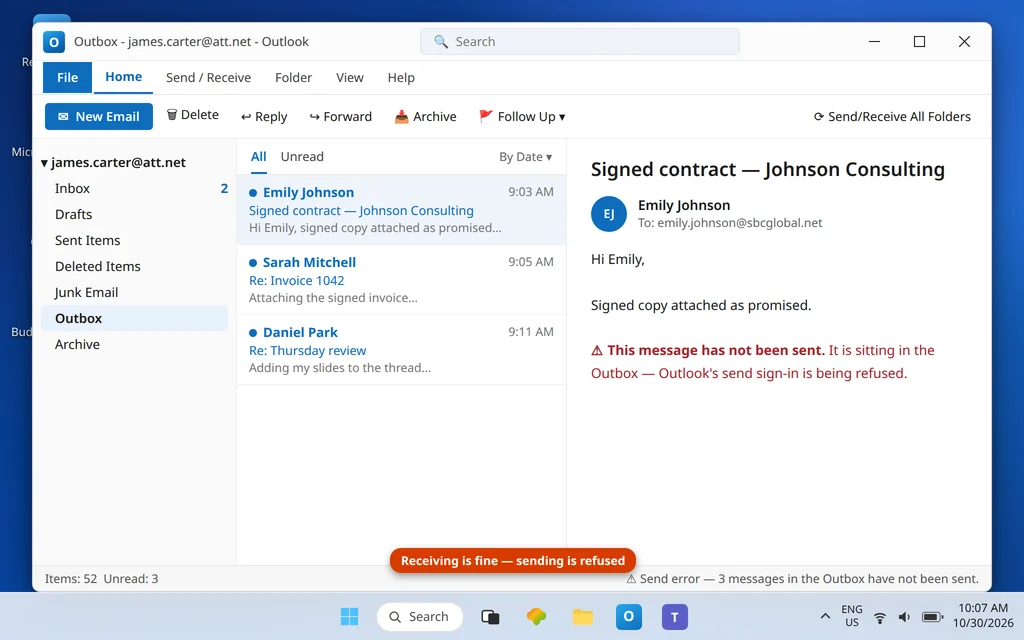
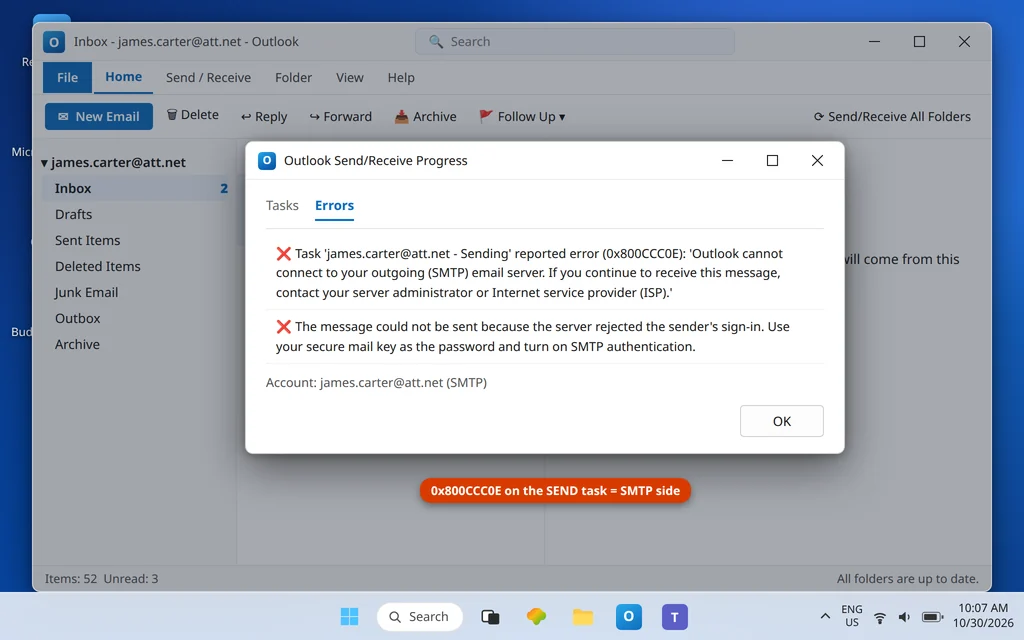
“I can receive but not send emails using my AT&T address from Outlook.” That exact complaint fills Microsoft’s Q&A forums, and it has a satisfyingly specific cause. Receiving and sending are two separate sign-ins in Outlook. Your AT&T-family account — @att.net, @sbcglobal.net, @bellsouth.net or any of AT&T’s other legacy domains — may be receiving perfectly because the incoming password field holds the right credential, while the outgoing (SMTP) side is still presenting your ordinary AT&T password, which AT&T no longer accepts from email apps. Every send then fails, messages pile up in the Outbox, and Outlook reports errors like 0x800CCC0E or a repeating password prompt. If att email not sending in outlook is the problem you are here to fix, the sending side — not your inbox — is where the answer lives.
This guide fixes the sending side: the secure mail key in the SMTP password field, the correct outgoing server and ports, and SMTP authentication switched on. If instead you cannot receive (but can send), that is the mirror guide: SBCGlobal Email Not Receiving in Outlook. If sending is broken for every account in Outlook, not just the AT&T one, work through Outlook Not Sending Emails but Can Receive first.
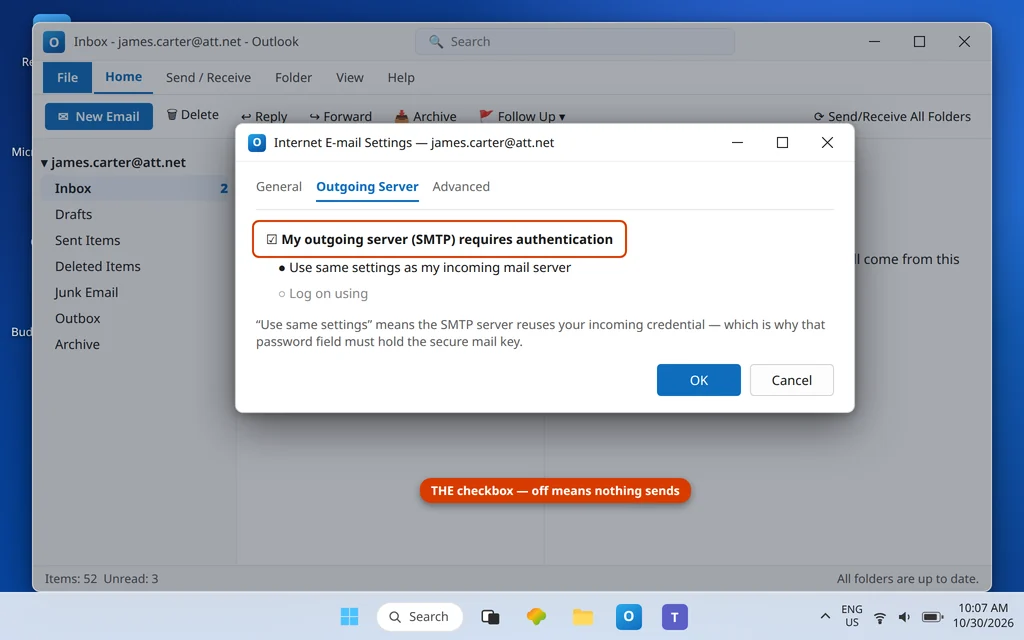
Quick Answer: Open the account settings for your AT&T address, go to More Settings → Outgoing Server and confirm “My outgoing server (SMTP) requires authentication” is ticked with “Use same settings as my incoming mail server” selected — then make sure the password Outlook reuses there is your secure mail key (the 16-character key from your AT&T profile), not your account password. Set the outgoing server to
smtp.mail.att.neton port 465 (SSL) or 587 (TLS). Send a test message with the Outbox empty. If the key previously worked for sending and suddenly does not, AT&T may have deleted it during an account lock — generate a fresh key.
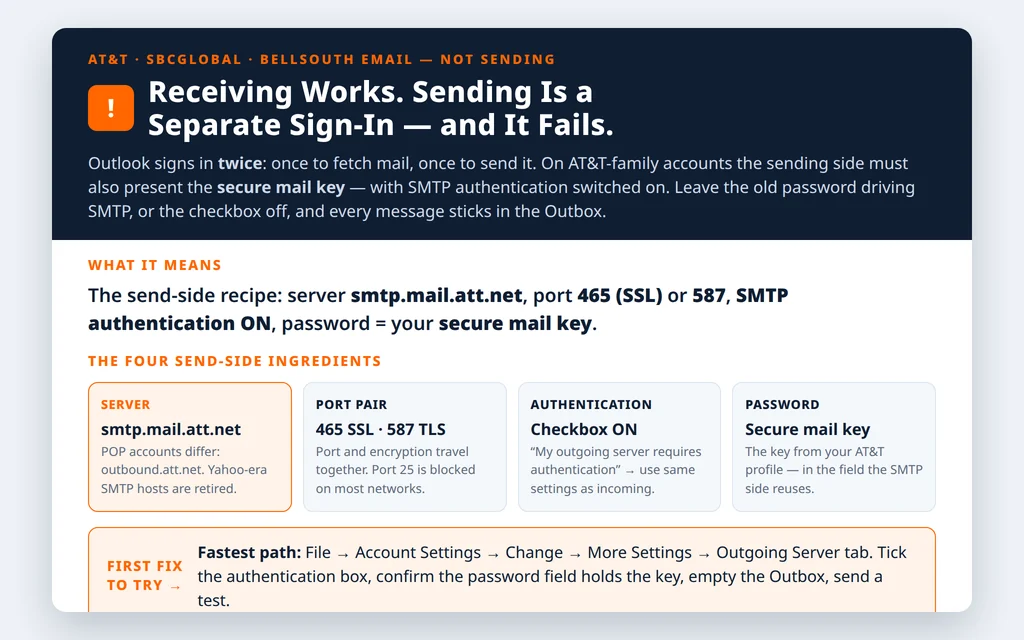
Table of Contents
Fix 1 — att email not sending in outlook: put the secure mail key in the SMTP password field
AT&T’s rule covers the whole sign-in, both directions: apps that do not use AT&T’s own sign-in screen must present a secure mail key (16 characters, generated in your AT&T profile under Settings → Add secure mail key) wherever a password is asked for — incoming and outgoing. The classic half-fixed state is a working key on the incoming side and the old password effectively still driving the SMTP side.
- If you have never created a key: sign in at att.com → profile → Settings (pencil icon) → Add secure mail key, select your address, copy the 16-character key.
- In Outlook: File → Account Settings → Account Settings → select the AT&T account → Change.
- Confirm the Password field holds the secure mail key (this is the credential the outgoing server reuses when “use same settings” is on).
- Click More Settings → Outgoing Server and tick My outgoing server (SMTP) requires authentication → Use same settings as my incoming mail server.
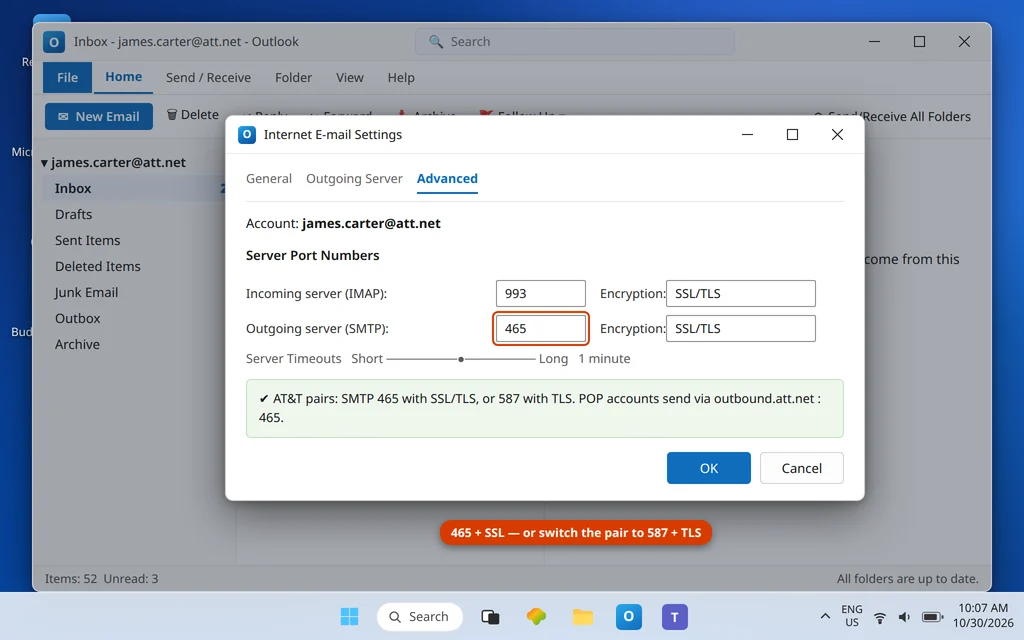
- Advanced tab: outgoing server
smtp.mail.att.net, port 465 with SSL/TLS, or 587 — then OK, Next, Finish. - Empty the Outbox (delete or drag out anything stuck — see Fix 4), then send a fresh test.
Fix 2 — Use AT&T’s current SMTP settings
Retired servers are the second cause. Years of AT&T/Yahoo-era setups left behind hosts that no longer answer; the current table for the whole family is:
| Setting | IMAP accounts | POP accounts |
| Incoming server | imap.mail.att.net: 993 SSL | inbound.att.net: 995 SSL |
| Outgoing server (SMTP) | smtp.mail.att.net | outbound.att.net |
| SMTP port | 465 (SSL) or 587 | 465 |
| SMTP authentication | Required — same settings as incoming | Required |
| User name | Full email address | Full email address |
| Password (both fields) | Secure mail key | Secure mail key |
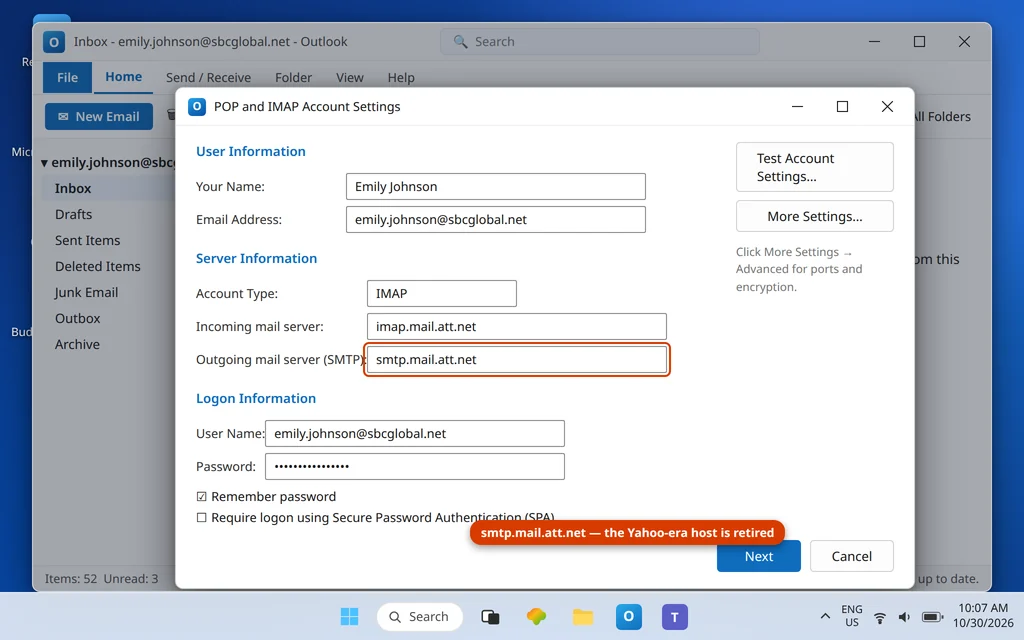
If your outgoing server says anything Yahoo-flavored (smtp.att.yahoo.com and friends), replace it — that infrastructure is retired. Note the POP difference: POP accounts send through outbound.att.net, not smtp.mail.att.net.
Fix 3 — Match the port and encryption pair
Port and encryption travel together. The two combinations AT&T publishes for IMAP accounts are 465 + SSL/TLS and 587 (with TLS). The mismatch that fails silently is port 587 with encryption set to “None”, or an ancient port 25 — many home internet providers block 25 outright, which produces exactly this “can receive, can’t send” shape even before AT&T is asked anything. If 465 fails on your network, switch the pair to 587 + STARTTLS/TLS and test again; both are first-class AT&T options.
Fix 4 — Clear the stuck Outbox properly
A message that failed to send can block everything behind it. Open the Outbox, and for each stuck message: drag it to Drafts, open it there, and press Send again — re-sending from Drafts forces a fresh attempt with the corrected settings. If a message will not move, switch Outlook to Work Offline (Send/Receive tab), restart Outlook, delete the message from the Outbox, then turn Work Offline off. Only run this fix after Fixes 1–3, or the message will simply stick again.
Fix 5 — Key deleted after an AT&T account lock
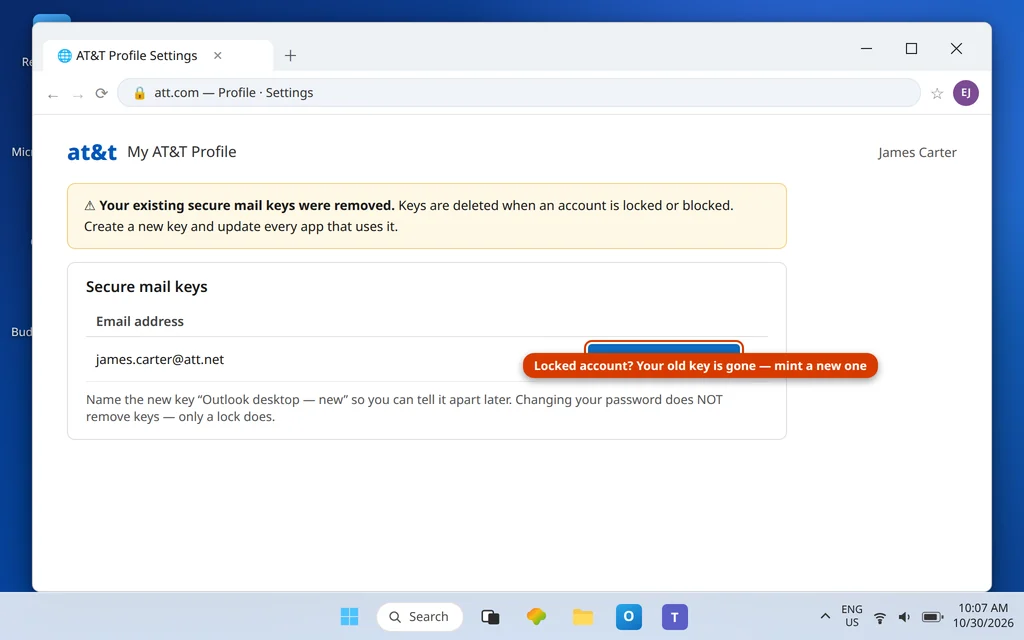
If sending worked until recently and nothing on your PC changed, suspect the key. AT&T deletes secure mail keys when it locks or blocks an account, and a lock can follow nothing more dramatic than a run of failed phone sign-ins. Sign in to webmail at currently.com to confirm the account is active, generate a new secure mail key, and paste it into Outlook (Fix 1). Note what does not kill keys: changing your AT&T password leaves them valid.
SBCGlobal email not sending from Outlook
For @sbcglobal.net, every step above applies verbatim — same servers (smtp.mail.att.net), same key, same authentication checkbox. SBCGlobal accounts carry one extra decade of history: setups created in the Yahoo-partnership era often still show the retired Yahoo SMTP host. If your SBCGlobal Outbox is stuck, check the outgoing server name first; a Yahoo-era host plus a plain password is the usual double fault.
Bellsouth email not sending from Outlook
@bellsouth.net is the same AT&T platform wearing its oldest badge, so the fix is identical: secure mail key in both password roles, SMTP authentication on, smtp.mail.att.net (or outbound.att.net for POP) with 465/587. Bellsouth addresses are heavily represented among the “can receive but not send” reports precisely because they are the accounts most likely to still be running pre-key, Yahoo-era settings.
Reading the send errors
- 0x800CCC0E — Outlook could not connect to the (outgoing) server: wrong SMTP host, wrong port/encryption pair, or the network blocking the port. Our dedicated Outlook error 0x800CCC0E guide walks the connection side.
- Password prompt on every send — the SMTP side is being offered the account password. That is Fix 1.
- 0x80042109 — Outlook cannot connect to the outgoing server at all; see the 0x80042109 guide in the Error Codes hub. In AT&T-family accounts it almost always resolves with the Fix 2 server table.
Confirm it worked
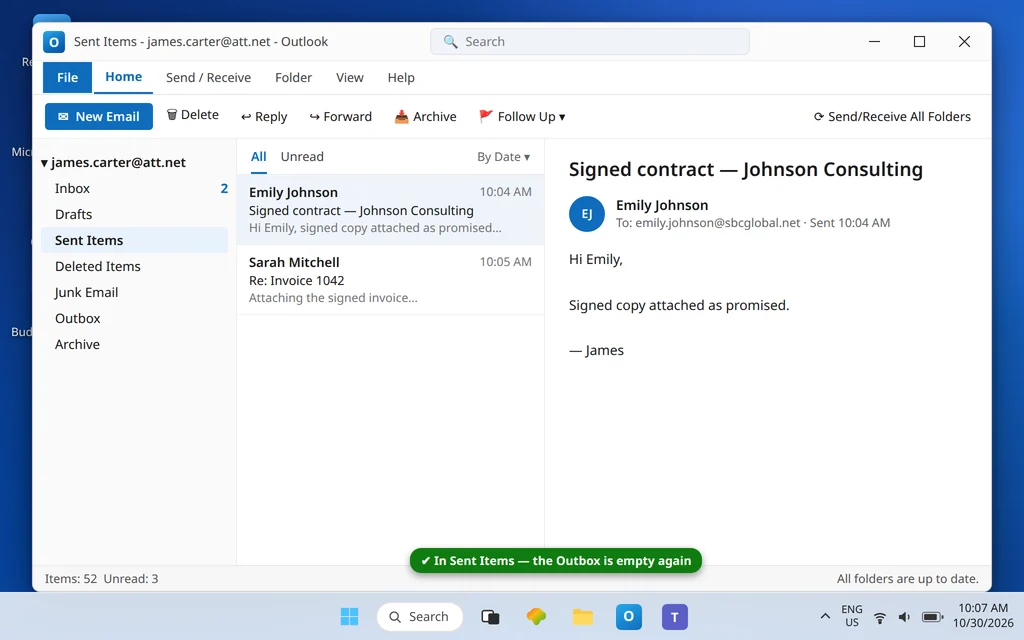
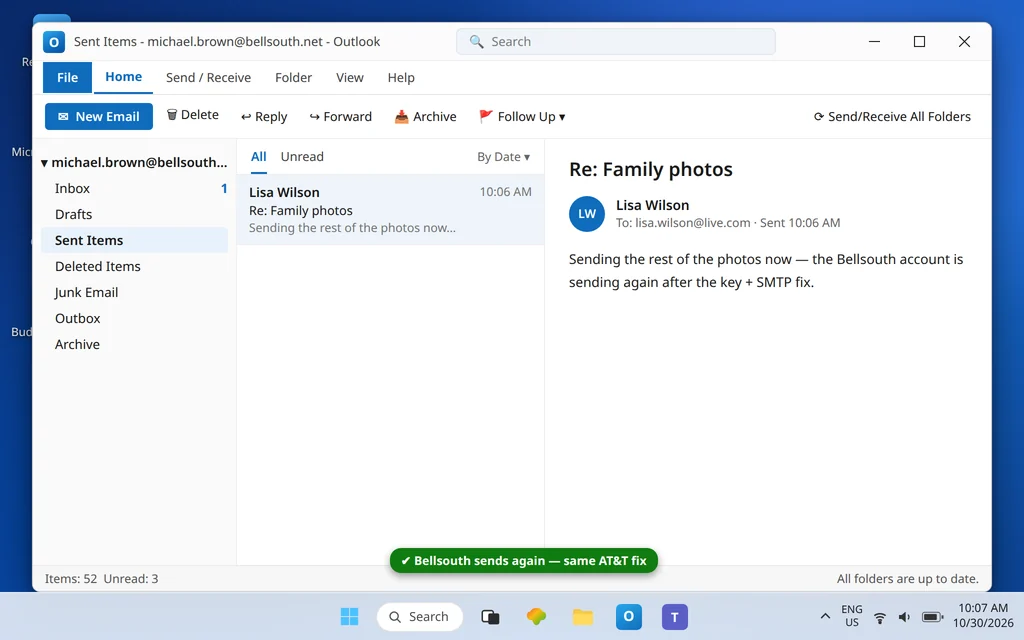
Send a test to an address outside AT&T (a Gmail or Outlook.com address), then reply to it. Both directions arriving, with an empty Outbox, means the account is whole again.
How to stop it happening again
- One key, both fields. Any time you regenerate a key, update the Outlook password field immediately — the outgoing server reuses it.
- Write the key down in your password manager at creation; AT&T shows it once.
- After any AT&T security event (lock, forced reset on the website), test both directions in Outlook the same day — locks delete keys silently.
- Keep the two healthy pairs in mind: 465 + SSL or 587 + TLS. If a network change breaks one, switch pairs before changing anything else.
Frequently asked questions
Why can I receive AT&T email in Outlook but not send?
Because sending is a separate sign-in. Your incoming side works — likely with a secure mail key already in place — while the outgoing (SMTP) side is either not authenticating, or is presenting your AT&T account password, which AT&T rejects from email apps. Tick “My outgoing server requires authentication → Use same settings as my incoming mail server” and make sure the password Outlook reuses is the secure mail key, on smtp.mail.att.net port 465 or 587.
What are the correct AT&T SMTP settings for Outlook?
Outgoing server smtp.mail.att.net (IMAP accounts) on port 465 with SSL/TLS or port 587, SMTP authentication required, user name = your full address, password = your secure mail key. POP accounts use outbound.att.net on port 465 instead. The same settings serve @att.net, @sbcglobal.net and @bellsouth.net.
Do I need a separate secure mail key for sending?
No — one key per address covers both directions, because the outgoing server reuses your incoming sign-in (“Use same settings as my incoming mail server”). You only need a new key if AT&T deleted the old one during an account lock, or if you prefer separate keys per device.
Why did AT&T sending stop suddenly after months of working?
The usual trigger is an AT&T account lock or block, which deletes your secure mail keys. Failed sign-ins elsewhere (an old phone still trying, for instance) can cause the lock without anything changing on your PC. Confirm webmail works at currently.com, generate a fresh key, and update Outlook’s password field.
My Outbox messages are stuck even after the fix. What now?
They were queued under the broken settings. Move each stuck message from the Outbox to Drafts, open it, and press Send so it goes out fresh. A message that will not move at all needs Outlook in Work Offline mode, a restart, and deletion from the Outbox before you send a new copy.
Does changing my AT&T password break sending?
No. AT&T is explicit that password changes do not invalidate secure mail keys. What breaks sending is a lock (keys deleted), an old Yahoo-era SMTP server still in the settings, or the SMTP authentication checkbox being off — all three are covered above.
Sending again — or still stuck with an error code on screen? Contact us at servicedesk@howtofixerroronline.com or through our Contact page and tell us your address domain, the exact error number, and whether webmail sends fine from currently.com. Never send us your password or secure mail key — we will never ask for either.