
Microsoft Teams Screen Sharing Shows a Black Screen
From your side, everything looks fine. You clicked Share, picked your content, and your own preview shows your slides exactly as they should. Then someone unmutes: “We just see a black screen.” Sharing has started — Teams is transmitting something — but what your viewers receive is a black rectangle.
Keep this guide’s symptom separate from its neighbors. If you cannot start sharing at all — no Share button, an error, nothing happens — that is Microsoft Teams Screen Sharing Not Working. If your share works but is choppy or behind, that is Microsoft Teams Screen Sharing Lagging. This article is only for the black picture: the share runs, the content is black. The causes are specific — a window Teams cannot capture, content that is designed not to be captured, a permissions mismatch, or a graphics path problem — and each fix below matches one of them.
Quick Answer: Stop the share and start again, this time sharing your whole screen instead of a single window — a minimized or capture-protected window is the most common source of a black share. If the black area is a video or streaming app, it is probably protected content, which shows black to viewers by design and cannot be fixed with settings. Next, check that the app you are sharing is not running as administrator while Teams runs normally, turn off hardware acceleration in the browser you are sharing from, and update your graphics driver.
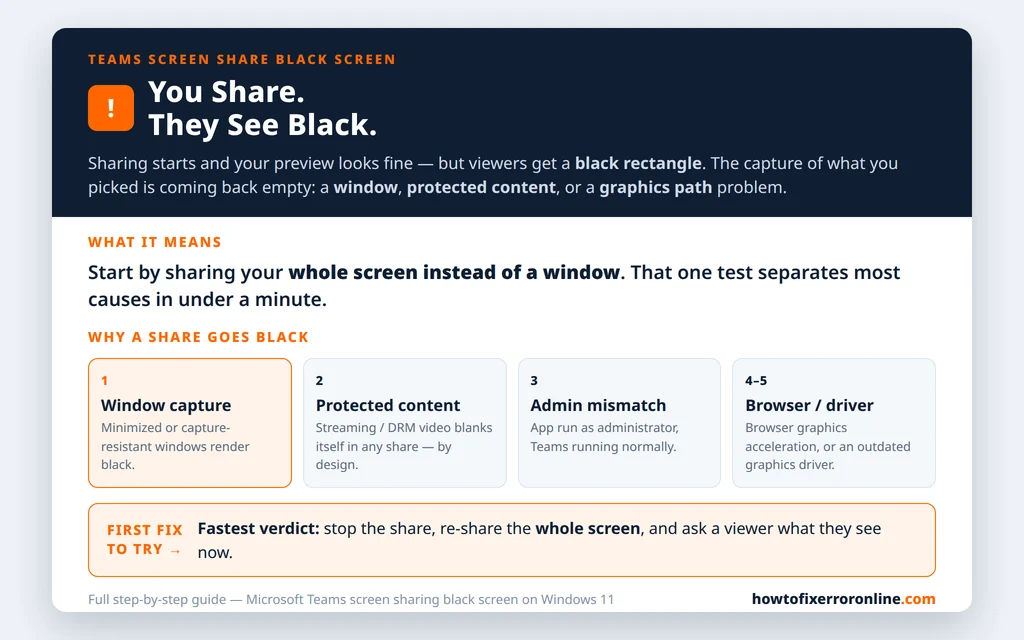
Table of Contents
Fix 1 — Share your whole screen instead of a single window
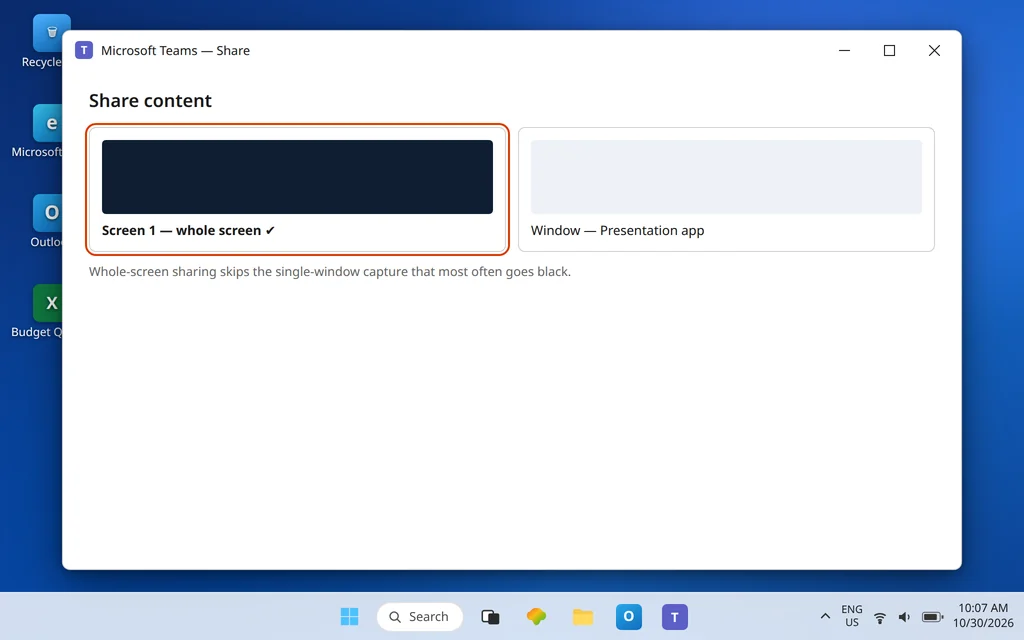
Window sharing asks Windows to capture one app’s window, and some windows do not capture cleanly: they render black, frozen, or only their frame. The fastest diagnostic in this whole guide is to change what you share:
- Stop the current share.
- Click Share again and choose your screen/desktop (for example, “Screen 1”) instead of the individual window.
- Bring the app you want to show to the front and ask a viewer to confirm.
If the whole-screen share works, the problem was the window capture, and you can either keep sharing the screen (tidy your desktop first — viewers see everything on it) or read the window-specific fixes below with that knowledge. One window behavior to know: a minimized window can show as black or frozen to viewers, because there is nothing being drawn to capture. Restore the window to the screen before sharing it, and keep it restored while you present.
Fix 2 — Protected content shows black by design (and that is not a fault)
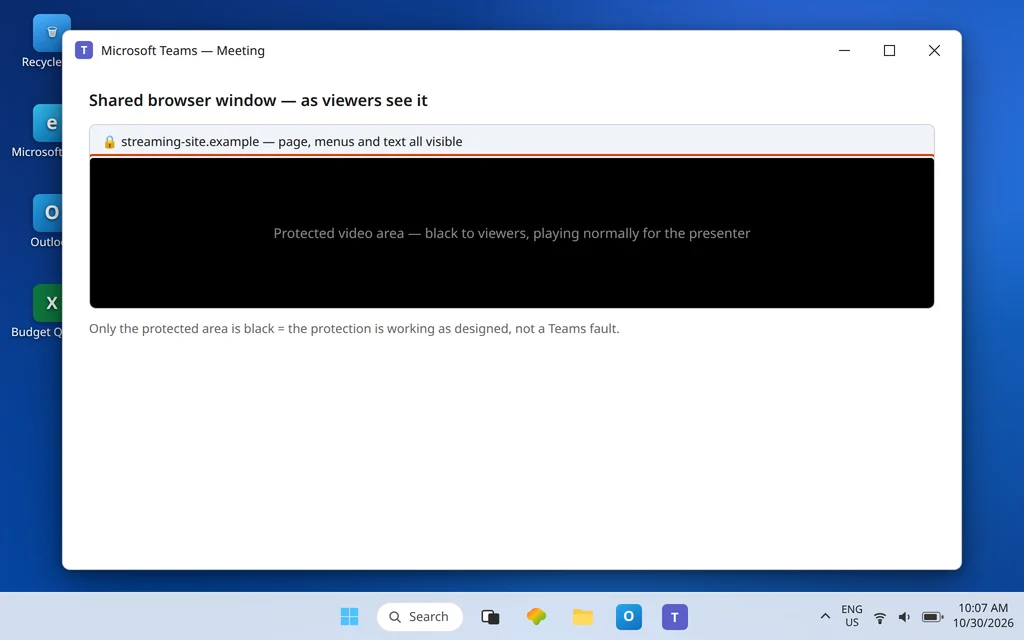
Some content is built so it cannot be captured. Many streaming services, rented movies, and some protected workplace apps deliberately blank their picture in screenshots and screen shares — you see the video normally on your own screen, while anyone capturing or viewing the share sees black where the video should be. This is the protection working as intended, not a Teams bug, and no Teams, Windows, or driver setting will change it.
How to recognize it: the rest of your share is fine — menus, browser chrome, other apps all show — and only the video/protected area is black. The honest workarounds are to present around the protected content (talk through a summary slide, share the surrounding page rather than the player), or to check whether the content owner offers a presentation-friendly version. If a training video is essential, ask the provider how it may be shown in meetings — that is a licensing question, not a technical one.
Fix 3 — Match the elevation: an app run as administrator
If the app you are sharing was launched with Run as administrator while Teams itself runs as a normal app, Windows treats the two as living at different permission levels — and the capture can come back black or empty. This bites most often with IT tools, installers, and older line-of-business apps that demand elevation.
- Close the app you are trying to share.
- Relaunch it normally — double-click it as usual, without Run as administrator.
- Share it again and ask a viewer to confirm.
If the app genuinely cannot run without elevation, share your whole screen (Fix 1) instead of its window, which avoids the mismatched capture in many cases, and plan the demo so the elevated app is a guest on your screen rather than the star of it.
Fix 4 — Turn off hardware acceleration in the browser you are sharing
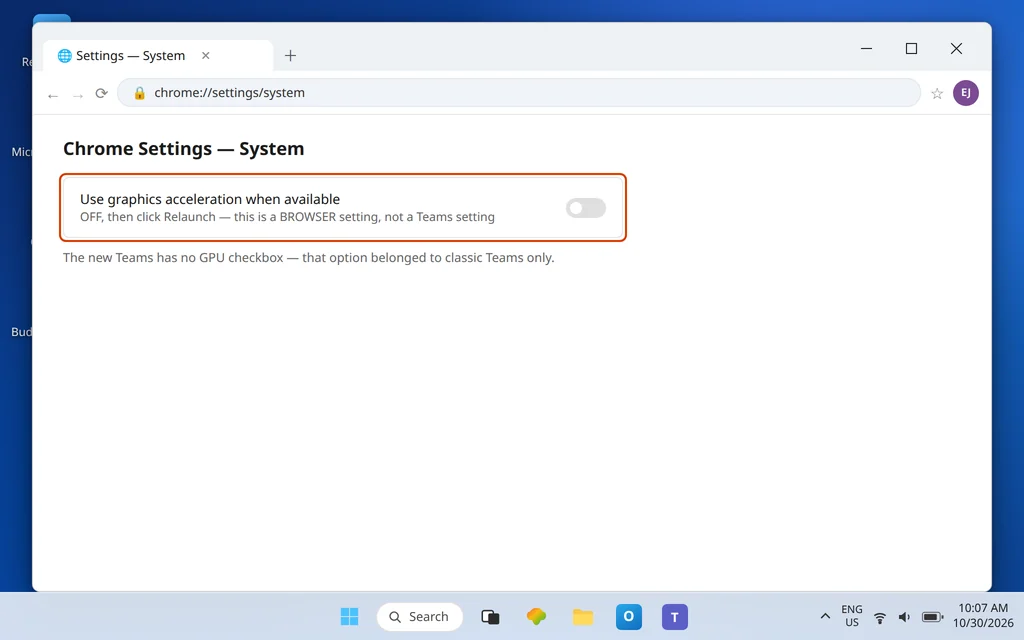
If the black content lives in Chrome or Edge — a web app, a dashboard, a video in a tab — the browser’s own hardware acceleration can be the layer that fails to capture. Note carefully: this is a browser setting. The new Microsoft Teams does not have a “Disable GPU hardware acceleration” checkbox (that option belonged to classic Teams), so do not go hunting for it in Teams settings — it is not there.
For Chrome:
- Open Settings > System.
- Turn off Use graphics acceleration when available.
- Click Relaunch and share the tab/window again.
For Edge:
- Open Settings > System and performance.
- Turn off Use graphics acceleration when available.
- Restart Edge and re-share.
If the share turns visible, leave the setting off for that browser; the everyday cost is small on most PCs.
Fix 5 — Update your graphics driver
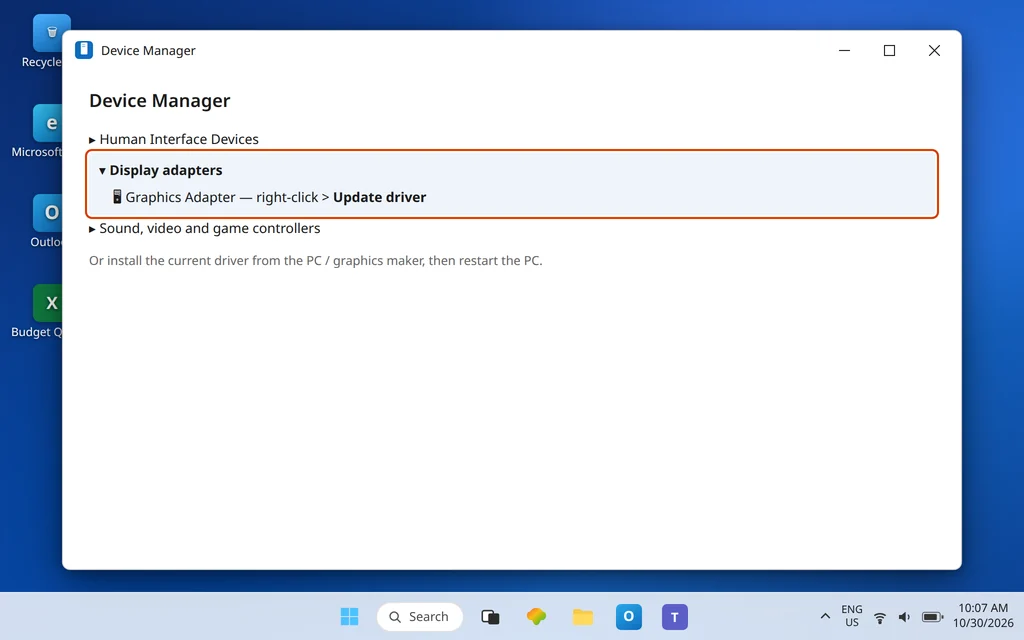
Screen capture runs through your graphics driver, and an old or generic driver is a recurring cause of shares that render black on some PCs and fine on others. Update it properly:
- Right-click Start and open Device Manager.
- Expand Display adapters, right-click your graphics adapter, and choose Update driver > Search automatically for drivers.
- For a more reliable result, download the current driver from the PC or graphics maker (Intel, AMD, NVIDIA, or your laptop manufacturer) and install it, then restart the PC.
Test the share again after the restart — driver changes rarely take full effect without one. If shares from this PC also crash Teams outright at times, work through Microsoft Teams Keeps Crashing or Freezing as well; a bad graphics path can sit underneath both symptoms.
Fix 6 — Share the correct monitor
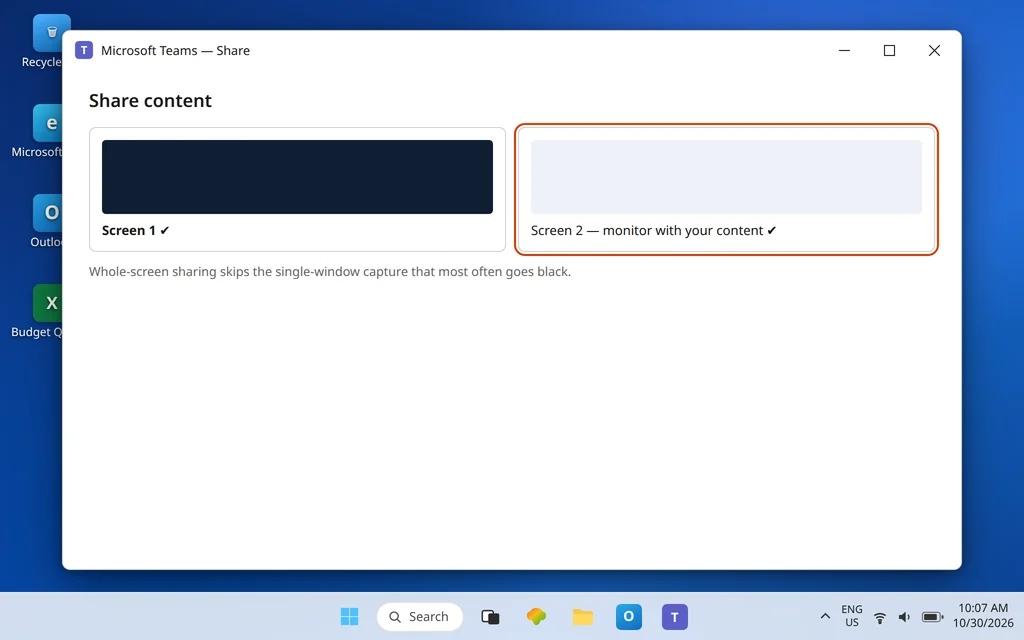
On a multi-monitor setup, “black” sometimes means “you are looking at the wrong screen” — you shared the display your content is not on, or a display that has gone to sleep or is driven by a dock that is misbehaving.
- Stop the share, click Share, and look carefully at the screen thumbnails: choose the monitor that actually holds your content — move the app there first if needed.
- If a monitor is connected through a docking station and its share is black while the laptop’s own screen shares fine, test once with the monitor connected directly to the laptop. That single test separates a dock/display-path problem from a Teams problem.
- Wake every display before the meeting; a sleeping monitor can be offered in the picker and share as black.
Fix 7 — Presenting slides? Use PowerPoint Live instead
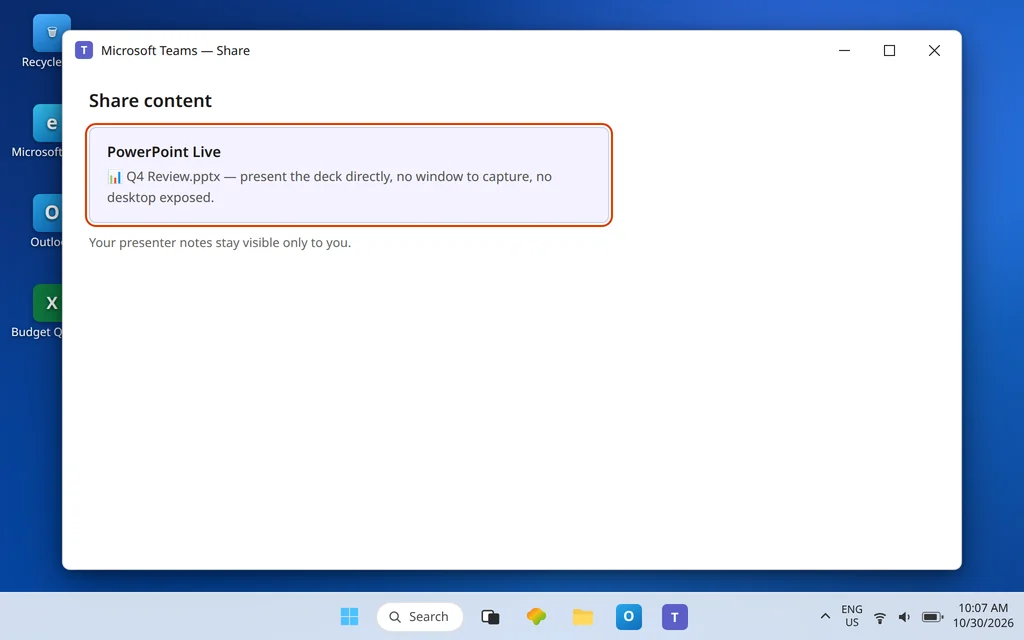
If the black share is a PowerPoint deck, skip screen sharing entirely. PowerPoint Live puts the deck into the meeting directly from the file, so there is no window to capture and no desktop exposed:
- In the meeting, click Share.
- Under PowerPoint Live, pick the file from OneDrive/SharePoint or browse for it.
- Present — viewers see crisp slides, and you still see your notes and slide sorter on your side.
It is also the better presenting experience in general: slide navigation works even on a weak connection, and nobody sees your notifications pop up over the deck.
Fix 8 — Isolate with Teams on the web, then update
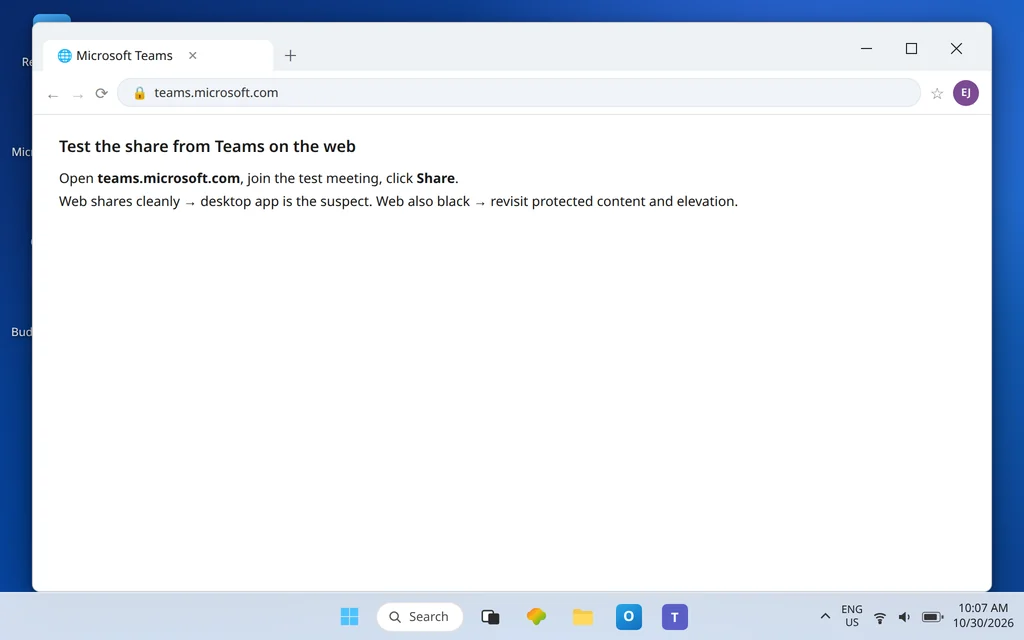
To find out whether the fault is your desktop app or something wider, run one test share from teams.microsoft.com in Chrome or Edge. If the web version shares cleanly, your account and meeting are fine and the desktop app is the suspect: click the … next to your profile picture and check for updates, restart Teams, and repeat Fix 1. If the web version is also black for the same content, revisit Fixes 2 and 3 — protected content and elevation behave the same in the browser, which is itself a useful answer.
Confirm it worked
Start a test meeting with Sarah Mitchell or another colleague and run the matrix that matters: share your whole screen (visible?), share the specific window you actually present from (visible?), and share the browser content you use most (visible?). Have the viewer describe what they see at each step rather than asking “can you see it?” — people answer that question kindly and vaguely. Then repeat the real share in your next live meeting and confirm in the first ten seconds, before you build momentum on an invisible slide.
How to stop it happening again
- Default to whole-screen sharing for capture-sensitive apps, and to PowerPoint Live for decks — the two routes that skip window capture entirely.
- Keep the shared window restored, on the monitor you are sharing, for the whole presentation.
- Update the graphics driver when Windows updates land, not months later; display problems cluster after big updates on stale drivers.
- Launch demo apps the ordinary way on meeting days, so elevation never mismatches mid-presentation.
Frequently asked questions
Why do people see a black screen when I share in Teams?
Because the capture of what you picked is coming back empty. The usual reasons are: a single window that does not capture cleanly (or is minimized), protected content that blanks itself in any capture, the shared app running as administrator while Teams runs normally, browser hardware acceleration interfering with a shared tab, or an outdated graphics driver. Fix 1 — sharing the whole screen — separates the first group from the rest in under a minute.
Why is a shared window black but my desktop shares fine?
That pattern points at the window’s capture path, not your connection. The window may be minimized, running elevated, or rendering in a way the capture cannot read (common with hardware-accelerated browsers — Fix 4). Keep the window restored, relaunch it without administrator rights, or simply share the screen with the window on it.
Why does a video or streaming site show black when I share it?
Because that content is protected. Many streaming and rental services intentionally show a black picture in screenshots and screen shares while playing normally on your own screen. It is by design, and no setting removes it. Present around the protected material, or check with the content provider about meeting-friendly ways to show it.
Is there a “Disable GPU hardware acceleration” setting in Teams?
Not in the new Microsoft Teams — that checkbox existed in classic Teams only. If a guide tells you to find it in current Teams settings, the guide is out of date. The hardware-acceleration toggle that does help a black share today is in the browser you are sharing from (Chrome or Edge — Fix 4).
Can running an app as administrator really cause a black share?
It can. Windows separates elevated and normal apps, and a capture by a normally-running Teams may come back black for an administrator-run window. Relaunching the app normally, or sharing the whole screen instead of that window, resolves the mismatch (Fix 3).
What should I use instead of sharing PowerPoint as a window?
PowerPoint Live. From the meeting’s Share menu, choose the deck under PowerPoint Live and Teams renders the slides directly — no window capture, no exposed desktop, and you keep your presenter notes visible only to you (Fix 7).
Still sharing a black rectangle? Contact us at servicedesk@howtofixerroronline.com or through our Contact page and tell us what you were sharing (whole screen, a window, or browser content), which app or site went black, and whether the whole-screen test in Fix 1 worked. We will never ask for your password.